Algorithm testing
The user can test the created algorithm. The condition for starting the test is the correct configuration of the algorithm. As a result of testing, a specific set of values is returned.
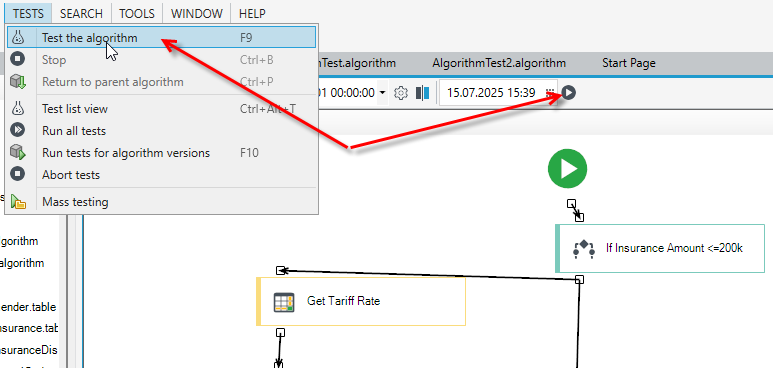
- From the Tests menu, select Test the algorithm or select the Test button on the ribbon in the Tests group.
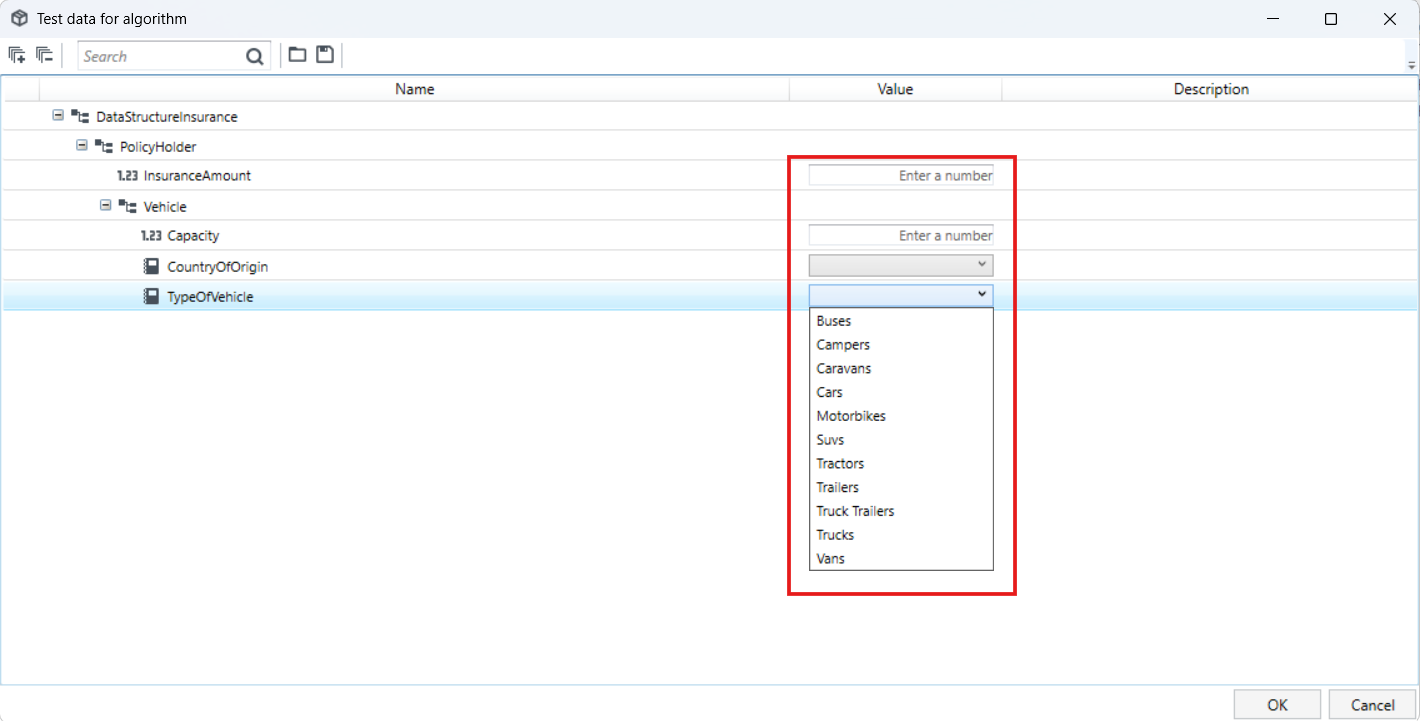
- The Algorithm test data window will be displayed, in which you should check and complete the fields, assigning them values.
- Click Ok when you are finished assigning values.
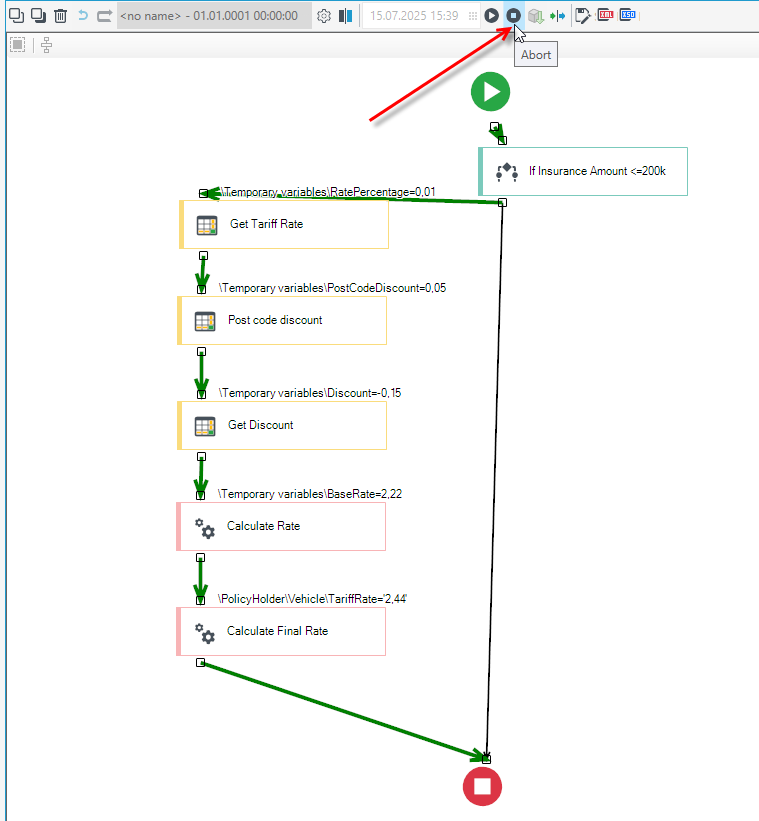
- Review the tested algorithm.
- Finish testing the algorithm by clicking the Abort button on the ribbon.
- It is possible to mark the selected variable as required. A variable marked as required is necessary to complete.
- After assigning specific values in the algorithm, the course of execution is displayed on the algorithm.
- The user can preview the selected element. To do this, double-click the item.
- It is also possible to preview the item from the context menu. To do this, right-click on the block and then select the Preview option from the context menu. The system will display the element editing window.
- The context menu allows you to compare the inputs and outputs with the algorithm under test. From the context menu, select Compare input and output.
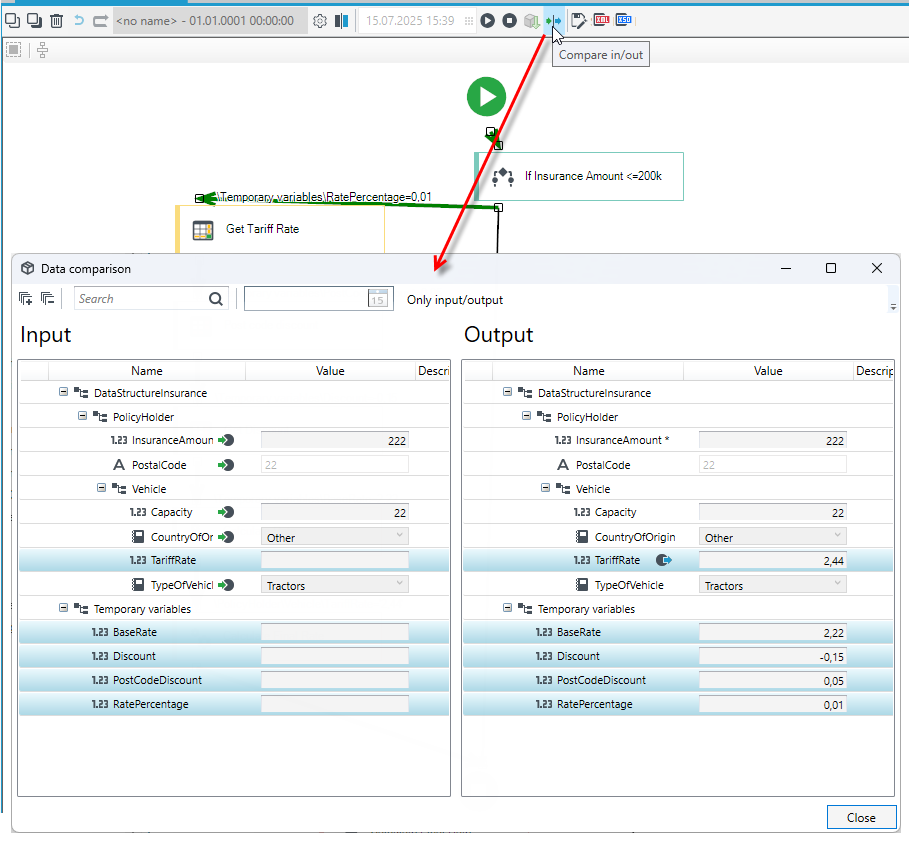
- In the Data structure window, the user can save the values defined for the variables as a data file or read the saved data. To do this, in the test data structure window, select the Save data or Load data option.
- If there is a data group in the data structure used by the algorithm that has been marked as a list, the user has the option to add an item to the list. To do this, select the data group marked as a list or an element of this data group and select the Add at the top of the list or Add below option from the context menu displayed after right-clicking.
Variable Requisability vs. Algorithm Testing
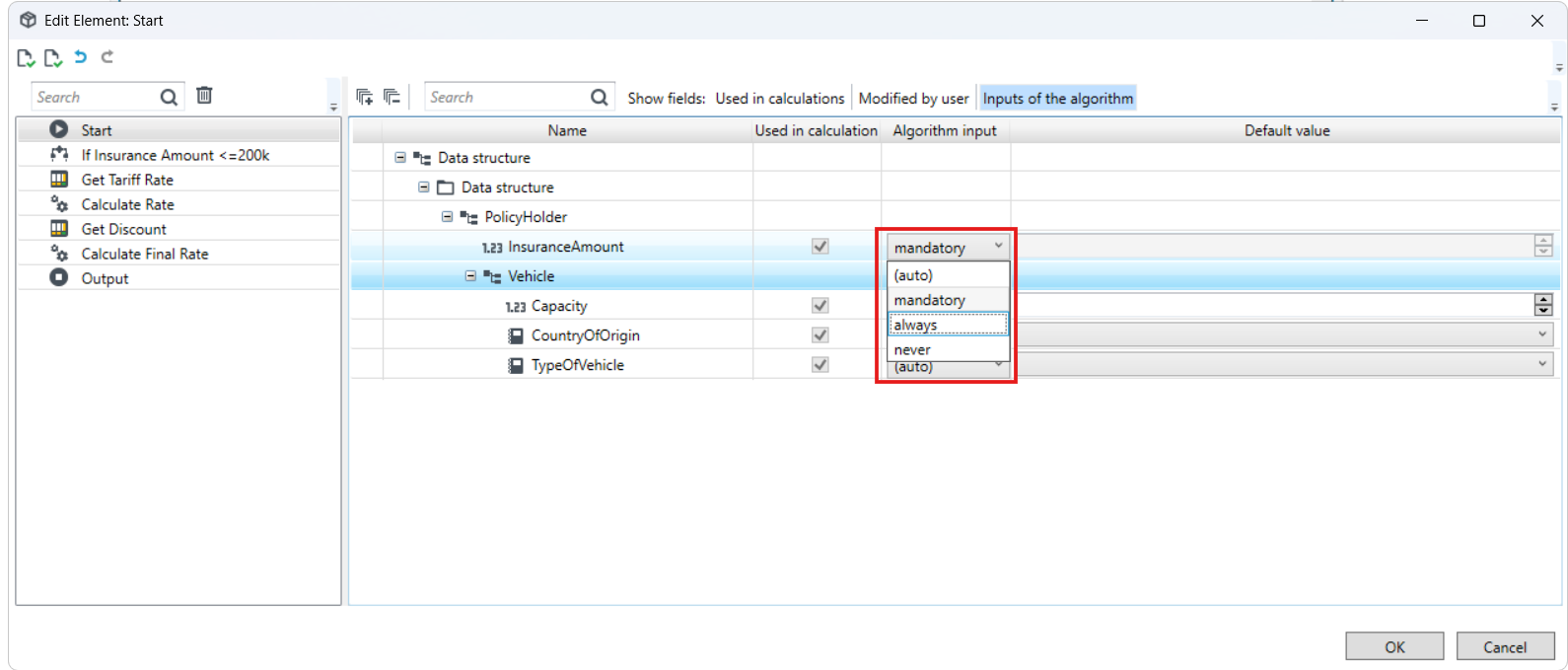
- If you have set the field's requirement on the Start element to mandatory, then this field must be filled in for the algorithm test to be executed.
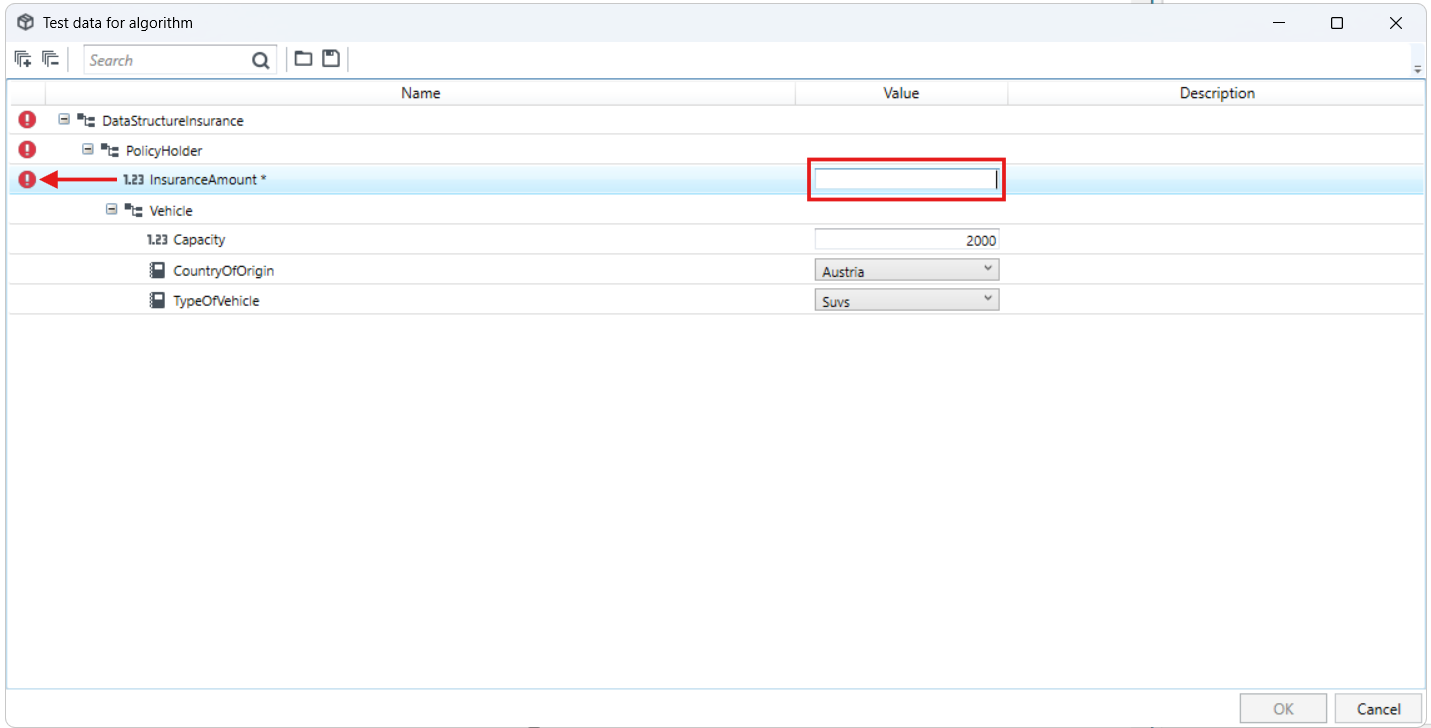
- Enter a value in the required field in the Test data for algorithm window.
Mass testing
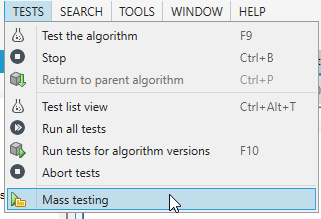
You can use the Mass testing option from the Tests menu. This option allows you to test the algorithm with several test data and check if all data has been converted as expected. The user can preview the course of multiple tests on the algorithm.
In the case of an algorithm that can be run in several ways, mass testing on a single algorithm presents all transition paths from many algorithms along with a number indicating how many times the algorithm has taken a given path.
- From the Tests menu, select Mass testing.
- In the window that appears, indicate the folder where the test data was previously saved and click OK.
- In the window informing about the number of loaded test sets, click OK.
Testing the sub-algorithm
If the created algorithm includes the Insert algorithm item that indicates another algorithm, the user has the option to test the selected sub-algorithm. The sub-algorithm is tested while the algorithm is tested.
- Open the version of the algorithm with the sub-algorithm indicated in the Insert algorithm item.
- Start testing the algorithm by selecting the Test button. Enter the test data for the algorithm and select OK.
- During the test, select the Insert algorithm item and select Test the sub-algorithm from the context menu displayed by right-clicking.
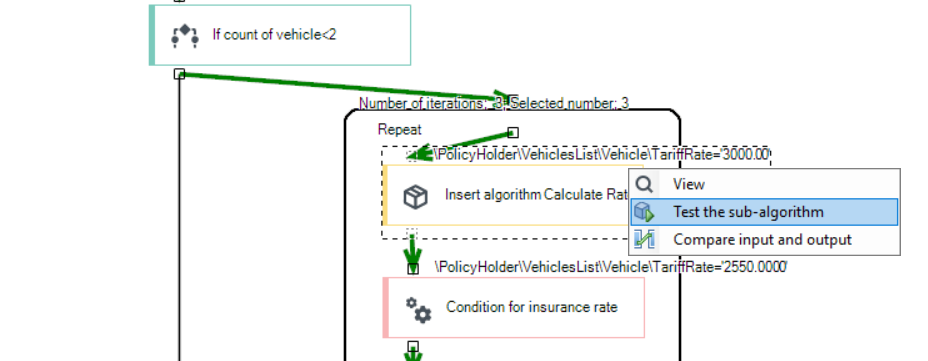
- Enter test data for the sub-model and select OK.
- View the slave algorithm under test.
- To end the test and return to the algorithm where the tested sub-algorithm is located, click the Return to parent algorithm button or select Return to parent algorithm from the Tests menu.
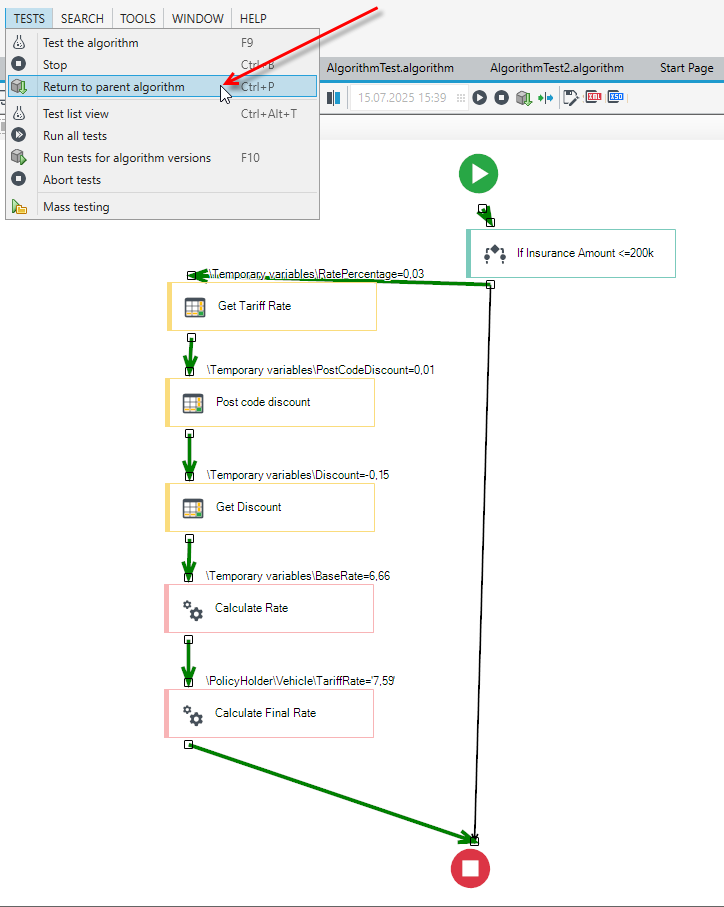
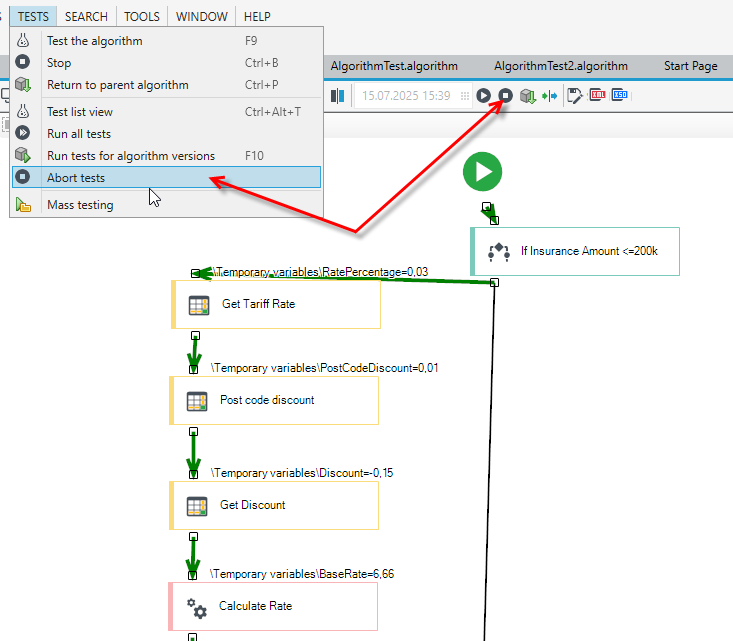
- To end the testing of the algorithm, click the Abort button on the ribbon or select Abort tests from the Tests menu.
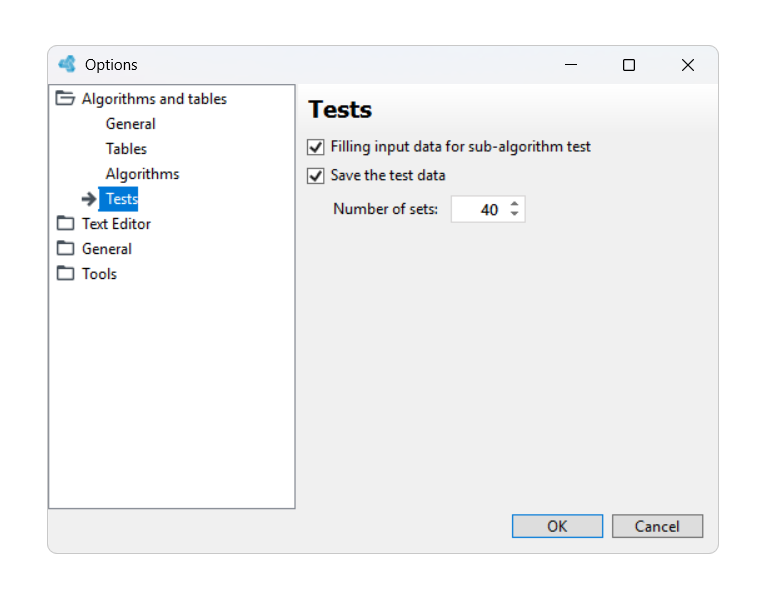
You can configure your application so that you do not need to enter input when testing sub-algorithms. To do this, select Options from the Tools menu and click the Tests tab, on which you should uncheck the Filling input data for sub-algorithm test box, and then click OK.
Changing the background of the tested algorithm
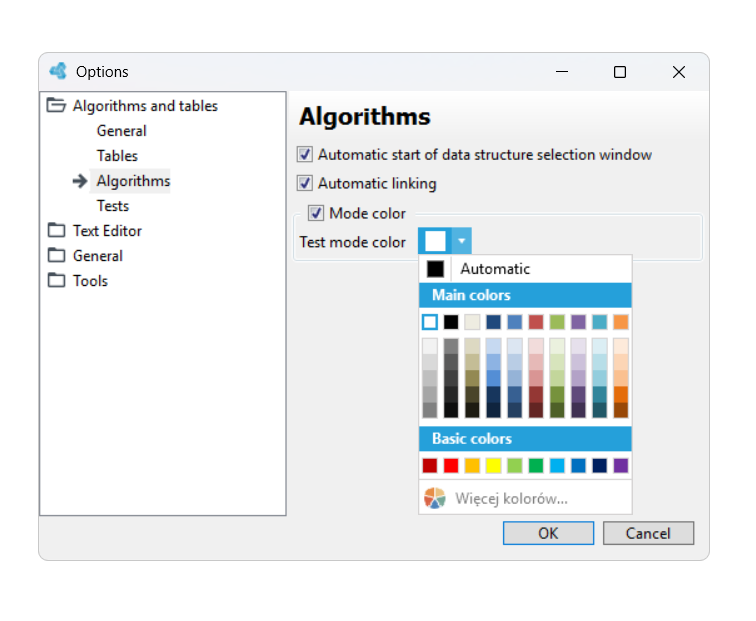
Using the Test mode color option, you can set the background color on which the algorithm is displayed in the test mode.
- From the Tools menu, select Options.
- Select the Algorithms and tables tab and then Algorithms.
- Select the Mode color check box to enable the background color displayed when the algorithm is in the test mode.
- In the Color window that appears, select a background color for the algorithm in the test mode.