Business tests
Each performed test can be saved. Tests are saved for the selected tested algorithm. You can also create a new test - see: Creating a Business Test. Tests can also be copied with the version - by exporting to a file.
Test data can also be saved for use during subsequent testing – see: Saving Test Data.
In the test mode, the user has the option to save the test data. After saving, the test is available in the Algorithm tests panel. It is possible to rerun the saved test of the algorithm. This option allows you to repeat the tests or to run only selected tests for one of the algorithm versions.
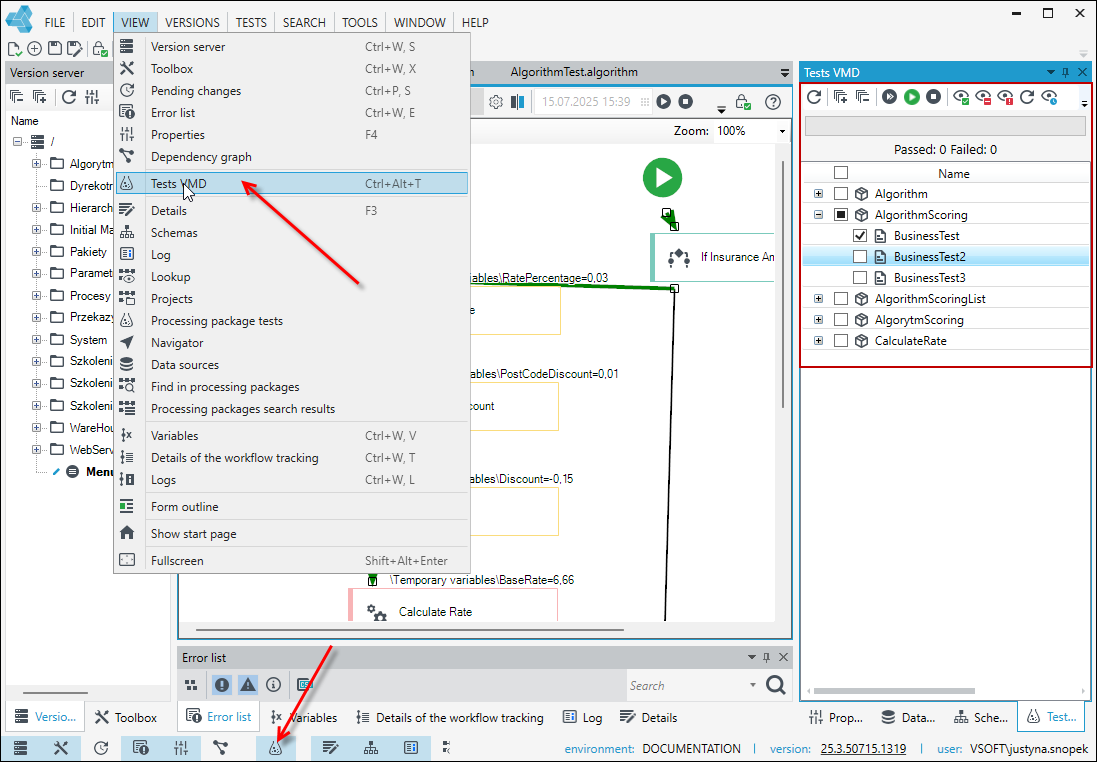
- Select the button
 from the bottom bar or the Test VMD option from the View menu.
 - The Test VMD panel is displayed, where all the tests are collected.
- Thanks to the function buttons in the upper part of the panel, you can run all or only selected tests, refresh the data structures, display only correct or incorrect tests, etc.
Creating a Business test
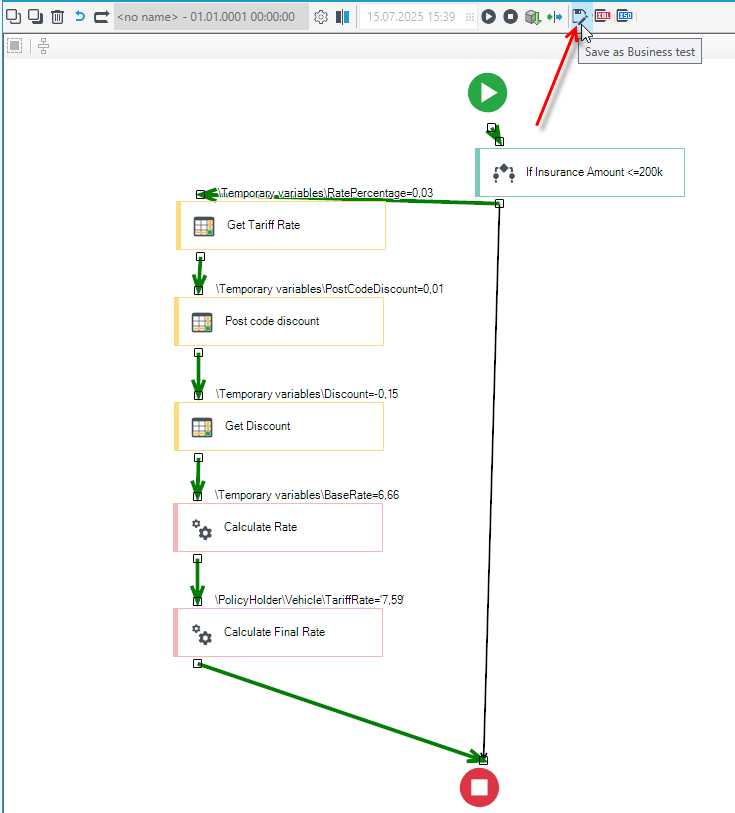
- After performing the test of a given algorithm, select the Save as Business test option.
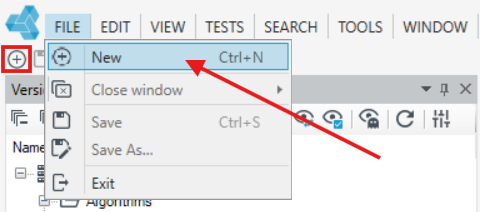
- If you want to create a new test, in the main window select New, or File>New or the New item icon, and in the next window select Business test.
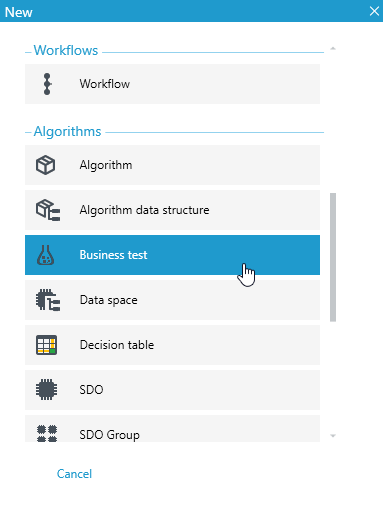
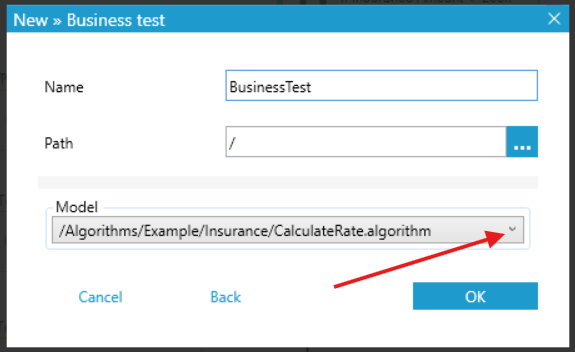
- In the New/Business Test window that appears, select where you want to save the new test, enter a name and click OK.
- The created test must have the algorithm it relates to in the Algorithm field.
- In the workspace, specify the input data and the expected result.
- Optionally, enter a description, then confirm with the Save button. Tests are saved for the selected test algorithm. Tests can also be copied along with the version - this enables exporting them to a file.
- Select the button
 to go to the model to which the test applies.
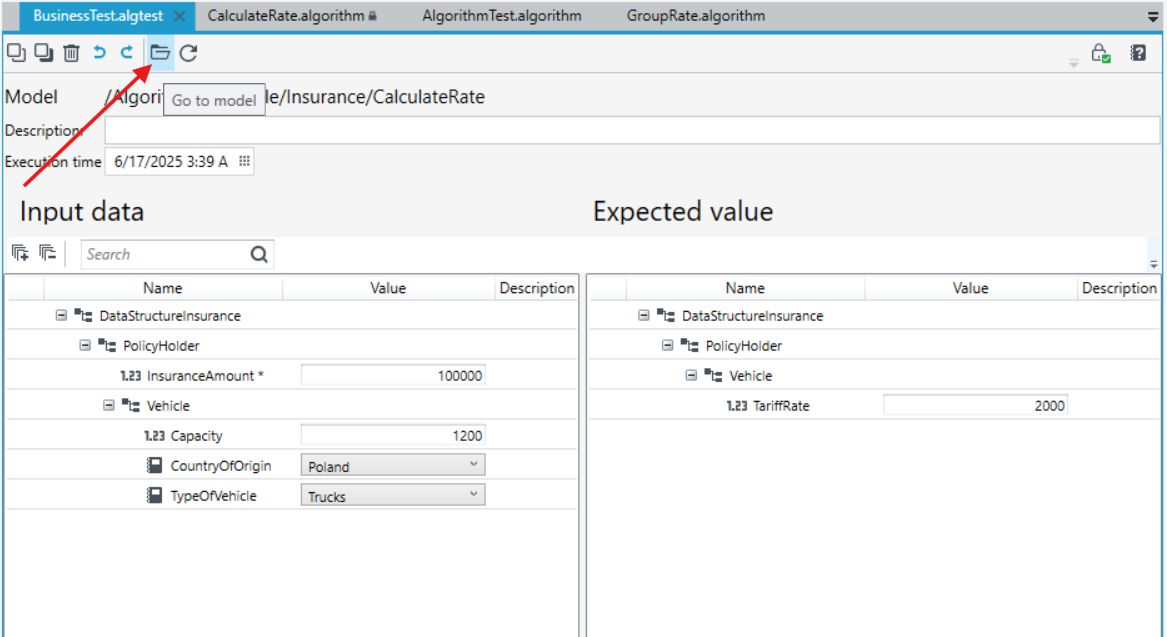
After saving, the test will be available from the Algorithm tests panel and from the Tests menu. See: Business tests
Saving test data
Test data can be saved for subsequent testing. The option to save data entered during testing can be enabled or disabled using the Save the test data check box available in the Options.
Data saving works as follows:
- input data must be entered when testing,
- after testing, the testing mode must be terminated,
- when retesting the algorithm, the input data saved from earlier testing is already entered.
In order to save business data in the System:
- From the Tools menu, select Options.
- In the displayed Options window, select the Tests tab.
- Select the Save the test data check box.
- In the Number of sets field, indicate the number of input data sets for the different algorithms.
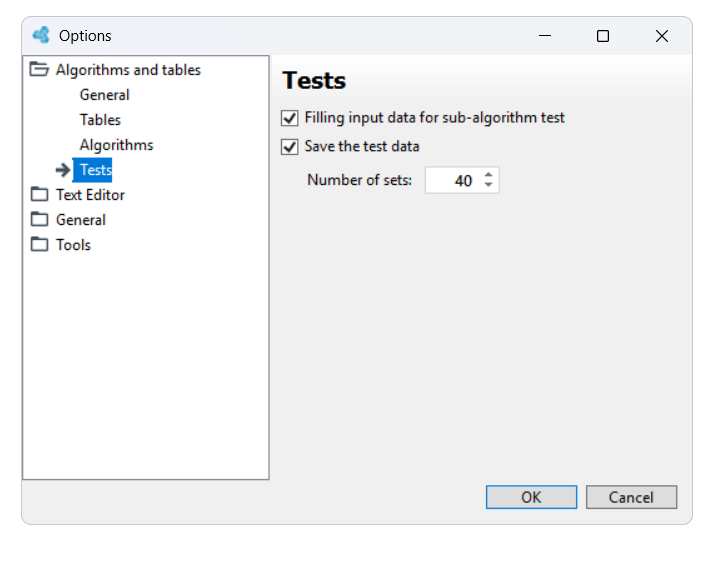
- One set of input data is saved for each algorithm. The number of sets defined in the Tests window means the number of sets for different algorithms that are to be saved. If there are more algorithms than the defined number of sets, the older files are deleted.
- Test data is saved when the test mode is closed and then rerun. After the next start of the test mode, the last data entered for the algorithms in the test mode are saved.