Calculation of the insurance premium
The purpose of the task is to calculate the insurance premium based on the following assumptions.
Algorithm for calculating the premium:
- The sum insured cannot be higher than PLN 200,000.
- The tariff rate ( TariffRate Table) for a 12-month insurance period is expressed in % of the sum insured for each insured vehicle and depends on:
- Type of insured vehicle,
- The load capacity of the vehicle,
- Country of manufacture.
- Depending on the residence of the insured, a discount from the PostCodeDiscount table is due.
- If the sum insured is more than 150,000, a premium discount of 10% is due, and if the sum insured is less than 50,000, a premium raise of 15% is due.
- The total insurance premium amount shall be rounded to two decimal places.
Data structure and dictionary
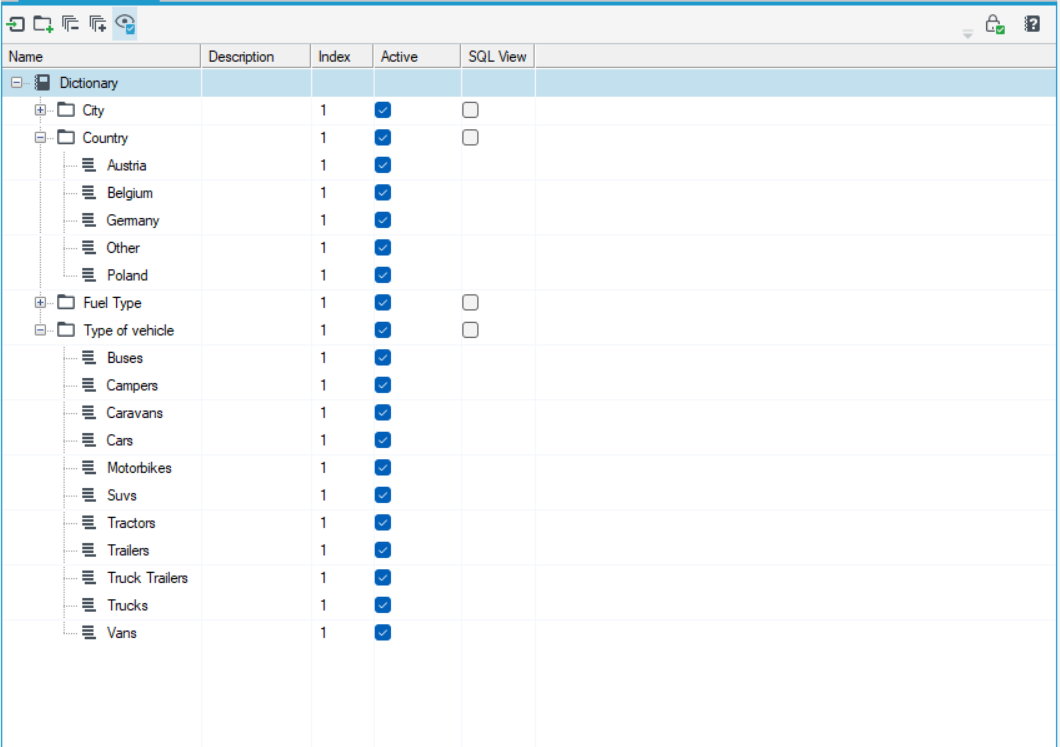
First, create a dictionary structure that contains a list of countries and vehicles.
- Choose File>New>Dictionary structure.
- Add the Country and Type of vehicle category and add items to each category.
- You can use Copy/Paste and paste the data from an external source, for example, from an Excel file.
Algorithm data structure
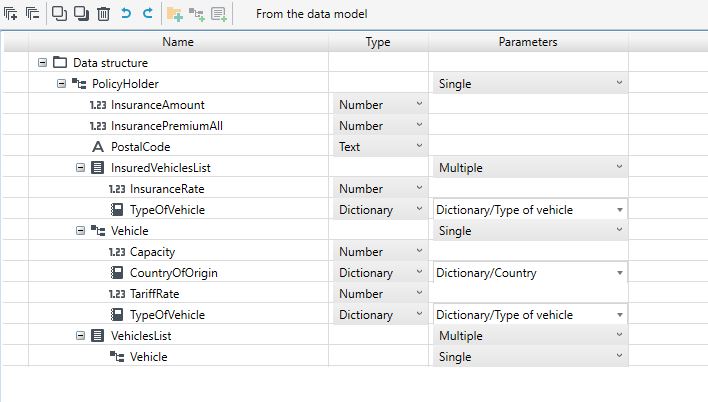
Create a data structure for the algorithm.
- Choose File>New>Algorithm data structure.
- Add the PolicyHolder data group and add individual fields.
- For dictionary fields, select previously created dictionaries.
Decision tables
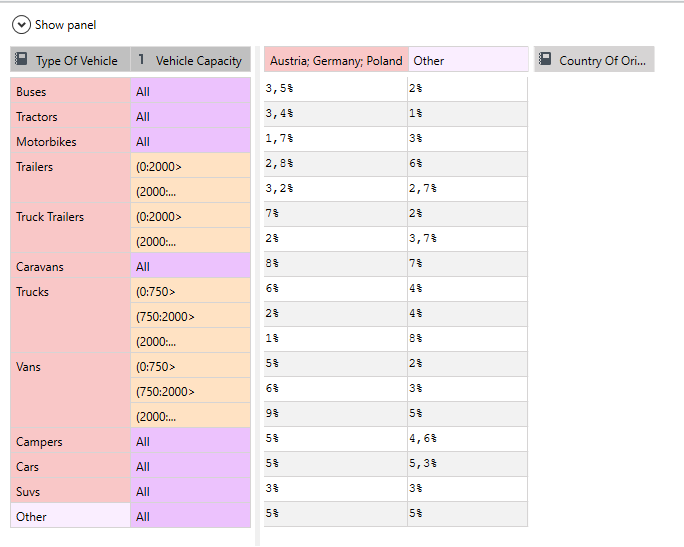
The first table is the TariffRate table. The tariff rate for a 12-month period of insurance is expressed as a % of the sum insured for each insured vehicle and depends on:
- Type of insured vehicle,
- The load capacity of the vehicle,
- Country of manufacture.
| Transportation | Loading capacity | Poland, Czech Republic, Serbia... | Other |
|---|---|---|---|
| Bus | 3,5% | 2% | |
| Tractor | 3,4% | 1% | |
| Motorcycle | 1,7% | 3% | |
| Semitrailer | (0:2000⟩ | 2,8% | 6% |
| (2000:… | 3,2% | 2,7% | |
| Trailer | (0:2000⟩ | 7% | 2% |
| (2000:… | 2% | 3,7% | |
| Camping trailer | 8% | 7% | |
| Truck | (0:750⟩ | 6% | 4% |
| (750:2000⟩ | 2% | 4% | |
| (2000:… | 1% | 8% | |
| Light commercial vehicle | (0:750⟩ | 5% | 2% |
| (750:2000⟩ | 6% | 3% | |
| (2000:… | 9% | 5% | |
| Camping car | 5% | 4,6% | |
| Car | 5% | 5,3% | |
| Off-road car | 3% | 3% | |
| Other | 5% | 5% |
- Choose File>New>Decision table from the menu.
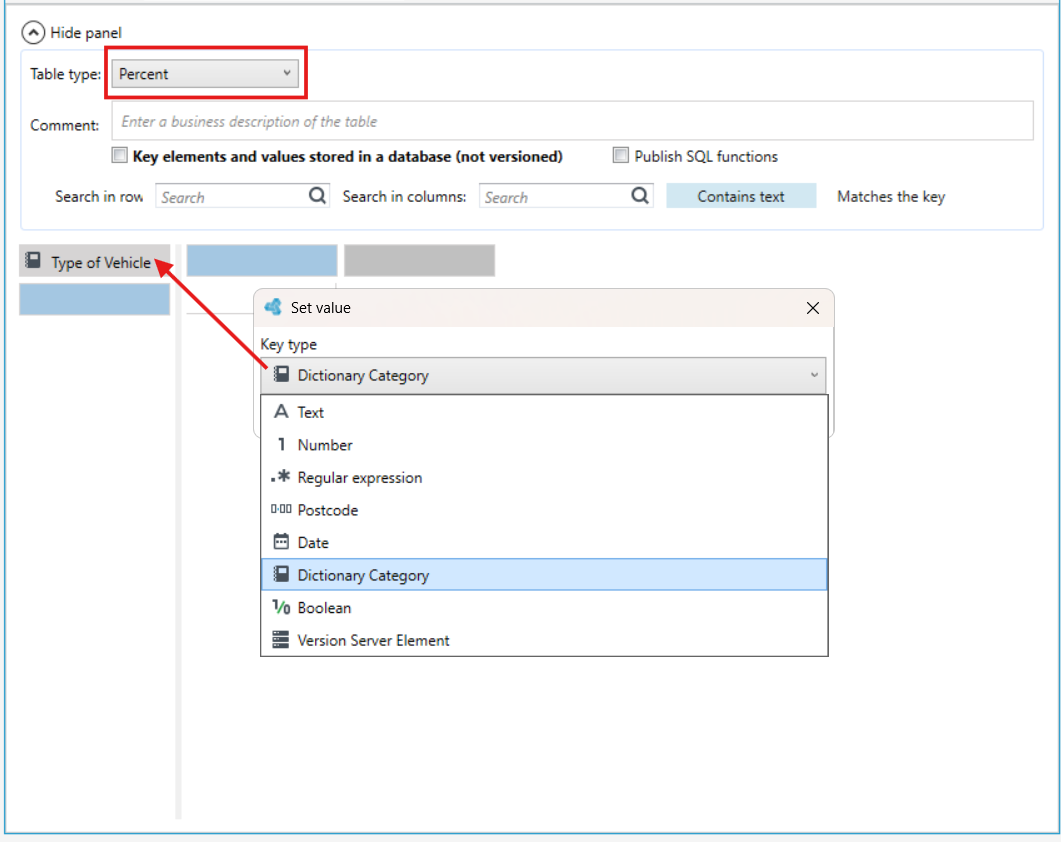
- Indicate the table type as Percent.
- Go to edit the key name header and select the Dictionary category option, enter the name Type of Vehicle. The keys corresponding to the vehicle names that have been entered in the dictionary will be inserted here.
- Go to edit the key below and in the next window, select the dictionary from which the values are to be used as table keys.
- Select the Unmerge group option, in which case all dictionary elements will be ungrouped into separate table keys.
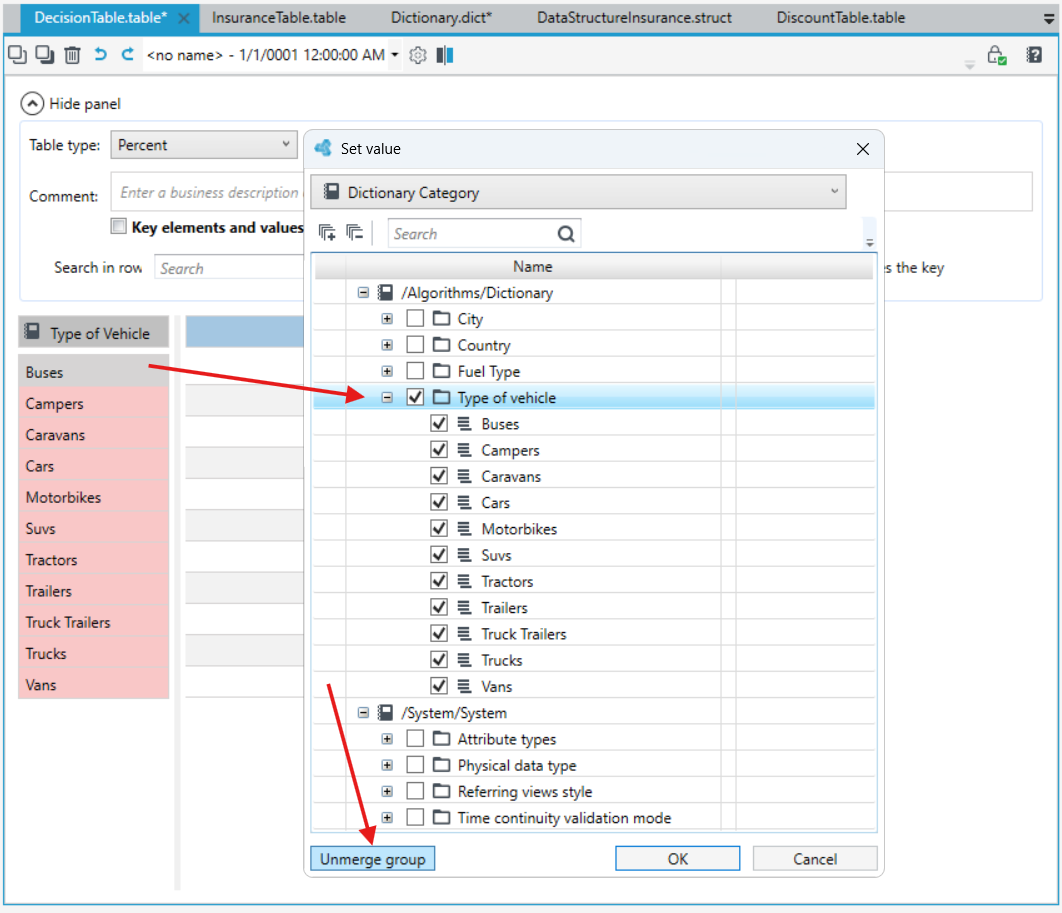
- Click on any of the added keys and from the context menu select Add key on the right.
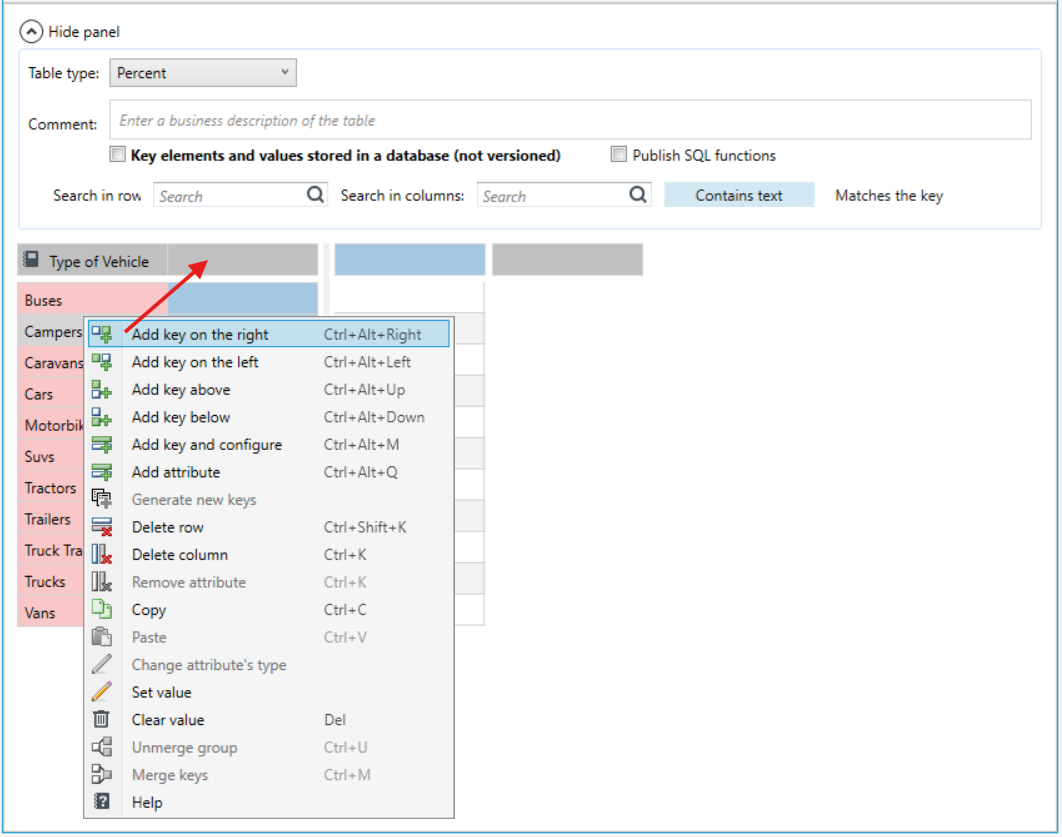
- Go to edit the description of the added key. Set the key type as Number and enter the key name (Capacity). This column will specify the loading capacity of each vehicle.
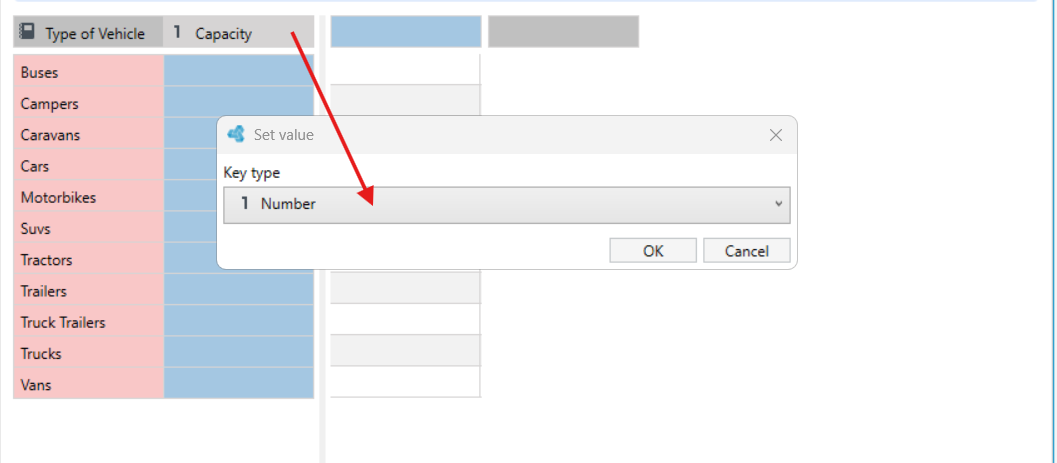
- Enter the loading capacity or its ranges for the table keys. Go to edit the key and select the key type as Number. In the Value field, enter the data.
- If you want to enter multiple ranges, select the Add button. Then select the button that allows you to enter ranges From To. Enter the ranges and select Unmerge group. Depending on the number of ranges added, as many rows will be added to the table key.
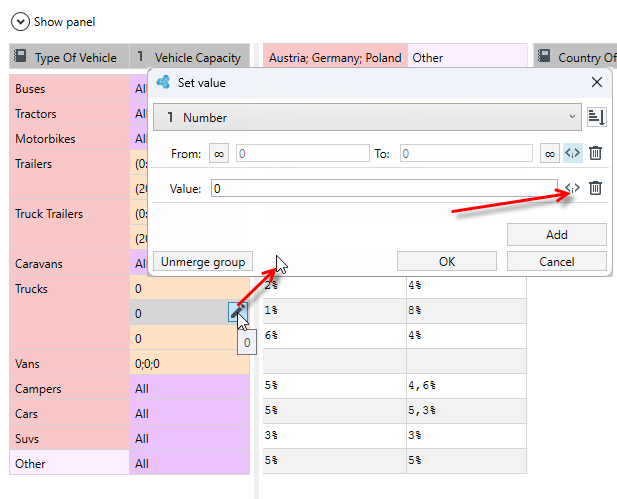
- In other cases where you do not need to specify a loading capacity, set the value to All.
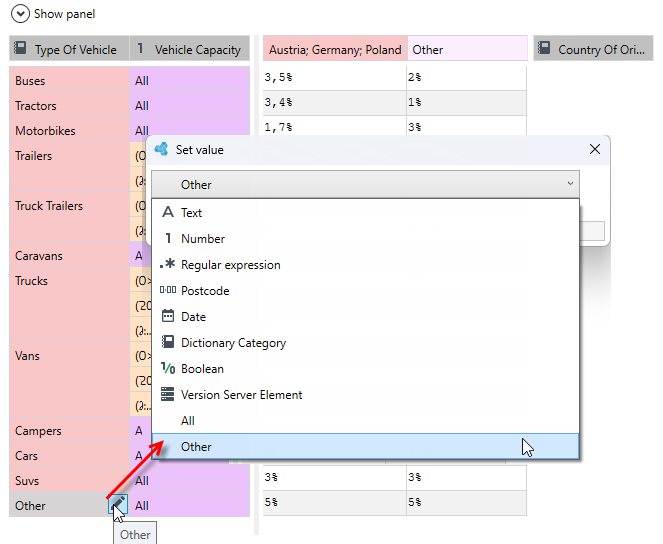
- Add a table key below and set the value to Other. These are all the other types of vehicles that are not included in the table.
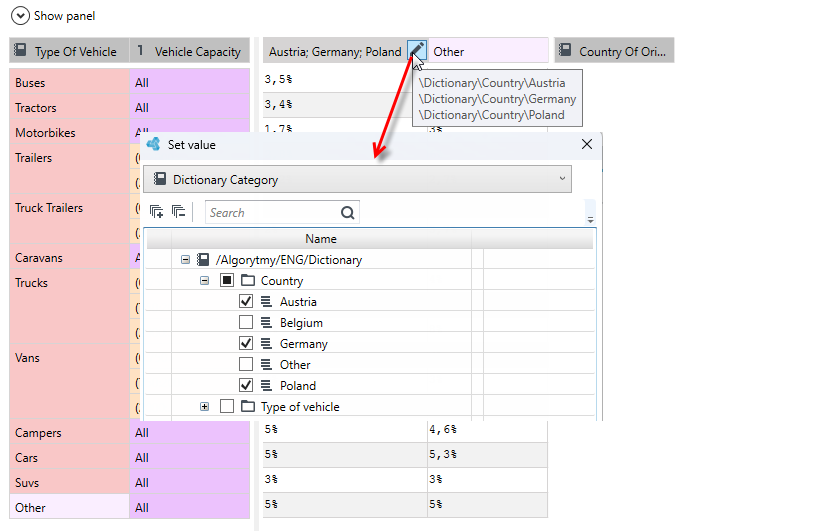
- Proceed to configure the following keys. Set the value to Dictionary category and select the Countries dictionary and select the appropriate countries from the list.
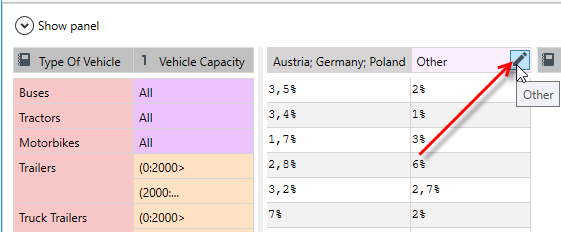
- Click on the added key and from the context menu select Add key on the right.
- Set the value of the added key to Other. These are all the other countries that are not included in the first key.
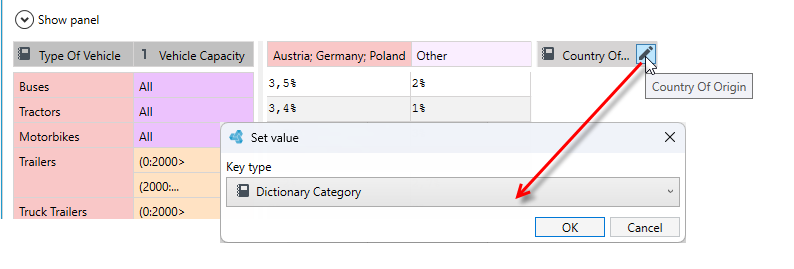
- Enter the description (Country Of Origin) and key type as Dictionary category and enter the values into the table.
- You can copy the data from an external source like an EXCEL/WORD file and paste the data into individual cells. Click on the first row and select Paste from the context menu.
Postcode Discount decision table - discount based on postal code
Depending on the place of residence of the insured, a discount from the Postcode Discount table is due.
| Postal code | Discount |
|---|---|
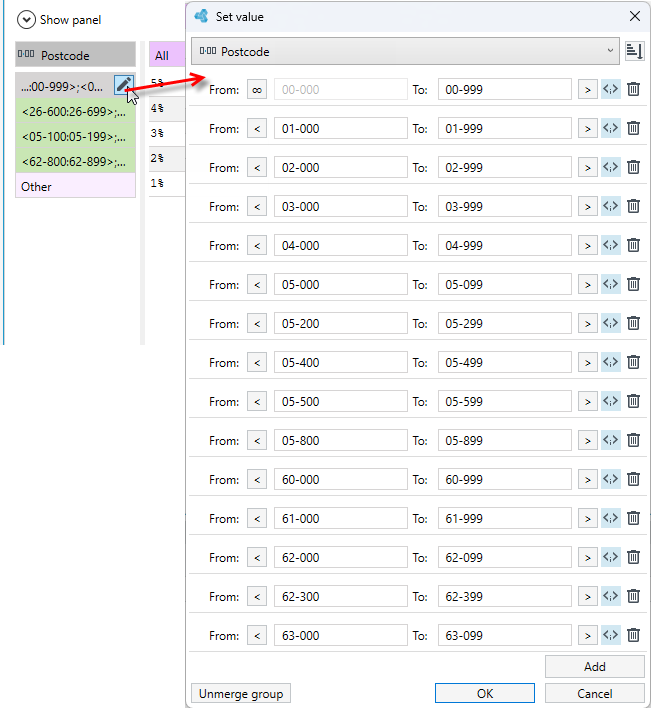
| 00- ; 01-; 02-; 03-; 04- ; 05-0 ; 05-2 ; 05-4 ; 05-5 ; 05-8 ; 60-; 61-; 62-0 ; 62-3 ; 63-0 | 5% |
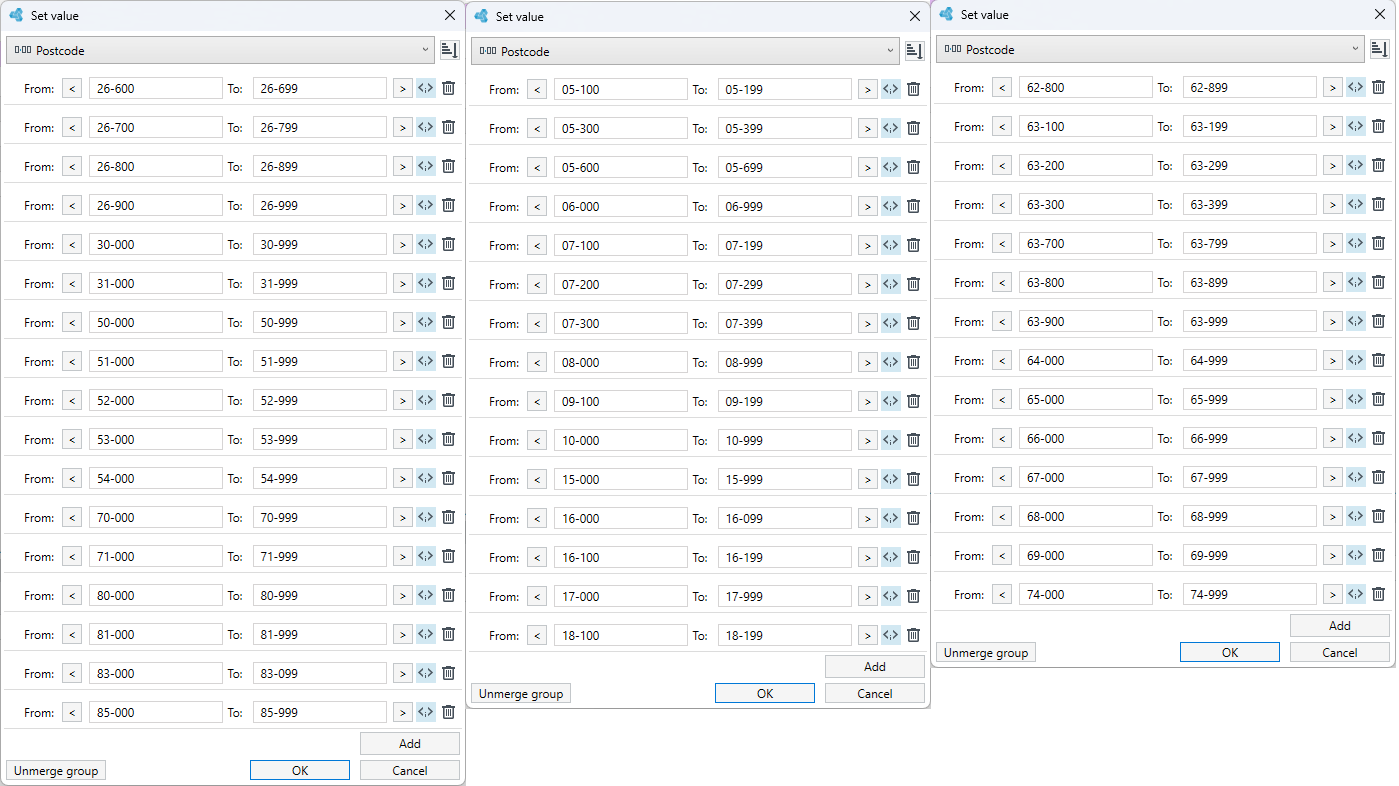
| 26-6 ; 26-7 ; 26-8 ; 26-9; 30-; 31-; 50- ; 51- ; 52- ; 53- ; 54-; 70-; 71-; 80-; 81-; 83-0; 85- | 4% |
| 05-1 ; 05-3 ; 05-6 ; 06- ; 07-1 ; 07-2 ; 07-3 ; 08- ; 09-1 ; 10- ; 15- ; 16-0 ; 16-1 ; 17- ; 18-1 | 3% |
| 62-8 ; 63-1 ; 63-2 ; 63-3 ; 63-7 ; 63-8 ; 63-9 ; 64- ; 65- ; 66- ; 67- ; 68- ; 69-; 74- | 2% |
Create a decision table
- Choose File>New>Decision table from the menu.
- Indicate the table type as Percent.
- Go to edit the key description and select Postcode, enter the name Postcode. Keys corresponding to zip code ranges will be entered here.
- Enter the ranges as shown in the image below.
- Add 3 keys below and enter more ranges for postal codes as in the image below.
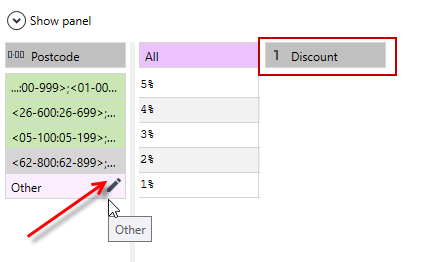
- Add another key below and set the value to Other - for handling other postal codes not included in the table.
- Enter the data for the key on the right. Set the value to All and set the type (Number) and description of the key to Discount.
- Enter the data into the table.
Decision table Insurance Discount - discount or increase based on insurance sum
If the sum insured is more than 150,000, a premium discount of 10% is due, and if the sum insured is less than 50,000, a premium increase of 15% is due.
Create a decision table
- Choose File>New>Decision table from the menu.
- Indicate the table type as Percent.
- Go to edit the key description and select Number, enter the Insurance name. The keys corresponding to the insurance sum will be entered here.
- Enter the ranges as shown in the image below.
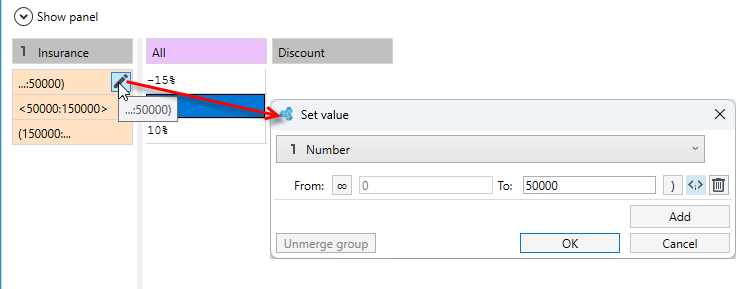
- Enter the data for the key on the right. Set the value to All and give the type (Number) and name of the key description to Discount.
- Enter the data for the table.

Create an algorithm
Create an algorithm according to the initial principles made.
- Choose File>New>Algorithm from the menu.
- Point to the data structure for the algorithm.
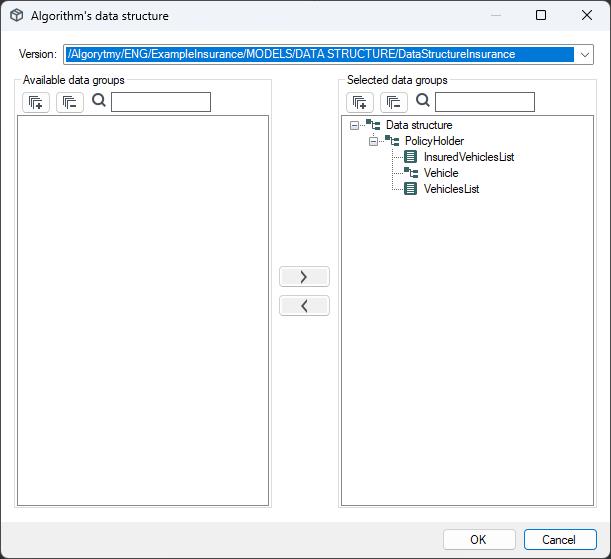
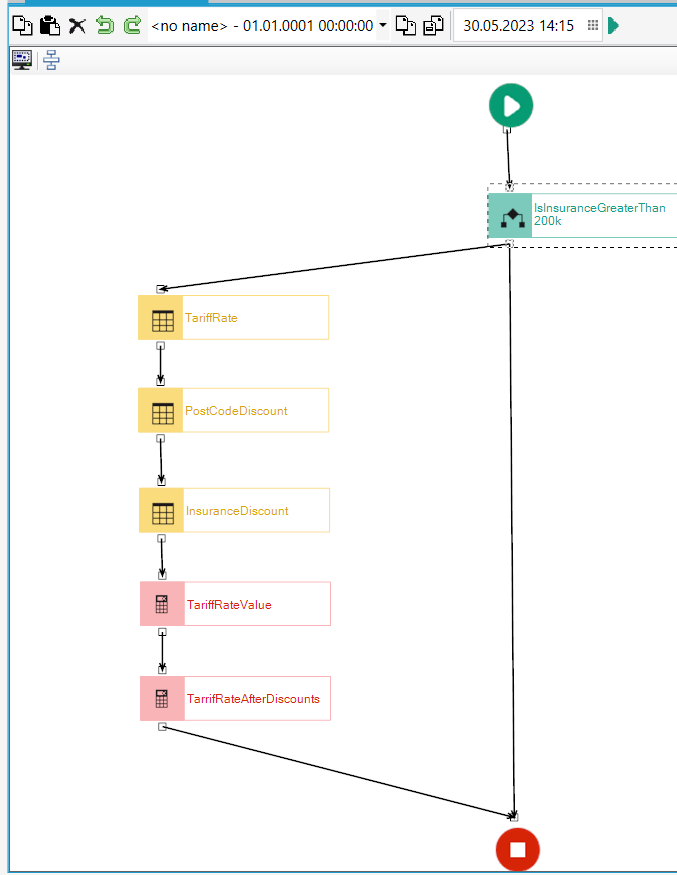
- Drag the Decide block to the workspace and connect it to the Start item. You can change the name. Select the block and right-click.

- Drag the Table block to the workspace and connect it to the Decide block. Name it TariffRate.
- Drag the Table block again and connect it with the previous Table block and name it PostCodeDiscount.
- Drag another Table block and connect it with the previous Table block and name it InsuranceDiscount.
- Add 2 blocks Calculate and connect with the previous ones. Give them the names TariffRateValue and TarrifRateAfterDiscount.
- Connect the last block with the output element of the algorithm.
- Connect the Decide block with the output element of the algorithm. The algorithm should look like the image below.
Configuration of individual blocks
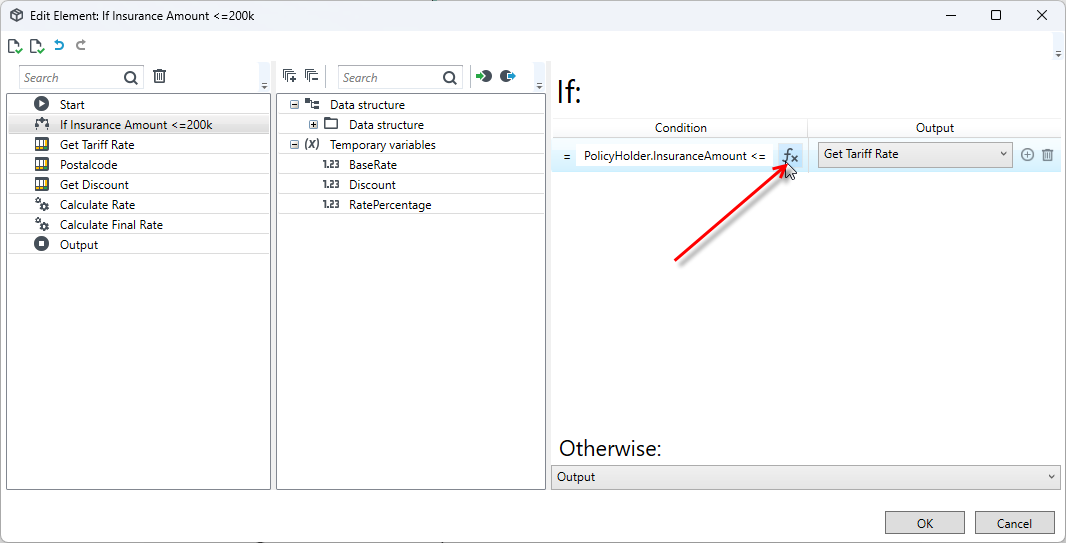
- Double-click on the Decide block. In this block, distinguish between policies whose sum insured is not more than PLN 200,000. For such policies, premiums will be calculated in the next steps of the algorithm and increases/decreases will be calculated depending on the fulfillment of the initial criteria.
- Select the FX button to proceed to define the condition.
-
In the formula editor from the Functions panel, drag the
<=function on the function definition window to the very top. -
Drag the InsuranceAmount field from the algorithm data structure onto the first element of the function.
-
Double-click on the second element and type 200000.
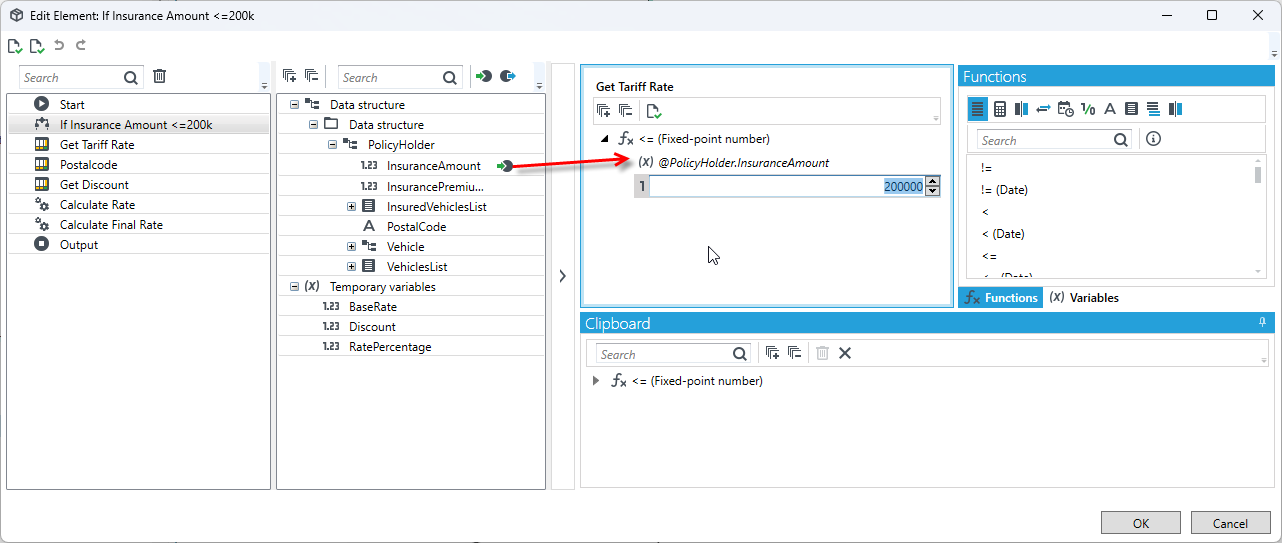
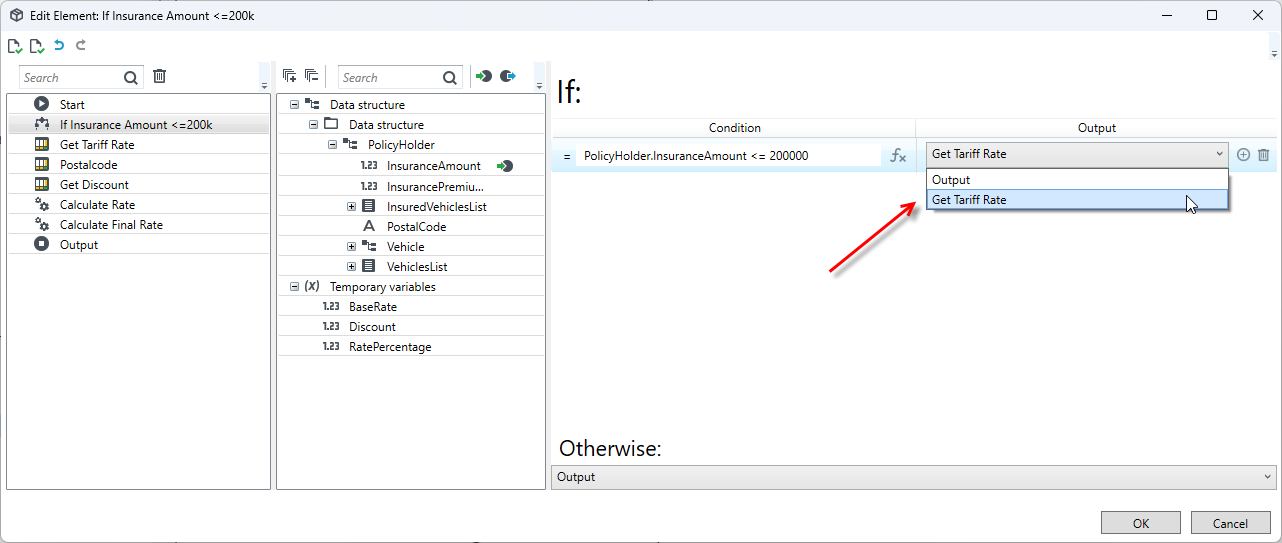
- Define in the details of the Decide block the output when the condition is met and when it is not met. In the Output field, select as the next path element the transition to the next block, that is, to the Get Tariff Rate table block.
- In the Otherwise field, select Output.
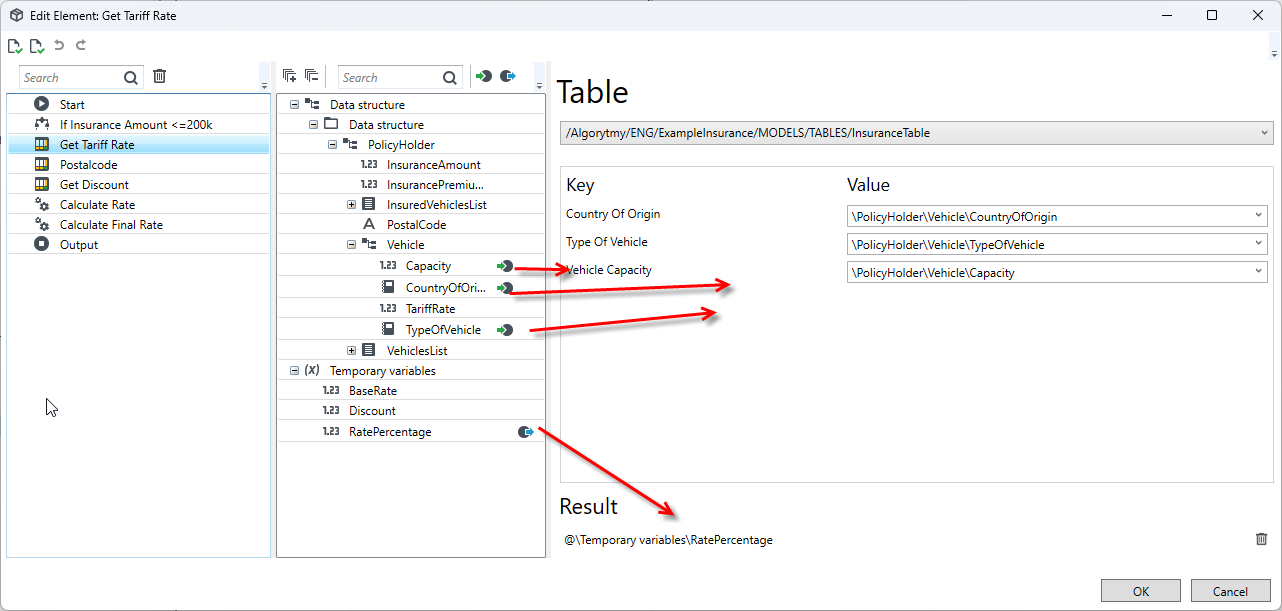
- Double-click on the Get Tarrif Rate table block. In the details of the block, select the previously created decision table.
- After selecting the table, the keys of the table will be displayed.
- Drag from the algorithm data structure the corresponding fields to the table keys.
- Click on Temporary variables and select Add item>Add number value from the context menu. Temporary variables are used only during the calculations that the algorithm performs.
- This field (RatePercentage) will store the selected tariff rate depending on the country, type of vehicle and its load capacity. The rate will be selected based on the data defined in the decision table.
- Drag the added variable to the Result field.
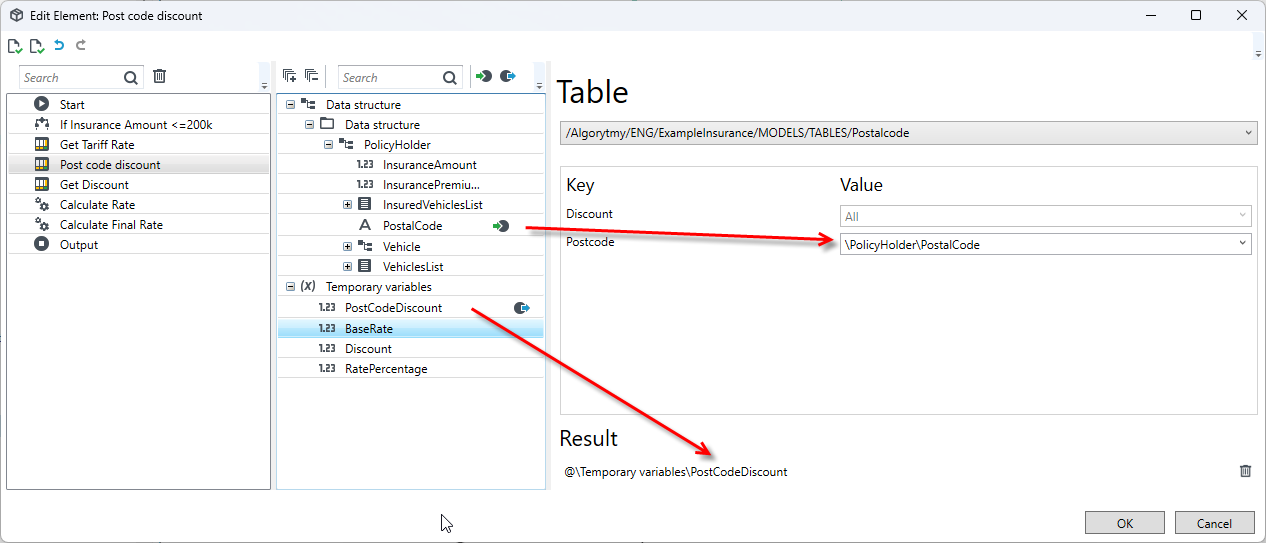
- Go to the configuration of the next block Post code discount table.
- Select the Postalcode table and drag a field from the data structure to the Postcode table key.
- Add a temporary variable PostCodeDiscount to the Result field. The variable will store the discount based on the place of residence. The discount will be selected based on the data defined in the decision table.
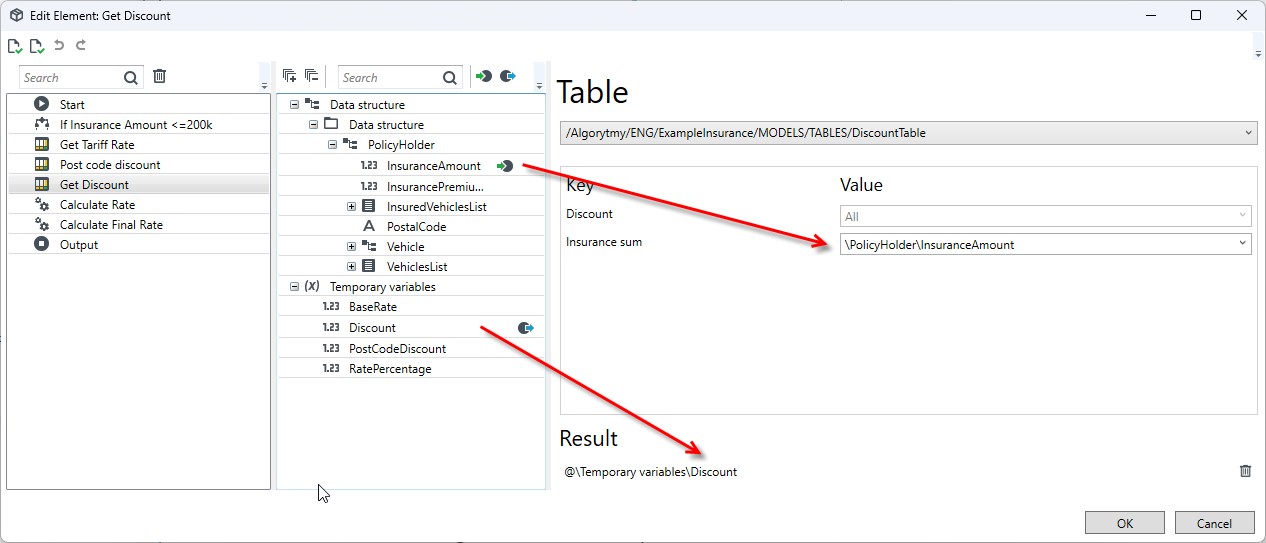
- Go to the configuration of the next block Get Discount table.
- Select the DiscountTable and drag a field from the data structure to the Insurance sum table key.
- Add a temporary variable Discount to the Result field. The variable will store the discount or increase depending on the insurance amount. The discount or increase will be selected based on the data defined in the decision table.
- Go to the Calculate Rate block.
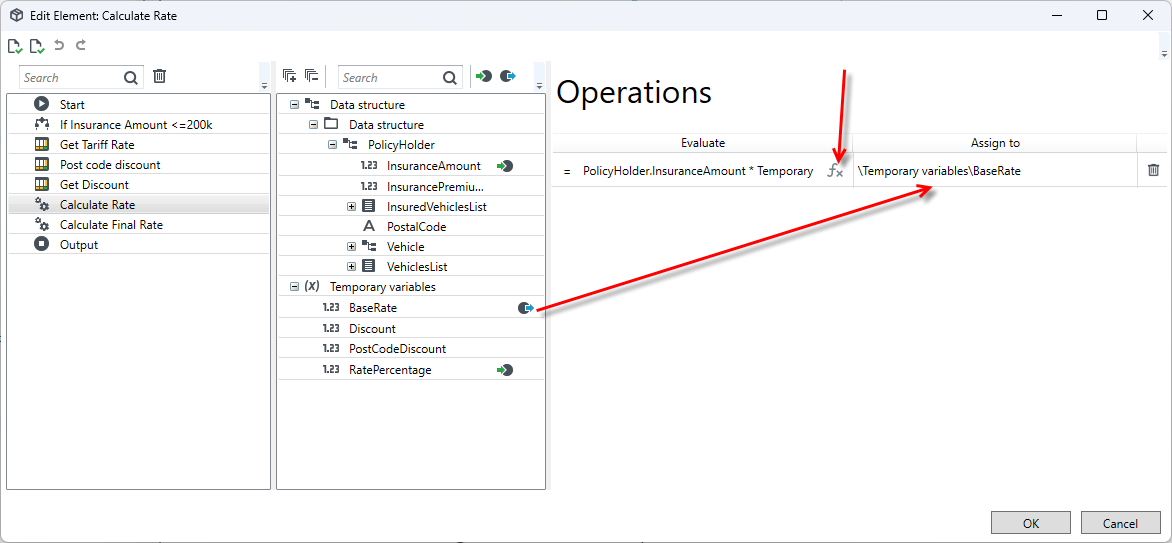
- Add a temporary variable BaseRate. The variable will store the calculated premium.
- Drag the variable to the Operations area.
- Proceed to define the operation to be performed by selecting the FX button.
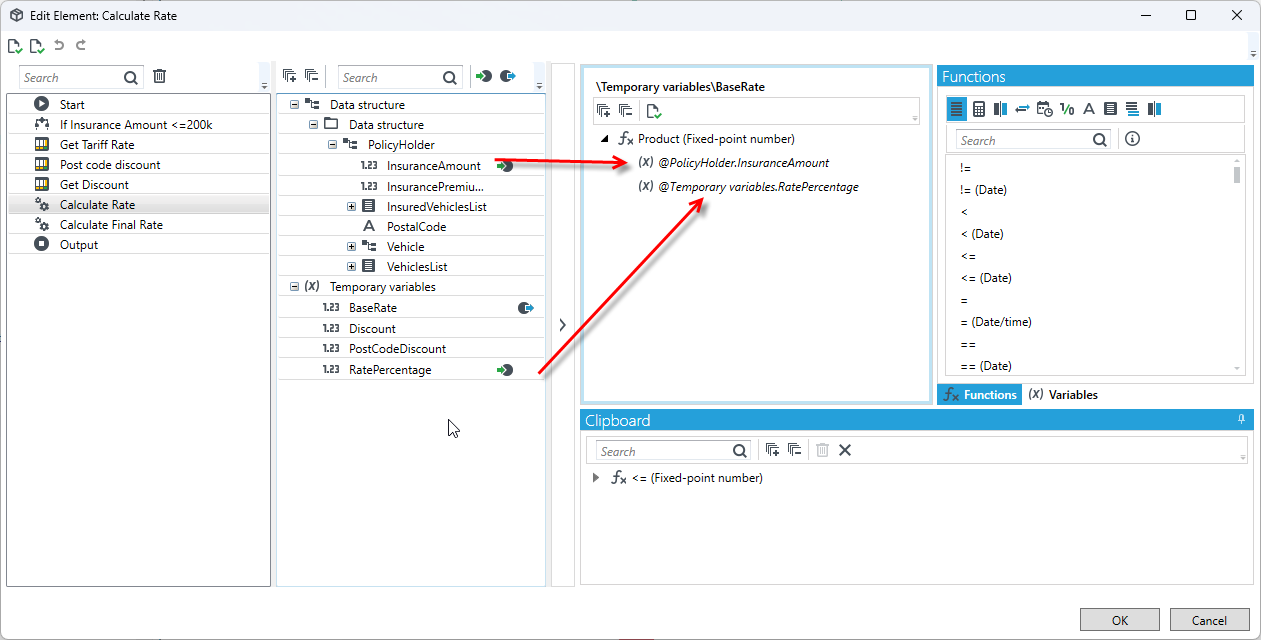
- In the open formula editor from the Functions panel, drag the Product function to the condition definition window to the very top.
- Drag the Insurance field from the algorithm data structure onto the first element of the function.
- Drag the temporary variable TariffRate onto the second element.
- Using the Product function, the premium is calculated by multiplying the value from the Insurance field and the tariff rate calculated in the previous step.
- In the last step, the premium will be calculated after applying all discounts or increases rounding the amount to 2 decimal places.
- Go to the Calculate Final Rate block.
- Drag the TariffRate field to the Operations area.
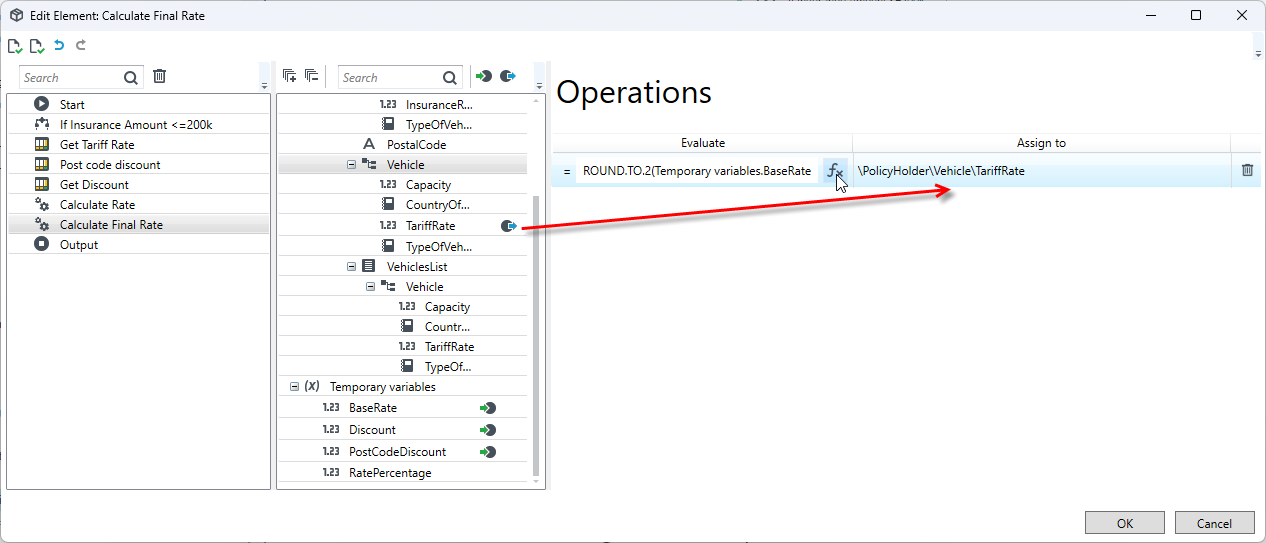
- Go to define the operation to be performed by selecting the FX button.
- The final premium amount is calculated by applying the function:
-
the product of the BaseRate variable and the PostCodeDiscount variable, i.e., applying a postal code discount to the calculated amount
-
the product of the BaseRate variable and the Discount variable, i.e. to the calculated amount apply a discount or an increase depending on the sum insured
-
the sum of accrued discounts/increases for the postal code and the sum insured
-
the difference of the BaseRate premium amount and the accrued discounts/rebates, and giving the final premium amount rounded to 2 decimal places.
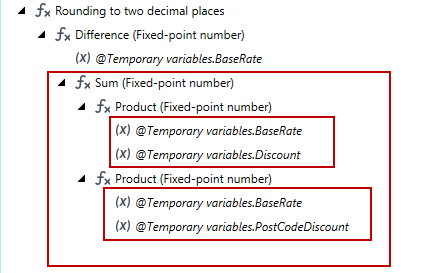
-
To apply the function correctly, first search for the Rounding to two decimal places function. Drag the function to the formula definition window.
-
Then search for the Difference function and drag it onto the formula window. Drag from the temporary variables the BaseRate field to the first element of the Difference function. Drag the Sum function onto the second element of the function.
-
Drag the Product function onto the first and second elements of the Sum function.
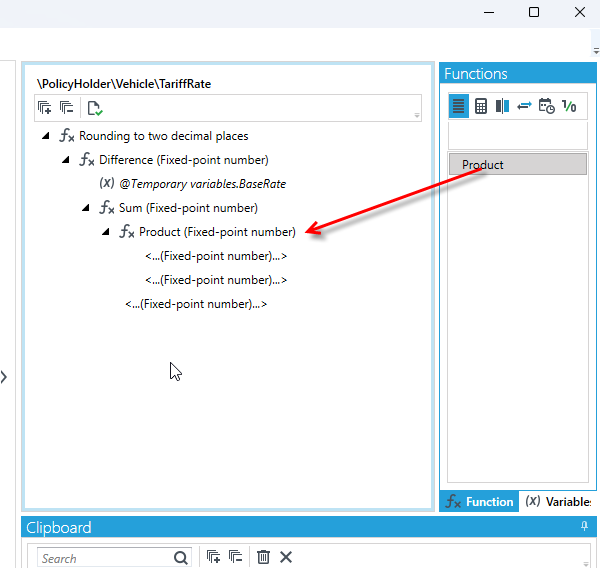
- Add elements to the Product function. Drag from the temporary variables the BaseRate and Discount fields onto the elements of the first Product function.
- Drag from the temporary variables the BaseRate and PostCodeDiscount fields.
- Choose Ok.
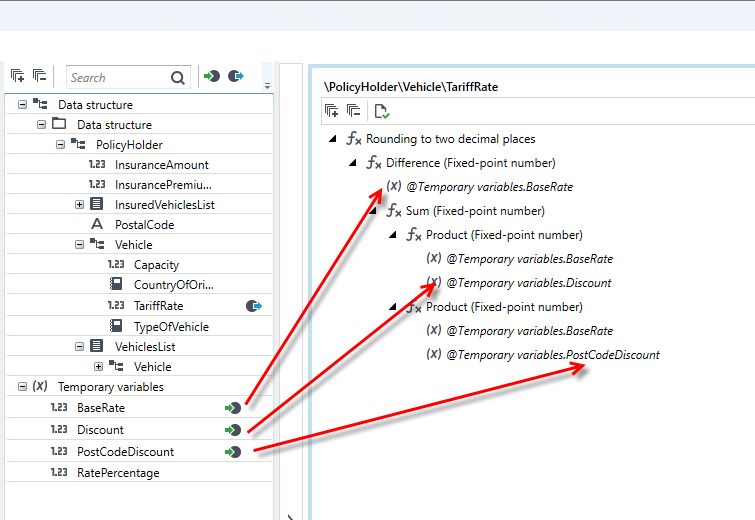
Testing the algorithm
After creating an algorithm, you can test it by entering test data.
- Select the Test button.
- In the window that appears, enter the test data and select OK.
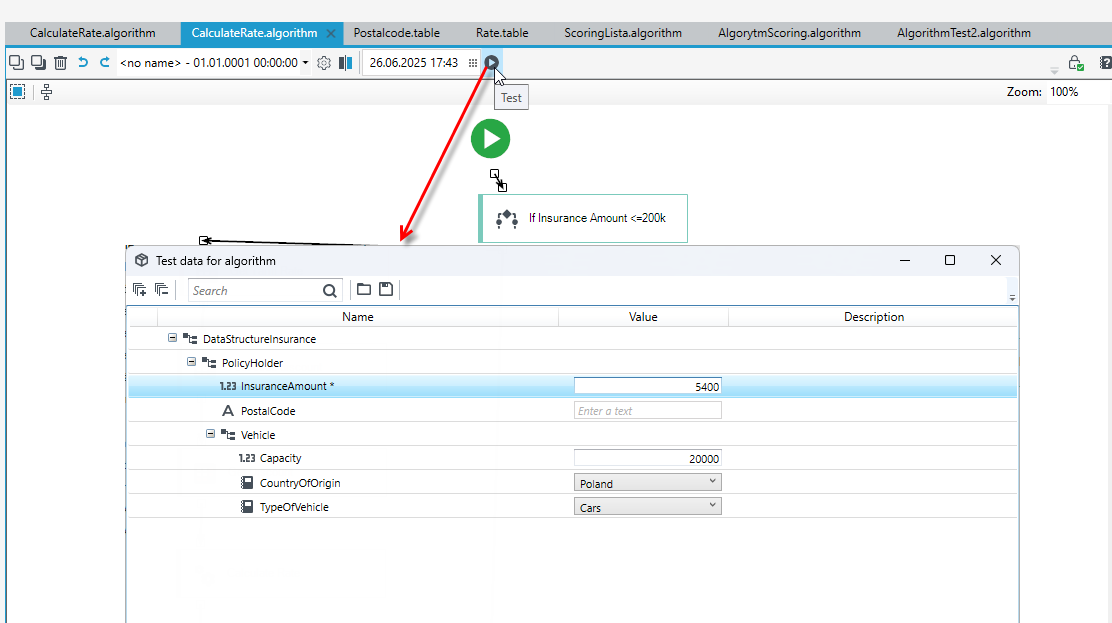
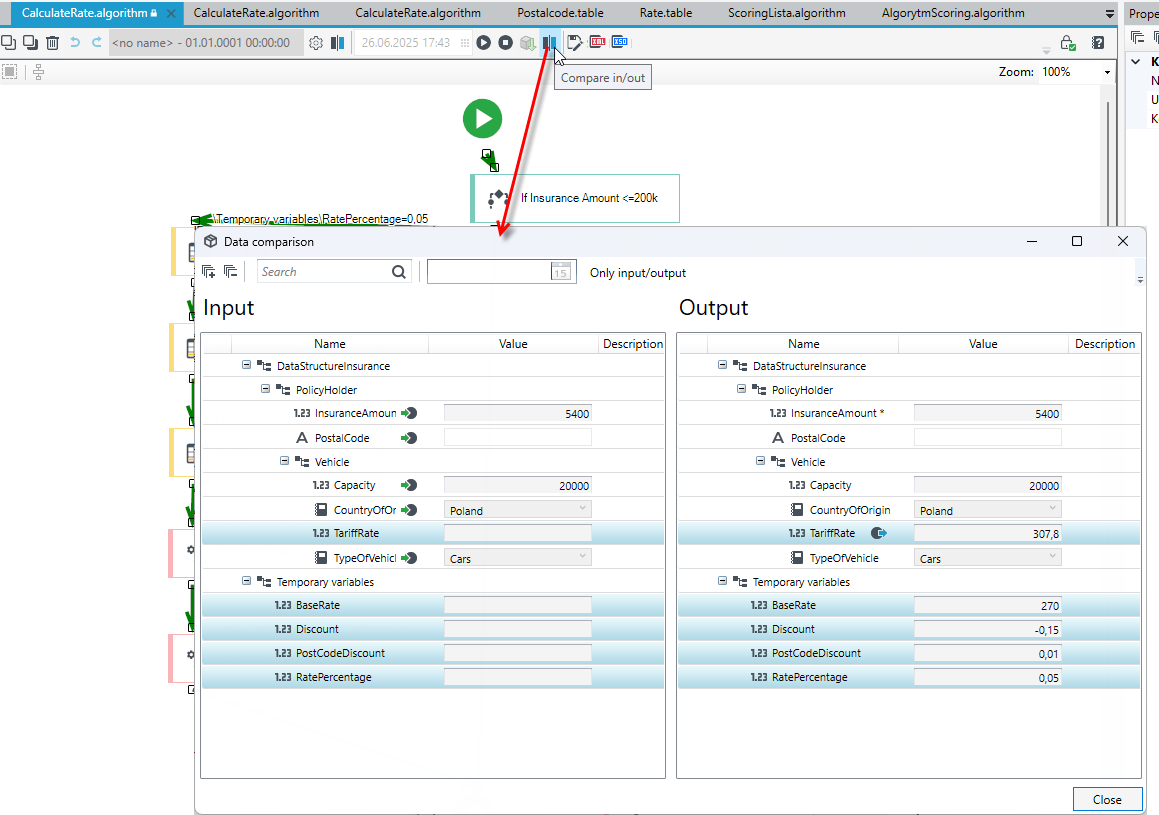
- In the test mode, the green color indicates the path that was selected in the algorithm based on the entered data and the calculated contribution and sub-elements of the algorithm.
- Select the Compare In/Out button then the input and output data from the algorithm are presented.