Creating a data structure for an algorithm
The data structure makes it possible to standardize the nomenclature used in the Algorithms. The same data names in all application spheres (dictionary structures, tables, algorithms) facilitate the configuration of algorithms.
The functionality of the algorithm's data structure allows us to define parameters that will be transferred during the execution of the modeled algorithm and returned after its completion. Many modeled algorithms can be based on one data structure. Therefore, it is very important to standardize the nomenclature and the correct business description of the structure elements, and since changing the already existing data structure involves a large amount of additional work, it should be carefully thought out.
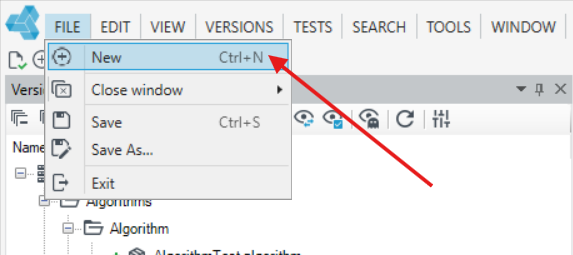
- In the main window, select New, or File>New, or the New item icon.
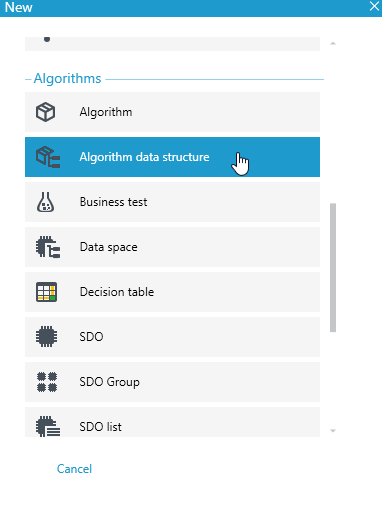
- Select Algorithm data structure.
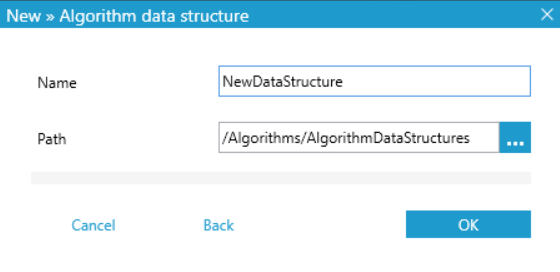
- In the New / Algorithm data structure window that appears, select where you want to save the new structure and click OK.
See how to correctly define the data structure
- Define directories (possibility of grouping the structure elements thematically)
- Define data groups (possibility of grouping of data structure elements logically)
- Define data structure elements (the elements uniquely identify the data used in the application)
Defining directories
Catalogues are used for thematic and logical grouping of data structure elements, e.g. the TechnicalData catalogue (where auxiliary fields are placed, used only for the needs of the model), and InsuranceData catalogue (where e.g. a list of entities, vehicle, subsequent risks go). The use of directories makes it easier to use the data structure and brings order to the structure. Data groups are defined in directories.
It is important to consider the naming convention to use later in the structure before creating the first directory and data group. Thanks to this, we will avoid problems (when the structure grows) with the identification of groups and individual elements.
- Select a data structure item and select the Add directory button on the ribbon, or select the data structure item and then Add directory from the pop-up menu (right-click).
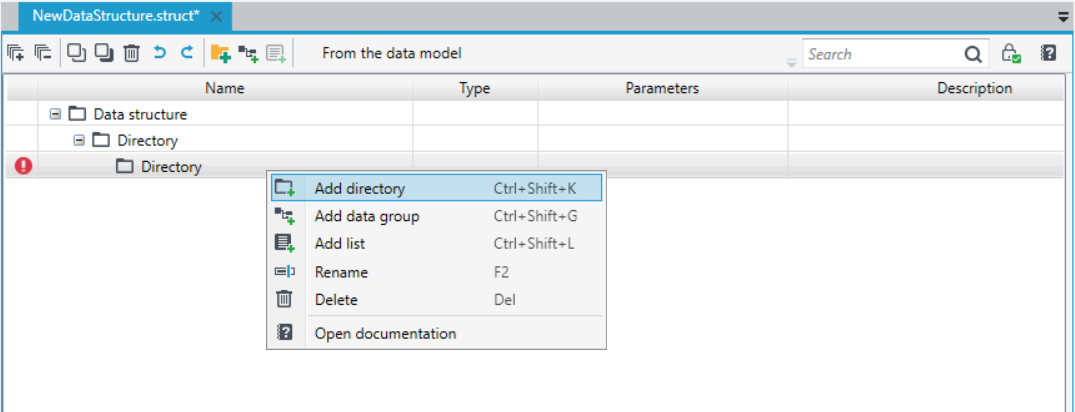
- The new directory is saved in the directory that was selected when starting the Add directory functionality.
- When defining a new directory, the default name Directory is displayed in the data structure tree.
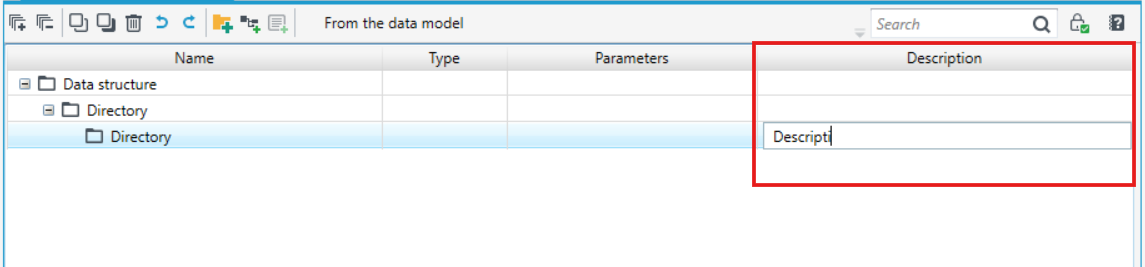
- You can add a description to each directory. In the structure creation table, select the directory row to which you want to add a description.
- In the Description column, double-click the left mouse button.
- In the highlighted field, add a description for the directory.
Defining Data Groups
Data groups are data structure objects that group elements of the data structure logically; they are used to create business objects (aggregate fields related to a given element of the algorithm), e.g. vehicle, entity, instalment. You can add a data group to a directory previously created in the data structure.
The user has the option to:
- add a data group to the data structure,
- mark a data group as a list,
- change the name of a data group,
- copy the data group and paste it elsewhere in the data structure.
Adding a data group
- Select a directory in the data structure tree.
- Select the Add data group button or select Add data group from the context menu (displayed by right-clicking the mouse).
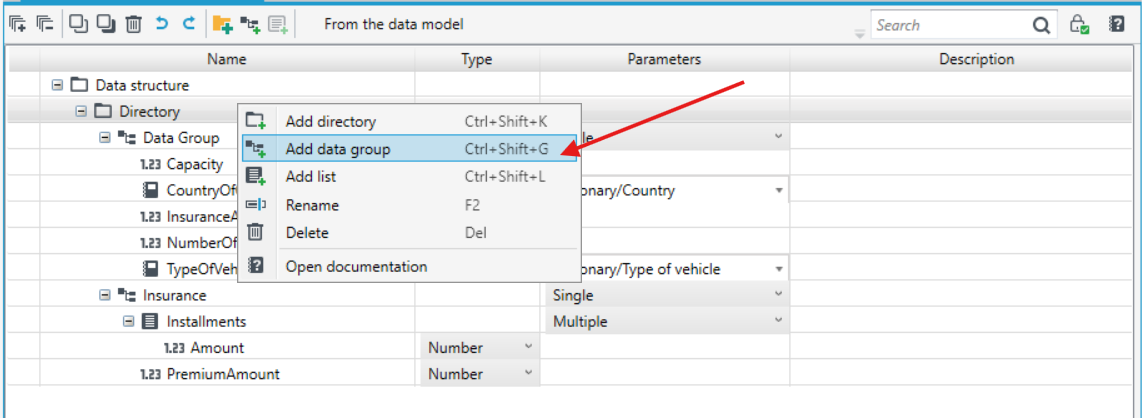
The new data group is saved in the directory that was selected when starting the Add group functionality.
Items with the same name cannot exist in one data group. It is not possible to create a data group with the same name as an already existing group within one directory.
Copying a data group
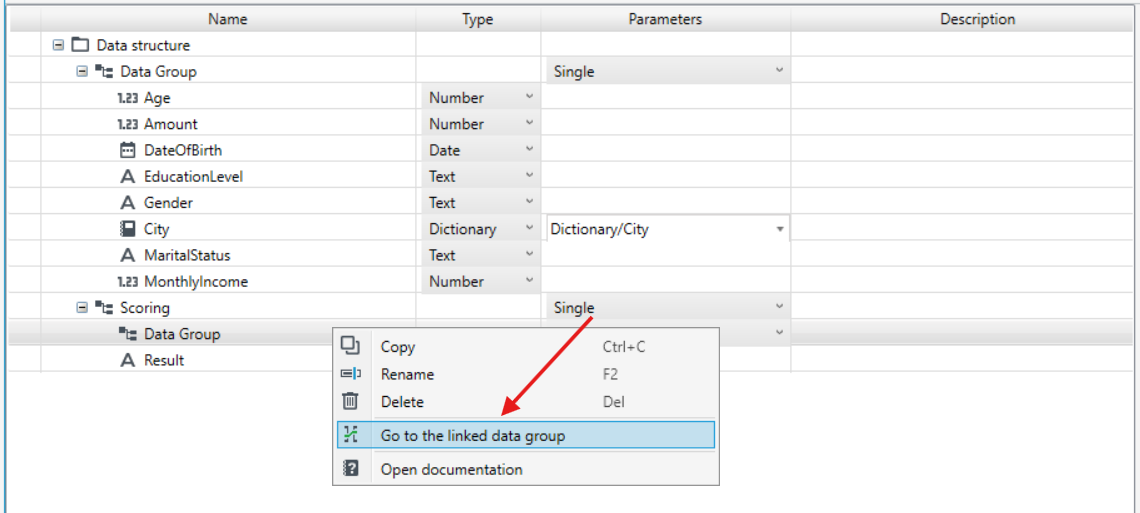
You can copy a data group and paste it into another data group. The copied data group is pasted into another data group as an element of the linkage type, i.e. if changes are made in the data group that has been copied, they will also be visible in the group copied and pasted into another data group as an element of the linkage type.
- Select a data group in the data structure tree.
- Right-click and select Copy as link from the context menu.
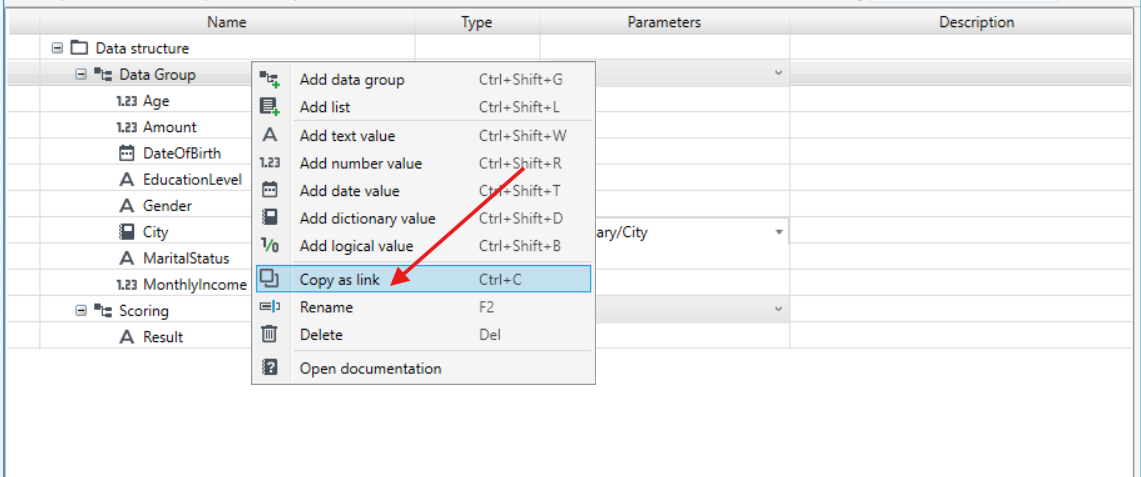
- In the data structure, select another data group into which to paste the data group as an element of the linkage type.
- Right-click and select Paste from the context menu.
- Right-click on the pasted data group. You can go to the related data group.
Marking a data group as a list
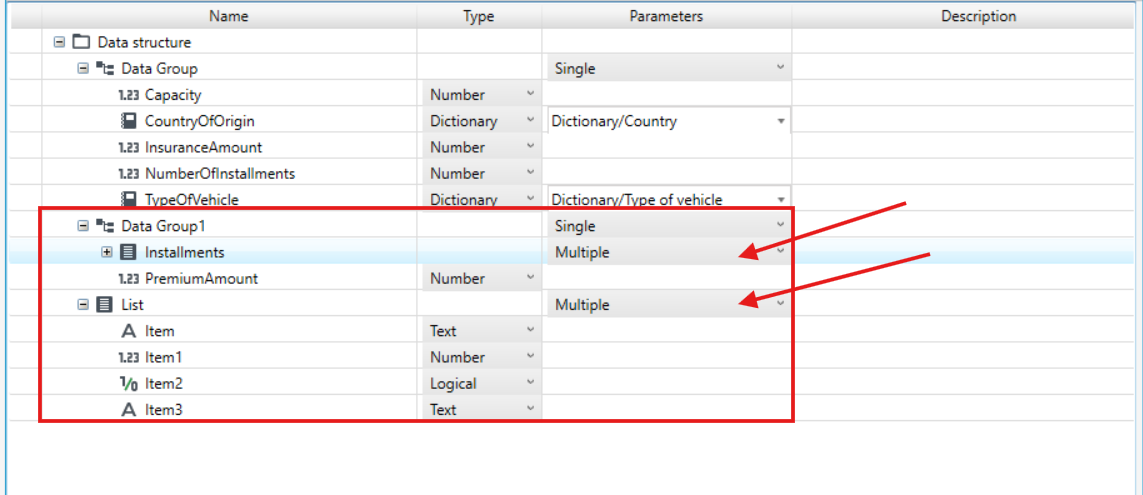
You can mark a data group as a list to recreate a business need reflecting the reality. Marking a data group as a list allows the group to be used as a data list in algorithms, in the algorithm elements: Add to list, Aggregation and Get from list. The elements of the list can also be used to test the algorithm and in the Data structure window that allows you to assign values to variables (see: Algorithm testing).
- Select the data group in the data structure to create a list.
- In the Parameters column from the drop-down menu, select Multiple.
- A data group marked as a list is displayed in the data structure tree with a double sticky note icon.

It is possible to create a data structure that will have another list as one of the fields on the list of elements. For example: creating a data structure with a list of a person's loans with a list of installments of individual debts.
To create a data group of the List type, specify the Multiple parameters for the data group in which the data group of the List type is to be created.
Defining elements of a data group
Data structure elements are objects that uniquely identify data used inside the application and outside it. An item can only be added to a previously created data group. The new item is saved in the data group.
The user has the option to:
- add an item to a data group,
- change the name of an element,
- select the element type,
- copy an item and paste it into another data group.
Add an item to a data group
- Select a data group in the data structure tree.
- Right-click the mouse.
- In the drop-down list of the pop-up menu, select the element type: Add text, number, date, dictionary, logical value.
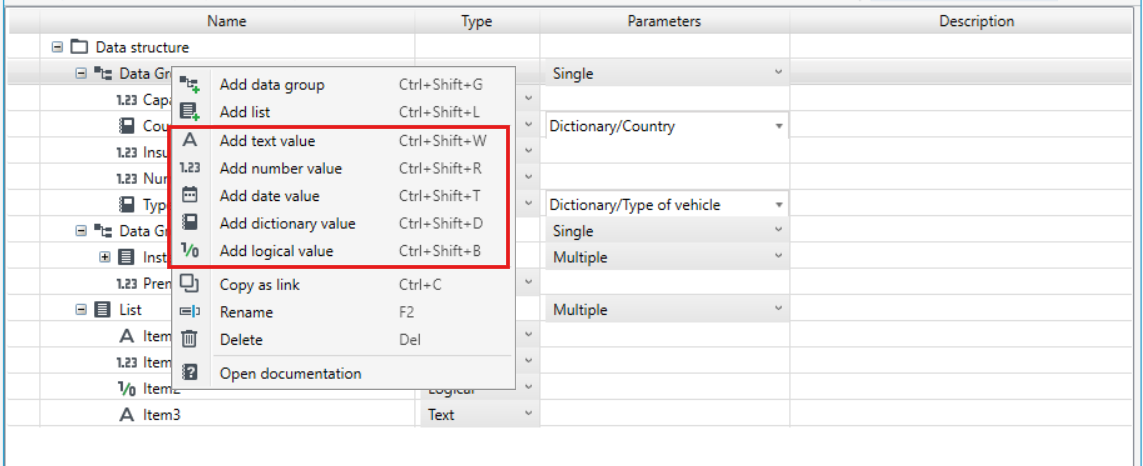
Each element should be assigned to a selected data group. You cannot create an item directly in the root of the data structure.
It is not possible to create two items with the same name within one data group. Keep this rule in mind when copying or moving an item to another location (parent data group).
It is possible to paste data from an MS Excel file into the structure.
Copy / Paste an item
Items added to a given data group can be copied. The copied item has the same name and properties as the original item.
- Select an element in the data structure tree.
- Right-click and select Copy from the context menu.
- In the data structure, select the data group into which to copy the item.
- Right-click and select Paste from the context menu.
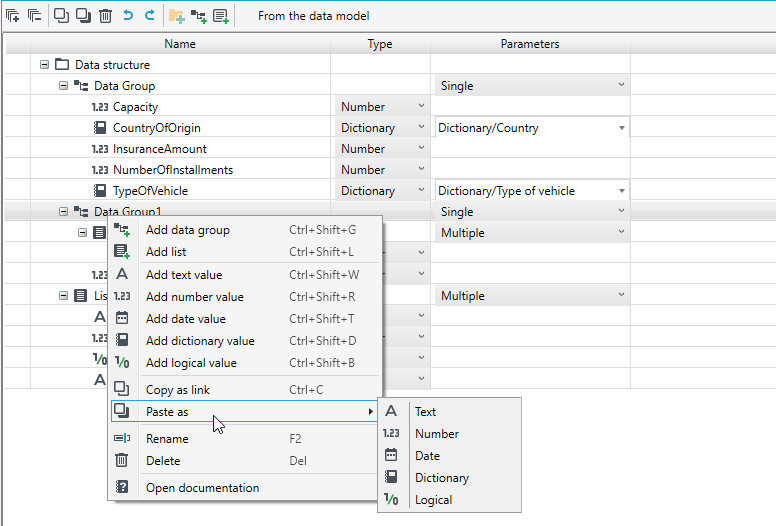
The application allows you to copy data structures from MS Excel. This is possible via the Paste as option. To copy a structure from Ms Excel, select the worksheet column, copy it, and then select Paste as on the data structure. Select the data type from the drop-down menu.
Selection of the item type
- After creating an element, specify the element type: Text, Number, Date, Logical, Dictionary.
- On the list, select the element for which you want to define the type.
- In the Item type column from the drop-down list, select the item type: Text, Number, Date, Logical, Dictionary.
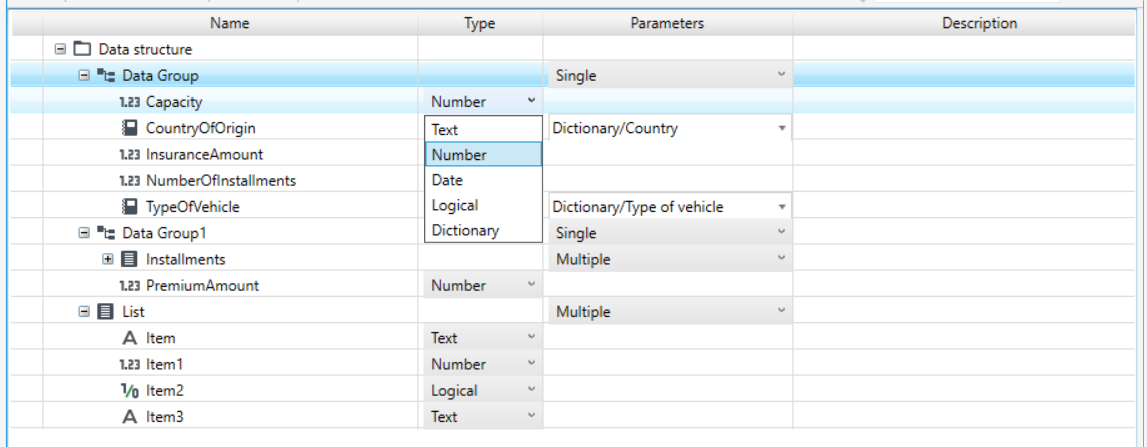
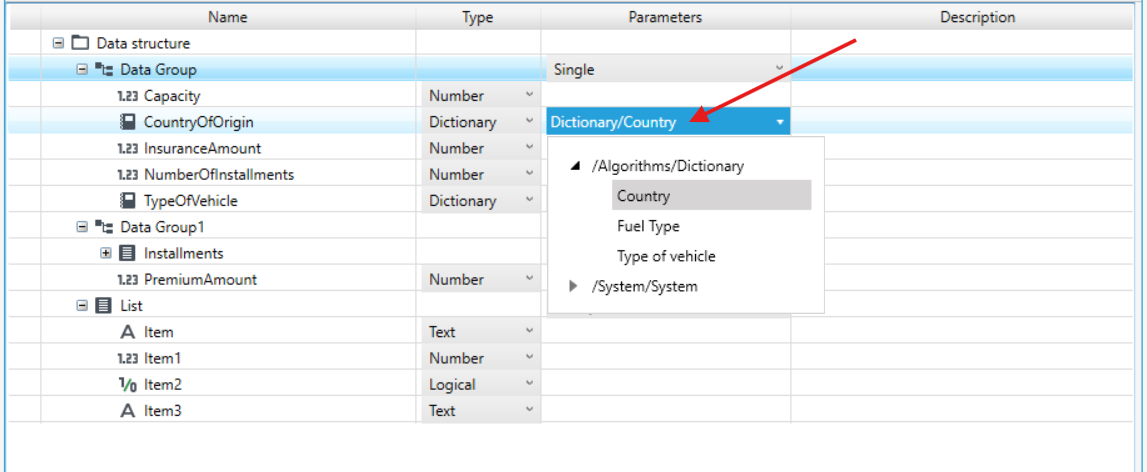
- If the item type Dictionary is selected, specify the dictionary for the item in the Parameters column.
- After selecting the Dictionary type, expand the list in the Parameters column by clicking the button to the left of the Parameters field.
- Click the appropriate dictionary to select it.
Naming of data structure fields
Use only letters, numbers, and spaces in data field names. Do not use national letters.
Data structure fields should start with a capital letter:
- Is the vehicle used for profit (incorrect),
- IsTheVehicleUsedForProfit (correct),
- Is the vehicle used for profit? (incorrect).
Data structure fields should be named in the singular, for example: "ClientData", "EntityData", "ACRisk".
- The field name should be two to four words (recommended).
- Each field, group and directory in the data structure must be clearly described - what they are for, what will be stored there.
- Do not paste the field name into the description.
Validating the data structure
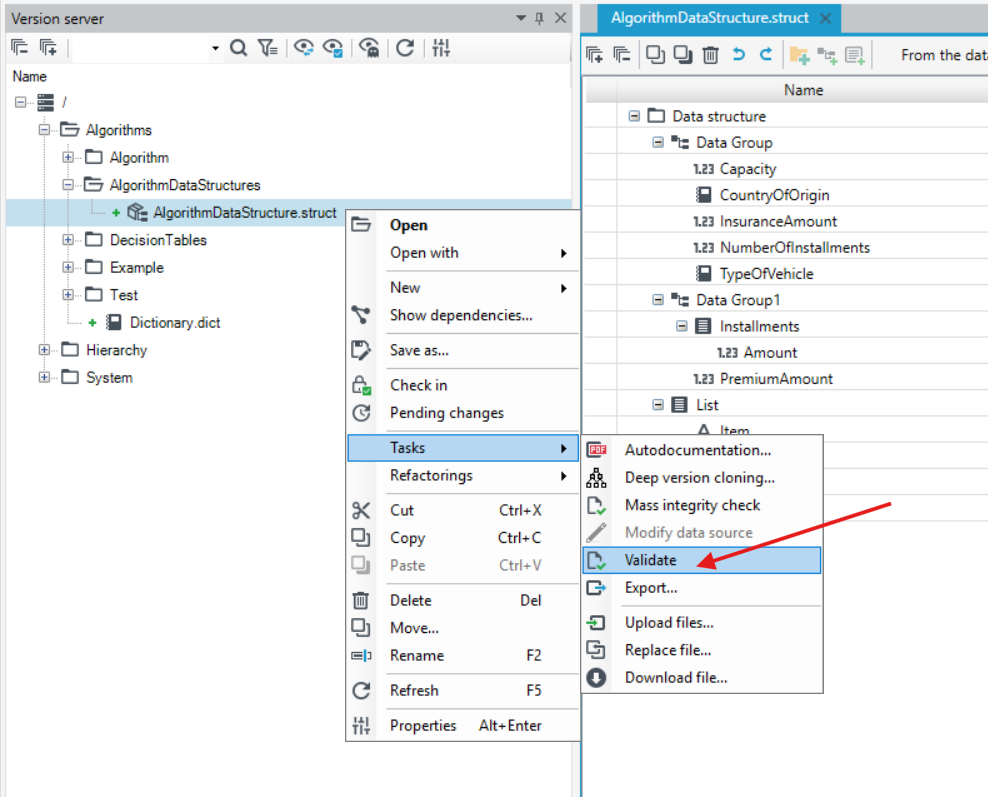
You can validate the created structure at any time while working on the data structure. After validation, there are two types of messages that can be displayed: about the validity of the structure or about the structure configuration errors.
- From the Versions menu, select Validate, or select the Version server option and select the desired data structure versions.
- From the right-click context menu, select Tasks and then Validate.