Adding another key, unmerging into groups
You can configure an existing table at any time and add additional keys to it or delete them.
- Right-click on the values of the key against which the new one will be created and select from the context menu the option: Add key above, Add key below or Add key on the right, Add key on the left (the availability of displayed options depends on the location of the key in the table).
- In the newly created key, enter the key name.
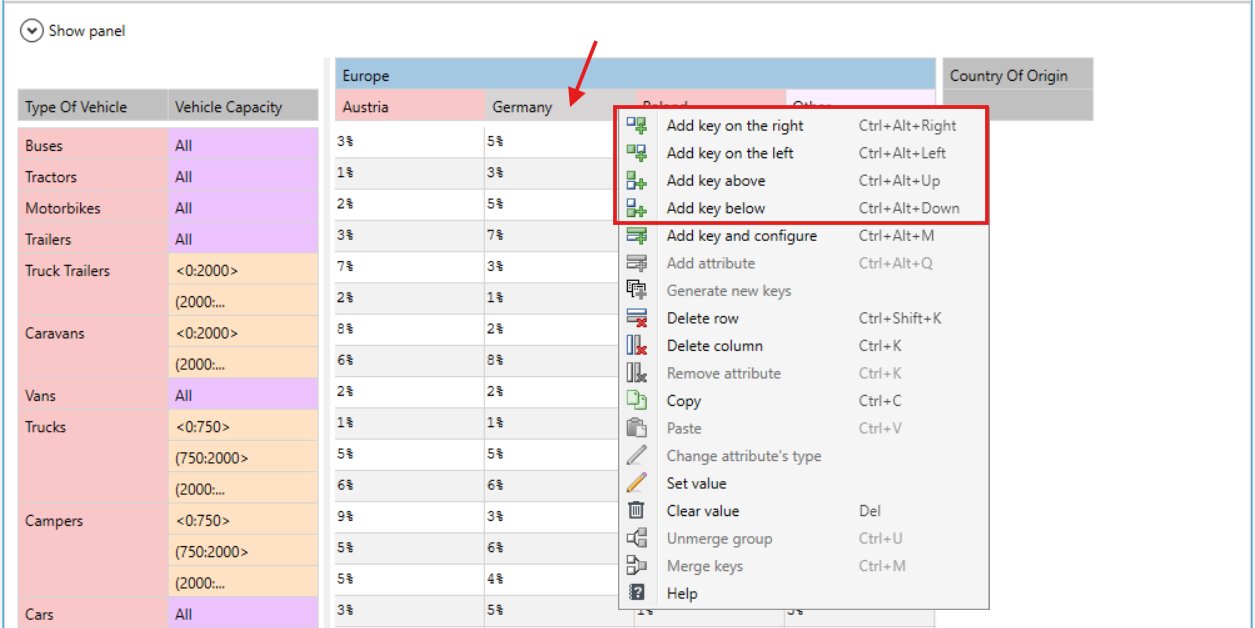
- If you want to add several keys and configure them, select the option from the context menu Add key and configure.
- Select Add to add new keys and enter the names of the keys.
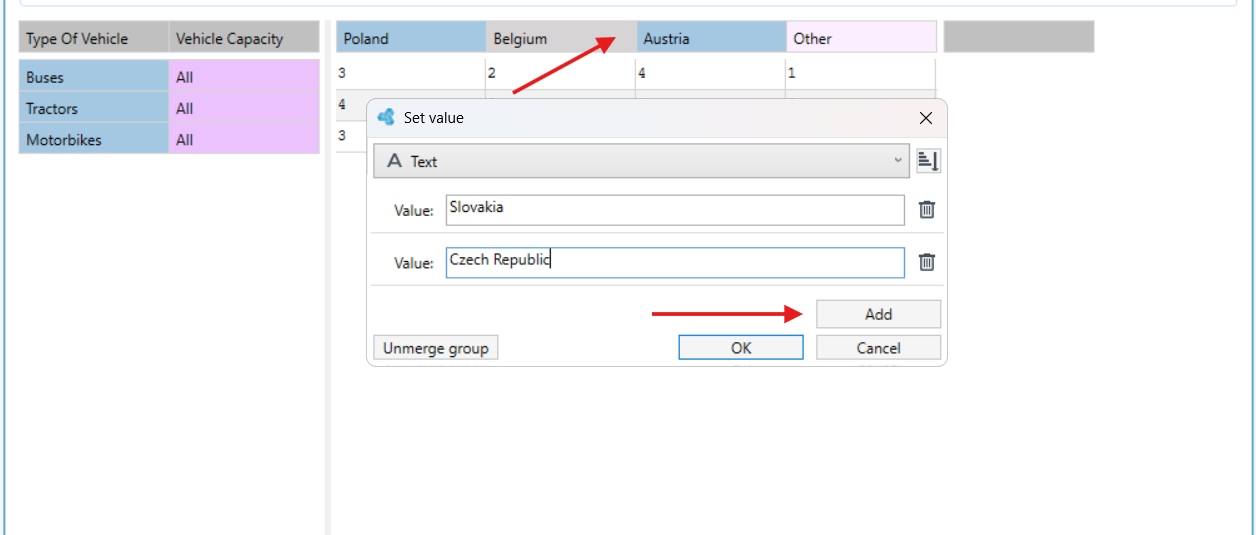
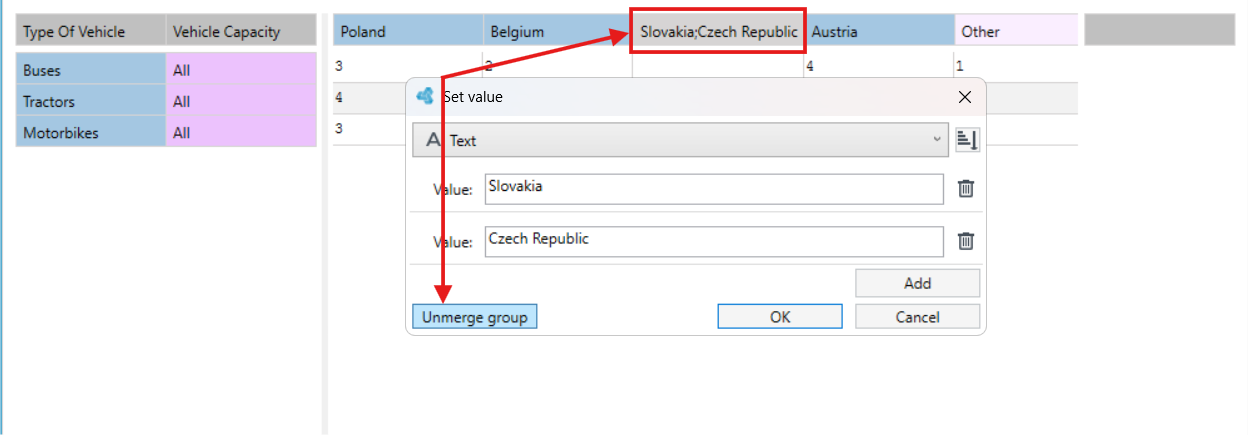
- To unmerge keys, go to data editing and select the Unmerge group button.
- This option enables the separation of key values, previously entered in one line, into separate lines, and into separate keys.
tip
When adding a key to the parent key in a table where several columns or rows have been created, the new key is added to the same row or column in which the parent key is located. The row or column widens and creates a key associated with the added keys.
See also
Selecting cells and keys in a table, copying and pasting values