Advanced editing of keys
Advanced editing of keys is possible in several ways.
- Move the cursor to a table cell. The icon will be displayed
 .
. - You can also right-click the cell and select Set value from the context menu.
- The editing panel is also displayed after pressing the space bar in the selected cell.
Sorting
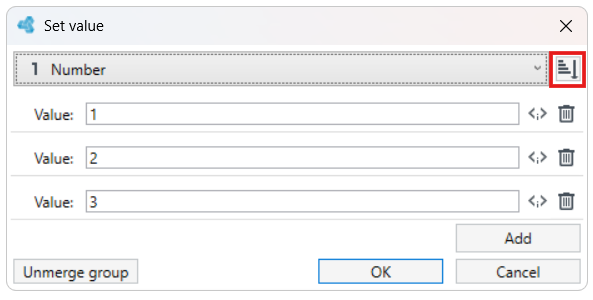
If we have defined more than one value within the key, then the data can be sorted. The icon on the right can be used to sort the keys.
Configuration of key parameters
You can freely configure the key parameters in the panel:
- define the Key type (first list),
- add further values - the Add button,
- remove the condition (the cross icon is available for each line),
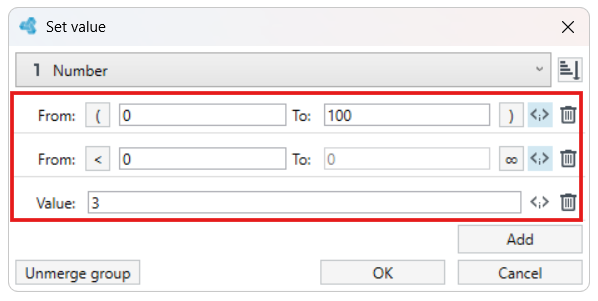
- change the line to an interval (icon
<;>) in which it is possible to define: boundary values, whether the boundaries are closed, or the boundary is infinity.
Merging keys
The Unmerge group button allows you to unmerge any key in the table that contains more than one row into individual keys.
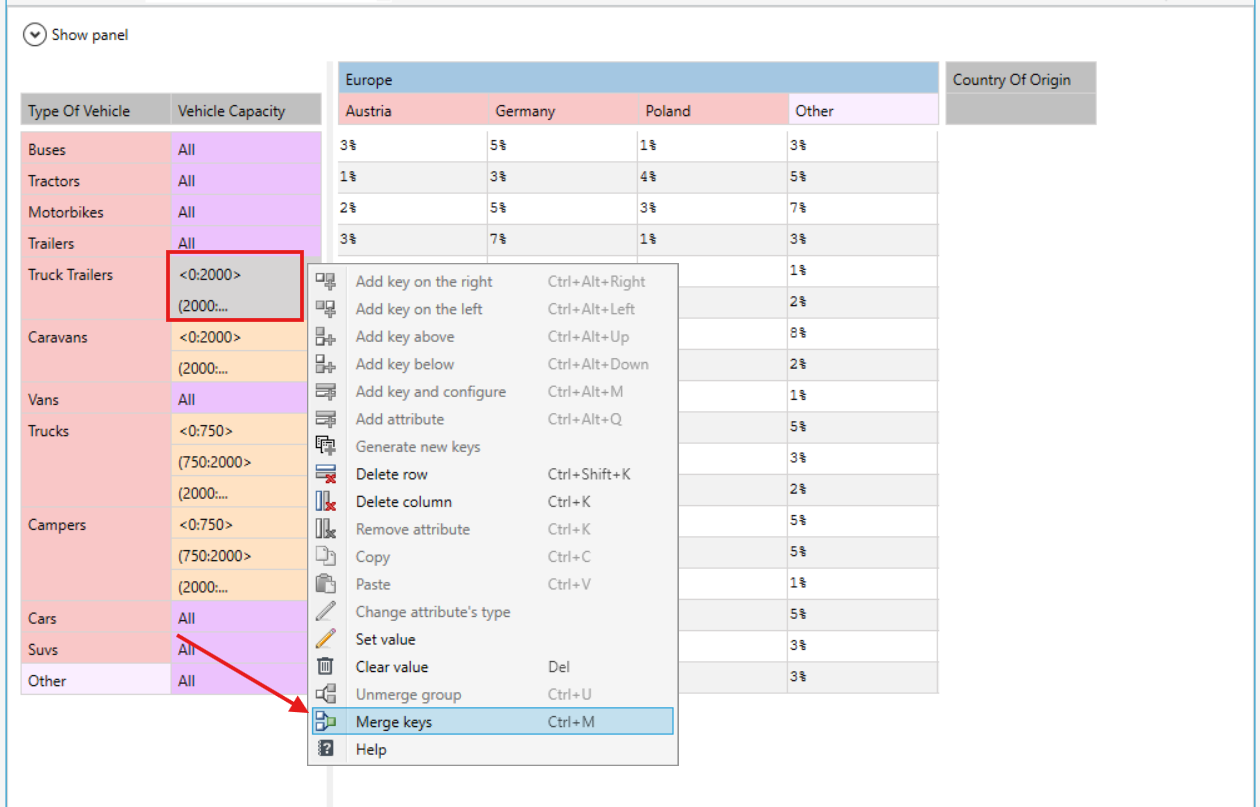
- You can merge a group of keys. To do this, select several keys (with the Ctrl key held down), right-click the mouse and select Merge keys in the menu that appears.
Searching keys
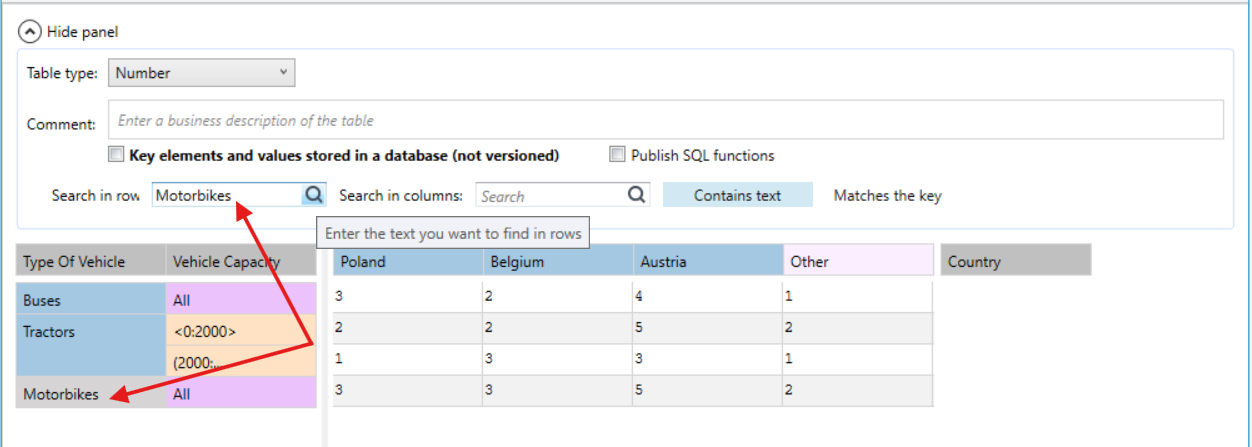
You can search the table for specific values in the table cells, depending on whether you want the values to contain text that you type in the search fields, or whether the text is a key and the searched values are to match it.
- To search for a desired key, in the Search in rows or Search in columns fields, enter the table key names, i.e. the name of the column or the name of the row. Keys that match your search criteria will be highlighted in the table.
See also
Entering the Result Data into the Table