Configuring Table Keys
Adding a table and configuring keys
In each table, you can define horizontal and vertical keys (rows and columns of the table with headers), which are ordinal elements aimed at unambiguous identification of the values in the table.
In addition, for vertical and horizontal keys, you can specify a name label or a key description.
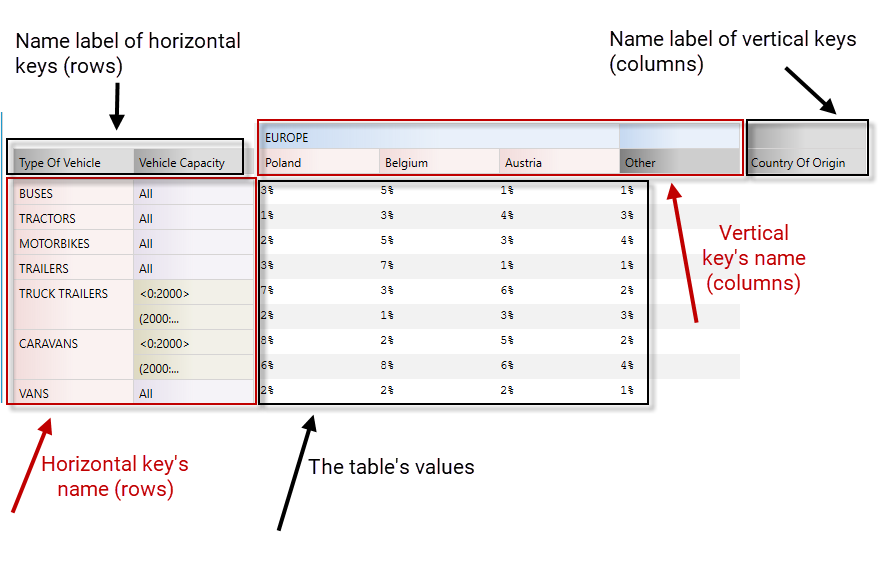
- When creating the table, you specified the number of columns and rows for the table. See: Creating a new table
- Enter the name of the label for the horizontal and vertical keys, double-click the selected field and enter the name directly in the table field.
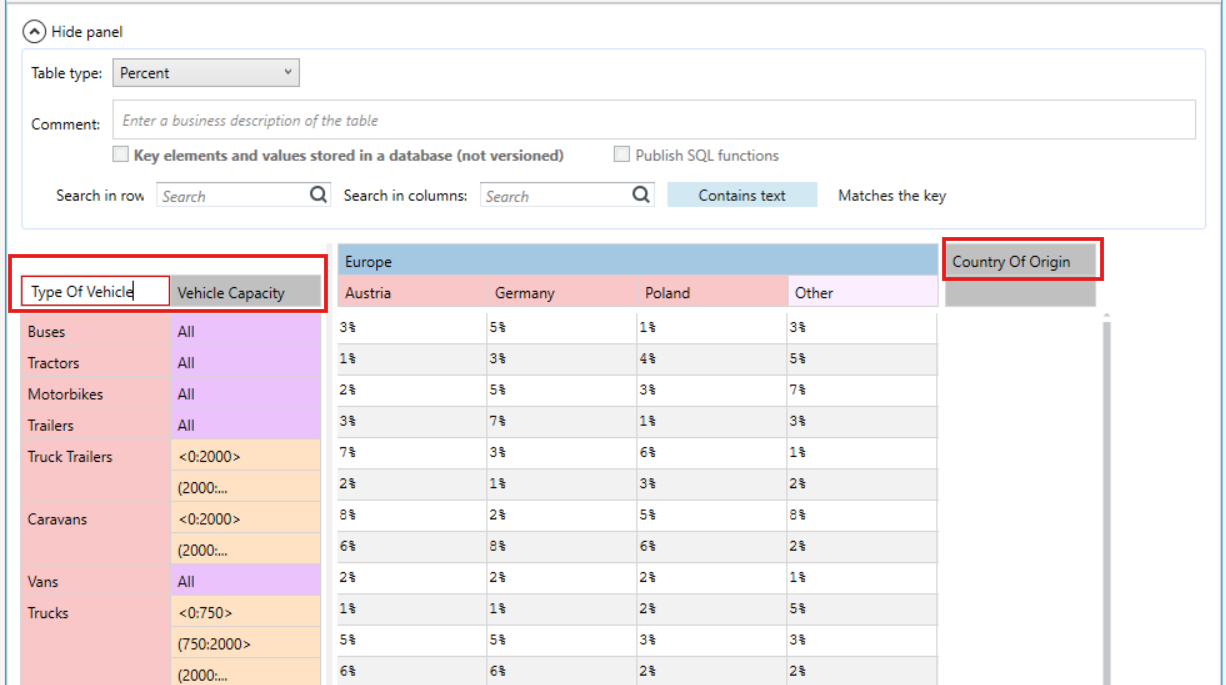
- Enter the names of the horizontal and vertical keys. Double-click the left mouse button in the selected field and enter the name or select a button
 in a table cell and then specify the key type.
 - Enter the key value according to the selected key type and press Ok.
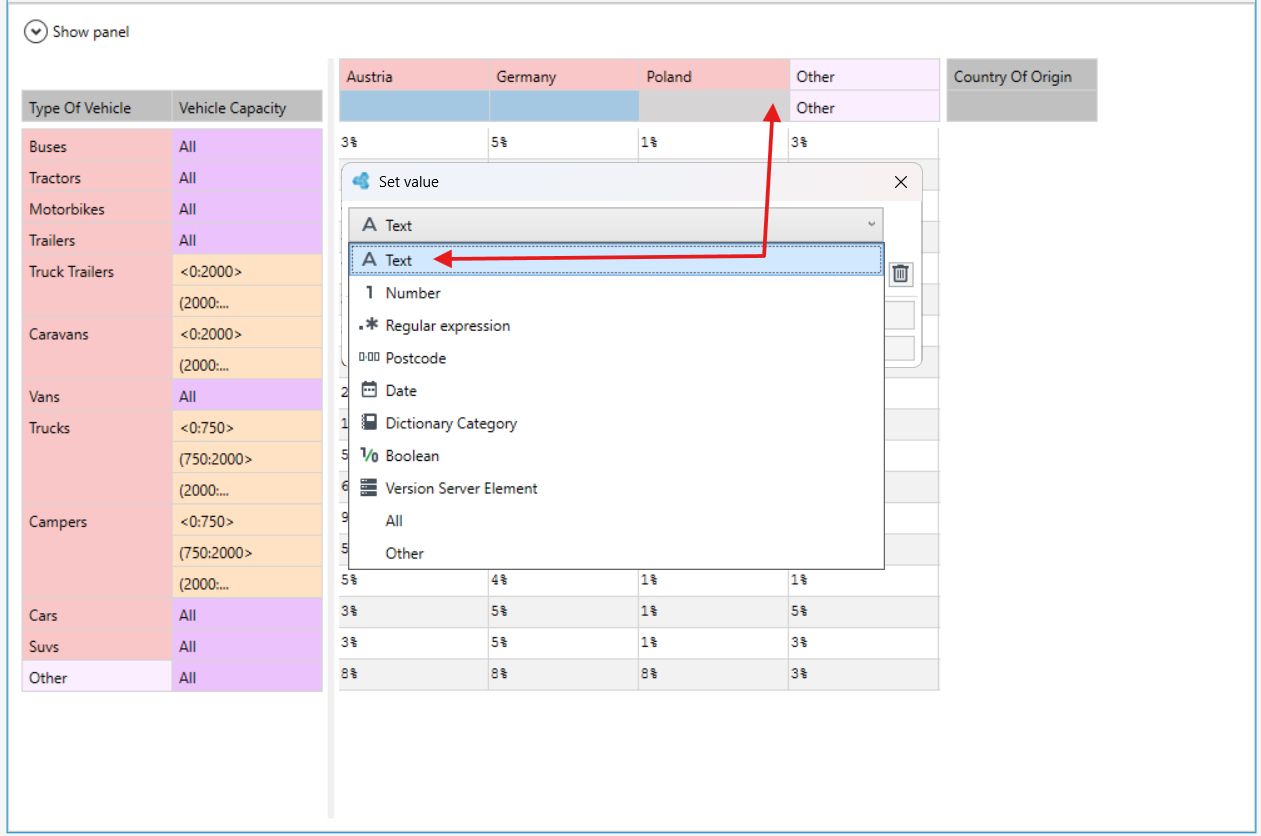
Additionally, if you have selected a key type it will be presented as an icon next to the name.
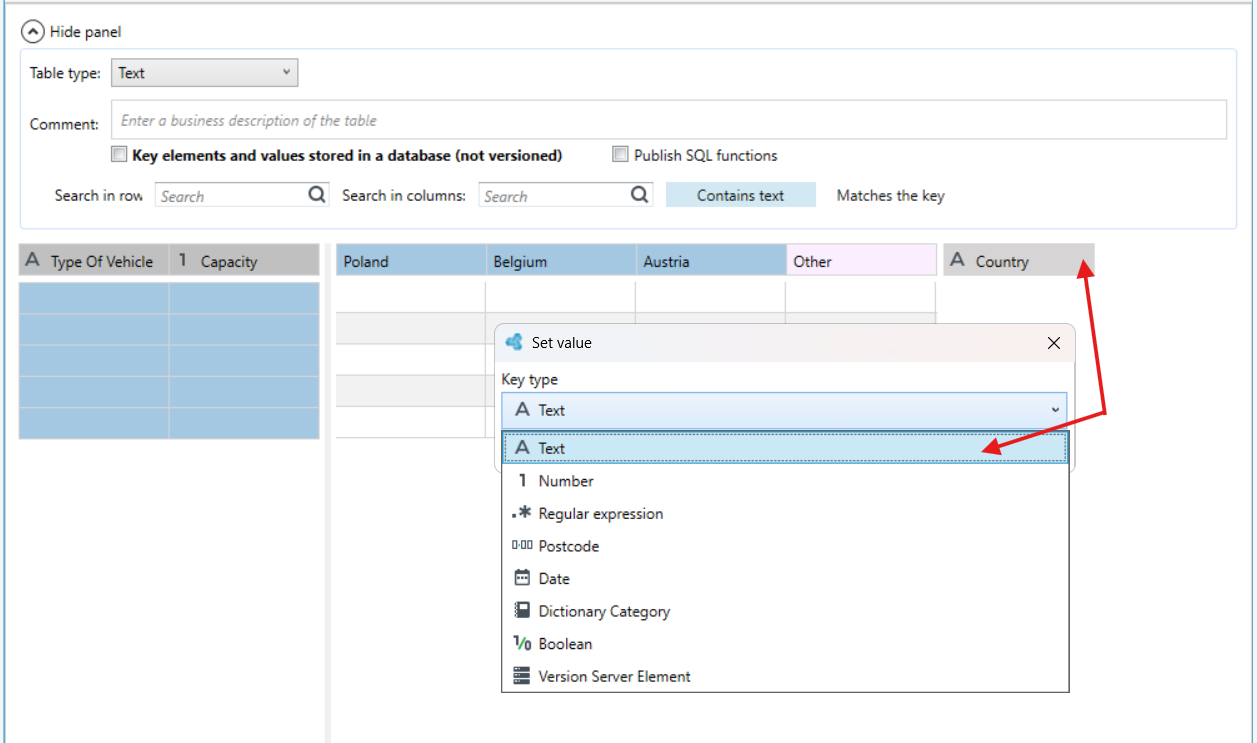
You can add the following types of keys:
All type key
The All type key is a table key, the value of which will be returned in the specific part of the algorithm, regardless of the given search criteria or given input data.
If you specify the key with this parameter, then each input can be considered as meeting the conditions without checking any additional criteria.
For example:
In the table below, the key All has been specified in the Vehicle capacity column for BUSES, TRACTORS, etc. This means that for these vehicle types the Vehicle capacity condition will not be checked, because, regardless of what input parameter is passed here, it is immediately fulfilled.
In turn, for the type of vehicle specified as TRUCKS, the Vehicle capacity will be additionally checked to specify whether it is within the ranges specified in this key, and only the input parameters that meet these conditions will be transferred.
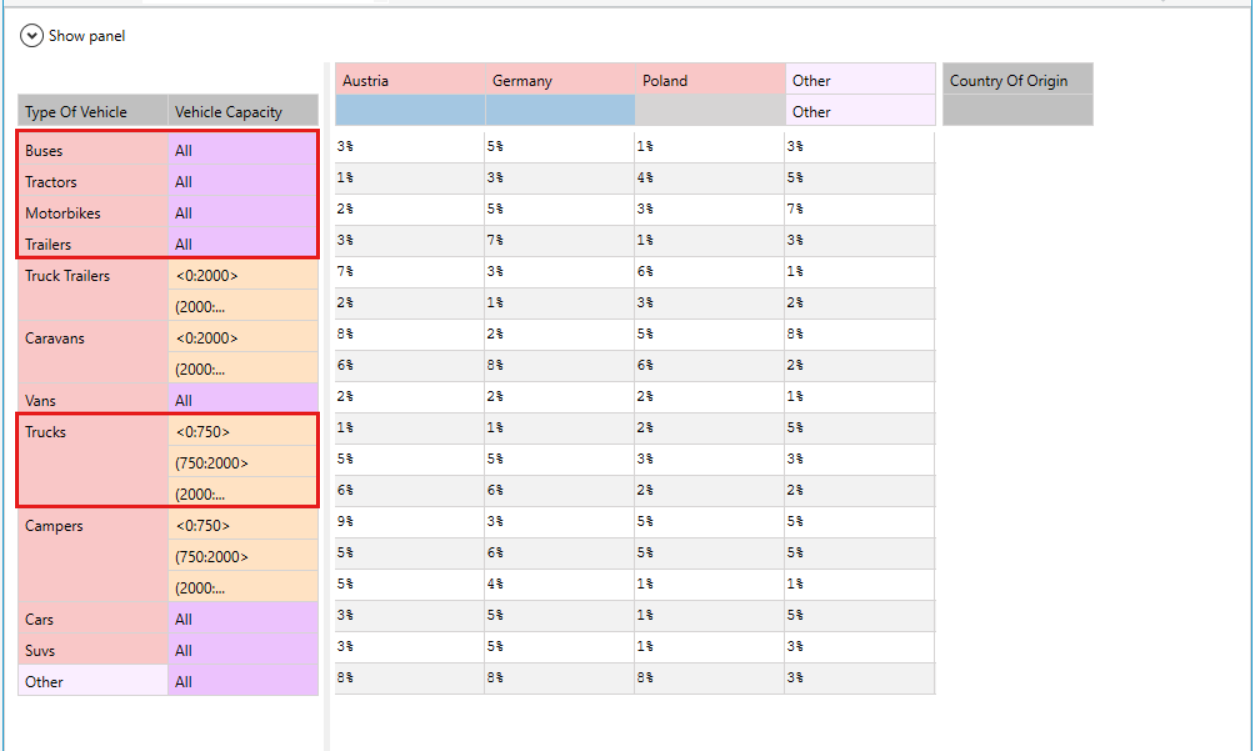
It is not possible to change the value of the Key type field to All if this key is not the only associated key of the parent key.
Other type key
The Other key is a table key that matches any value that has not been matched previously. This key should appear last in the table column.
The value of the Other key will be returned in the table that is an element of the created algorithm if the given input data is not found among the table key values.
A key for which the Other type is selected is also referred to as an alternate key. The value of the alternate key will be returned in the corresponding part of the algorithm if no key within the associated keys meets the given search criteria.
For example:
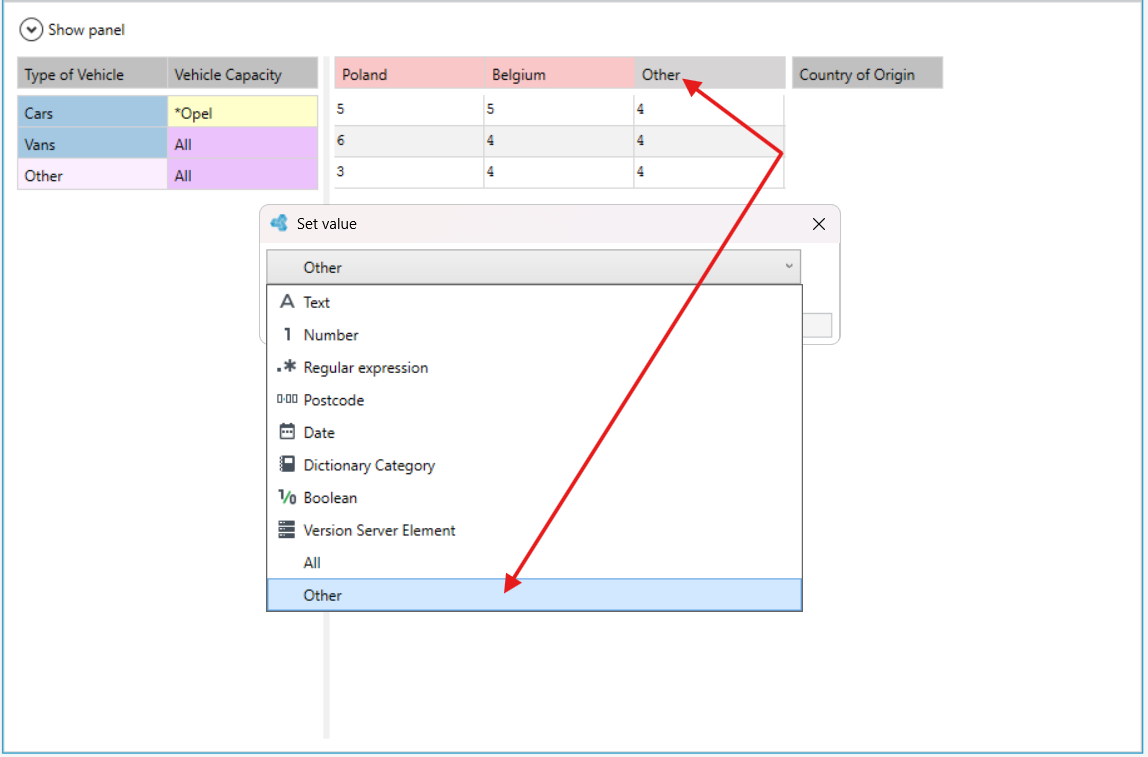
Vehicle points will be awarded in the table below, depending on the country of manufacture, vehicle type and make. Points are specified for Poland and Belgium separately. The next column contains the Other key, i.e. all other input parameters, for example for the Czech Republic, will receive points from the table marked with the Other key.
Text type key
Text keys contain a string of characters and are used to store text. Keys of the Text type can contain several strings of characters. They are used to match any of the available strings.
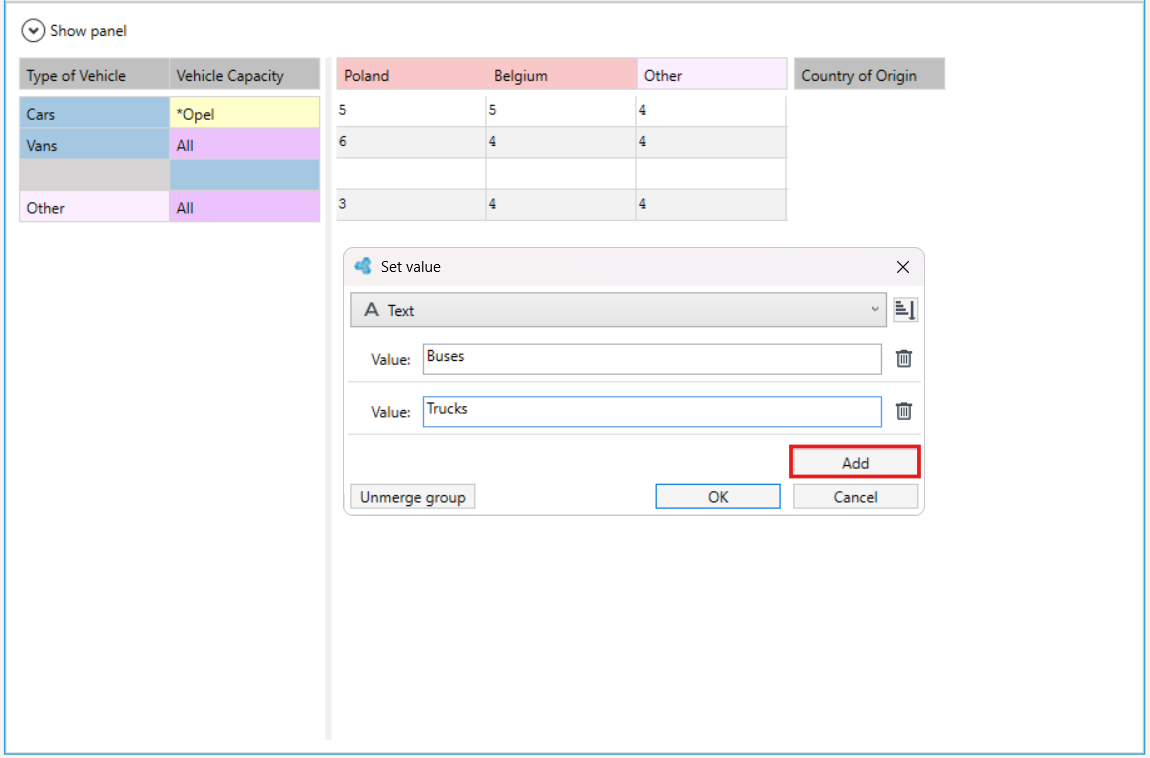
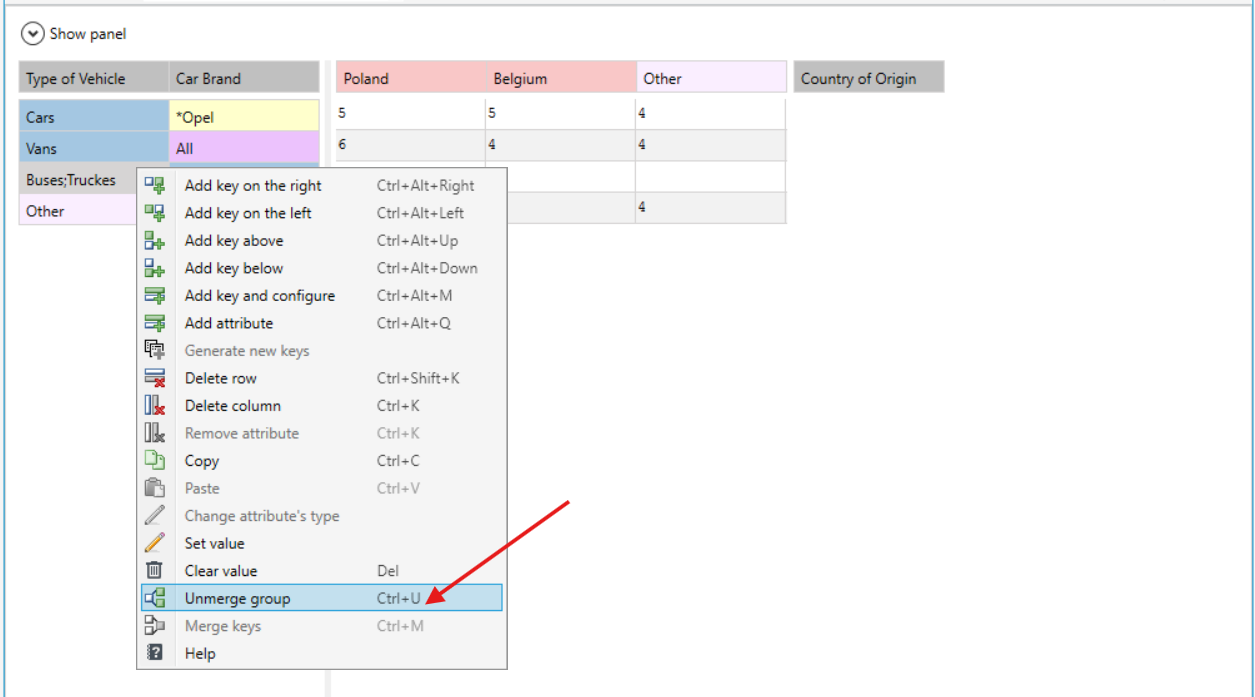
- Let us assume that we want a given key to be shared by Vehicles and Buses. It is not until the next part of the table that a distinction is made between the keys. To do this, create a Text type key with two values separated by a semicolon: Vehicles and Buses - as shown in the example below.
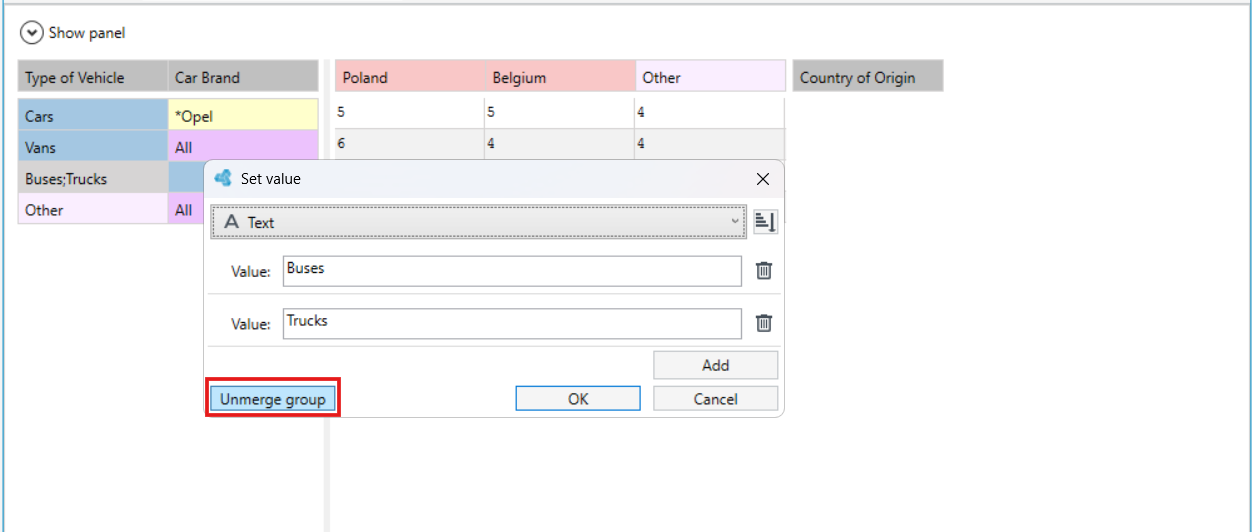
- The added values will be contained in one key field - they can be ungrouped; to do this use the option available from the pop-up menu Unmerge group using the Ctrl + U keyboard shortcut or when entering multiple values to a key group by pressing the Unmerge group button.
- You can merge the keys again. To do this, select several keys, right-click the mouse and select Merge keys in the displayed menu.
Defining ranges (intervals) for the Number, Postal code, and Date keys
For the Date, Number and Postal code keys, you can enter a single value, i.e. the appropriate date, number, and zip code, or time, number, and zip code range.
- Select the button

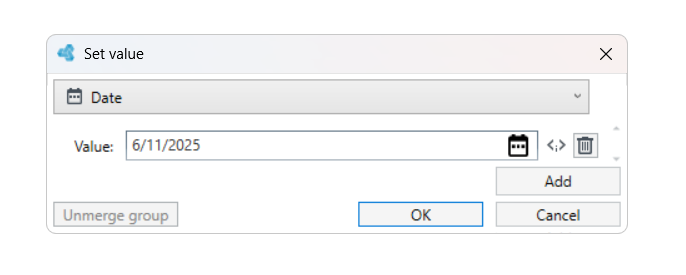
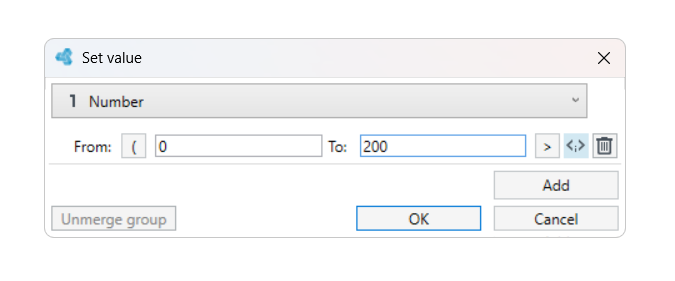
On the left and right side of the entry window there are symbols - from which you can create any number, time or postcode range (interval).
Explanation of symbols:
 - closed interval
 – open interval
 – infinity
Depending on how you configure your intervals and what symbols you use, the interval can be:
- Closed -
<> - Open -
() - Left-closed -
<) - Right-closed -
(>
For example:
6 numerical intervals are defined below.
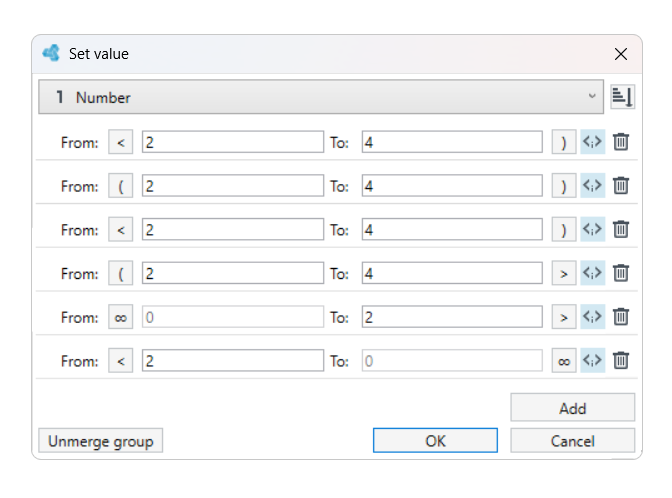
Intervals are as follows:
- Closed - values within the range are 2, 3, 4.
- Open - a value in the range is 3, values 2 and 4 will not be taken into account.
- Left-closed - values between 2 and 3, the value 4 will not be taken into account.
- Right-closed - values between 3 and 4, value 2 will not be taken into account.
- Infinity to Right-closed - All values less than 2, including the value 2.
- Left-closed to Infinity - All values greater than 2, including the value 2.
Number type key
Numeric keys are keys containing numbers or a numeric interval. They are used to match the table input parameter with a number.
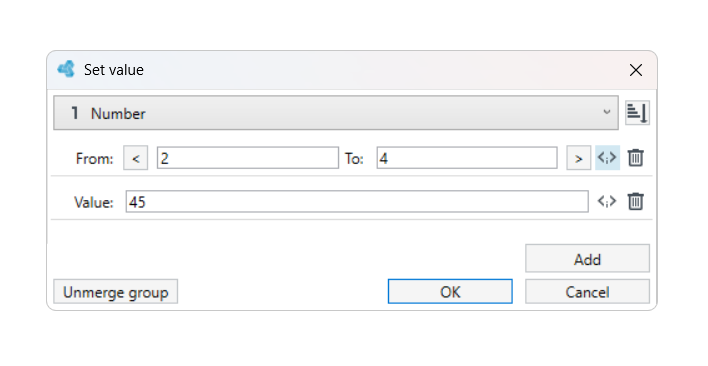
For the Number key you can define intervals if you want to specify the data. For more information on defining intervals, see: Defining ranges (intervals) for the Number, Postal code, and Date keys
Regular expression key
A regular expression is a pattern that describes a text string or specifies a set of matching text strings. There are two types of characters distinguish within the records defined as the Regular expression :
- ordinary characters, e.g. a, d, 4, which are treated as plain text,
- special characters, e.g.:
?- means that some character can occur 0 or 1 time, and*- replaces multiple characters.
Remember that regular expressions are only validated syntactically, so pay special attention to their correctness when creating. The regular expression key type can contain patterns, describe a text string, or specify a set of matching text strings.
For example:
We only want to give points to vehicles of a specific make and model. To do this, choose a regular expression to avoid listing all possible options.
In the expression, enter the pattern, i.e. Opel*. With such a configured expression, all car models whose name starts with Opel... will be checked, that is, for example, OpelAstra, OpelCorsa etc. And for these models the appropriate number of points, as defined in the table, will be awarded.
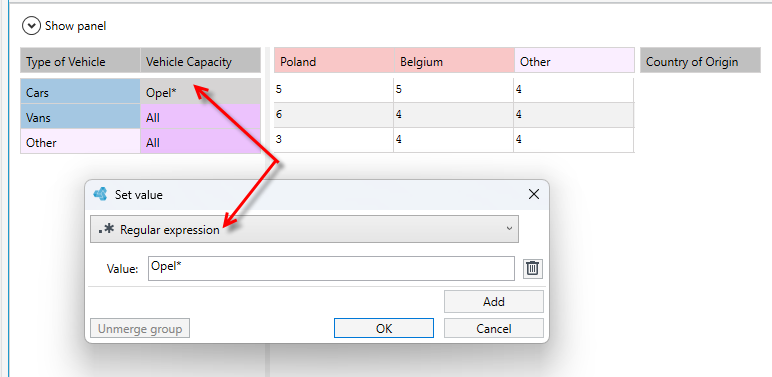
In turn, by using the question mark ? you can replace any character in the string. It replaces a single letter at a specified position. For example, when we define an expression like this:
For the word: left you can use l?ft, and the matching results will be: lift, left, so the question mark replaces any single letter.
Postcode type key
Keys within the Postcode type contain values presented in the form of a postal code in the following format: 00-000; 00-000.
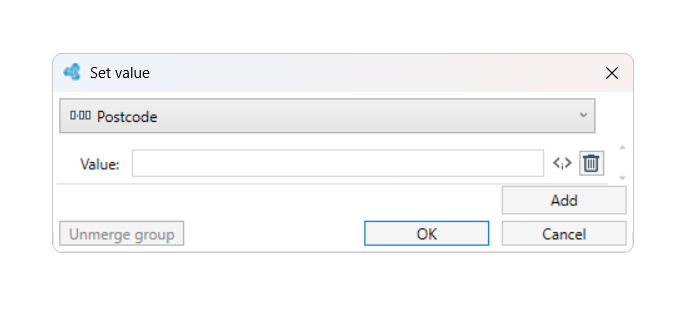
Postcode is a type that allows you to enter multiple postcodes in one key, which is useful when using the functionality of copying data from an external data source, e.g. Excel. Postcodes in the data source must be separated by semicolons.
You can enter a single code or define a range of postcodes. For more information on defining ranges, see: Defining ranges (intervals) for the Number, Postal code, and Date keys.
If you enter the code directly in the table cell (double-click the left mouse button) then you can enter the postcode in abbreviated form: 00, 00-, 000, 0000, etc. The application automatically completes the postcode values that have not been entered by the user and completes the missing dash.
Remember that if you enter the postcode directly in the table cell or paste several codes from MS WORD or Excel, then the unfinished values of the full code format are completed with the values between 0 and 9.
For example:
If you enter the code as 33-0 and press Enter, it will automatically be changed to the full form, i.e. the range between 33-000:33-099, so that the conditions will be met by all postcodes from this range, i.e. 33-001, 33-002 and so on up to 33-099. Uncompleted values are changed to 00 in the field From and to 99 in the field To.
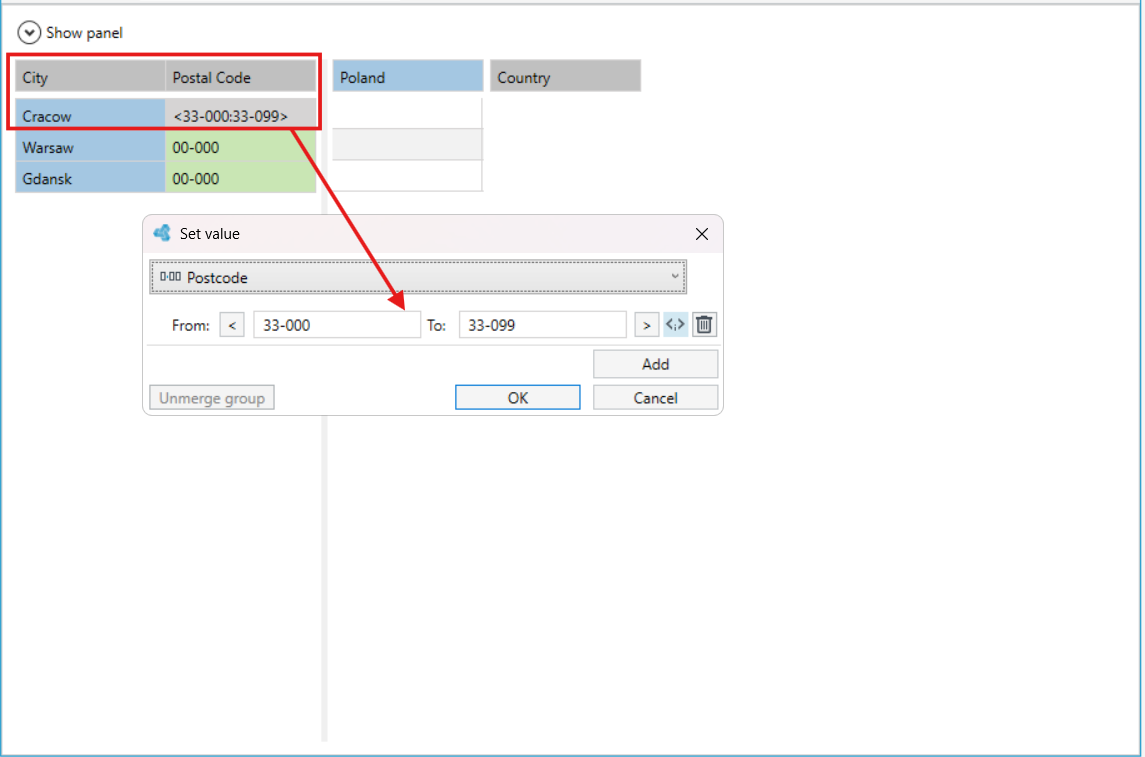
Thanks to the Postcode type, you can save postcodes to the key in the following form: code; code, etc., where the code can be:
X is any number
- x (the code is converted to the form) -> x0-000;xx-999
- xx (the code is converted to the form) -> xx-000;xx-999
- xx-x (the code is converted to the form) -> xx-x00;xx-x99
- xx-xx (the code is converted to the form) -> xx-xx0;xx-xx9
- xx-xxx (the code is converted to the form) -> xx-xxx
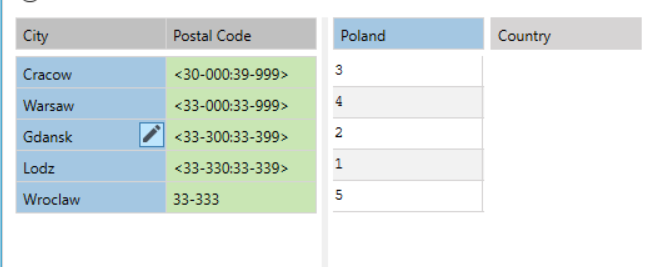
This way, in one key of the table in the application, you can input postcodes in the form of e.g. 07-2, 32-2, 32-5, 32-6, 34-1, 34-2, 34-3, 40-, 41- , 42-4.
Date type key
The Date key allows you to specify an exact date or period of time.
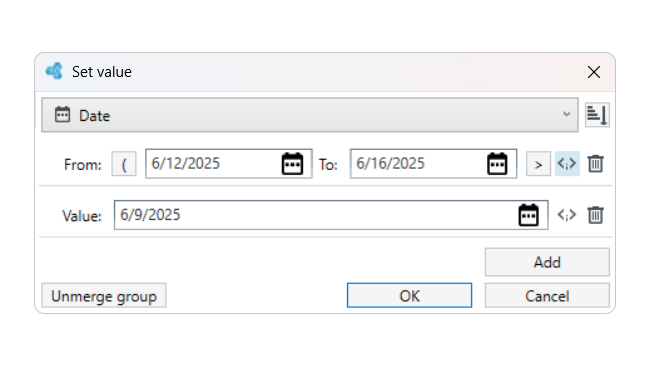
If the date interval 'From' 'To' has been specified, then depending on which option you used when defining the interval, it may be closed or open or left-/right-closed. If one of the ranges 'From' or 'To' is not specified, the period will be an interval with no specific start or end date. For more information on defining intervals, see: Defining ranges (intervals) for the Number, Postal code, and Date keys.
Dictionary type key
The Dictionary type key allows you to enter data from the available dictionary structures in the Dictionary type table.
You can use the dictionary elements of a given dictionary to define table keys. The key that is defined in this way is assigned the type Dictionary.
- Click the key value where you want to enter the dictionary data.
- Select the data type, then scroll to a category from the available dictionaries and select a dictionary item.
- For more on how to define dictionaries see: What are dictionaries.
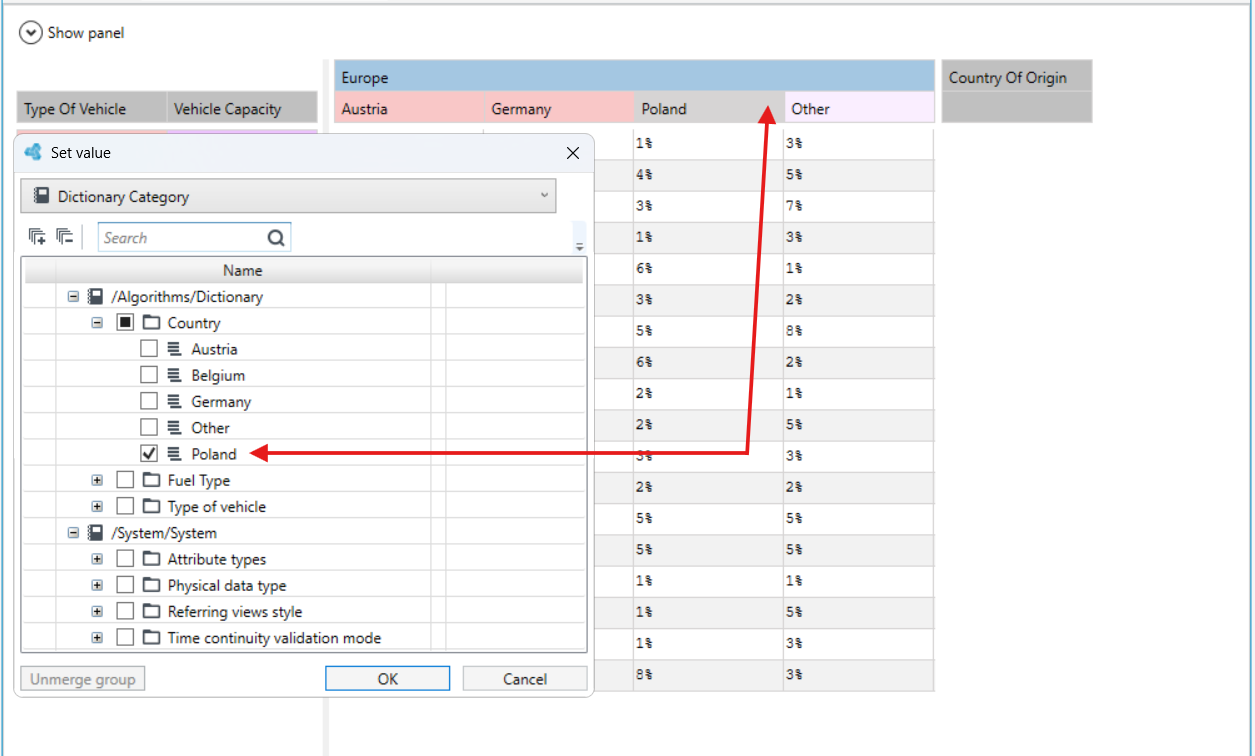
Selected dictionary elements will be added as child keys, if the parent key is defined and a dictionary key is added within it.
See also
Selecting cells and keys in a table, copying and pasting values