Creating a new table
Creating a decision table
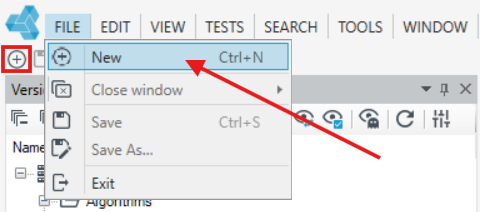
- In the main window, select New, or File>New, or the New item icon.
- Select Decision table.
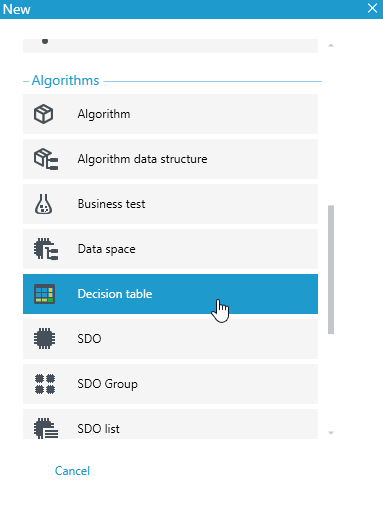
- In the window that appears, define the size of the table by indicating the number of columns and rows in the table, and click OK.

- You can also specify the number of columns and rows at a later stage, when the table is already created, by selecting the appropriate option from the context menu Add key…. See: Adding another key, unmerging into groups.
- Select Expand panel to configure the table.
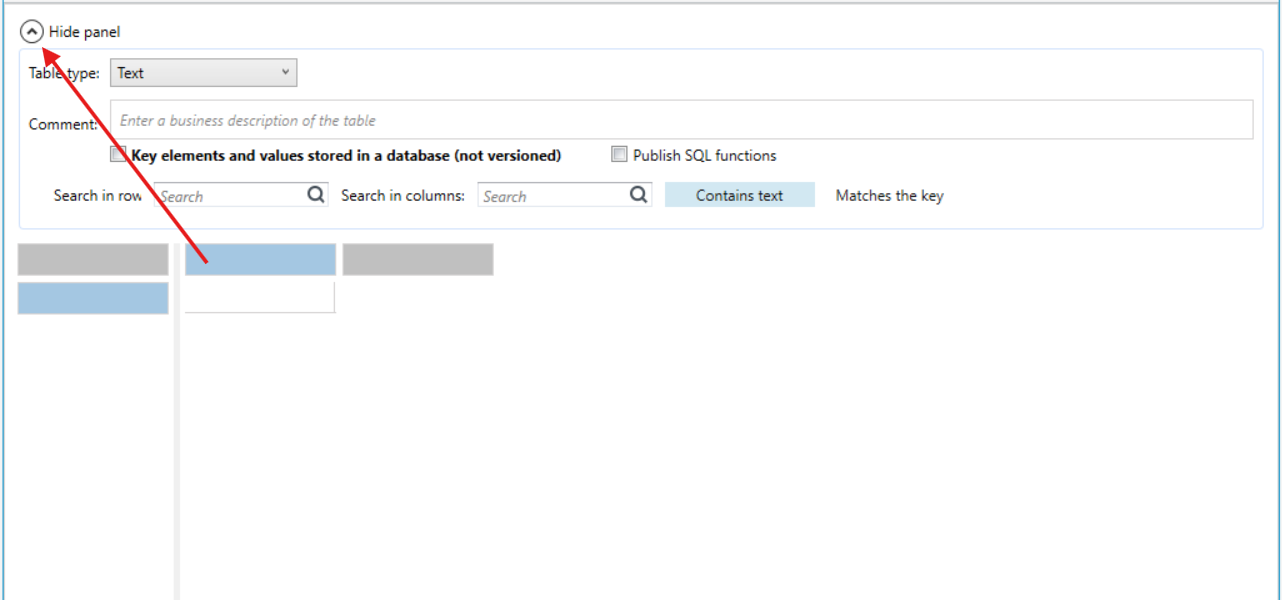
The following elements are highlighted in each table:
- panel - it can be hidden with the collapse button next to Hide panel, in which you can specify the 'table type', select the 'dictionary version' from the drop-down list, you can enter a comment, i.e. a table business description, which will be generated in the table documentation, and you can search the keys and tables using two filters:
- Contains text - using the filter, you can narrow down the view to the keys that contain a given piece of text in the name (e.g. after entering '2' the key
<1:10>will not be displayed, but after entering '1' - the mentioned key will be displayed), - Matches the key - using the filter, it is possible to display all the keys that will be selected when the specified value occurs when the algorithm is executed (e.g. after entering '2' the key
<1:10>will be displayed).
By default, the table is displayed with color for headers and keys. You can change the way cells are colored in archITekt Studio options - see: Key colors.
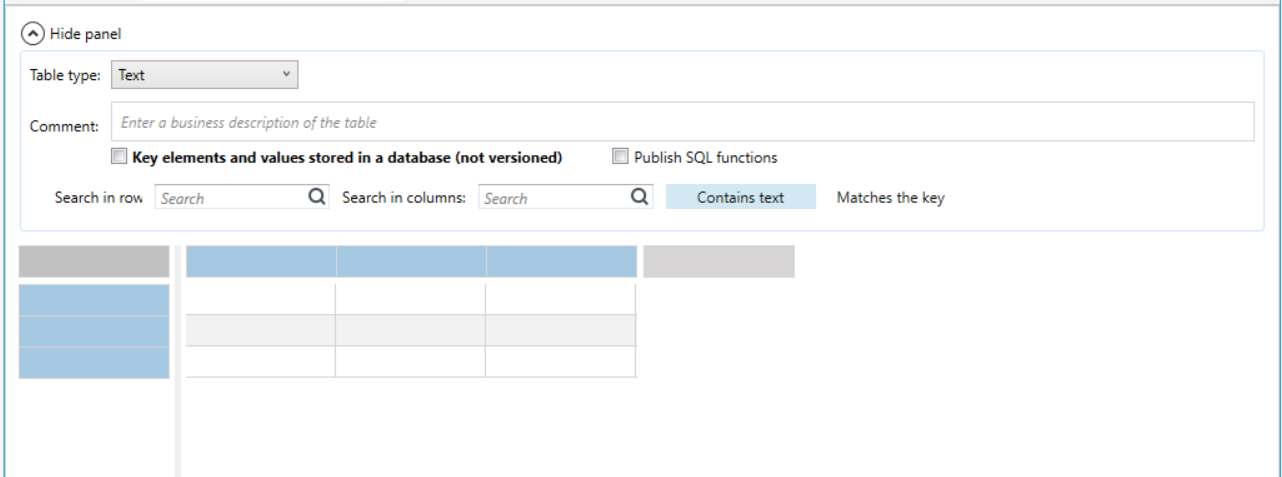
The user can search the table and search for specific values in the table cells, depending on whether the values are to contain the text entered in the search fields, or whether this text is a key and the searched values are to match it.
- To search for a specific key, type the table key names, which are the name of the given column or row, in the Search in rows or Search in columns fields. Keys that match your search criteria will be highlighted in the table.

The next step of the table’s configuration is to determine the data type.