Table type
-
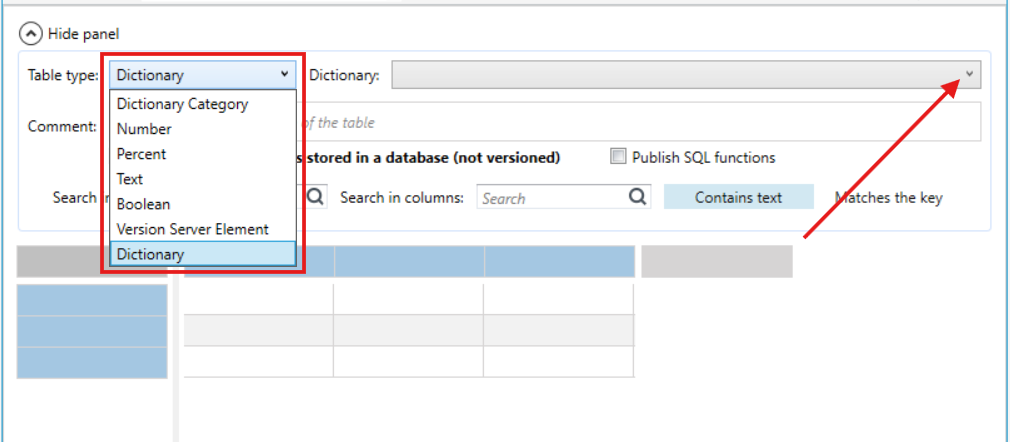
Determine what type of output data will be included in the table. Expand the Table type field.
-
When selecting the data type:
Dictionary, select the dictionary whose items will be returned in the table.
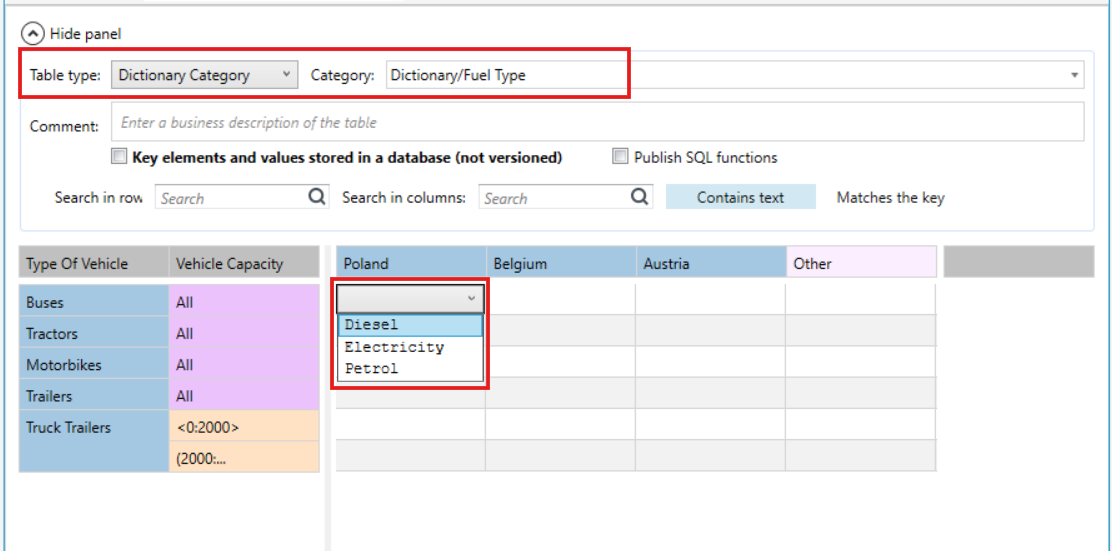
Dictionary category, select a category from a given dictionary,
Version server items, select available items from the field.
If you have selected the data type Dictionary, Dictionary category or Version server item, then the table cells will have a drop-down list with an option to select a given item.
If you have defined a table and table data type, you can now proceed to configuring table keys.
- You can move between cells using the keyboard - the table has been designed so that the User can create and edit it only using the keyboard (knowledge of keyboard shortcuts is useful, but it is not necessary). To do this, use arrows, Tab and Space.
- In the case of long values in a cell, it is easier to use hints displayed for each cell after moving the mouse cursor over it.
- The user has the option to automatically fill in the table fields. To do this, define some keys, then select the Complete others option from the Edit menu. In order to auto-complete the table fields, it is necessary to define the parent key and child keys. The table will be completed with data of the type specified as All and/or Other.
When the data type of a table is changed, cells containing the data are checked for correct format. If the data in the cells does not match the newly selected format, the System removes its contents from the cell. It is possible to return to the previous state using the Undo option in the main menu.