Creating new parameters
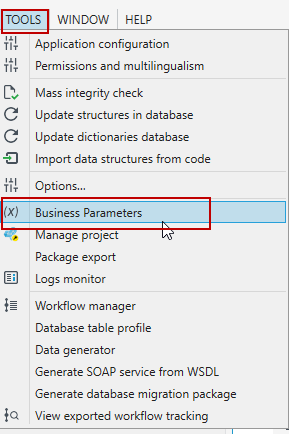
New parameters are available to define in the main archITekt menu on the TOOLS tab.
- Go to the TOOLS menu, then select Business Parameters.
- After selecting the above option, with the new system or when no parameters have been defined yet, an empty business parameters window will appear.

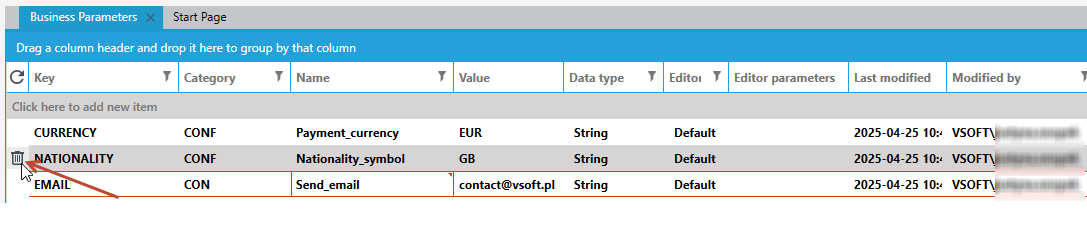
- To create the first parameter, click on the box "Click here to add a new item". A line will appear with the default names in the appropriate fields. Having entered all the parameters, select Save from the main archITekt menu.

Enter data in each field:
- Key - enter the key under which the parameter will be saved in the database.
- Category - groups of parameters.
- Name - enter the name of the parameter.
- Value - enter the value or values that will be represented by the parameter. The field depends on the selected data type.
- Data type - depending on your needs, select: Logical, Date and time, Decimal, Integer, String.
- Editor - you can choose Default or Expression – it defines what kind of data may be entered. Having selected Default, you can enter any kind of data, while having selected Expression you can enter a regular expression.
- Editor parameters - if the editor type has been selected as Expression, in this field you can enter a regular expression that validates the entered data for a given parameter.
- Last modified - date of last modification automatically entered by the system.
- Modified by - name of the user who made the last modification automatically entered by the system.
tip
If you want to delete a given parameter, use the trash icon on the left side of the parameter (it should appear when you click on the selected row).