Creating a new structure
Creating a data structure
How to create a new structure
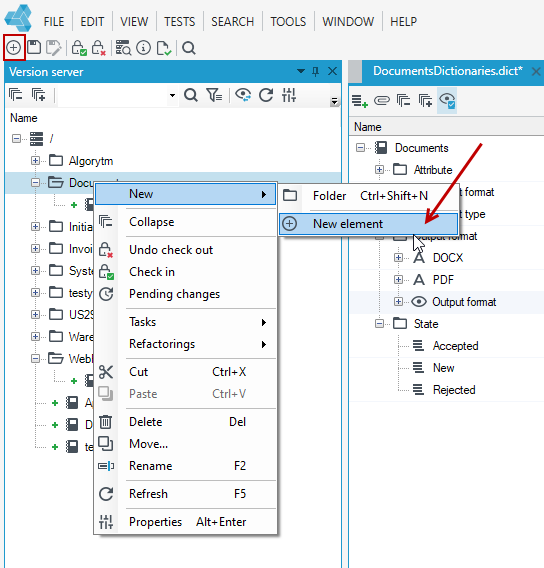
To create a new structure:
- In the main window select the add icon or File>New or the New item icon. You can also add a new dictionary from a Version server panel. Right-click in the version server where the new dictionary structure is to be created and select New>New element from the context menu.
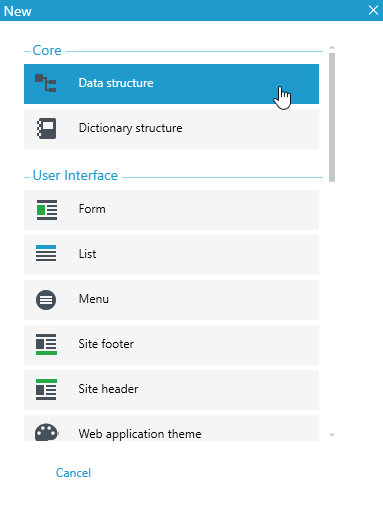
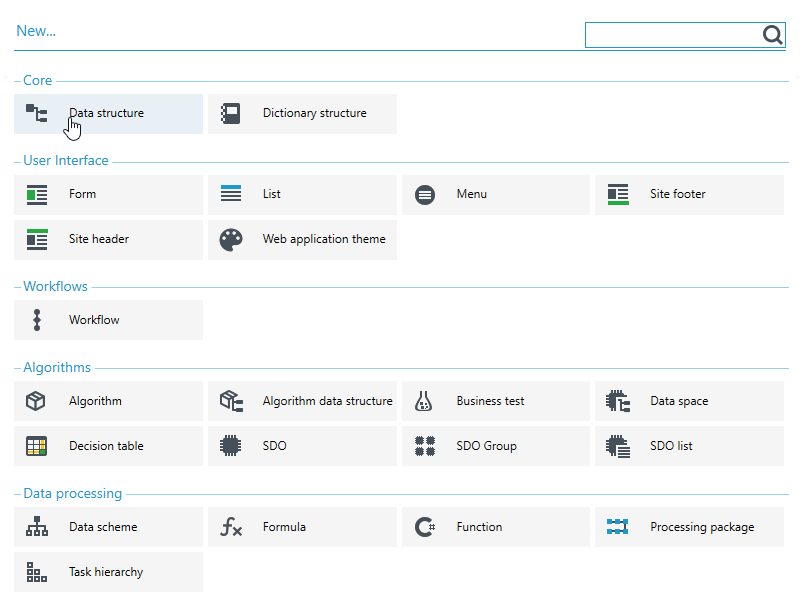
You can also click Data structure directly from the start screen.
After creating a new data structure, the main structure element (with a name similar to the data structure name) is visible in the work area. The obligatory element is also the ID field, similar to the database, where in most cases there is the main key of the table (the ID field may appear only once in the data structure).
Adding fields to a data structure
Creating a structure involves adding further elements, which may be:
- fields - basic data structure elements,
- relations - relations to other structures,
- substructures - parts enabling logical separation of elements in the data structure,
- lists - enabling a structure to be linked to another data structure (by relationship).
To add a field to a data structure
-
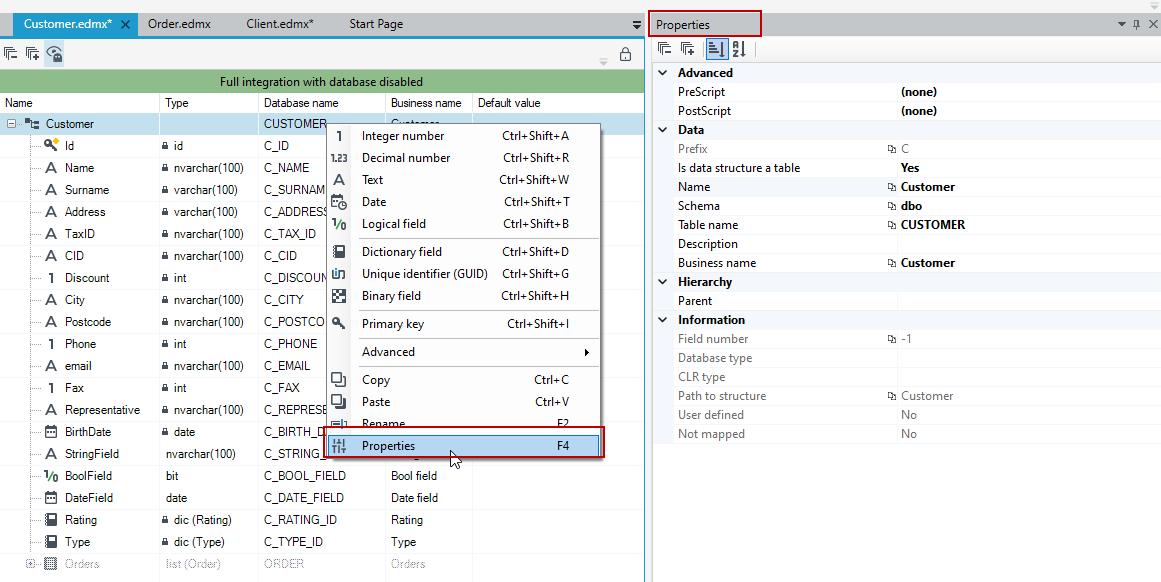
Right click on the tree. A context menu will be displayed allowing you to add fields to the structure. Each field has a keyboard shortcut that you can use.
-
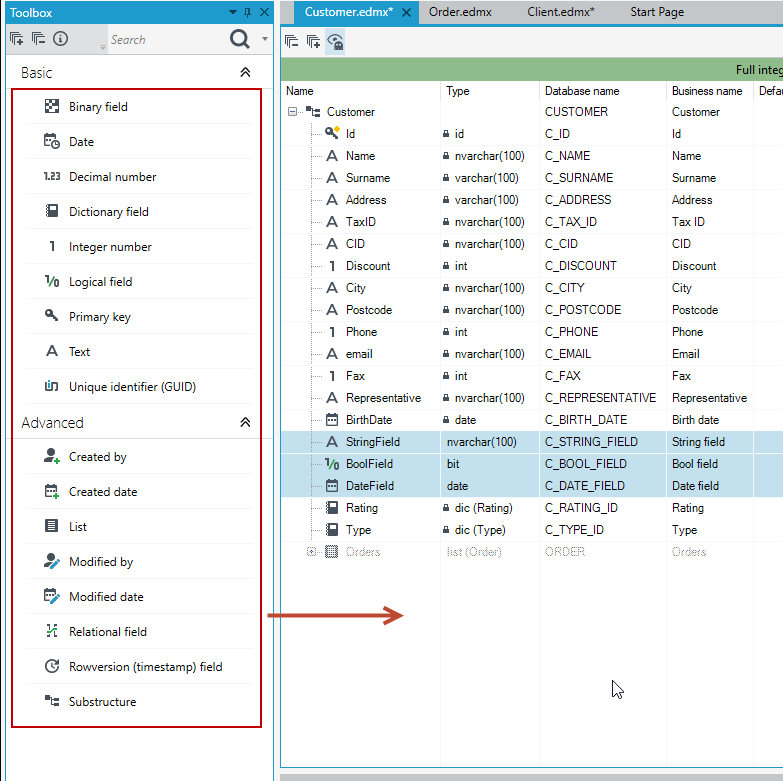
You can also use the drag & drop option. Select the button
 on the bottom panel. The Toolbox tab will open, then select the field and drag it to the structure.
- Select the field in the diagram and go to the Properties panel.
- For each field, specific options will be displayed that you can change. Among other things, in the Behavior section, you can specify whether the field should be required.