History changes
History changes can be used to create lists that contain information about changes made to a given table such as adding, editing or deleting an object. This can be used when you want to know who, when and what changes were made to a given object, e.g. when a product is sold, the change in the quantity of the product and the date of this change will be stored in the database.
Enabling history changes
Enabling the history of changes is done in the data structure, by selecting Yes in the History changes property.
The history changes always applies to a single field from the data structure, so if you want changes to all fields to be deposited in the database you need to check this option for each field.
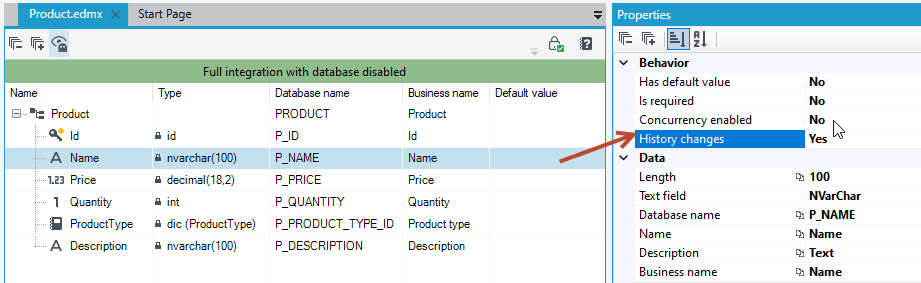
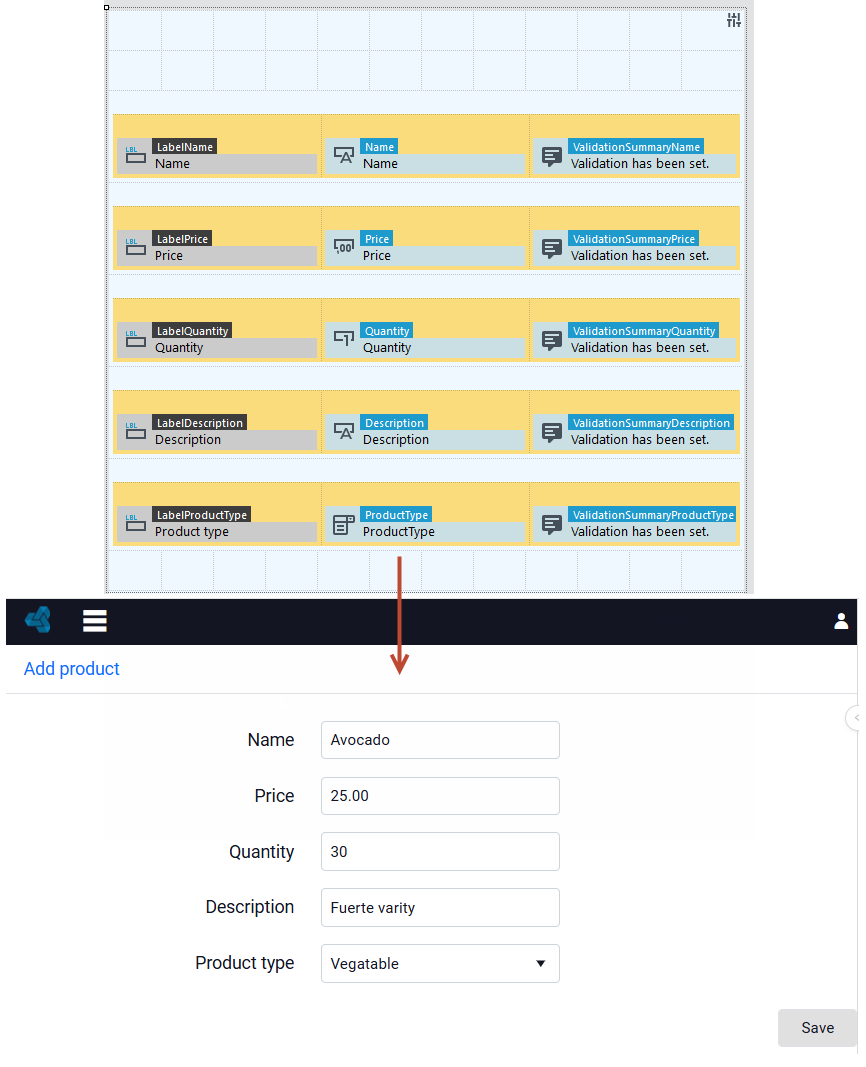
- To use the history changes, create a data structure, in this case a
PRODUCTstructure and a form based on this structure that allows you to add new products - for more on how to create a form see: Creating a form.
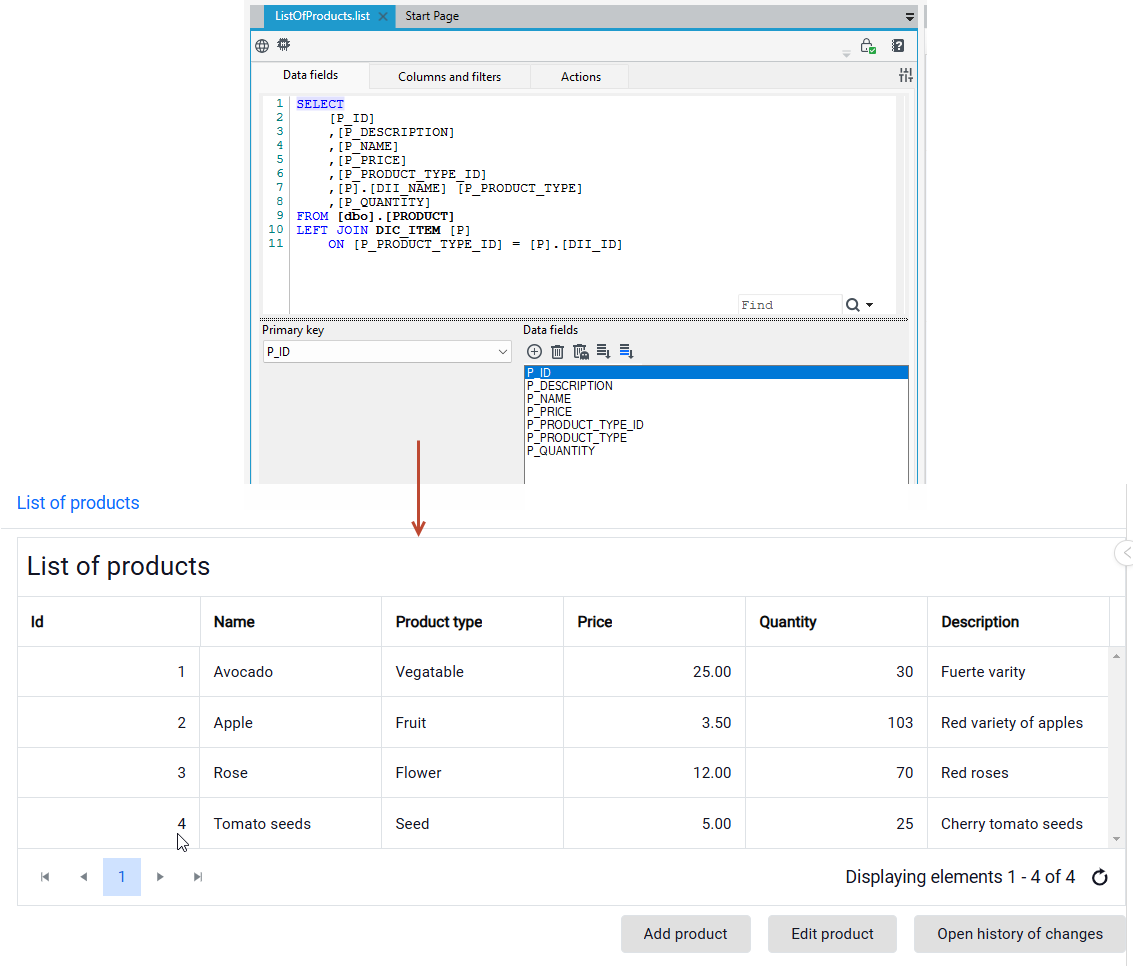
- Next, create a list of products with actions to add new items and the ability to edit existing ones. For more on how to create a list see: Creating a new list.
Adding an item and saving changes
When editing as well as adding a new item, the changes are deposited in three tables.
Go to the Databases panel and CONNECT_STRING database.
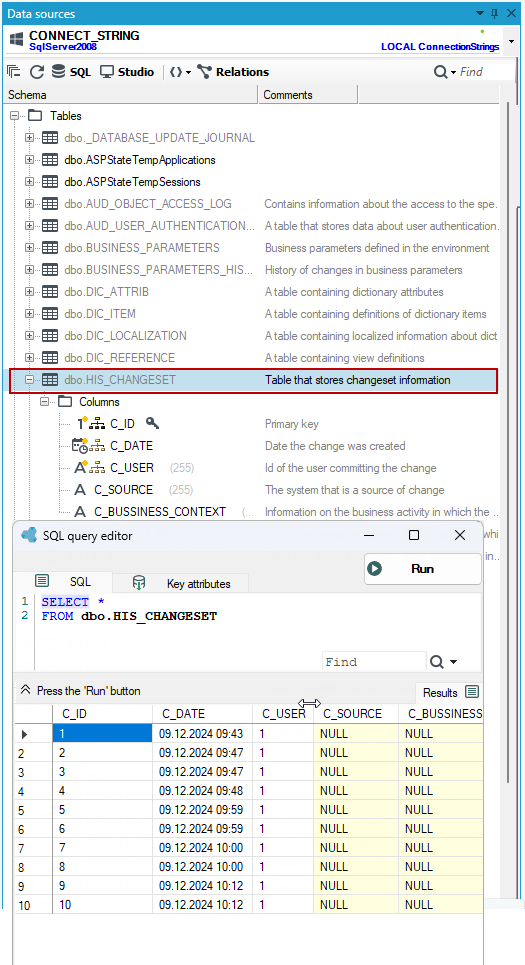
dbo.HIS_CHANGESET(contains information about the date of the change, id of the user making the change, among other things).
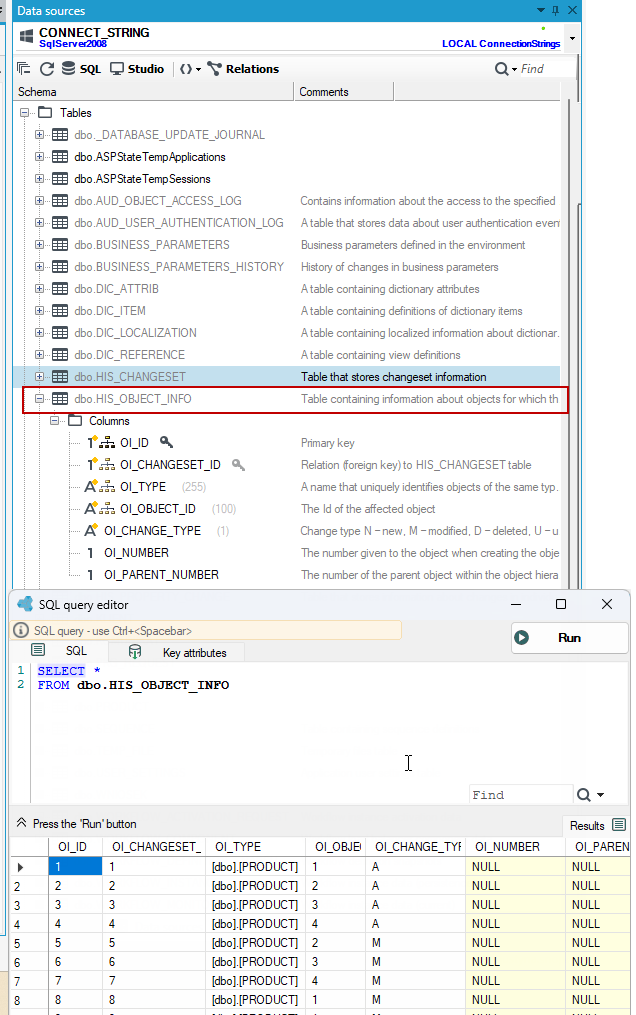
dbo.HIS_OBJECT_INFO(contains information about objects for which the change occurred, among other things, the name of the table in which the change was made, the type of change).
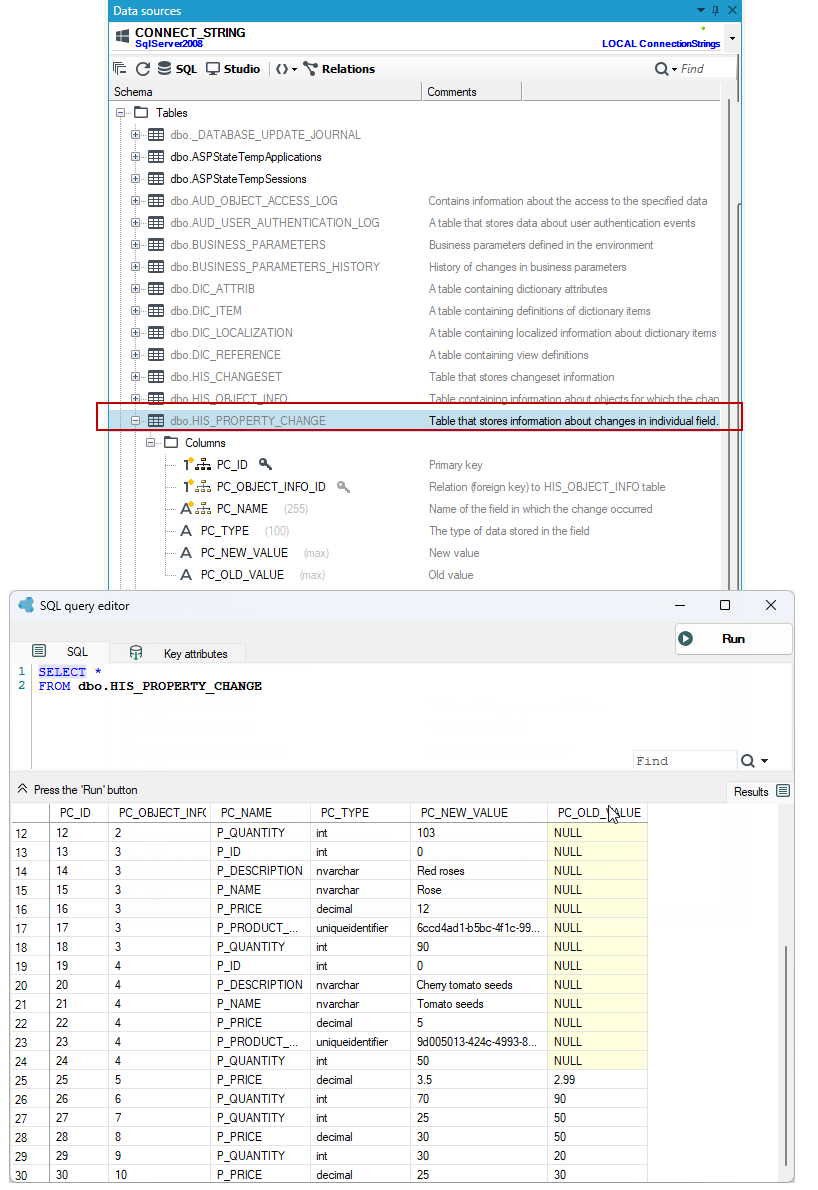
dbo.HIS_PROPERTY_CHANGE(stores information about changes in individual fields of an object, among other things, the name of the column that was changed, the type of the column, and the values before and after the change).
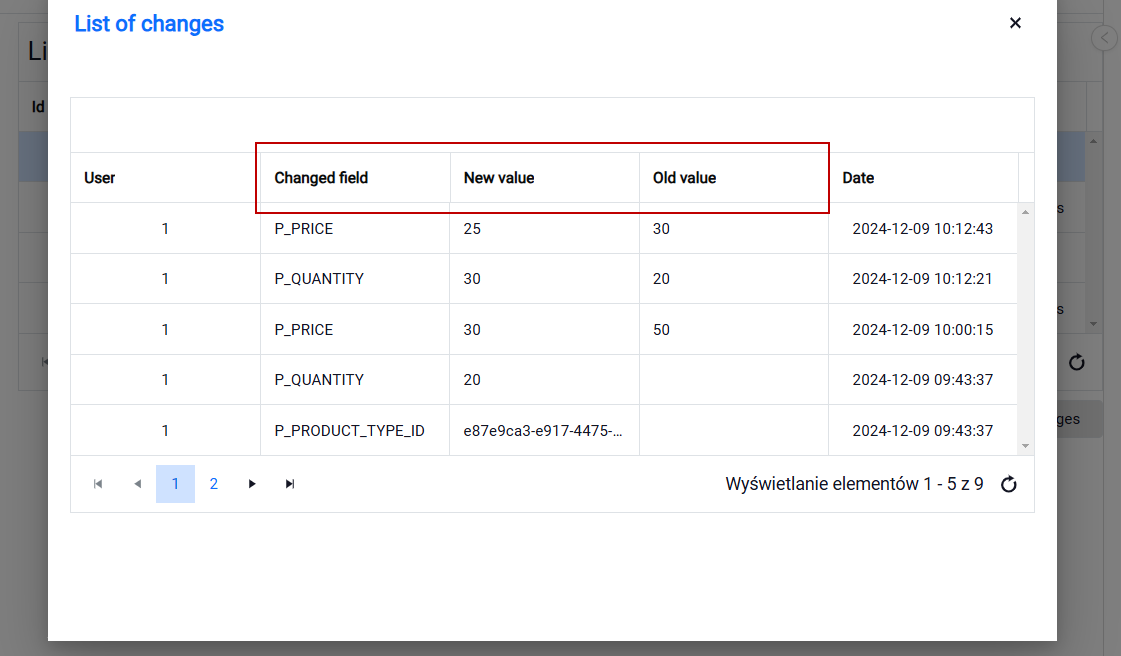
These three tables allow you to create a list containing information about, for example, the date of the change, the column that was changed, the id of the user who made the change, and the new and old values for the object. Such a list with respect to a single object can be created using a SQL query combining all three tables, where the id of the object from the basic object list will serve as @Parent For more on defining the @Parent filter, see: Predefined filters in SQL query.
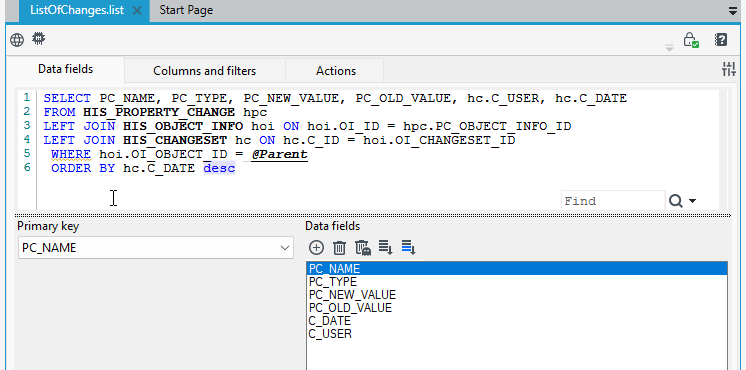
Invoking such a list can be done in the list of products, where after selecting a given record we can go to the list of changes, for example, using the Navigate to the list action (Open history of changes).
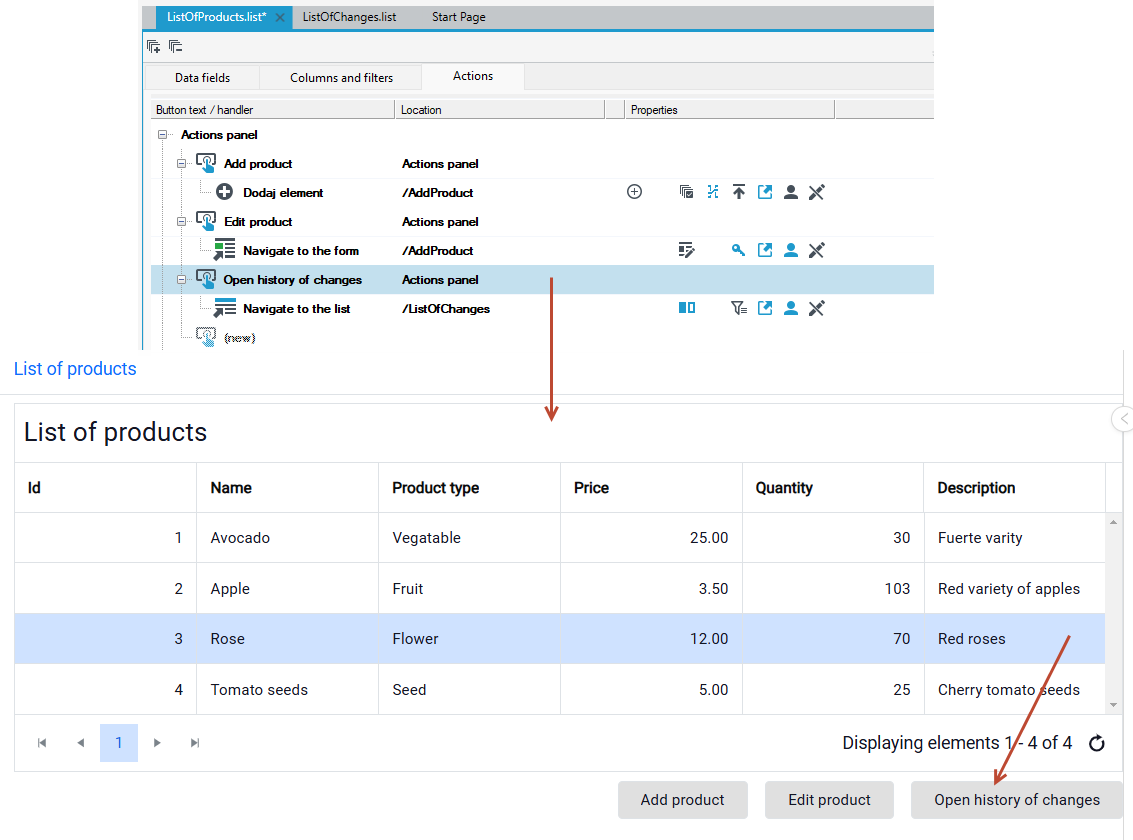
To view the history of changes of a given record, edit it and make some modifications. Depending on what fields you added to the list, such information will be displayed in the change history list.