Integration with a database
Mode of transferring changes to a database
When creating a data structure, it is also important whether you have a database change mode enabled or not.
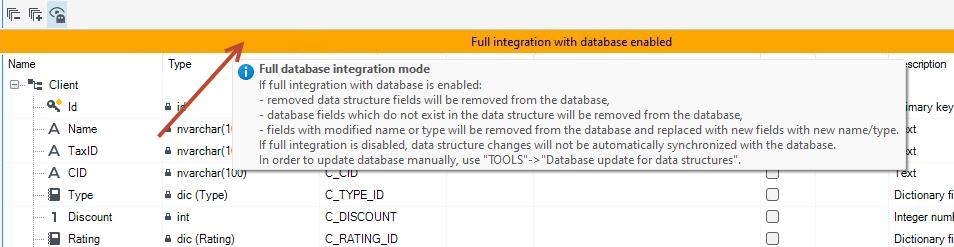
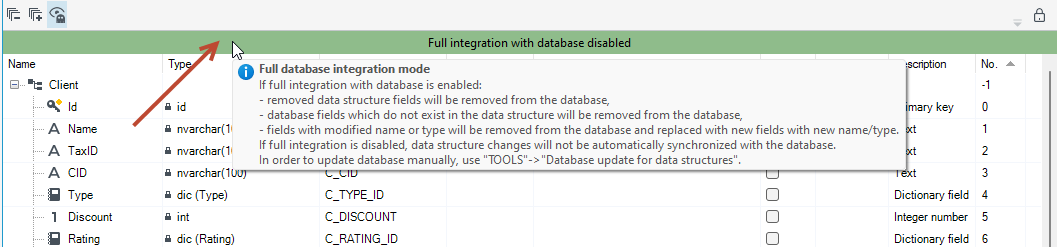
At the top of the window there is a message that the mode is on or not.
When saving changes to the data structure with full integration turned on:
- fields removed from the data structure will be removed from the database,
- fields that exist in the database but do not exist in the structure will be deleted,
- fields for which the name in the structure has been changed will be deleted, a new field with a new name will be added to the database.
When full integration is disabled, changes to a data structure will not be automatically synchronized with a database.
In this mode:
- Removing a field from a structure does not delete the field from the database.
- Deleting a structure does not remove tables or procedures from the database.
- It is possible to modify the precision of a floating-point number field or the length of a text field at any time, but caution is advised, as performing such an operation may result in partial data loss.
- Renaming a field or table in the structure designer and saving the changes will generate new fields/tables in the database. The previous fields/tables will remain untouched but will no longer be used. No data will be transferred to the newly generated fields/tables during this operation.
- Each time the structure is saved, all related database server elements (such as indexes, constraints, etc.) associated with that structure are removed and recreated. Procedures refer only to those fields in the database table that are defined in the structure (other fields in the table are ignored). Shared procedures are not deleted—they are only created if they do not already exist.
Updating data structures
You must perform a manual update.
- From the Tools menu select the Update data structures option.
- Select the structure or structures for which you want to generate the script and select the Start button.
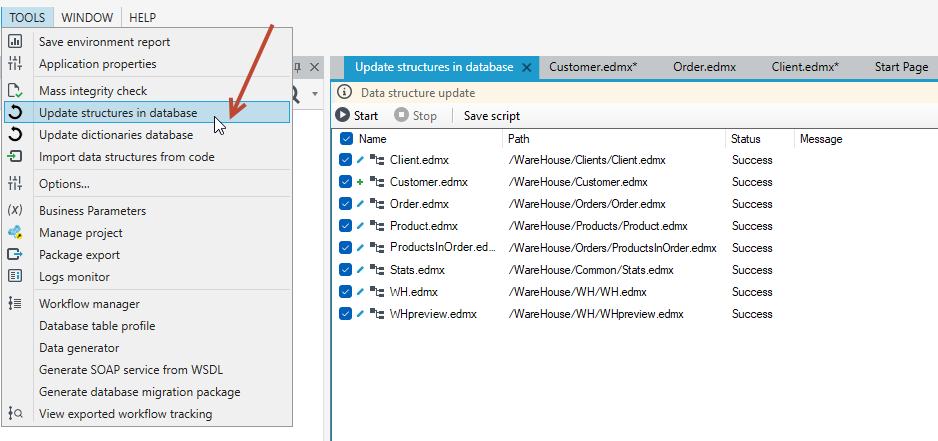
Once generated, you can save the script. For more information about scripts generated in archITekt Studio, see: Scripts generated in archITekt Studio.
If you have imported a package with data structures with relation to another structure, then update the data structures twice, so that the related structures are saved to the database.
Enable/disable full integration with database
Depending on which mode you are working in (full integration with database enabled or disabled), you can change this behavior by reconfiguring the project.
By default, a project created in VSoft archITekt Launcher has the option of transferring changes to the database disabled.
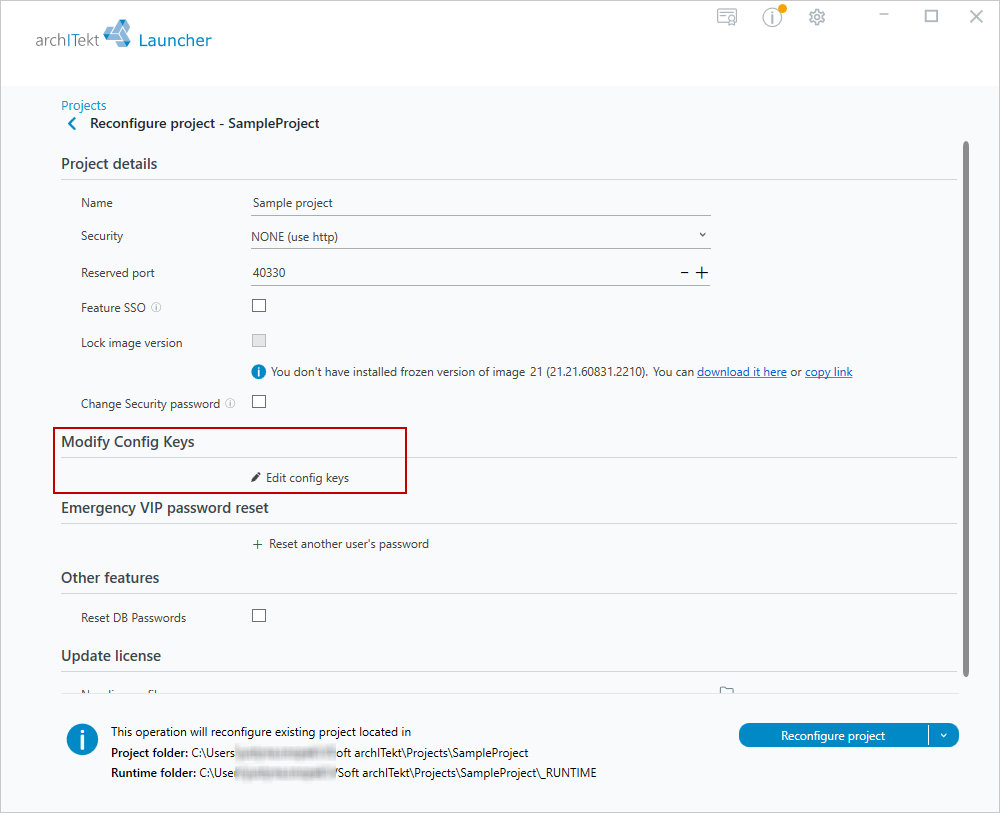
- Go to VSoft archITekt Launcher, expand the Manage button next to the given project and, in the MAINTENANCE section, select Reconfigure project.
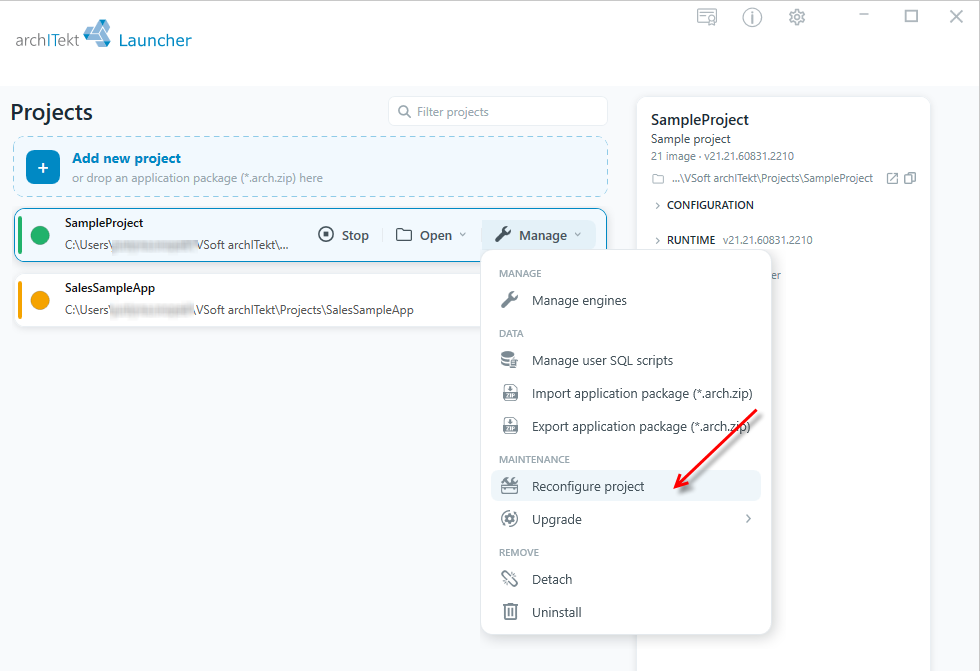
- Go to Modify Config Keys and select the option to add configuration keys Edit config keys.
-
Select Enable / disable full integration with database from the feature list.
-
Check the box Enable strict DB upgrade and select true or false, as appropriate, depending on whether the mode should be enabled or not.
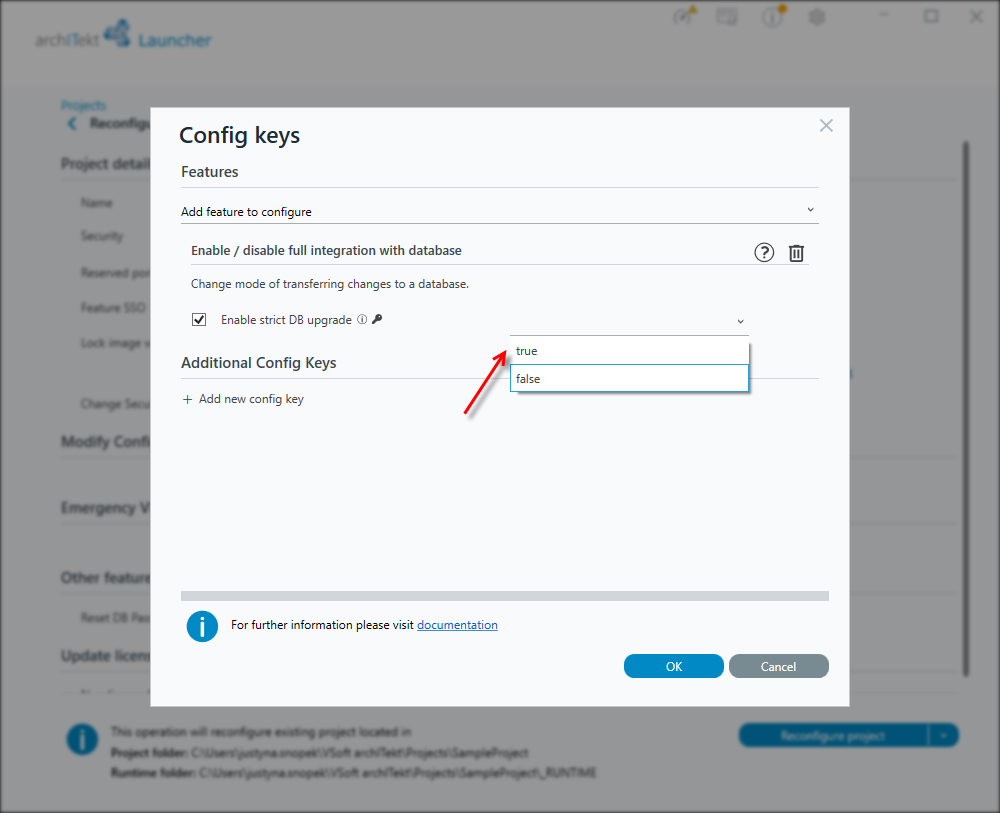
- Select OK and then the Reconfigure project option.