Work environment
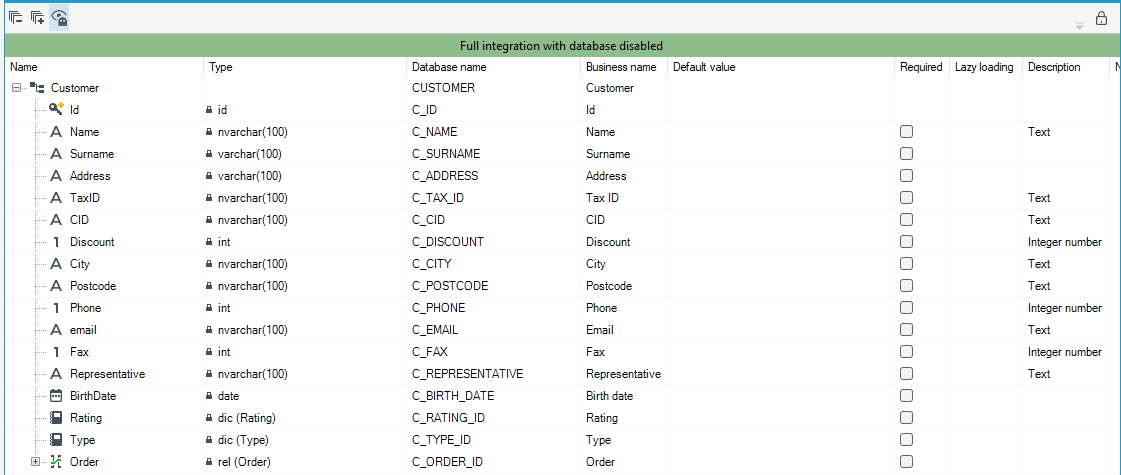
Work environment of the Data Structure, is based on common and consistent assumptions. It is mainly a tree-grid, which presents basic information useful from the data structure`s point of view.
Information visible in a tree data structure
In the tree data structure, you can find a series of pieces of information that describe each field of that structure. Those are:
- Name - in this column there is a tree structure which includes all fields, relationships and substructures in accordance with the business assumptions for a given case.
- Type - Click on the field to expand the options for changing the field type.
- Name in database - The physical name of the structure field in the database.
- Default value - you can enter the expected value. This value will be returned if the field is empty in the database.
- Required - check the box if the field should be required. When saving data in the structure, the value in the field will be required. By default, the values in the structure fields are not required.
- Description - Optional place where you can put a larger business description of the data structure element
- Ordinal number - by default, the elements of the structure are sorted alphabetically. In this column, by entering the consecutive numbers of selected elements, you can change and adjust the sorting to business requirements.
- Business name - is used each time in the system when referring to a given business field:
- as descriptive field names on a form when a field is dragged onto it from the data model
- as the header and filter name when using the given field to define a list.
- However, if you do not specify a business name for a given field, the system will automatically attempt to change the technical names of the data model fields to the business name.
Double-click on the selected field to edit the element.
Using a tree data structure
Above the tree, there is a number of auxiliary functions that make it easier to manage and browse the structure.
You can expand and collapse a data structure tree and switch the structure view to simplified. These functions are available on the bar. 
Ghosts
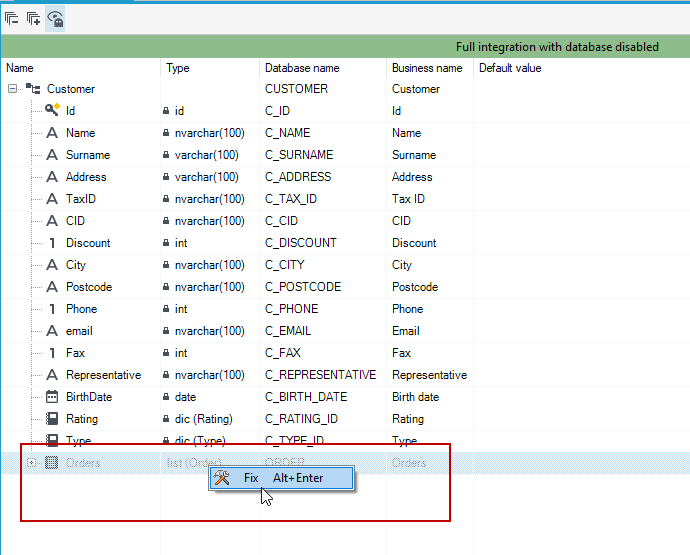
There is also an option to enable or disable ghost switch on the bar.
Ghosts are existing relationships to the present structure from other structures. To establish a relationship, right-click on the list and select Fix, then the relationship will be added to the structure.
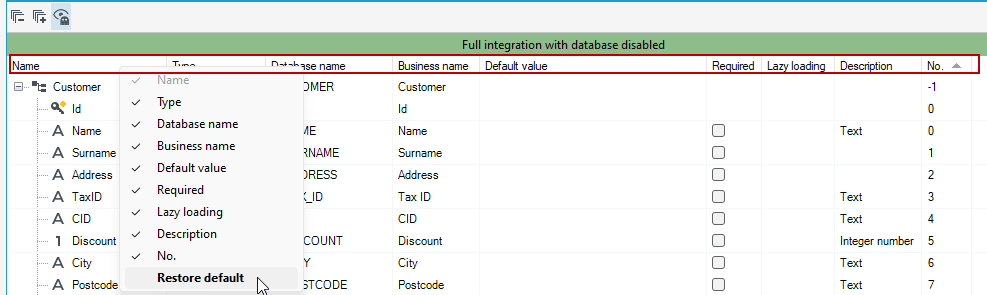
Show columns
Right-click the column name. A window will be displayed where you can define what columns should be displayed on the workspace. Select Restore default, then all columns will be visible.
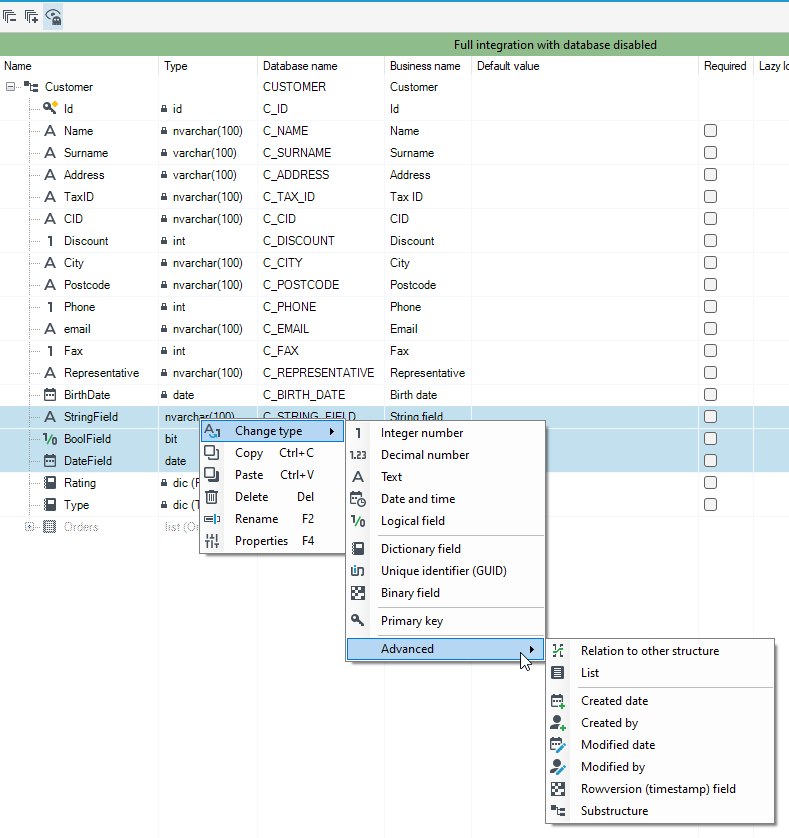
Multiselect on data structure fields
You can perform an action for several items at once. Press CTRL and select elements of the structure. Right-click and select the action you want to perform from the context menu.