Data elements
You can add data elements to the dictionary and the dictionary category. It can be an element without a type and with a specific data type attached.
A data element that has a particular data type can be used as an attribute (features that define the object) for regular items, views, and dictionary categories. See: Attributes and using elements with data type as attributes: Examples of use > Document dictionary.
Adding a new element
- In the tree of dictionary objects, select a dictionary structure or a category.
- From the context menu displayed after a right-click, select Add data element or directly Add element if you want to add an item without a type.
- Select one from the available data types that you want to use in the dictionary.
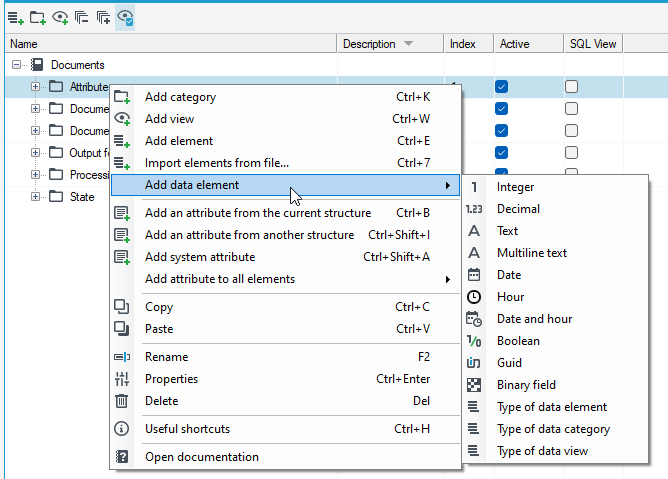
Data types specific to dictionaries
Among standard data types in dictionaries there are also specific data types only for dictionaries.
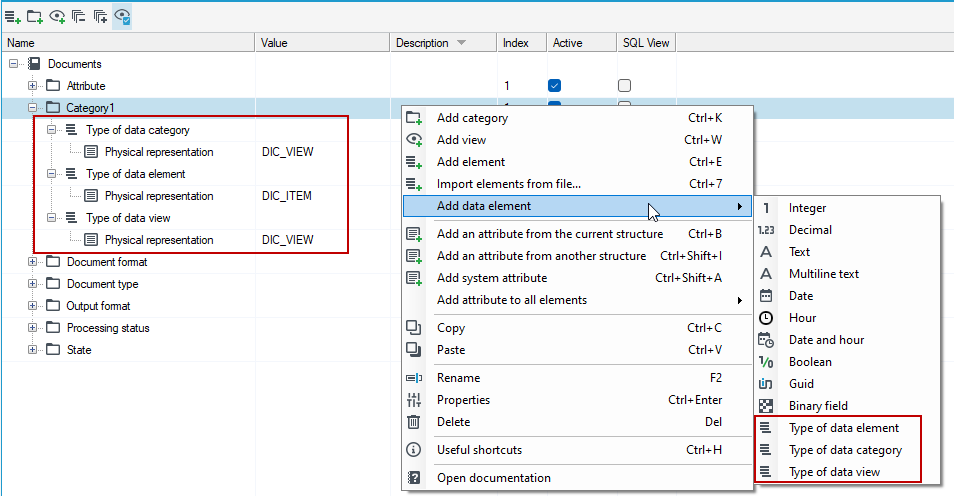
Type of data element - select this type, if the element is to be a dictionary object in another dictionary.
Type of data category - select this type, if the item is to be a dictionary category in another dictionary.
Type of data view - select this type, if the item is to be a view in another dictionary.
For more information on using the data type in practice, see Examples of use>Document Dictionary.
Moving dictionary items
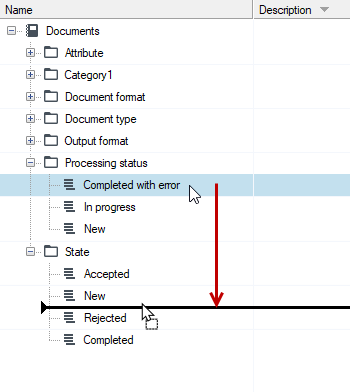
A dictionary item that has been assigned to a given dictionary category can be moved to another, previously created dictionary category.
- In the tree, select an element that you want to transfer to another dictionary category or dictionary.
- Press and hold the left mouse button and drag the item to the desired location.
- Release the mouse button over the target dictionary category where you want to move the selected item.
Pasting items
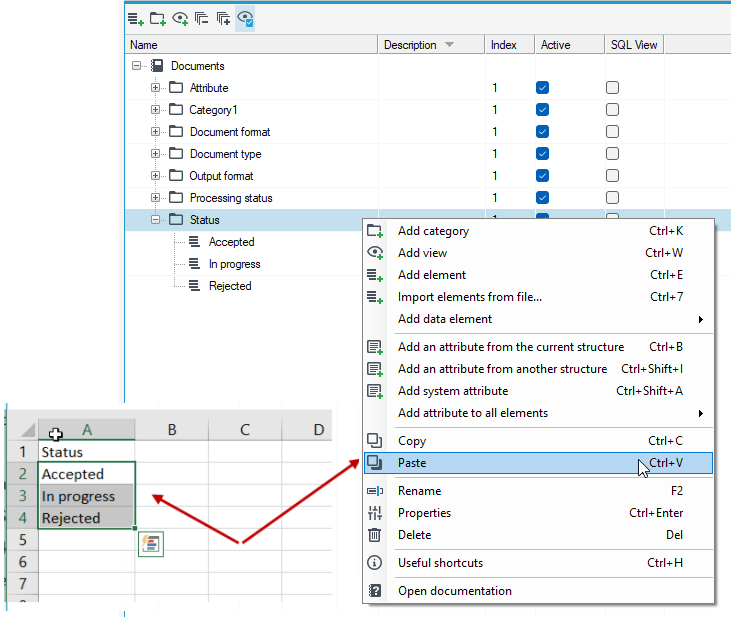
If you need to transfer a dictionary created in an external tool (e.g. MS Word, MS Excel) to user dictionaries, you can copy the given elements and paste them on the tree of dictionary objects.
- Copy the existing list of dictionary objects created in an external tool, e.g. in MS Word or MS Excel.
- In the dictionary structure tree, select the dictionary category to which the copied elements are to be added.
- Select Paste from a right-click context menu.
If you change the name of the element of the dictionary structure that has been used in the data structure, tables or algorithms, the name of that element will be updated in all tables, models and in the data structure. In the case of data structures, the update takes place immediately. In the case of tables, the update occurs the next time you save the modified table definition.
Deleting dictionary items
To delete a dictionary item, select the option from the context menu.
However, in the existing system, it is better to deactivate a dictionary item by unchecking the Active option than to delete it.
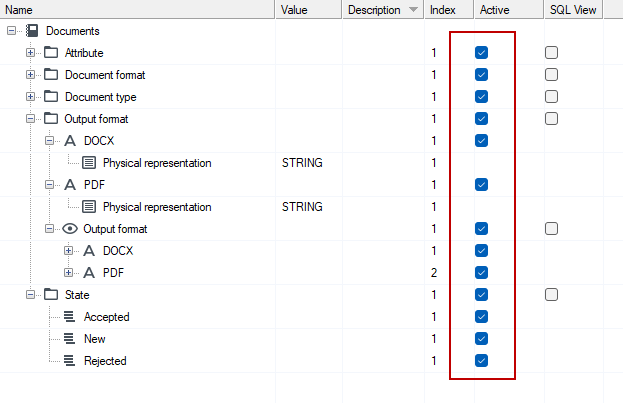
We do not recommend deleting dictionary items.
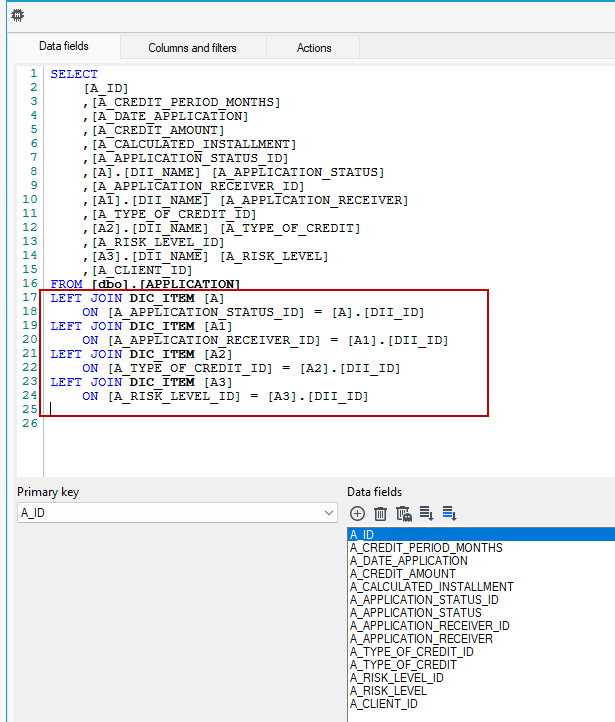
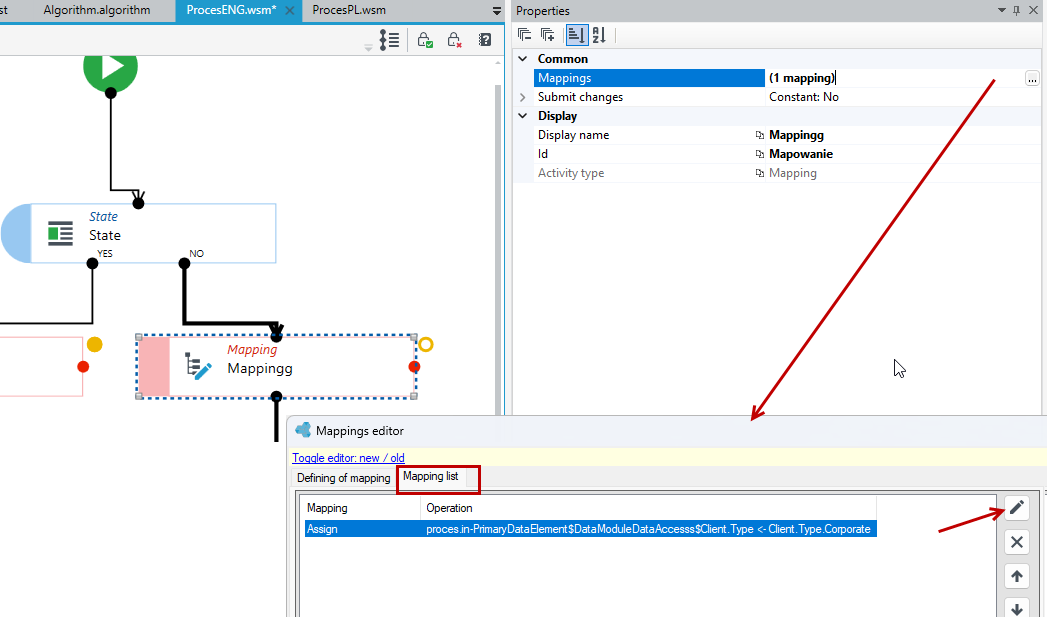
If you decide to delete a dictionary item, check where the item is used in the application. It may be, among others:
- on a form
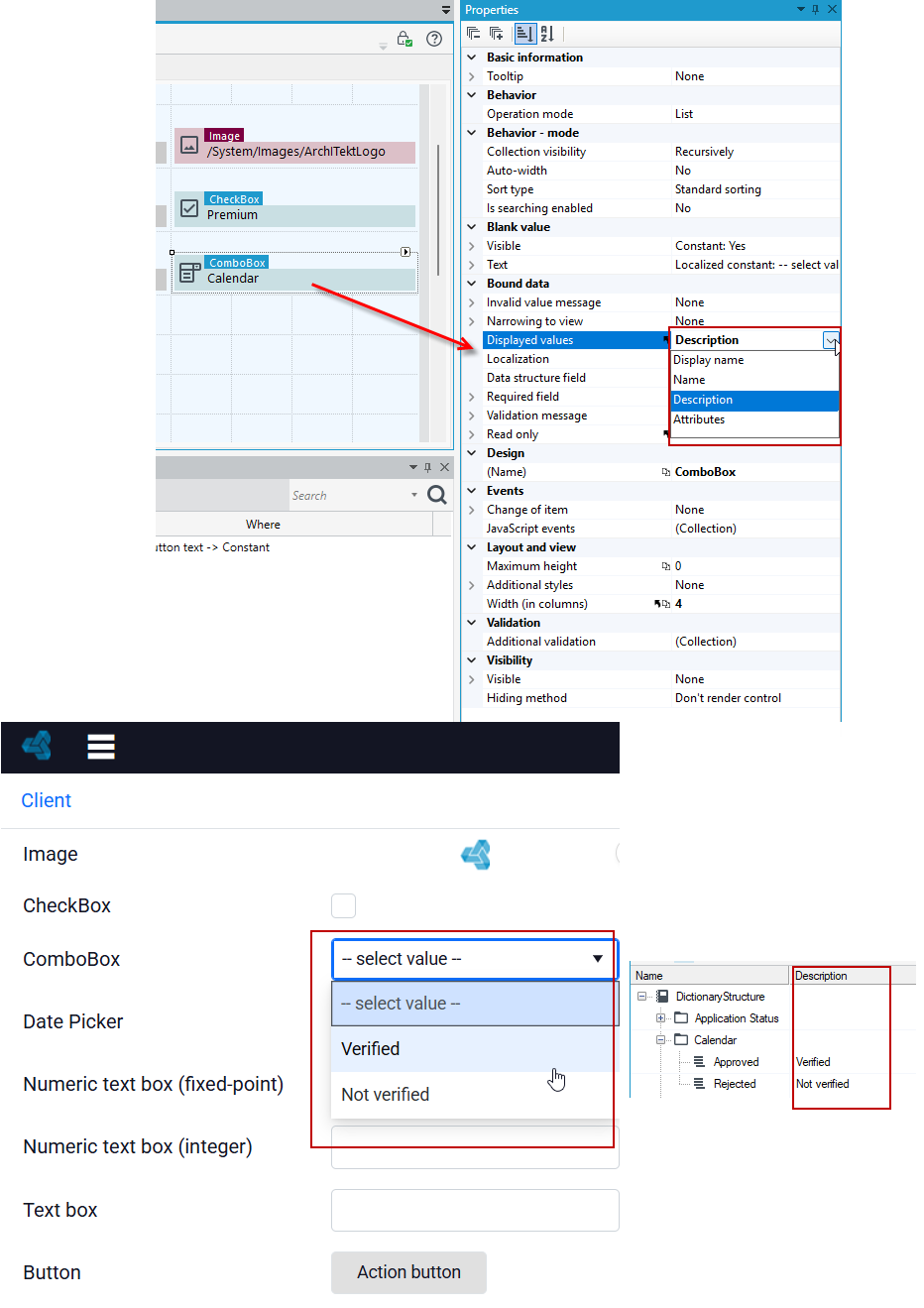
- in a list
- in mappings in workflows
- in formulas
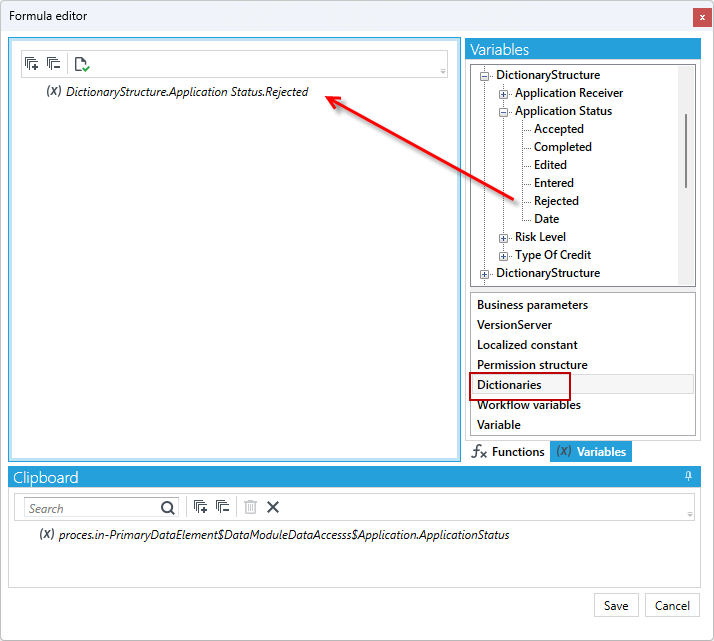
- in expressions
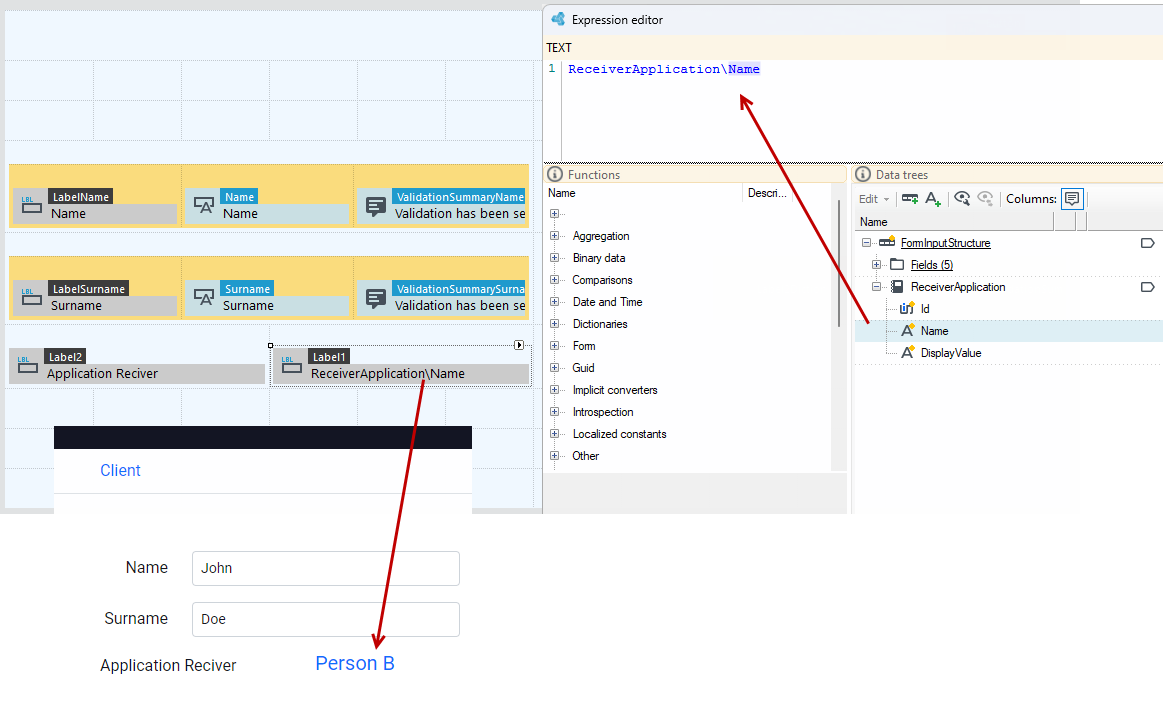
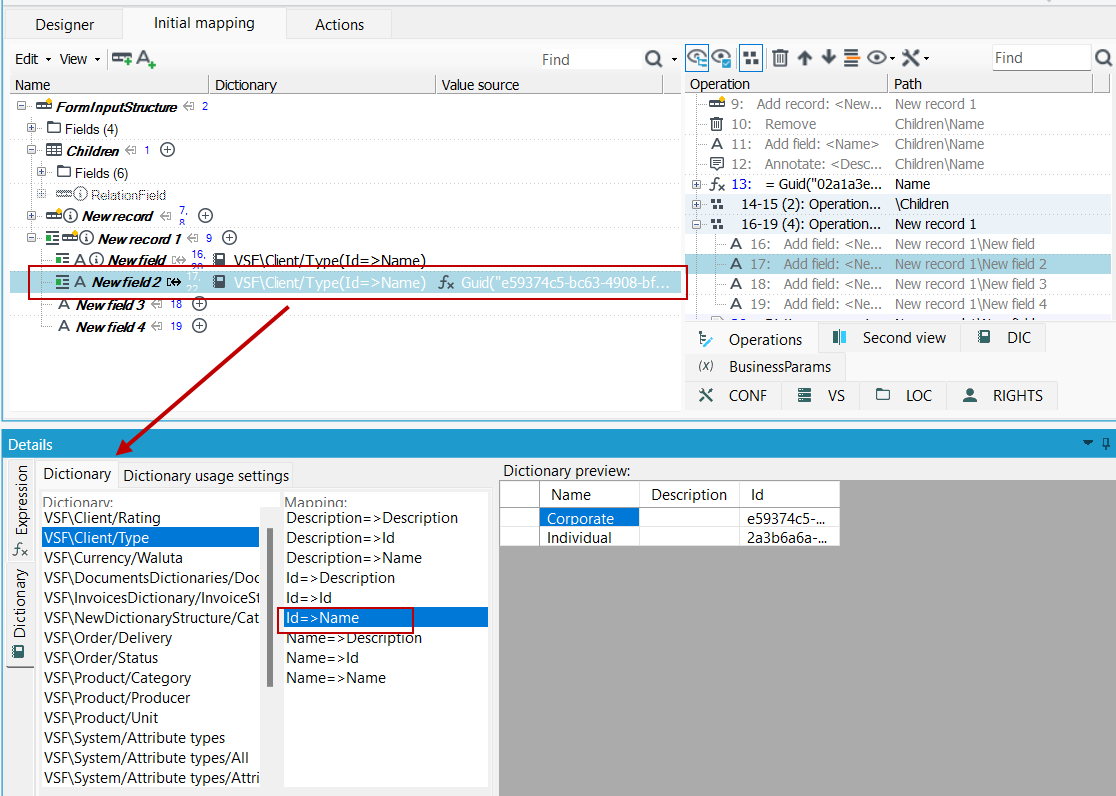
- in the Dictionary annotation - see: Dictionary
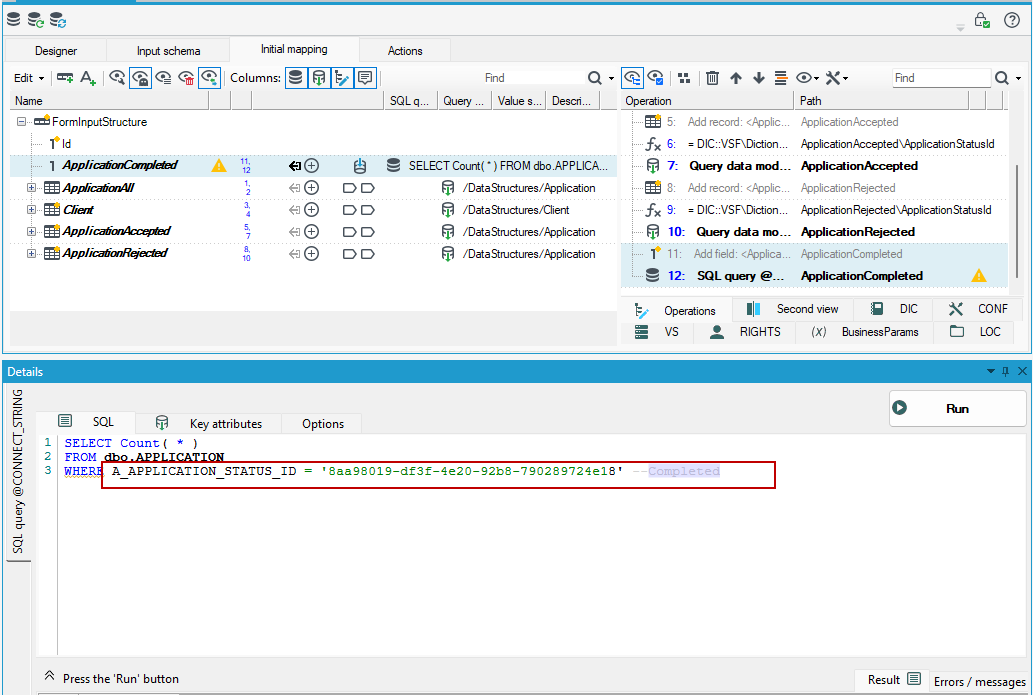
- in SQL queries
- stored in the database - see: Dictionaries in database
Import elements from a CSV file
In addition to pasting elements from an external tool, you can also import elements from a CSV file. With large dictionary collections, entering data manually is very time-consuming, which is why this option has been introduced. Even when sending a dictionary structure in other formats used by Excel, it is much easier to bring the file into a format that can be successfully imported.
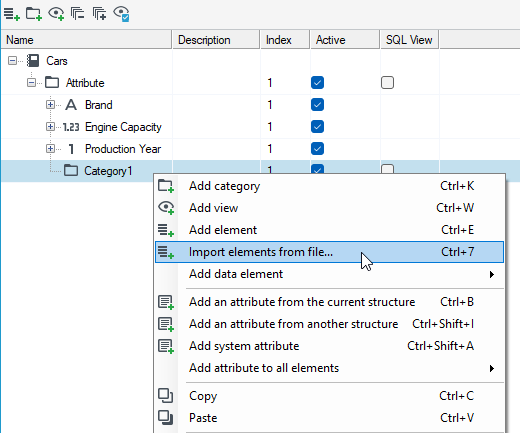
- Right-click on a category and select Import elements from file from the context menu.
- In the displayed window, click
 , then an example with the description of what a correct dictionary structure ready for import should look like will be displayed.
 - Select the
 button, select the place where the CSV file should be downloaded from and select Import.
It is important to define the attributes for a given dictionary category before importing, if you also want to import them from a CSV file.
If you do not declare the attributes in the dictionary structure as they appear in the CSV file, then they will not be imported and a message will be displayed that no attributes were found in the structure.
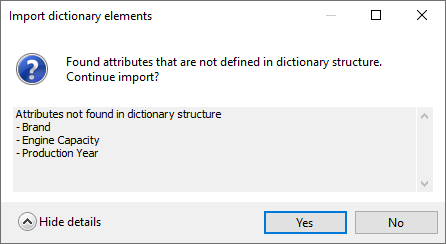
By default, the first 3 columns are always imported: Name, Description and Order.
In the following example, an import from a CSV file defined in this way:

Without defining the attributes in the dictionary before importing: Brand, Engine Capacity, Production year, only the names of elements, description and order will be imported.

In the above case, to import also the attributes:
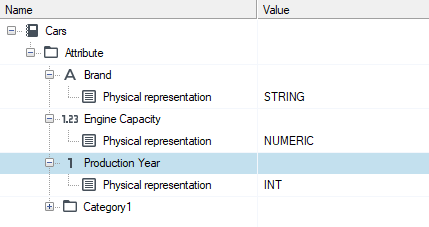
- Add the Attributes category and in it the data elements: Brand, Engine Capacity and Production Year.
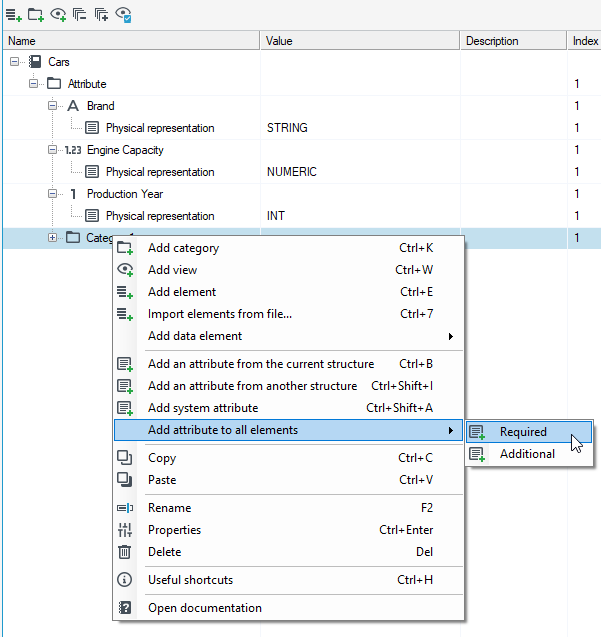
- Add the required attributes to the category into which you will import the elements. Select Add attribute to all elements, then the attributes will be assigned to all elements within this category.
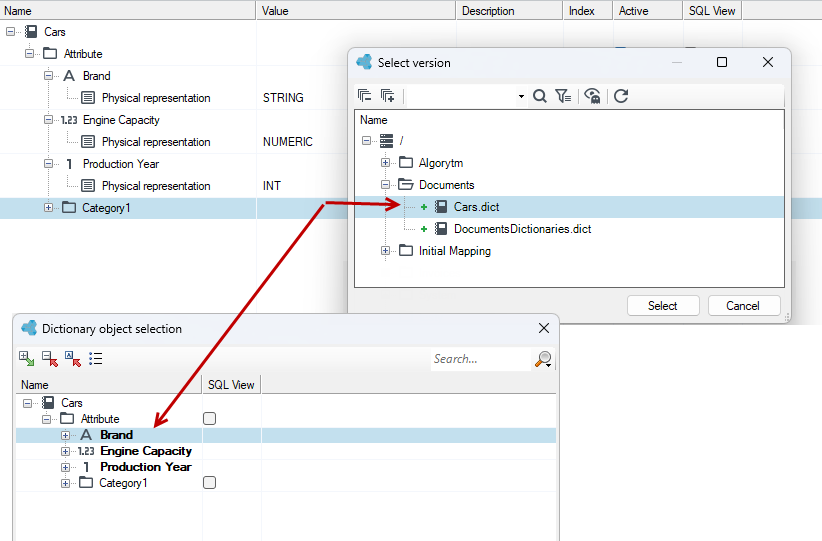
- In the version selection window, select the dictionary in which the Brand, Engine Capacity and Production Year elements are defined that you want to add as attributes.
- Select the dictionary object, for example Brand and press OK.
- The Brand attribute has already been added. Now add more attributes. Select Attach or detach a dictionary object.
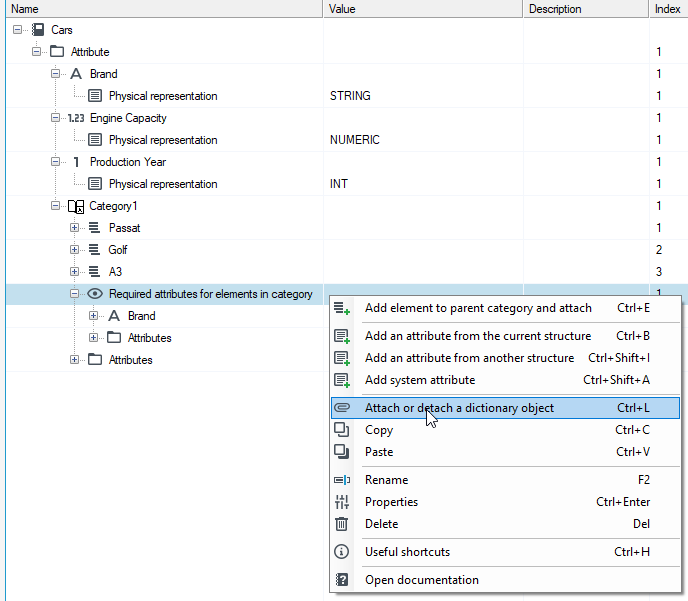
- Add the rest of the attributes to the category.
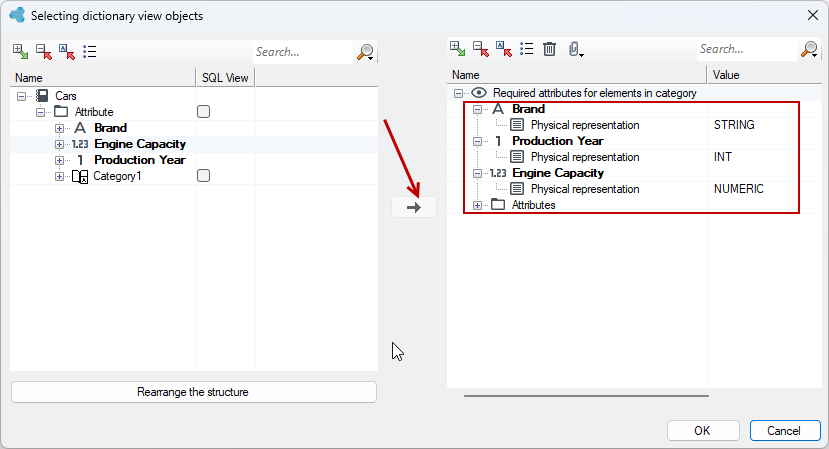
Now you can import from a previously prepared CSV file, where all the attributes will be imported to the elements.
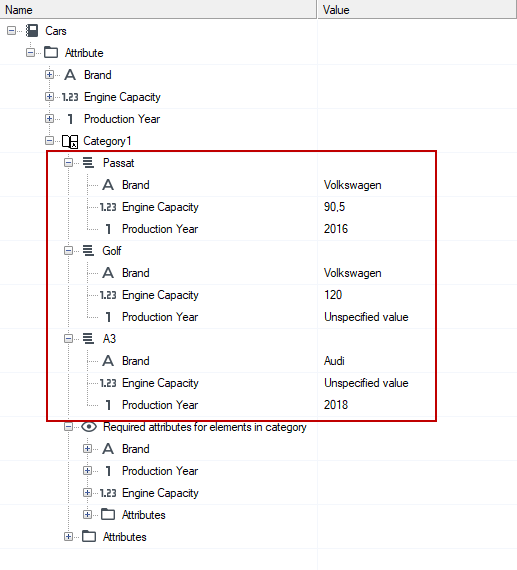
Data in the .csv file should be separated by semicolons, not commas