Dictionary views
Views allow you to narrow down the elements of a given category to the desired set. It is in other words it is a subset of the elements of a given category. However, a view may contain fewer items than there are in the category, and items from other categories as well. Then you need to add the appropriate attributes to the view. See: Adding elements to a View from Other Categories. A view that combines data from multiple categories allows you to view the necessary information stored in multiple categories in one place.
The items added to a view stay in the same category without creating additional data. There is no limit to the number of views of a given category. You can create any combination of category items so that one item can belong to several views.
Creating views
Creating views
- Right-click on the selected category and select Add View from the context menu. The object marked with the view symbol appears in the dictionary structure.
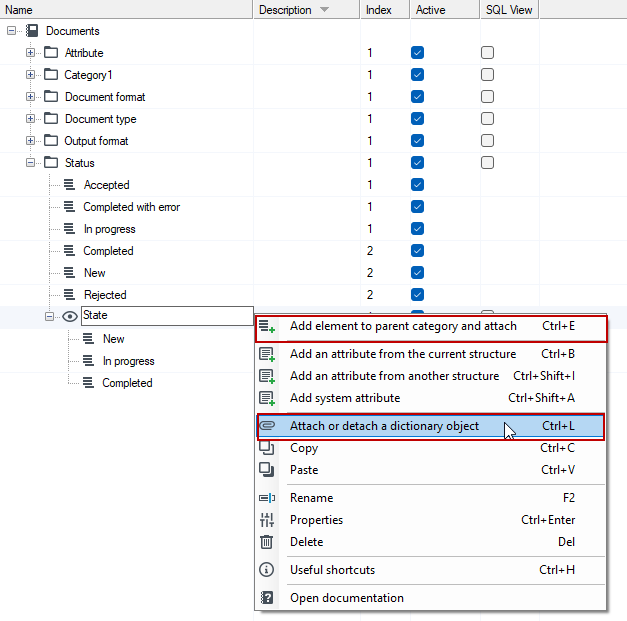
- If the object you want to add to the view does not exist yet, then click on the view and select the Add element to parent category and attach.
- However, if the object already exists in the parent category or in another category, select the Attach or detach the dictionary object option.
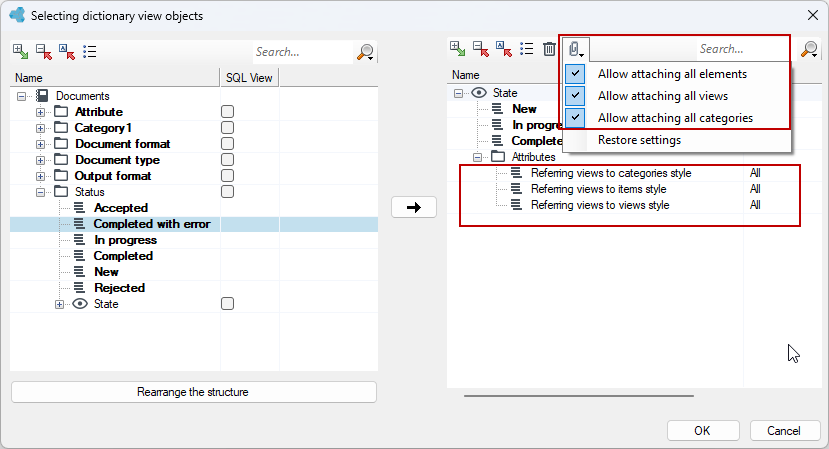
- Then select the items you want to add to the view. On the right side you can see the elements belonging to a given view.
- If you want to add objects from a different dictionary structure defined in the environment, select the Change structure button. Before that, remember to define the appropriate attributes to be able to include the items from a different structure. See: Adding Objects to a View from Other Dictionary Categories.
- To add an element to the view, select it with the left mouse button and then use the arrow located between the windows, thanks to which the item will be on the right side of the view.
- To remove an item from the view, select it and select the icon in the top action panel.
Creating a view via Drag & Drop
Using the Drag & drop option you can drag elements directly into the view. If you have not defined the appropriate attributes for the view that allow adding elements from other categories, then you can use the drag & drop option, but only for the elements from the category to which the added view belongs. For more information on adding objects to a view from other categories see: Adding objects to a view from other dictionary categories.
- Right-click on the selected category and select Add View from the context menu. The item marked with the view symbol appears in the dictionary structure.
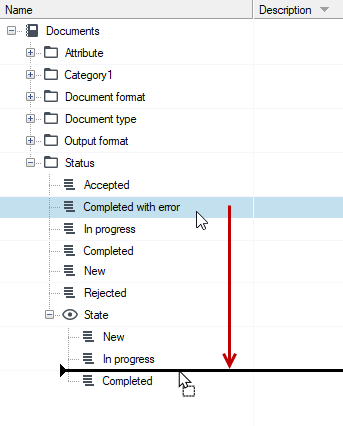
- Select an item in the same category and drag it directly over the view until it is highlighted and drop it. The item is attached to the view.
Attaching other objects to the view
A view is an object that allows you to create subsets of items, categories, and dictionary views. A view may also have dictionary attributes that characterize it.
If the view does not have special attributes, only the elements from the current category, i.e. the one in which the view is added, can be attached to it. Thus, only items from that one category can belong to a view. To create a nested structure of dictionary views (a category or a view in a view), add to the view the attribute Method of referring views to views and / or Method of referring views to categories, and then attach the previously created collections. Likewise, joining elements from another structure will not be possible until the view has the appropriate attributes.
Adding objects to a view from other dictionary categories
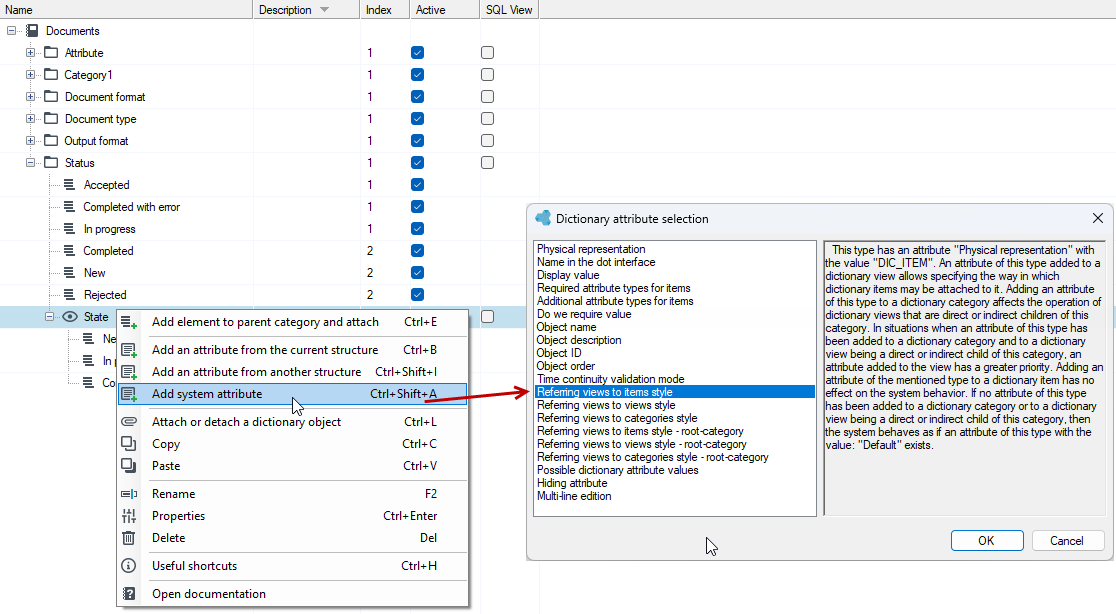
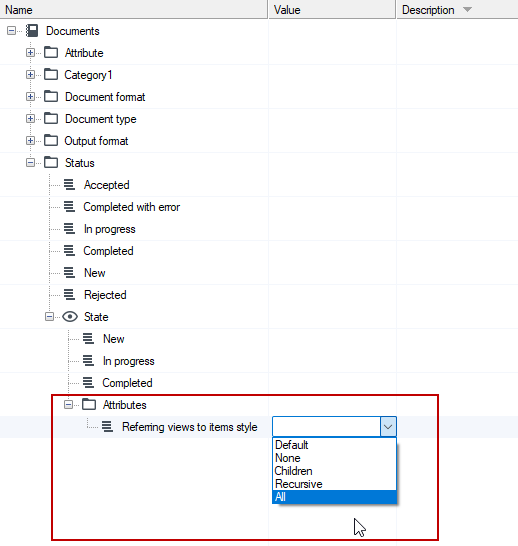
- Add a view to a category. Right-click on the view and select Add system attribute from the context menu.
- In the attribute type selection window, select Referring views to items style.
- In the Value field, select the method of referring, i.e. referencing the views to items. Select All, then all items from different categories can be included in the view.
- If you select Children, then you can only add to the view the items within the same dictionary category, i.e. items from the category in which the view is created.
Allow selected objects to be attached to the view
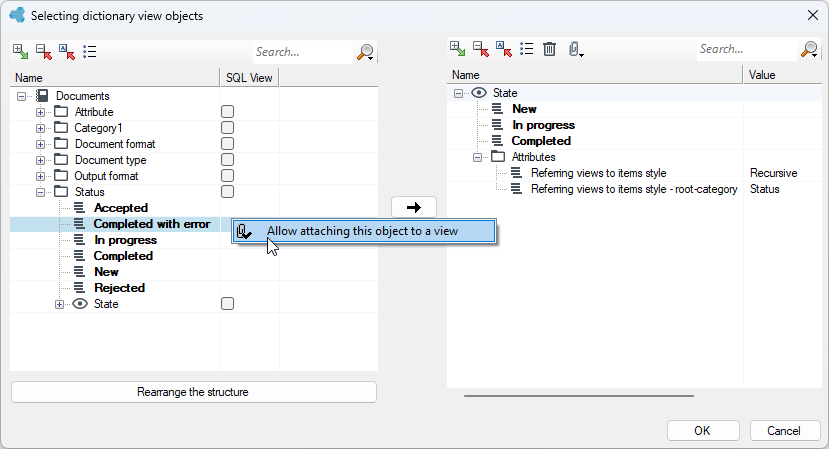
- Add a view to a category. Right-click on the view and from the context menu select the Attach or detach dictionary object option.
- In the dictionary object selection window, right-click on the item that you want to add to the view, not in the category to which the created view belongs.
- Select the Allow attaching this object to a view option. A window will be displayed informing about the change of view settings and a potential need to manually disconnect previously attached objects. Select Yes in the dialog box to continue.
- Attributes allowing to attach the selected object from the given category will be added to the view. Now you can select the item and use the arrow icon to add it to the view.
Allow all objects to be attached to the view
- If you do not want to define for each element whether to allow its addition to the view or not, then you can select one of the options after expanding the menu in the top panel.
- Select the given option and the attributes will be added automatically to the list with the default value All, so you can add all objects to the dictionary view.
- Select Restore Settings to return to standard settings.