The examples of usage
Documents dictionary
Documents dictionary
The examples of usage: Documents dictionary
Build the dictionary structure based on the provided business data:
-
Documents - Regulations for granting loans
-
Application for a loan
-
Refusal to grant a loan
-
Loan agreement
-
-
Documents will be in PDF or DOCX (MS Word) format.
-
Documents will only be in the specified A4 or A5 format.
-
The documents will be either a template to be filled in or already with ready content, ready to be printed.
For using attributes in target documents, start by creating 3 main categories with items to choose from.
Then complete them with text elements (right-click on the appropriate category and go through Add data element, where there are fields with a type to choose from). Add a view to each of the created categories for later use in the attributes (right-click on the appropriate category and click Add View). If we use only one view in a category, it is important that its name is the same as the category:
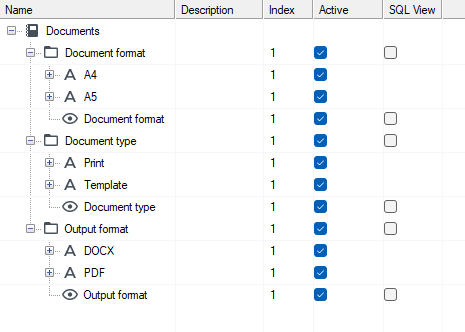
Add fields from category to the view (use the Attach or detach a dictionary object button from the context menu):
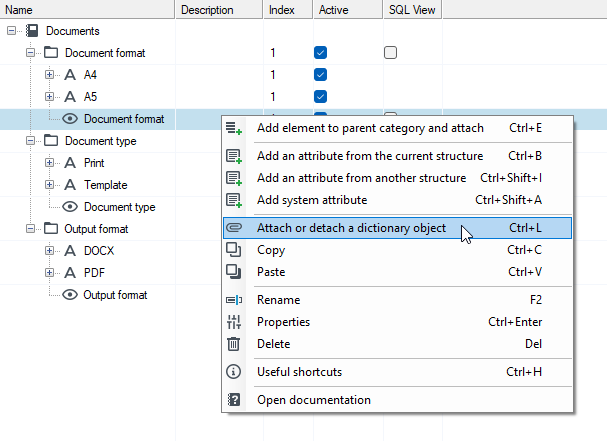
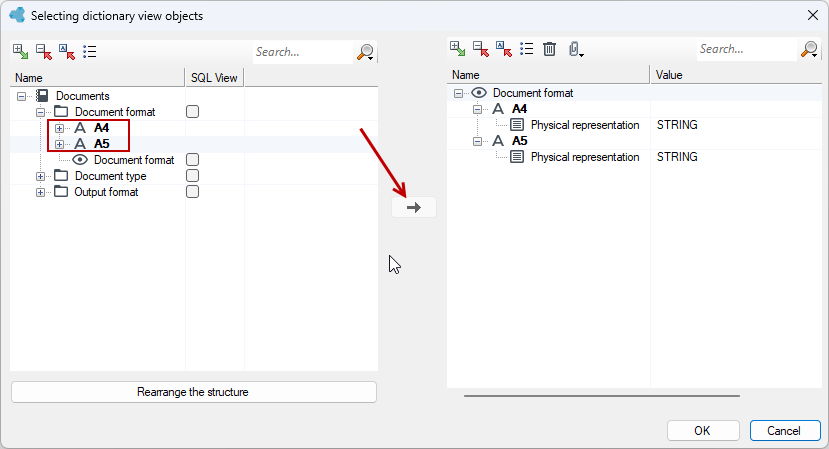
The dictionary item selection window will appear. Move the selected fields to the right side of the view.
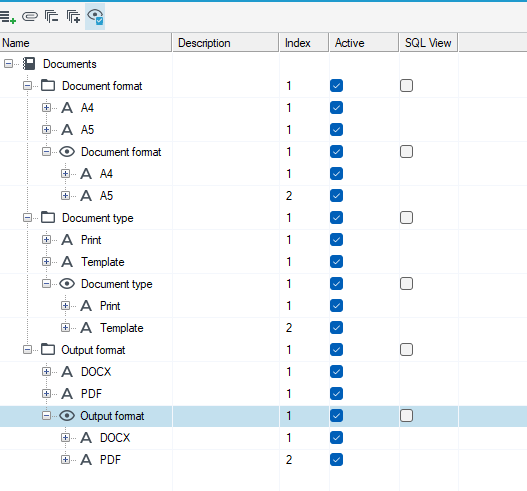
Ultimately, the views in categories should look like this:
Create a category called Attribute (you can choose any name) and choose Type of data element.
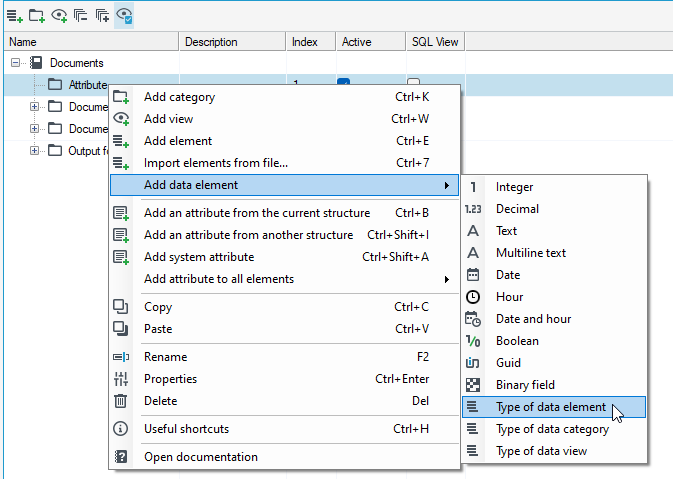
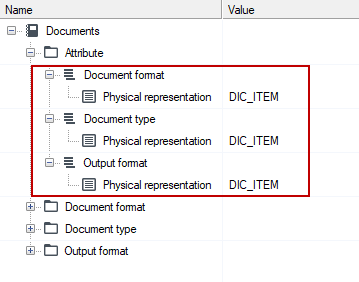
In this case, due to the existence of 3 categories, there will be 3 elements. It is a good practice to use the same names as those used for the categories. Additionally, check if the physical representation of these elements is DIC_ITEM
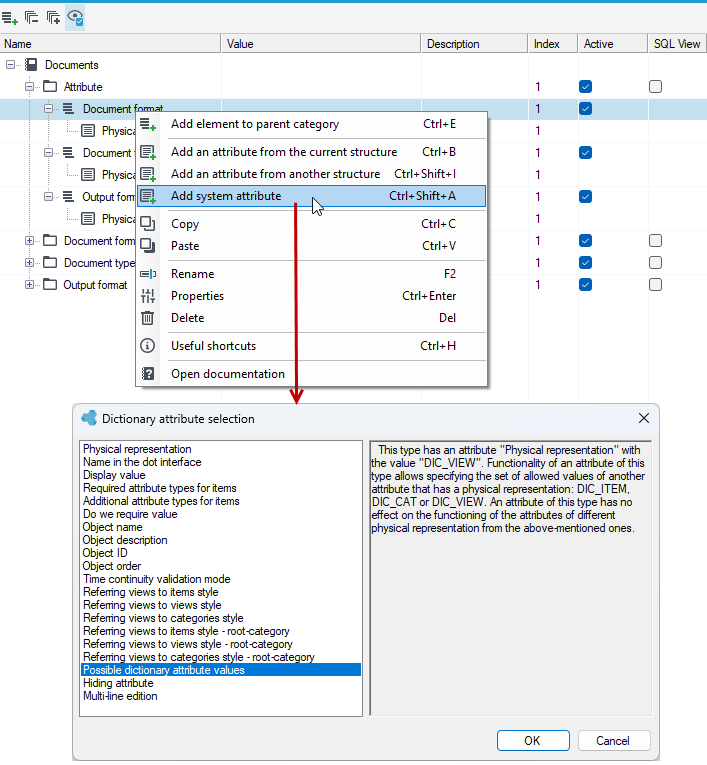
The next step is to add a system attribute to each of the items in this directory. Select Add System Attribute>Possible dictionary attribute values.
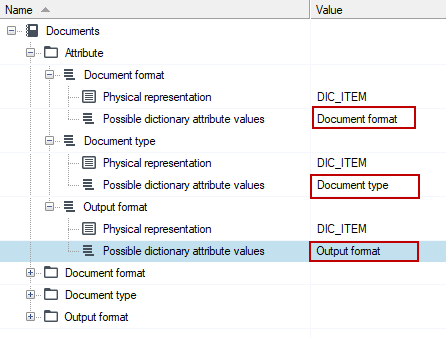
Ultimately, for 3 elements it should look like this:
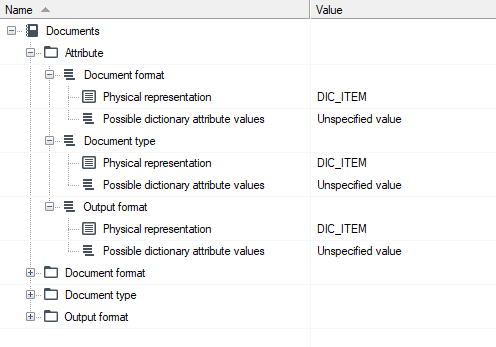
As the values for Sets in the Attribute category are empty, they must be filled in. By clicking on the Value field, a window will open where you should mark the element of the dictionary structure to be used.
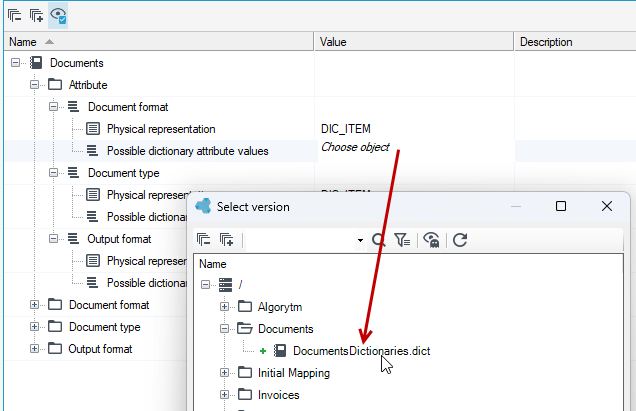
Then we mark the previously configured view (here it is useful to mark the view with the category name beforehand) - in the window below it is possible to select only the View type element.
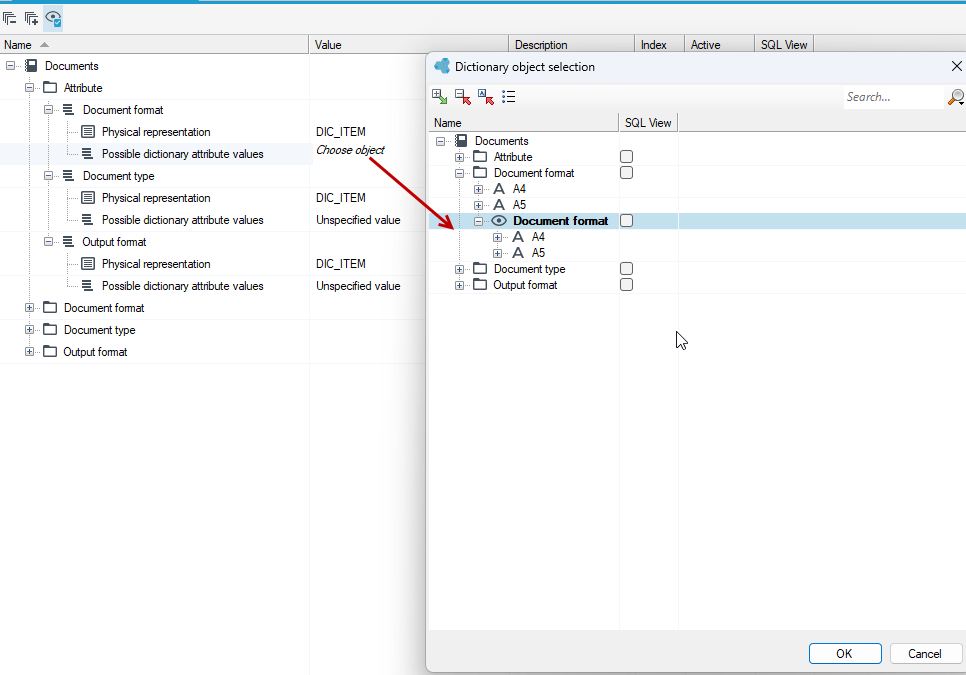
After performing all operations, you should expect the following view:
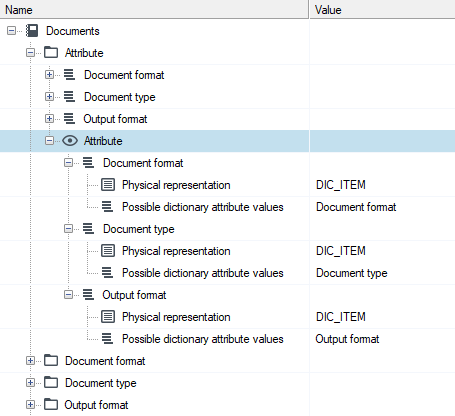
Then, in the Attributes category, create a View and add previously created elements to it.
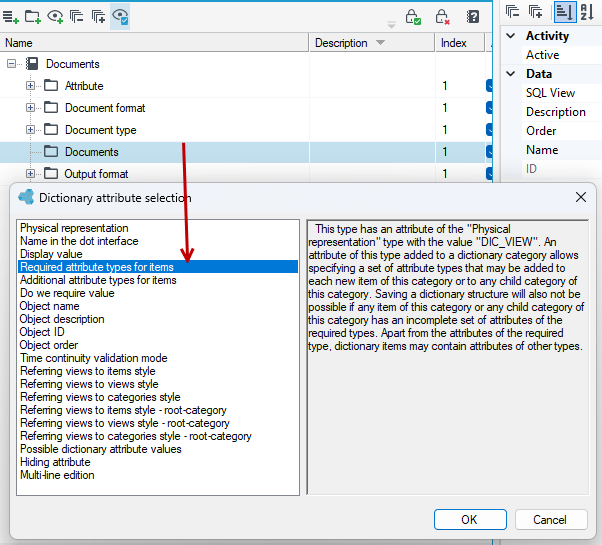
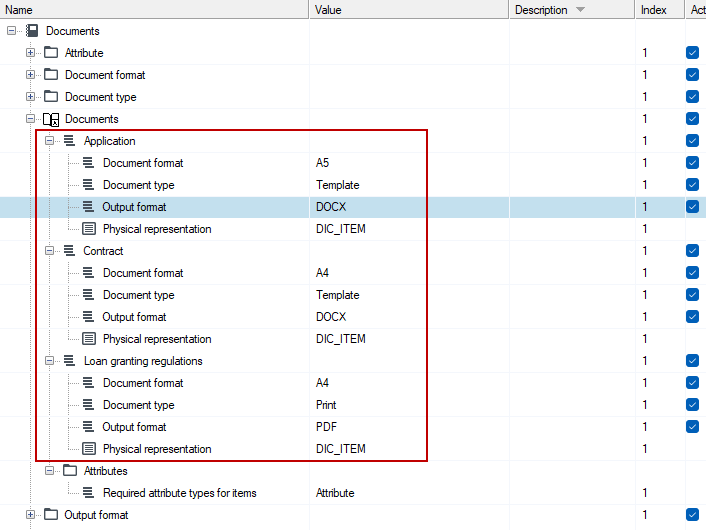
The next step is to create the Documents category, where our document templates will be located. Then, if the elements are to be required, add the System Attribute and select from the list:
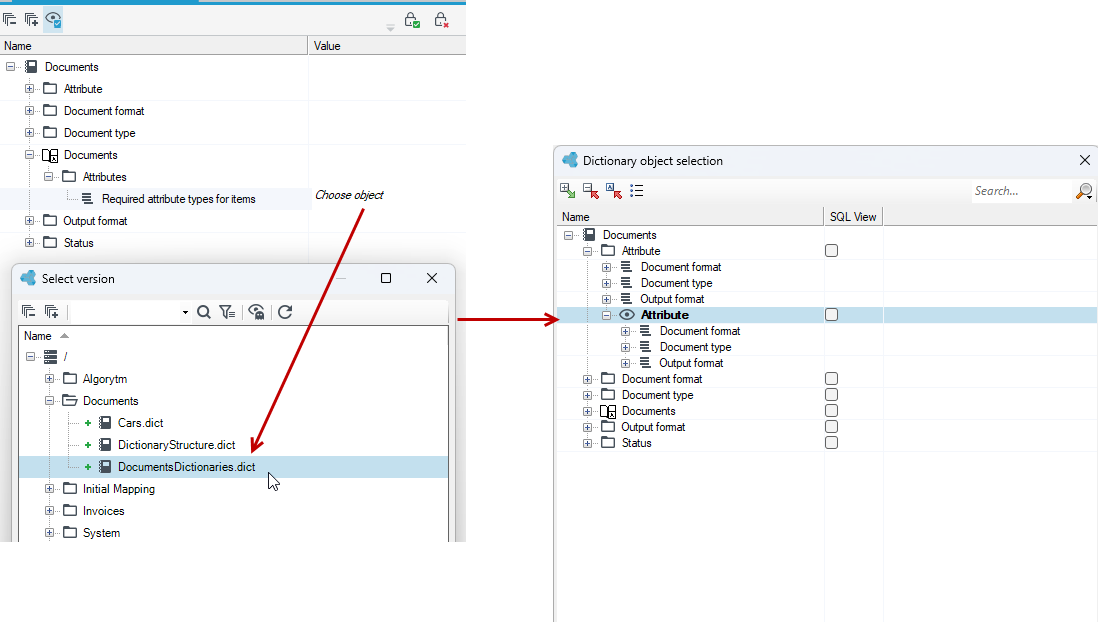
For the created attribute, select the file with the dictionary structure and from the dictionary structure select the previously created view in the Attribute category.
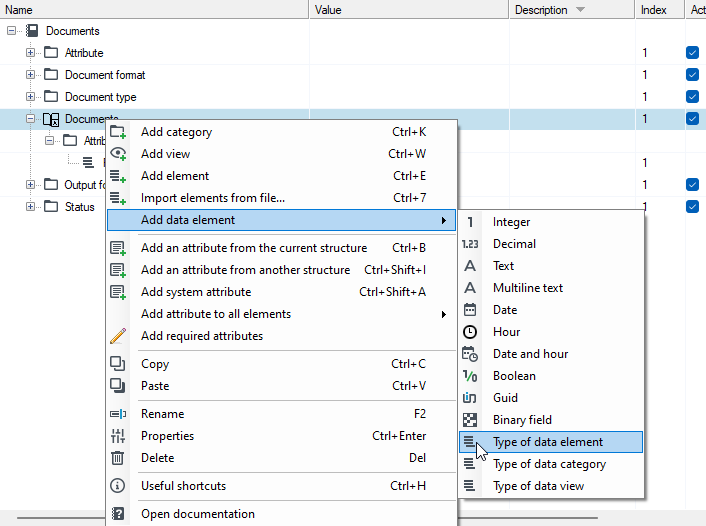
After preparing the dictionary structure, you can proceed to creating documents that use the attributes from previously created dictionaries in the configuration process. Add the dictionary data type to the Documents category.
Then choose a suitable name for it and configure. Thanks to the previous steps, the configuration is carried out by means of selection boxes consisting of previously configured elements.
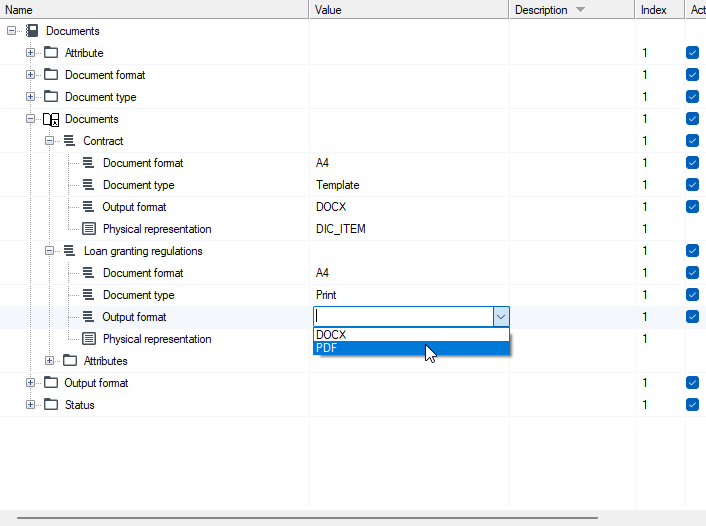
Each item must be configured this way.
A dictionary that stores data about cars
Building a dictionary structure using a car database as an example
-
Data scheme: price, brand, last use, year, is functional
-
Categories: trucks, passenger cars
-
Elements: Daf, Man (trucks), Fiat, Opel (passenger cars)
We create a new dictionary structure. We add the Data Schema category to the structure. We add individual elements to the category with the appropriate type (price, brand, last use, year, its functionality). We add to the structure two main categories: Truck and Passenger. We add individual elements to the created categories according to their category. We manually add attributes to individual dictionary objects. For the Passenger category, we add attributes in an alternative way. Add an attribute to all elements. A view has been created in the category that stores the required element. Add the rest of the items to the view. Then use the Complete Required Attributes option to complete the items (a warning will appear). The elements will be completed with the required attributes. Any subsequent element added to this category will already have mandatory attributes.