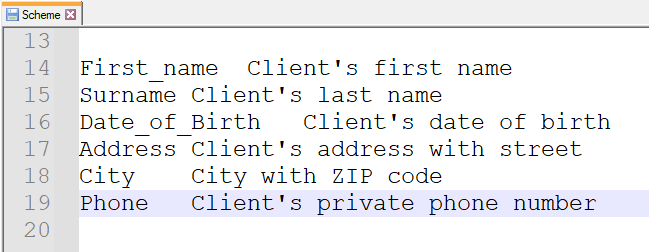
Copy/paste data schema
You can copy and paste data structures within the same tree and between trees in the data schema.
- Use Ctrl+C and Ctrl+V.
You can also paste data from external sources like an Excel table.
- Add a new record in the data schema.
- Select the fields to copy from the Excel table.
- In the data schema, click on the record and select Ctrl+V.
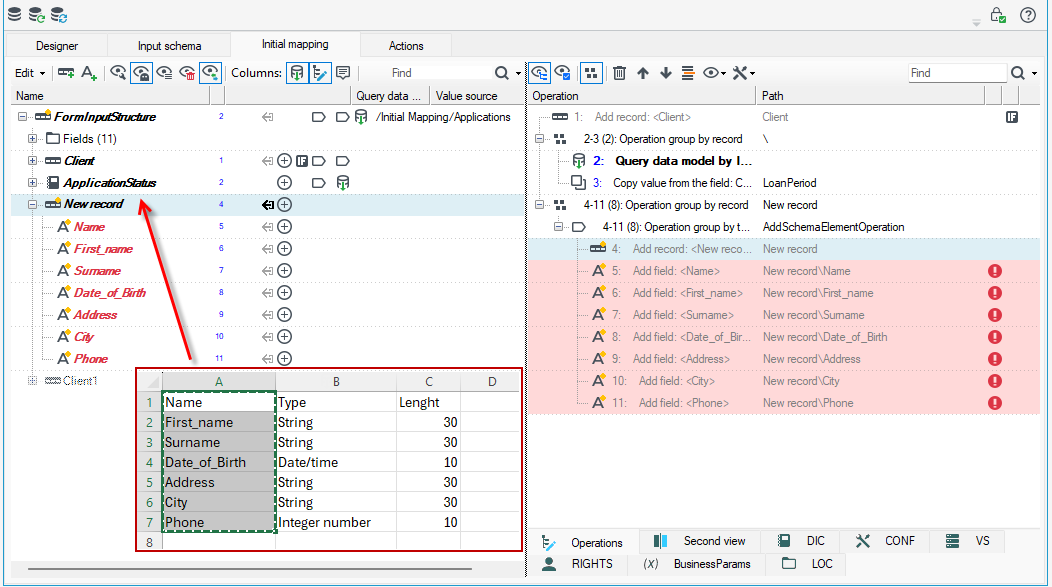
- The fields will be pasted into the data schema. In the list of operations, you will see a warning that the fields are required, and a way to specify their values has not been designated.
- Change the requiredness of the fields or add a way to designate their values through Annotations.
- Fields are pasted of text type so remember to change the type of fields (context menu option Change data type).
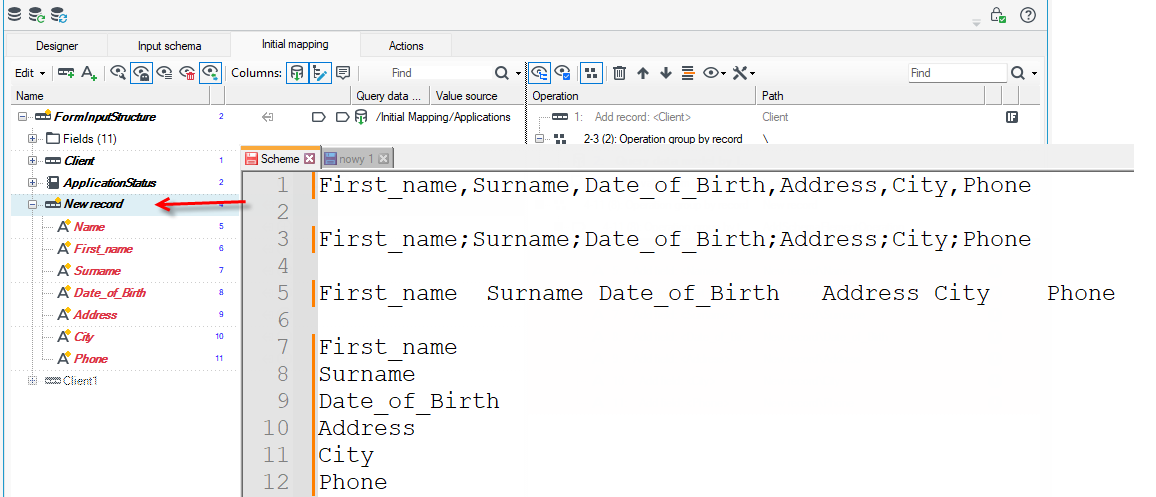
Paste from separated text
You can also paste fields from comma-separated text, semicolons or tabs.
- Add a new record in the data schema.
- Select the fields to copy.
- In the data schema, click on the record and select Ctrl+V.
Copy/Paste based on XML
You can copy the data schema or just a particular record into XML format. Copying is done to the clipboard.
- Select the schema or record and choose Advanced>Copy simple XML from the context menu. The structure is copied as simplified XML with nesting but without types.
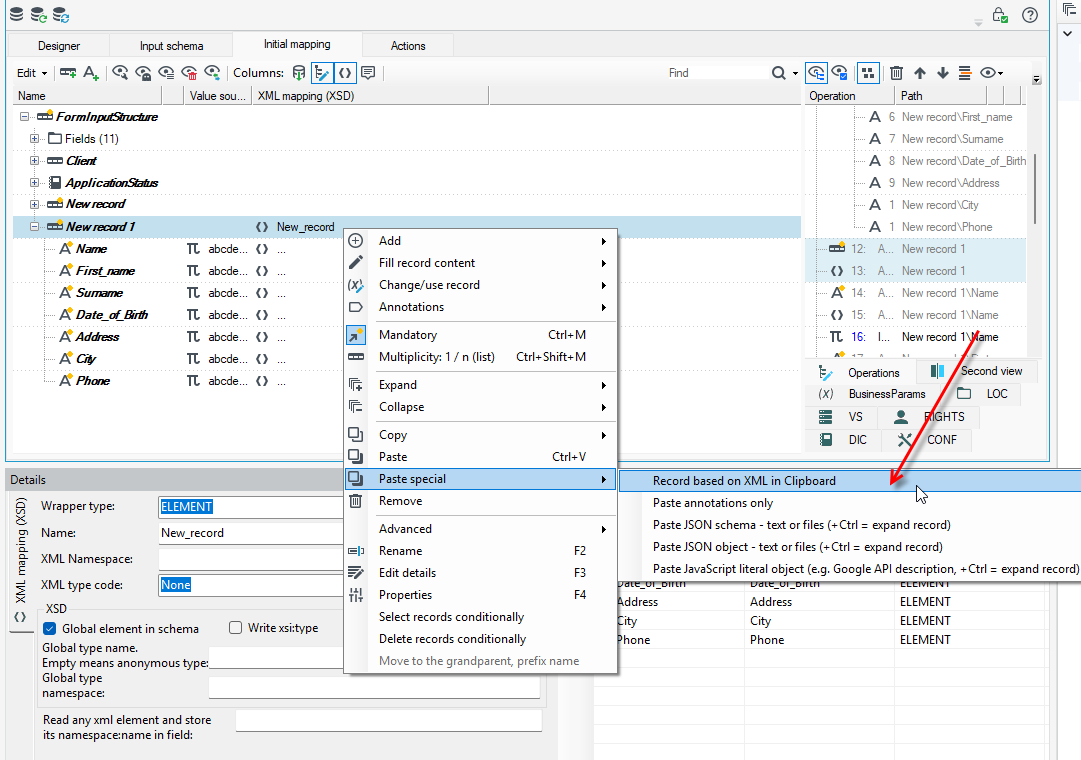
- If you have a data structure prepared in XML format, then copy it from an external source to the clipboard and on the data schema select the record where the fields are to be pasted.
- Choose Paste special>Record based on XML in Clipboard from the clipboard from the context menu.
Paste comments
On the top panel after selecting the Edit menu and then Tools, you will see additional functionality you can use, including several options for pasting comments.
- Copy comments into fields from an external source, for example, an Excel sheet.
- In the data schema, select the record where you want to add comments to the fields and go to Edit>Tools menu and select Assign comments based on table from the clipboard (auto).
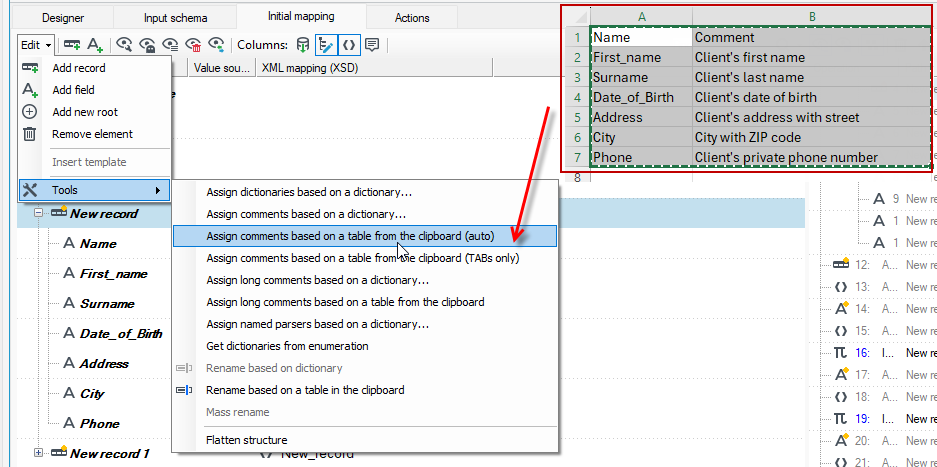
- In the Excel table, copy the columns with both field names and comments.
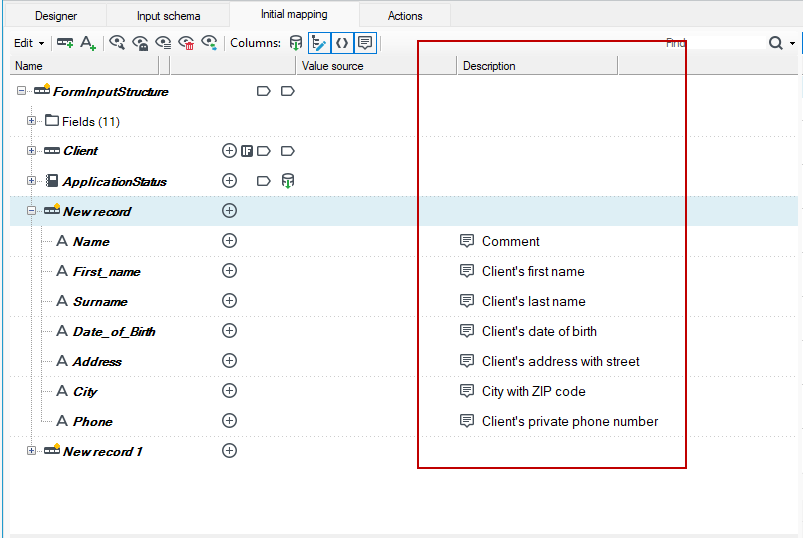
- Comments, if they exist, will be added to the data schema to the Description column.
- If you want to paste comments from another source, use the option Assign comments based on the table from the clipboard (TABs only). The data then must be separated from each other by tabs in order to paste comments.