Data schema
The data schema is organized as a tree and defines a record data organization, where you can add/delete fields and records and insert/delete operations - see Operations.
The data schema defines the organization of the record data and statically describes the records that will later be processed as appropriate (loaded, saved, etc.) under the operations and annotations assigned to them.
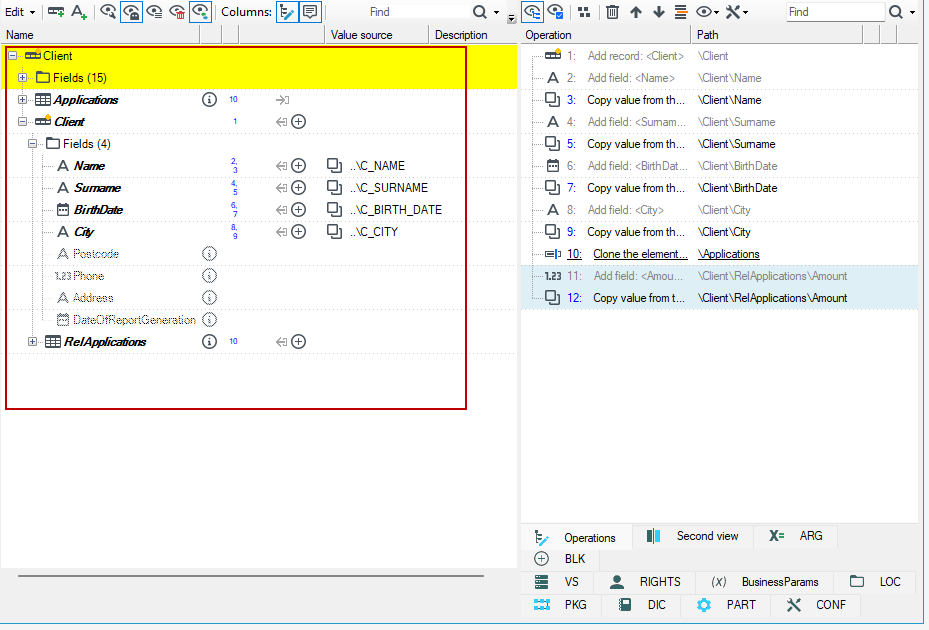
A schema editing window often appears in VSoft archITekt platform:
- as a separate schema file editor (.schema),
- as a main element of data mapping editor - both in-place (SMIP) and mapping-copy (SMC) which often appear as block editor components,
- as schema preview panel content,
- as an editor for package invocation parameters,
- as a mapping editor used on forms.
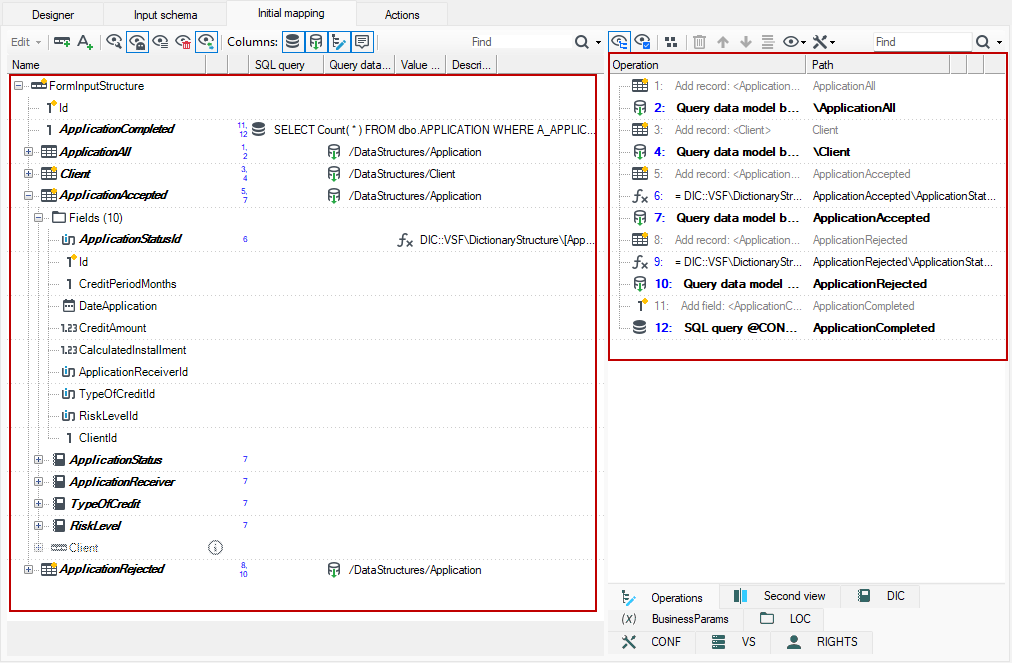
The context menu of the diagram tree elements and the toolbar buttons allow you to edit the tree and change the presentation mode.
The “Insert” key can also be used to insert new elements, which is useful for quickly entering diagrams from the keyboard.
A record schema includes fields (particular data values definitions) and (optionally) other record schemas (children). Each child record may be defined in 1-1 or 1-n relationship. The latter case concerns the possibility of registering the entire list under one record (basically, the tree) of related records, eg. read from a relational database or XML.
Both record schema fields and a relationship to children may be marked as required or not required. Required fields will always have non-empty values, a child record will always occur (at least one in the event of 1-n relationship). Such concept translates directly into characteristics of some data sources: database columns may be defined as NULL or NOT NULL, XML elements may be required (according to definition - xsl:minOccurences=1) or include an empty value (in data - no element or xsi:nil=”true”). The fields always have a specified type.
Special case
A special kind of a schema is a flat schema which consists of a single record which corresponds physically with (flat, without children) data records. For example, records read from flat CSV files or fixed length input files correspond with such schemas.
In the schema tree, you can add/delete fields and records and insert/delete annotations. See Annotations. You can also insert whole fragments of other schemas from files - from an external file or a template (contents of a template directory).
Editing the data schema
You can perform a series of operations on the data schema tree, which are mainly available from the context menu. The range of available options depends on whether the action is performed for a data record or for a field.
Some operations exclusively "schema":
- Add / delete annotation (e.g., comment or data handling rule),- for more see Annotations
- Move a field / record in a schema - for more see: Drag&Drop
Note: this isn't much in common with the position of elements in a data record, where the position is managed completely automatically. 3. Delete an element (record, field), again - deleting elements does not affect the physical content of data records, 4. Check data (validator). Performs checks according to a definable list of expressions, if conditions are met, reports named errors or warnings to the record's error list.
Some operations that interfere with the form of the data record:
- Adding an element (field/record),- for more see Addinng fields/records
- Determining the value of a field (e.g., by constant,source path or expression),
- Cloning a record to another location, for more see Moving elements to another element.
- Inserting a root above the current root.
Renaming and data type
- You can change element names by double-clicking on the name or by pressing F2.
- To change the data type, choose Change data type from the context menu.
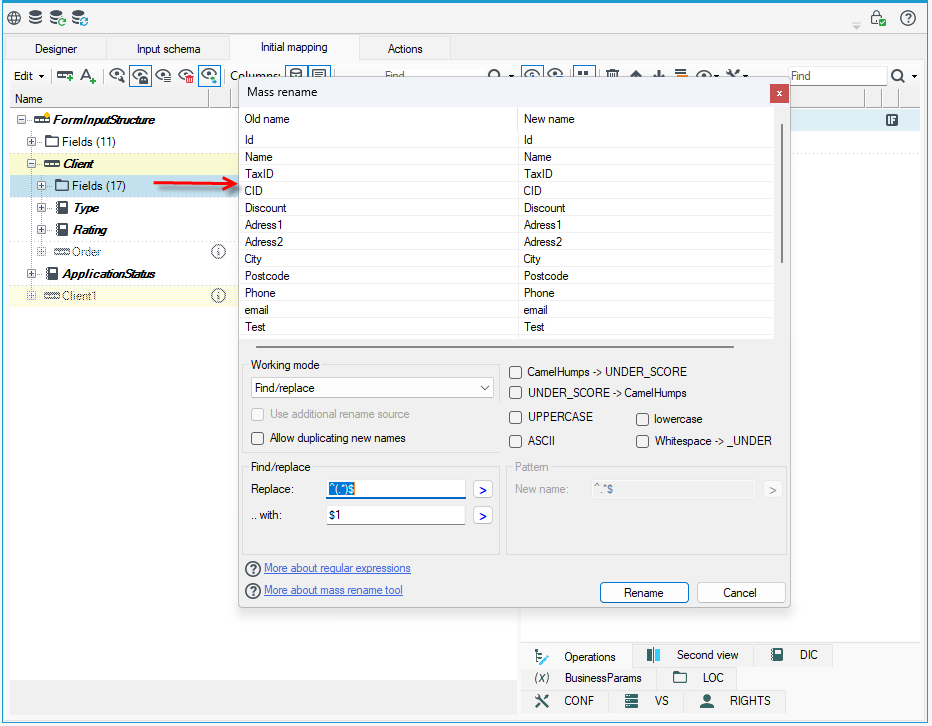
- When you select Rename on a folder containing several fields, a window for renaming multiple elements will be displayed, where you can rename all elements at once through regular expressions. For more see: Element mass renaming.
Drag&Drop
Elements of the schematic tree can be moved using the "Drag&Drop" method - this is the basic possibility to edit the tree. After dropping the element(s), we have several options available to us. On the tree, you can drop elements from the same tree (including from another view - the Second view tab), from another tree (e.g., the Schema or Database tabs) and also from the text editor (the text will be interpreted as a list of field names).
Moving items up and down
- Grab a given record on the tree and move it to the desired location.
- Subsequently, after dropping the item in the context menu, choose whether the item should be moved, copied or cloned.
The context menu is always displayed only when the item is dropped.
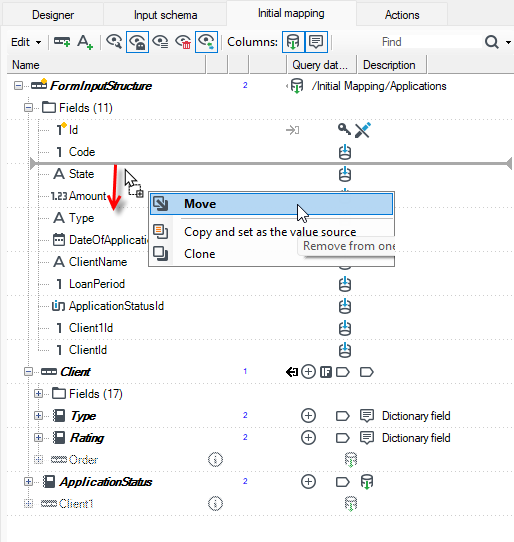
- The Move option just moves the item.
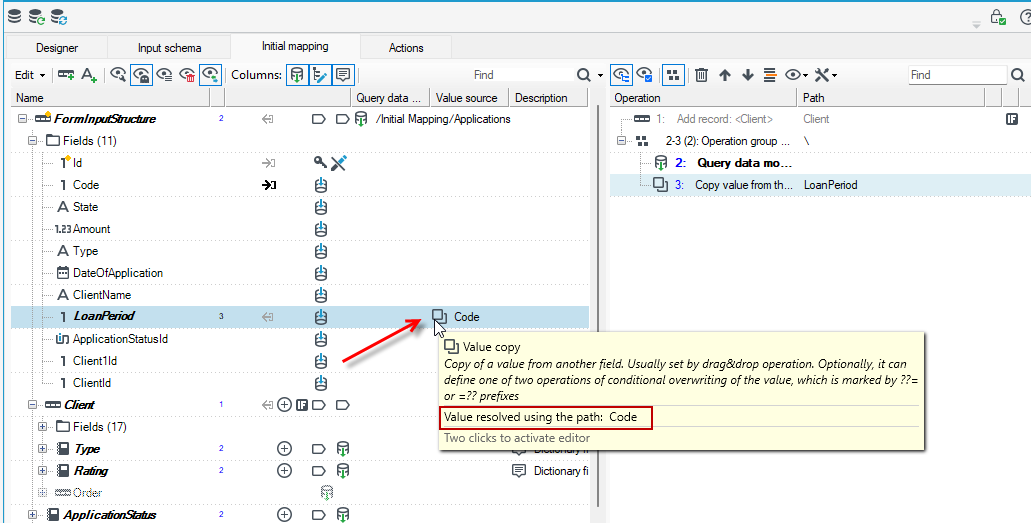
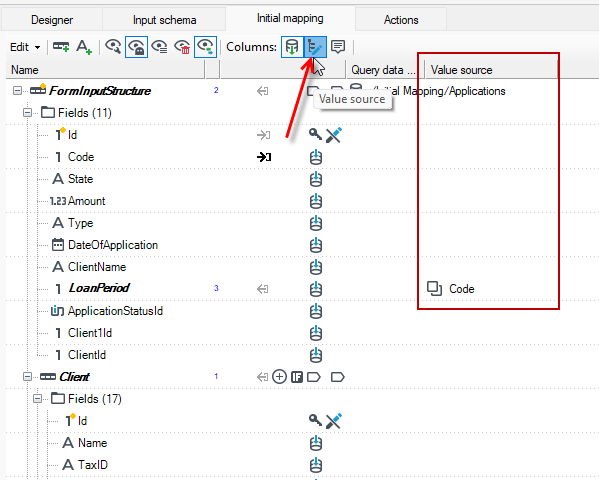
- The Copy and set as the value source option-copies the element and inserts it with an annotation of the source path origin (annotation Copy value).
- The Clone option - makes an identical copy of the element by cloning - this is a simpler and recursive operation compared to Copy and set as the value source.
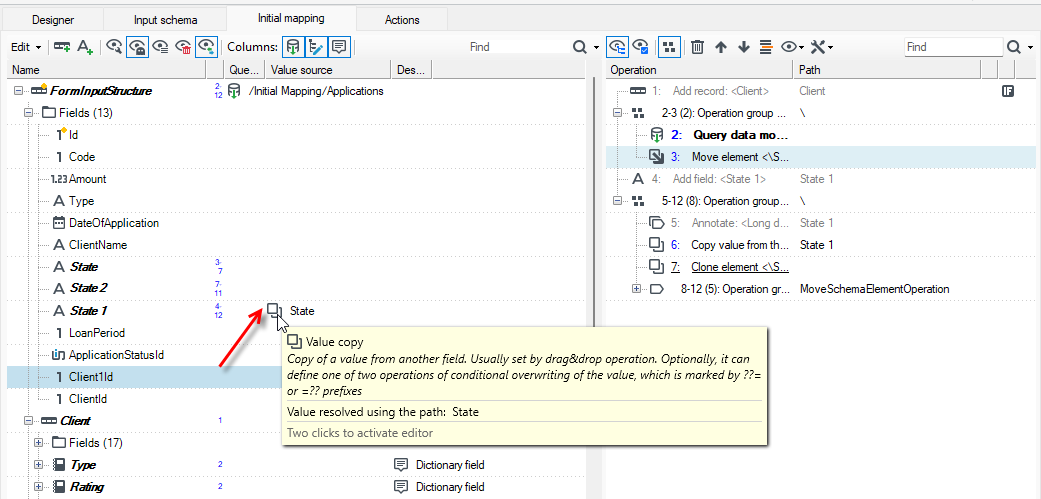
Moving elements to another element
You can move tree elements and drop them onto another element.
- Grab a given record on the tree and move it to another element.
- Subsequently, after dropping the item, the context menu will provide possible actions to perform.
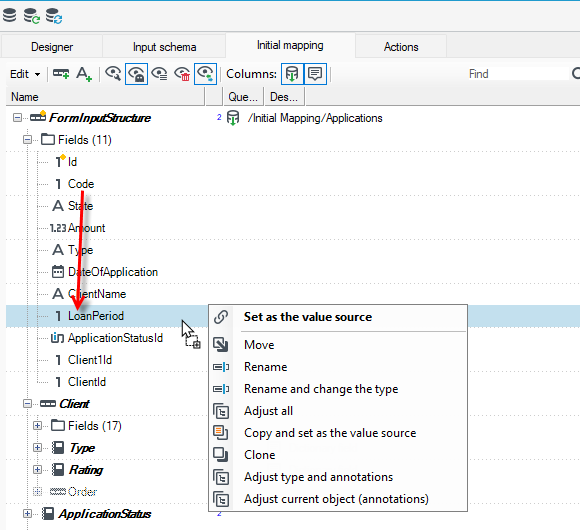
- Set as the value source option - changes the annotation of the source record's origin.
- Move option - removes from the first tree and adds to the second.
- Rename option - changes the name of the item.
- Rename and change the type option - changes the name of the item and its type.
- Adjust all option - customizes all properties (name, type, annotations).
- Copy and set as the value source option - copies the element and inserts it along with the source path origin annotation (Copy value annotation).
- Clone option - makes an identical copy of the item by cloning - this is a simpler and recursive operation compared to Copy and set as the value source - for more information, see: Cloning lists.
- Adjust type and annotations option - changes the type and annotations, leaving the original name.
- Adjust current object (annotations) option - changes only the annotations, leaving the original name and type.
One of the advantages of the editor that makes work easier when building large data schemas is the ability to highlight "similar" elements when moving data in schemas.
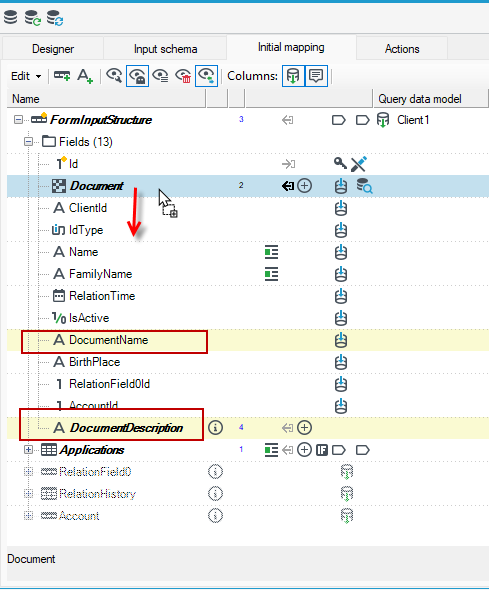
The default way to highlight similar items is by name similarity (for example, if the field being moved has the word "Address" in its name, all fields that also have this word in their name will be highlighted as target fields for moving).
There is also a more advanced possibility of "highlighting" target elements for transfer operations. It comes down to the observation that when creating Mass Data Processing packages, we usually have the mappings of source and target fields stored in various types of tables (e.g. in an Excel sheet). In order to be able to "highlight" target fields based on a table with a mapping, it is necessary to copy this table to the clipboard before starting a drag & drop operation.
Customizing the view
The View menu provides a set of basic options that allow you to display or not additional information on the data schema.
You can configure the display of:
- Technical fields not set by the user - Show technical fields taht were not set by the user
- Display of ghosted - fields/records that are prompted but not yet added to the data schema - Show ghosts
- Deleted fields/records - Show deleted
- Fields/records for which some operation has been configured by applying annotation - Show only elements with an operationa
- Display graphic markings (arrows) next to fields that are input or output parameters of an operation - Show operation inputs and outputs as small hint icons next to names.
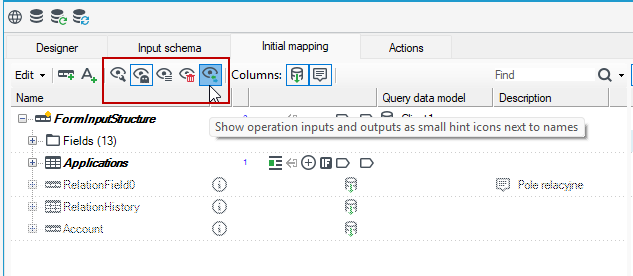
- In the Columns section, you can select or deselect the display of columns corresponding to annotations used in the data schema.
Advanced options
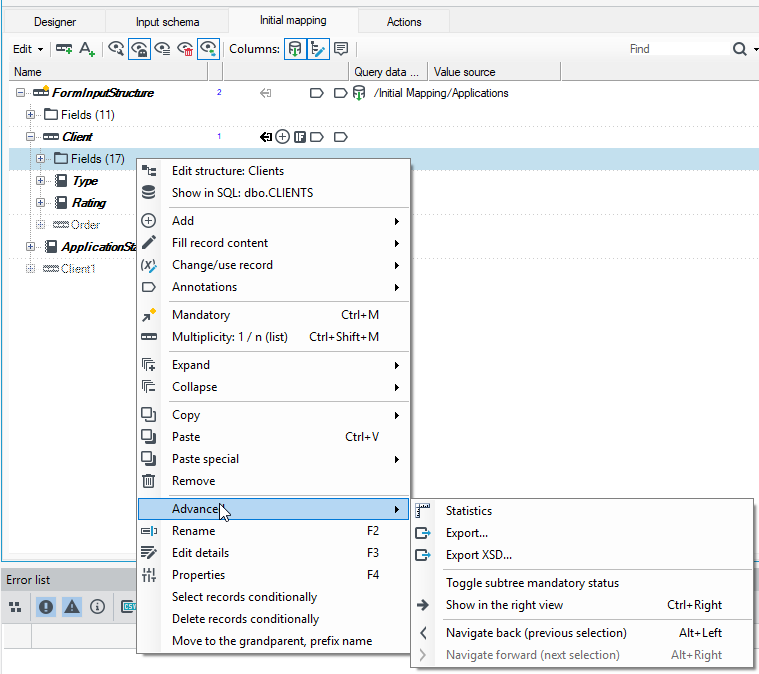
Other options available in the context menu:
- Expand/Collapse - allows you to specify rules for collapsing or expanding individual tree elements:
- selected
- whole tree
- Copy:
- the ability to copy the name or path to a field,
- Copy simple XML - the function allows you to copy a given item to XML format.
- Copy simple XSD - the function allows you to copy the given element to XSD format.
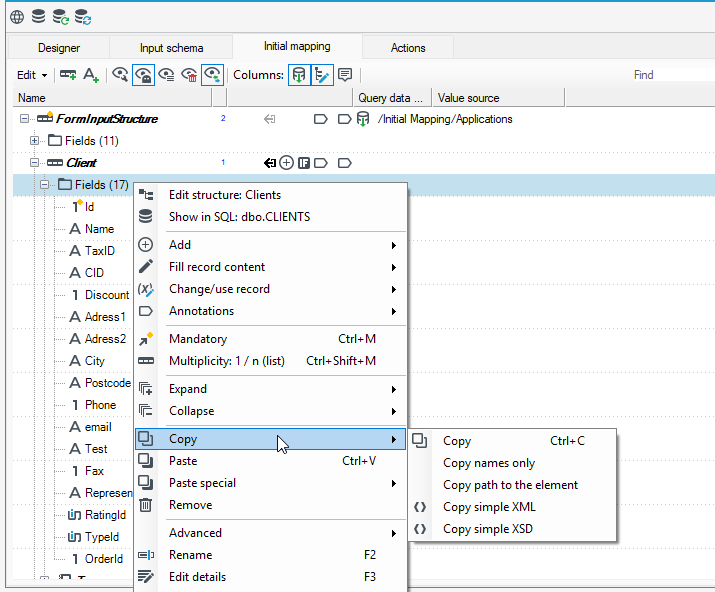
- Advanced:
- Statistics - the function allows you to display the statistics of records. Statistics informs about the number of records and fields in the records.
- Export - exports the data schema.
- Toggle subtree mandatory status - the function allows you to toggle the maturity of all elements of a given record.
- Show in right view - the function activates the Second view panel.
- Navigate back/forward (previous/next selection) - the function allows you to navigate the data schema according to the order of the selected elements on the tree.