Operations
The right panel Operations contains a list of operations that have been performed on the data schema.
When you create a new form based on the data structure, the list of operations will already show the first operation, which informs about the executed Query data model. Each following operation will be noted in the list of operations.
Operations are inserted on the list on the basis of identifying edit actions in the schema view. A typical action may be:
- copying a field to another record (drag&drop),
- inserting a field,
- adding an annotation e.g. a dictionary annotation (a field context menu in the schema view).
- Select a field or record in the data schema, and then the list of operations will highlight those operations that apply to the item.
- Double clicking on the list of operations moves to the place where the operation occurs (e.g. to a calculated field).
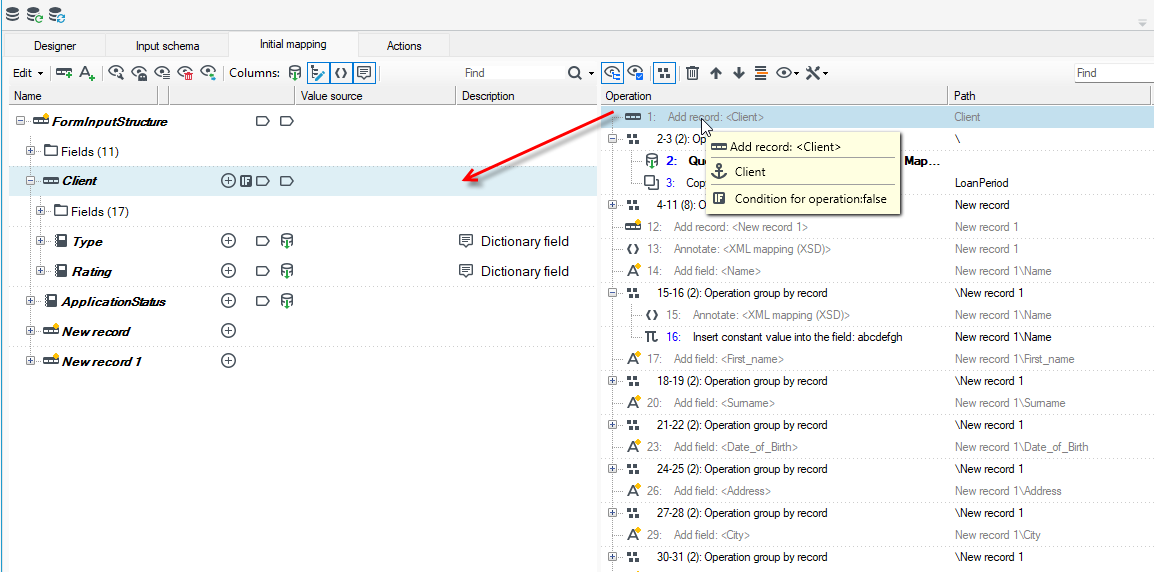
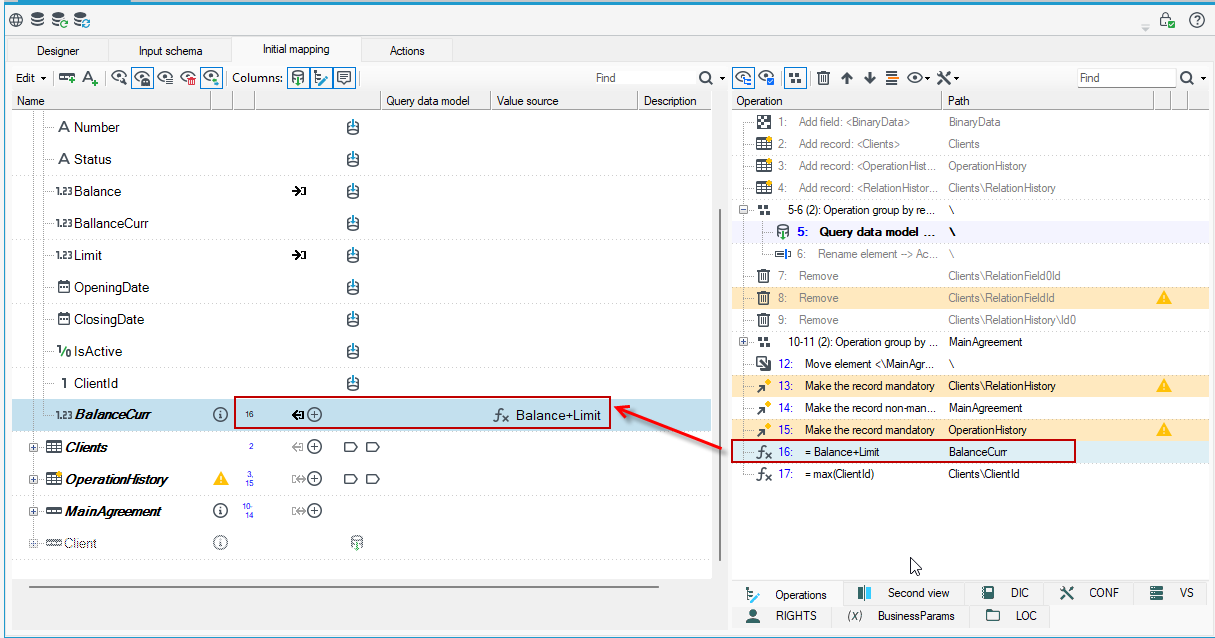
The order of operations performed is also marked on the data schema, where you can easily find which operation from the right panel refers to the data schema element on the left.
When you hover over a record/field in the tooltip, a list of operations that relate to the field/record is also displayed. You can click on an operation to go to its details.
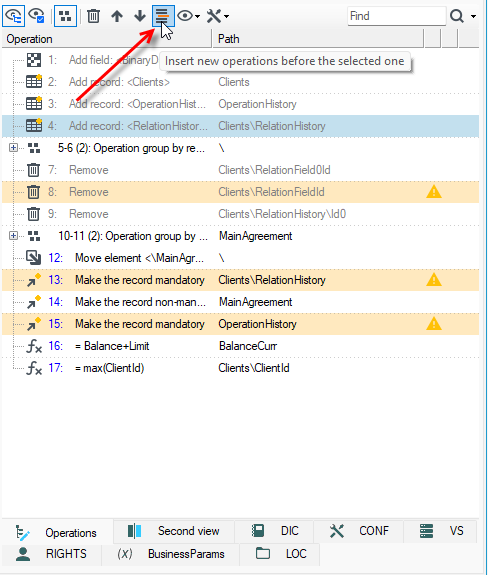
New operations are inserted at the end of the list. Such behavior may be changed by selecting a list element before which new operations should be inserted and then by selecting a curved arrow icon Insert new operations before the selected one.
Grouping operations
A list of operations may be shown as a shallow tree - some operation elements are shown as separate nodes. Operations can also be grouped by an element or a kind (which is useful with a large number of operations).
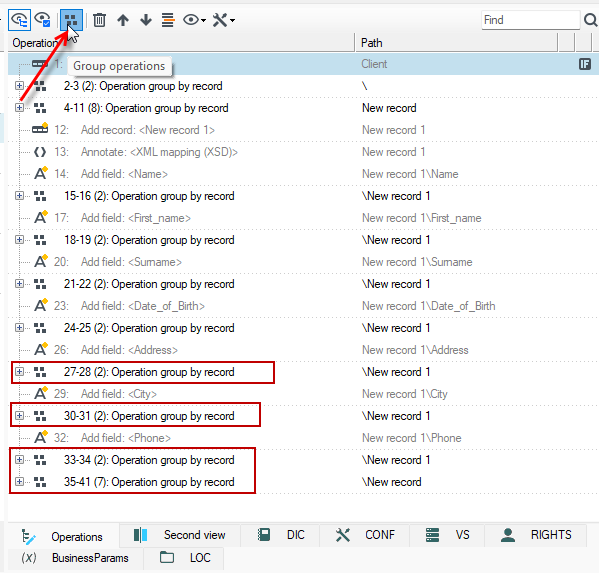
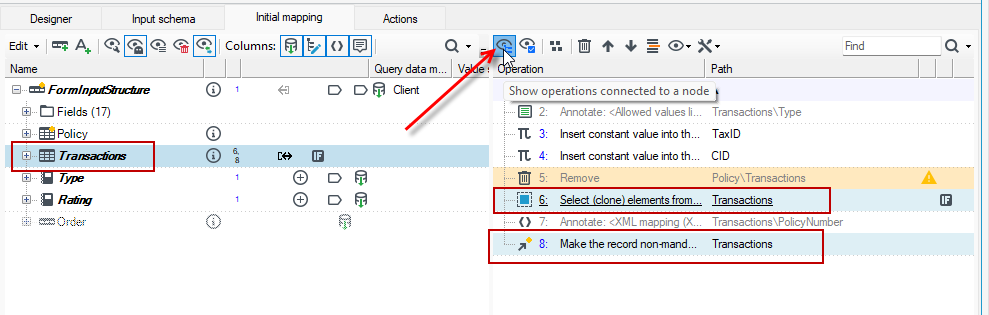
Show operations connected to a node
Select the option to show operations related to a node, then the operations list will highlight those items that relate to the record/element.
Below in the list of operations, those options that relate to the Transactions record are highlighted.
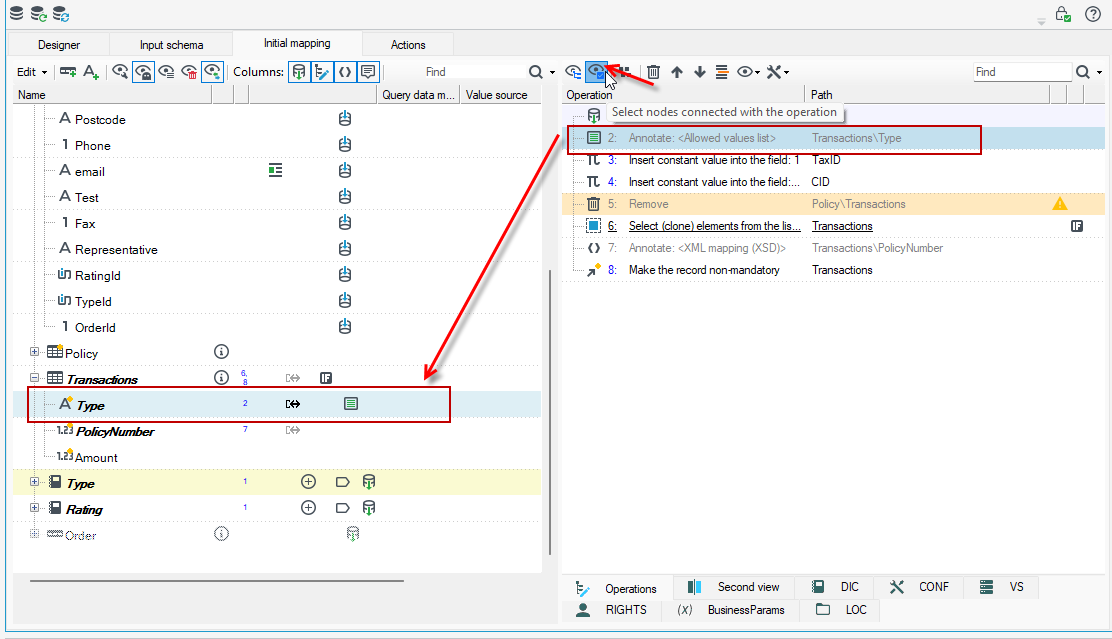
Select nodes connected with the operation
When you choose to select the nodes associated with an operation, the data record referenced by the operation will be highlighted when the operation is selected.
The order of operations
Operations may be moved (using arrows or drag&drop technique).
As a result, an invalid list of operations may be created (e.g. first, calculating a field value, then inserting a record which contains this filed).
Invalid operations will be colored red and an appropriate tooltip will show error details.
A second column (path to an element) of the operation view may be edited - changes may be made here after e.g. a record name has been adjusted in another place.
For example:
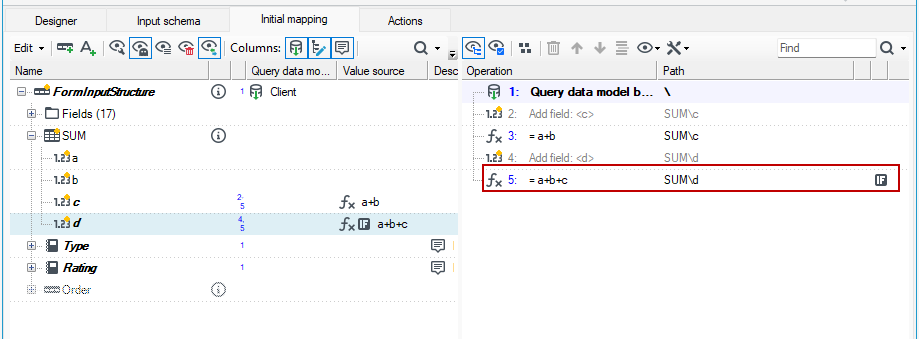
- New fields c and d calculated based on the expression and the sum option used were added.
- Then the operation to calculate field d was moved before the operation to calculate field c.
- There is an error in the tooltip in the list of operations, which tells you that the order of operations is wrong, because the expression a+b+c cannot be applied before the calculation of the value in field c.
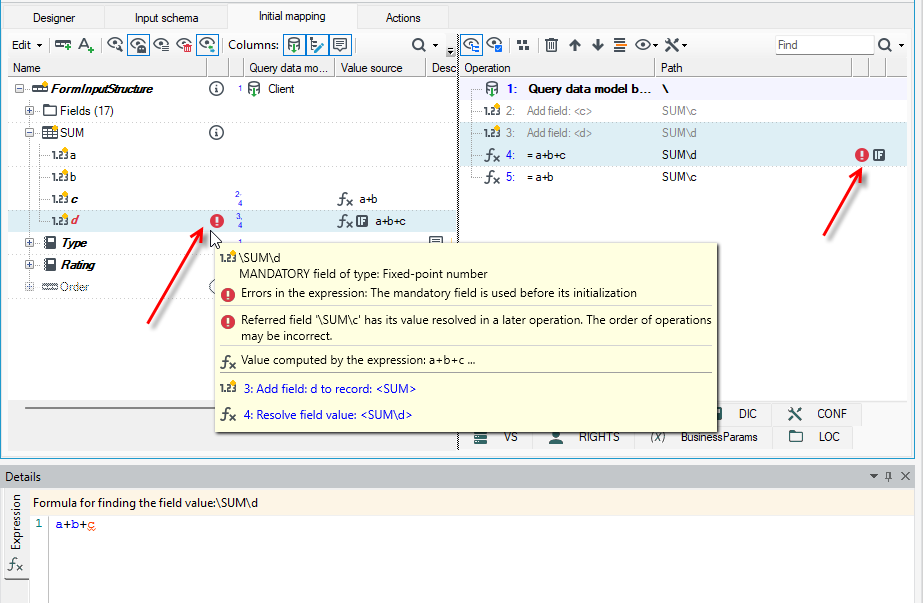
- To correct the error, drag the last operation to the appropriate place in the list of operations.
Condition for performing the operation
Some operations are performed if a condition defined in a detail panel is fulfilled. One should always double check which expression is visible: operation condition or value resolving rule. It is particularly similar for the operations of resolving field values using an expression.
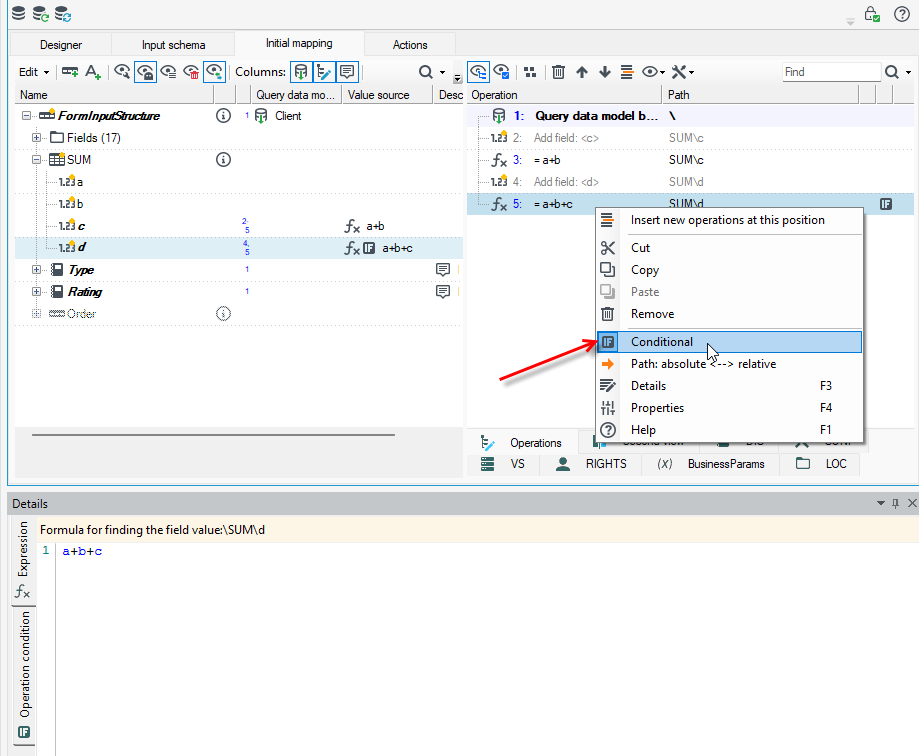
- Select the operation and choose Conditional from the context menu.
- In the Details panel, a new section Operation condition will be activated.
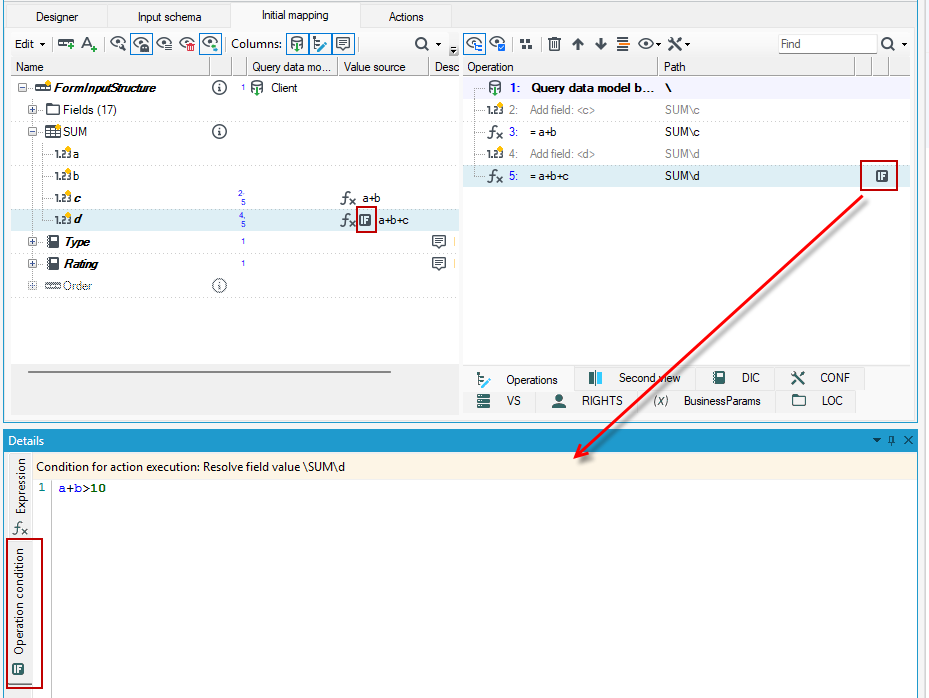
- On the Operation panel, an additional icon will be displayed next to the given operation and field in the data schema (since the operation is just about how to calculate the given field), indicating the conditional execution of the operation.
- In the Details panel, there is both a section for entering the condition for the execution of the operation and a section with an expression, since the annotation was previously applied in this way to calculate the value of the field. For more on expressions and annotations, see Annotations, Expressions.
In the following example, the condition for the operation of calculating the sum of the field d (a+b+c) will additionally check whether the field c is greater than 10. If so, the value of the field will be calculated based on the expression a+b+c, otherwise not.
Additional tabs
Depending on whether the mapping window is open in the context of a processing package or a form, various additional tabs are available on the Operations panel.
Additional tabs that appear in the left panel are: Second View, ARG, PKG, BLK, PART, DIC, CONF, VS, BusinessParam, RIGHTS, LOC.
The ARG, PKG, BLK, PART, DIC, CONF, VS, BusinessParam, RIGHTS, LOC tabs represent named trees. Dragging named tree elements from these tabs onto data schema elements on the left panel of the editor adds an Expression annotation to the target element and sets the dragged element to the source of the expression value.
For more information about named trees, see: Expressions>Named Trees.
The Second view tab contains exactly the same tree structure as the main view, with respect to some minor visual differences:
- Vertical scroll position,
- Collapsed/expanded node states,
- Shown/hidden annotation columns,
- Records as single rows view (useful for big schemas),
- Searched elements (a text field in the tree`s toolstrip).
In order to quickly set up another`s view current tree node, one can use several context menu actions:
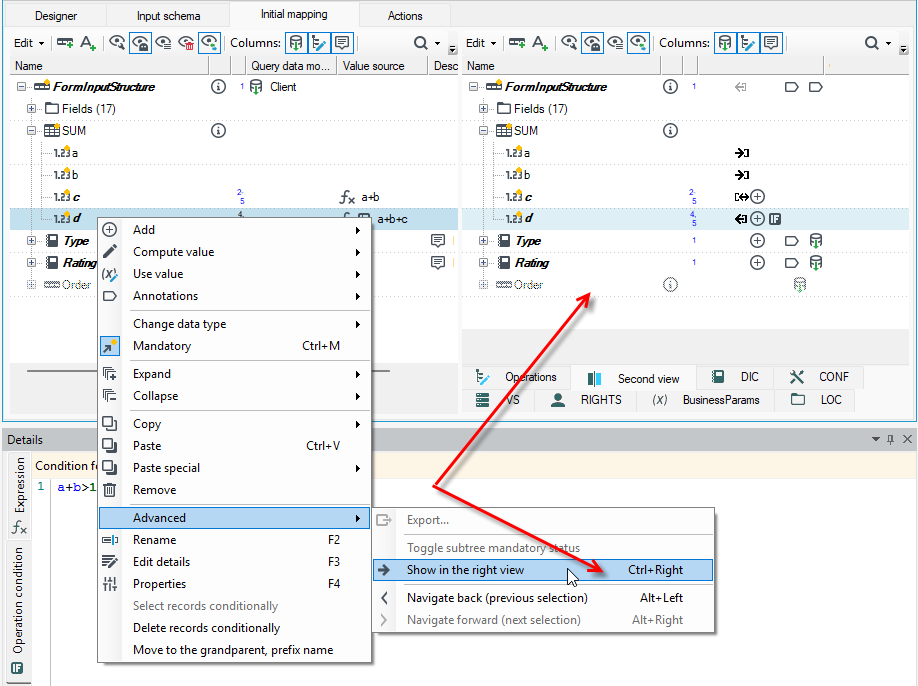
- Ctrl+Right – displays (and selects) the current tree node in the second view
- Ctrl+Shift+Right – the value source path will be resolved from the current tree node, the result will be displayed in the second view
- Ctrl+Space – as above, but the target path will be displayed in the same view
- Alt+Left/Right – navigate back/forth in selection history, similar to navigation between pages in a web browser
In the second view (right view), similar actions are available, with the „Left” arrow key instead of the „Right” one.
The aforementioned commands simplify browsing through the mapping specification and source data`s neighbors, which is an invaluable aid when large data schemas come into play.
Operation properties
When you select an operation in the operations list, its properties are displayed in the Properties panel.
The most important properties of individual operations:
- Properties for expressions - see: Expression operation properties.
- Properties of Entity Framework data model query operations - see: Operation properties.
- Properties of Entity Framework integration checkpoint operations - see: Entity Framework integration checkpoint operation.
- Properties of SQL query operations - see: SQL query operation.
Other properties:
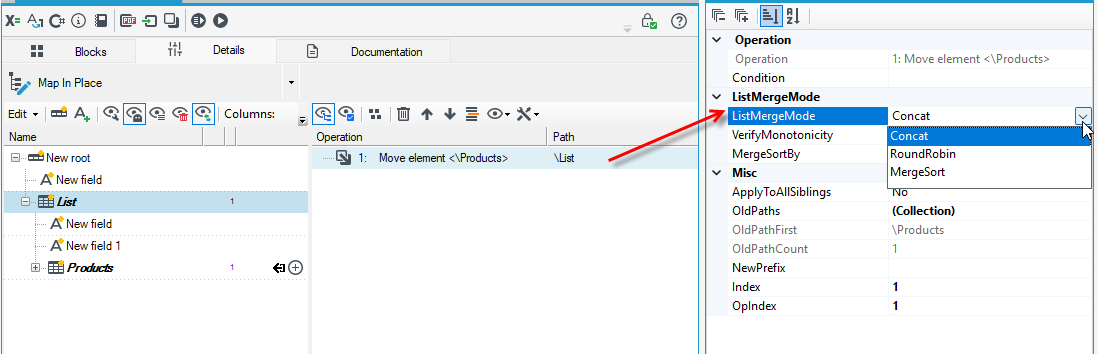
- Move element property - ListMergeMode. When merging multiple source lists into one, we can choose from several strategies. The simplest, default one is CONCAT. To preserve the original order of the list, you can select MergeSort and specify the sort order.