Syntax prediction
In most places in the System which require writing complex formulas (value calculation, SQL, regular expressions) there is the smart syntax prediction function which may be activated using the Ctrl+Space keys.
A window with the tree which groups predictions by interpretation – tables, possible JOINs, suggested keys, table columns, functions, dictionaries, keywords, references to additional elements, script sections, etc. will be displayed.
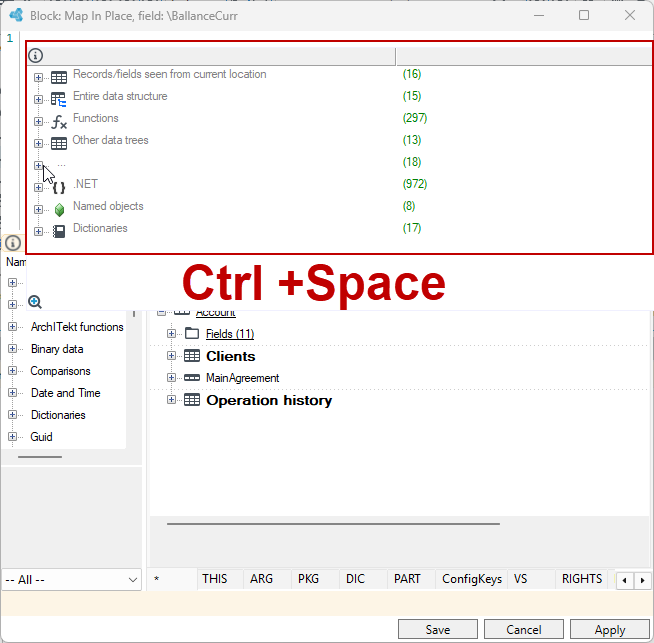
The following keys may be used for navigation in this window:
- Up /Down – scrolling and changing the selected element,
- Right/Left – jumping to a parent and collapsing/expanding the branch,
- Letters/numbers, _ – searching for elements (a current search key is displayed in a small text box at the bottom of the window),
- Enter, double click, arithmetic operator – selecting an element and inserting it into an expression.
A switch which disables hiding advanced elements – system tables, views, functions and other elements which are normally rarely used is located in the right bottom corner.
Syntax prediction will only work if a part of the expression is syntactically correct from its beginning to the insertion point. Moreover, if prompts of the expression beginning depend on its further part, the further part will also have to be correct – it must be reachable by a parser, excluding the element currently being predicted.
An example of how to write an expression quickly
The following are the functions of syntax prediction when defining a new list in the SQL editor.
- Start typing
SELECTand press Ctrl+Space.
Very little can be seen here – only some SQL keywords from the expression context, functions and other additional elements but the table or column list is not visible. It is suggested to write an SQL in a slightly different order.
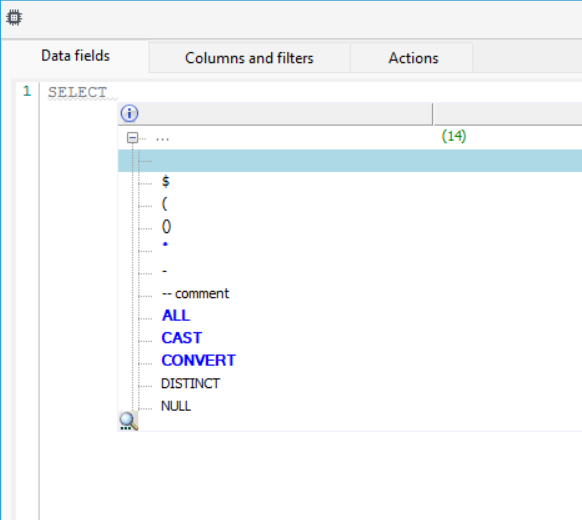
- Type
SELECT * FROMpress Ctrl+Space.
The System will prompt a table list including declared tables and CTE tables.
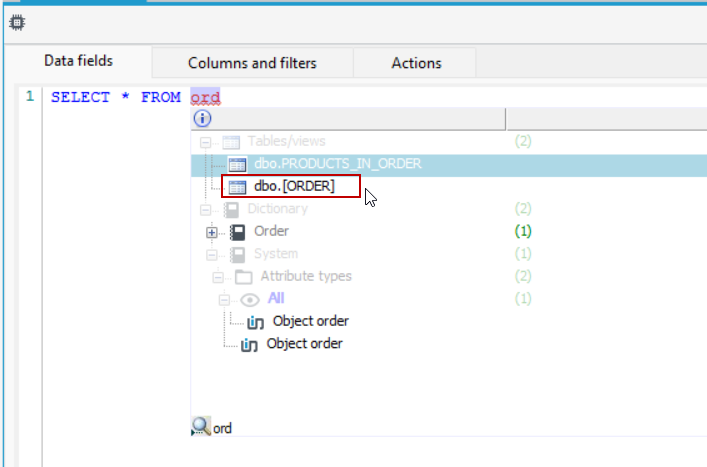
- One by one, type
SELECT * FROM table1(here the Order table) and press Ctrl+Space.
An additional list of available JOINS according to relationships defined in the database (and also all tables, available keywords, etc. in a separate group) can be seen here. After selecting one of them, an expression should be completed with aliases for tables.
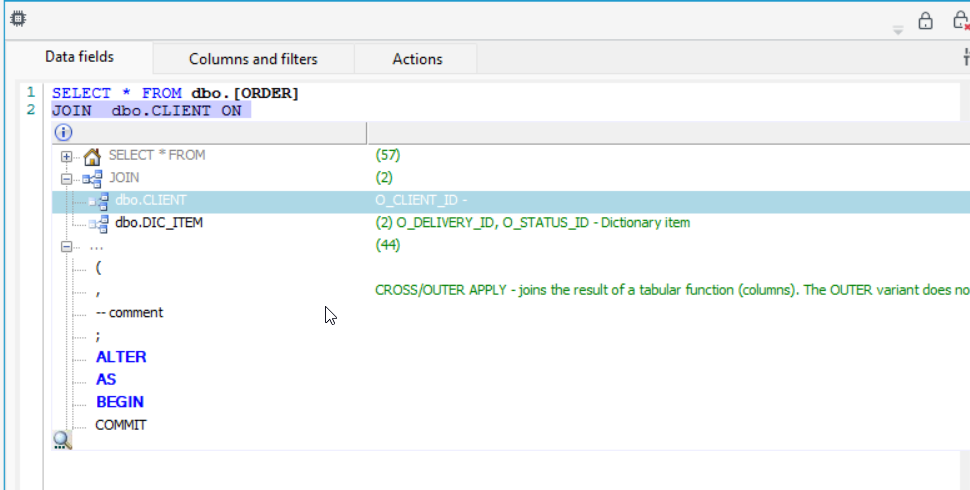
- Sequentially
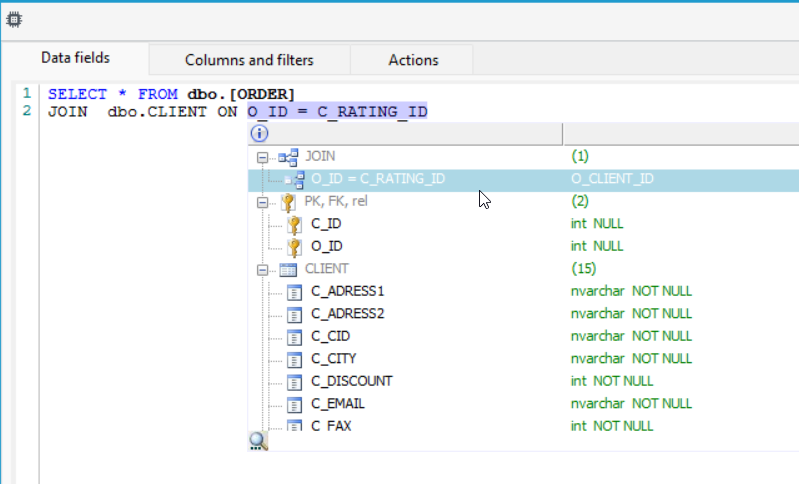
SELECT * FROM table1 t1(Order table here)JOIN table2 t2(Client table here) and press Ctrl+Space.
Complete conditions according to defined relationships can be seen here. It is also possible to use the predictions of particular tables’ column names (already preceded by aliases) to arrange your own connection conditions.
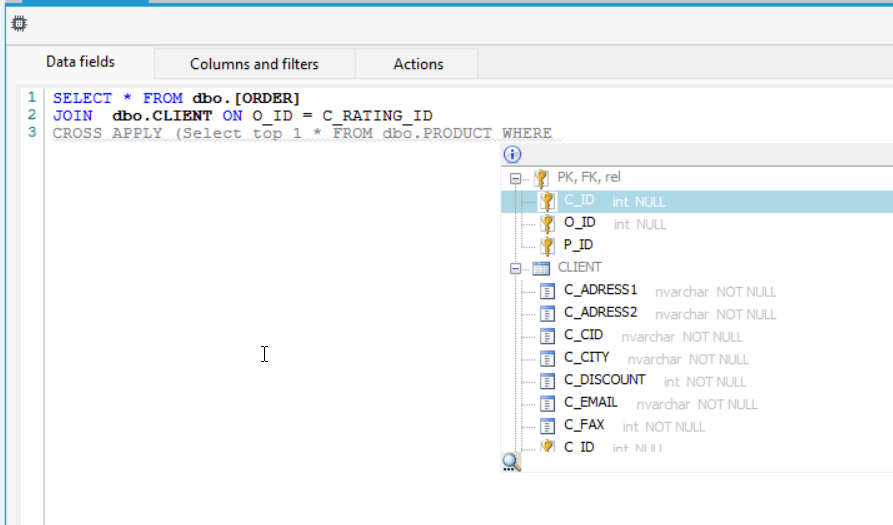
The more needed columns which are the part of primary keys, foreign keys which occur in indices or which include the _REL_ word in their names have been grouped under the common PK/FK/rel element.
- Type another component (etc... further JOINs, subqueries, CROSS/OUTER APPLY...) ...
WHEREand press Ctrl+Space.
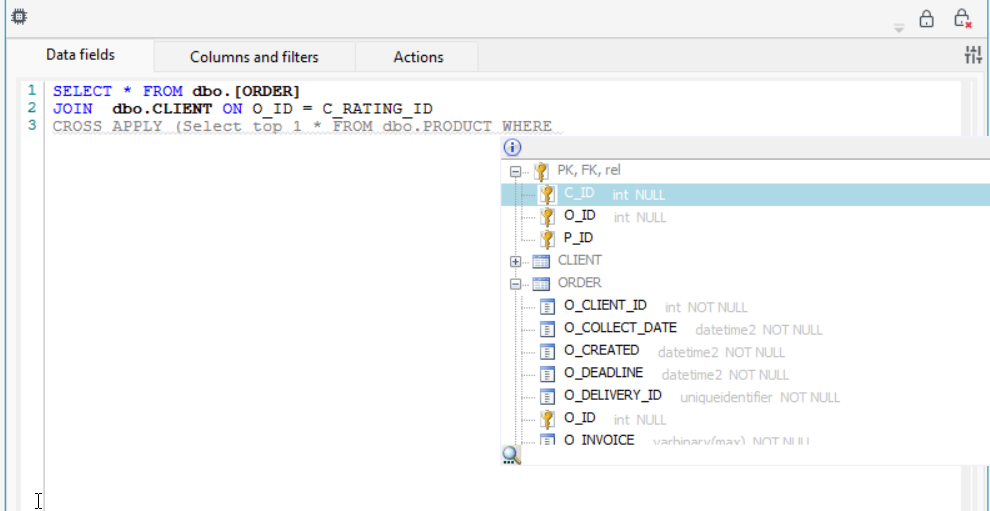
SELECTand press Ctrl+SpaceFROM table1 t1(Order table here) ....
At this stage, if the next part of the expression is correct, a list of available columns (or aliases) of all tables available below (t1, t2, …) can be seen here, including nullability, types, comments (if defined), grouped according to tables and source subqueries.
Several elements may be selected on the predictions list which will result in adding a list of the prompts separated by commas to the expression.
Selecting according to context
The editor enables smart context based selection expanding. For example, if a cursor is placed on the second GetDate() call:
SELECT cn.ContactID
FROM Person.Contact cn
JOIN  HumanResources.Employee emp ON cn.ContactID = emp.ContactID
CROSS APPLY ( SELECT top 1 * FROM Person.Address WHERE cn.AdditionalContactInfo = cn.ContactID )
WHERE cn.ModifiedDate is null AND emp.ModifiedDate is null
OR cn.ModifiedDate > GetDate() AND emp.ModifiedDate > GetDate()
and Ctrl+→ (or Ctrl+W) is pressed several times, the selection will be expanded to:
GetDate
GetDate()
emp.ModifiedDate > GetDate()
cn.ModifiedDate > GetDate() AND emp.ModifiedDate > GetDate()
cn.ModifiedDate is null AND emp.ModifiedDate is null
OR cn.ModifiedDate > GetDate() AND emp.ModifiedDate > GetDate()
If the expansion is too wide, it can be narrowed using the Ctrl+← keys.
The function is useful for quick copying logical fragments of expressions or for replacing them with other ones. It can also be used for verifying operator precedence, e.g. OR / AND, UNION / EXCEPT / INTERSECT etc.