Records validation
For the record, you can use the Validation rules annotation.
- In order to create an operation, you should add an annotation Validation rules to a record which data should be validated. The annotation enables creating a list of validation rules.
- Go to the Details panel to define rules.
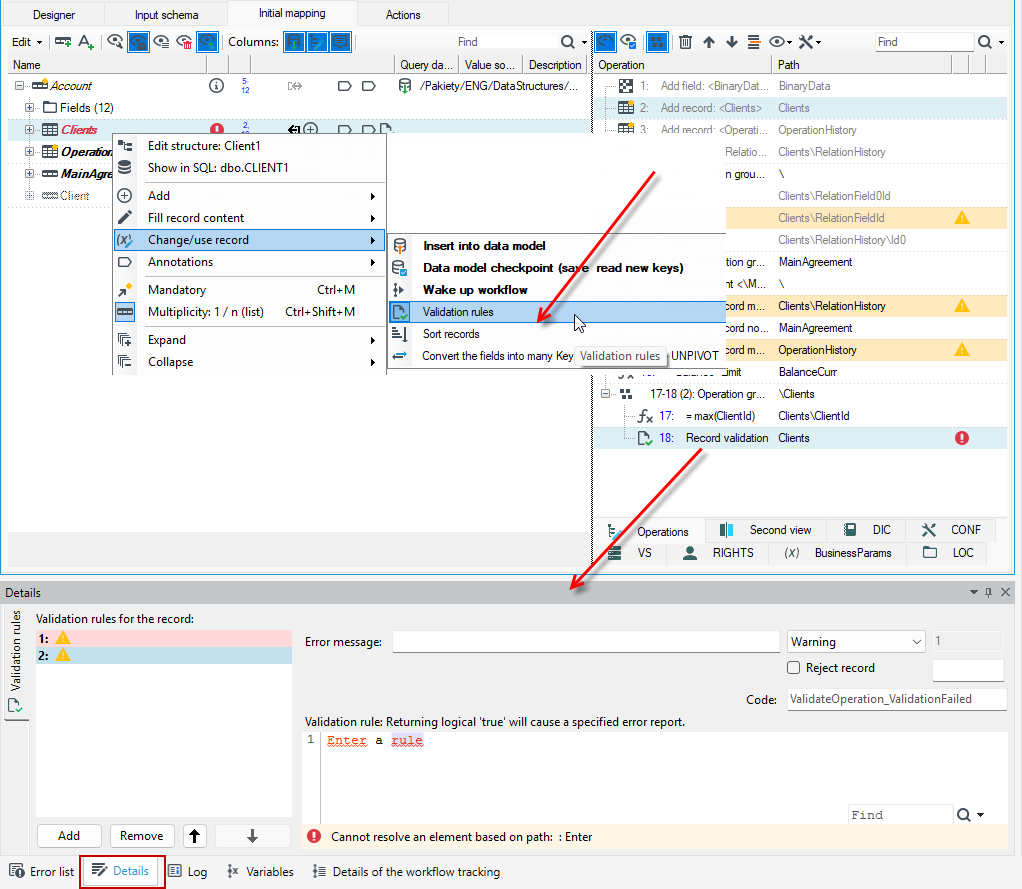
Each rule consists of the following attributes:
- error message - a message that will be saved in error record (Errors),
- rule definition - a rule expressed in the programming language used in the Data processing. For more see: Programming language
- rule severity - Critical, Warning, Other.
- error level expressed using a positive number, usually from 0 to 10. If 'Other' has been selected, the level may be set manually, depending on the need.
While transforming, all validation expressions from the list are launched for each record and if any of them is true, an error record (Errors) with an appropriate message and error level is attached to a data record.
For example:
- Create a processing package that reads data from the database and add a validation rule on the Client record.
- The rule will check if the Birthplace field is filled in for the client:
IsNullOrEmpty( CLIENT_BIRTH PLACE) - Check the Reject record option.
- Enter the error message. To refer to fields from the data schema, enter them in
{}brackets. In the example below, the message body will include the corresponding client name and family name in the fields entered in{}brackets. - Enter the error weight, here it is 101.
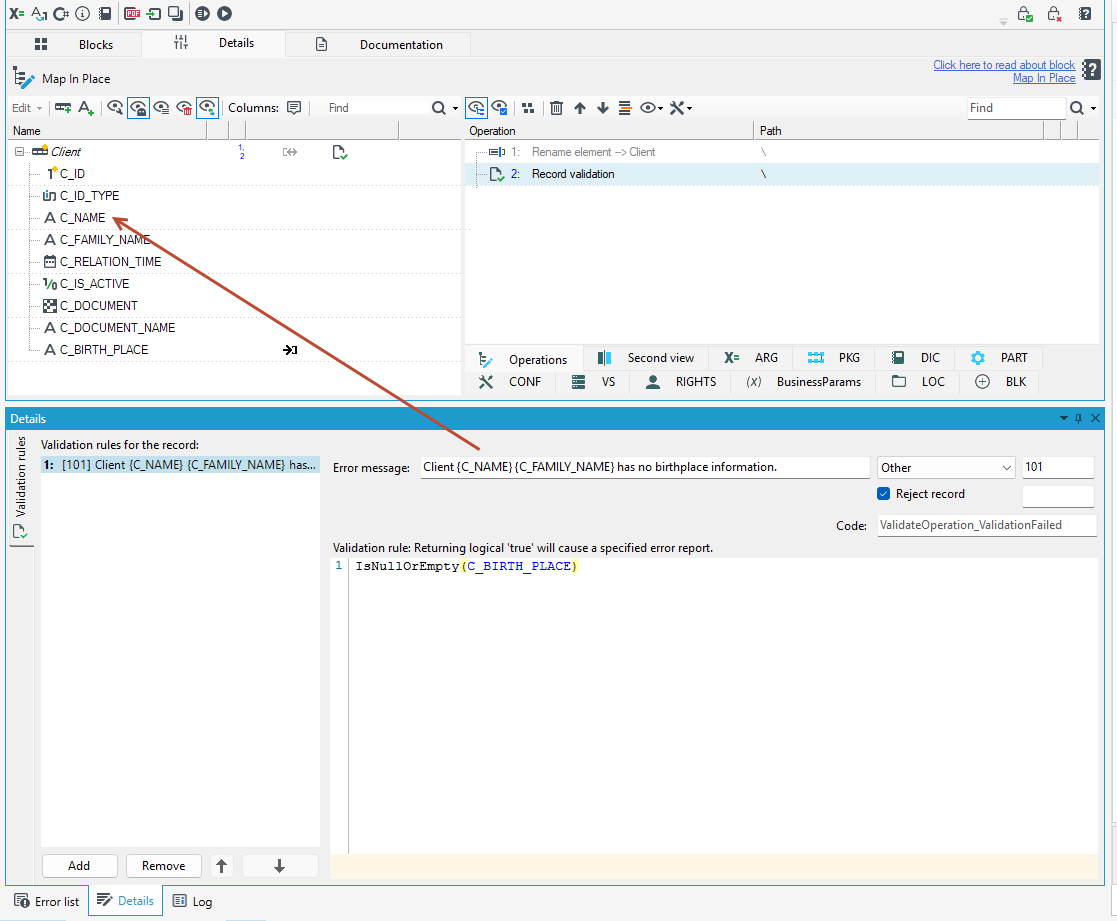
- With the validation rule defined this way, during processing, the record will be rejected if the client does not have the Birthplace field filled in. After running the package, errors are shown next to the given block where the validation rule is defined and on the Report tab. The content of the error message is displayed according to the definition entered in the validation rule.
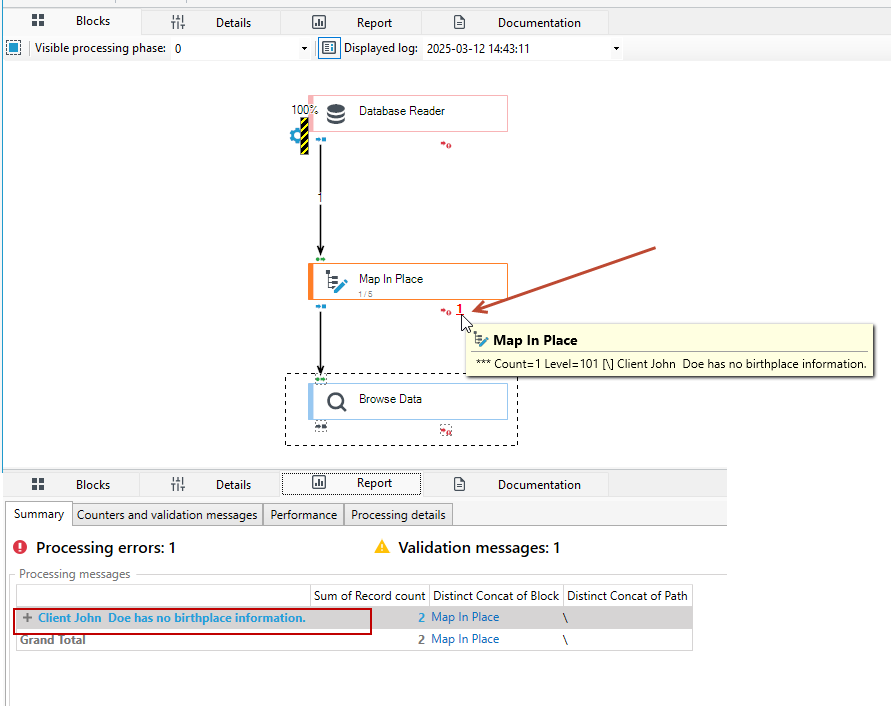
Displaying the validation message on the form
If you want to call a given processing package on a form, you can return a validation message, such as what is defined in the validation rule in the processing package.
- Add an action to Run integration package on the form.
- Go to the Finish status definition property.
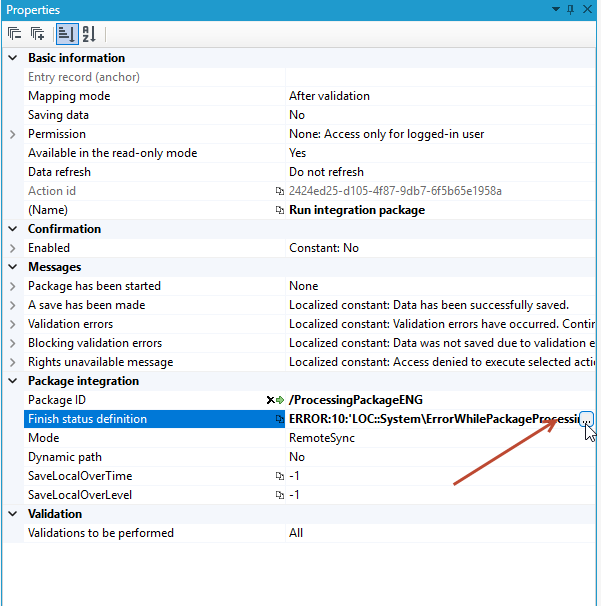
- By default, 2 messages are entered here for warning and for error, which will be displayed in the final application if there are errors in the processing package. It is important what error weight is defined, i.e. Error level-maximum and Error level-minimum. If we do not make changes then both messages of both error and warning will be presented.
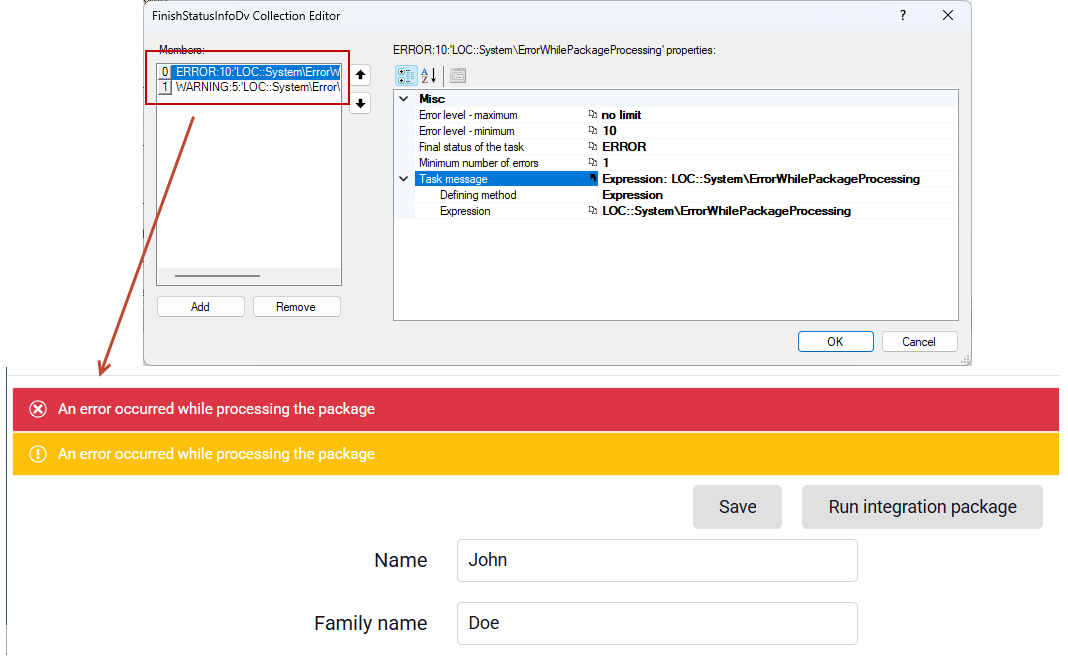
- The content of the displayed message can be changed in the Task message property.
- In our case, we want to display our own message, which was defined in the validation rule and for the error weight 101.
- To prevent other error and warning messages from being displayed, change the values in the Error level fields. For example, the maximum value of 5, or any other value so that it does not include the 101 value.
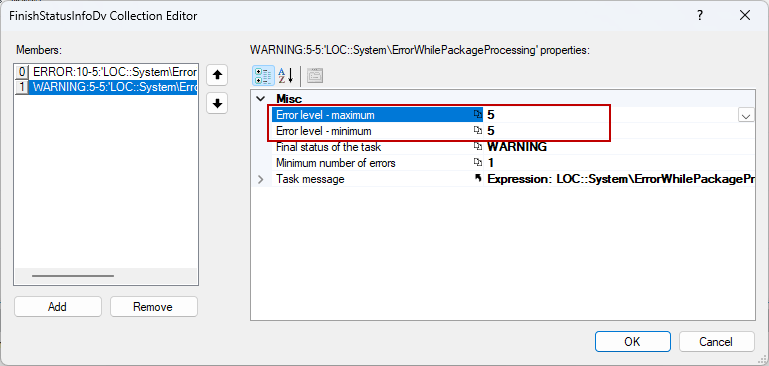
- Add a message based on the validation rule message.
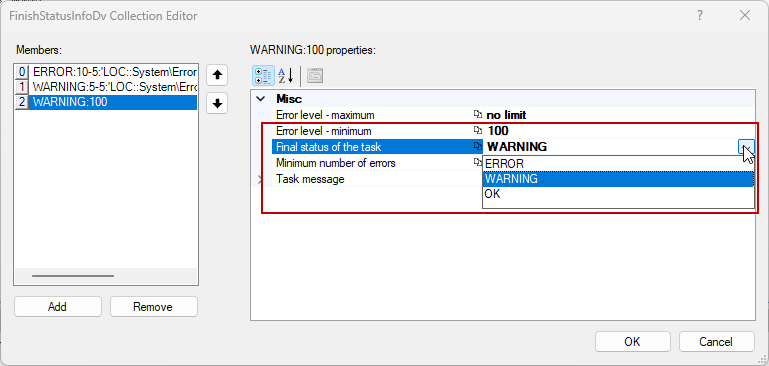
- Select the Add button. Specify the Final status of the task and the Error level-minimum. The error level should be specified to include the error level as specified in the validation rule (101).
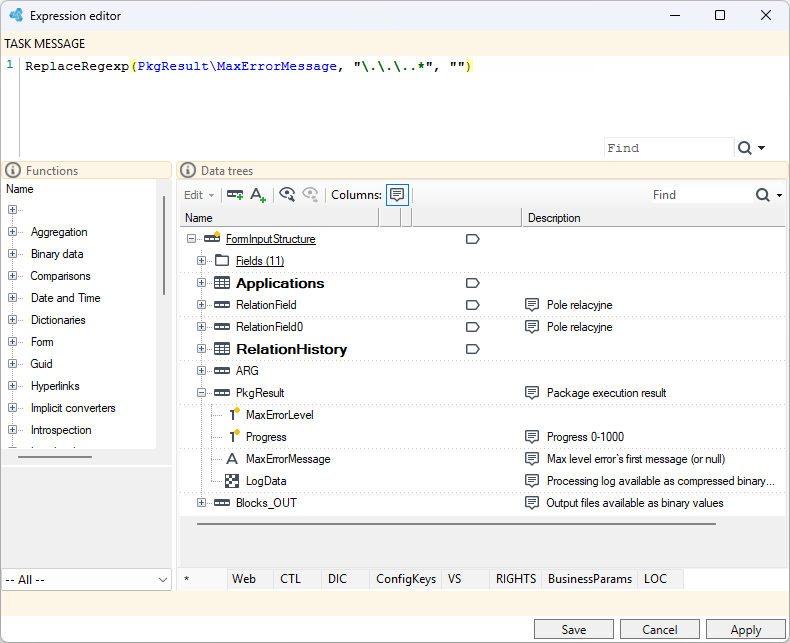
- In the Task message property, select Expression as the defining method and go to define the expression.
- Expand the PkgResult record and drag the MaxErrorMessage field that contains the validation rule message from the processing package.
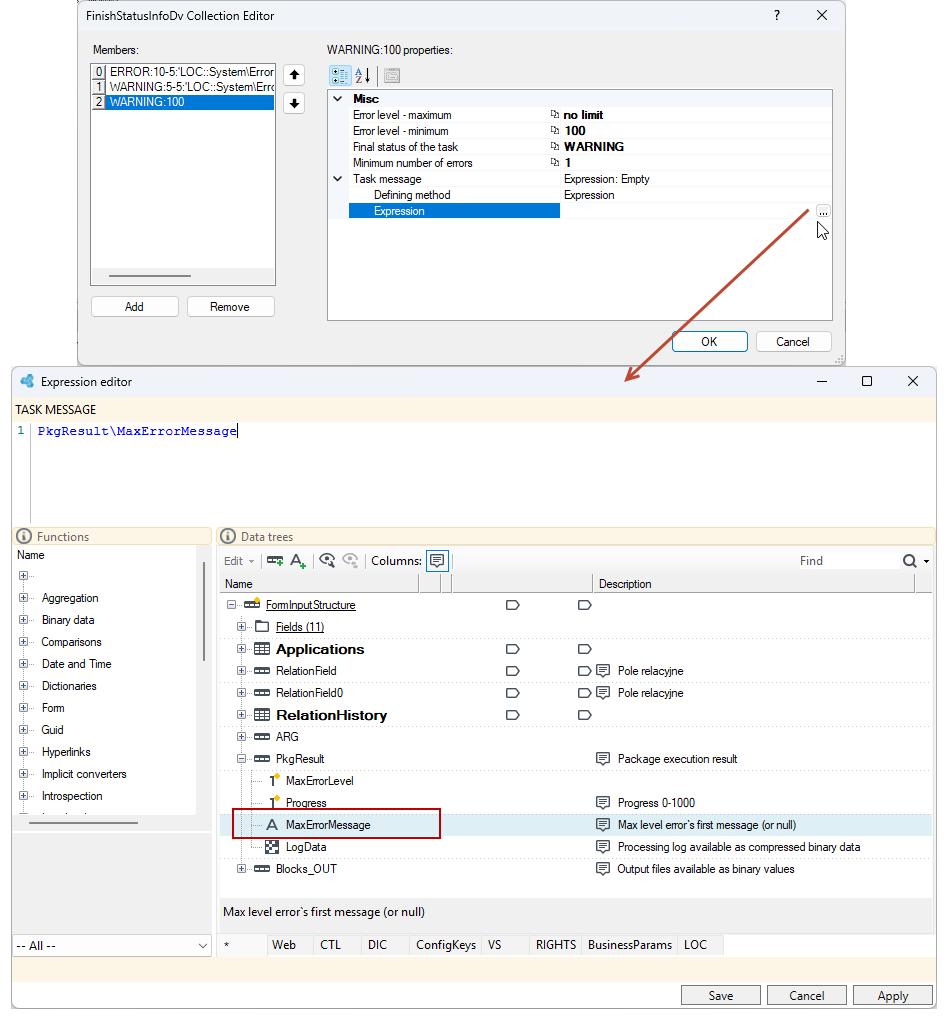
- With the expression defined this way, the message will also return technical data along with the name of the block where the error occurred.

- You need to modify the expression so that only the message itself is returned. This can be done using the
ReplaceRegexpfunction, which changes the match of a given regular expression to the specified value. In this case, everything after (...) will be replaced with an empty string. - The whole expression should look like this:
ReplaceRegexp(PkgResult\MaxErrorMessage, "\.\.\..\*","")
See also
Creating an XML field based on a record
Conversion of fields to many records in a form of Key-Value pairs - UNPIVOT