Input blocks
Input blocks enable loading and using data from the files with different formats.
Blocks are located on the right-hand side of the window in the menu Toolbox.
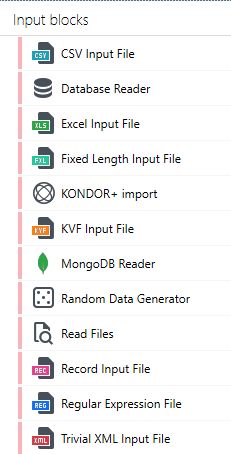
Input blocks include the following types of blocks:
- Database Reader
- CSV Input File
- Fixed Length Input File
- Trivial XML Input File
- Record Input File
- Random Data Generator
- Regular Expression File
- Read Files
- Excel Input File
- KVF Input File
- MongoDB Reader
Database Reader

The system enables reading data from any, indicated and configured by a User database, with the use of the block Database Reader.
The first step to configure the block is to select a data source from which data will be read. The selected source should be set for the block in the Properties panel.
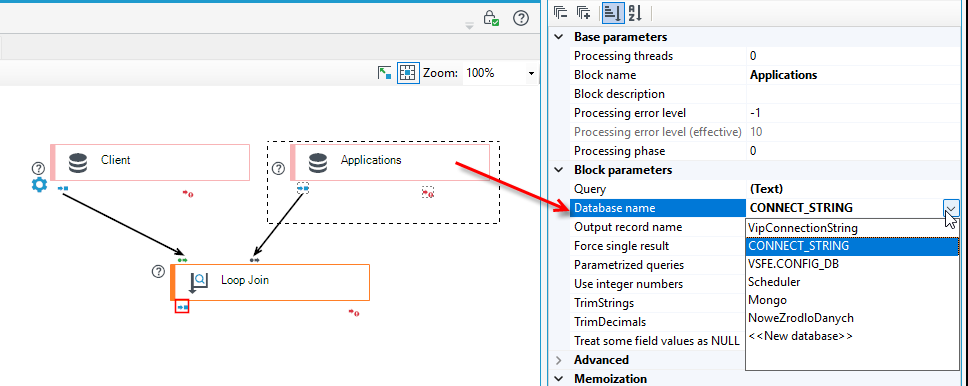
A block, depending on the configuration, may work in two modes:
- as a source of records – SQL query should be given, and its results are changed into records and then processed,
- as a block responding to queries – in such a situation, the block is attached as a second input for the block Loop Join. The block Loop Join generates queries on the basis of which the results are given.
In both cases, after the block Database Reader is selected, in the tab Details, data to be included during processing (done by the package being built) is specified. Data selection is done with the use of SQL queries.
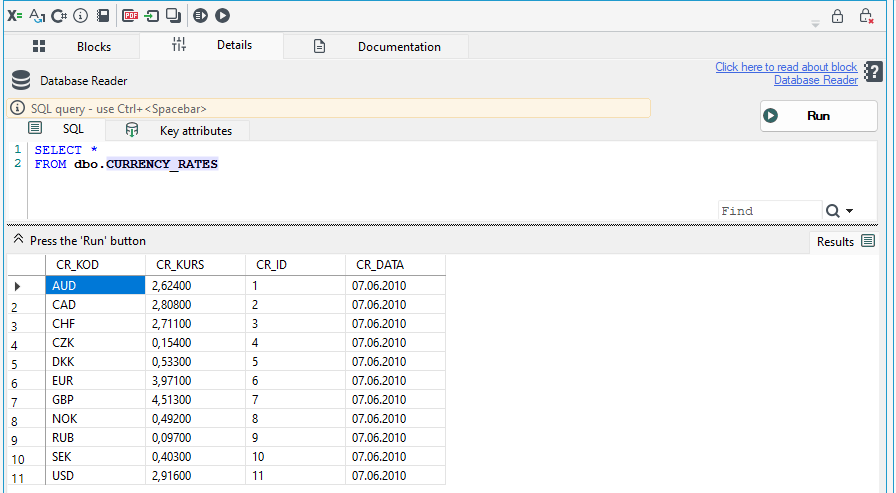
In queries, you can reference package arguments that were passed, for example, from a form. For more information, see: Package arguments.
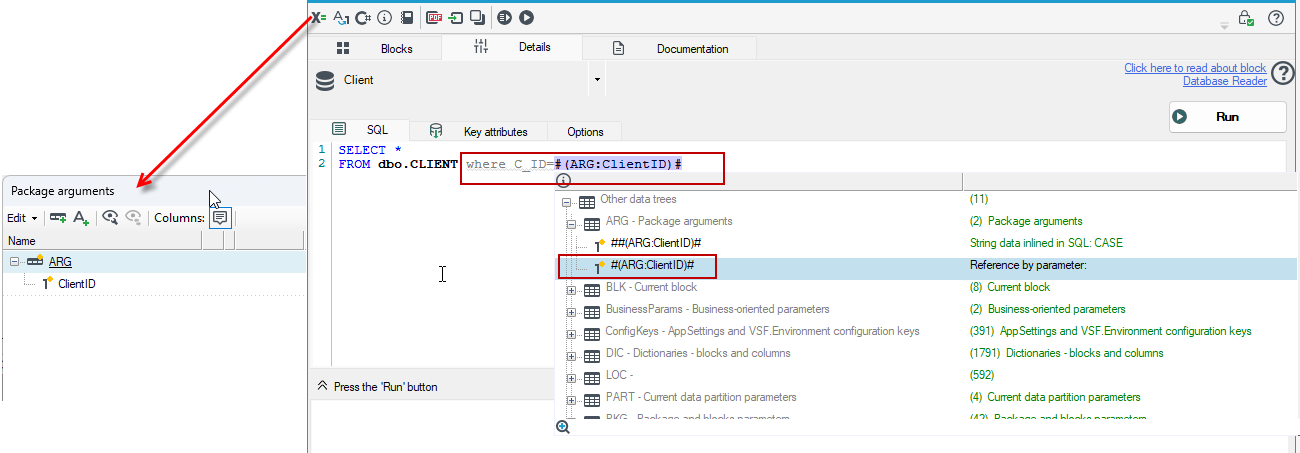
The only difference between the above-mentioned modes is the fact that if a block is queried about data, additionally, in the SQL query body you may use the query parameters defined in the querying block (usually Loop Join).
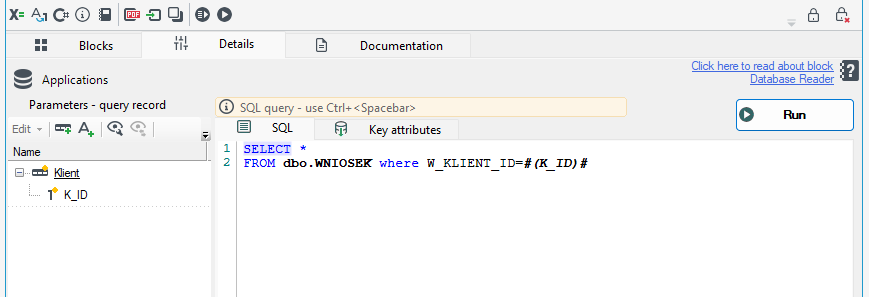
In the editor window of SQL query there is a function for predicting syntax and meaning. Prediction is started with Ctrl+Space bar. For more see: Syntax prediction
Syntax analysis is exposed in tooltips' text displayed after the mouse cursor is hovered over a text. In the editor, SQL errors are presented (checked with the owned, downloaded schema of SQL data source) and warnings (e.g. that any index has not been used - a probable problem of definition of SQL base structure).
More information on editor's functions may be found in the chapter: SQL Task Editor
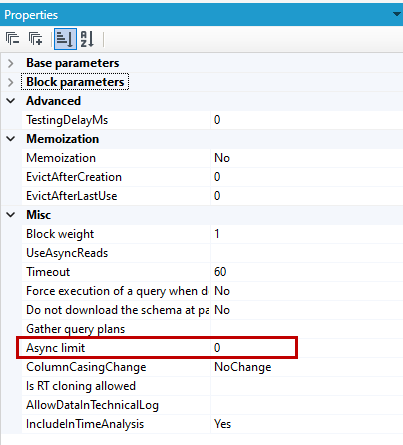
The database reader block working in query response mode has the ability to configure a parameter limiting asynchronous queries sent to the database (field Async limit in the properties of the block). The default value of 0 means that the mechanism is disabled and each query waits for a response without passing control on. You can read more about asynchronicity in the chapter Managing threads and task queues.
Query plans
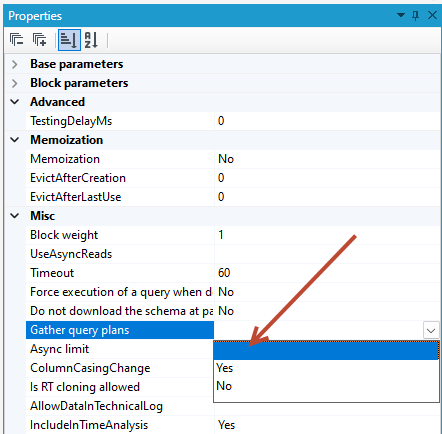
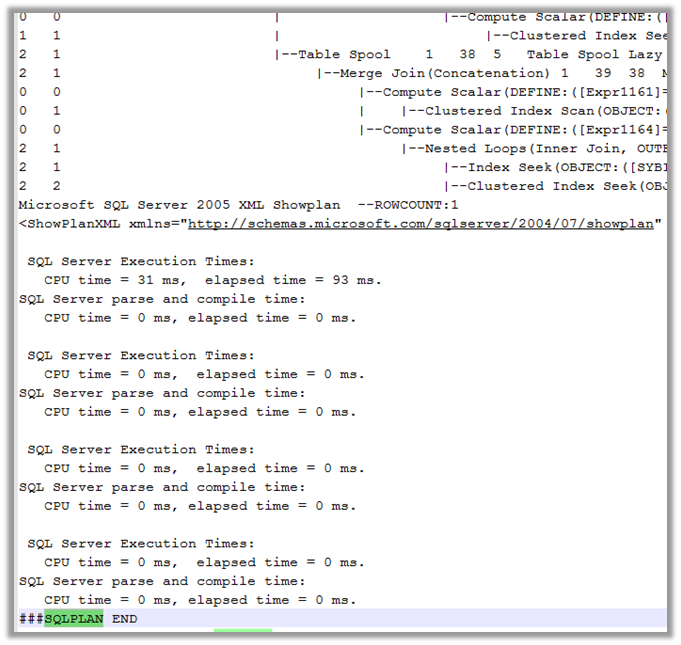
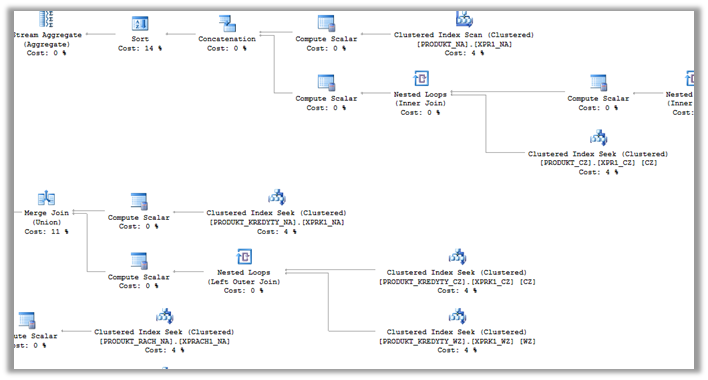
When querying some relational engines (e.g. MS SQL Server), the block will retrieve and log query plans and statistics - both estimated and actual plans (after the first and hundredth records, if they differ from previous ones). To analyze a plan, its XML should be copied to a file with the extension .sqlplan and opened in SQL Management Studio. This functionality allows you to very quickly identify the cause of a possible query performance problem without having to "hunt" for faulty plans with the help of the database administrator.
By default, plans will download for most queries except:
- manually excluded from this functionality with the option on the block,
- those providing data to dictionaries,
- containing
CREATE,SELECT1 and other non-standard commands. It is always possible to configurally force plans to download even in such cases.
Progress calculation
Stream data queries (non-responsive queries) before the main processing phase are converted to a form that allows counting the number of resulting records and run. This requires automatic conversion of SQL meaning and is not easy/possible in every case.
If the operation succeeds, the block at runtime will correctly report the progress of reading a given SQL stream. If not, it will continuously report 50% progress during the operation, and the log will show a warning - an exception after running syntactically incorrect SQL.
MongoDB Reader

The system enables reading data from MongoDB database.
Data source configuration
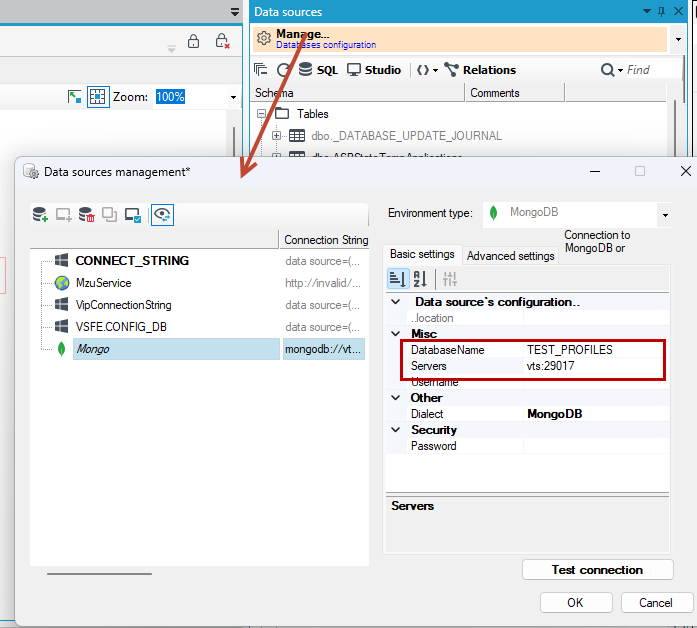
MongoDB connection is configured in the same way as a SQL database connection.
- For a "Environmnet type" the value "MongoDB" should be selected and the properties of the connection string should be filled in.
- The required minimum is to fill the Servers and DatabaseName properties. The connection string is in the URL format . Schema downloaded from MongoDB Contains only collections that have only the
_idcolumn of an undetermined type.
Reading the data
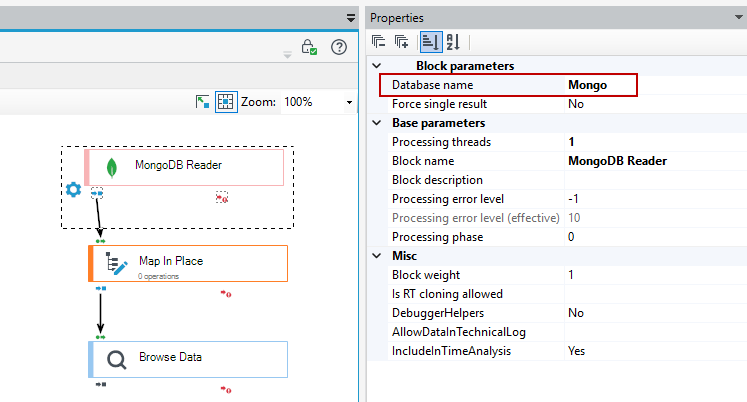
Data read is performed by the MongoDB Reader block. In the block’s properties a MongoDB database should be selected.
Next, in block's details, a Collection name should be selected from the list or entered by hand and a Query type should be chosen. Following query types are available:
- Find - The query returns documents read from the database. It uses Query document, Projection document and Sort document.
- Distinct - The query returns a list of unique values in a chosen field. It uses Query document and Distinct field.
After the Query type has been selected, the documents it uses should be filled in (if empty values are inappropriate). The documents are JSON documents and are passed to MongoDB functions. There are following document types:
- Query document - Specifies the conditions for document selection.
- Projection document - Specifies which parts of the document should be returned.
- Sort document - Specifies the order in which the documents will be returned.
- Distinct field - Specifies a field for which distinct values will be returned. The name of the field can be either specified directly or as a JSON document – in that case the values of the first field are returned.
Field values can be set with #()# syntax to insert parameter values. Parameters can only be used as field values.
When MongoDB Reader block is used in a query response mode fields from the Query record schema can be used by dragging them onto the document.
Optionally, the following parameters can be set:
- Size - The document count will be returned. There will be only one output document containing the field "size".
- Skip - The number of initial documents to skip.
- Limit - The maximum number of documents to return.
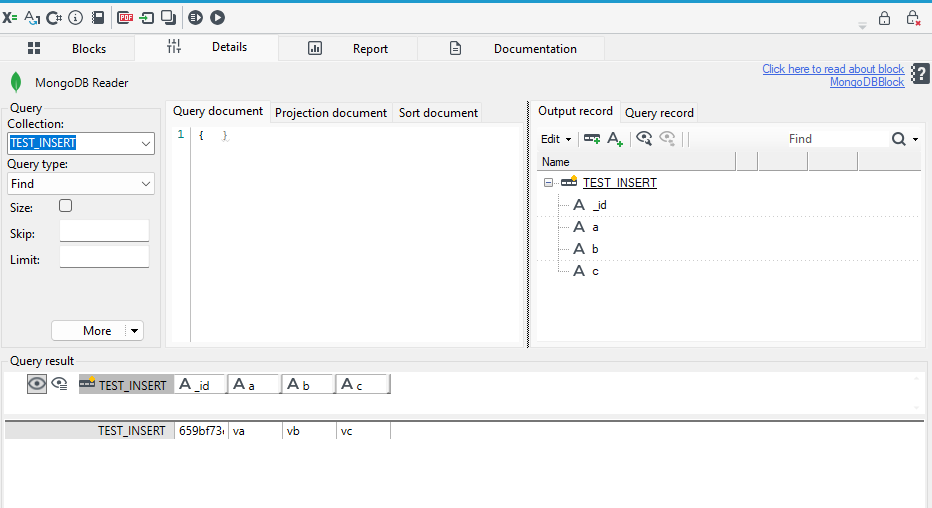
After the query parameters have been configured the Execute button can be used to read a portion of documents. Based on them the Output record schema is updated.
The Output record schema should be modified (or created from scratch) to fit the expected document format. Mapping from read documents to records is performed according to the following rules:
- Document's root corresponds to the schema root record.
- Document's fields are matched to schema records and fields by names – if a document field contains a value then it should have a corresponding field in a schema record, if a subdocument – a subrecord.
- Array is mapped to a multiple record. Values are mapped to a field and documents to a record – both named "item". For each array item there will be one record named like a document field containing that array. This record will have a field named "item", a subrecord named "item" or both – in that case either the field will be empty or the record will not exist.
- If the Output record schema does not contain a corresponding field/record then the document field will be ignored.
- If the document does not contain a field corresponding to a required field/record of the Output record scheme then an error will be reported and the data record will be directed to the error port.
For more see MongoDB Query Mapping Operation.
Reading from KONDOR+

The input block option KONDOR+ import allows loading data from a file with KONDOR+ format, supported by government agencies.
CSV Input File

The option of an input block CSV Input File enables loading data from the file with CSV format supported by most of spreadsheets and database programs.
The block allows loading data separated, commas, semicolons, tabs.
Details of the block contain two tabs:
- Preview - used for loading a file from any location on the disk with the use of the button Preview marked with an ellipsis (…) or by entering an exact path to the file in the field File. The preview of the chosen document is the main part of the tab.
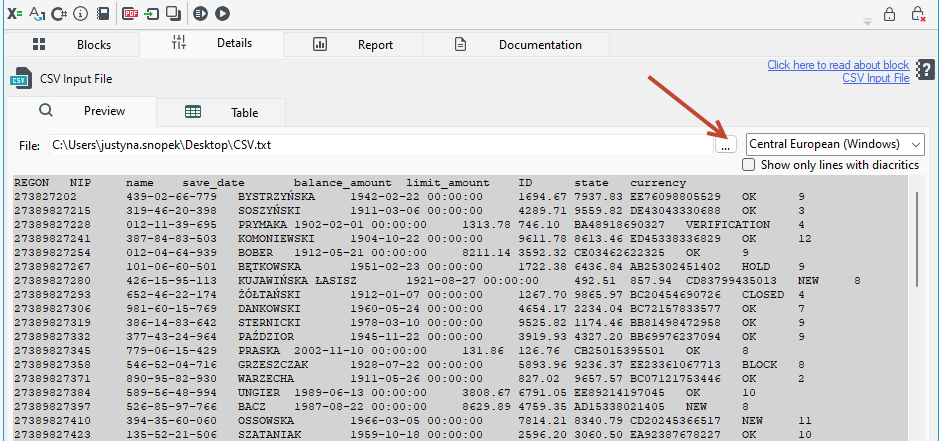
The option Show only lines with diacritical signs limits the preview of file data to the lines containing only Polish letters (in order to select a valid coding from the drop-down list).
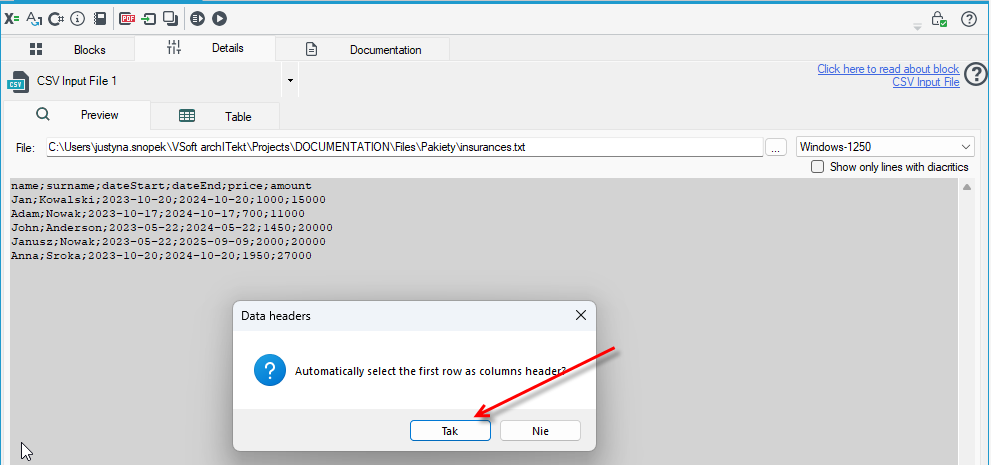
After loading the file, you can immediately determine the data schema based on the header columns from the CSV file.
- Table - displays data from the loaded file as a table.
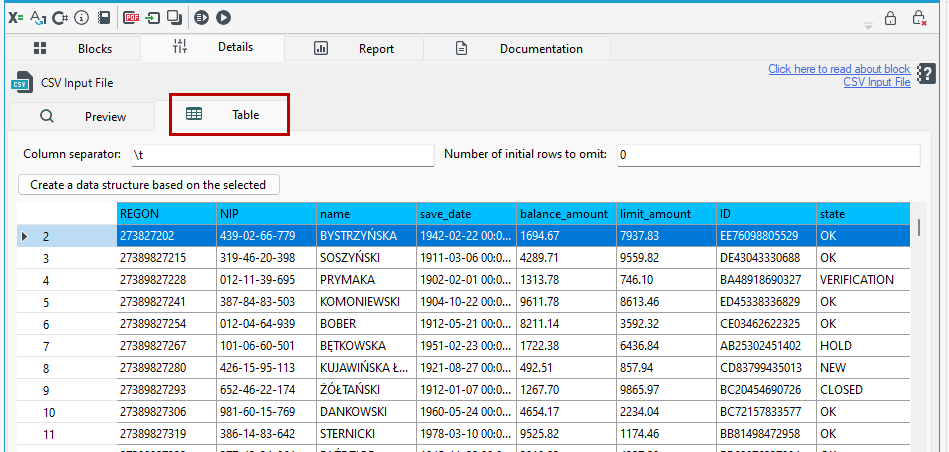
In order to display data properly as a table, the character separating particular columns must be entered in the field 'Separator' (default: tab character \t).
The button Create a data structure based on the selected allows for marking the row as a header after an appropriate data record is selected. It will be omitted while processing - the values from its columns will be used to determine the names of fields in records coming out of the block. The field Number of initial rows to omit informs about the number of initial rows that will not be included while processing.
Additional options that can be set in the Properties panel of a block:
- Empty value – the System allows for defining a string which, if it appears in the file, will be replaced with an empty value.
- Error if line is empty - what to do if an empty line occurs.
- Line too short/Line too long - The type of action taken when a data record does not match the schema. For example, a required field is missing a value.
- File header - The way the header in the file is used and whether case sensitivity matters:
- Ignore – does not use the header from the file.
- Use – uses the header to recognize the order of columns in the file.
- Check correctness – works like the Use option and additionally checks whether all columns are present in the header.
- Remove whitespace characters from values - whether to remove whitespace at the beginning and end of each loaded value.
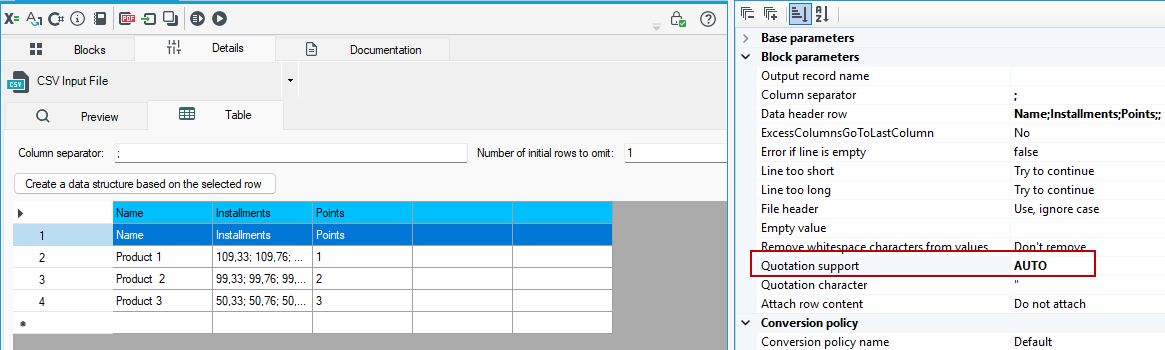
- Quotation support - The way quote characters are handled:
- if the value AUTO is set, the quoting method is determined automatically based on the field value,
- if the value NONE is set, quotation marks are treated as regular field content and are not interpreted as quoting markers.
- Quotation character - if quote handling is set to AUTO, the character from this field will be used as the field's quote character.
For example:
In the case of a CSV file where values are separated by commas, and the column separator set in the package is the ; character, a problem may occur during data import. If a semicolon also appears in the field value, it will be incorrectly interpreted as a column separator, which will cause the data to shift to the next column.
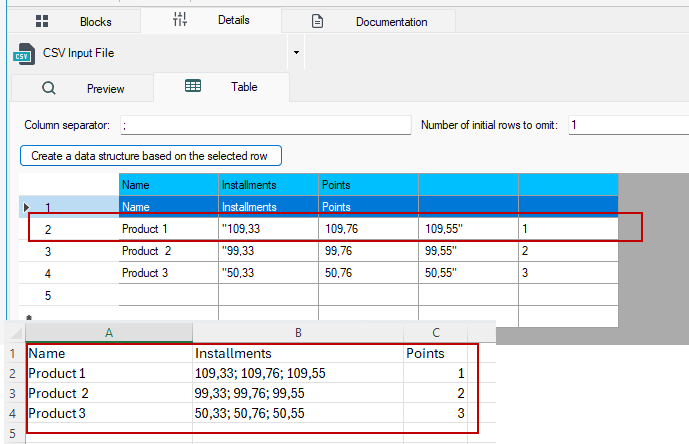
To avoid this situation, enable the Quotation support option, which allows correct interpretation of values containing separator characters.
Example of file loading see: Reading from a CSV file and writing to a database.
Fixed Length Input File

The block Fixed Length Input File enables loading data from a fixed length input file.
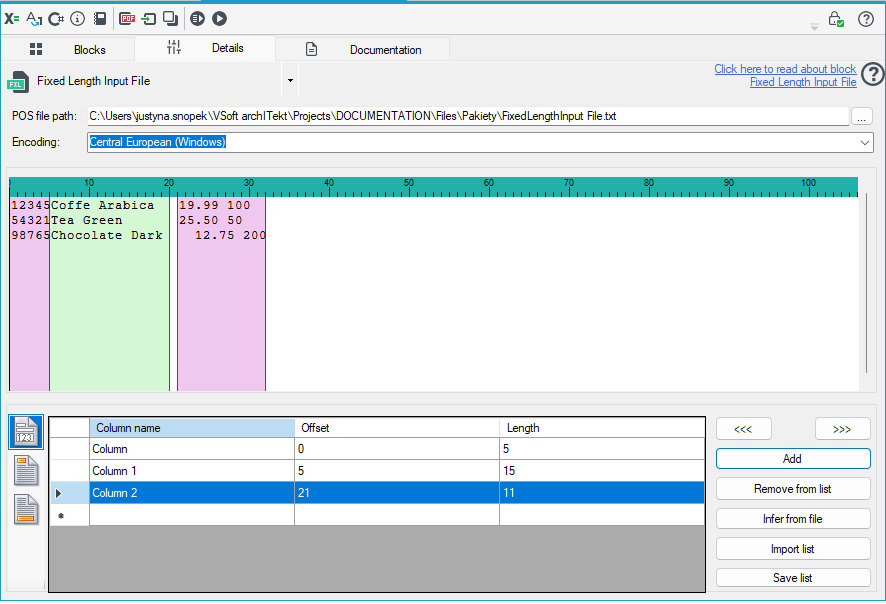
A fixed-length file, also known as a file with a fixed record structure, is a file in which each record has the same, unchanging format and length. This means that each field in a record has a fixed position within the file, and the data is arranged in a specific, unchanging layout.
-
The file format describes data that always has the same specified location in the structure and the same parameters (number of characters).
-
At first, an exemplary fixed length input file should be loaded with the use of the button Preview marked with an ellipsis (…) or by entering an exact path to the file.
-
The window in the middle of the application is a preview of the chosen document in an original form.
-
With the use of a computer mouse, User separates the text into areas that will constitute consecutive columns with data.
-
After a specified area that is to constitute a single column is selected, the Add button must be pressed. In the bottom window presenting a list of defined columns, a new row defining a data column will appear. It is possible to rename columns or change their parameters.
-
The button Remove from list enables removing the selected definition from the list.
-
The button Remove selected enables removing the selected elements from the list.
-
The button Recognize automatically enables automatic computation of the length of columns on the basis of the header of an exemplary file.
-
The button Import list allows for importing an earlier-defined list of columns.
-
The button Save list is used for saving a defined list in any location on the disk.
You can define the columns as shown above in the block details or in the Properties panel under the Columns option.
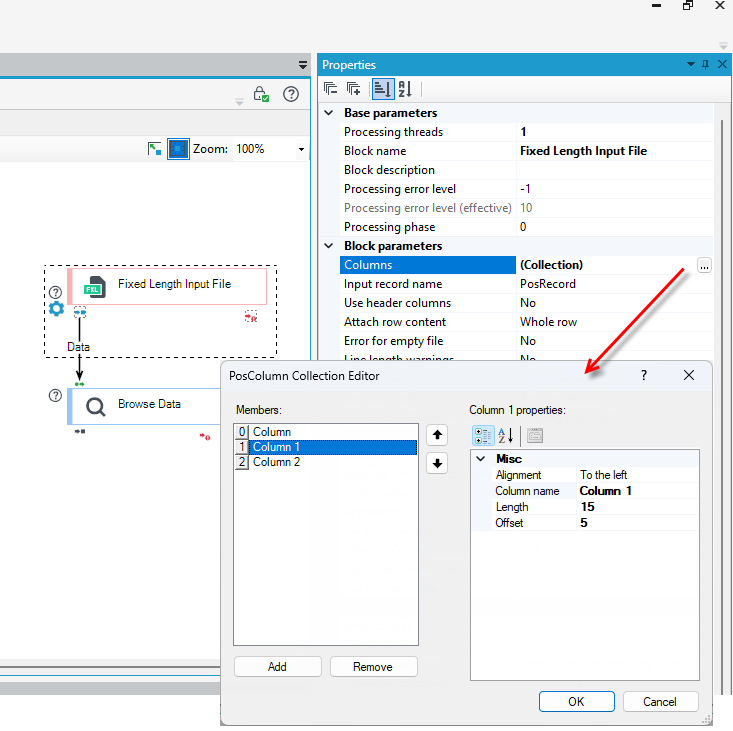
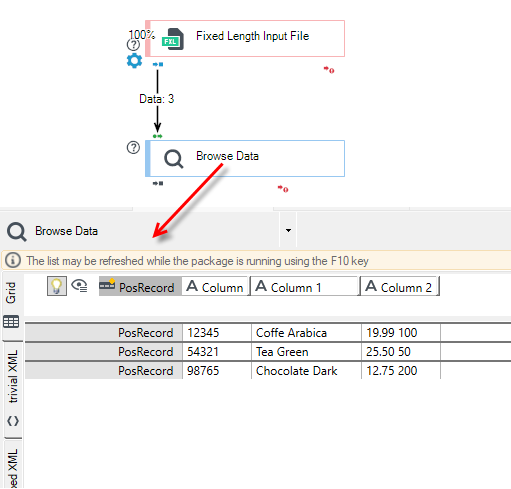
Below is an example of a loaded file.
Loading header/footer
The Fixed Length Input File block allows for loading a header/footer.
- In order to use this option, an appropriate tab (Header or Footer) in the panel List of defined columns should be selected, and then the columns defined analogically as in case of data. Defining a header in the POS file:

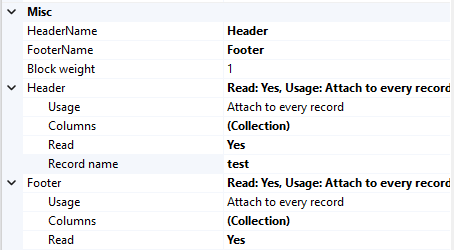
Additionally, in the panel Properties, loading a header/footer may be disabled and also the name of the record representing the header/footer may be entered:
Trivial XML Input File

The block Trivial XML Input File is used for loading XML files.
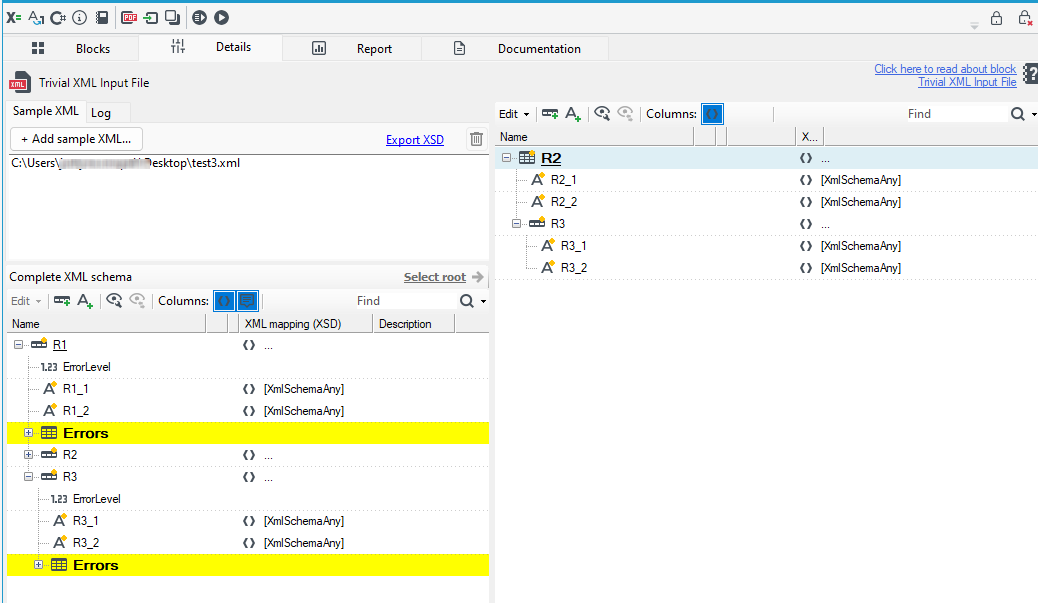
The block enables loading any multiple elements included in the file structure.
- An exemplary file should be loaded with the use of the button +Add sample XML...
- After the file is loaded, a schema of the entire file is displayed.
- To select a root, you should select the schema element and press the Select root button.
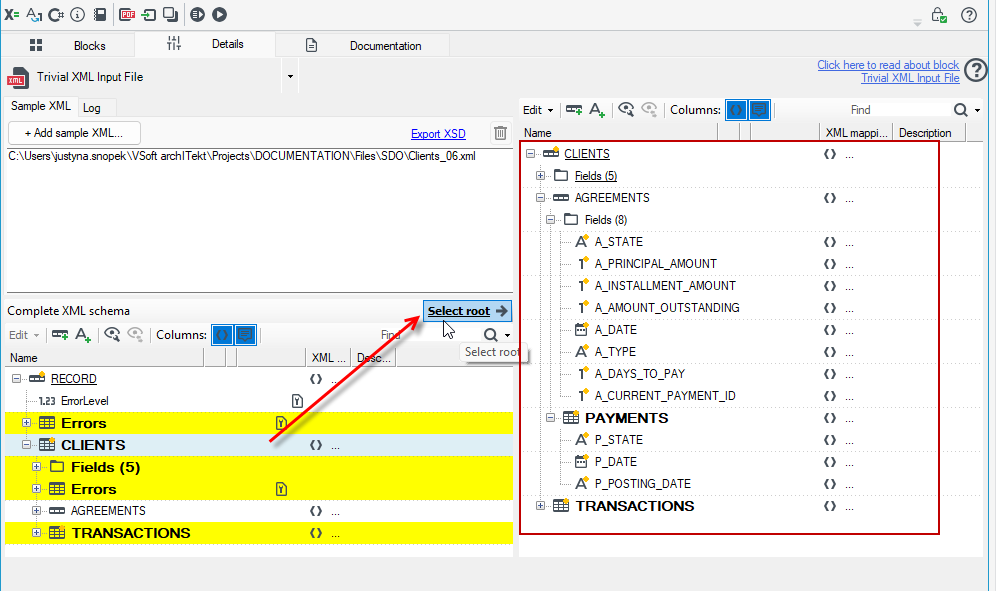
- On the basis of an exemplary XML file, the block editor can prepare an appropriate structure of records.
- The tab Log contains diagnostic information from the process of loading XML files.
Record Input File

Record Input File – allows reading from the file the data records written in a binary format.
- The block writes data in a very dense packing but please note that the size may reach several GB in case of large production data.
- The block is useful for reading records written (e.g. in the previous stage) by the Record Input File output block. The Block parameter source parameter should be set then.
- Alternatively, the block needs a data schema which may be loaded from the binary file prepared earlier using e.g. another package.
It often happens that only a fragment of data schema written in a binary format is needed and the read is performed e.g. many times using another fragment each time. In order to optimize such a scenario, the records to be read at the specific moment should be indicated in the block editor. Other records will not disappear from the schema but data fields will be removed from them and the records will get a comment saying that reading them was locked in the block.
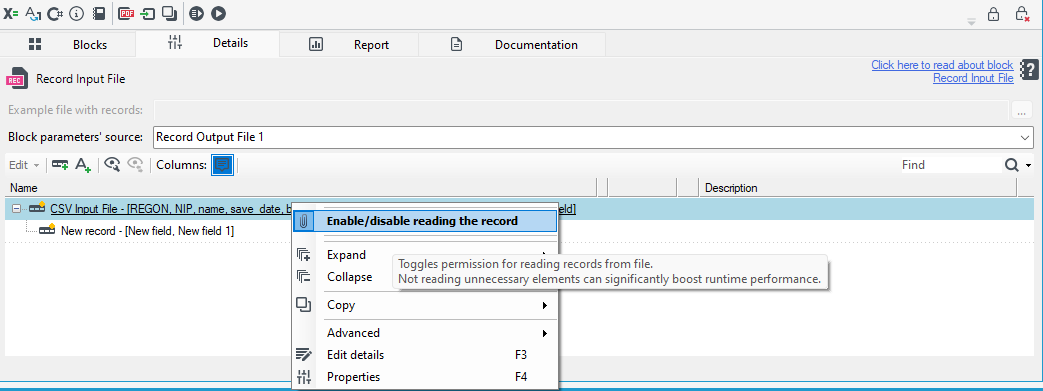
If no record to be read is indicated (a default situation), the complete data from all records will always be read.
Below is an example of file loading and data preview.
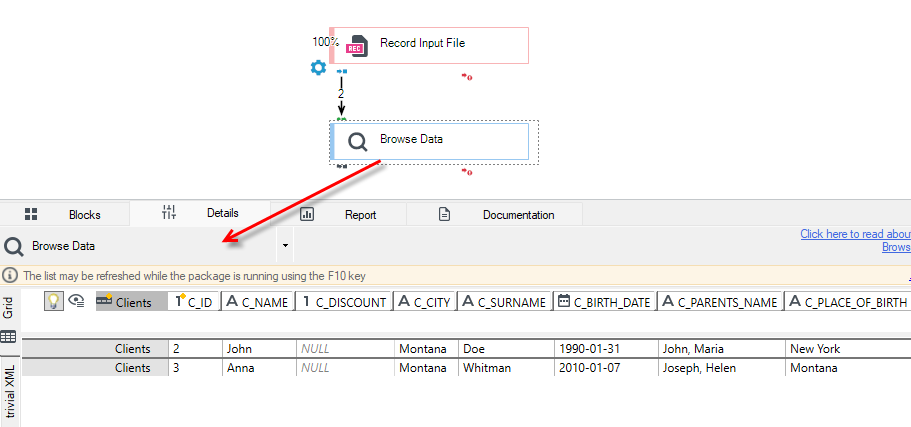
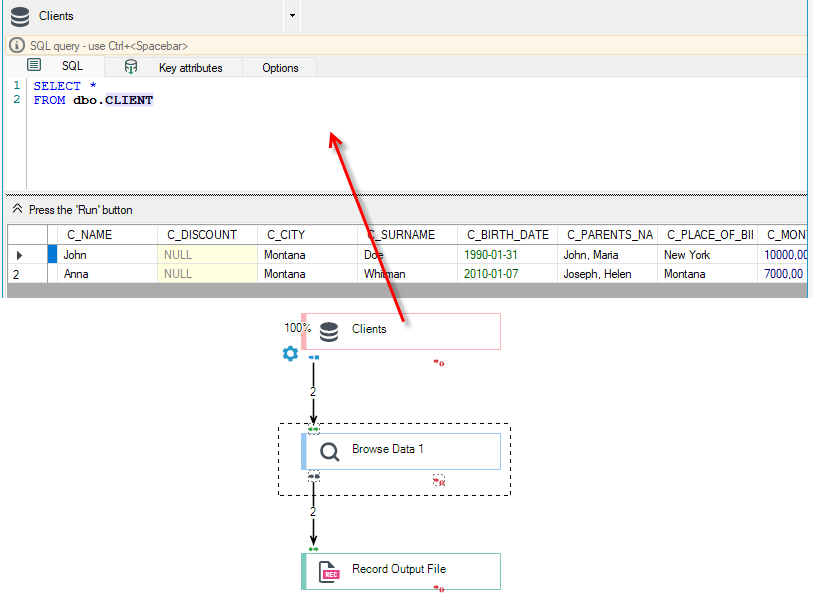
This data was previously retrieved from the database and saved to an output file.
Random Data Generator

The block Random Data Generator enables generating a defined number of random data records, according to created/designed data schema.
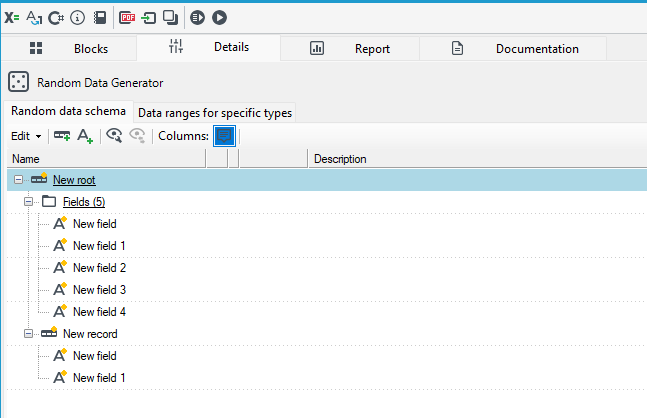
In the block's properties, you can specify how many random records should be generated.
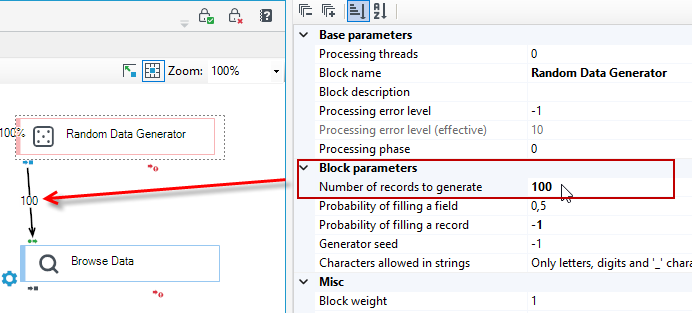
To change the range of generated data, go to the Data ranges for specific types tab
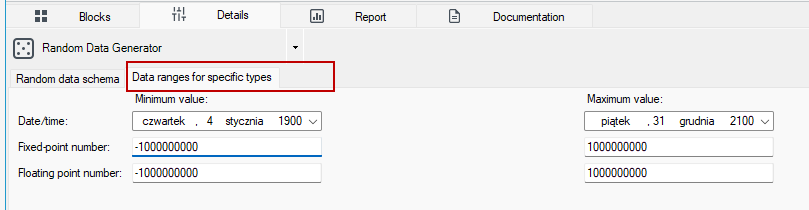
Operation on particular data elements is described in details in the chapter about adjusting records and fields schemas (see: Data processing).
Regular Expression File

The block Regular Expression File allows for dividing input data and matching through suitable regular expressions in the record's root.
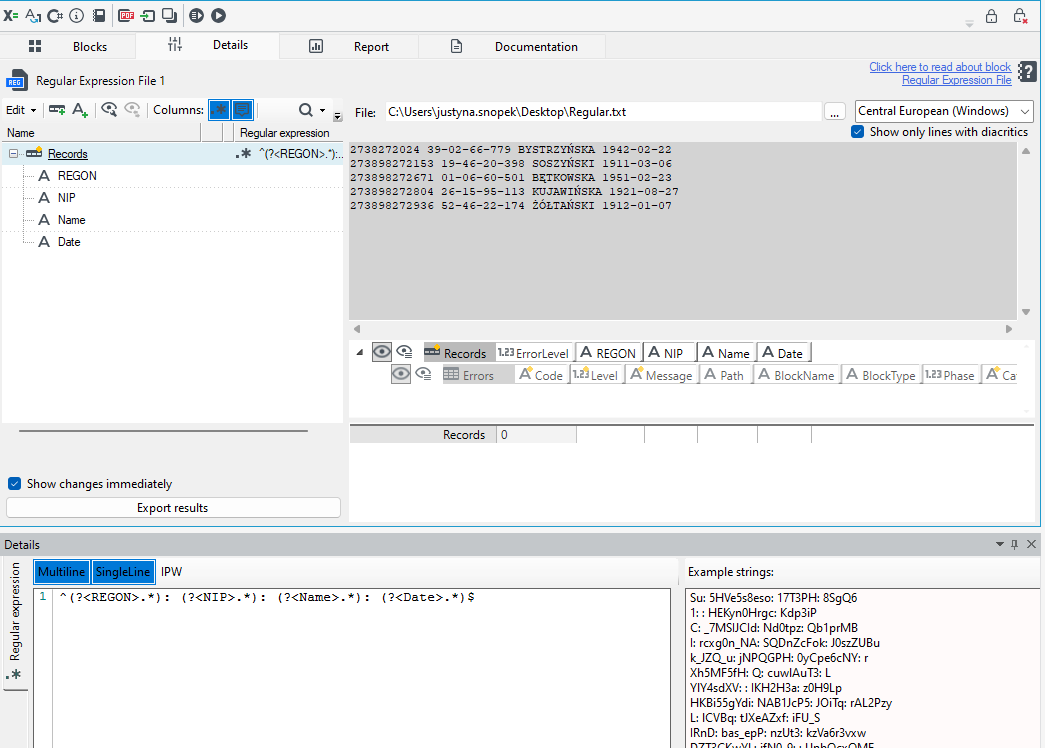
- User may load an exemplary file with the use of the button Preview marked with an ellipsis (…) or by entering an exact path to the file.
- The option Show only lines with diacritics signs limits the preview of file data to the lines containing only Polish letters (in order to select a valid encoding from the drop-down list).
- The window on the left-hand side allows for inserting appropriate annotations – regular expressions that will be matched against the data.
- In the Details editor User gives a pattern – an expression which the text will be described with. Additionally, examples of strings matched by the written pattern will be displayed.
- The option is used mainly to search for some pieces of information e.g. in diagnostic file.
Read Files

The Read Files block enables loading files form a disk.
Loading is performed with the following information:
- FileName - file name with an extension,
- DirectoryRelativePath – relative path to file (without main path passed as a runtime package parameter),
- DirectoryAbsolutePath - complete path to a file on the disk,
- Extension - file extension with a period at the beginning e.g. .txt or .png,
- Size - file size in bytes,
- LastAccessTime - date of the last access,
- CreationTime - creation date,
- LastWriteTime - date of the last edit,
- Content – file content written in a Binary type in the form of an array of bytes,
- MD5Hash- hash calculated with the MD5 function.
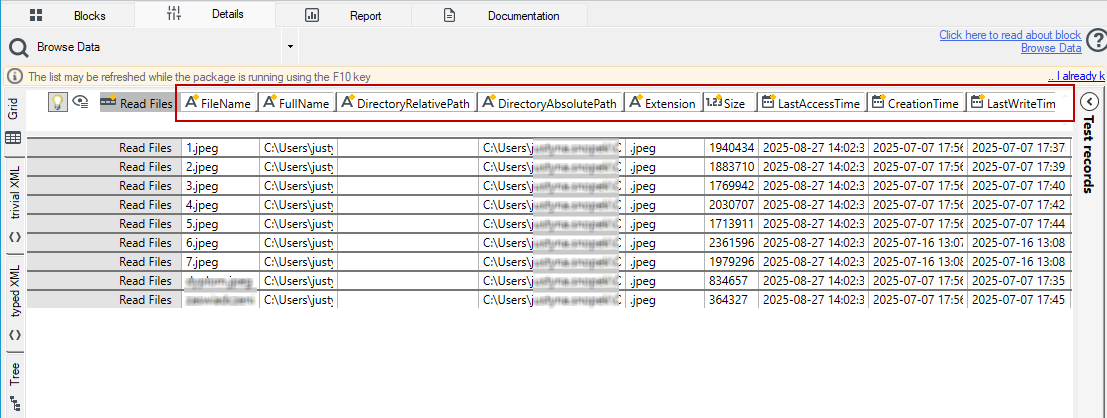
After creating the package, you need to specify the file path in the Block runtime parameters window.
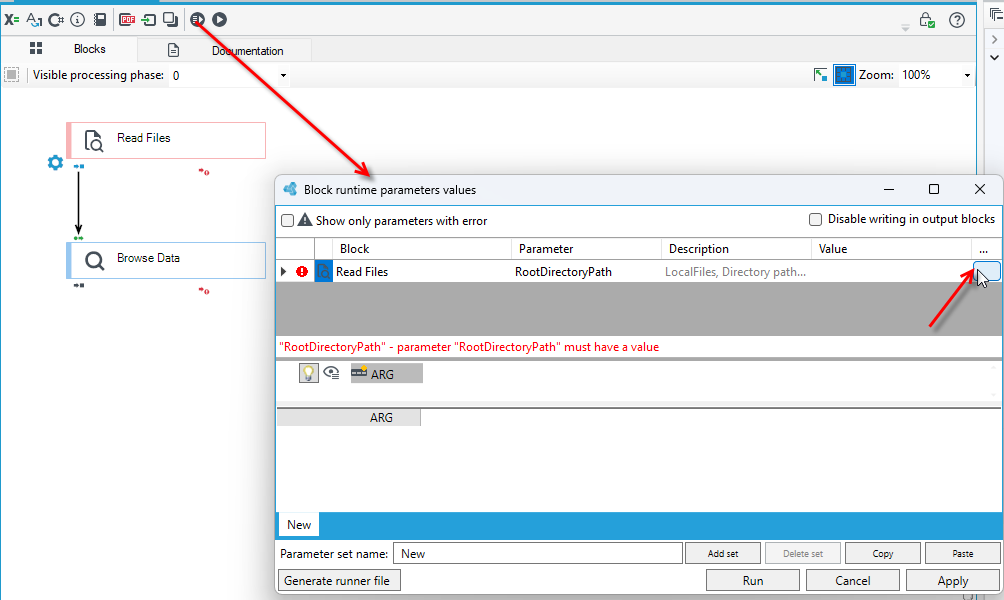
Options that may be set in the panel Properties of a block:
- search option – it allows defining whether files search is to be performed on the level of a directory ("Root directory with subdirectories") that has been defined in package invocation parameters or if the subdirectories should also be searched ("All directories"),
- simple filename pattern – required option (by default
*.*, i.e. all files) enables selecting files according to a defined pattern.
Allowed special characters:
? – matches exactly one or zero of the characters
* – matches zero or more characters
3. regular expression of relative path – it enables filtering a relative path to the file with a regular expression. Only these file which have been selected by "Simple pattern of filename" are subject to be filtered.
Built-in helper functions:
Functions operating on paths:
- String
PathCombine (String a, String b)– combines two paths, - String
PathCombine (List String)– combines any number of paths.
Functions operating on a binary type:
- Binarny
BinaryGetPart (Binarny binaryInstance, Fixed-point number offset, Fixed-point number length)– extracts part of data from an instance of a binary type. In case of loading data directly from a file, only an appropriate part is returned, without loading an entire file. - Binarny
BinaryGetPart (Binarny binaryInstance, Fixed-point number begin)– returns part of data from the position of "begin" to the end of an instance. - Binarny
BinaryConcat (Binarny binaryInstance, Binarny binaryInstance)– concatenates instances of a binary type by adding the second instance at the end of the second one (operator+). - String
BinaryToString (Binarny binaryInstance, String encoding)- converts instances of a binary type into string, using encoding*passed as a function parameter. - Binarny
BinaryFromString (String text, String encoding)- converts string into an instance of a binary type, using encoding*passed as a function parameter. - Binary operator
==checks if instances of a binary type are equal. Returns Boolean value. - Binary operator
!=checks if instances of a binary type are different. Returns Boolean value.
*List of available encodings may be found on http://msdn.microsoft.com/en-us/library/system.text.encoding.getencodings.aspx
Excel Input File

The block Excel Input File enables reading data from the files created by Microsoft Excel spreadsheet (*.xls, *xlsx).
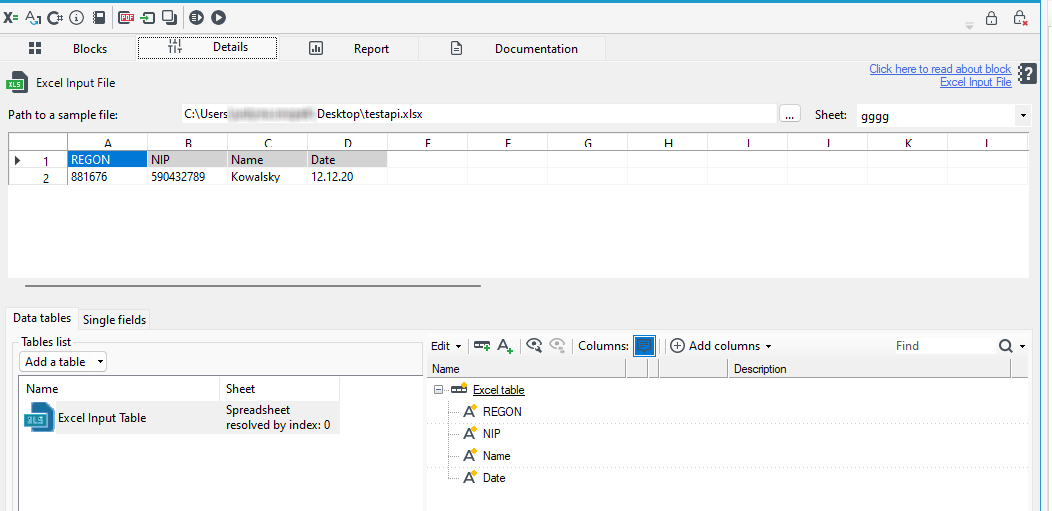
Operation of loading data is based on dividing the file into flat tables of data represented by Excel tables blocks that allow for easy data processing.
- At first, an exemplary Excel Input File should be loaded with the use of the button Preview marked with an ellipsis (…) or by entering an exact path to the file.
- The top part of the window presents a preview of entered data. If a loaded file has more than one sheet with data, User may move between them by selecting an appropriate sheet from the drop-down list - the field Sheet.
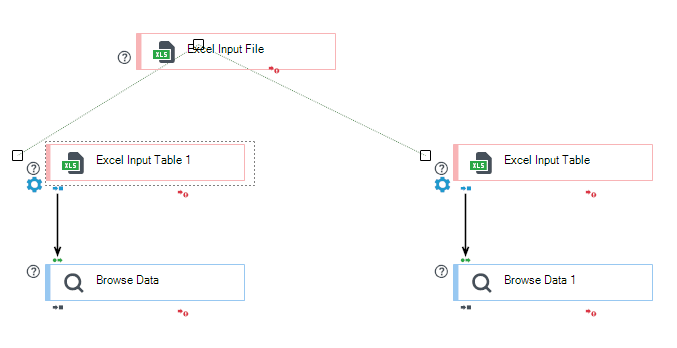
- The tab List of tables contains a list of tables coming from a given Excel Input File – depending on the defined number of tables, n-number of Excel tables blocks will be created. They allow for further, simpler data processing. User may transform the structure from the file into a tree structure.
- Adding a new table to the list of tables is done with the use of the button Add a table.
- The button Delete allows for deleting the selected table from the list.
- When a table is added, an additional block is created (there may be several, depending on the number of tables selected) Excel Input Table, which we can only link to subsequent blocks.
- The right window is used for defining data schema – a tree structure. It is possible to insert columns in the schema automatically with the use of the function Add columns, by selecting an appropriate way of adding.
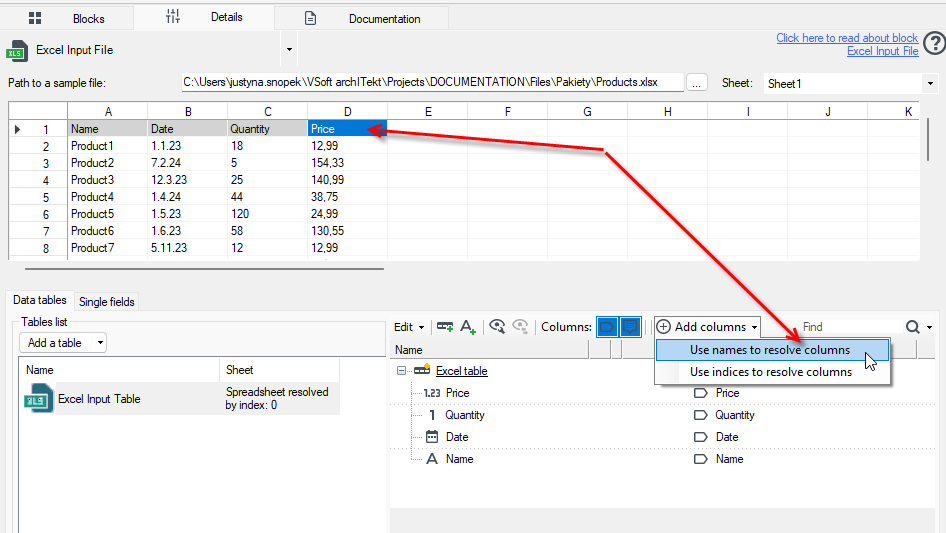
- The tab Single fields includes additional, single fields that do not belong to any of the data tables. They are available to all blocks in the package after they are computed.
KVF Input File

The input block KVF Input File enables loading data from a file with a format of key - value type.
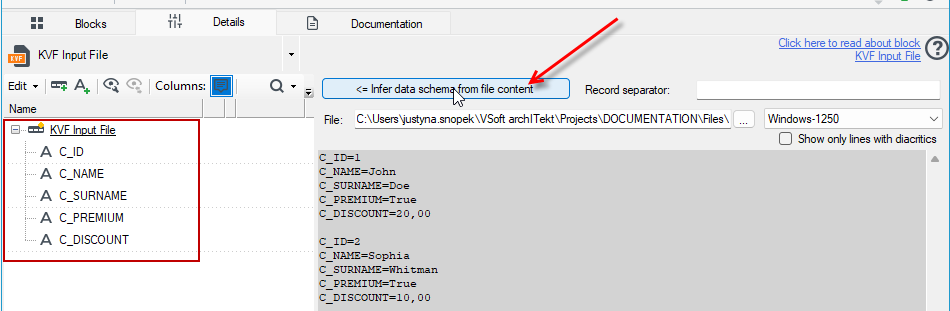
- The tab Details of the block is used for configuring the data structure of the file being loaded.
- At first, an exemplary KVF input file should be loaded with the use of the button Preview marked with an ellipsis (…) or by entering an exact path to the file.
- The window on the right-hand side of the tab is a preview of a chosen document.
- The option Show only lines with diacritics signs limits the preview of file data to the lines containing only Polish letters.
- The window located on the left-hand side is used for defining schemas of records and fields in a tree structure. Operation on particular tree elements is described in details in the chapter about adjusting records and fields schemas (see: Data processing).
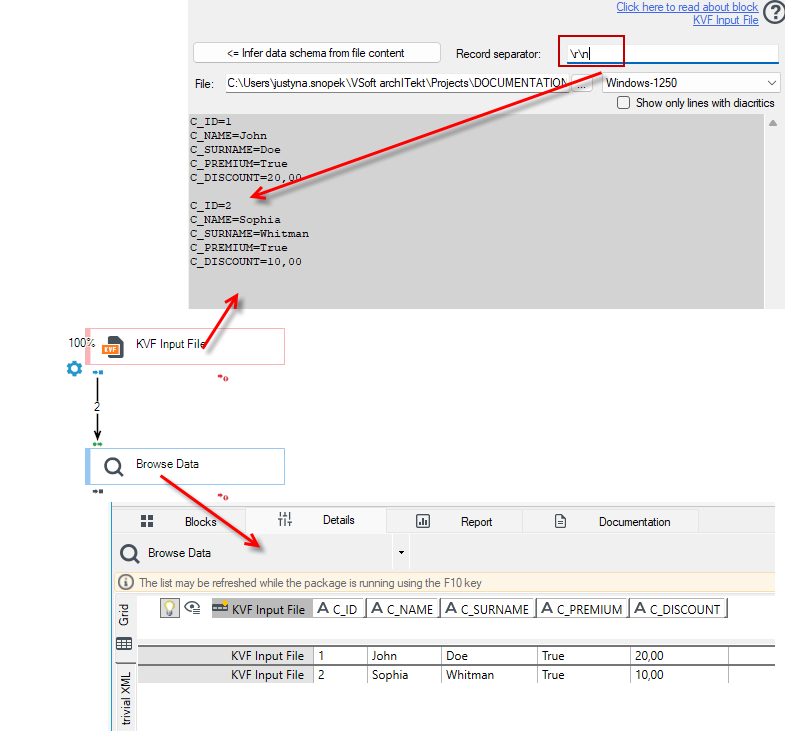
In order to simplify the creation of data schema, the functions automating the task may be used. A tag, that is a separator of data records should be entered in the field Record separator, and then the button Infer data schema from file content should be pressed. The System will automatically adjust the records schema to the earlier-loaded source file.
In the case below, the record separator is a new line, i.e. \r\n
The block also allows for defining a header and a footer for the entire file.
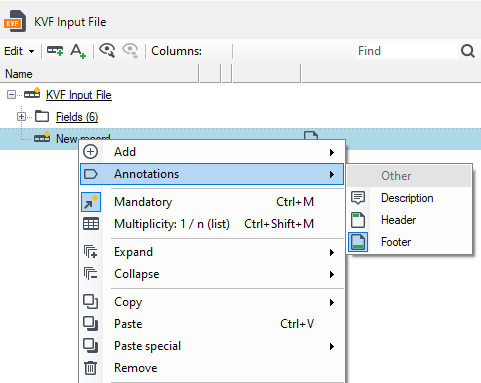
- In order to do it, a new record in a schema in the panel on the left-hand side should be created and marked with the Header or Footer annotation.