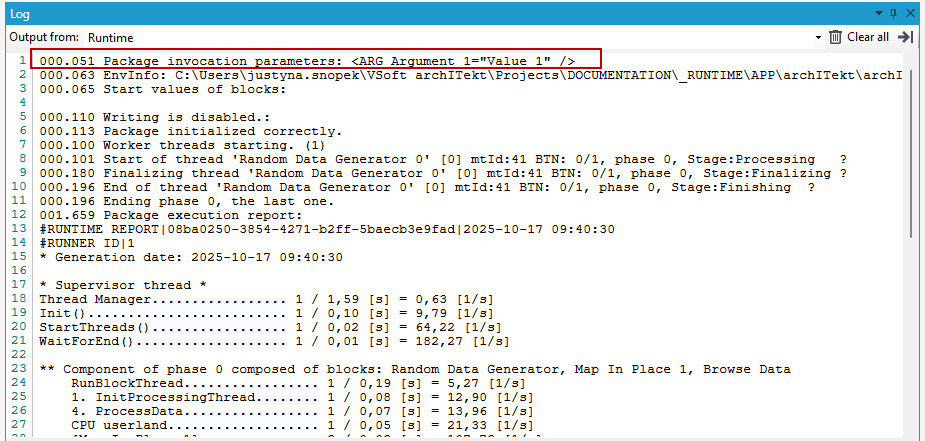
Package arguments
A package may need configuration values for execution.
Example: If package logic transforms certain entities created in time from X to Y, such parameters (X and Y) should be "exposed" to be configured externally before the package is run. A data tree "Package invocation parameters" is used for this purpose (the option is available in the main menu).
The tree will usually contain only fields of any type and of any mandatory status. System configuration does not allow running a package, which required arguments are not filled with a value.
Several kinds of annotations may be attached in the tree:
- Description – any detailed description of an argument presented externally (e.g. in task configuration, in Universal Host while configuring a launch trigger),
- Constant value – default value of a parameter,
- Parser - used for converting externally-set values into a field data type.
- To define arguments, select the Package argument option from the processing package menu.
- In the Package argument window, you can add fields and records with annotations.
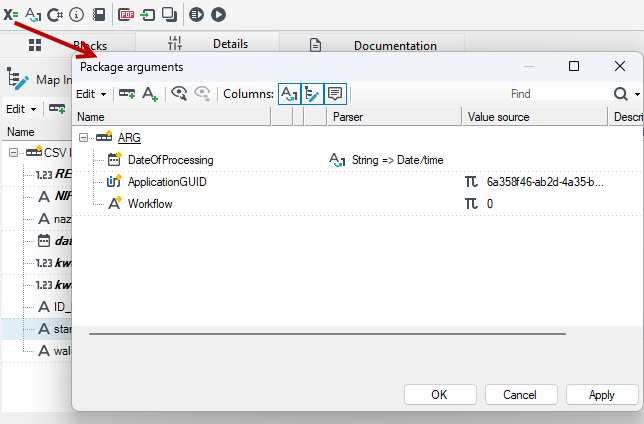
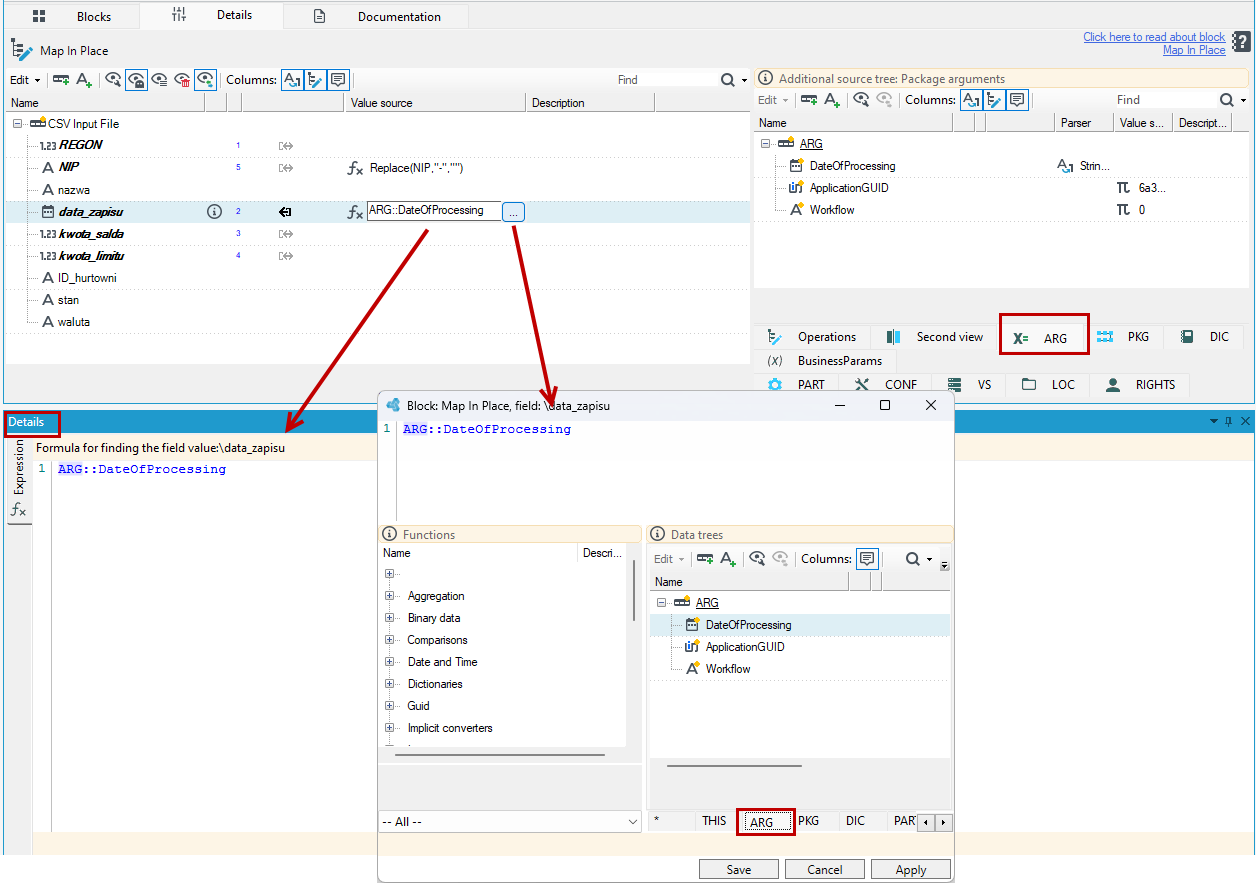
- Package invocation parameters are available to be used as a special data tree named ARG:. It may be used in expressions or SQL query template and on the Details panel after selecting Ctrl+Space when syntax prediction is displayed and in the SQL query template.
Example:
For the arguments defined as shown below:
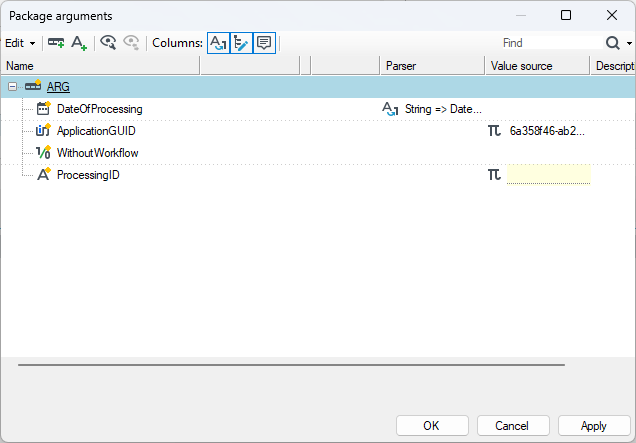
The calls in a package may appear as follows:
- SQL level - in an input block DbInput:
SELECT spr.*,
P_CLOSED, P_TECH_ERROR,
seg.C_CLOSED as SEG_CLOSED, seg.C_CLOSED as SEG_CLOSED
FROM dbo.CASE spr (nolock)
WHERE
C_UPDATE_BATCH < #(ARG:ProcessingID)#
  or S_DATE_OF_NEXT_WORKFLOW_RUN <= #(ARG:DateOfProcessing)#
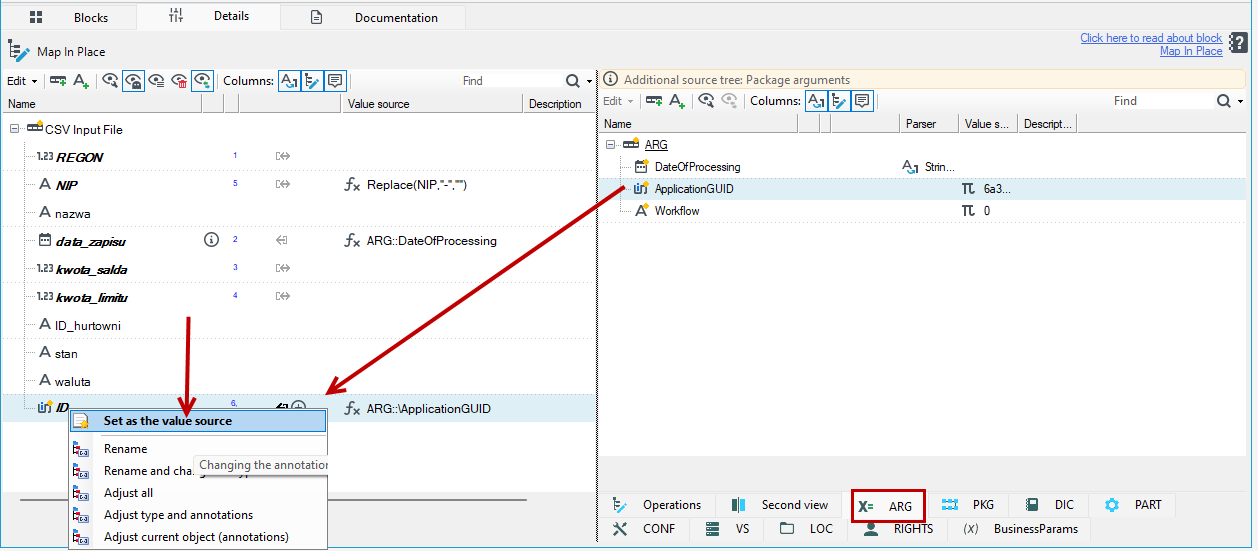
- Map in place level – in the body of an expression. You can add an annotation Expression to a field from the context menu, or drag from the ARG data tree a field directly to a field in the data schema and select Set as the value source from the context menu. The annotation will automatically be added to the field along with the data source.
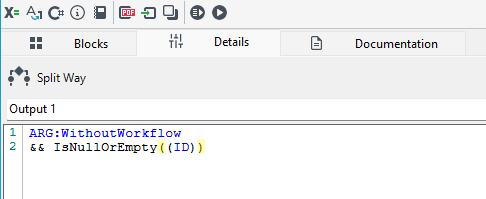
- Split way level.
Passing parameters from a form to a package via arguments
Using arguments, you can pass data from a form to a package and from packages to forms.
It is necessary to define package arguments (data fields) to which will be be assigned parameters from the form.
In the example below, on the form, the user enters the date of report generation and selects the Generate report button, which triggers the action of executing the processing package to generate the document.
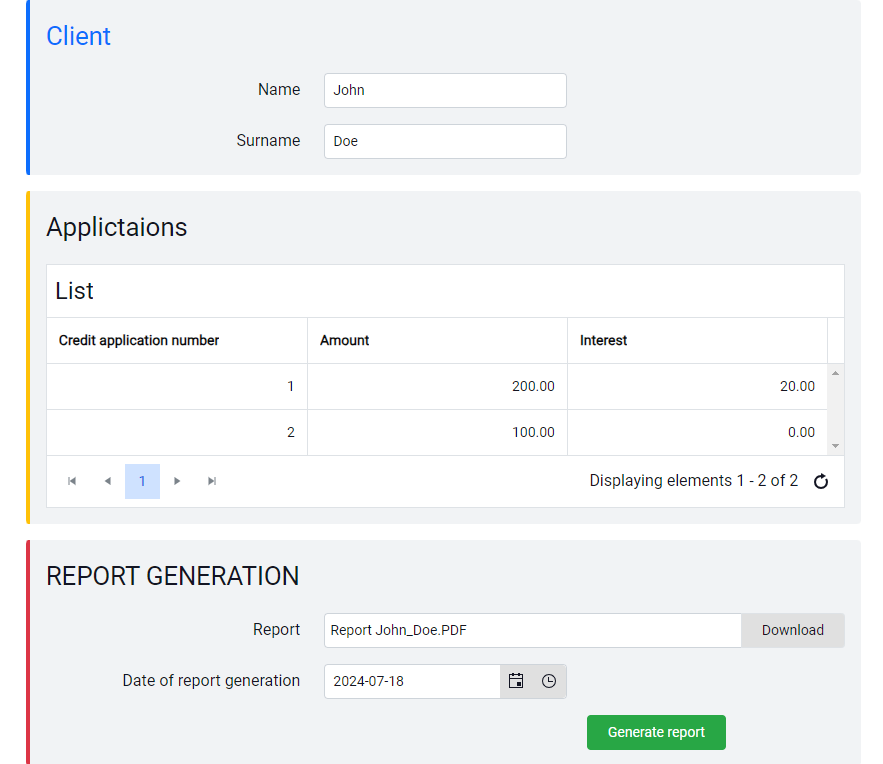
On the report we need to include the date of document generation (a field entered on the form), and we do not have such a field in the database.
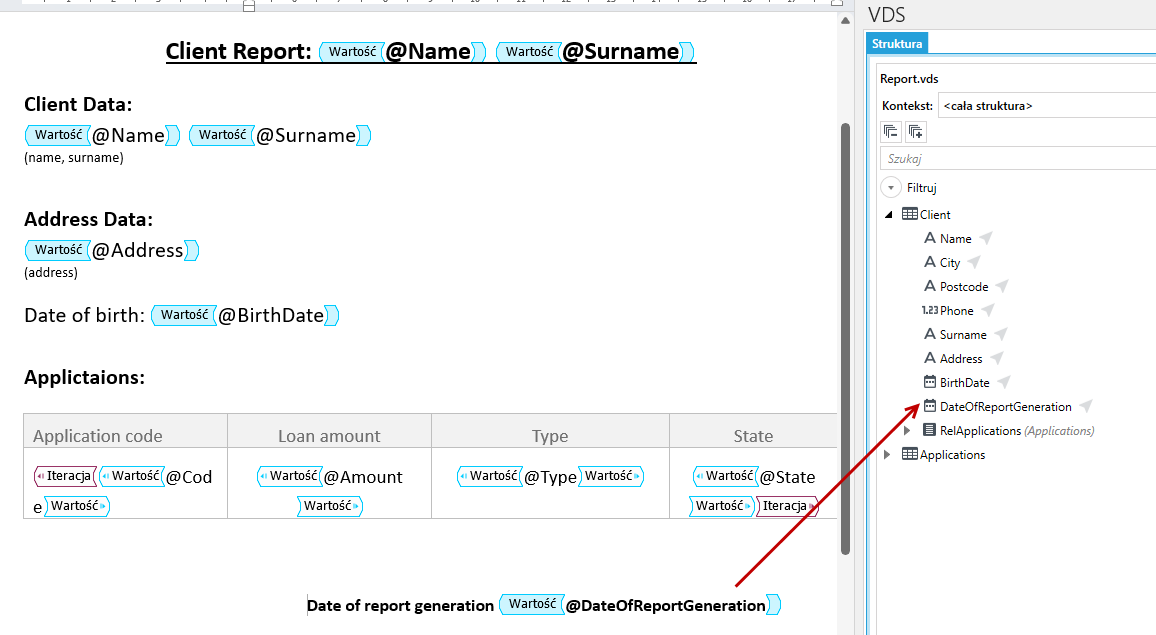
In this case, if we need the date of document generation only to be sent to the document and we do not need to save it in the database, we can add a field to the data schema on the form, and then use passing this value to the package as an argument.
STEP 1 Add an argument to the processing package
- Go to the processing package and select the option to add arguments.
- Add a field of the appropriate type. In this case, add a date field.
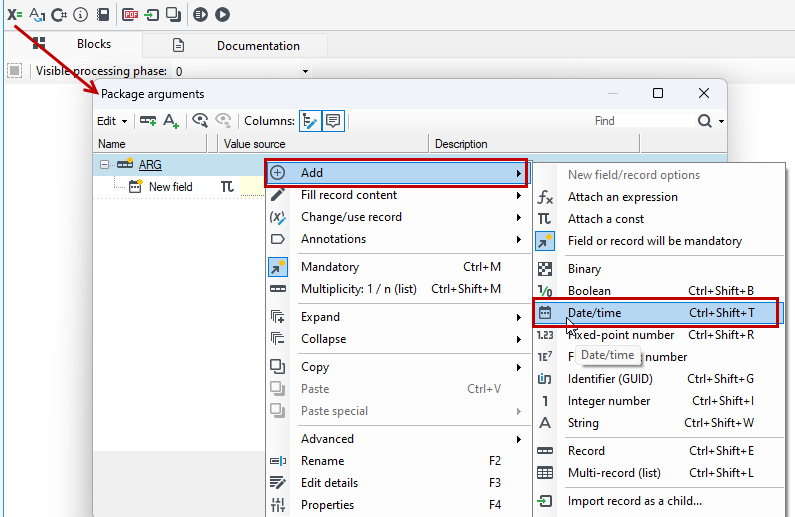
- By default, each field you add is annotated with the Value source as Constant.
- In this case, the data for the field will be passed from the form therefore we do not need to use any annotation.
- Remove the Value source option. Select the field and from the context menu uncheck the Compute value>Value source-constant option.
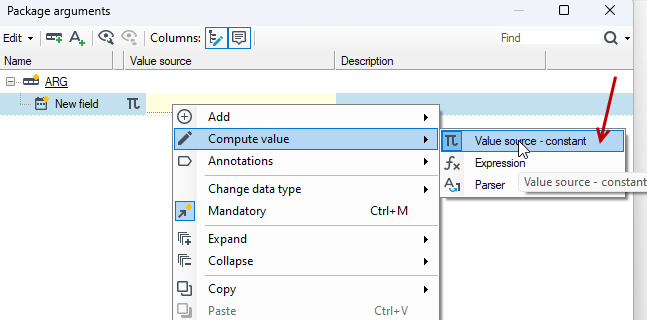
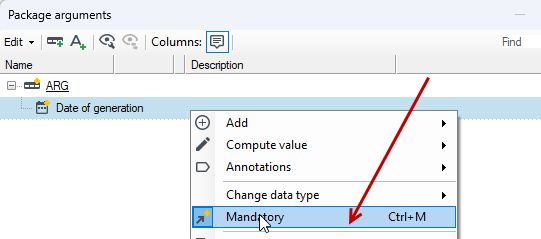
- You can also rename the field and check/uncheck the field's mandatory.
STEP 2 Add a field to the form's data schema
- Go to the form and the Initial mapping tab.
- Add the DateOfReportGeneration field to the data schema.
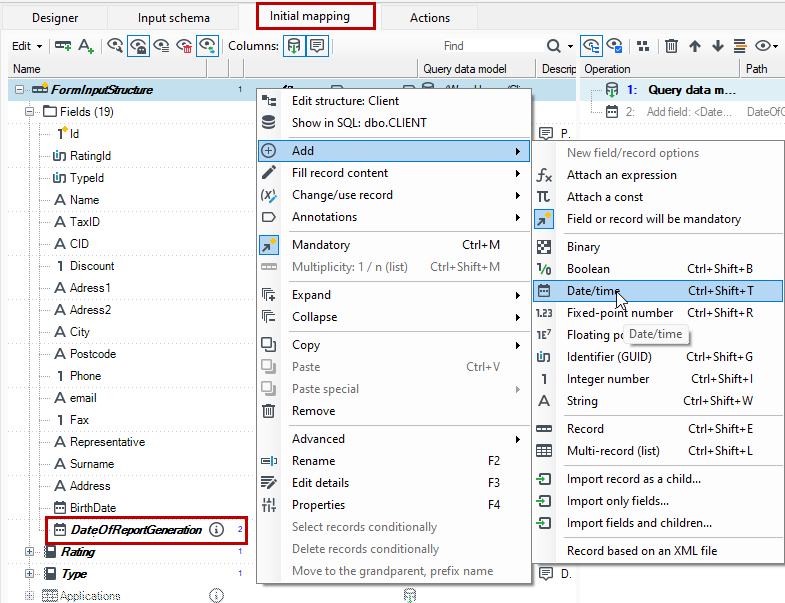
- Go to the Designer tab and place the added field on the form.
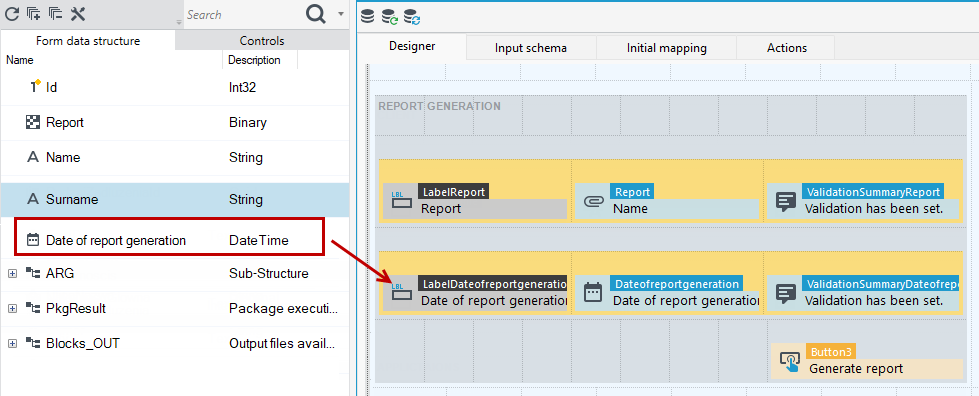
STEP 3 Pass the data to the argument in the action mapping
- Go to the action mapping. On the Actions tab, double-click the action that runs the processing package.
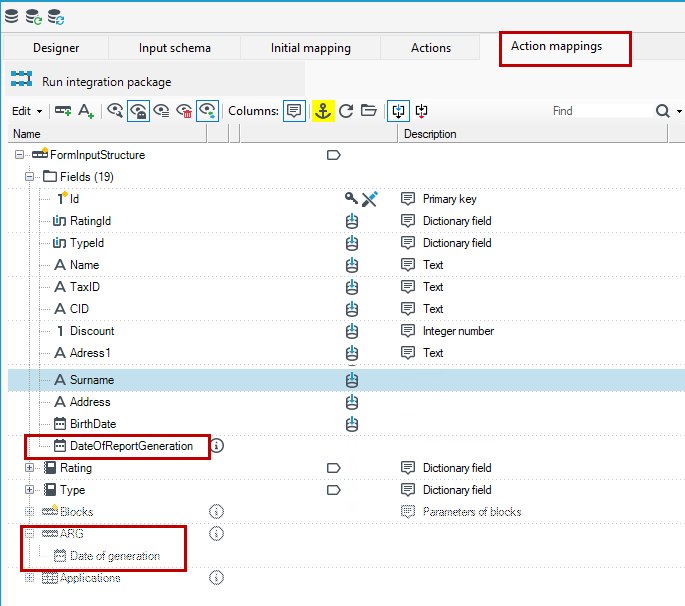
- Action mappings tab will be open. In the data schema are available grayed-out records relating to the processing package.
- The ARG record contains the arguments that are defined in the processing package. In this case, it is the field Date of generation. You can also see the field added to the data schema on the form: DateOfReportGeneration. Note that the data from this field is not saved to any database. Despite this, we can pass them to the processing package.
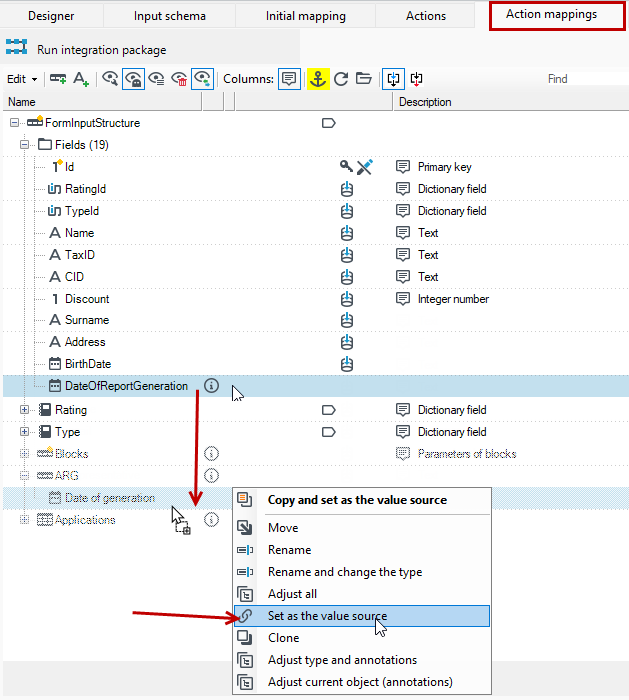
- Drag the added field DateOfReportGeneration from the FormInputStructure record to the field in the ARG record and select Set as the value source from the context menu.
- This way, when the action is triggered, the package will be called with the parameter passed to the Date of generation field.
STEP 4 Referring to arguments in the processing package
In the processing package to refer to the defined arguments, use the expression annotation.
- Go to the processing package to the document generation block, to map the data.
- In the data structure of the document, there is a field DateOfReportGeneration. Add it to the data schema by selecting the option from the context menu.
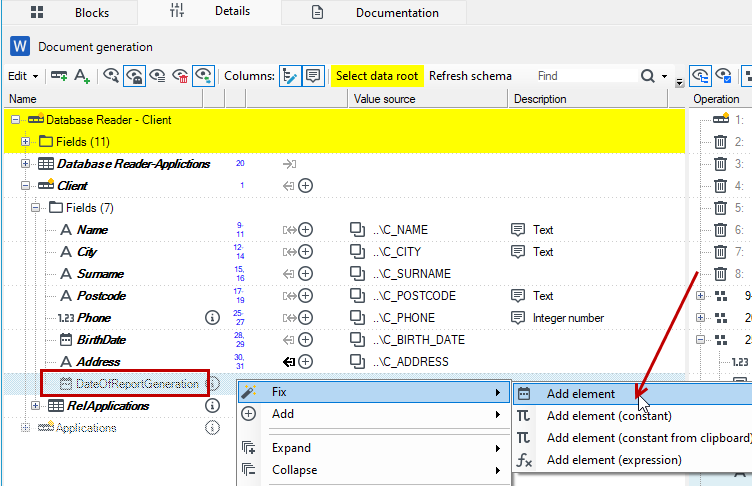
- Assign a data source for the field and refer to the parameter passed from the form to the package arguments. To do this, add the Expression annotation to the field.
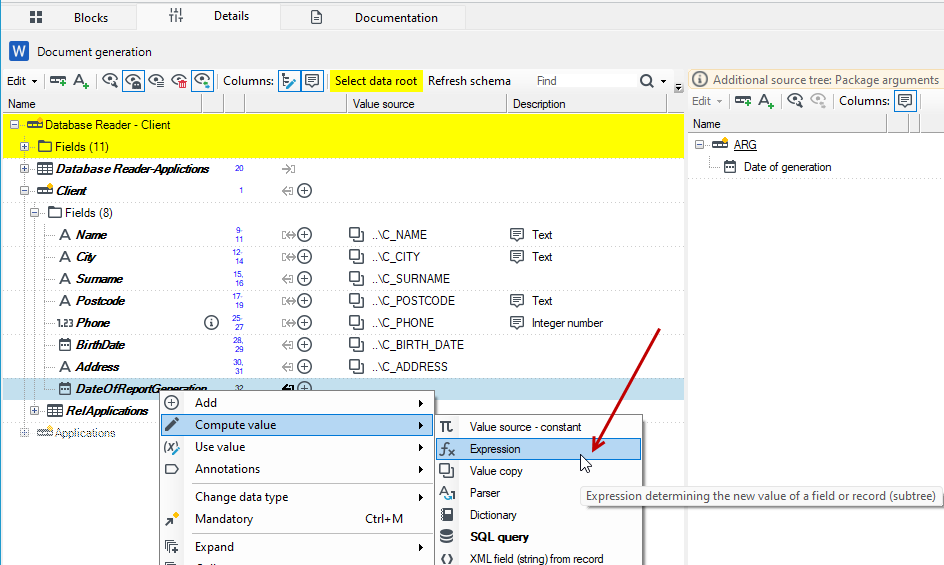
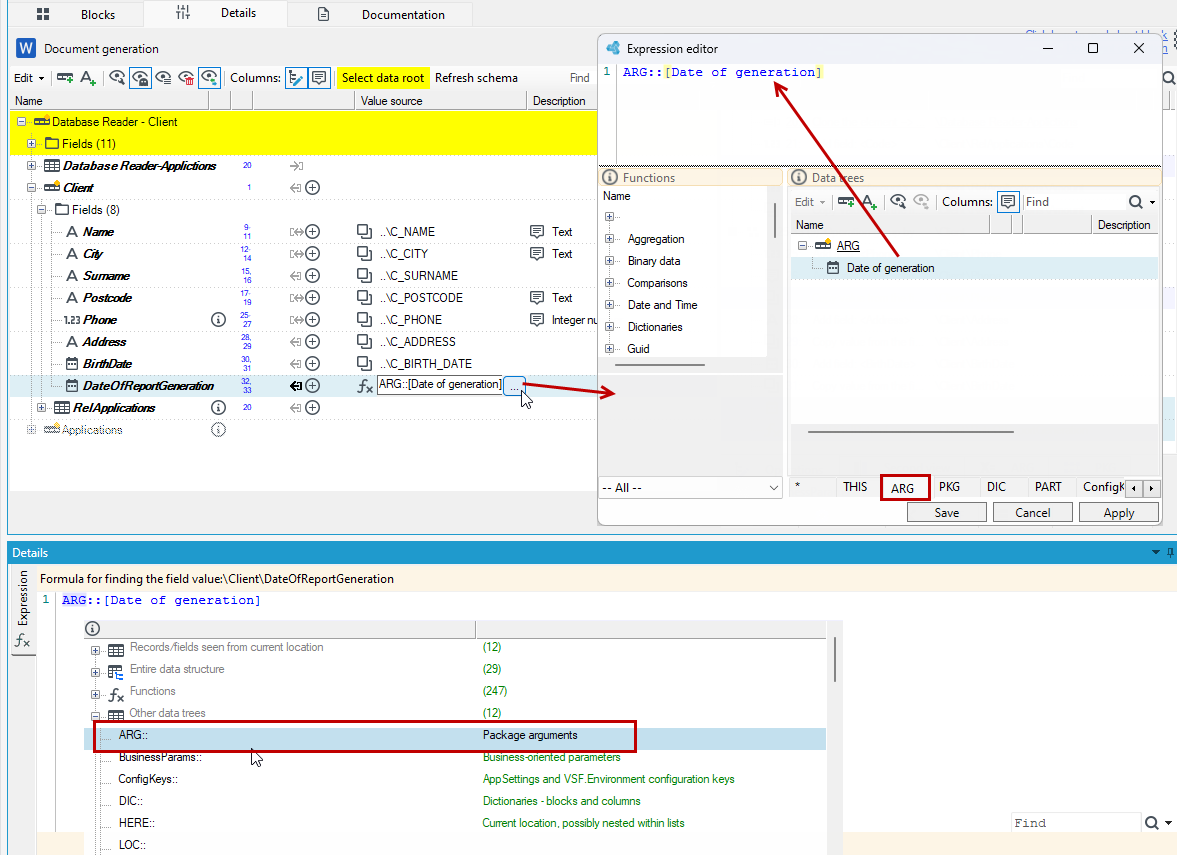
- Go to define an expression. In the expression editor window, you can locate the arguments in the ARG tab and then double-click on the field (Date of generation).
- When you select Ctrl+space, you have also access to the ARG data tree both on the Detail tab and in the editor window.
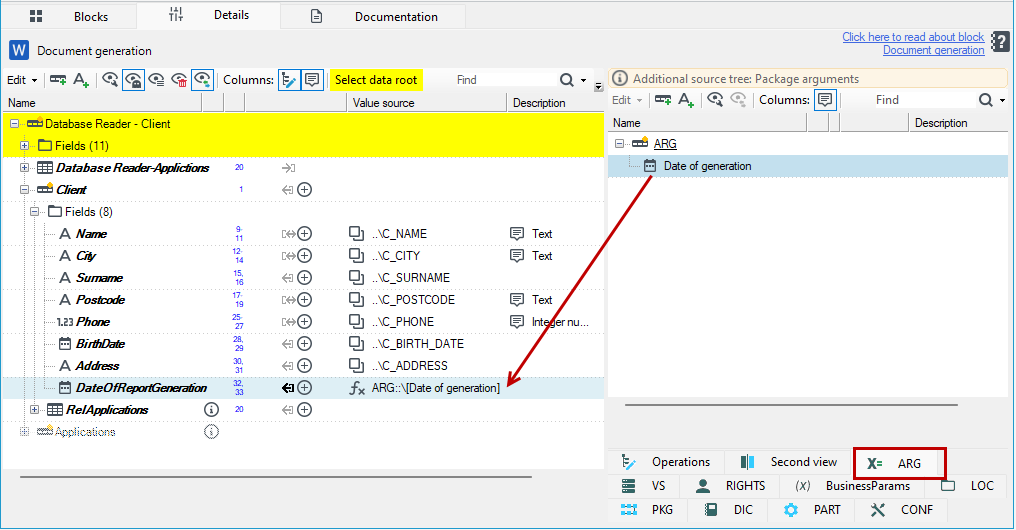
- You can also use the ARG data tree on the right panel and drag a field from an ARG record to a field in the data schema without adding an expression annotation earlier.
Passing the Id of a form data element to a processing package
Another example of using arguments and passing values from a form to a package is passing the Id of the data structure on which the form is based.
For example, the action that calls the processing package is to be executed for a specific Id in the context of which the form is open. Suppose the action performing document generation is to be executed for a specific client Id.
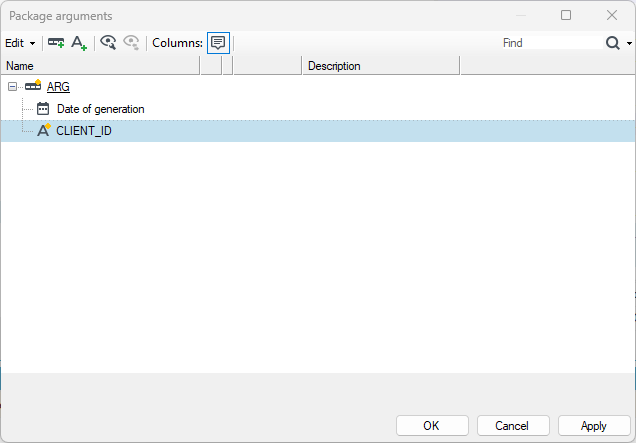
- In the processing package, add the
CLIENT_IDargument.
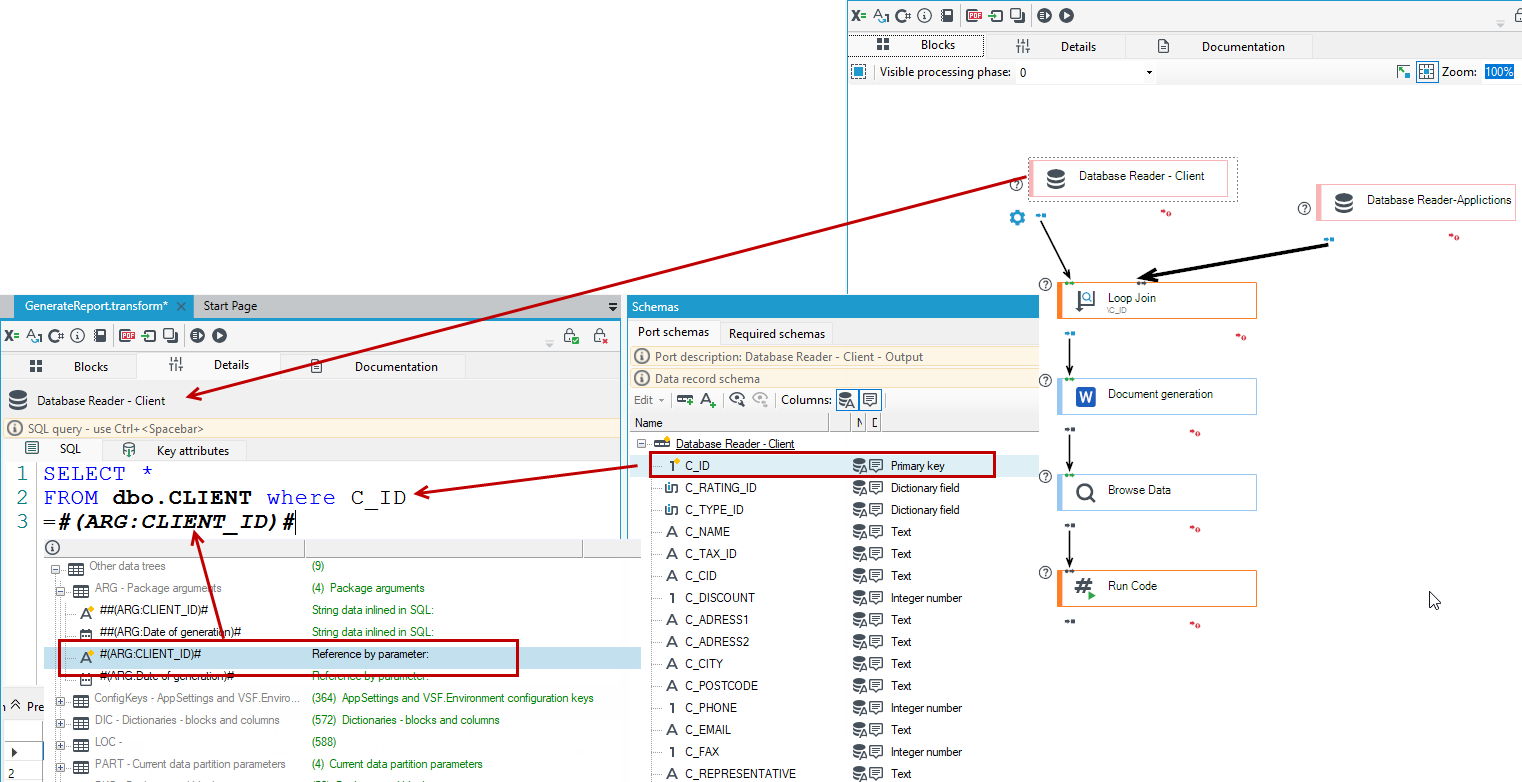
- Go to the processing package to the database read input block, which fetches the data of the client for which the document is generated.
- Change the query in the details of the block to the following:
SELECT *
FROM dbo.CLIENT where C_ID=#(ARG:CLIENT_ID)#
- In the above query, you specify that the package should execute for the client Id
C_ID, which will be passed by the#ARG:CLIENT_ID#argument from the form.
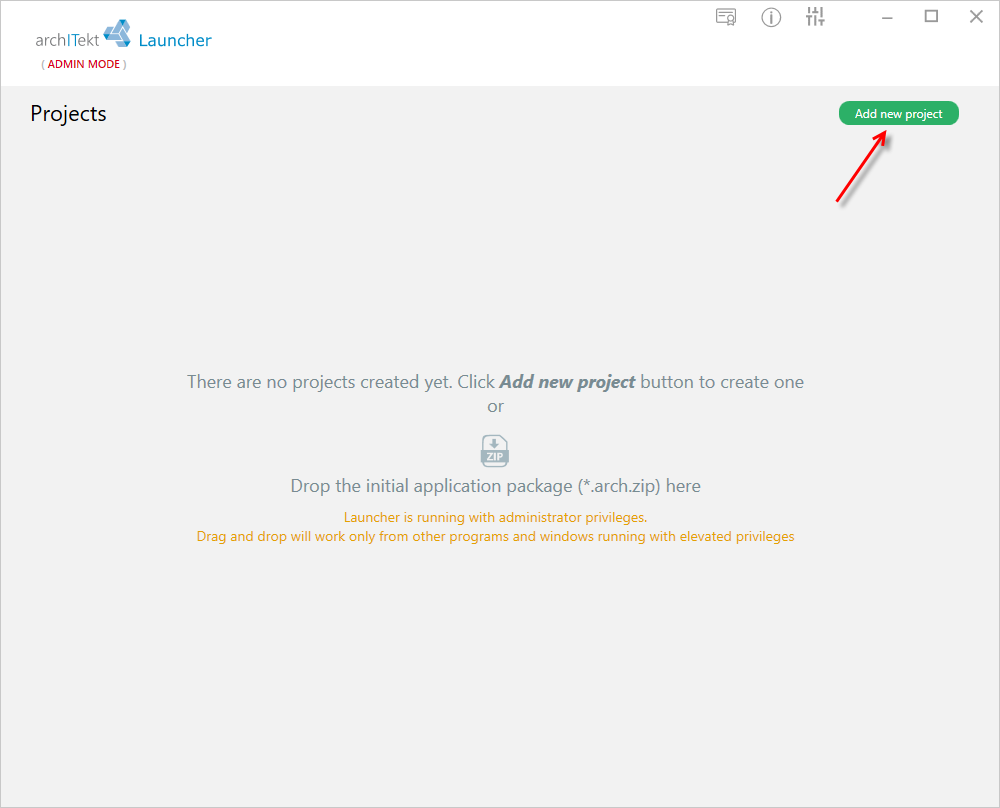
- Go to the form and Action mappings tab for the action that runs the processing package.
- Select the Input parameters option. Here you can define the parameters that will be passed to the package.
- In the data schema, you will see grayed out ARG and Blocks records that refer to the processing package.
- If you do not see the ARG and Blocks records, then select the FormInputStructure record and select the data root by clicking the Anchor button
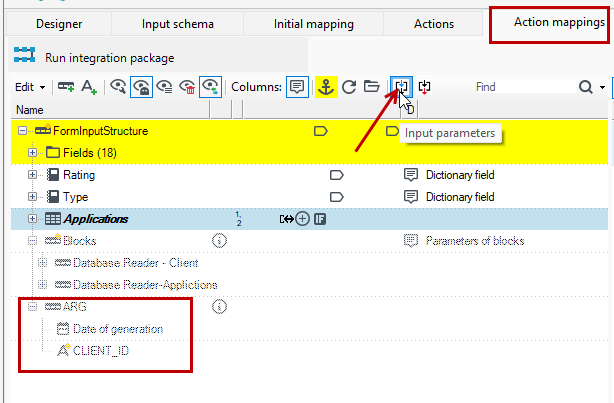
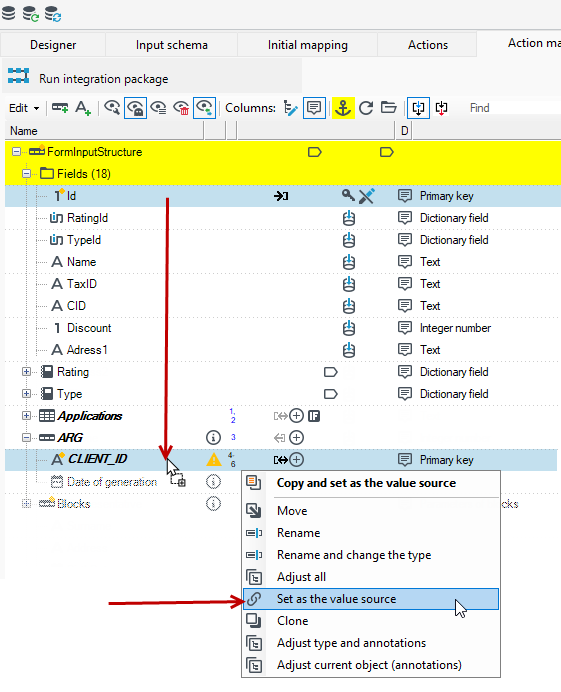
- Expand the schema fields and drag the Id field to the field
CLIENT_IDfrom the ARG record.
Package arguments - Output data from a package
We can pass input parameters to packages in the form of arguments, but also receive data as the result of calculations made in the package or other transformations on the data. To do this, use the appropriate function: pkg.SetArgumentFieldValue (a_filed, a_value)
The function can be called on the Run Code block or on the field through an expression in the processing package.
- In the following example, 2 arguments have been added in the package: Input parameter and Output parameter.
- To the Input parameter field was added the annotation Value source-constant and the text entered: Package input data.
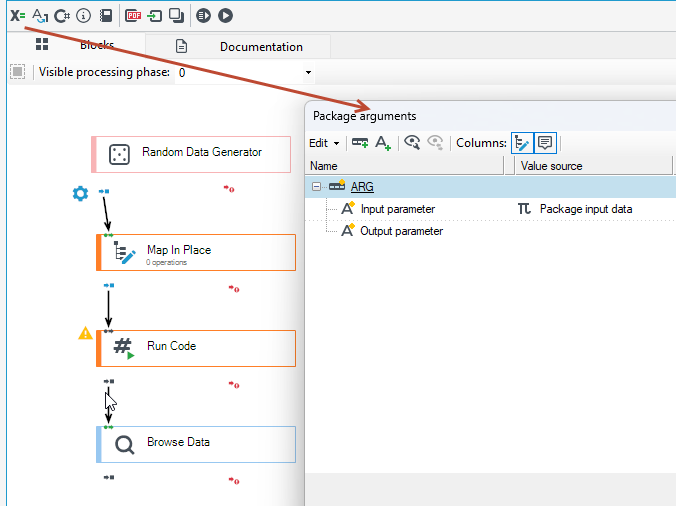
- In the data schema of the package, there are two fields Input and Output. The data source for the Input field will be the data from the Input parameter argument.
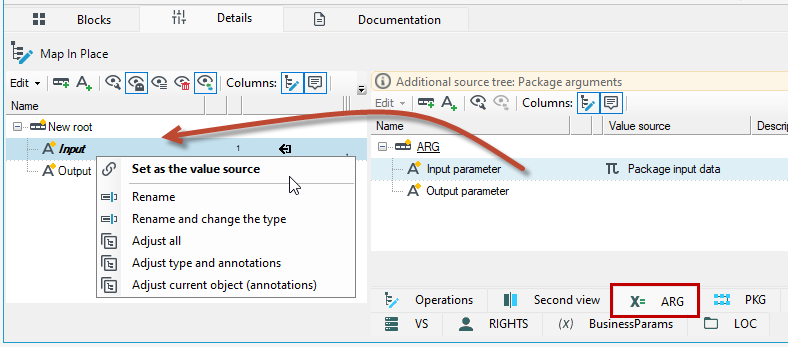
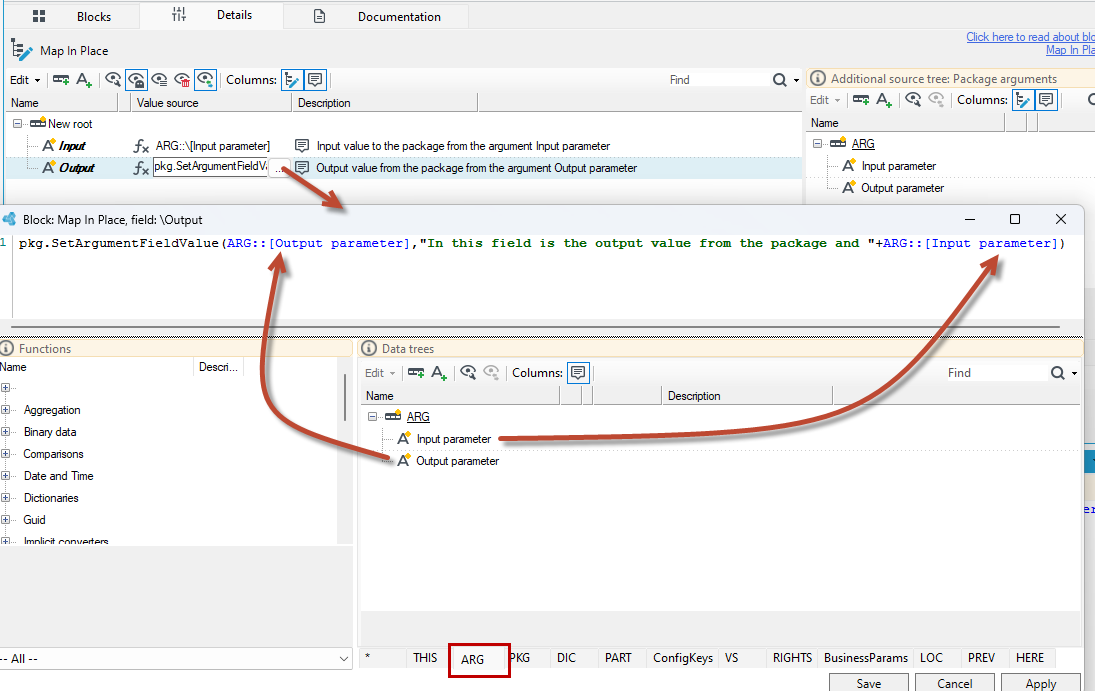
- In the next block Map in place through the Expression annotation, the data source for the Input field has been added as a value from Input parameter argument.
- You can drag the field from the view on the right side from the ARG record to the field in the data schema on the left side. From the context menu, select Set as the value source.
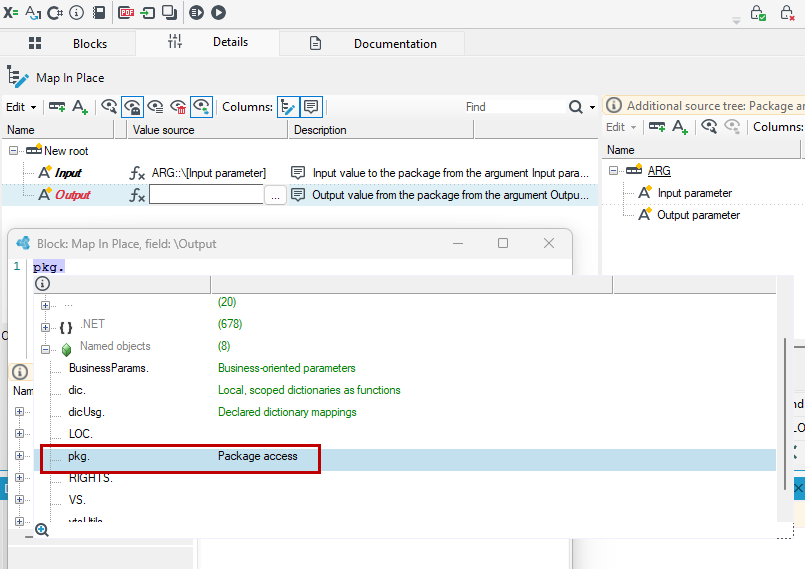
- In the Output field, we will want to display the output data from the package. Add the Expression annotation to the field.
- In the expression editor, select Ctrl+Space and locate pkg.
- Again, select Ctrl+Space and choose the
SetArgumentFieldValuefunction.
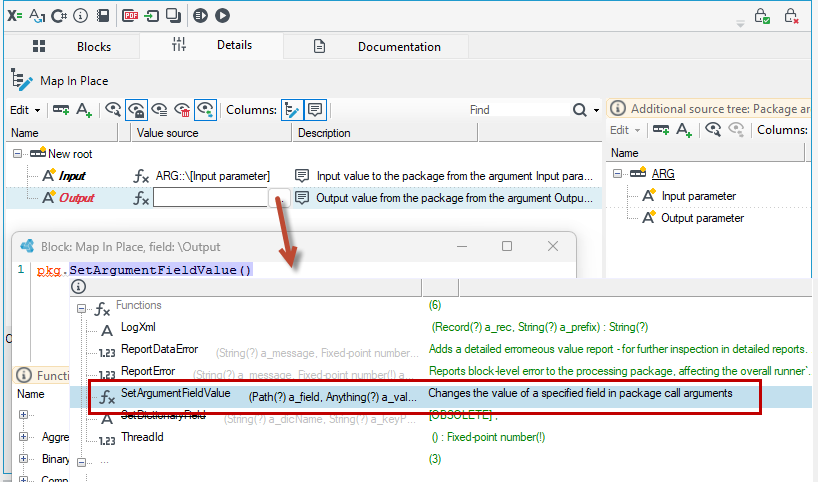
- Define the parameters of the function: to which argument you want to write the result data:
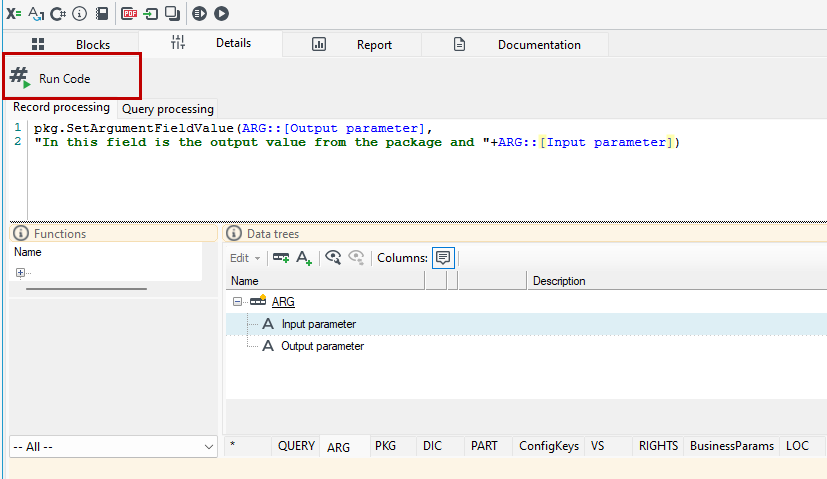
ARG::[Output parameter]what you want to write there, what data or data from which fields. This can be data from other arguments of the package or data from fields from the data schema:“In this field is the output value from the package and “+ARG::[Input parameter]
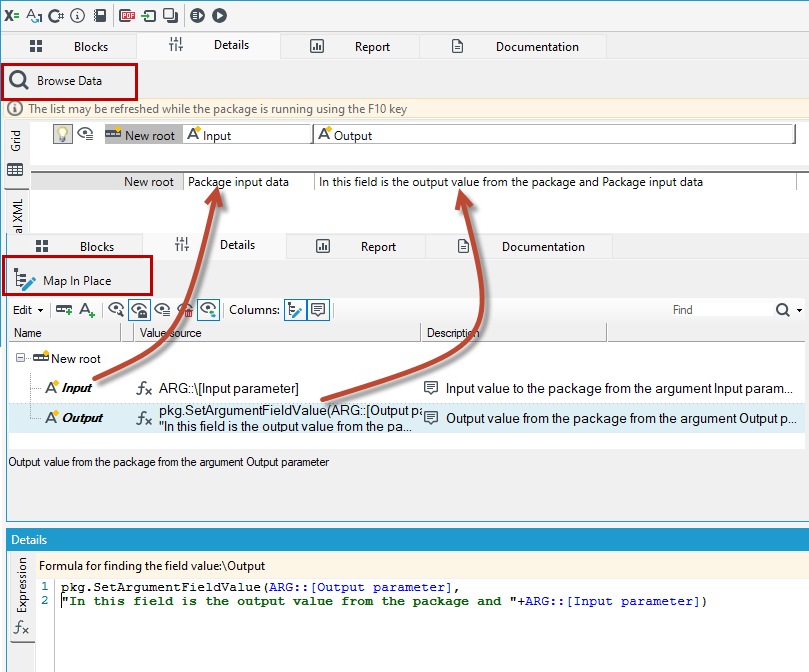
- Add a Browse data block and run the package to check the operation of the assigned arguments and the returned output data from the package.
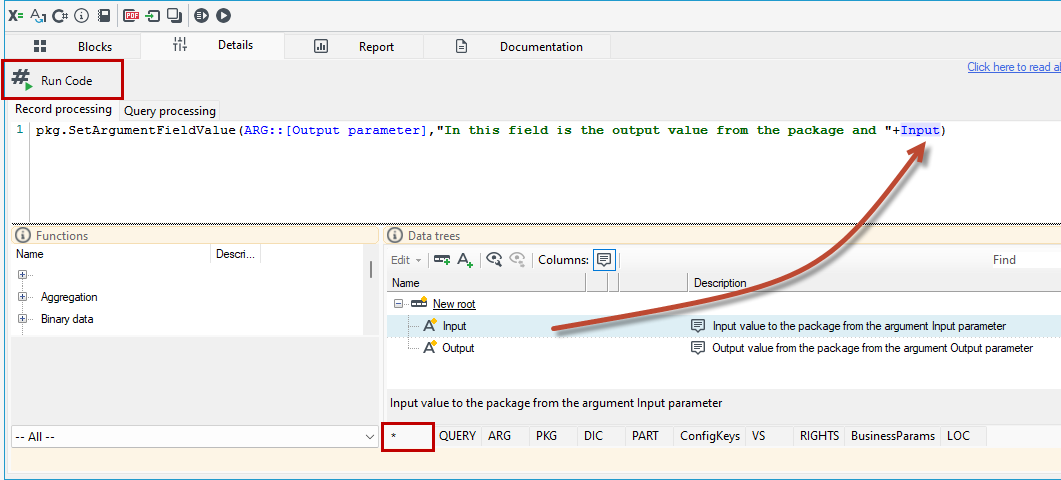
- The function of assigning the resulting data from the package to an argument can also be done on the Run Code block.
- Add the Run Code block to the package and in the details of the block define the function similarly to the previous case:
pkg.SetArgumentFieldValue(ARG::[Output parameter], “In this field is the output value from the package ”+Input) - In this example, the last argument of the function: the Input field comes from the schema tree of the package, not from the ARG tree where the package arguments are defined. In both cases, the behavior of the function will be identical, since on the block earlier in the map in-place the value of the Input parameter argument was assigned as the data source for the Input field, so it does not matter whether we refer here to a field from the schema or to a field from the ARG tree.
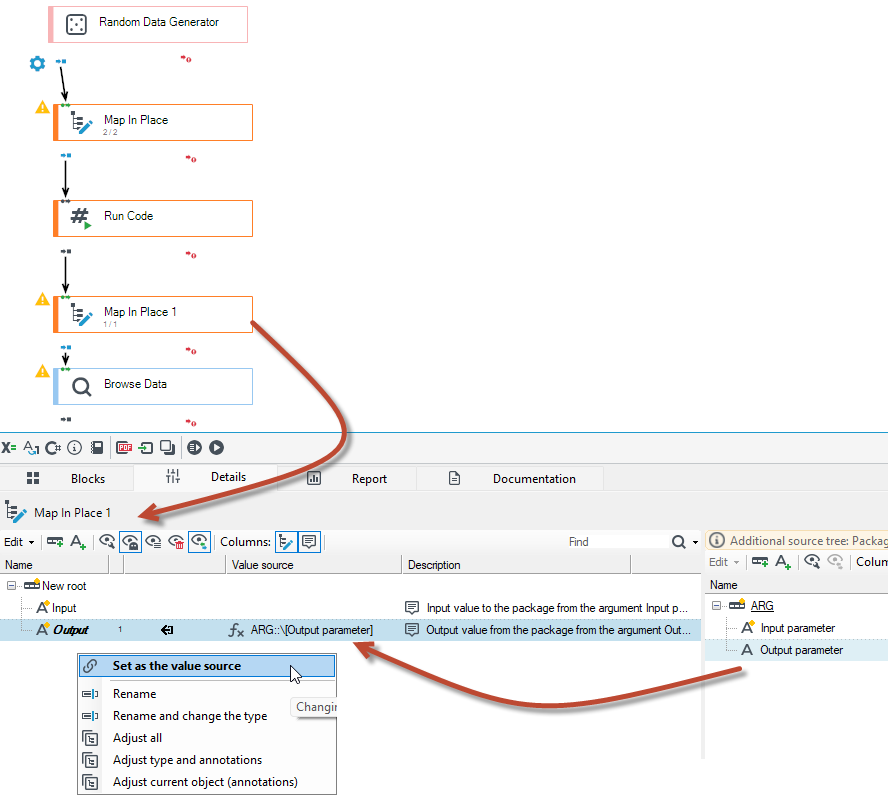
In this case if you want to assign the value of the Output parameter to a field in the data schema, then add the Map In Place block as the next block after the Run Code and make the mapping.
Passing output parameters from the package to the form
Communication between the form and the package being processed can pass in two ways. You can pass data from the form to the package as input parameters for the package, and receive data from the package as output parameters from the package.
Passing data to the package is described in the section Passing parameters from the form to the package via arguments.
To describe the issue of output parameters, we can use the same package as defined in the previous example described in the chapter: Package arguments - Output data from a package.
- There are 2 arguments defined in the processing package
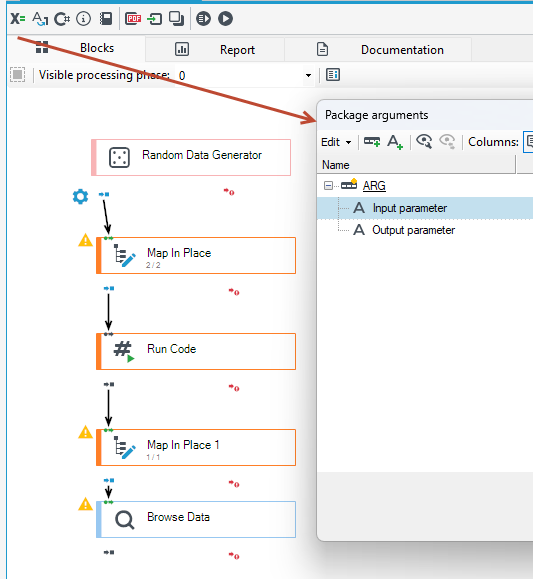
- To the Input parameter field will be passed data from the form, and in the Output parameter field will be the result data from the package, which was defined on the Run Code block with the appropriate function.
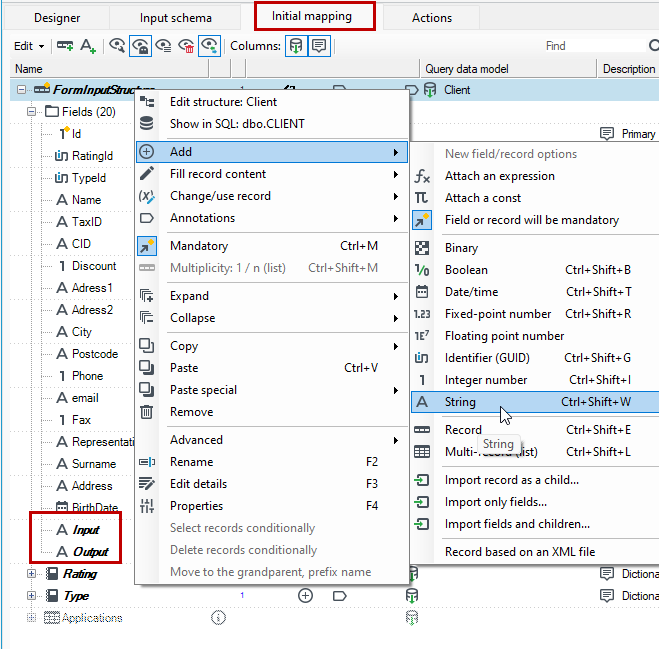
- Go to the form and add fields on the Initial mapping tab: Input and Output. We can assign a value from the package arguments to these fields.
- Add an action Run integration package and go to the Action mappings tab.
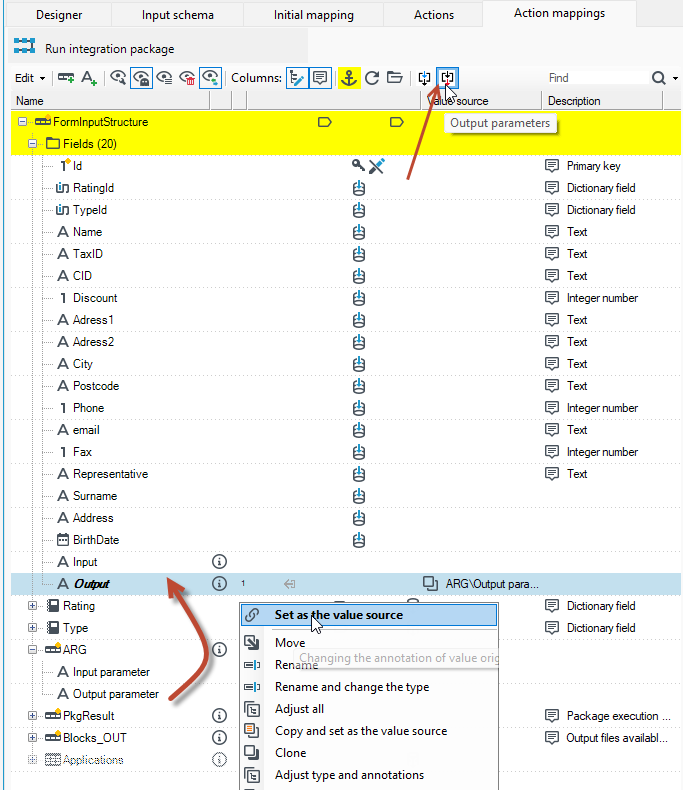
- Drag the Input field from the FormInputStructure record to a field in the ARG record and select Set as the value source from the context menu.
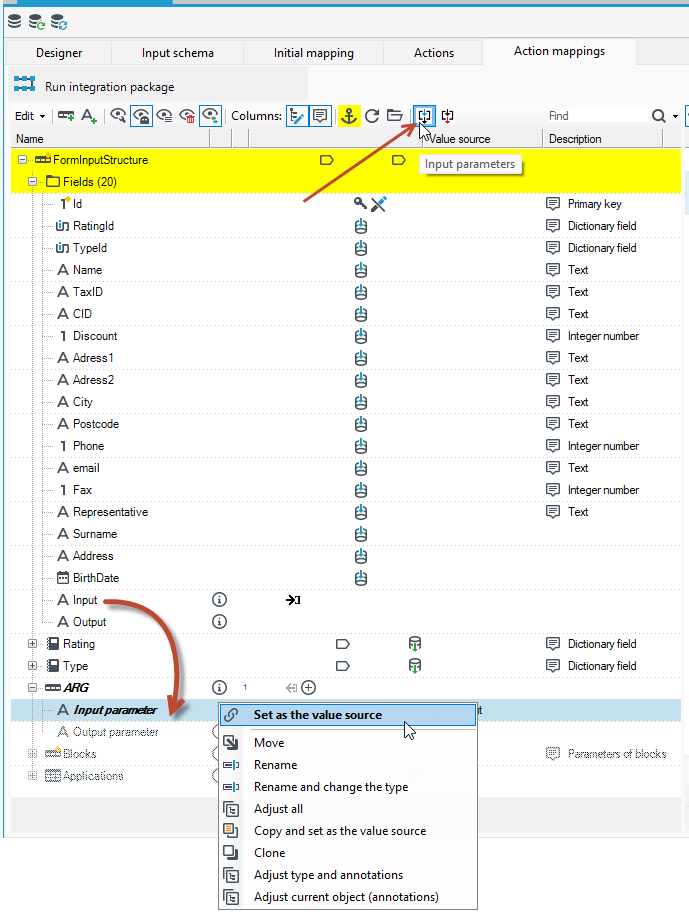
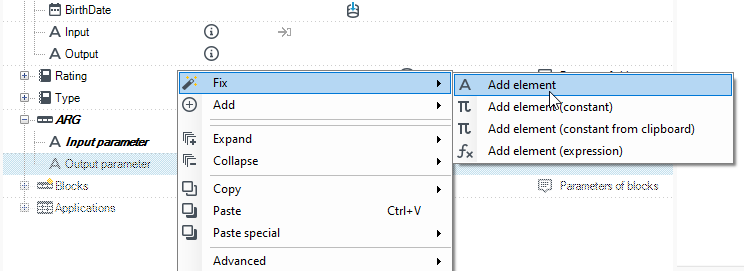
- Add the Output parameter field so that it is visible in the data schema. From the context menu, select Fix>Add element.
- Navigate to the output parameters in the action mapping. Perform a data mapping from the ARG record (Output parameter field) to a field Output in the data schema and from the context menu select Set as the value source.
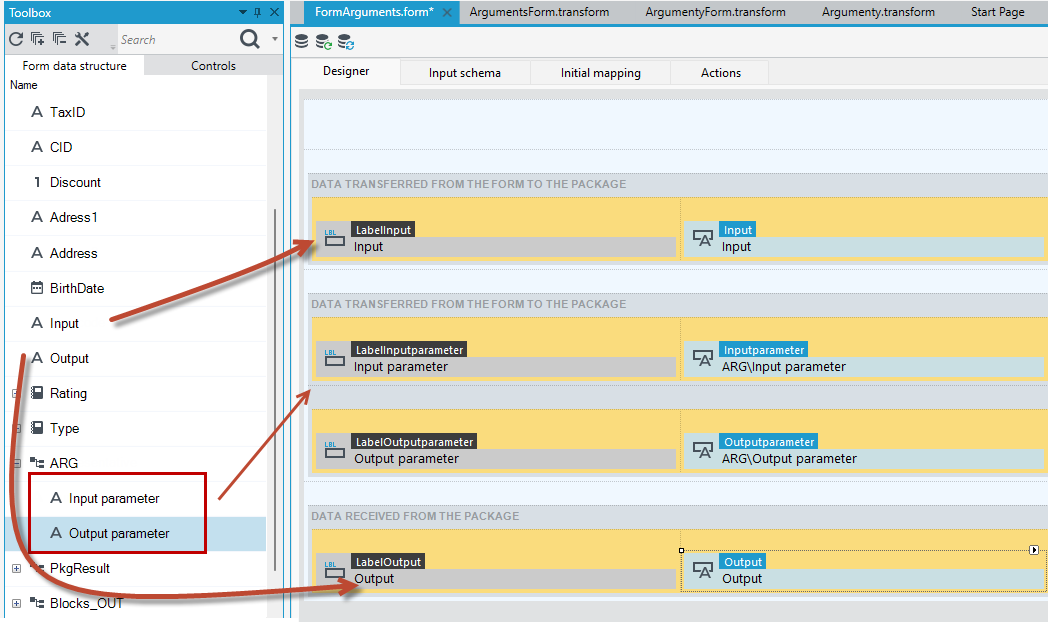
- Go to the Designer tab and drag all the new fields onto the form.
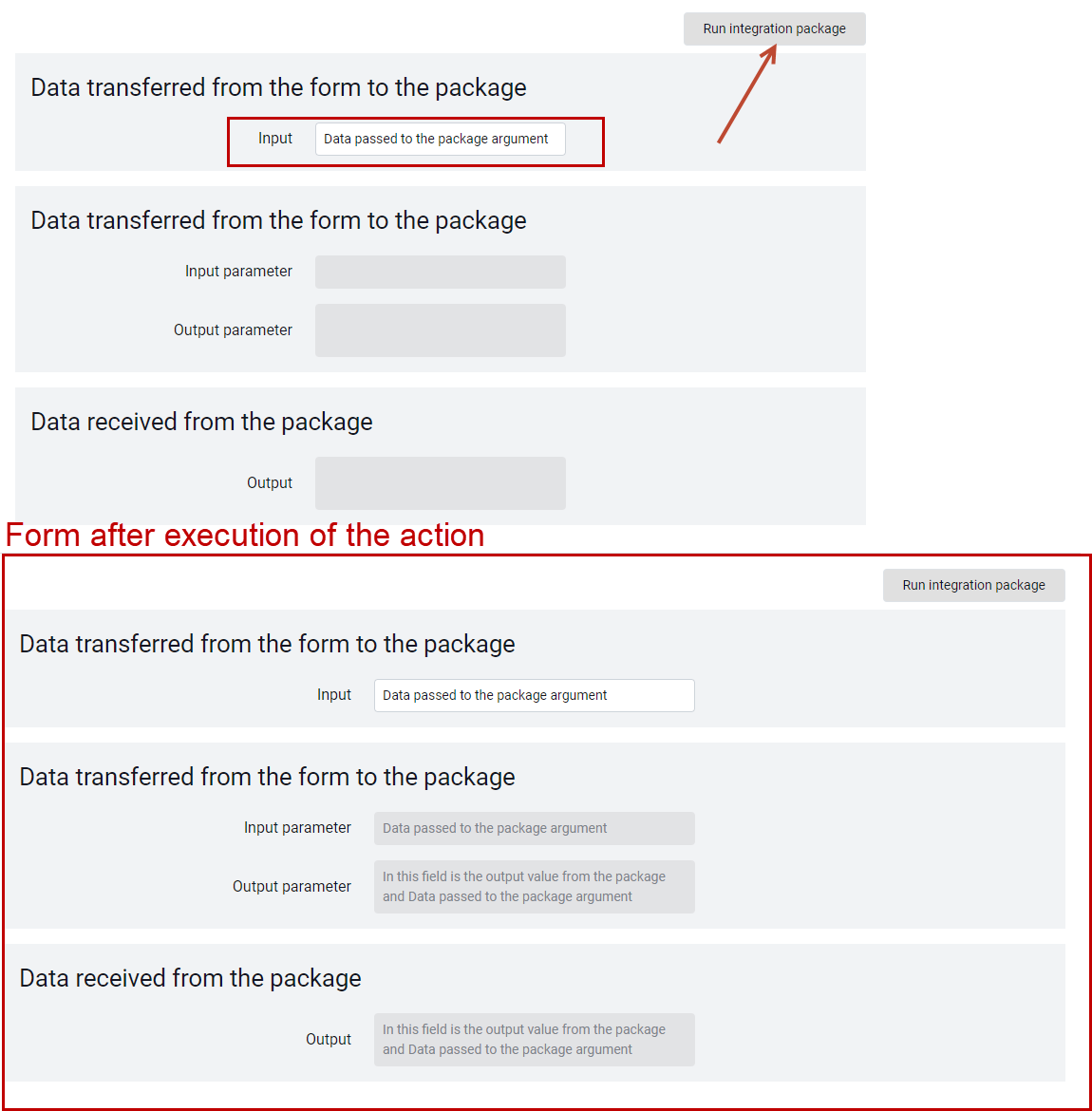
- Save the data and open the form in the browser. Enter the data on the form in the Input field and press the button that performs the processing package.
- After executing the action, the other fields will display the data that was transferred from the form to the package and the data received from the processing package.
Excluding package arguments from logging
- If you have added arguments to a package and want to exclude a given argument from logging during package execution, use the Technical data annotation.
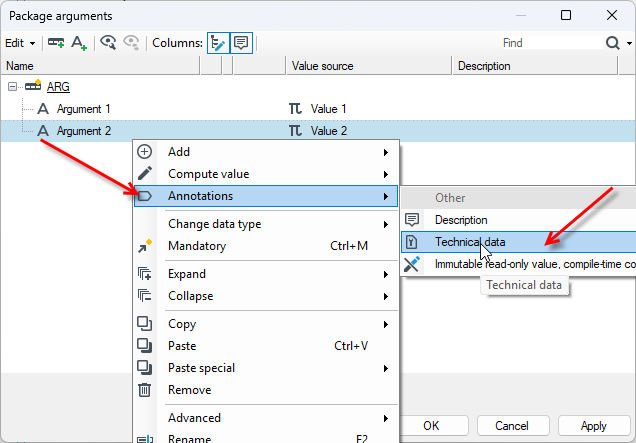
- After running the package, in the Log tab you can see data only from those arguments that were not marked with the above annotation.