Databases
The Data sources tab allows you to view completed data structures.
- Select the
 Data source display option on the bottom panel or the Data sources option from the View main menu.
 - After performing the action on the Data sources panel, access to all databases configured in connectionStrings.config will be provided.
- After a relevant database is selected from the drop down list, the User may preview or use the complete data structures.
- Schemas currently loaded to the program are marked with the "ACTIVE" status.
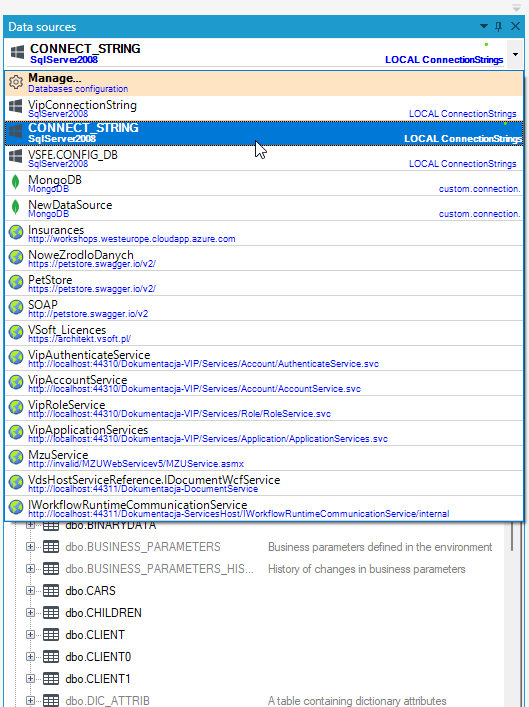
Type conversion is done automatically when copying tables or columns between database schemas of various dialects (indexes, constraints or relationships are skipped).
In order to copy an element:
- select the Copy option in the context menu (base schema is copied to clipboard as text),
- next go to the target database instance and select the Insertcommand from the context menu on the suitable node
A database schema is divided into three directories:
- tables,
- views,
- procedures.
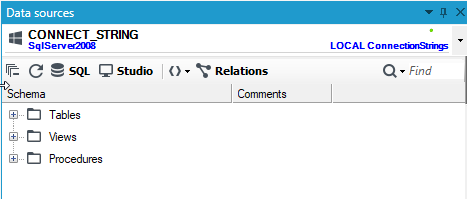
The panel toolbar provides the following options:
- Edit SQL –
 the function allows modifying SQL queries ,
 - Generate script - a possibility of generating a database script for different database types, HTML and XML files,
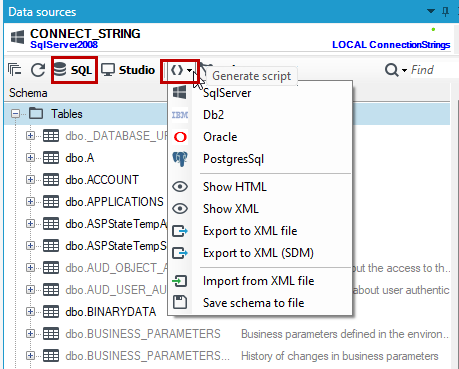
- Studio - allows you to quickly switch to a dedicated database tool connected directly to the actual database, such as SQL Server Management Studio.
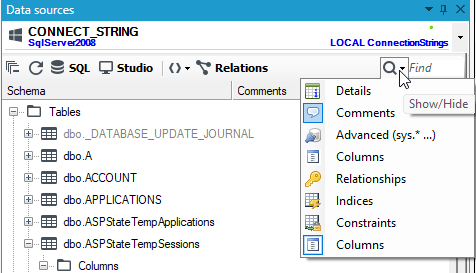
- Show/Hide - by default, the panel displays only names of suitable nodes; in order to display additional information, the option Show/Hide should be **** selected in the toolbar and parameter name to be displayed should be selected;
- Details (column type, length, precision, default value, information about the mandatory status of the column),
- Comments,
- Advanced (advanced tables or views which start from sys.*),
- Relationships,
- Indices,
- Constraints.
- Synchronize with database –
 default behavior of the archITekt environment means making a local copy of a database schema on the disk in order to speed up the System. The option causes synchronization of the schema with the one located in the database.
 - Searching tree elements by a regular expression using a text field located on the right of the toolbar.
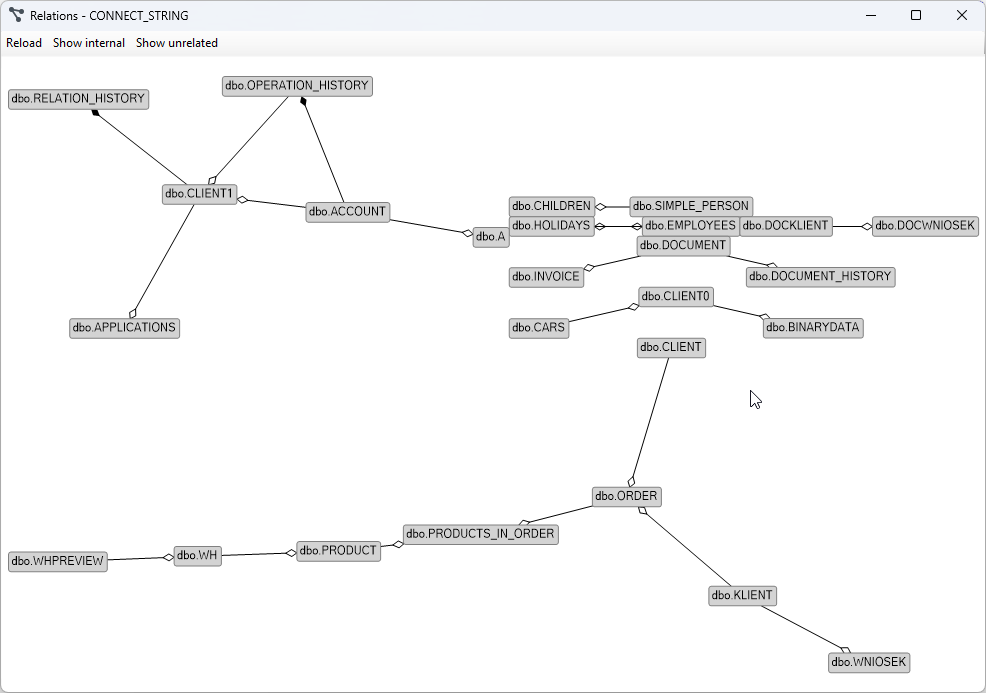
- Relations - Display database relationships.
Management of user databases
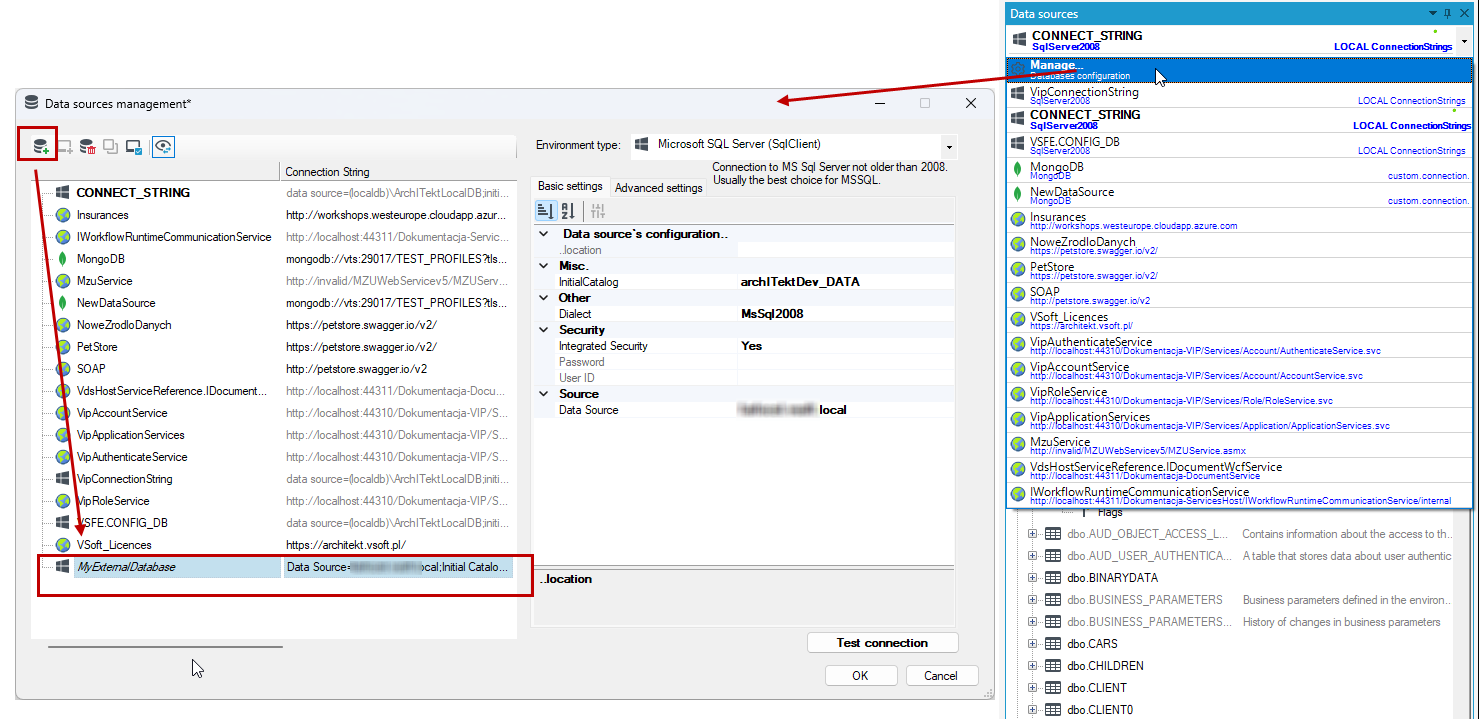
Using the panel, it is possible to manage connections to external databases on a environment.
- Select the Manage... , and then the Add Source button
- In the newly opened window, configure the connection to the external database.
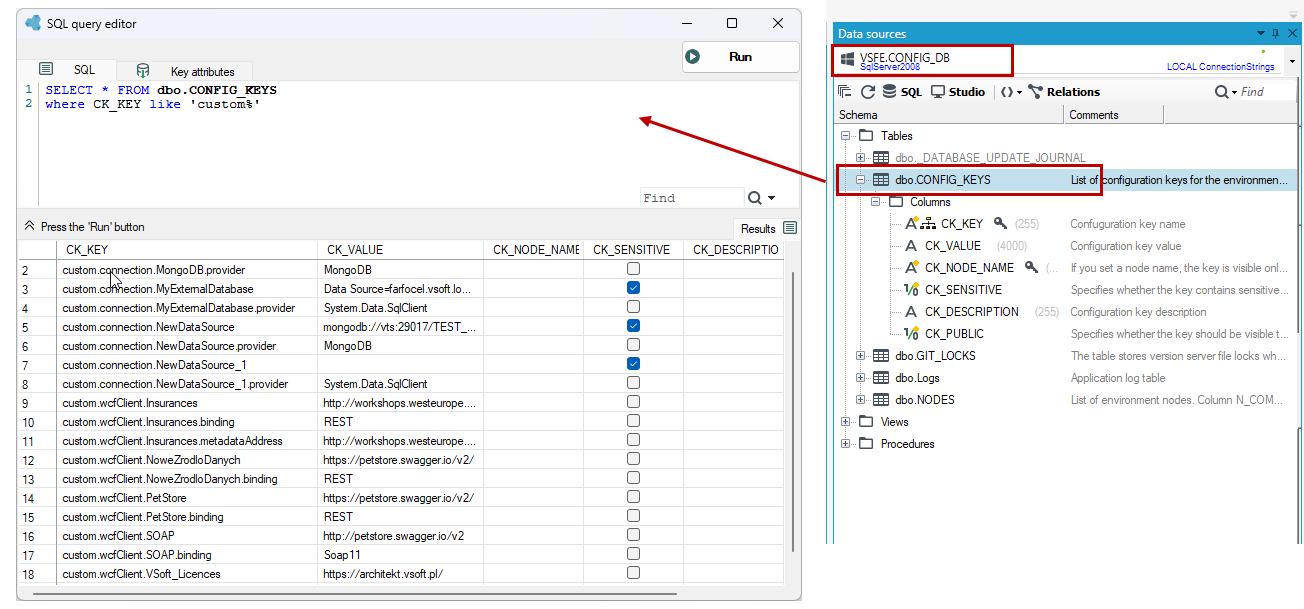
- In addition, the newly configured connection will be automatically added to the technical configuration under the name "custom.connection.[data source name]" and thus will be accessible from other components of the environment.
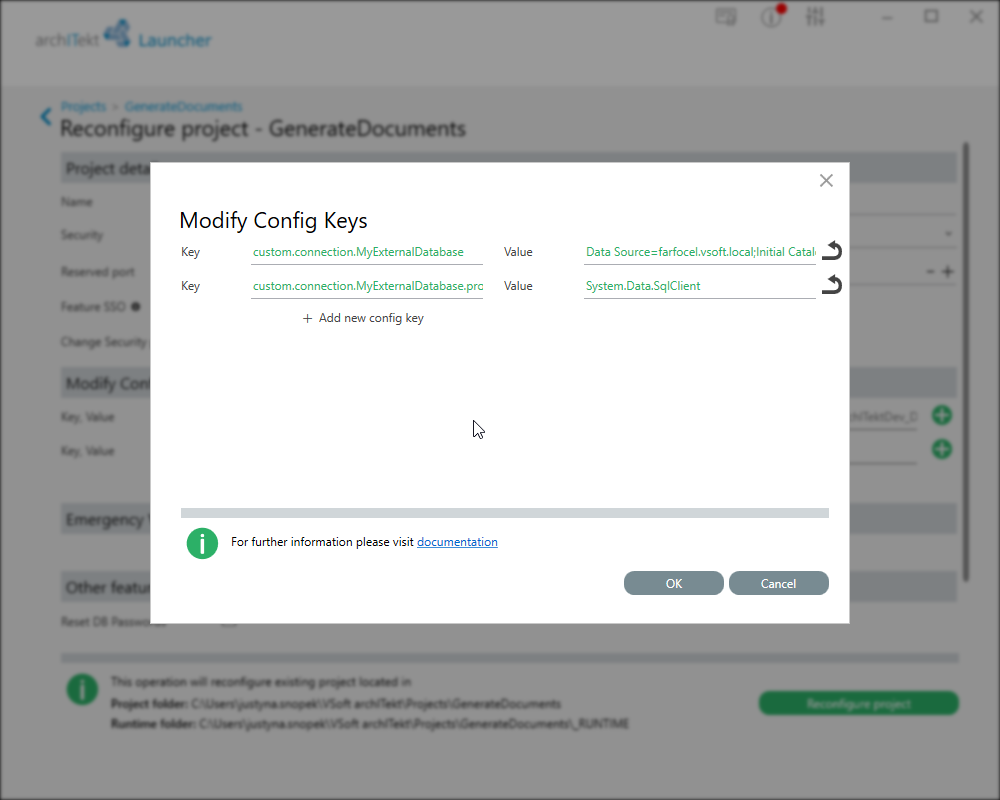
When deploying the application to another environment, remember to configure on it the connection to all external data sources that the application uses. You can do this at the project level by defining user parameters to add in the technical configuration.
Generate scripts
Among other things, the Data sources panel allows you to generate DDL scripts for structures.
- Select the given objects to be generated (tables, views, select multiple tree elements by default - holding the Ctrl key) and from the context menu select Generate script or from the top bar or generate a script for all database objects (the system will confirm such option with an additional confirmation question).
The figure below shows the allowed options for generated scripts.
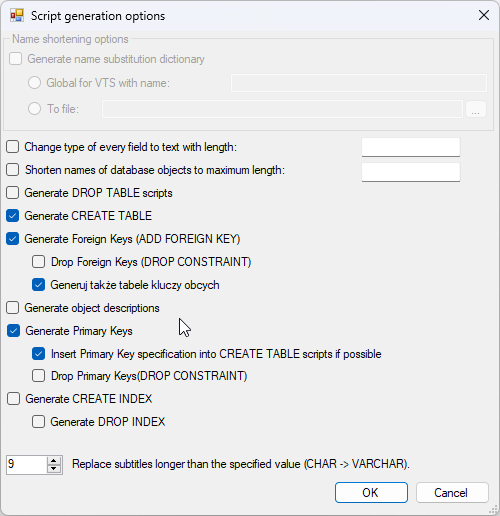
Script generation functionality:
- Offers much greater control over their content, usually not available in management programs provided by database producers (e.g. Sql Server Management Studio).
- Allows, for example, to selectively remove and then (usually in a much later task in the System) set up constraints - foreign and primary keys with selected, unchanged names. This is useful for compatibility with other tools and for optimizing bulk operations, when any index (including those associated with a primary key) causes processing to slow down on bulk writes.
In comparison - the function for mass generation of scripts for the considered primary keys included in MS Sql Management Studio only offers to establish them within the CREATE TABLE command, which is insufficient. Here, in the database panel options, you can disable the "Insert Primary Key specification into CREATE TABLE scripts if possible" switch.