Tasks
In the version server, there is a Main.batch file in the Hierarchy directory, where you can define tasks. Usually there is only one such file in the system.
"Task" is a basic unit of the Tasks Hierarchy. It is an element of the entire hierarchy and it contains the following information:
- task name,
- task type (AssemblyName + TypeName),
- names of tasks – successors,
- parameters – any key-value string pairs with an optional.
<task>
<name>C</name>
<type>archITekt.Runner_Test.Tasks.TestTask;archITekt.Runner_Test.dll</type>
<params>
  key="DbName" value="TEST_DB" />
</params>
<nextTasks>
 <nextTask>D</nextTask>
</nextTasks>
</task>
In the trace database, there is a table which is usually named dbo.TASKS.
Additional elements concerning the task are written in the table, e.g.:
- Task ID,
- Cycle ID and revision ID,
- Current state of the task (see state diagram),
- Progress (specified in parts per thousand: 0-1000),
- Last messages of the task operation, e.g. concerning the cause of not running or aborting the operation,
- Remaining serialized state in the XML format,
- Name of an executable component (forclustering scenarios).
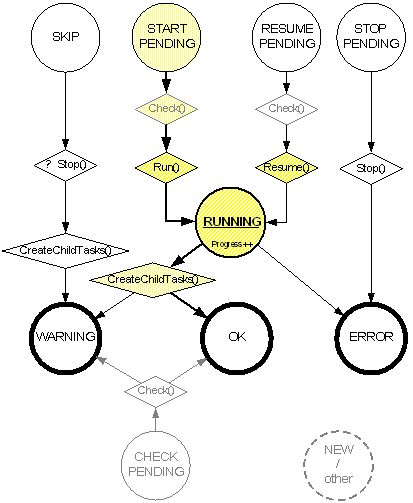
Transitions marked in the state are executed automatically by the TaskManager component. Then, remaining transitions, especially NEW ? START_PENDING, are executed by external mechanisms e.g. web application or UH trigger (Universal Host).
Circles signify states of tasks, including final states (thick line). Rhombuses signify functions performed by tasks:
- Check() – checking start conditions of a task – may be performed securely, without making any changes in environment (therefore it is marked grey),
- Run() – appropriate execution of a task – usually, a long-lasting activity resulting in progress update (Progress++),
- Resume() – resuming after aborting execution, it often leads to identical behavior as Run(),
- Stop() – finishing task execution – after it goes from the SKIP state and the task is not run, it is not performed,
Basic processing path is marked yellow.
Cycle ID ("batch") is a number of processing cycle (e.g. daily, monthly), which is given by the mechanism which enters the task to the base. A subsequent revision ID (from 1) is used in order to record possible problems with task operation (e.g. by a mechanism of automatic resumption).
TaskManager is a central object that manages and controls the process flow.
TaskManager retrieves new tasks to be executed, stops tasks on demand, completes and creates child tasks in accordance with a specified hierarchy. Additionally, TaskManager collaborates with an appropriate task provider (currently database only) and it may attach a hierarchy object that determines successors and predecessors for each task (currently, an XML file with a defined structure is used for this purpose).
The task goes to the task manager in one of a few ways – through entering (usually in the START_PENDING state) to the table TASKS following elements:
- a universal host that runs the task in accordance with its own definitions of "triggers",
- a task name as a main argument to call the program TaskModuleRun.exe,
- part of the code e.g. in a web application.
Since then, the task is controlled by the Task Manager. As a result of successful completion, child tasks may be run (entered as START_PENDING). The Task Manager checks, before they physically execute, if tasks-predecessors are completed (within the current cycle ID, maximum value of revision ID). If not, the tasks will be waiting to be run.
Task Manager records the progress of tasks and transitions between states in the TASKS table records and in the master log (usually directed to the text file). Analysis of the screen from the TASKS table or the mentioned log are the bases to find the reason of a possible problem in the System operation.
Task parameters
Each task definition consists of a definition of parameters' values, in the key-value form. Values are always of a string type.
Values of most of parameters are necessary to correct behavior of the task – they define e.g.:
- path pattern of the file to be loaded,
- separator of the file columns,
- name of database on which the operations should be performed.
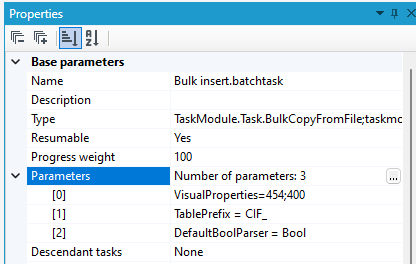
Parameters must have names recognizable by a task. All recognizable parameters have a separate representation in the panel of task properties – e.g. "TablePrefix", here with the value "CIF_".
Parameter values resolving
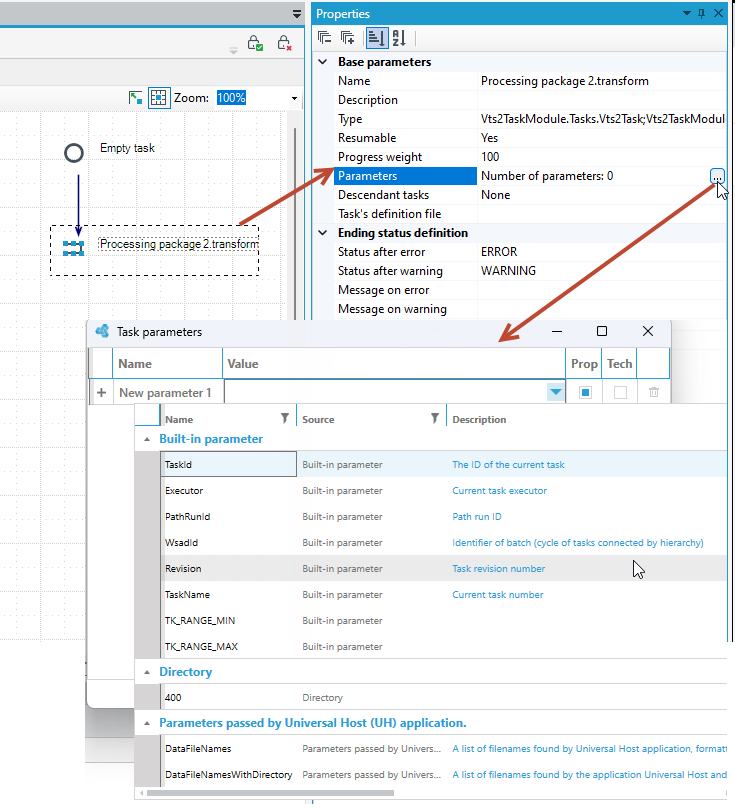
- To set parameters for a task, go to the Properties panel and click the button in the Parameters section.
- In the Task parameters window that opens, you can define parameters.
Two special syntax forms, which are resolved to specific values during execution phase, may be used in the parameters' values:
{Param}Path.txt;DIRECTORY
The first one is replaced by the value of:
- any other parameter (named "Param"), including the one propagated from preceding tasks,
- a global element with such a name (see below),
- a configuration element with such a name.
Another possibility relates to parameters which value will be interpreted as a path. Assuming that a logical name of the directory "DIRECTORY" is configured as c:\directory, the parameter value from the example will be expanded to its completed form c:\directory\Path.txt
Configuration elements usually come from the section appSettings of settings mechanisms of .NET application (the file App.exe.config or files are imported from there).
Example:
You may combine two methods of configuration – see the parameter "DataFile" in the example:
DataFile = {D2}\IBS_CIF_{D1}_{D2}.dat;DATA
It is a reference to the file in the directory with a logical name "DATA", subdirectory with a name being the value of an inherited parameter with the name "D2", where the parameters' values "D1" and "D2" occur in the name.
Global parameters
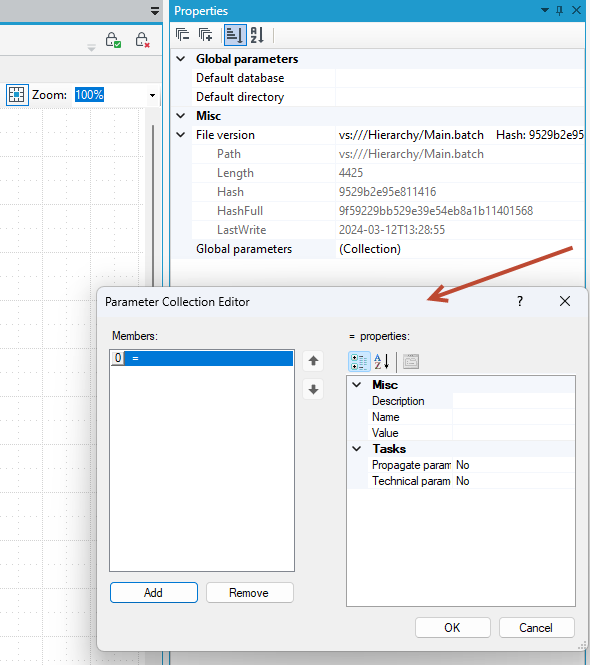
In the Task Hierarchy definition, you may specify global parameters that are assigned not to the task, but to the entire hierarchy definition. You may use the values of these parameters in the parameters definition (as it is described above) or in the tasks (e.g. default names of databases). Definition is done in the Tasks Hierarchy properties (available in the properties panel after empty space of the task editor is selected).
Built-in parameters
TaskId- the Id of the current task.WsadId- identifier of batch (cycle of tasks connected by hierarchy).Revision- number of task revision.TaskName- task name.Executor- current task executor.PathRunId- the identifier of the launch of the input point of the hierarchy - path,
Optional parameters
- With the use of the parameter "Table Parameter[]”" you may specify additional parameters, even those unrecognizable by the task. They may be have an additional feature – propagatability. It means that such parameter will be passed to child tasks together with its value. This simple mechanism is a form of communication between tasks. The task may set values of its parameters during its operation, e.g. you may add parameter "Parameter 1" in the task Packed SQL queries and use SQL script that set its value:
Parameter1 = SELECT TOP 1 x FROM y WHERE […]
Then, the value of this parameter may be used in child tasks by using the mechanism to complete parameters (see above):
Argument= {Parameter1}
Common parameters of all tasks
All tasks in the System have a few common properties (displayed in the section Base parameters in the panel Properties), the most of which are available only for controlling purposes, i.e. there are more convenient ways to edit them or changing the value does not make sense. The properties which are useful to be edited are emphasized.
| Parameters | |
|---|---|
| Descendant tasks | List of tasks-successors. Information is also presented as arrows linking dependencies, since it is the most comfortable to edit using them. |
| Description | Extended description of a task in the context of the System. It is used by other persons working with System definitions, and it also is printed in the so-called Autodocumentation. |
| Name | Task name – also available to be edited after a task is selected on the graph and button F2 is pressed. |
| Parameters | List of all parameters values of a task, including parameters propagated further, used (or not) by the task, that are technical (e.g. about where X-Y element is located on the plane). |
| Resumable | If abortion is detected and task manager's work is resumed by infrastructure, should the task make resumption possible (work continuation from the moment of abortion) or shall it be run from the start. Setting the parameter must be considered in a specific task usage, it may turn out that task resumption in a broader context is useless. |
| Status | Status value set for new tasks. It is not used for some time.By default: START_PENDING. |
| Type | Task type, pointing at a full name of .NET type and .NET assembly name. It has a following form: "typeFullname;assemblyName". For typical tasks, it is completed from the toolbox, for system own tasks, it may (must) be edited. |
| Status after error | Due to this option, it is possible to change the final task status ERROR into another one. E.g. in order to create child tasks and to continue transformation. Any status may be set, not necessarily the one from the list: OK, WARNING, ERROR. |
| Status after warning | Due to this option, it is possible to change the final task status WARNING to another one. E.g. in order to create child tasks and to continue transformation. Any status may be set, not necessarily the one from the list: OK, WARNING, ERROR. |
Faulty situations
Faulty completion of a task in a hierarchy usually leads to transformation being stopped in the System.
The most frequent causes of errors are the following:
- No required input file on a disk or no connection to remote resource.
- (Configuration) error of connection to database.
- Server-side problem of resources availability – amount of memory, space in a transaction log, disk space for output files etc.
In such or similar situations, task hierarchy transformation will be aborted, information from the log will be presented as following (after it is loaded to development environment). Information about execution is presented in a few ways (figure):
- colored rectangles around tasks icons,
- tasks properties – information about execution (time, status, message, …),
- "text preview" panel – usually a message content is longer than space available in the properties list.
Currently displayed cycle ID is changed on the bar at the top of the panel of the task hierarchy editor. In case of selecting an empty value, the view will return to a design mode (properties of task definitions, colored rectangles will disappear etc…).
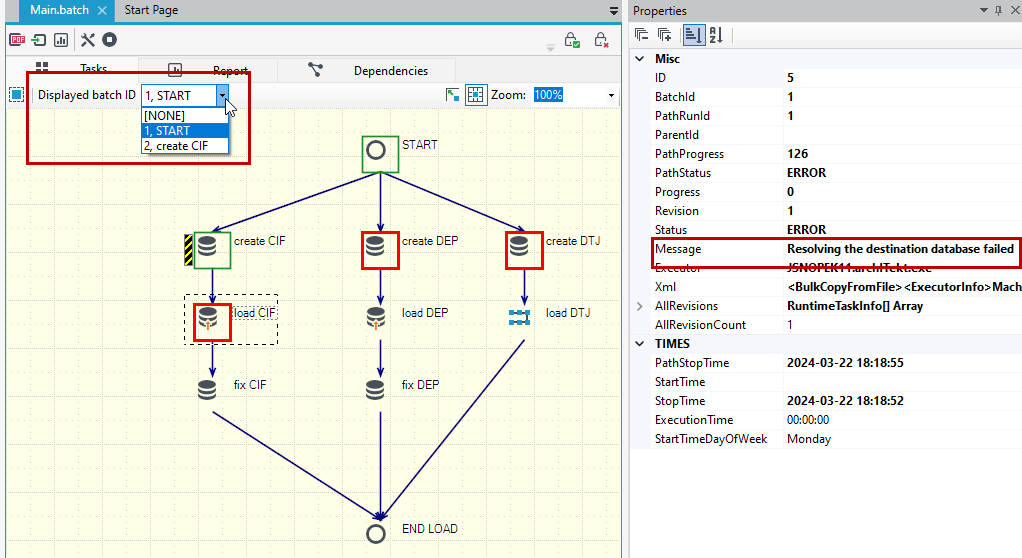
- In the presented situation, the error is that the logical database definition is missing from the configuration. After the error is fixed, the System is still in the status as it is shown in the figure.
In order to fix it, a few actions may be done, depending on available methods and a planned result:
- Run entire transformation from the start.
- Run only faulty tasks from the start (set the status START_PENDING).
- Try to continue faulty tasks (set the status RESUME_PENDING).
- Omit faulty tasks (and e.g. perform their content independently earlier) – set the status SKIP.
The first solution will usually use the succeeding number of the cycle (batch) what may cause problems in some systems if this value is strongly connected with other System elements (e.g. means an entire month of transformation and no duplicates are scheduled).
Remaining solutions will cause using higher so-called numbers of task repetitions within the same cycle.
- Task resumption (RESUME_PENDING) switches found tasks to the error status with an appropriate comment (and it enters information on resumption and the succeeding task ID into its short message), and then it attempts to resume the task. Most of the tasks do not support resumption - they call the procedure of transformation from the start.
- Task omission may be used for the already executed task and for the stopped task. In the first case, the task will be stopped forcibly. In both cases, child tasks will be created, and the omitted task will go into a warning status (WARNING) with an appropriate comment in the message field.
The described actions of changing the statuses may be done in a few ways:
- Directly in database (SQL), on the table
TASKS. - From the development environment after connecting with database (menu Package) and a table.
- From the web screen of the application (when available).
- From the screen of the VSoft Scheduler application.
- With the use of program
archITekt.Runner.exeon an appropriately-configured environment.
Propagation of errors from the data processing
Data processing enables creating many complex ways of data transformation, in which errors may occur. Each of them has the so-called error level assigned (the higher, the more serious).
- E.g. mappings errors (mandatory status, parsing, dictionaries) stand for level 3.
- Level 10 signifies an unexpected exception.
- Level 11 appears when package operation is stopped intentionally after a serious failure is detected (e.g. violation of data merge monotonicity).
Levels of some errors may be modified on the level of a block (level of exceptions may be lowered) or validation rules (an annotation available in the Map in place block).
- Information on the highest error level and number of errors on particular levels manages the final status and the task message. The property Definition of final status is used for it and it enables setting up a "ladder" of the succeeding conditions concerning an error number and an error level.
A default setup causes setting the status WARNING after at least one error of level "9" appears and the status ERROR after at least one error is of level "10".
After package transformation is completed, information on the number of errors and warnings is passed to the message.