archITekt Merger
The archITekt Merger functionality enables resolving conflicts in version server files when working in an environment based on a file version server integrated with a Git repository.
The application is designed to support the process of merging changes when conflicts occur between different versions of files. To enable this functionality, the tool should be integrated with the Git repository and configured as the default merge tool. When conflicts are detected during work with the repository, the tool is automatically launched in the archITekt Studio environment, allowing users to analyze and resolve the conflicts.
The merge tool is installed together with the VSoft archITekt Launcher component. This allows it to be used by all applications created with the launcher and operating on a file-based version server integrated with Git.
When conflicts occur in version server files, the tool automatically identifies the appropriate archITekt Studio instance for the given version server and opens the relevant files for the merge and conflict resolution process.
Configuration
To use archITekt Merger for conflict resolution, the Git merge tool must be configured appropriately.
Edit the gitconfig configuration file and add the following entry defining archITekt Merger as the merge tool:
[mergetool "VSoft.archITekt.Merger"]

        path = c:/Program Files/VSoft/archITekt/Launcher/Tools/VSoft.archITekt.Merger.sh

        cmd = \"c:/Program Files/VSoft/archITekt/Launcher/Tools/VSoft.archITekt.Merger.sh\" \"$BASE\" \"$LOCAL\" \"$REMOTE\" \"$MERGED\"
Then set it as the default merge tool:
[merge]

        tool = VSoft.archITekt.Merger

        guitool = VSoft.archITekt.Merger
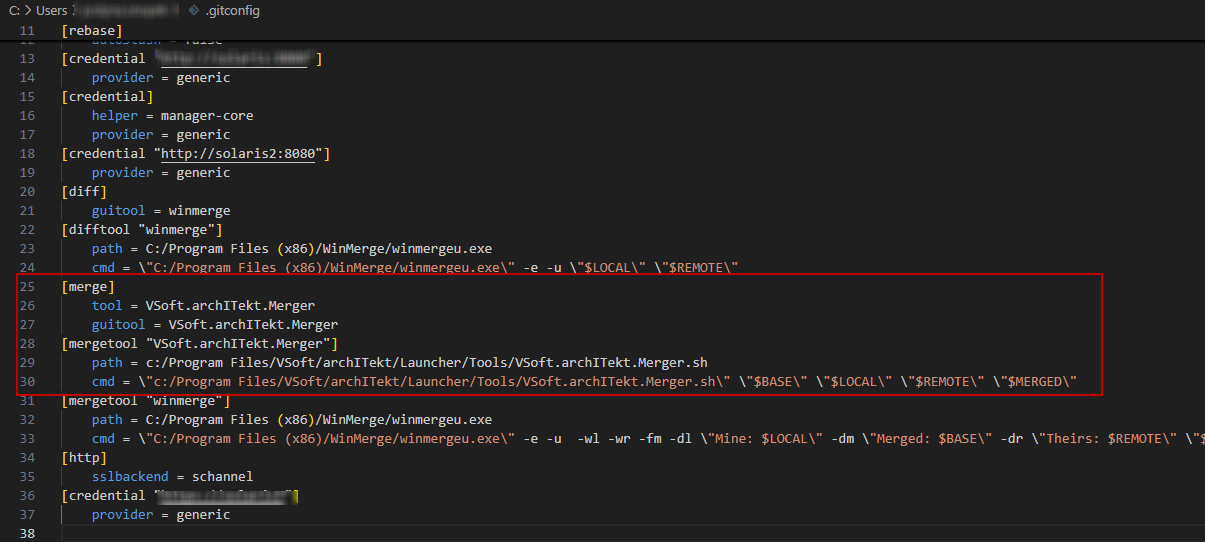
The configuration file is usually located at: C:\Users\YourUser\.gitconfig
Next, edit the following file:
C:\Program Files\VSoft\archITekt\Launcher\Tools\VSoft.archITekt.Merger.sh
In this file, define the path to archITektMerger.exe for example:.:
"C:/Program Files/VSoft/archITekt/Launcher/VSoft.archITekt.Merger.exe" -v "$git_root_path" -b "$base_file_full" -l "$local_file_full" -r "$remote_file_full" -o "$merged_file_full"
You should also define the path and parameters for the default file merge tool, for example:
"C:/Program Files (x86)/WinMerge/winmergeu.exe" -e -u -wl -wr -fm -dl "Mine: $local_file" -dm "Merged: $merged_file" -dr "Theirs: $remote_file" "$local_file_full" "$base_file_full" "$remote_file_full" -o "$merged_file_full"
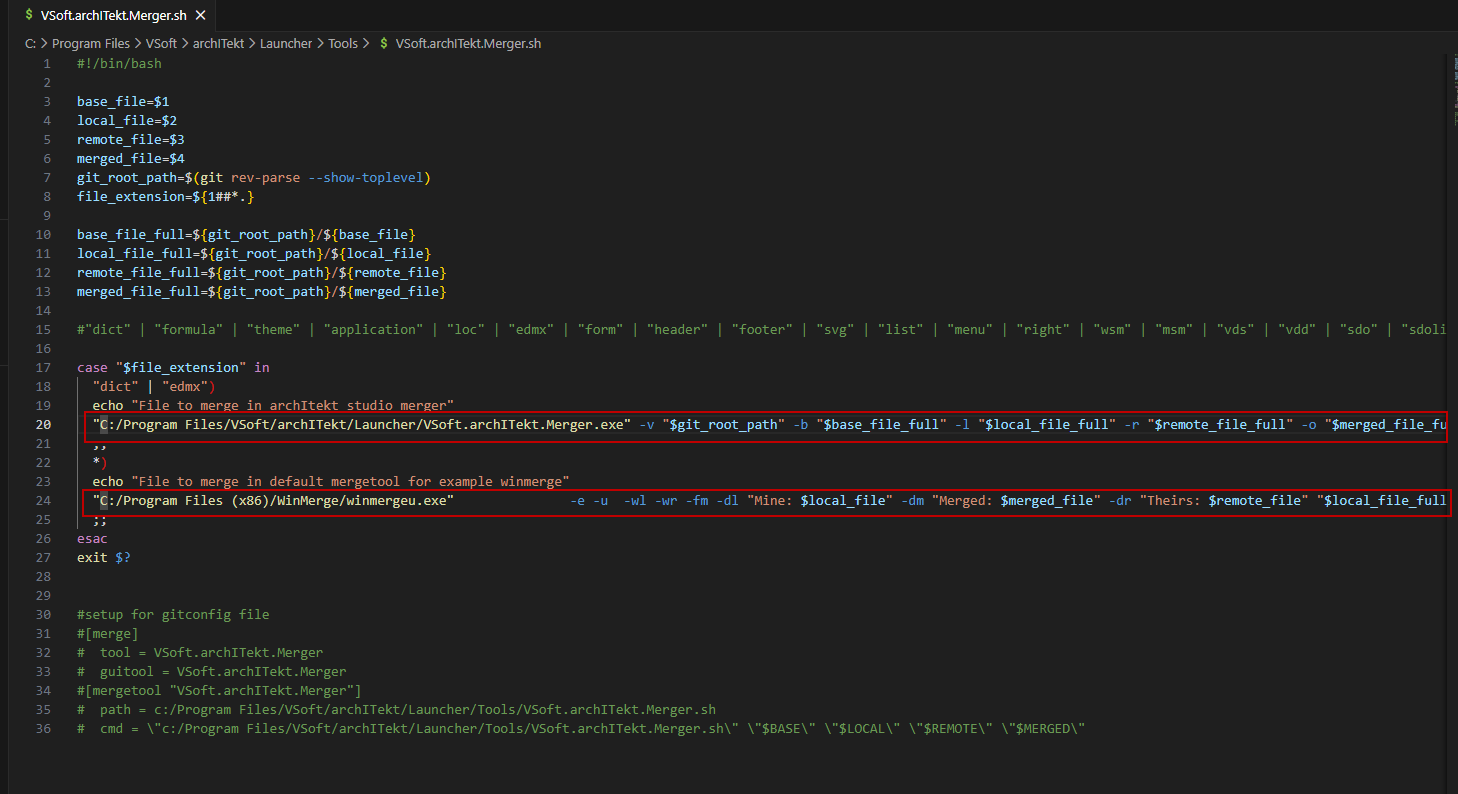
This configuration ensures that archITekt Merger is used only for merging files supported by archITekt Studi o.
If conflicts occur in files that are not supported by this environment, the merge process will be handled by the default merge tool configured in Git.
Launching archITekt Merger
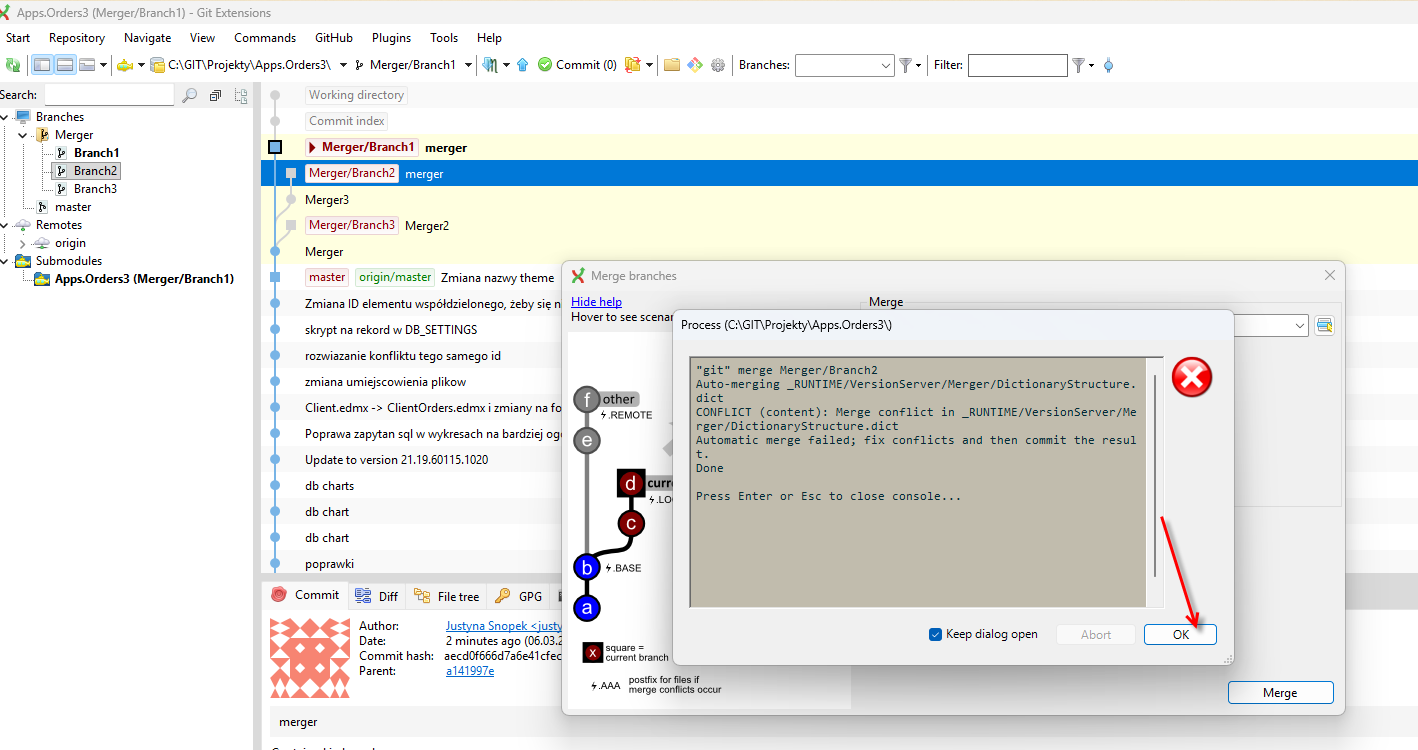
When conflicts occur in version server files, the merge process should be started using the appropriate commands available in Git Extensions.
If a conflict is detected during the operation, the application will notify the user by displaying a message. Confirm the message by selecting OK to proceed with the conflict resolution process.
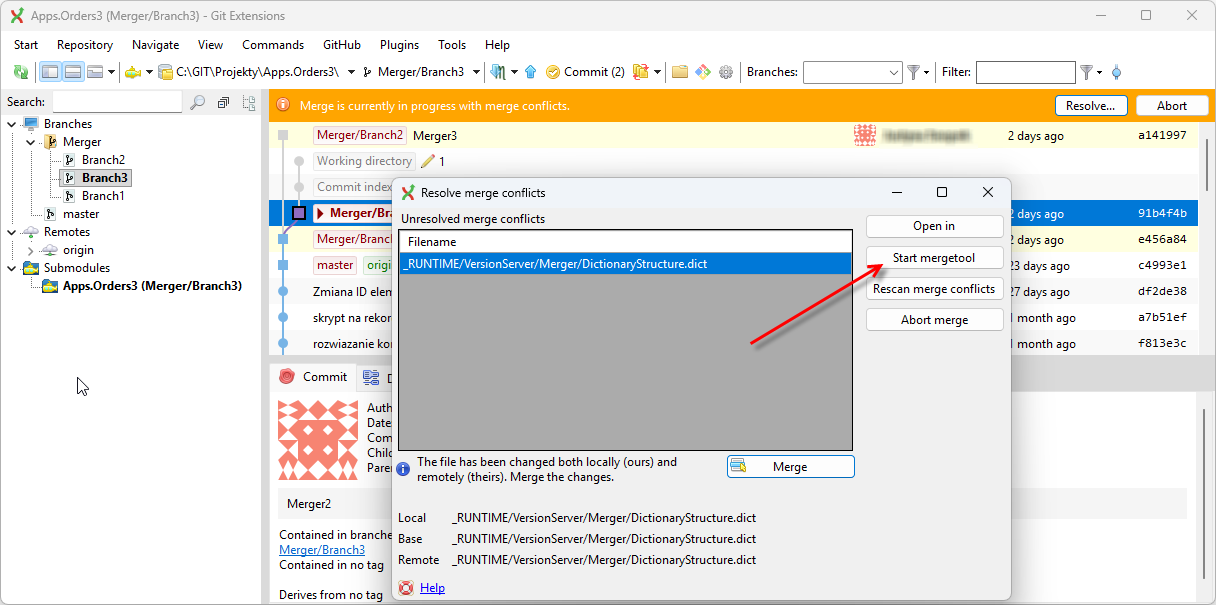
- In the next window, select Start mergetool.
Comparing and Resolving Conflicts
After launching archITekt Merger, the application interface is displayed. It allows the user to determine the correct final version of the file.
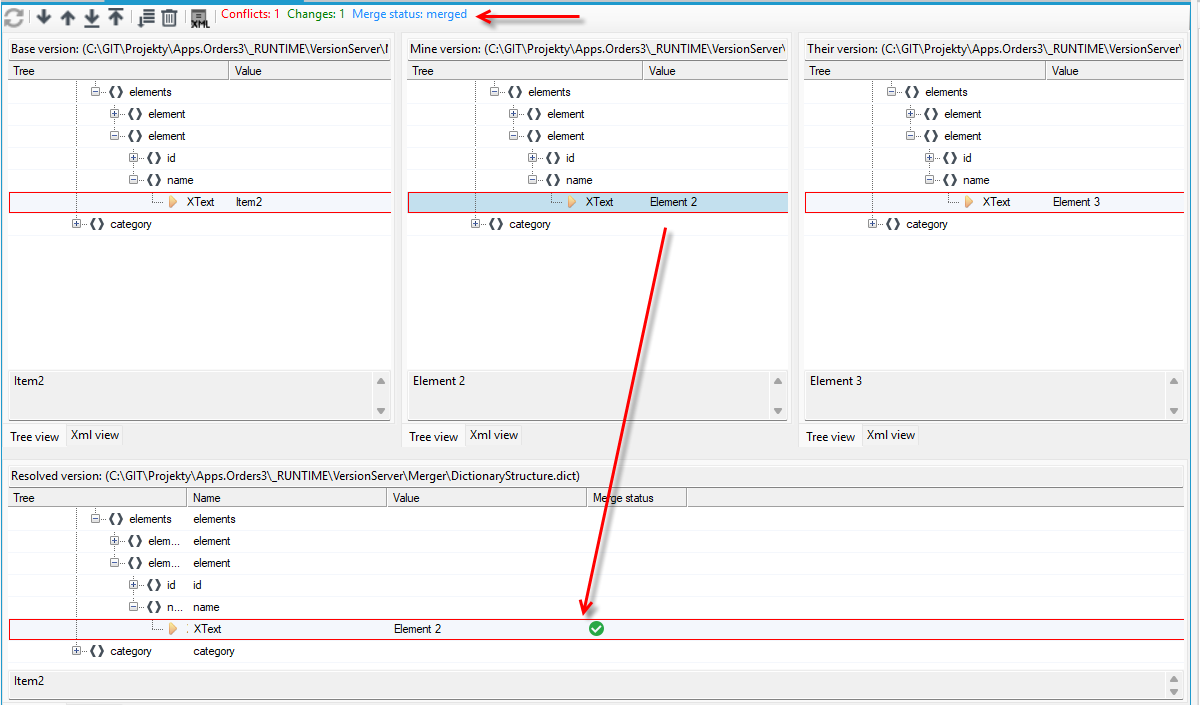
Next, open the Version server conflict merger tab, where several versions of the edited file are presented:
- Base version – the version of the file before any user changes were made.
- Main version (local verison) – the current version belonging to the user who introduced the changes.
- Their version – the version of the file modified by another user in a different branch.
- Resolved version – the final version containing the result of resolving conflicts between the different file versions.
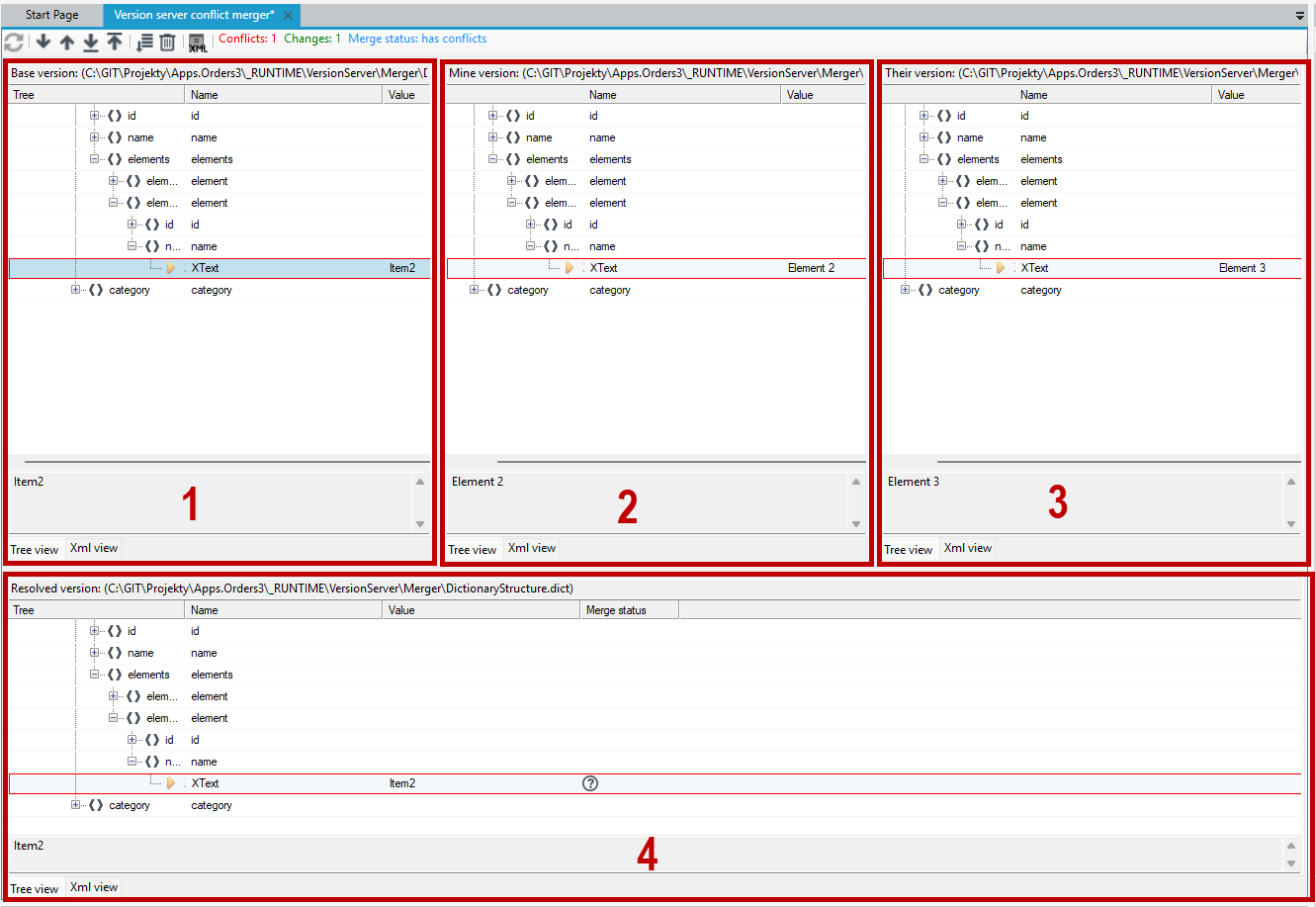
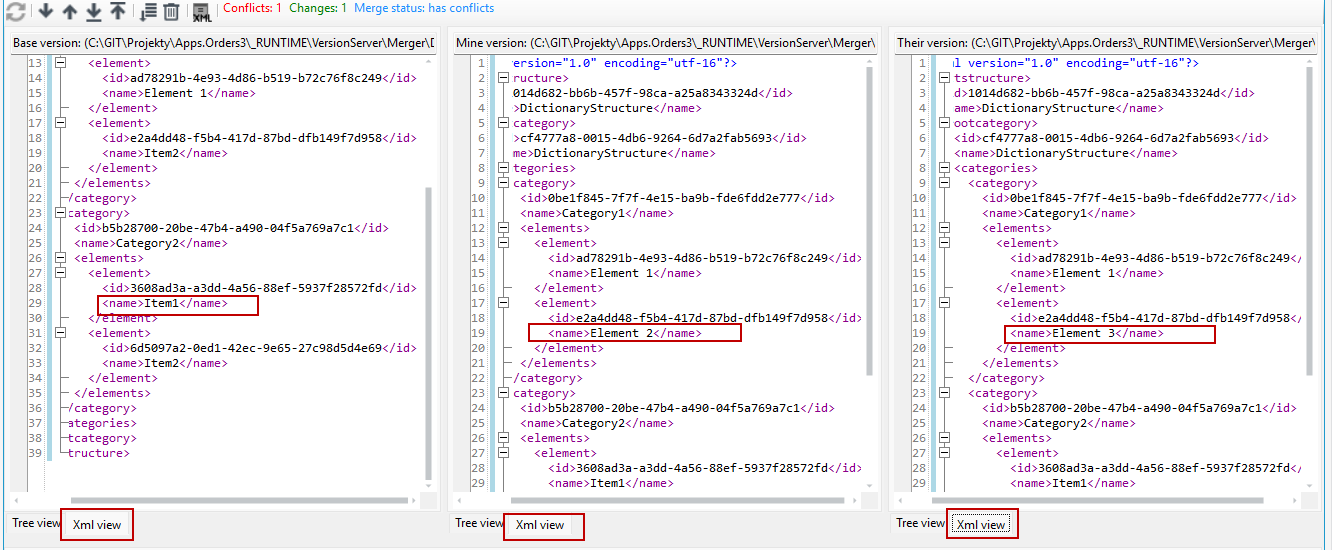
Each file is displayed in a tree structure view. This view can be switched to text mode (XML), which directly represents the file contents in XML format, including elements, attributes, and values.
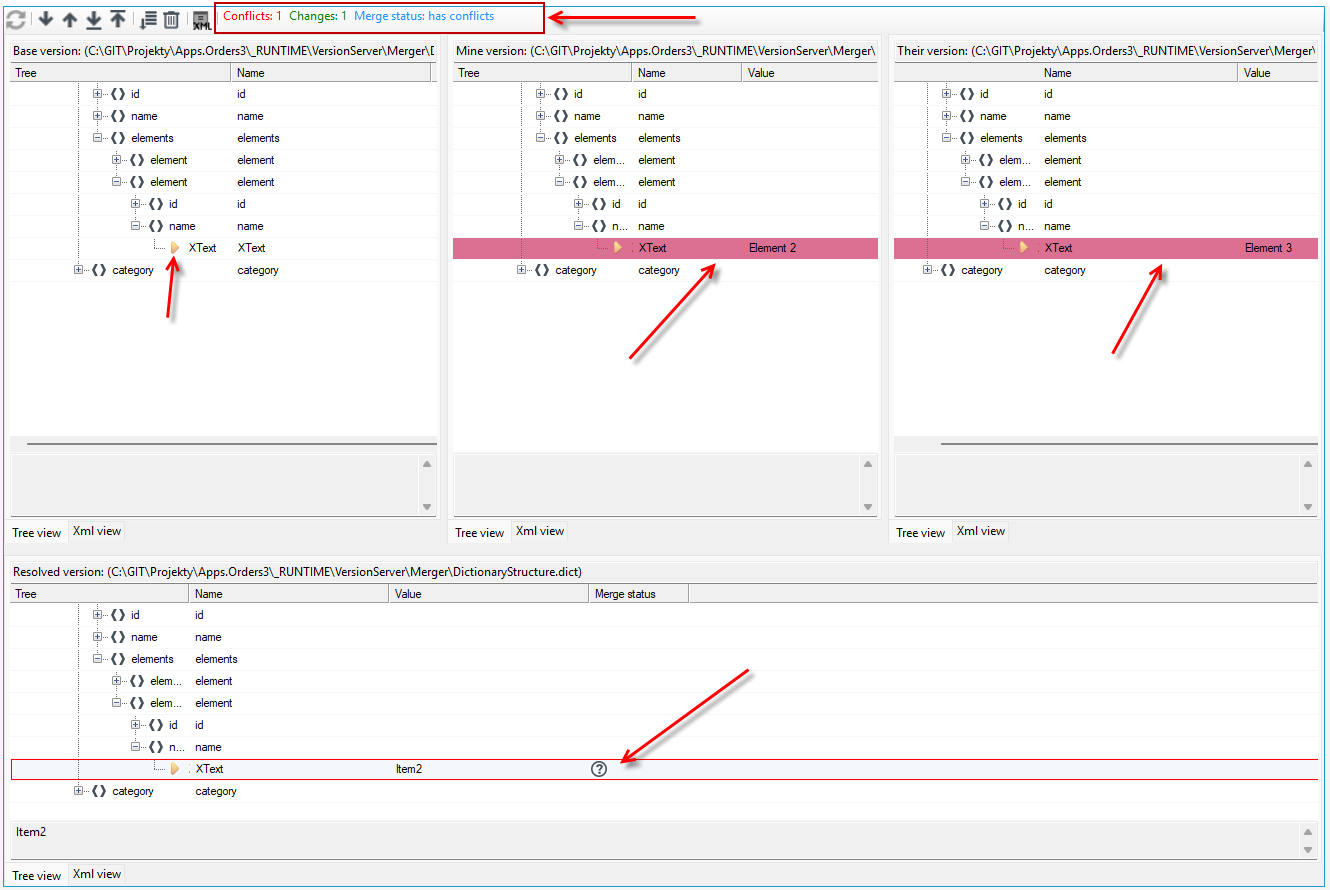
If differences or conflicts occur, the affected elements in the tree structure are highlighted with colors and marked with appropriate icons, making them easier to identify.
The tool analyzes individual file versions, detects differences between them, and—when possible—automatically resolves changes that can be clearly determined. In the tree view for each file version, icons and colors indicate both detected differences and the results of the merge process. Additionally, the top toolbar displays information about detected conflicts and the current merge status.
The user can navigate between individual differences and decide which element in the tree structure should be used to resolve the conflict.
- Right-click the selected element and choose Use this difference from the context menu.
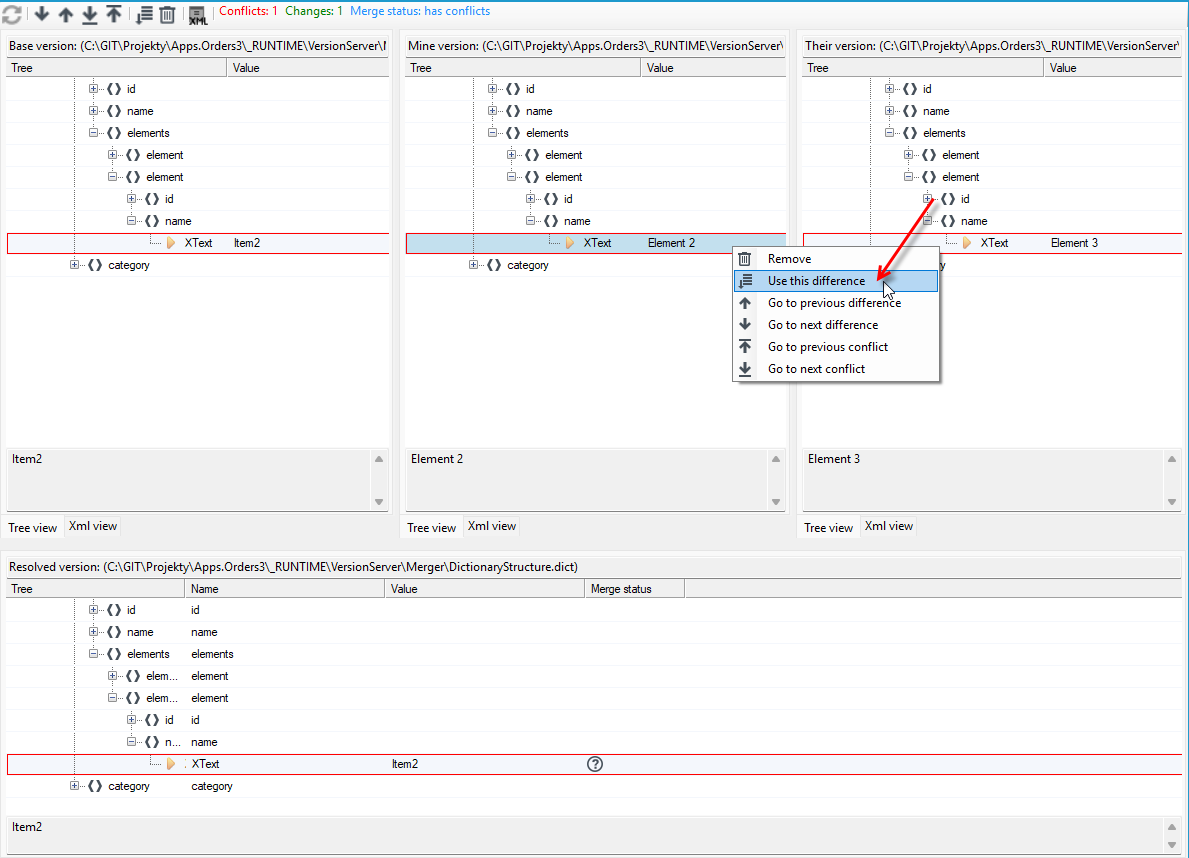
- After selecting a difference, the corresponding changes are automatically transferred to the panel displaying the resolved version. The merge status changes to merged.
- Once the merge process is completed and the changes are saved, the resulting version of the file is stored on the version server and is recognized by Git as a successfully resolved conflict.
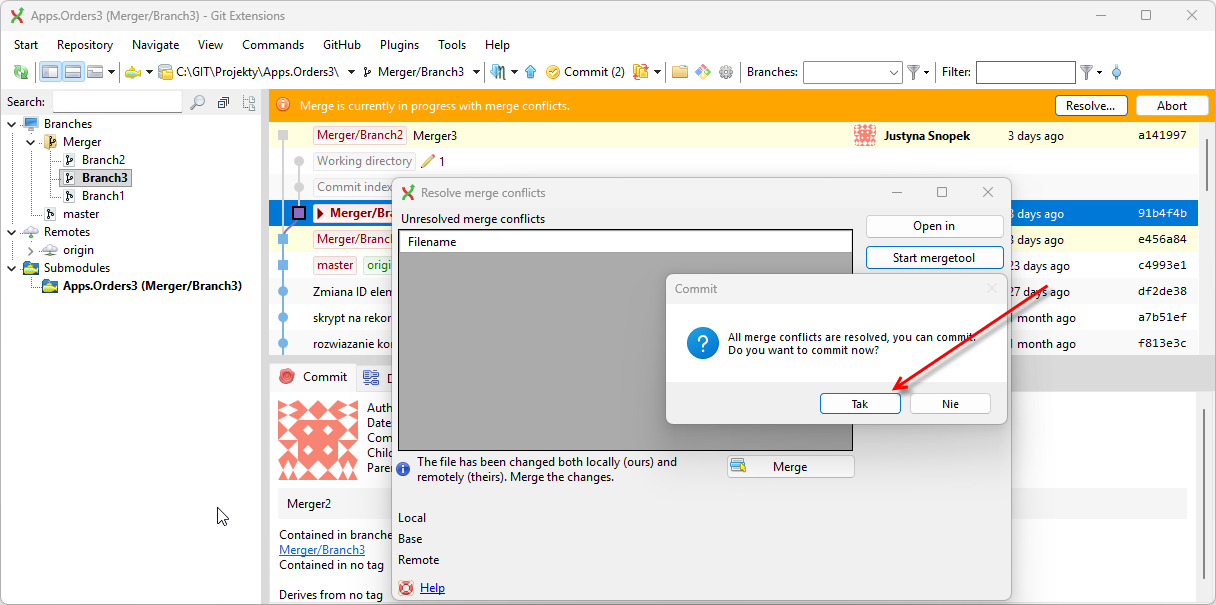
- After closing the tab in archITekt Studio, the user returns to Git Extensions, where the changes can be committed.
Command Line Output
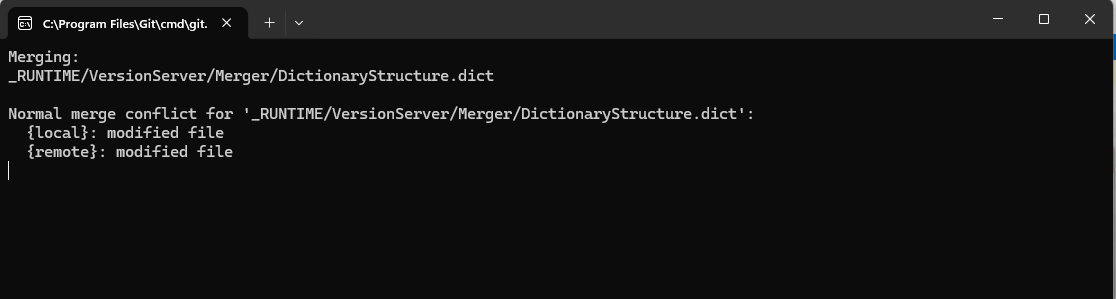
During the merge process, when archITekt Studio is launched, a command-line interface window is also opened. This window may display various diagnostic and technical information related to the operation, including:
- information about launching the merge tool and the parameters passed to it,
- paths to temporary files used during version comparison (e.g., base, local, and remote versions),
- messages about detected conflicts in individual files,
- status information related to the analysis and merge process,
- messages confirming that the resolved version has been saved,
- warnings or error messages if issues occur during the merge process,
- diagnostic logs useful for troubleshooting or reporting issues.
These messages allow users or administrators to monitor the merge process and identify potential issues during change merging.
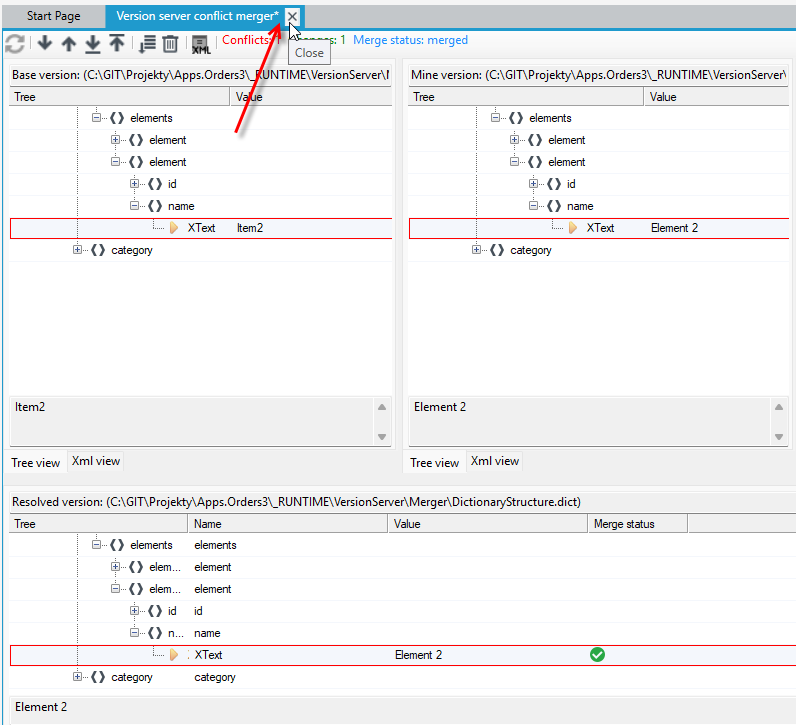
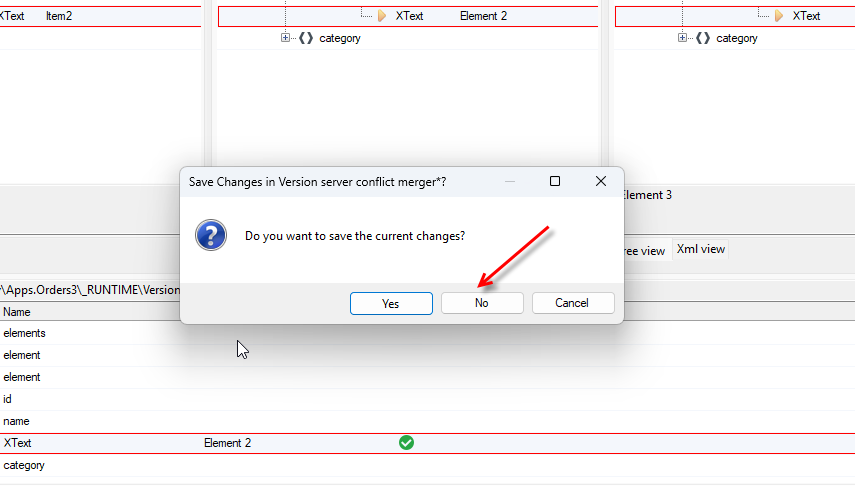
If you want to undo the changes, do not save the file, just select the option to close it.
- Confirm your choice by selecting No.
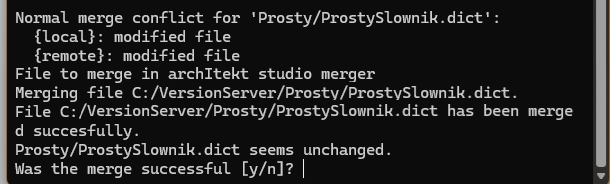
- In the command line, enter n in the line Was the merge successful?
Configuration of the vsoft.architekt.merger.json file
The file vsoft.architekt.merger.json is located in the directory: C:\Program Files\VSoft\archITekt\Launcher\Tools
Its default content is as follows:
\{
          "ProjectJsonPath": "",

           "StudioFilePath": "",

           "VersionServerPath": ""
 \}
The vsoft.architekt.merger.json file should be used when the main directory of the Git repository is organized differently than described in the documentation.
In this file, you should specify the paths to directories containing the following elements:
- ProjectJsonPath – the path to the directory containing the
project.jsonfile, - StudioFilePath – the path to the directory containing the
archITekt.exefile (local version), - VersionServerPath – the path to the directory containing the version server files.
The vsoft.architekt.merger.json file should be placed in the root directory of the Git repository, i.e., in the same location where the .git directory is located.