Database Upgrader
The DatabaseUpgrader tool is used to automatically run SQL scripts during VSoft software upgrades (as part of the database upgrade process). The tool and the scripts to run are part of each installation package.
Purpose of the tool
The documentation is intended for the client-side administrator who runs the tool to update the database, and for both VSoft and client-side developers using the archITekt platform and preparing database update scripts to run through Database Upgrader.
The role of the Database Upgrader tool
With successive versions of the software, VSoft delivers in the installation package both new binaries and SQL scripts to be run on the databases used by the target environments. The Database Upgrader tool serves precisely to run SQL scripts on target databases in a controlled manner.
The tool supports the possibility of upgrading more than one database of a specific environment. The role of the Database Upgrader tool is to check what version the current database is, and whether there are scripts that should be launched on the database. The tool launches the required scripts and at the same time tracks the correctness of their execution and reports any errors.
Preparing scripts to run
-
In the process of updating the database, a very important issue is the correct order in which the scripts are run and whether they were executed correctly or if there were any errors.
-
In order to prevent incorrectness when running scripts, it is necessary to prepare them properly during the development work on the next version of the software.
-
Preparing scripts for execution involves creating an appropriate directory (e.g.
Scripts), which should contain successive folders with names that match the database names (e.g.ConfigandData). Then in each of these folders (their structure is described below) you should place the scripts you want to run on the specified database. All scripts should be encoded using UTF-8 encoding.
Example structure of folders containing scripts:
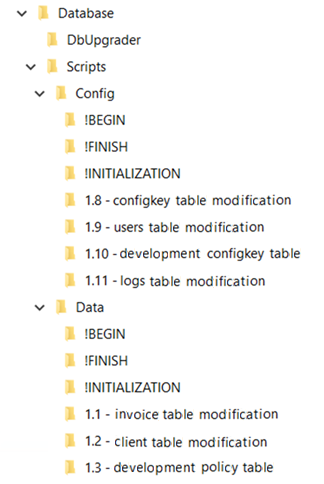
Directories corresponding to databases have the following structure (include):
Special-purpose directories:
!BEGIN!FINISH!INITIALIZATION
Ordinary directories with scripts for each version of the application (the directory numbering corresponds to the application version), e.g.:
- 1.0.1 - ... (optional description in file name)
- 1.0.2 - ...
In such numbered directories with scripts, you should place files with the extension *.sql, which should also be so named (numbered) that they can be sorted from earliest to latest. The optional description in the folder name (after the minus sign "-") is intended as an informative commentary on the contents of the folder. The names (numbers) of folders with scripts, as well as the *.sql file names are important for the correct operation of the database upgrade process, i.e. running the scripts in the order of the natural sorting of the folders and the files themselves (i.e. the same as in Windows Explorer). E.g.:
- 1.8
- 1.9
- 1.10
- 1.11…
So as you work on subsequent versions of the system, create directories and files according to the procedure described in this chapter. The best way to see in which order the scripts will be run is to open a directory with scripts in Windows Explorer and sort them by name.
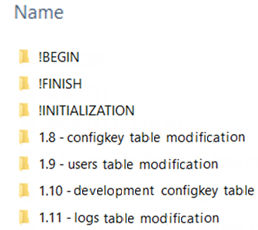
An example of sorting version numbers naturally:
Delivering scripts as archives
- Any elements of the script catalog can be provided in normal form or compressed to one of the formats:
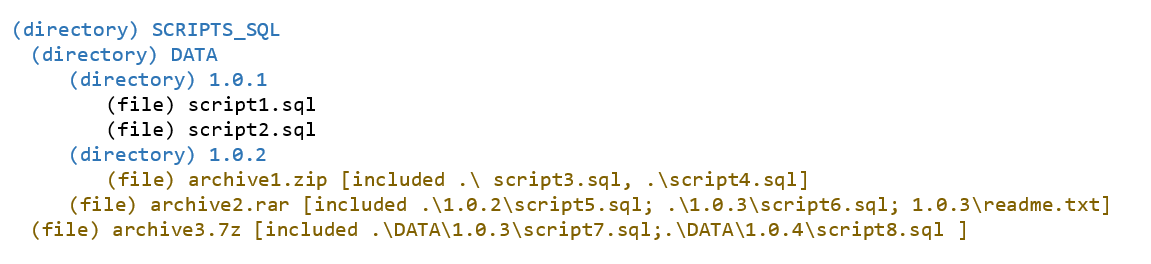
*.zip,*.rar,*.7z - When the tool encounters an archive file in the scripts directory, it changes its method of operation: it does not use the source directory with scripts, but sets up a temporary directory to which it copies all non-archive items, and then uncompresses the contents of the encountered archives (both directories and individual files) into it.
- Once the decompression process is complete, it performs further operations by treating the temporarily created directory as a script source.
An example of how the decompression mechanism works
Thus provided directory containing archives at different levels of cavity:
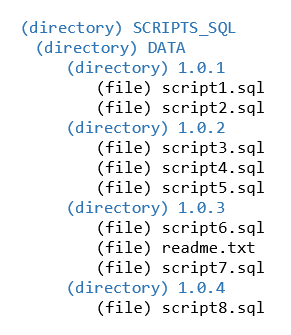
It will be decompressed into a temporary directory with such contents:
Special purpose directories
Directories corresponding to databases include, in addition to the usual directories with scripts, directories with a special purpose. These are the !BEGIN, !FINISH and !INITIALIZATION directories.
| Directory | Description |
|---|---|
!INITIALIZATION | Scripts from this directory are run in a special mode, which is used for setting up databases or uploading the first version. The initialization mode is described in detail in chapter Running in initialization mode. |
!BEGIN | The scripts from this directory will be run before each upgrade process. If the tool detects that it has to run scripts from ordinary directories, it will additionally, at the beginning of each upgrade process, run scripts from the !BEGIN directory. In the !BEGIN directory, you can put, for example, scripts that check something, verify that the database is in the correct state, that everyone is logged out of it, etc. |
!FINISH | Scripts from this directory will be run each time the full upgrade process is completed. In the !FINISH directory, you can place, for example, scripts that perform index rebuilds, statistics recalculation, etc. |
Running Database Upgrader
- Database Upgrader is a console application that runs from the command line.
- To find out how to do it, open the console, navigate to the program's location and run it.
- You will see the syntax of the program, that is, all the commands you can issue.
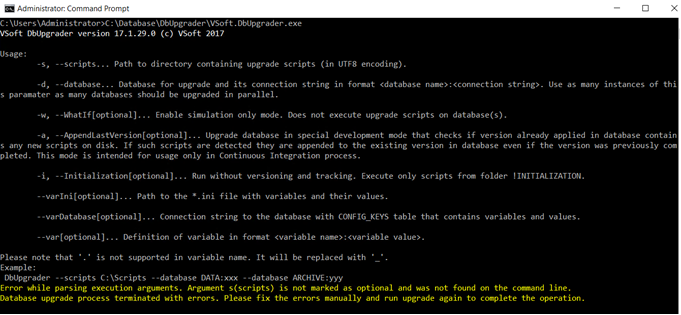
- After specifying the appropriate parameters, Database Upgrader starts processing according to the set parameters.
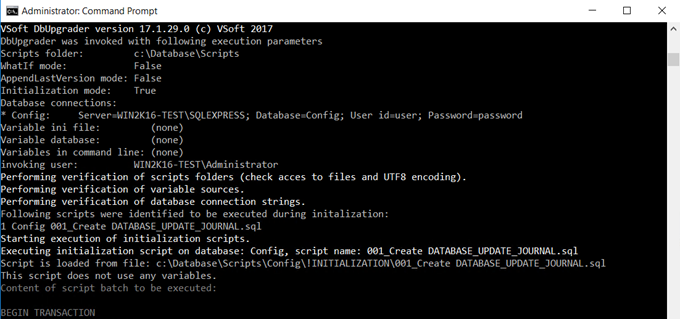
- The most common case of running the program is within installation scripts - these scripts pass all necessary parameters to the program.
- This will be discussed in detail in the chapter Using variables in scripts.
Launch diagnostics
- During the startup of the Database Upgrader application, all launch logs are displayed in the console, and are also saved in a file on disk.
- The logs contain all information about what scripts were run, as well as information about the results and any errors.
- The information displayed on the console and stored in the logs is the primary source of information about processing, so in order to diagnose a possible error, it is necessary to carefully check the information stored there.
In particular, the log contains information such as:
- date of occurrence of the action,
- type of message (debug, info, error),
- informational comment (what was done, the value of some parameter, the name of the scripts that were run, etc.).
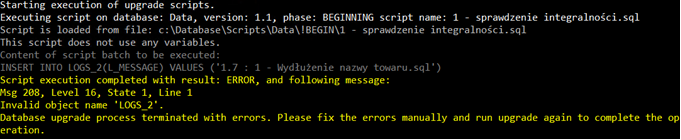
Example log showing a script execution error
- In addition to writing information to the logs, the Database Upgrader tool writes information to the target database - to the
_DATABASE_UPDATE_JOURNALtable. - This table records any running scripts on a given database including additional information such as the date of running, the result, the user running the upgrade, etc.
- Thus, by analyzing the records stored in the table, it is possible to reconstruct any upgrade operations on a particular database that have ever been performed by Database Upgrader.

Example content of the _DATABASE_UPDATE_JOURNAL table
Running in initialization mode
The initialization mode of the Database Upgrader tool allows, among other things:
- setting up the database,
- uploading initial data to the database,
- setting up the
_DATABASE_UPDATE_JOURNALtable in this structure, which allows you to run scripts later in the normal mode of operation.
The initialization mode is usually executed only once for a particular database. Only scripts from the !INITILIZATION directory are executed in this mode.
When running the initialization mode, the current version of the database is NOT checked - only all scripts from the above directory are always executed
Running in WhatIf mode
- In order for the administrator to make sure that the Database Upgrader tool executes the correct scripts, a special
WhatIfmode was created. - During launch, the Database Upgrader tool connects to the target databases to be upgraded and checks what version these databases are currently in. To do this, the program reads the version number and name of the last correctly executed script stored in the
_DATABASE_UPDATE_JOURNALtable, and then compares the corresponding script directories (that is, their versions) with it, and based on this it determines the list of scripts to be run on the database. - In normal launch mode, the next step is to execute the individual scripts.
- In
WhatIfmode, on the other hand, there is only an analysis of the database version, an analysis of the numbers of scripts prepared to run, and a presentation of those scripts that would be run. - The scripts themselves, however, are NOT run.
- Thanks to the
WhatIfmode, therefore, it is possible to check the result of a hypothetical upgrade of the database before running it without making any changes to it.
Using variables in scripts
- When preparing SQL scripts for a database upgrade, the need may arise to use a variable whose value is specified and passed only in the runtime when the script is run.
- Do not confuse the externally passed variables described here with SQL variables declared and used inside the script using the
DECLARE @variable - In that case, this variable should be stored in the SQL script as follows:

Example of using a variable in a script
- The fragment of text marked in this way is an information for the Database Upgrader that this is a variable and that a specific value should be substituted in its place when the script is executed.
Database Upgrader supports retrieving variable values in three ways:
- Specifying the value directly on the command line.
- Saving the values of the variables to a
*.inifile and specifying the name of this file when called on the command line.
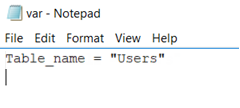
An .ini file containing the values of the variables
- Using the values of variables previously stored in VSoft's technical configuration, that is, in the database table
CONFIG_KEYSIn this case, point the program to the connection string to the database containing this table.
Database Upgrader, after receiving the values of the variables specified in one of these ways, will automatically set them before executing them to scripts, so as to run a script that already has a specific value substituted in place of the variable.
- This allows you to prepare scripts once and then run them on different environments as needed.
- If you do not specify the value of some variable appearing in the script, the execution of the upgrade process will end with an error.
Integration with installation scripts
- Database Upgrader is a standalone tool and can be run independently by specifying the appropriate parameters in the console.
- Most often, however, Database Upgrader is used as a component part of the installation process of a new version of VSoft software.
- In this case, the tool is called from a larger installation script written in PowerShell.
- The
VSoft InstallToolslibrary used to describe installation scripts in PowerShell has anInvoke-VSOFTDbUpgraderfunction that calls the Database Upgrader and passes it all the necessary parameters. - The library and the function do not bring any new functionality - they only allow you to conveniently call Database Upgrader at the right moment of the entire installation and upgrade process written in PowerShell.
For more information about the VSoft InstallTools library, see the separate document Installation Scripts.
Error handling
- During the preparation of the upgrade process and database upgrade scripts, an error may occur. This chapter describes what to do if such a case occurs during database upgrade.
- Note that Database Upgrader runs the scripts in the correct order.
- If it turns out that a script is invalid or the data in the database that the program operates on is invalid (the database is in a state that the script does not anticipate), the script will report an error in that case.
- Since Database Upgrader is not able to fix the target database, it will also stop further processing on the first script that reported this error.
- In such a case, review the
_DATABASE_UPDATE_JOURNALtable and the logs displayed on the screen and find the script causing the error, and in particular the information - which database, which script and what type of error. - To find out the exact cause of the error, you can run the script causing the problem in SQL Server Management Studio in a controlled manner to trace how the script behaved and how the error occurred.
- Details of running Database Upgrader scripts in SQL Server Management Studio are described in Running Scripts in SQL Server Management Studio.
- The most common causes of the error are an invalid script or incorrect data in the database. Depending on the situation, you need to remove one or the other cause manually.
- The easiest and surest step after fixing the error is to restore the previously performed backup of the database where the error occurred and start the process from the beginning. This will automatically repeat the entire process. If this is not possible, then use one of the following solutions.
- If the script causing the error did not perform any modification of the database until the error, or is an idempotent script (i.e., one whose repeated running has the same effect as a one-time use), then simply restart Database Upgrader. The program will continue the upgrade process, that is, it will try to execute the same script again, and if this operation succeeds, it will continue the whole process, that is, execute more scripts.
- If the script causing the error has executed partially, then one of two operations should be performed:
- Manually roll back the partial changes and restart Database Upgrader. In this case, Database Upgrader will execute the same script again.
- Manually execute to completion the operations from the script causing the error and manually add information about the correct execution of this script in the
_DATABASE_UPDATE_JOURNALtable. After that, the Database Upgrader should be restarted. In this case, Database Upgrader will continue the update process from the next script.
Working in developer mode - adding to the last version
Database Upgrader in normal mode immediately after starting checks what version the database is in and if it finds the next versions in the directory with scripts, it proceeds to run the next scripts.
This process is described in detail in the section An example of the upgrade process.
- On the other hand, during application development work (work in continuous integration mode, i.e. when changes made by developers are uploaded to servers on an ongoing basis for testing purposes), the database version number does not change, but new scripts may appear within the same version. This is a situation that occurs only on the side of the software manufacturer (in VSoft's software development department).
- The Database Upgrader tool has a special mode of operation AppendLastVersion (workingly called developer mode), which, unlike the standard operation, consists in the fact that the tool checks in the
_DATABASE_UPDATE_JOURNALtable what is the last version of the database, and, in addition, what script was last run in this version of the database. - The tool then checks in the scripts directory to see if another script is available within the same version.
- In other words, in normal mode the tool checks the data at the version level, and in developer mode at the level of scripts of a particular version. If any new scripts are detected within the same version (e.g., written by a programmer during the previous day), Database Upgrader running in developer mode will run them. This allows you to add more scripts without having to set up new database versions every day.
Table _DATABASE_UPDATE_JOURNAL
- The
_DATABASE_UPDATE_JOURNALtable is used by Database Upgrader to store the history of executed scripts in a given database. - The table also stores information about the current version of this database.
- Based on the contents of the table, Database Upgrader also determines which subsequent scripts should be run during the database upgrade.
- In order for the Database Upgrader to work properly, the
_DATABASE_UPDATE_JOURNALtable must be included in each database undergoing the upgrade process. - Such a table should be created when a clean database is created or when an existing database is upgraded using the Database Upgrader tool.
- One way to create the table is to use the Database Upgrader itself running in initial mode with a script placed that creates the
_DATABASE_UPDATE_JOURNALtable in the!INITIALIZATIONfolder of the appropriate database. - Such a script should also add a single row to the table specifying the database's startup version number.
Description of the individual invoking options
This chapter describes the meaning of the various options that can be used when invoking the Database Upgrader tool, along with examples of their use.
| Name of the option | Description and example |
|---|---|
| -s, --scripts | Required parameter. The path to the directory that contains the scripts to run. The structure of preparing this directory is described in detail in other chapters. Example Vsoft.DbUpgrader.exe --scripts "Scripts" … |
| -d, --database | Required parameter. Database name and connection string to connect to the database with administrator rights in the format : . The parameter can be used multiple times to define connections to multiple databases. Example: Vsoft.DbUpgrader.exe --scripts "Scripts" --database "DATA:Data source=…" --database "CONFIG:Data source=… " |
| -w, --WhatIf | Optional parameter. If this parameter is specified, the application will work according to the chapter Running in WhatIf mode. No scripts will be executed on the databases. Example: Vsoft.DbUpgrader.exe --scripts "Scripts" --database "DATA:Data source=…" --database "CONFIG:Data source=… " –WhatIf |
| a, --AppendLastVersion | Optional parameter. The parameter enables a special mode of the Database Upgrader tool, in which, although all scripts from the last version are running correctly, the presence of new scripts on disk is checked, and if they are present, they will also be run. The mode is used only during the development of the application - not for use during a production database upgrade. The application requires the server to support the STARTTLS protocol extension. In the initial phase, the connection will not be secured. Example: Vsoft.DbUpgrader.exe --scripts "Scripts" --database "DATA:Data source=…" --database "CONFIG:Data source=… " –AppendLastVersion |
| -i, --initialization | Optional parameter. Causes the Database Upgrader tool to run in initialization mode, according to the section Running in initialization mode and executing scripts from the !INITALIZATION directory without versioning. Example: Vsoft.DbUpgrader.exe --scripts "Scripts" --database "DATA:Data source=…" --database "CONFIG:Data source=… " –initialization |
| --VarIni | Optional parameter. For scripts that have variables - the path to the *.ini file that contains the values of these variables. Details of the use of variables are described in the section Using variables in scripts. Example: Vsoft.DbUpgrader.exe --scripts "Scripts" --database "DATA:Data source=…" --database "CONFIG:Data source=… " --VarIni "variables.ini" |
| --VarDatabase | Optional parameter. Connection string to a database that contains the CONFIG_KEYS table with variable values. Details of the use of variables are described in the section Using variables in scripts.Example: Vsoft.DbUpgrader.exe --scripts "Scripts" --database "DATA:Data source=…" --database "CONFIG:Data source=… " –VarDatabase "Data source=…" |
| --var | Optional parameter. The value of a specific variable given in the command line in the format <variable name>:<variable value> The parameter can be used multiple times to define the values of multiple variables. Example: Vsoft.DbUpgrader.exe --scripts "Scripts" --database "DATA:Data source=…" --database "CONFIG:Data source=… " --var Variable1:value1 --var Variable2:value2 |
| --Extensive | Optional parameter. Contains a list of databases for which an update procedure will be forced to run even if the analysis shows that there are no new scripts to run on the given database. |
| --temp | Optional parameter. The temporary directory that will be used to extract the archives. If not specified, the standard Windows temporary directory will be used. |
| --AccessToken | Optional parameter. Allows you to connect to Azure SQL databases using an access token. The token value can be specified directly, or if you specify [azure-managed-identity] in this parameter, the token will be retrieved automatically (if you run the program on an Azure resource with Managed Identity enabled). |
Parallel upgrade of several bases
To ensure that the order of execution of scripts (versions with scripts) during database upgrades corresponds to the order of preparation of scripts (versions) during development work on a solution, the Database Upgrader tool during simultaneous upgrades of several databases will execute the execution of scripts with versions for each database according to the algorithm presented in this chapter.
- The table below shows the status (version) of database 1 and database 2 when the upgrade process began.
| Database 1 | Database 2 | |
|---|---|---|
| Base status | 1.2 | 1.3 |
The next table shows directories with scripts to run on individual databases (directories with scripts from the installation package).
| Database 1 | Database 2 | |
|---|---|---|
| Directory with scripts | 1.1 | 1.1 |
| 1.2 | 1.2 | |
| 1.4 | 1.3 | |
| 1.5 | 1.4 | |
| 1.8 | 1.6 | |
| 1.9 | 1.7 | |
| - | 1.8 |
The tool, after checking the versions of the databases, will proceed to update them (database 1 version 1.2 and database 2 version 1.3) and run (update) the versions of each database in the order of the step numbers described in the table below.
| Step no. | Upgrade for database 1 (up to version) | Upgrade for database 2 (up to version) |
|---|---|---|
| 1. | 1.4 | |
| 2. | 1.4 | |
| 3. | 1.5 | |
| 4. | 1.6 | |
| 5. | 1.7 | |
| 6. | 1.8 | |
| 7. | 1.8 | |
| 8. | 1.9 |
- As shown in the example above, Database Upgrader only runs scripts from directories with version numbers higher than the current database versions, and it does so in parallel (alternating) on both databases - in each successive step, it runs the scripts necessary to update database 1 and then database 2, while keeping the order of the runs consistent with the version numbers from the installation package.
An example of the upgrade process
In this chapter, the rules from the previous sections are demonstrated on a specific case.
- Suppose we have the following scripts to execute:
| Database | Directory | Script |
|---|---|---|
| BAZA1 | !BEGIN | 1 - integrity check.sql |
| 1.1 - invoice table modifications | 1 - adding the possibility to cancel an invoice.sql | |
| 1.2 - client table modifications | 1 - adding a phone column.sql 2 - adding of contact table.sql | |
| 1.3 - extension of the policy table | 1 - adding tables for damages.sql 2 - deleting the old mail table.sql | |
| !FINISH | 1 - recalculation of statistics.sql |
- Before the update begins, the
_DATABASE_UPDATE_JOURNALtable has the following entries:
| ID | DB_VERSION | UPDATE_STATUS | UPDATE_PHASE | SCRIPT_NAME | SCRIPT_EXECUTION_STATUS |
|---|---|---|---|---|---|
| ... | ... | ... | |||
| 9 | 1.1 | IN_PROGRESS | COMPLETED_VERSION | 1 - adding the possibility to cancel an invoice.sql | OK |
| 10 | 1.1 | COMPLETED | FINISHING | 1 - recalculation of statistics.sql | OK |
This means that the previous upgrade to version 1.1 has completed correctly and a new upgrade can be started. The tool detects the fact that there are new scripts to be executed (versions 1.2 and 1.3), and therefore proceeds to perform the upgrade.
- In the tables below, the blue color indicates the items changed in the step.
- At the beginning, the information (addition of a new line) about the start of execution of scripts from the !BEGIN directory is saved:
| ID | DB_VERSION | UPDATE_STATUS | UPDATE_PHASE | SCRIPT_NAME | SCRIPT_EXECUTION_STATUS |
|---|---|---|---|---|---|
| 11 | 1.2 | IN_PROGRESS | BEGINNING | 1 - integrity check.sql | RUNNING |
- The execution of the script follows. In this scenario, we assume that the script executed correctly. The information about this is written to the table (updating the previous row):
| ID | DB_VERSION | UPDATE_STATUS | UPDATE_PHASE | SCRIPT_NAME | SCRIPT_EXECUTION_STATUS |
|---|---|---|---|---|---|
| 11 | 1.2 | IN_PROGRESS | BEGINNING | 1 - integrity check.sql | OK |
- The tool proceeds to execute scripts related to version 1.2, that is, as before, it first saves the information before executing the script:
| ID | DB_VERSION | UPDATE_STATUS | UPDATE_PHASE | SCRIPT_NAME | SCRIPT_EXECUTION_STATUS |
|---|---|---|---|---|---|
| 11 | 1.2 | IN_PROGRESS | BEGINNING | 1 - integrity check.sql | OK |
| 12 | 1.2 | IN_PROGRESS | UPGRADING_VERSION | 1 - adding a phone column.sql | RUNNING |
- The script is executed (we assume correctly) and when it is finished, the information about the correct completion is saved:
| ID | DB_VERSION | UPDATE_STATUS | UPDATE_PHASE | SCRIPT_NAME | SCRIPT_EXECUTION_STATUS |
|---|---|---|---|---|---|
| 11 | 1.2 | IN_PROGRESS | BEGINNING | 1 - integrity check.sql | OK |
| 12 | 1.2 | IN_PROGRESS | UPGRADING_VERSION | 1 - adding a phone column.sql | OK |
- The second script from version 1.2 is handled in an analogous way, and after its correct execution we have the following state in the table:
| ID | DB_VERSION | UPDATE_STATUS | UPDATE_PHASE | SCRIPT_NAME | SCRIPT_EXECUTION_STATUS |
|---|---|---|---|---|---|
| 11 | 1.2 | IN_PROGRESS | BEGINNING | 1 - integrity check.sql | OK |
| 12 | 1.2 | IN_PROGRESS | UPGRADING_VERSION | 1 - adding a phone column.sql | OK |
| 13 | 1.2 | IN_PROGRESS | COMPLETED_VERSION | 2 - adding of contact table.sql | OK |
- In the case of a parallel upgrade of several databases, Database Upgrader can now check whether another database needs to be upgraded to version 1.2.
- If so, it upgrades the other database in a similar manner.
- In this scenario, we assume that either there is no need, or the upgrade of the other database was successful.
- In this case, Upgrader returns to this base and proceeds to run scripts from the next version - 1.3.
- Analogously, as before, it executes the first script successfully.
- After its execution, we have the status:
| ID | DB_VERSION | UPDATE_STATUS | UPDATE_PHASE | SCRIPT_NAME | SCRIPT_EXECUTION_STATUS |
|---|---|---|---|---|---|
| 11 | 1.2 | IN_PROGRESS | BEGINNING | 1 - integrity check.sql | OK |
| 12 | 1.2 | IN_PROGRESS | UPGRADING_VERSION | 1 - adding a phone column.sql | OK |
| 13 | 1.2 | IN_PROGRESS | COMPLETED_VERSION | 2 - adding of contact table.sql | OK |
| 14 | 1.3 | IN_PROGRESS | UPGRADING_VERSION | 1 - adding tables for damages.sql | OK |
- The next script to execute is the "2 - deleting the old mail table.sql" script. Before running this script, this information is saved:
| ID | DB_VERSION | UPDATE_STATUS | UPDATE_PHASE | SCRIPT_NAME | SCRIPT_EXECUTION_STATUS |
|---|---|---|---|---|---|
| 11 | 1.2 | IN_PROGRESS | BEGINNING | 1 - integrity check.sql | OK |
| 12 | 1.2 | IN_PROGRESS | UPGRADING_VERSION | 1 - adding a phone column.sql | OK |
| 13 | 1.2 | IN_PROGRESS | COMPLETED_VERSION | 2 - adding of contact tabl.sql | OK |
| 14 | 1.3 | IN_PROGRESS | UPGRADING_VERSION | 1 - adding tables for damages.sql | OK |
| 15 | 1.3 | IN_PROGRESS | UPGRADING_VERSION | 2 - deleting the old mail table.sql | RUNNING |
- Suppose this script ends with an error. In this case, the information is written as follows:
| ID | DB_VERSION | UPDATE_STATUS | UPDATE_PHASE | SCRIPT_NAME | SCRIPT_EXECUTION_STATUS |
|---|---|---|---|---|---|
| 11 | 1.2 | IN_PROGRESS | BEGINNING | 1 - integrity check.sql | OK |
| 12 | 1.2 | IN_PROGRESS | UPGRADING_VERSION | 1 - adding a phone column.sql | OK |
| 13 | 1.2 | IN_PROGRESS | COMPLETED_VERSION | 2 - adding of contact table.sql | OK |
| 14 | 1.3 | IN_PROGRESS | UPGRADING_VERSION | 1 - adding tables for damages.sql | OK |
| 15 | 1.3 | IN_PROGRESS | UPGRADING_VERSION | 2 - deleting the old mail table.sql | ERROR |
- At this point Upgrader terminates its operation, signaling to the user an upgrade error.
- The last record shows the version number and the name of the script that was executed last.
- In addition, the statuses show that the database is being upgraded and cannot be used normally.
- The user's task is to fix the situation manually according to the previously described rules (data repair, script repair, adding an additional script, etc.). After the manual steps, the user must restart Database Upgrader to complete the upgrade.
- Let's assume that the solution to the problem was to repair the data in the database or to correct the script "2 - deleting the old mail table.sql".
- After restarting Upgrader, the tool searches the table for the last running script (it is in line ID=15), checks the result of the previous execution and since it is an error it then proceeds to re-execute the same script ("2 - deleting the old mail table.sql").
- As always, the information about proceeding to run the script is recorded (a new line with SCRIPT_EXECUTION_STATUS = RUNNIG).
- When the execution is completed, this line is modified according to the results of the execution.
- Let's assume that this time the script executes correctly and this is the last script of the version.
- The table looks as follows in this case:
| ID | DB_VERSION | UPDATE_STATUS | UPDATE_PHASE | SCRIPT_NAME | SCRIPT_EXECUTION_STATUS |
|---|---|---|---|---|---|
| 11 | 1.2 | IN_PROGRESS | BEGINNING | 1 - integrity check.sql | OK |
| 12 | 1.2 | IN_PROGRESS | UPGRADING_VERSION | 1 - adding a phone column.sql | OK |
| 13 | 1.2 | IN_PROGRESS | COMPLETED_VERSION | 2 - adding of contact table.sql | OK |
| 14 | 1.3 | IN_PROGRESS | UPGRADING_VERSION | 1 - adding tables for damages.sql | OK |
| 15 | 1.3 | IN_PROGRESS | UPGRADING_VERSION | 2 - deleting the old mail table.sql | ERROR |
| 16 | 1.3 | IN_PROGRESS | COMPLETED_VERSION | 2 - deleting the old mail table.sql | OK |
- Since the application of all the scripts of a given version has been completed, Upgrader checks whether another database needs to be upgraded to the same version.
- If so, it performs the upgrade.
- The last step is to execute the scripts from the !FINISH directory. After their successful execution, the contents of the table look as follows:
| ID | DB_VERSION | UPDATE_STATUS | UPDATE_PHASE | SCRIPT_NAME | SCRIPT_EXECUTION_STATUS |
|---|---|---|---|---|---|
| 11 | 1.2 | IN_PROGRESS | BEGINNING | 1 - integrity check.sql | OK |
| 12 | 1.2 | IN_PROGRESS | UPGRADING_VERSION | 1 - adding a phone column.sql | OK |
| 13 | 1.2 | IN_PROGRESS | COMPLETED_VERSION | 2 - adding of contact table.sql | OK |
| 14 | 1.3 | IN_PROGRESS | UPGRADING_VERSION | 1 - adding tables for damages.sql | OK |
| 15 | 1.3 | IN_PROGRESS | UPGRADING_VERSION | 2 - deleting the old mail table.sql | ERROR |
| 16 | 1.3 | IN_PROGRESS | COMPLETED_VERSION | 2 - deleting the old mail table.sql | OK |
| 17 | 1.3 | COMPLETED | FINISHING | 1 - recalculation of statistic.sql | OK |
- From the last row of the table you can read the version of the database (1.3) and information about the successful completion of the upgrade, that is, the ability to use the database for production purposes.
Extensive Mode
- Enabling Extensive mode on a given database forces the update procedure to be run every time, even if the execution analysis shows that no script should be run on that database.
- Using this mode is worth considering if the
!BEGINand!FINISHdirectories contain scripts that you want to execute every time the database is replaced - even when the database structure has not changed.
Running scripts in SQL Server Management Studio
- Database Upgrader runs scripts stored on disk automatically.
- If for some reason there is a need to run scripts "manually", such as in the diagnostic process or during script preparation, this can be done in SQL Server Management Studio. In special cases, all scripts in the catalog can be run manually in this way.
- If the script you want to run in SQL Server Management Studio does not contain variables, then after the program loads the file and connects to the corresponding database, run the script. The file will be loaded in the same way as by the Database Upgrader tool. If, on the other hand, the script contains variables, then you need to remember the steps involved in handling them.
- The first action in this case is to enable the SQLCMD Mode option in SQL Server Management Studio in the Query menu (figure below).

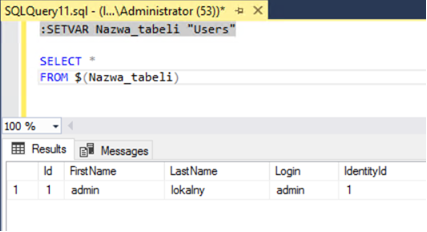
- Then, in a script that contains some variables, add a :SETVAR statement at the beginning, giving the name of the variable and its value.
- In the same way, give values to all subsequent variables from the script. After extending the script in this way, you can run it with the F5 button - it will be executed in the same way as by the Database Upgrader tool. Such a situation is shown in the figure below.
Minimum version of the database
- In order to avoid the need to include very old scripts in each installation package containing the Database Upgrader tool, it is possible to specify which oldest version of the database a given set of scripts supports.
- This is useful when we know that all the databases in use have already been upgraded to a given version and there will be no need to support earlier versions.
- The number of the oldest supported database version should be placed in the MinimumDatabaseVersion.txt file located in the main directory with scripts. Once you have determined the minimum supported database version, you can remove those for earlier versions from the set of scripts.
- Database Upgrader checks whether the legacy databases subject to the upgrade process have at least the version specified in the file. If so, the attached set of scripts allows you to upgrade these databases.
- If at least one of the databases is in an earlier version than the one specified in the file, Database Upgrader will not make any modifications and will report an error. This means you need to have a set of scripts that includes the older scripts needed to upgrade the old database.
Database Upgrader - best practices
Backup the database before starting the upgrade process
- Database Upgrader is a tool whose main task is to run the right scripts in the right order on the right database.
- In the expected case, all the scripts will be executed correctly. However, there may be a situation in which one of the scripts ends up with an error, which in the worst case can even lead to data corruption in the database.
- For this reason, it is highly recommended that you backup the database before the upgrade using separate administrative tools designed for this purpose.
- In case of an unexpected error, this will provide an additional opportunity to repeat the entire upgrade process from the beginning after restoring the last version of the database.
Test the upgrade process on a copy of the database
- Database Upgrader performs the upgrade process in a fully automatic manner.
- This allows you to fully test the process on a copy of the databases before running it on the production environment.
- In this way, you can test the correctness of the process itself, as well as estimate its duration.
Properly prepare the content of each
- It is good practice to place each logically consistent change in a separate script file.
- At the beginning of the script content, non-intrusive checks and verifications can be made to ensure that the rest of the script executes correctly.
- If there is an error in the execution of a particular script, Database Upgrader will pause the execution of the update on the instruction causing the error, and when restarting it will once again resume the erroneous script from the beginning.
- This means that it is better if the possible error is reported by the verifying instruction rather than the one that changes the data, because in the former situation there is no data corruption and the need for manual repair.