Installing the application on the OnPremises environment
Installation steps
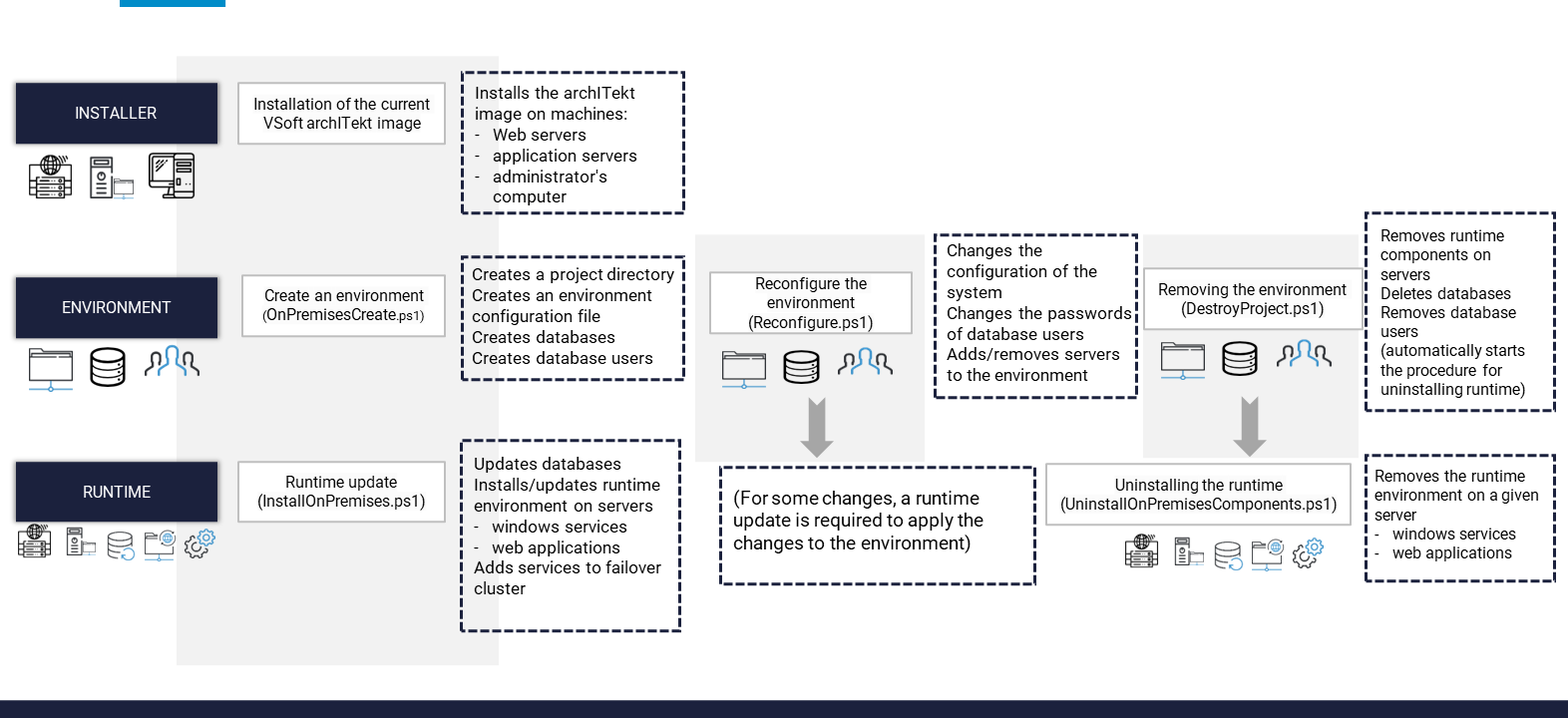
Installation of the actual VSoft archITekt image
The archITekt image can be downloaded from the link available after logging into the extranet. There are 3 versions of the image available:
- Online installer for the developer (contains VSoft archITetkt components in addition to VSoft archITekt Launcher and tools for local application building).
- Online installer for the server (contains VSoft archITetkt components only).
- -Offline installer for server (includes VSoft archITetkt components only - version for installation on environments without Internet access).
Installed archITekt image, by default in the path C:\Program Files\VSoft\archITekt\Images\[version] The image must be installed on all machines. If you run the next steps from the administrator's computer - also on it.
Create environment / Reconfigure environment / Delete environment
These steps work with the environment directory, which is used only for the purpose of running installation scripts (the environment runtime does not have access to this directory). The directory stores the full configuration of the environment. Modifications to the environment are saved in files contained in this directory.
Update runtime
This step automatically creates/updates the runtime component configuration to match the definition stored in the environment configuration directory. If you make changes to the environment configuration, in most cases it is mandatory to run this script to update the runtime components
Uninstall runtime
This step removes the runtime components from the server. It is automatically run by the "Removing the environment" script. It is also possible to run it yourself on the server, for example, when the server has been unplugged from the environment.
Note that even if this script is run accidentally, then running the "Runtime update" script will install the environment components on the server where they are missing.
Installation of the project
The process of creating, installing and managing the environment is performed with PowerShell scripts.
The creation and installation of the OnPremises environment is performed in two stages:
Environment creation and management:
- OnPremisesCreate - creates a new environment. Creates an environment, user, and environment database directory on the database server.
Additional project management scripts are:
- DestroyProject - removes whole the environment. Remove the environment database, its associated users, and the project directory from the database server.
- PackageImport - imports the new version of the application into the environment. It updates the environment directory with the new application version files. After updating the environment catalog, you must update the application components.
Installation/update of application components on the server(s)
- InstallOnPremises - is used to install, update and remove environment components (web applications, websites) on servers; it performs an update of the environment databases.
All the PowerShell scripts mentioned in this chapter are located in the directory where the archITekt image was installed (by default C:\ProgramFiles\VSoft\archITekt\Images\[image name]).
All PowerShell scripts mentioned in this chapter need to be run with administrator rights (they version it at the beginning of their operation).
PowerShell scripts do not back up databases. It is the administrator's responsibility to prepare a policy for creating backups of the application databases.
Hints:
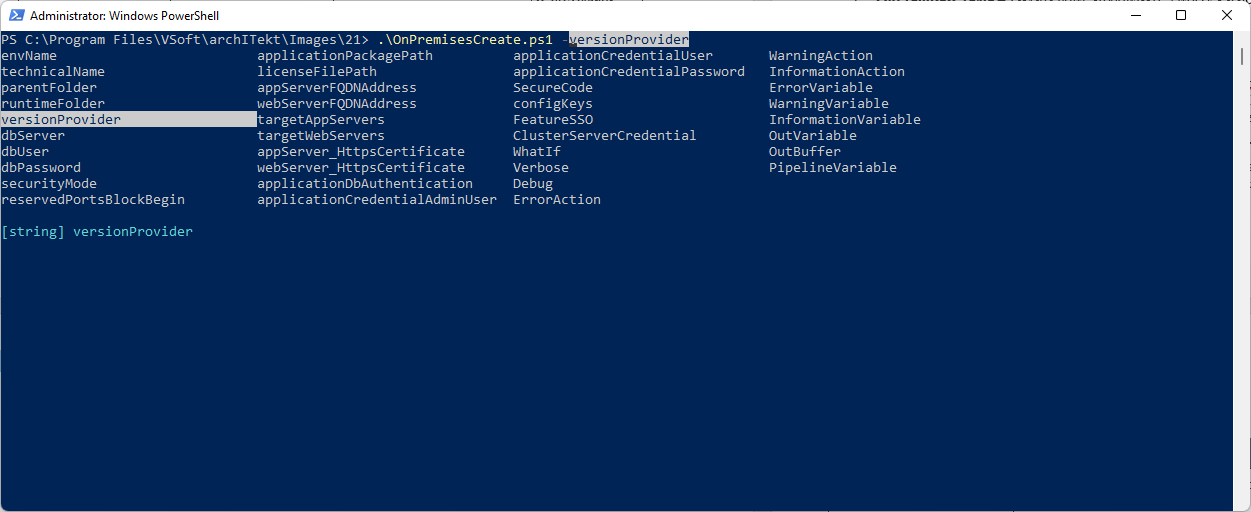
When using the provided scripts, it is a good idea to use the standard PowerShell console parameter hinting functionality. By pressing Ctrl+Space, you can display the names of all available parameters:
Type
.\OnPremisesCreate.ps1 –
as in the following screen and press Ctrl+Space combination
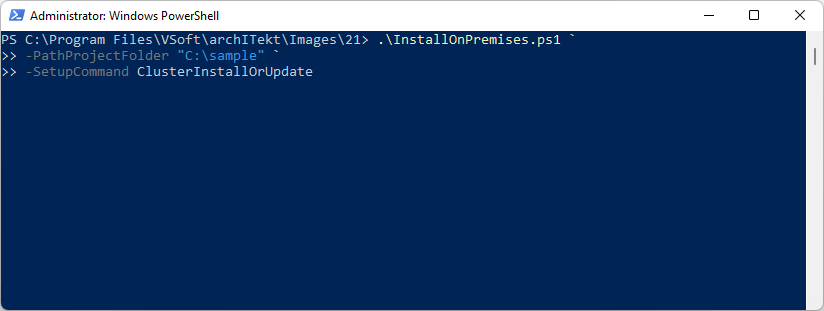
When calling commands from the PowerShell console, you can type them in one or multiple lines. If you want to type a command in multiple lines, you should end all lines of the command except the last one with a ` character as in the following screen:
Application directories
The deployed application uses two directories:
- Project directory - this directory stores all parameters and configuration of the application. Only the administrator has access to this directory (the deployed and running application has no knowledge of the location of this directory).
- Runtime directory - the same directory on each server where application components are installed. This directory and its contents are created automatically as a result of scripts, based on the application configuration. This means that it can be reconstructed at any time by restarting the scripts (except for the contents of the subdirectory where the logs for a given server are stored). Installation in different directories is also possible: (1) common for application servers and (2) common for Web servers.
Folder location:
- Project directory - can be stored anywhere. The directory is created when you run the script that creates the environment, and it is a concatenation of the values of the
[parentFolder]\[technicalName]parameters. - Runtime directory - the same directory on each machine where application components are installed. Selected at the time of running the script that creates the environment. The directory defaults to a concatenation of the parameter values of
c:\vsoft\[technicalName]The runtime directory can be stored in a different location. Wanting to change the default location (common - for all servers), you need to pass the parameter-runtimeFolderto the script that creates the environment.
Wanting to change the default location (different - for application and web servers), pass the parameters -runtimeFolderApp and -runtimeFolderWeb to the script that creates the environment.
Creating the environment
Creating a new OnPremises environment requires running the following PowerShell script, which will:
- Create an environment directory and save the environment configuration in it.
- Create the environment databases on the server.
The scripts verify that no existing project will be overwritten during project creation (they verify the names of the databases being created and the existence of *.json files associated with the project in the project directory).
cd "C:\Program Files\VSoft\archITekt\Images\[image name]"
    .\OnPremisesCreate.ps1 `
    -envName "[environment name]" `
    -technicalName "[the technical name of the environment]" `
    -parentFolder "[(option)parent directory]" `
    -projectFolder "[(option)project directory]" `
    -runtimeFolder "[(option) runtime directory for application and web server other than default]" `
    -runtimeFolderApp = “[(option) runtime folder for application server other than default]” `
    -runtimeFolderWeb = “[(option) runtime directory for web server other than default]” `
    -versionProvider "[type of the version server]" `
    -dbServerProvider “(option) type of database server (”SQLServer”, ‘PostgreSQL’). Default value = “PostgreSQL”
    -dbServer "[database server address] "`
    -dbUser "[(option) user - database server administrator]" `
    -dbPassword "[(option) password of the user - administrator of the database server]" `
    -securityMode "[type of security]" `
    -reservedPortsBlockBegin "[beginning of the reserved port area]" `
    -applicationPackagePath "[(option) path to the archive with the initial application]" `
    -licenseFilePath "[path to the license file for the environment]" `
    -appServerFQDNAddress "[public name of the web server]" `
    -appServerCustomWcfPort "[(option) use of a port other than the standard (80, 433) for services installed on the apllication server]" `
    -webServerFQDNAddress "[public name of the application server]" `
    -webServerCustomWebSiteName "[(option) installation of the application on a non-standard web site]” `
    -webServerCustomIISPort "[(option) use of a port other than the standard (80, 433) for applications installed on the web server]" `
    -targetAppServers "[list of application servers on which the application is to be installed] "`
    -targetWebServers "[list of web servers on which the application is to be installed]"
    -appServer\_HttpsCertificate "[(option) fingerprint of the application server certificate]"`
    -webServer\_HttpsCertificate "[( option) fingerprint of the web server certificate]" `
    -applicationDbAuthentication "[(option) determining how the system connects to the database: domain or user/password]"
    -applicationCredentialAdminUser "[(option) domain administrative user in the database]"
    -applicationCredentialUser "[(optional) domain user in the database]"
    -applicationCredentialPassword "[(option) domain user in the database]"
    -initialAdminUser "[name of environment administrator]"
    -initialAdminPassword "[environment administrator password]"
    -SecurityPassword "[(option) Environment security password]"
    -configKeys "[(option) Hashtable containing parameters to be saved in the technical configuration]"
    -sensitiveConfigKeys "[(option) list of keys from configKeys whose values are to be treated as sensitive]"
    -elasticPoolName "[(option) pool name if installed on Azure SQL]"
    -FeatureSSO "[(option) enable/disable SSO login function (Single Sign On)]"
    -ClusterServerCredential "[(option) providing credentials (PSCredential) for installation on the cluster - if the user running the script does not have administrator rights on the cluster machines]"
    -FailoverCluster "[(option) Name of failover cluster]"
    -FailoverClusterGroup = "[(option) Group name - Generic service type role for archITekt services]"
    -ServiceStartupType [(option) archITekt service startup mode("Automatic", "AutomaticDelayedStart", "Disabled", "Manual"). Default value = "Automatic"]
    -UsePluginMySql [(option) whether to enable a plugin to connect to MySQL databases(“On”, “Off”). Default value = “Off”]
    -LockedImageVersion [(option) lock image version substitution (“On”, “Off”). Default value = “Off”]
    -OverwriteExistingProject  [(option) allows overwriting an existing project]
    -WhatIf [(option) validates parameters, does not run environment creation operation]
Below is information on the individual arguments:
| Parameter | Description |
|---|---|
envName | The name of the environment presented on the application login page. It can contain any set of characters. |
technicalName | The technical name of the environment. It may consist of letters (without national characters) and numbers. It must start with a letter. Used as: • database name prefix for this environment, • the name of the web application of this environment, • project directory name, • the name of the directory where the application components will be installed on the server c:\vsoft\[technicalName] |
parentFolder | Parent directory where the project will be installed. After invoking the command, the project directory will be [parentFolder]\[technicalName] When executing the command, either the parentFolder parameter or the projectFolder parameter must be specified. |
projectFolder | The project directory where the project will be installed. After calling the command, the project directory will be the specified path. When executing the command, either the parentFolder parameter or the projectFolder parameter must be specified. |
runtimeFolder | The runtime directory where the apllication components will be installed on the server(s). In case it is not specified, then the apllication components will be installed in the default location c:\vsoft[technicalName] Specifying this parameter is possible if none of the parameters runtimeFolderApp, runtimeFolderWeb are specified. |
runtimeFolderApp runtimeFolderWeb | The runtime directories where the application components will be installed on the server(s): application (runtimeFolderApp), and web (runtimeFolderWeb). Specifying these parameters is possible if the parameter runtimeFolder is not specified . |
versionProvider | The type of version server. Acceptable values are: • FileSystem - file system • System.Data.SqlClient - database system |
dbServer | Database server address. It must be reachable both from the computer on which the script is run and from the servers on which the application will be installed. |
dbServerProvider | Type of database server. Acceptable values: SQLServer PostgreSQL |
dbUser, dbPassword | Database server username and password. In the case of domain login to the database, these parameters should not be specified. |
securityMode | Type of protection for the application being installed. Acceptable values are: • SSL, • NONE. If the value of SSL is specified, communication with the WWW application and WebServices will be secured with SSL certificates (you have to required to provide the fingerprints of the certificates) - details in the subsection: In case of installation with SSL certificates. |
reservedPortsBlockBegin | The first of the range of ports used for the internal application needs. • The application uses 2 ports ( reservedPortsBlockBegin, reservedPortsBlockBegin+1) for communication between components. Traffic between servers on these ports must be open.• The application uses consecutive ports ( reservedPortsBlockBegin+2 and next) to run LibreOffice in the server mode (communication with these ports takes place only within the server). The number of ports used is equal to the number of running LibreOffice converters. |
applicationPackagePath | Path to the package initially installed on the environment. |
licenseFilePath | The path to the license file for this environment. |
appServerFQDNAddress | The name under which the environment application servers will be available in the network. The name must match the name given in the certificate indicated in the appServer_HttpsCertificate variable. |
appServerCustomWcfPort | Other than the standard port on which the application server services will be issued. By default, the services run on ports 80 (unsecured) and 433 (SSL secured). |
webServerFQDNAddress | The name under which the web applications of the environment will be available on the network. The name must match the name given in the certificate indicated in the webServer_HttpsCertificate variable. |
webServerCustomWebSiteName | Different from the standard web site used by web applications. The web site at the time of component installation must exist on the web server (the installer does not create or delete the web site). |
webServerCustomIISPort | Other than the standard port on which the web server services will be issued. By default, the services run on ports 80 (unsecured) and 433 (SSL secured). |
targetAppServers | The name under which the environment's application servers will be available on the network. The values in the parameters targetAppServers, targetWebServers should be given the names of the servers returned by the $env:computername command executed from PowerShell. |
The list of servers is passed as an array. Example: targetAppServers @("server1", "server2") | |
targetWebServers | The name under which the environment's web servers will be available on the network. The values in the parameters targetAppServers, targetWebServers should be given the names of the servers returned by the $env:computername command executed from PowerShell. The list of servers is passed as an array. Example:targetAppServers @("server1", "server2") |
appServer_HttpsCertificatewebServer_HttpsCertificate | Certificate key impressions for application and web servers. If given, they will be assigned to the ports on which the application runs. Note! When uninstalling the application, the installer does not remove the certificate-port association, as it can be used by multiple apliactions. In order to manually remove the association of the certificate with the port (when it is known that no other apllication will work on this port), you can use the command: netsh http delete sslcert ipport=0.0.0.0:[selected port] |
applicationDbAuthentication | The type of connection to the database. Acceptable values are: • Windows - connection to the database using the Windows domain login. User logins provided in the applicationCredentialUser and applicationCredentialAdminUser fields will be used.•UserPassword - connection to the database using a username and password. For the application, users will be created in the database with the names [technicalName]_admin and [technicalName]_user |
applicationCredentialAdminUser | If we use domain login to the database, specify the user who owns the database in this parameter. This user will get administrator rights on the application databases. This can be either the data of the user who runs the script or the data of another account. |
applicationCredentialUser | If you use a domain login to the database, here is where you need to enter the data of the user account on which the application components will run. |
applicationCredentialPassword | User password in case of domain login. |
initialAdminUser | Login of the administrator of the environment NOTE! The administrator with the given login will be added to the internal user management provider. If you use an external provider (e.g. Active Directory), you must ensure that you create a user with administrator rights in the application by yourself. |
initialAdminPassword | Environment administrator password. |
configKeys | Hash table containing variable names with values that will be completed in the application configuration (the application configuration mechanism is described in the next chapter of this documentation). The parameter should be as follows:@ \{"variable 1 name" = "variable 1 value"; "variable 2 name" = "variable 2 value";etc.\}Eexample of a call: configKeys @ {"common.connection.provider_ad" = "LDAP: //my.server.local: 389"; "custom.myvariable" = "specific value"}For the needs of complicated implementation cases, the possibility of setting other parameter values has been made available only for selected NODEs. For this purpose, the value "variable name@node name" should be entered as the variable name. Values of keys that are sensitive by definition (e.g. common.param.smtp_password) are stored encrypted automatically. See: Sensitive keys. |
sensitiveConfigKeys | List of names of configuration keys to be treated as sensitive: their values are stored encrypted (in the project files and in the CONFIG_KEYS table), the keys are hidden from key listings (CK_SENSITIVE = 1) and their values are not written to the logs. The parameter is needed only for your own keys (e.g. custom.*) and for system keys that are not sensitive by definition. Give key names only, without a node - the marking applies to all nodes.Example of a call: sensitiveConfigKeys @("custom.api.token", "custom.connection.my_db")Encryption requires the SecurityPassword parameter. Details: Sensitive keys. |
elasticPoolName | Parameter used only during installation on Azure SQL database server. If specified, all application databases will be set up in the indicated (existing) Azure SQL pool. |
FeatureSSO | The parameter determines whether the SSO (Single Sign On) login functionality should be enabled in the application. Allowed values: "On", "Off". |
ClusterServerCredential | Cluster administrator credentials - in case the installation is performed by a user who does not have administrative rights on the cluster. This is an object of type System.Management.Automation.PSCredential |
FailoverCluster | Used when installing on a failover cluster. The name of the cluster on which the archITekt services are to be installed. |
FailoverClusterGroup | Used in case of installation on a failover cluster. Name of the group (Generic services type role) to which the services will be automatically added. |
ServiceStartupType | The way archITekt services are started. Possible values: "Automatic", "AutomaticDelayedStart", "Disabled", "Manual". Failure to specify the parameter value will install services with the value "Automatic". Attention: in case of installation on a failover cluster, selecting the value "Automatic", "AutomaticDelayedStart" will be changed to the value "Manual" during installation. |
SecurityPassword | Security Password. Specifying this parameter will cause the selected elements of the technical configuration of the environment to be saved in an encrypted manner (including the values of sensitive keys). See: Configuration encryption mechanism. |
UsePluginMySql | Enable the plugin to connect to MySQL databases. Selecting the value “On”, requires the installation of the MySQL plugin to be selected during the installation of the archITect image. Possible values: “On”, ‘Off’. Not specifying the value of the parameter will install services with the value “Off”. |
LockedImageVersion | Installs the project using the current version of the archITekt image and blocks the ability to update the image for this environment. (Unblocking/reblocking the ability to update the image is possible by selecting the appropriate option in the Reconfigure,ps1 script) Possible values: “On”, ‘Off’. Failure to specify the value of the parameter will install the environment with the value “Off”. |
OverwriteExistingProject | The switch allows you to overwrite an existing parameter. It causes the procedure that verifies whether databases with the specified names are located on the server and whether *.json files associated with the project are located in the specified project directory to be skipped when the script is run. |
WhatIf | Adding this switch to the script parameters changes the way the script works - the script execution will be terminated immediately after the parameter verification phase regardless of its result. Use of this parameter allows to verify the readiness of the environment for installation before running the actual installation. |
Example of a script with parameters:
cd "C:\Program Files\VSoft\archITekt\Images\dev"
    .\OnPremisesCreate.ps1 `
        -envName "My sample application" `
        -technicalName "SAMPLE1" `
        -parentFolder "C:\VSoft\Projects" `
        -versionProvider FileSystem `
        -dbServer "mysqlserver\SQLEXPRESS" `
        -dbUser "superadmin" `
        -dbPassword "superadmin\_password" `
        -securityMode NONE `
        -reservedPortsBlockBegin 48000 `
        -applicationPackagePath "C:\SampleApp1.zip" `
        -licenseFilePath "C:\My.license.xml" `
        -appServerFQDNAddress "myappserver.localdomain" `
        -webServerFQDNAddress "mywwwserver.localdomain"`
        -targetAppServers @("myappserver1", "myappserver2") `
        -targetWebServers @("mywwwserver1", "mywwwserver2")`
        -initialAdminUser "superadmin" `
        -initialAdminPassword "initial-password" `
        -SecurityPassword "security-password" `
        -configKeys @\{ "custom.myvariable" = "specyfic value"; "custom.api.token" = "secret-token" \} `
        -sensitiveConfigKeys "custom.api.token" `
        -FeatureSSO "Off"
After creating the environment, run the script that installs the environment components on the servers (InstallOnPremises with the ClusterInstallOrUpdate parameter).
Installation / update / removal of environment components
After creating the environment (described in the previous chapter), you can perform operations that will install/update components of the environment on the server(s).
Environment management operations are performed with the InstallOnPremises script. The script's task is to use the data contained in the project directory and propagate it to project databases and components installed on servers.
Good to know: The environment configuration directory can only be accessed from the level of the script managing (installing/updating) the environment components. The components themselves do not have any links to the environment configuration directory. This means that any change in the environment configuration made in the environment directory (e.g. importing a package with a new definition) must be propagated to all its components by running a script.
Running the script:
cd "C:\Program Files\VSoft\archITekt\Images\[ image name]"
    .\InstallOnPremises.ps1 `
    -PathProjectFolder [environment directory] `
    -SetupCommand [command]
    -CustomOptions [advanced options]
    -ClusterServerCredential "[(option) providing credentials (PSCredential) for installation on the cluster - if the user running the script does not have administrator rights on the cluster machines]"
    -SecurityPassword – [(option) environment security password]
Parameters:
PathProjectFolder– project (environment) directorySetupCommand– command executedCustomOptions– specific installation/update options, used in unusual situationsClusterServerCredential- cluster administrator credentials - given when the installation is performed by a user who does not have administrative rights on the cluster. This is an object of type System.Management.Automation.PSCredentialSecurityPassword– environment security password (required to be provided if the environment uses an encrypted technical configuration)
Available commands:
Commands are used both on single-server and cluster environments. Each command automatically checks if it should execute locally or remotely and activates the appropriate mode of operation.
In the case when a fragment of the script must be executed remotely (by installing or modifying components on a remote server), then it is run using PowerShell remoting mechanism.
Verification if the operation of installing a component is executed on a local or remote server is done by checking if the local computer name is the same as the one specified in the parameters indicating on which servers the application is to be installed (targetWebServers and targetAppServers).
ClusterVerifyPrerequisities– verifies the state of the environment. The command is automatically run as part of any other command.ClusterInstallOrUpdate– installs environment components (if they were not on a particular server) or updates them (if they were already installed).ClusterForceReinstall– . removes the environment components from the server and installs them on it again.ClusterUninstall- uninstalls environment components from all servers.Uninstall- uninstalls environment components.ClusterStop– stops the running of the environment (stops services and pools of web applications).ClusterStart– starts the running of the environment (starts services and pools of web applications).
Available advanced options (CustomOptions):
nostart– skips the step of starting services and web application pools. This option is taken into account when running the “ClusterInstallOrUpdate,” “ClusterForceReinstall,” and “ClusterStart” commands.
Note on uninstalling environment components:
- Uninstalling the environment does not remove the databases.
- After the environment components are uninstalled, you can reinstall them.
- During installation of the environment components on each server in the enviroment directory, the
UninstallOnPremisesComponents.ps1script is created, which allows the uninstallation of the application components from a given server even without access to the project directory.
Example of a script with parameters:
cd "C:\Program Files\VSoft\archITekt\Images\dev"
    .\InstallOnPremises.ps1 `
    -PathProjectFolder "C:\VSoft\Projects\SAMPLE1" `
    -SetupCommand "ClusterInstallOrUpdate"
The ClusterInstallOrUpdate command unlike the ClusterForceReinstall command doesn't always reinstall components and that' s why it works faster.
The decision whether or not to reinstall components on a given server is made by comparing the current project configuration with the state at the time of component installation (it uses the checksum comparison of the part of the configuration file that affects the way components are installed).
Therefore it is suggested to use the ClusterInstallOrUpdate command as more convenient and faster, while the ClusterForceReinstall command should be left for emergency situations.