Troubleshooting
Installation of SQL Server
During the installation of SQL Server on the machine where VSoft archITekt has been installed, an error may appear related to the inability to reconfigure the msoledbsql.msi product
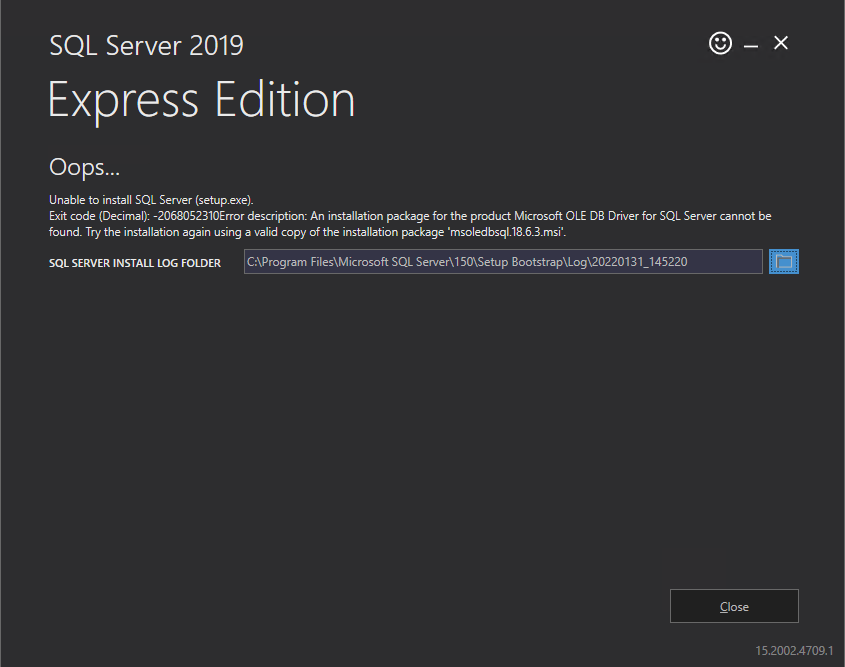
It is caused by the fact that the SQL Server installer does not have access to the source msoledbsql.msi file (during VSoft archITekt installation, this file is saved in the temporary directory and deleted after the installation is complete).
Troubleshooting: uninstall msoledbsql.msi and restart SQL Server installation.
Problems with running SQL Server on Windows 11 / Windows 2022
Some computers running Windows 11 or Windows 2022 Server may have problems with starting SQL Server (any version) caused by an unsupported hard drive configuration.
Details are described in the article:
To fix the problem, follow the steps described in the article:
- Make sure that the problem is related to the sector size of the hard drive - for example, if you install the database on the C: drive, the command (in administrator mode) would be:
fsutil fsinfo sectorinfo C:
- and verify whether the greater of PhysicalBytesPerSectorForAtomicity or PhysicalBytesPerSectorForPerformance is greater than 4096. If so, then this is a confirmation that the problem exists.
- Add an entry to the registry to enable Windows 2019 / Windows 10 compatibility mode in the way the drive is handled, using the command (PowerShell, in administrator mode):
New-ItemProperty -Path
    "HKLM:\SYSTEM\CurrentControlSet\Services\stornvme\Parameters\Device" -Name   "ForcedPhysicalSectorSizeInBytes" -PropertyType MultiString -Force -Value "\* 4095"
- Reboot the computer so that the changes are applied, and then recreate the SQL Server instance. In the case of the Local DB database, this requires running (on the end-user account, without administrator mode) the following commands:
sqllocaldb delete ArchITektLocalDB
sqllocaldb create ArchITektLocalDB -s
Database version server & ServiceBroker
The database version server uses the Service Broker, a SQL Server mechanism for distributing information about changes.
If you are restoring the database from a backup, you must manually enable the Service Broker. If you don't do this, the changes made in archITekt Studio won't be automatically updated - they will be visible only after restarting the web application and services.
SQL command to restart the Service Broker on the version server database (replacing ‘database-name’ with the name of the version server database):
ALTER DATABASE [database-name] SET NEW_BROKER WITH ROLLBACK IMMEDIATE;
ALTER DATABASE [database-name] SET ENABLE_BROKER WITH ROLLBACK IMMEDIATE;
OnPremises installation using SQL Server Express LocalDB database
For testing purposes, it is possible to install and run an OnPremises environment using SQL Server Express LocalDB database.
- Due to the nature of the SQL Server Express LocalDB database, all components of the environment (services and web application pools) must run on the account of the user who installs the application.
- To do this, install the application on the account of the domain user - the same one who runs the installer.
- If there is a problem resulting in the inability to run the web application, set the attribute
setProfileEnvironment="true"in the fileC:Windows32inetsrvConfig\applicationHost.configin theapplicationPoolDefaultssection.

See also
Prepare for OnPremises installation
Preparation of infrastructure on the OnPremises environment