Release - version 21.19
The most important changes made in version 21.19 are described below.
Changes in the User Interface
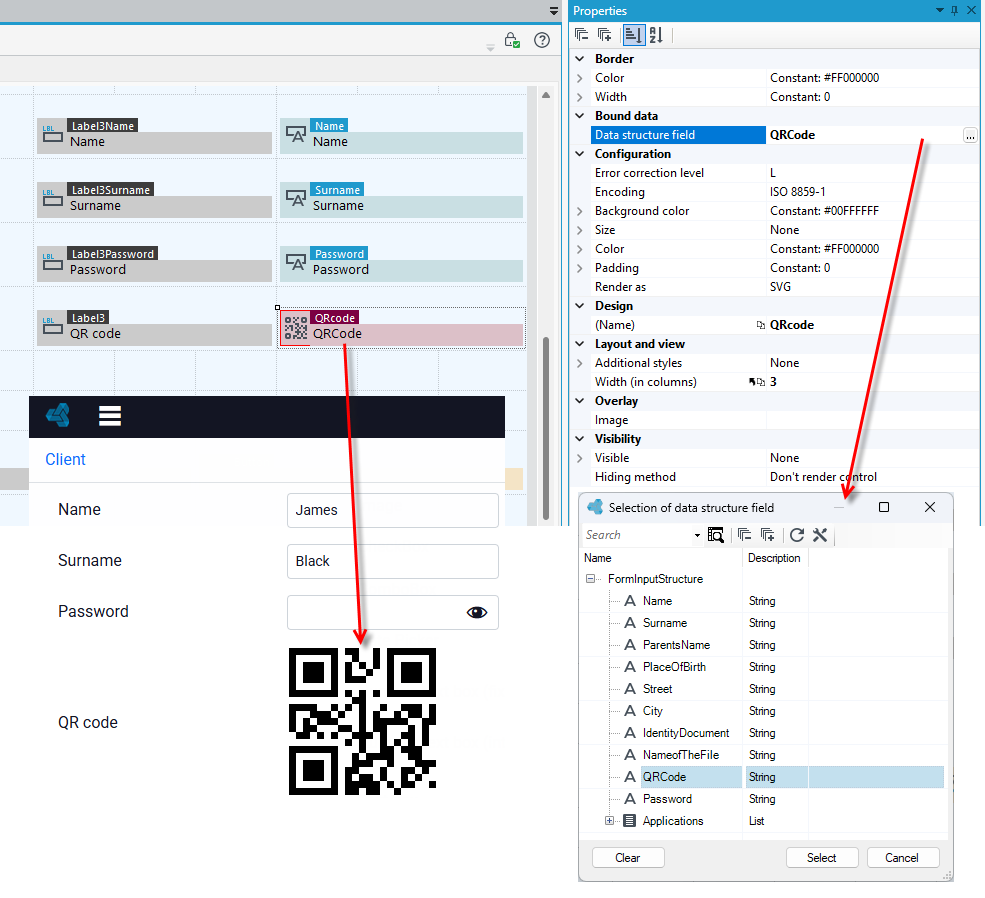
New QR code control
Starting with this version of the platform, a new QR code control has been added, which generates canvas and SVG images representing QR codes. The control accepts a text field as its data source.
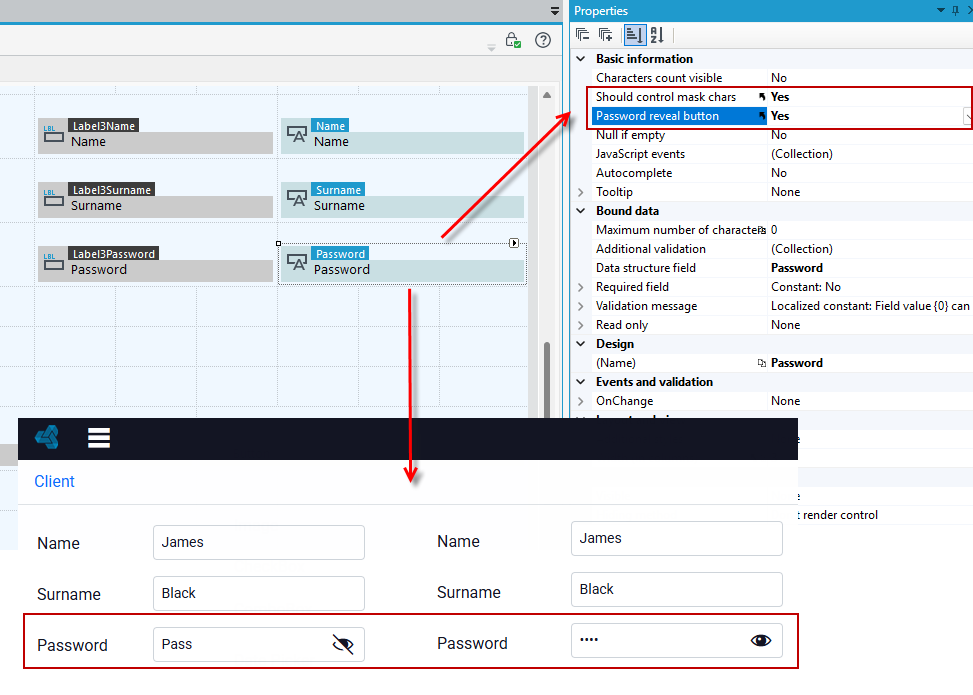
Additional password reveal functionality in the Text box control
A new feature has been added to the Text box control: Password reveal button - this option is available if Yes is selected in the Should control mask chars option - this button allows the user to display the entire masked password.
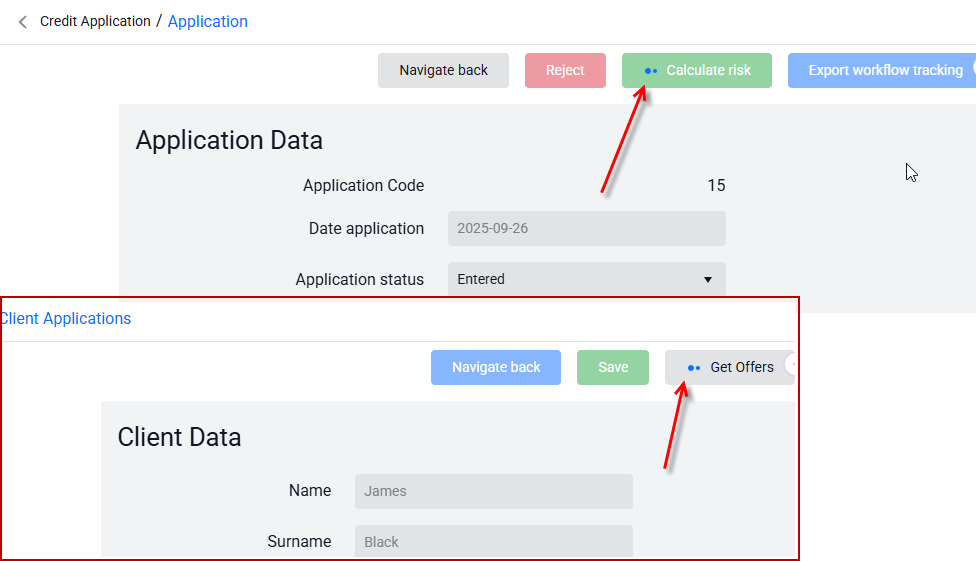
Adding a loader to action buttons
If the action takes longer than 2 seconds, a loader will be used on the button in the end application.
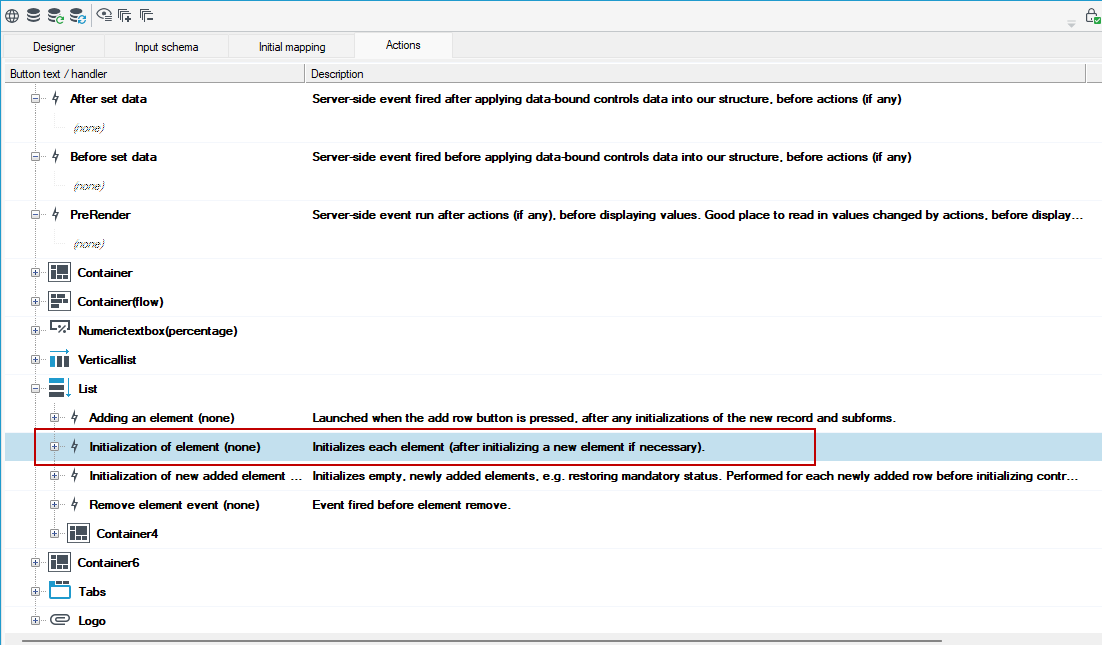
New event on the list control
A new event has been added to the list item, allowing you to perform any action during the initialization of each list item.
Changes in forms
New property for the List control
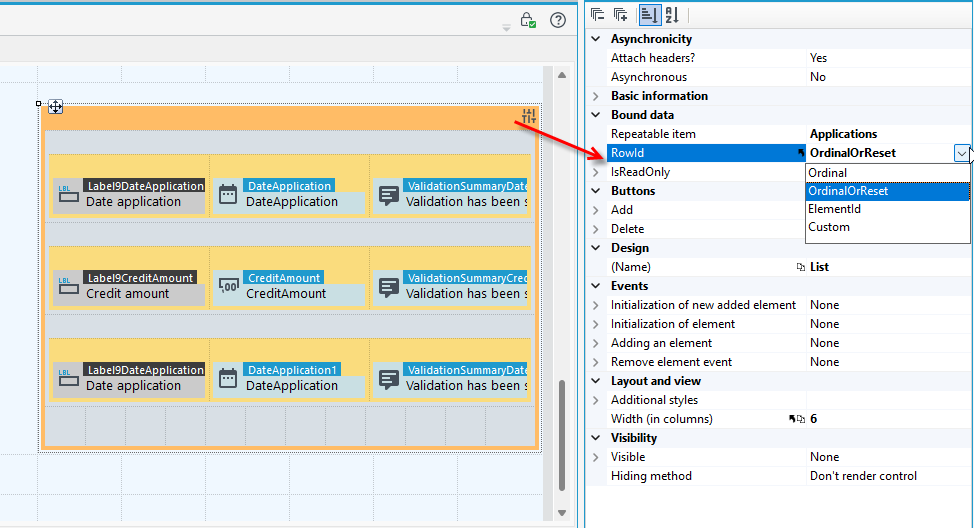
A new RowId property has been added to the List control, which determines the control's operating mode and how list rows are identified. You can now specify row identification by order — the Ordinal option, by order with detection of any data violations — the OrdinalOrReset option, or by an Id element from the list — the ElementId option.
Dragging controls onto a form
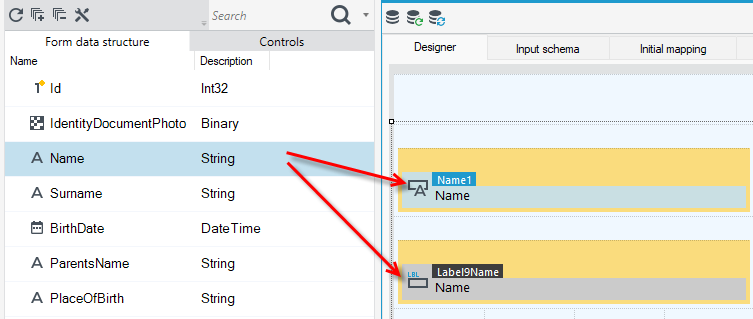
When dragging controls onto a form while holding down the Alt key, only the label will be dragged onto the workspace, and when holding down the Shift key, only the control will be dragged.
New property for the Reload action
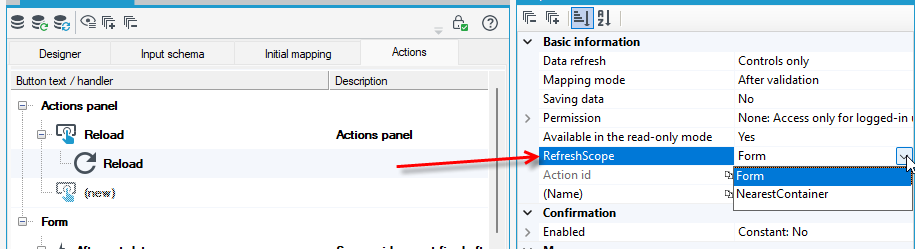
When using the data refresh action, you can specify the scope to be refreshed in the RefreshScope property, i.e., the entire form or only the nearest container.
Other changes
- Faster loading of complex forms.
- Improvements in the scrolling area of the form workspace panel.
Changes in VSoft archITekt Launcher
The changes include a clearer display of information about the upcoming license expiration date in VSoft archITekt Launcher and the addition of an icon with a notification when the license expires in 7 days.
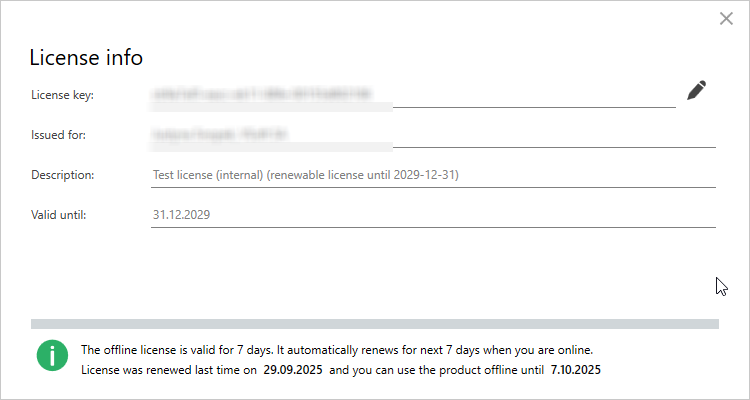
When there are 7 or fewer days left before the license expires in VSoft archITekt Launcher, the license icon will take the form of a warning.
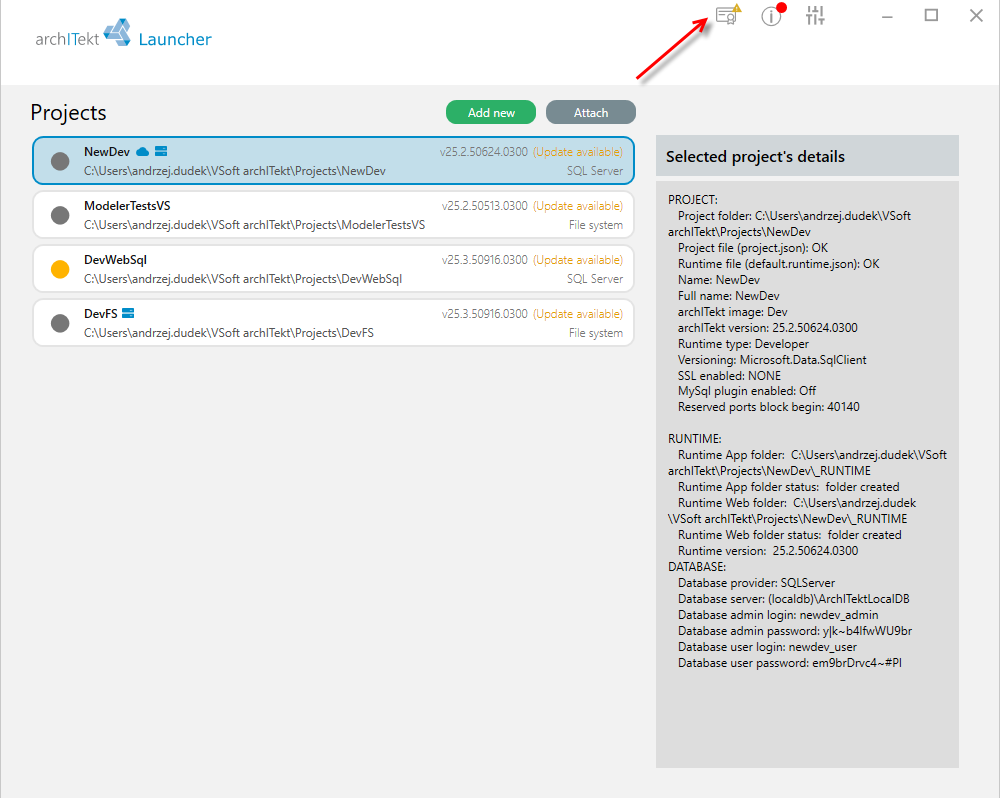
If the license expires, there will also be information about it in VSoft archITekt Launcher.
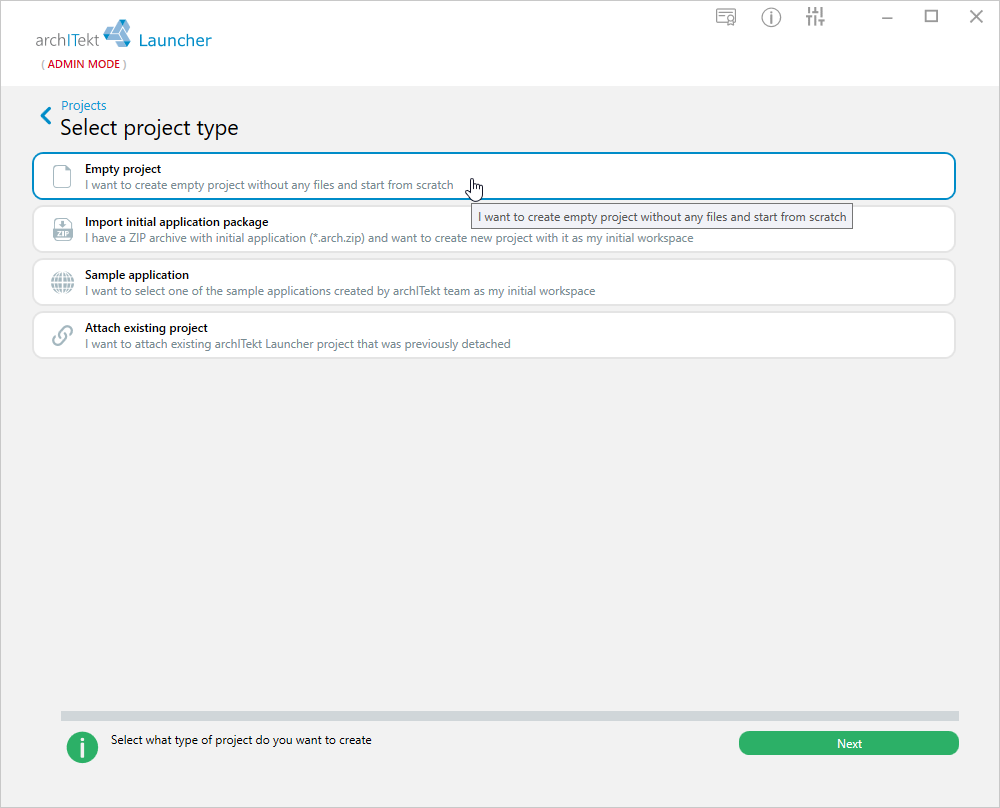
Creating a new project
A more transparent and intuitive project creation process. After selecting the option to add a project, the user can decide whether they want to:
- create a project based on the initial package,
- attach a project that was previously detached from VSoft archITekt Launcher,
- create a project using one of the available sample applications as a starter package.
Creating a project based on an initial package
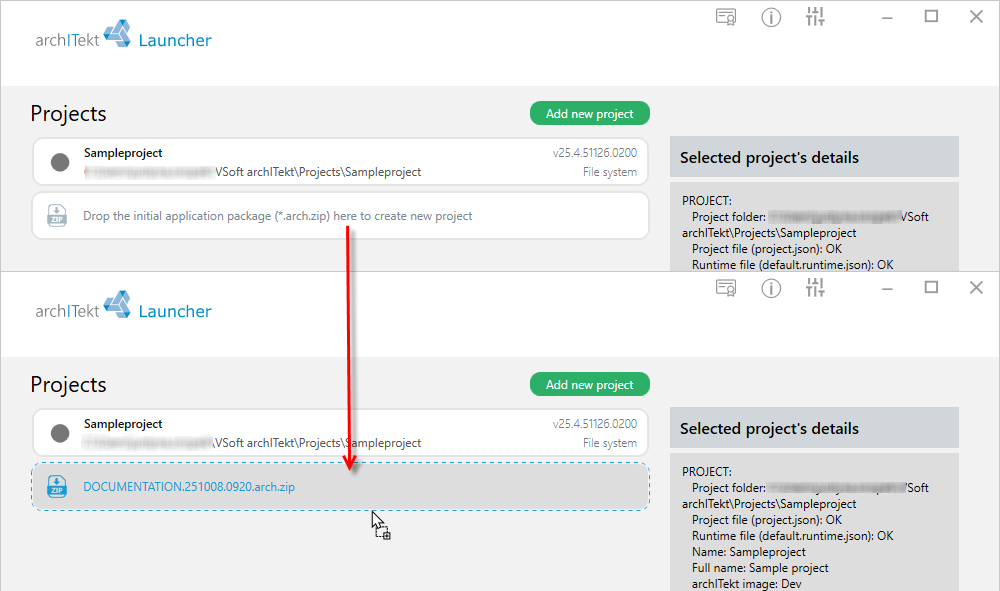
The process of creating a project based on an initial package has been improved and redesigned. From now on, when creating a project, the user can choose to create a project based on a package.
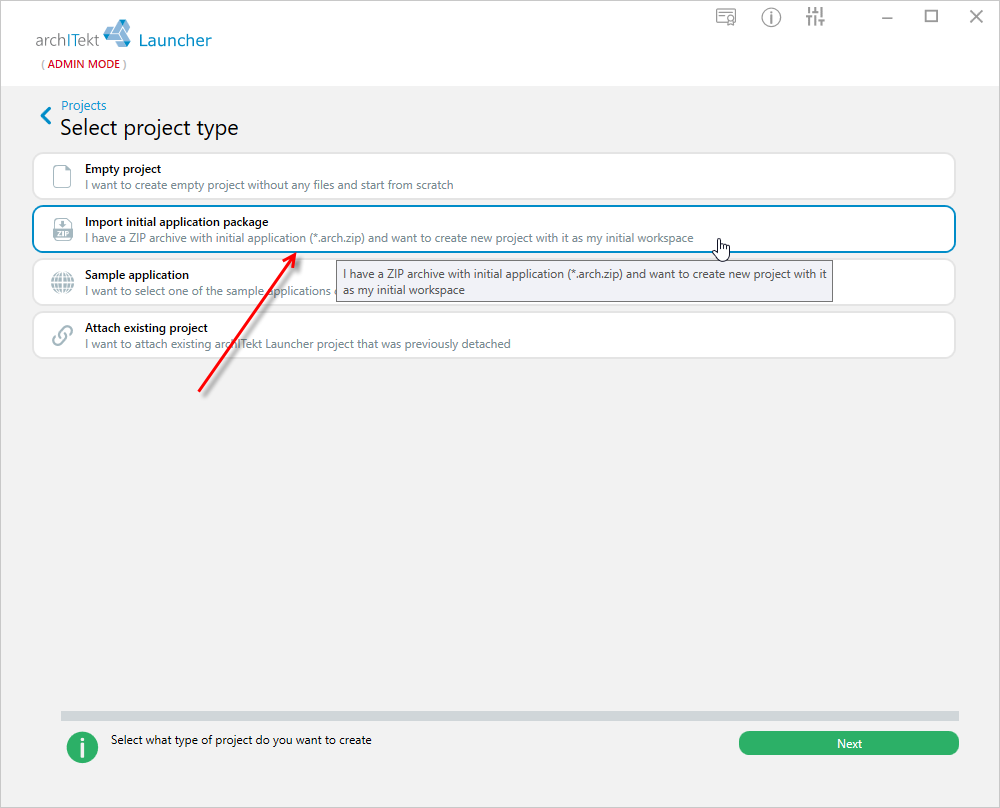
The package loading window allows you to load only packages with the appropriate *arch.zip extension.
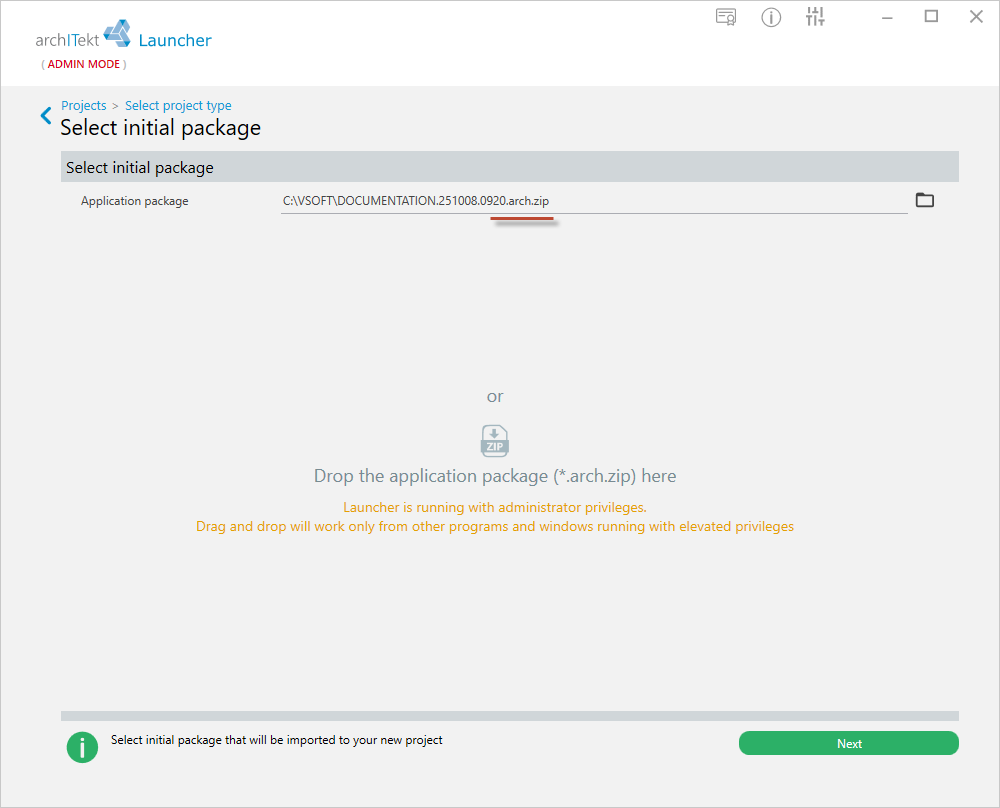
You can also drag and drop the package directly into VSoft archITekt Launcher in the project list.
Sample applications
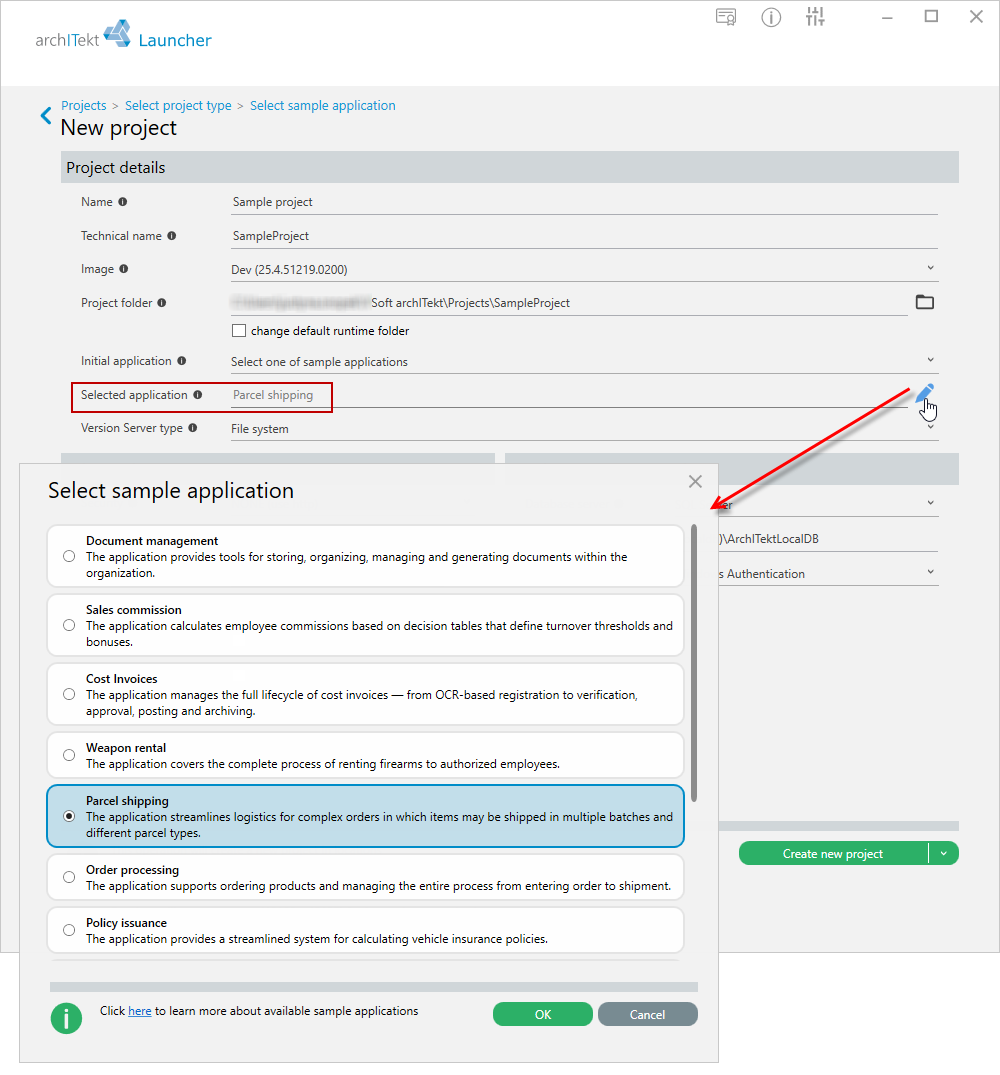
VSoft archITekt Launcher allows you to download sample applications that have been built on the archITekt platform. From now on, when creating a new project, you can choose whether you want to create an empty project, import a package, or create a project based on a sample application.
OnPremises environment
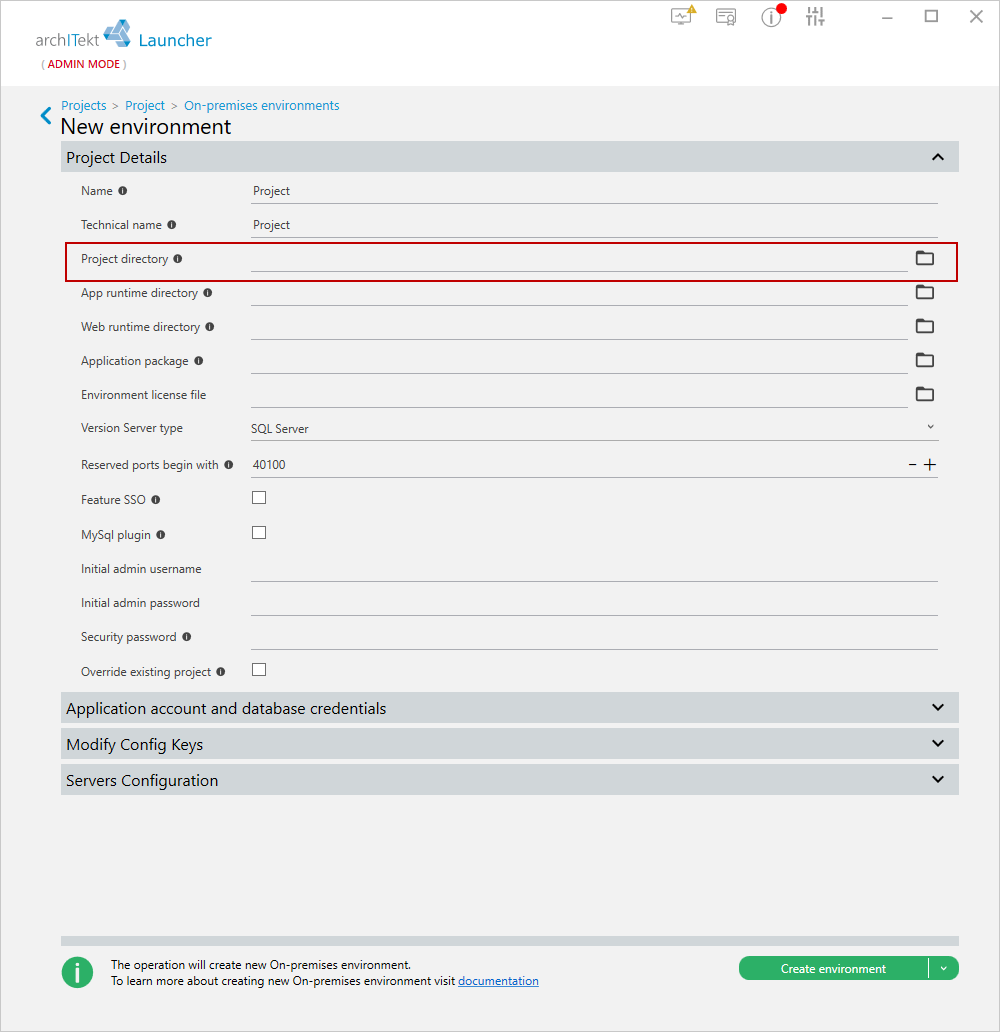
When creating an OnPremises environment, you can select the exact installation folder. Until now, it was installed in the [parentFolder][technicalName] directory, but now you only need to specify the path in the projectFolder parameter. In VSoft archITekt Launcher, simply enter the full path in the Project directory field.
Changes in Algorithms
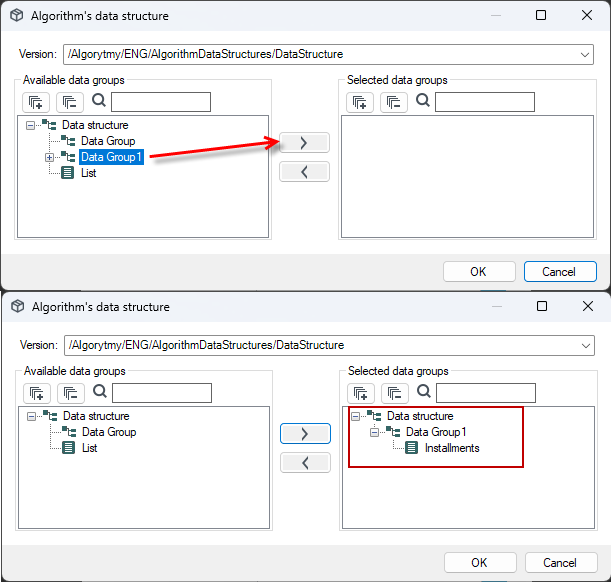
The ability to select a smaller subgroup of the data structure when editing the structure in the algorithm. In the case of very complex data structures, it is now possible to select only a fragment of the data structure for the purposes of the algorithm being created, which makes work easier and is more readable for the user.
The character limit in the names of blocks in algorithms has been increased from 45 to 255.

Changes in data processing
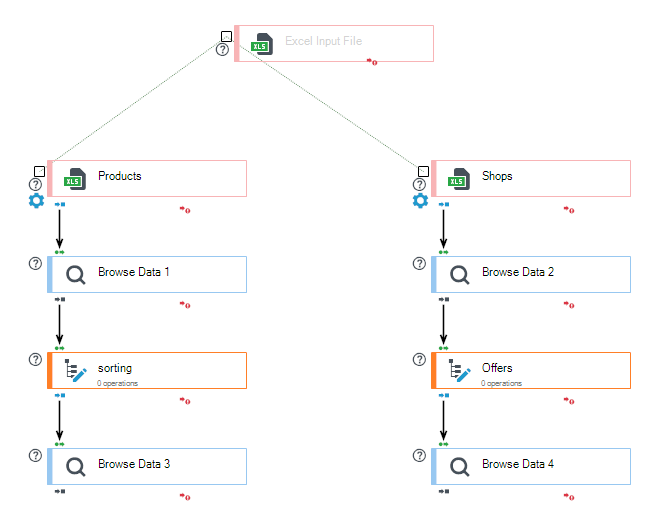
- The ability to read multiple Excel files simultaneously and in many different phases from many different sheets.
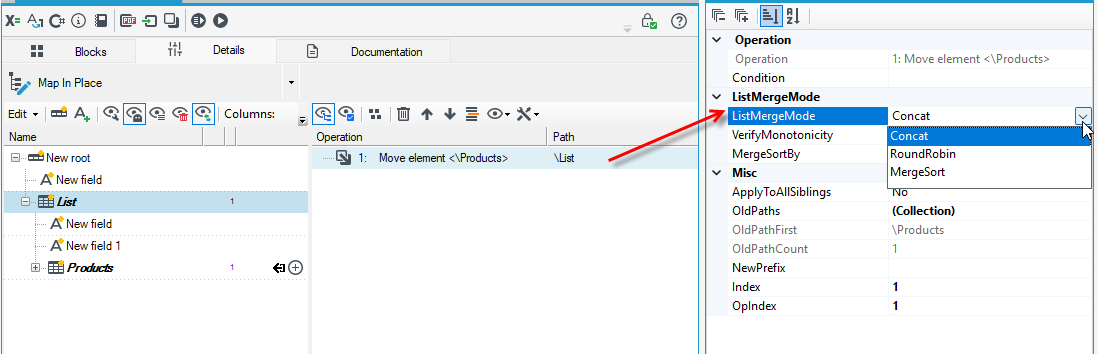
- New option in the Properties panel for processing package operation properties: ListMergeMode. When merging multiple source lists into one, you can choose from several strategies. The simplest, default one is CONCAT. To preserve the original order of the list, you can select the MergeSort option and specify the sorting.
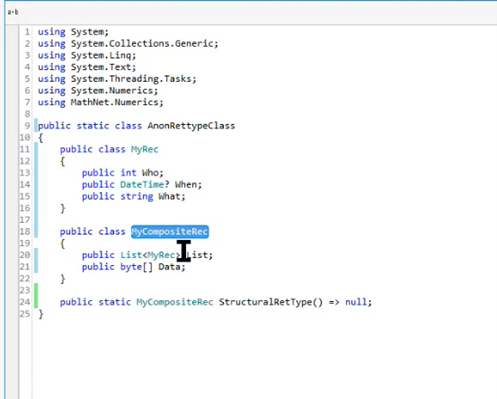
- Using the functionality of writing your own functions in archITekt Studio, you can now return any complex types of the .NET platform and then use them in expressions.
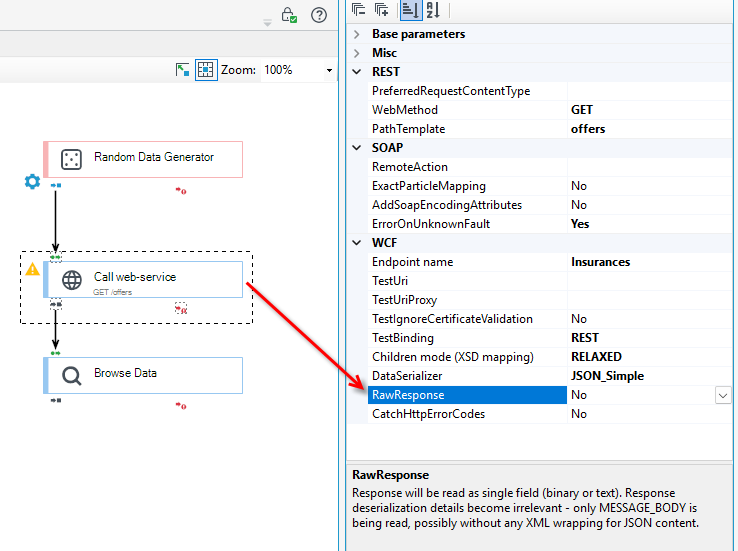
- A new option in the Properties panel when calling an external web service. The RawResponse option by passes all response parsers. The response will be read as a single field (binary or text). Details about response deserialization become irrelevant—only MESSAGE_BODY is read, probably without any XML wrapping for JSON content.
Group editing of operation conditions
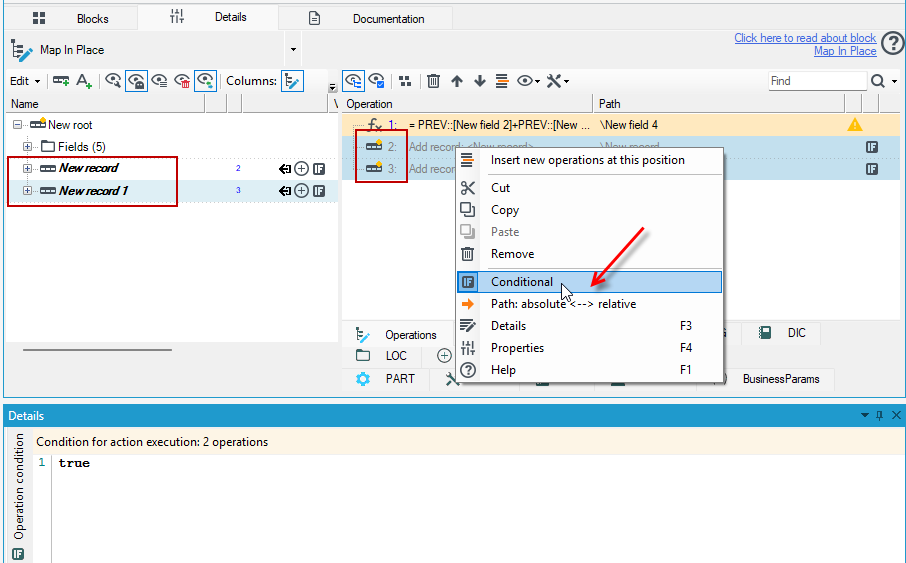
Added the ability to edit operation conditions in group - you can select multiple items in the list of operation, assign a condition to them from the context menu, and set the condition in the Details panel. The changes are automatically saved to all selected operations.
New property for field calculation operations in expressions
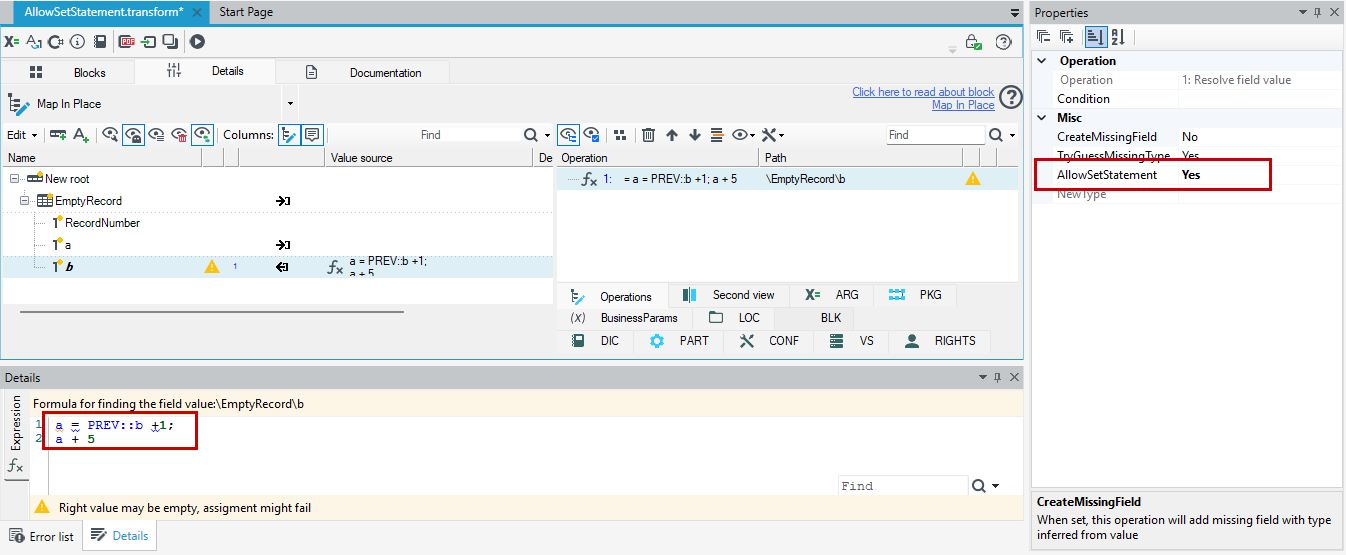
When the AllowSetStatement option is enabled, the system will first automatically calculate and store the required data (e.g., the value of field a) before computing the final result (e.g., field b). This ensures the result is correct, even if one field depends on another.
Other changes
- Storage of open tabs in archITekt Studio. When archITekt Studio is closed with active tabs/files, they are stored and when archITekt Studio is reopened, it opens with the same active files.