Examples of use
Calculation of total product rate
In the following example, a processing package will be created, and then the total product rate will be calculated using the SDO aggregate.
The total product rate is calculated based on the formula: Base rate x Duty rate.
The accepted rates can be found in the table:
| Country | Food | Electronics | Clothes | Toys |
|---|---|---|---|---|
| Germany | 5% | 10% | 10% | 4% |
| France | 5% | 10% | 10% | 4% |
| China | 20% | 14% | 15% | 6% |
For the task, the product data will be extracted from an XML file that contains several products.
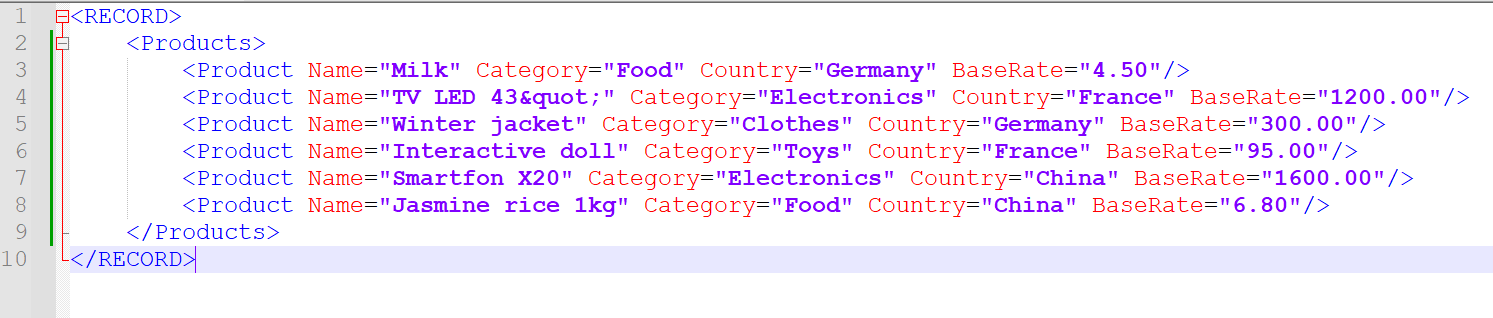
<RECORD>
<Products>
<Product Name="Milk" Category="Food" Country="Germany" BaseRate="4.50"/>
<Product Name="TV LED 43"" Category="Electronics" Country="France" BaseRate="1200.00"/>
<Product Name="Winter jacket" Category="Clothes" Country="Germany" BaseRate="300.00"/>
<Product Name="Interactive doll" Category="Toys" Country="France" BaseRate="95.00"/>
<Product Name="Smartfon X20" Category="Electronics" Country="China" BaseRate="1600.00"/>
<Product Name="Jasmine rice 1kg" Category="Food" Country="China" BaseRate="6.80"/>
</Products>
</RECORD>
Create a package
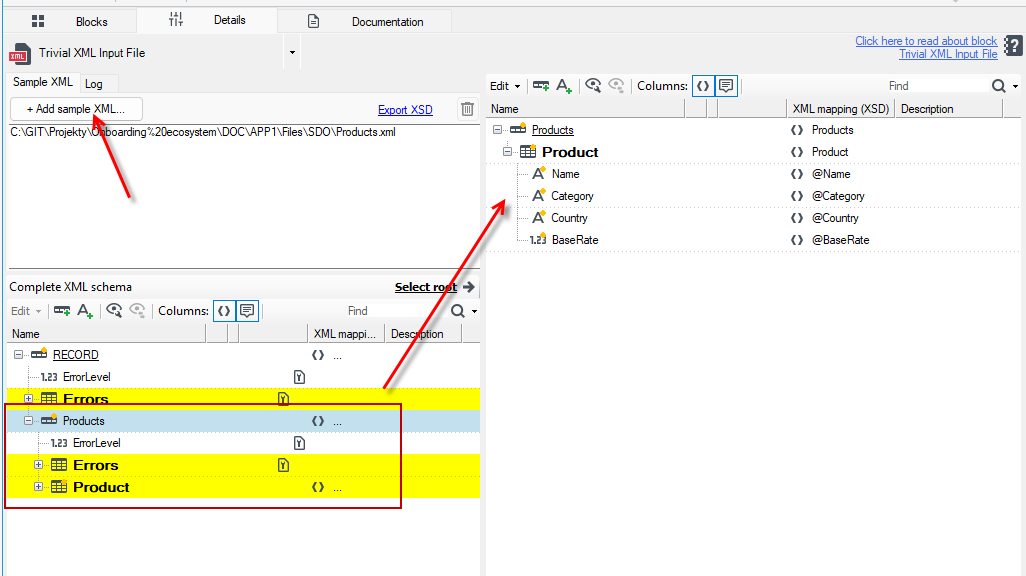
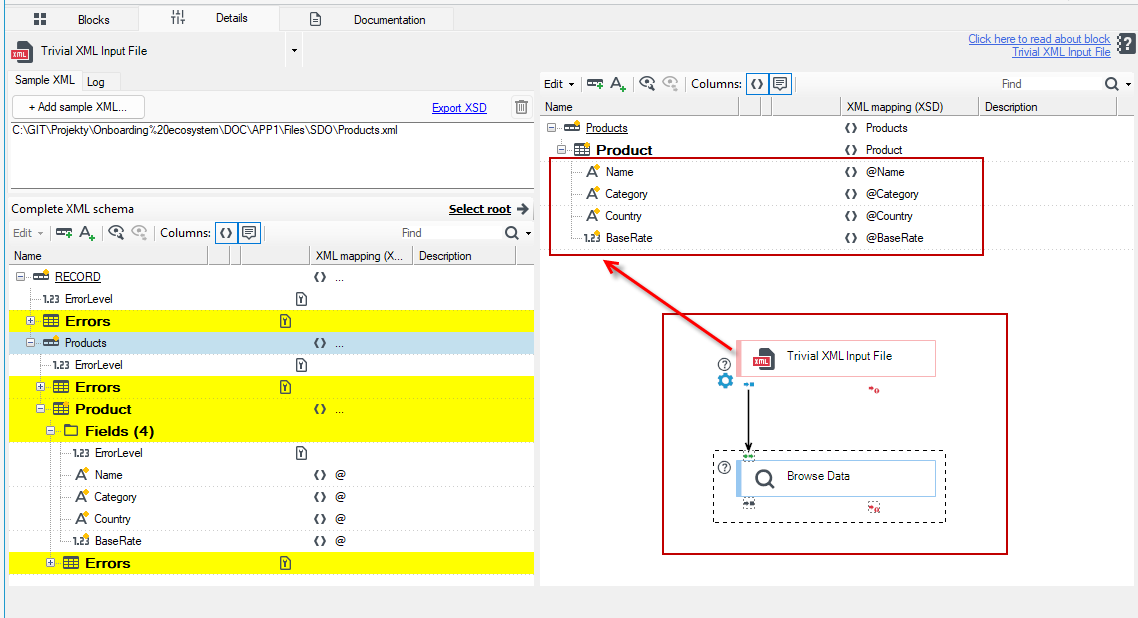
- Create a processing package consisting of an input block Trivial XML Input File file and a Browse Data block.

- Load the file (+Add sample XML) in the XML file download block.
- Drag the Products record to the right side of the window.
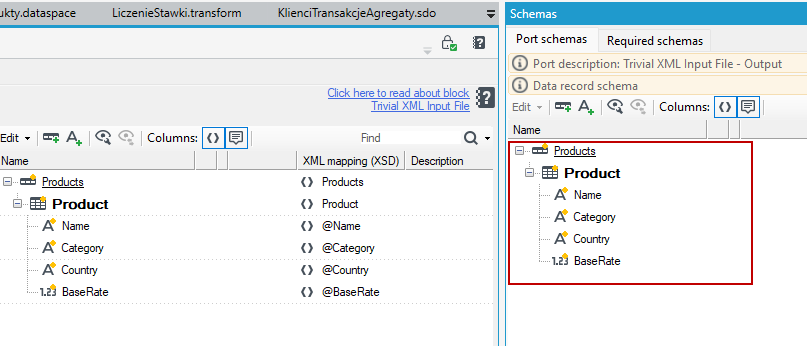
- The data schema will also be displayed on the Schemas tab.
Define a data space
- Create a data space.
- Add a Random Data Generator block and an Output port.

- Go to the Random Data Generator block and create a data schema as below.
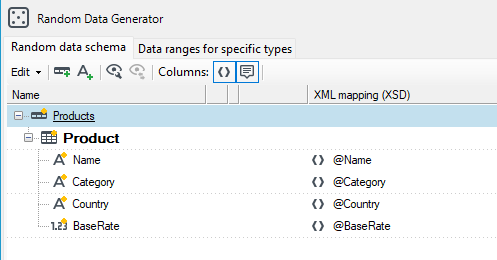
- You can copy the fields from the earlier package, where you took the data from the XML file, and paste them into the schema in the Random Data Generator block.
Create a multidimensional table
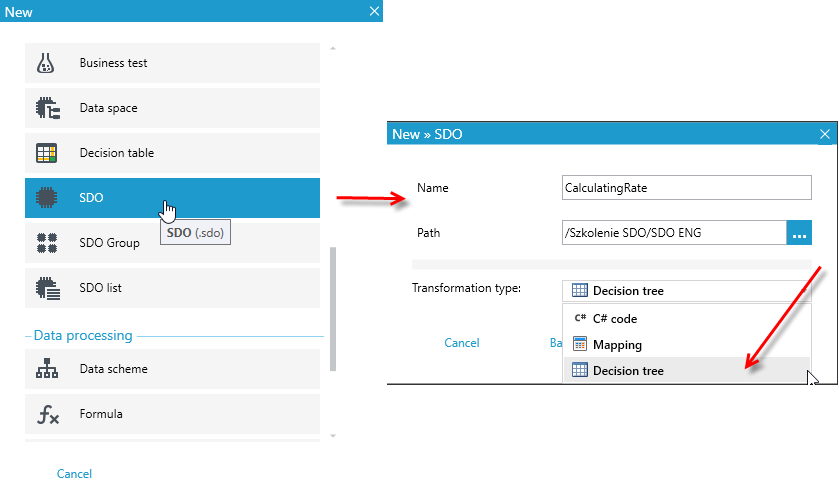
- Create an SDO element multidimensional table.
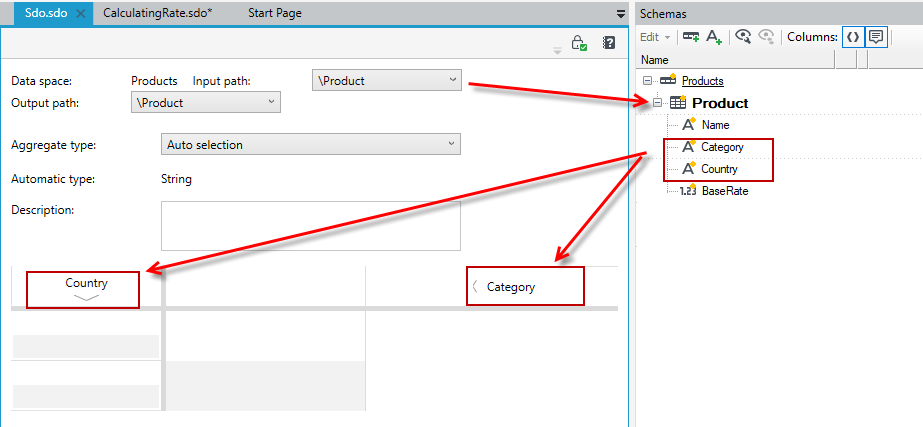
- Set the input and output path to the Product record. This is also where the aggregate will be stored.

- Fill in the horizontal key. Enter the name Country. In the vertical key, enter the name Category. The key names must exactly reflect the field names from the data schema.
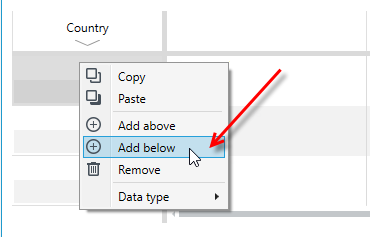
- Add and complete more horizontal keys. Right click and select Add below.
- Horizontal keys should be defined this way.

- Add vertical keys by right-clicking and selecting Add after.
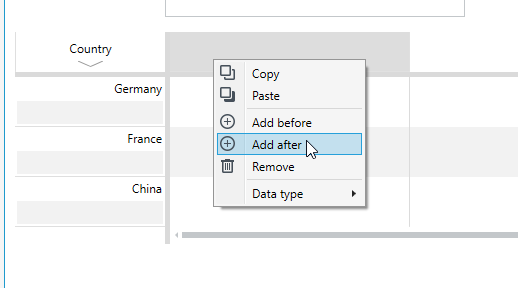
The table should look as follows:

- In the individual cells, enter the rules for calculating the aggregate, appropriate for each key. Type the rule directly in the cell or on the Details panel.
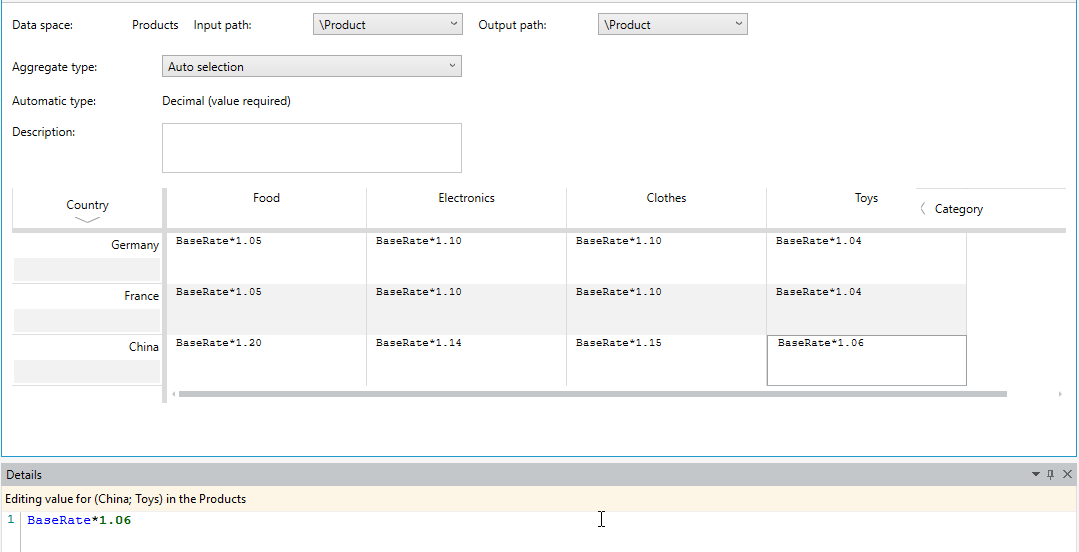
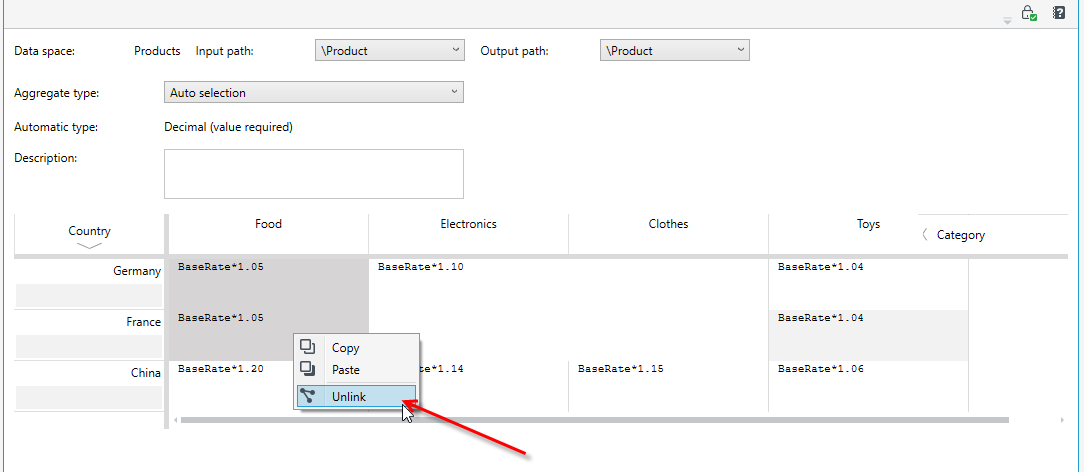
- If the formulas for the key data are the same, instead of duplicating them in separate records, we can make the formula split between several records.
- Select the records and then click Unlink. Formulas can be split vertically as well as horizontally.
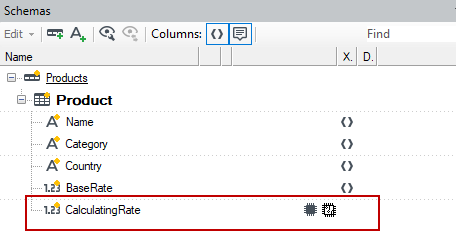
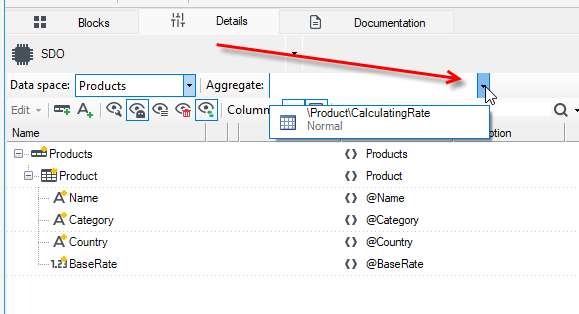
- After saving the data, the aggregate CalculatingRate will appear in the schema (the name of the aggregate is always the same as the name of the SDO).
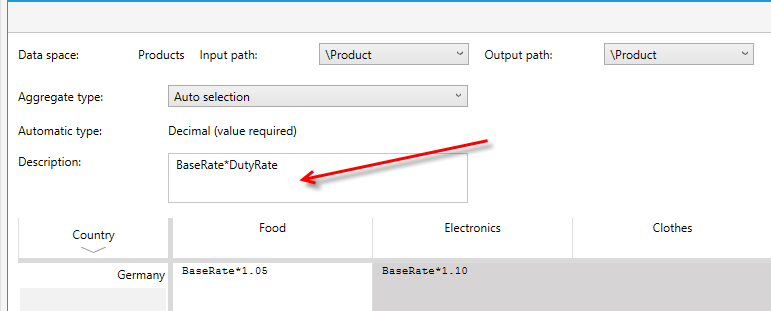
- Add a description to the table.
Using SDO in the processing package
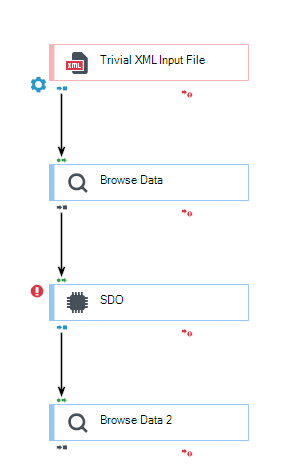
- Go to the processing package and add the SDO block and the Browse Data block.
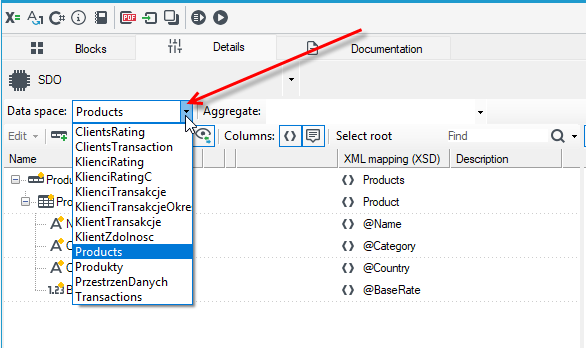
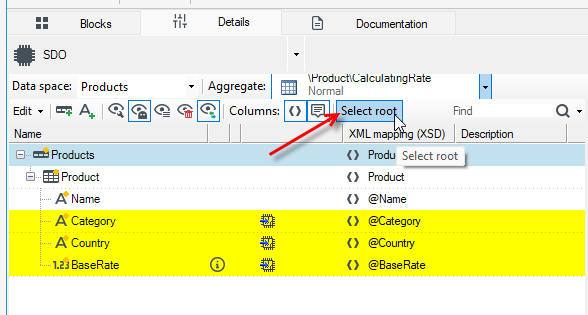
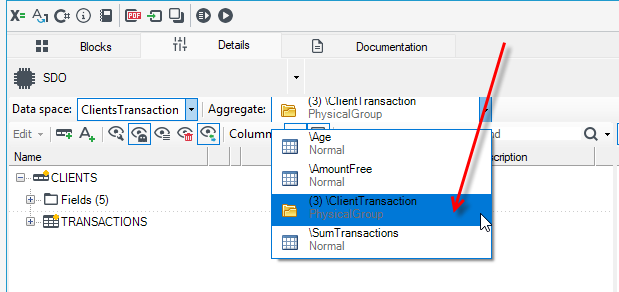
- Go to the details of the block and select the data space.
- Select the aggregate.
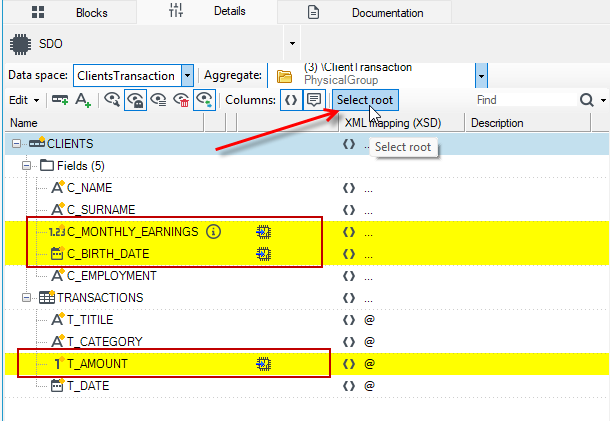
- Select the Products record and the Select root button. The fields needed to calculate the aggregate are marked with the corresponding symbol. Thanks to the fact that the structures both in the package and in the data space are identical, we do not need to perform additional mappings.
- Now you can run the package..
Calculating the age and transactions of a client
The following example will load the client's data from an XML file, and then the aggregates will calculate the client's age, the sum of the client's transactions and the free amount (income).
The contents of the example file:
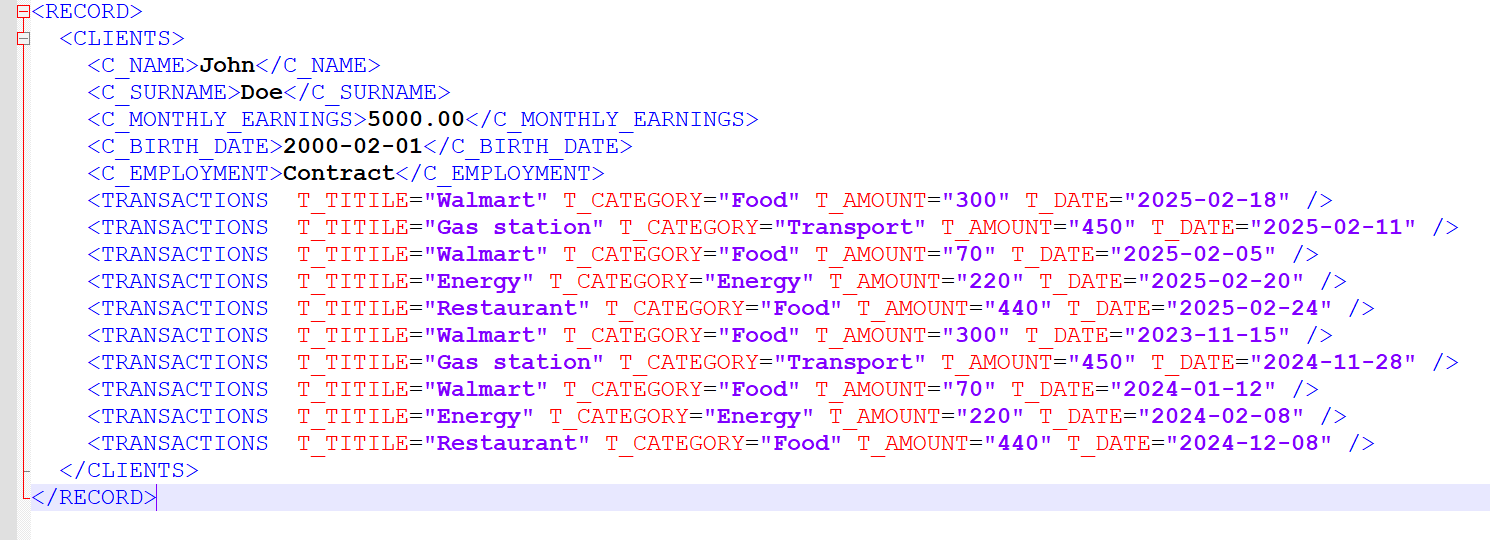
<RECORD>
  <CLIENTS>
    <C_NAME>John</C_NAME>
    <C_SURNAME>Doe</C_SURNAME>
    <C_MONTHLY_EARNINGS>5000.00</C_MONTHLY_EARNINGS>
    <C_BIRTH_DATE>2000-02-01</C_BIRTH_DATE>
    <C_EMPLOYMENT>Contract</C_EMPLOYMENT>
    <TRANSACTIONS  T_TITILE="Walmart" T_CATEGORY="Food" T_AMOUNT="300" T_DATE="2025-02-18" />
    <TRANSACTIONS  T_TITILE="Gas station" T_CATEGORY="Transport" T_AMOUNT="450" T_DATE="2025-02-11" />
    <TRANSACTIONS  T_TITILE="Walmart" T_CATEGORY="Food" T_AMOUNT="70" T_DATE="2025-02-05" />
    <TRANSACTIONS  T_TITILE="Energy" T_CATEGORY="Energy" T_AMOUNT="220" T_DATE="2025-02-20" />
    <TRANSACTIONS  T_TITILE="Restaurant" T_CATEGORY="Food" T_AMOUNT="440" T_DATE="2025-02-24" />
    <TRANSACTIONS  T_TITILE="Walmart" T_CATEGORY="Food" T_AMOUNT="300" T_DATE="2023-11-15" />
    <TRANSACTIONS  T_TITILE="Gas station" T_CATEGORY="Transport" T_AMOUNT="450" T_DATE="2024-11-28" />
    <TRANSACTIONS  T_TITILE="Walmart" T_CATEGORY="Food" T_AMOUNT="70" T_DATE="2024-01-12" />
    <TRANSACTIONS  T_TITILE="Energy" T_CATEGORY="Energy" T_AMOUNT="220" T_DATE="2024-02-08" />
    <TRANSACTIONS  T_TITILE="Restaurant" T_CATEGORY="Food" T_AMOUNT="440" T_DATE="2024-12-08" />
  </CLIENTS>
</RECORD>
Create a package
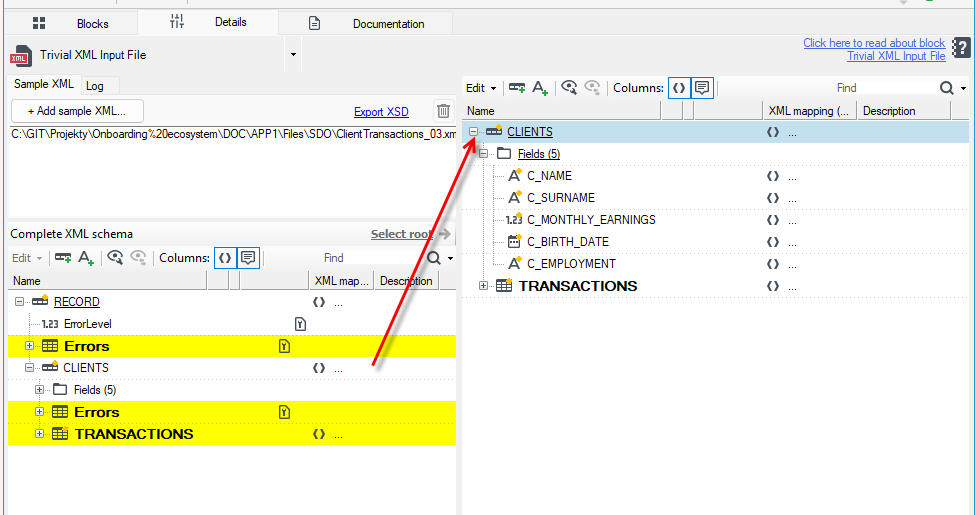
- Create a processing package consisting of an input block Trivial XML Input File file and a Browse Data block.
- Load the file (+Add sample XML) in the XML file download block.
- Drag the CLIENTS record to the right side of the window..
Define a data space
- Create a data space.
- Add the Random Data Generator block and the Output port.
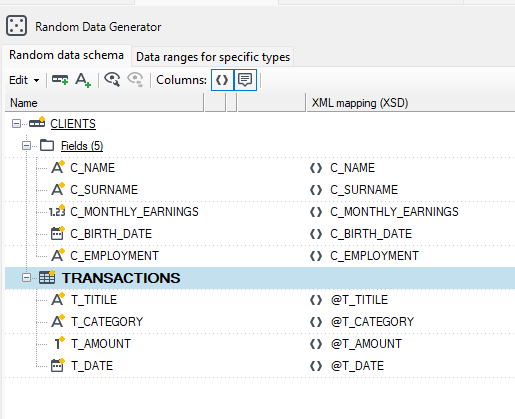
- Go to the Random Data Generator block and create a data schema as below.
- You can copy the fields from the earlier package, where you took the data from the XML file, and paste them into the schema in the Random Data Generator block.
Creating a multidimensional table
-
Create an SDO element multidimensional table.
-
Mark Key 1 as the output.
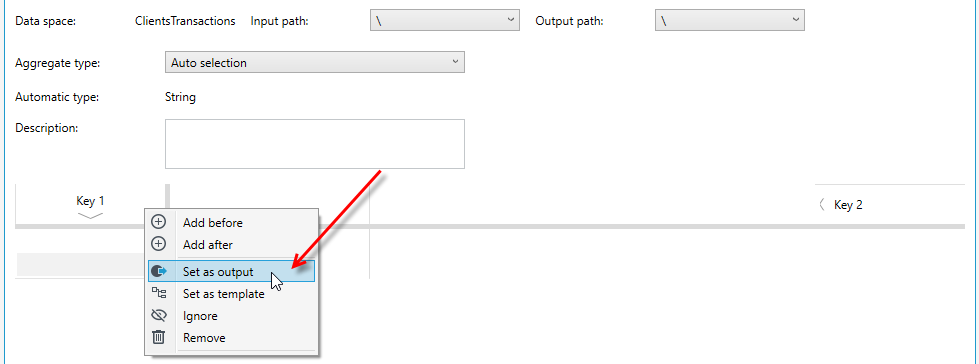
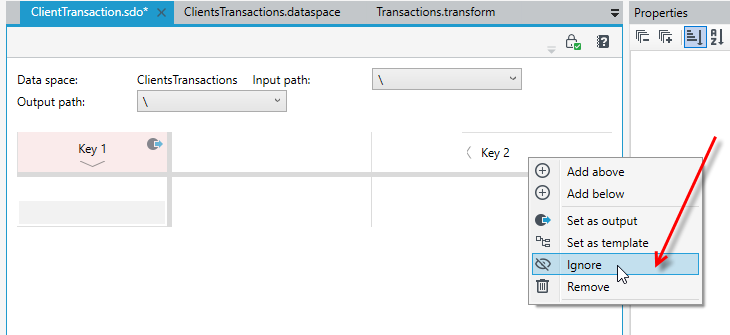
- Click on Key 2 and select Ignore. In this case, we will not use the horizontal key.
- Enter the names of the aggregates in the left column, and the rules for each aggregate in the right column.
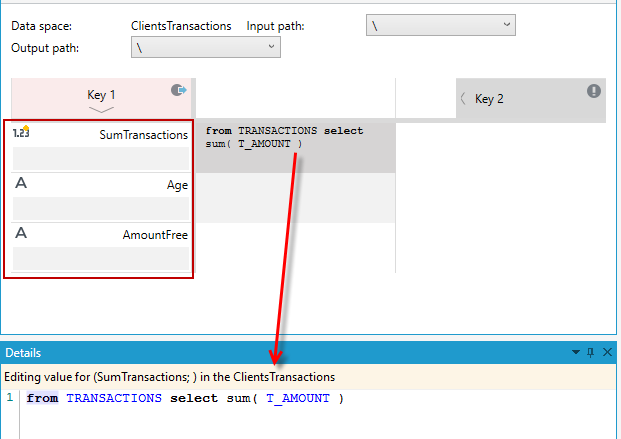
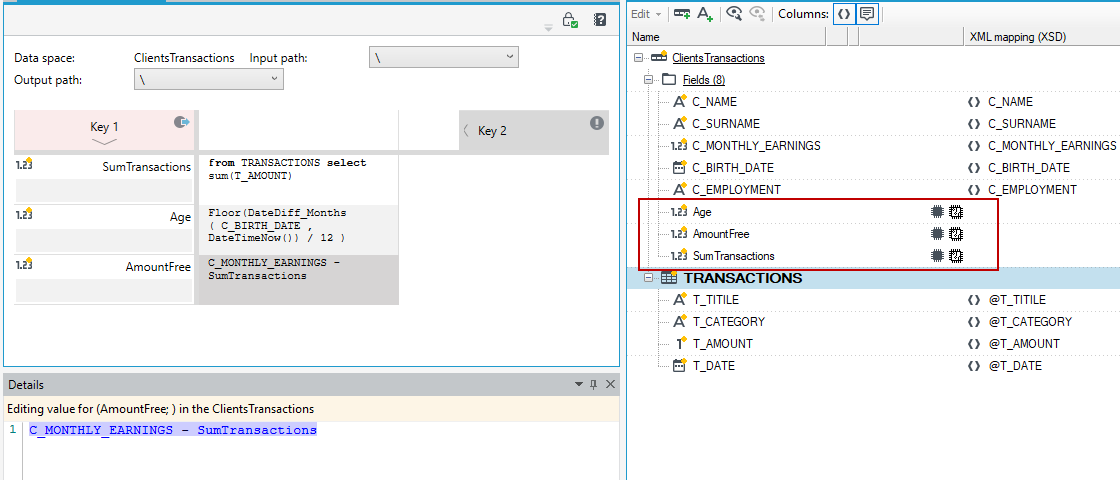
The table should look as follows:
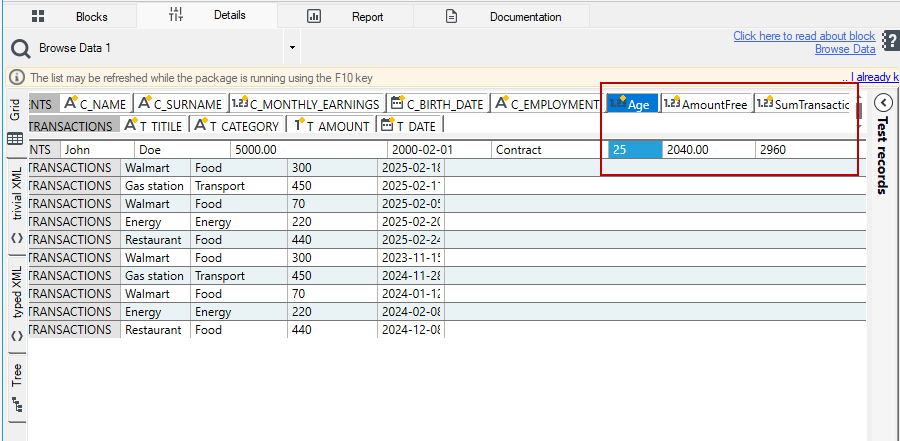
SumTransactions: from TRANSACTIONS select sum(T_AMOUNT)
Age: Floor(DateDiff_Months(C_BIRTH_DATE,DateTimeNow())/12)
AmountFree: C_MONTHLY_EARNINGS - SumTransactions
Once the table is saved, the aggregates will be added to the data schema.
Using SDO in the processing package
- Go to the processing package and add the SDO block and the Browse Data block.
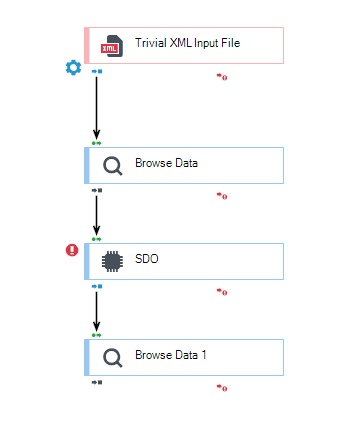
- Go to the block details and select the data space and aggregate group.
- Select the CLIENT record and press Select root. Start the processing package.
- In the Browse Data block, you can preview the calculated aggregates.
Next section: Workflow