Multidimensional table
Multidimensional tables are used to perform complex arithmetic operations. Based on the arrays, it is possible to simply build a large number of rules (functions needed for transformation) based on keys that uniquely identify paths to them and affect the result of calculations.
Creating a multidimensional table
To create a multidimensional table:
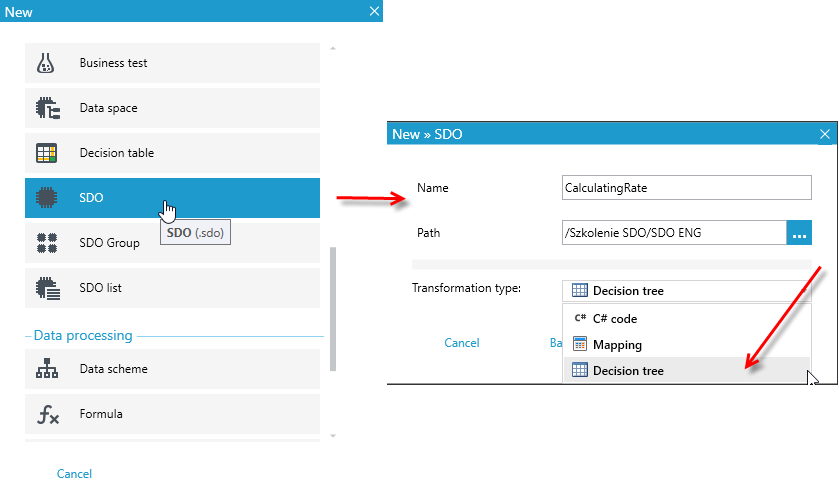
- In the main window, select the add icon in the upper left corner or from the main menu File>New or from the version server context menu New element.
- Then select SDO in the popup window. Select Decision tree as the Transformation type and click OK.
After selecting the above, a tab is displayed to create a multidimensional table and allow you to manage it.
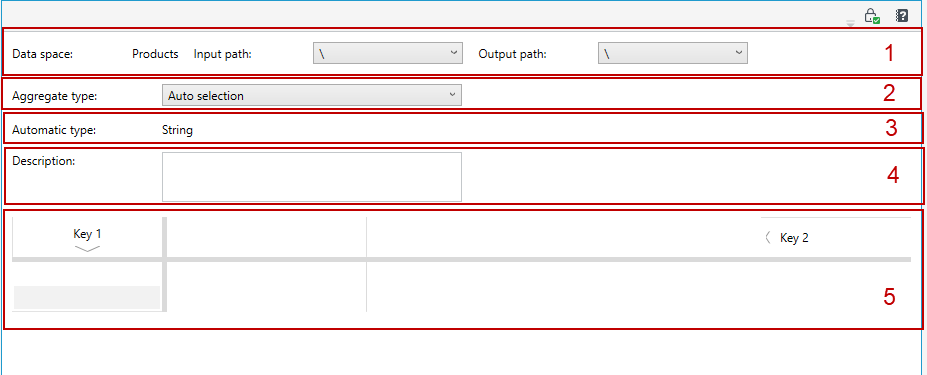
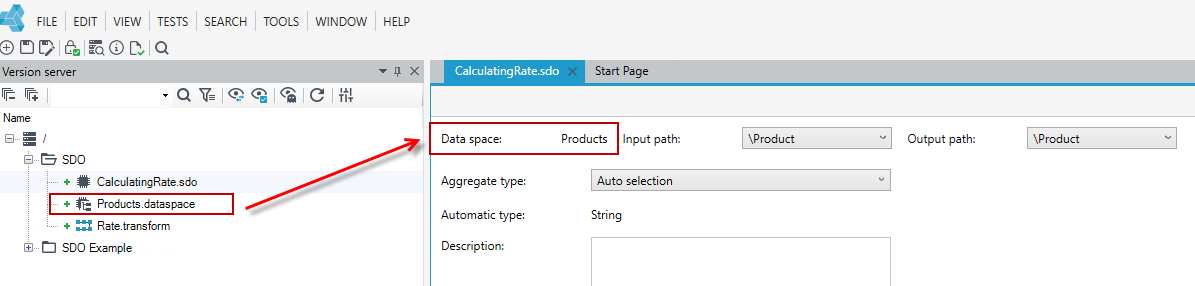
- Data space. Select (if necessary) where in the data structure the input and output data are located. In the following case, it is the created data space Product. Aggregates are stored in the output path.

The data space is loaded automatically from the same folder where the multidimensional array is located. Therefore, you cannot create several data spaces in the same folder and switch between them in the table.
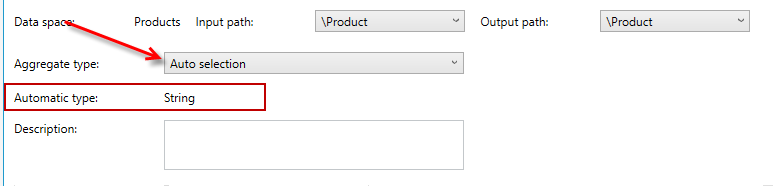
- It is necessary to choose the type in which the aggregate will be:
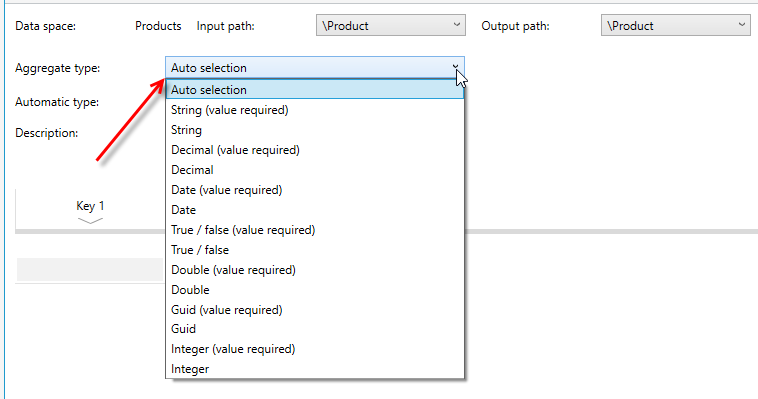
- Information about the selection of automatic type - with this selection, after creating a rule, the system automatically detects what the key type will be in the Automatic type field.
- Description of a multidimensional table.
- A working field where keys and rules can be defined.
Description of the components of a multidimensional table by example:
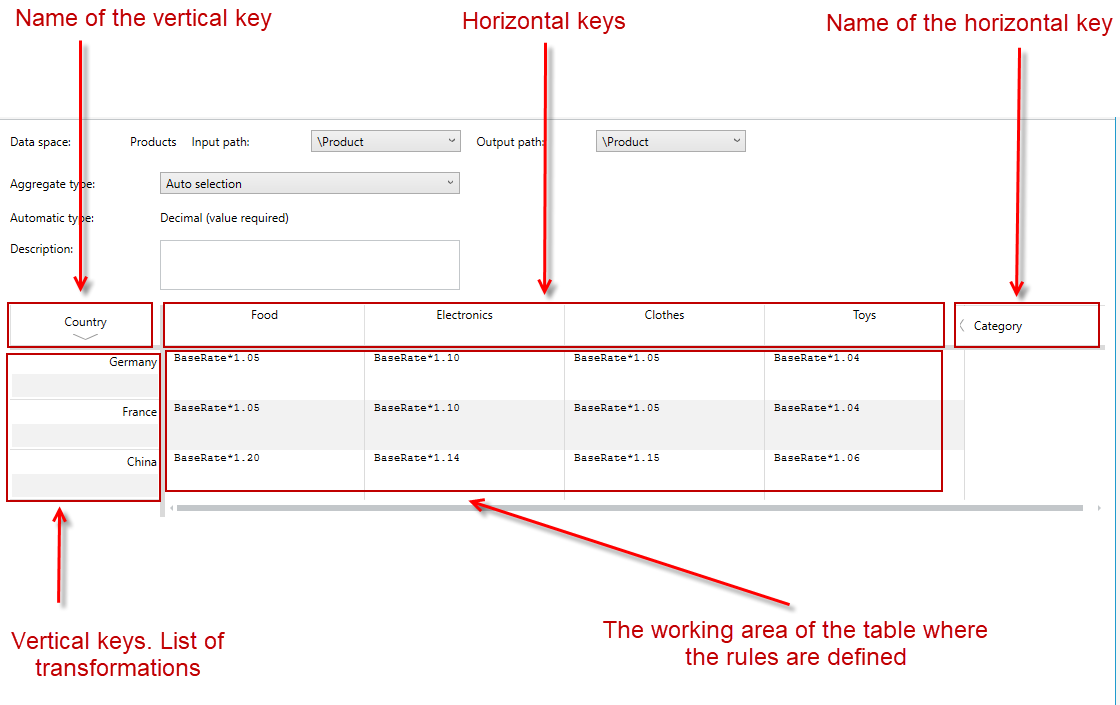
Keys
When you create a new multidimensional table, you get its basic structure with the name of the vertical key (Designated as “Key 1” - should be changed to business correct) and the horizontal key (Designated as “Key 2” - should be changed to business correct).

- Multidimensional arrays can have keys that are also the output of the rules (store the name of the field under which the result will be stored). In order to obtain such an option, select Set as output after right-clicking.
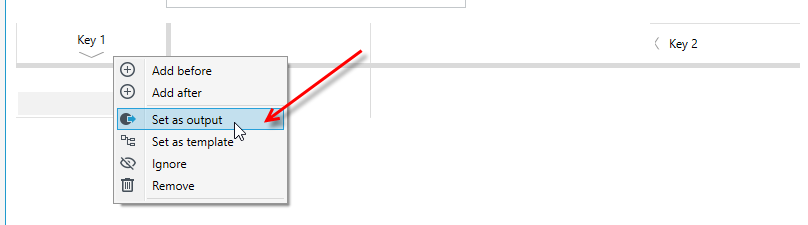
- Then the fields marked as 2,3,4 disappear. Besides, the color of the key name changes and the symbol in its upper right corner appears. The operation can be performed interchangeably on either the horizontal key name or the vertical key name. The name of the vertical key is preferred.
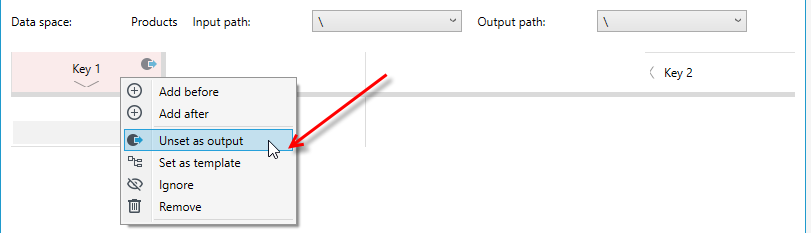
- To remove the designation, select Unset as output.
- Then select the type of a single key by right-clicking in the key field. After selecting the type, an icon representing the key type will appear in the upper left corner of the key.
- Selecting Mandatory value will make it a mandatory value. Selecting automatic will cause the type to be determined automatically after creation.
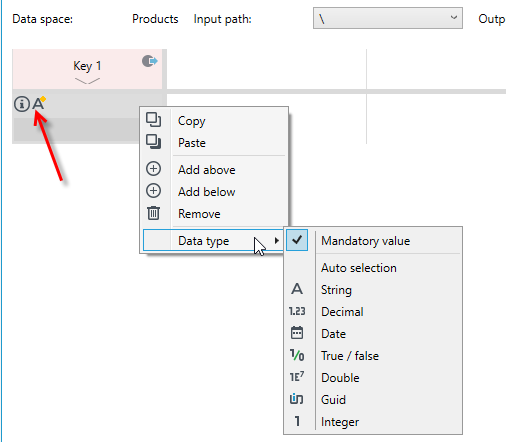
Be sure that the type of keys corresponds to the type of the multidimensional table if the option for keys Set as output is selected.
- To add another key in a single dimension, right-click on the key field and use one of the Add above or Add below options, which will create another key above or below the selected one.
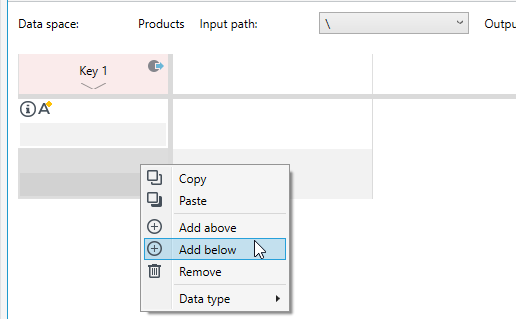
- To add a key name, double-click on the cell.

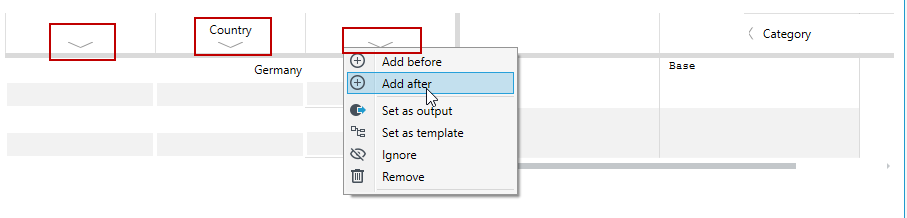
- Follow the same procedure for creating horizontal keys (if necessary). Click on the key and select the options from the context menu Add before or Add after.
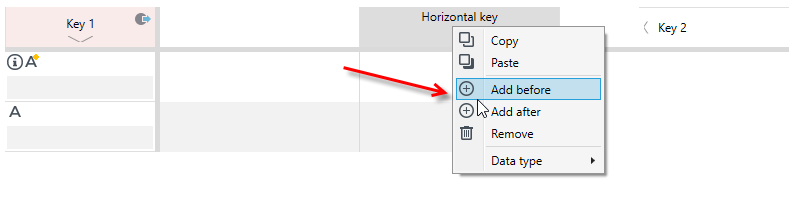
The names of the keys must match the elements that are in the data space, since they are the ones you are referring to.
Other actions you can perform for keys:
- Ignore - the ability to ignore a key whose value is not needed for the calculation.
- Remove- the ability to delete a key.
- Copy/Paste - the ability to select multiple cells and keys in the table, copy the selected area and paste it elsewhere.
For example:
If we have a data space created, activate the Schemas tab so that we can see the data schema when we create a multidimensional table.
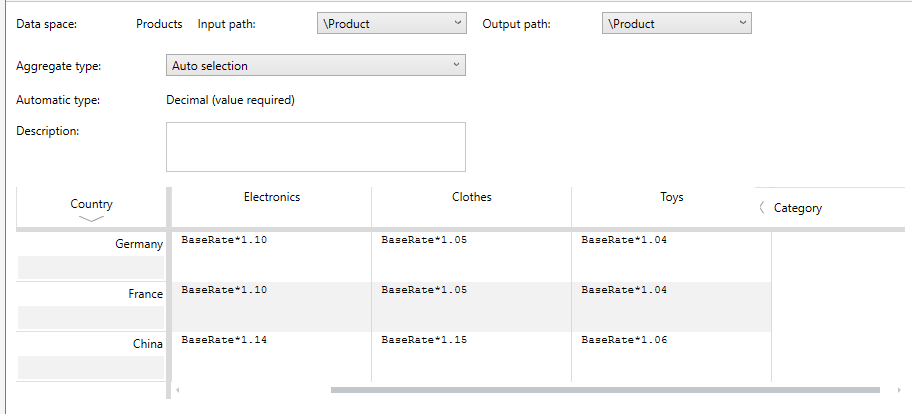
In the following case, in the multidimensional table, we use fields from the data schema Country and Category.
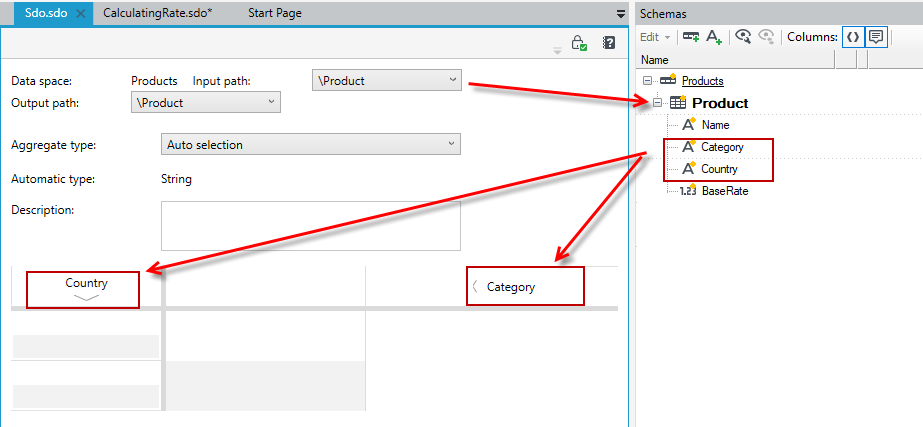
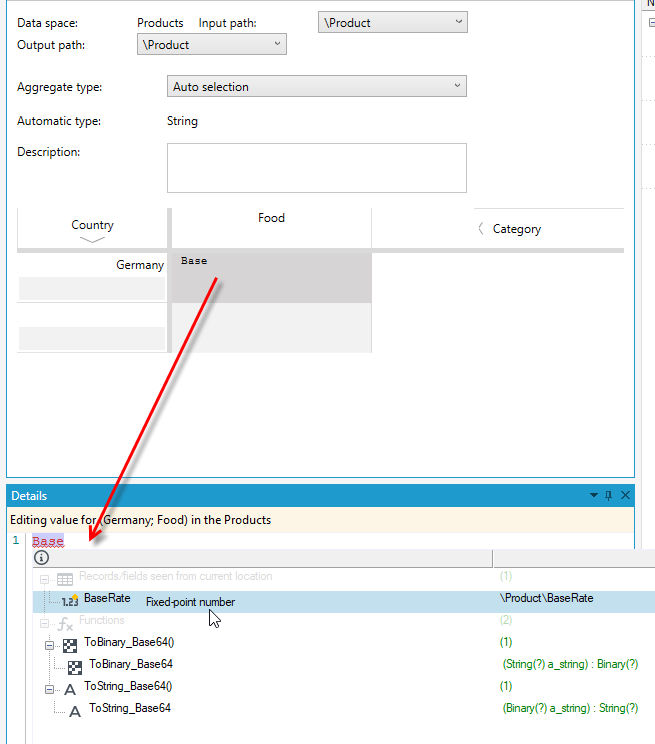
- Enter the formulas for calculating the aggregate in the corresponding cells for each key. When you click on a cell, you can enter the formula in the Details panel or directly in the cell. Enter formulas using the expression editor. When you select Ctrl+Space, a window with syntax prompting will be displayed.
An example table with filled data can look as follows:
Adding key dimension
Multidimensional arrays allow you to add multiple dimensions in vertical and horizontal key space. It is possible to create any number of dimensions.
- Click on the key name field and select Add after or Add before. New dimensions can be recognized by the presence of a check mark in the key name

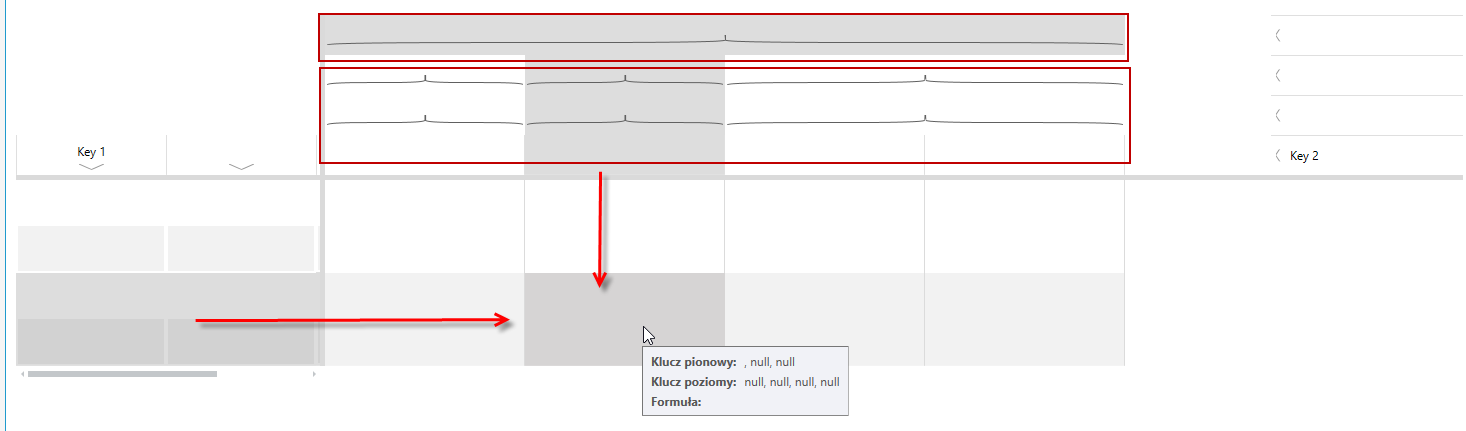
- In case of configuring multiple dimensions both horizontal and vertical in multidimensional arrays, the functionality of auxiliary brackets has been added. Their task is to visualize connections when transitioning between dimensions of a given level. In addition, when marking a single rule field, the entire path of access from the level of horizontal as well as vertical keys is highlighted in gray.
Multidimensional table as template
It is possible to use key values to parameterize rules (use keys as variables inside rules).
- To use such a solution, use the Set as template option on the key name.
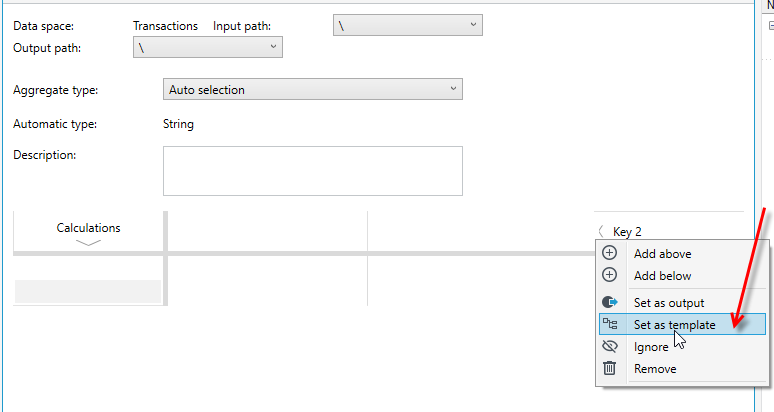
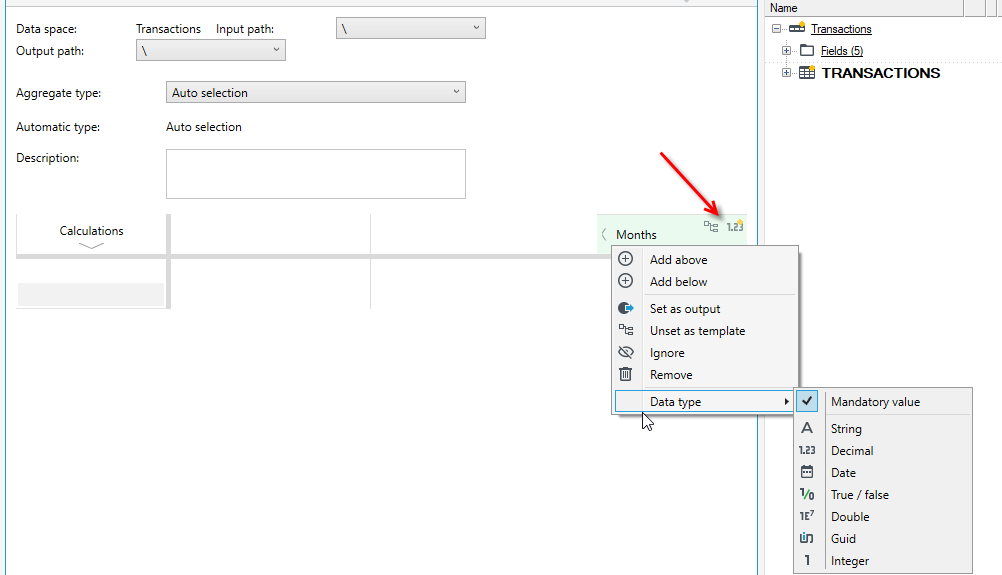
- The key will turn green. Enter the appropriate key name. In the upper right corner you will see a symbol indicating the template and a symbol indicating the type.
- If required then change the data type by right-clicking on the key and selecting Data type.
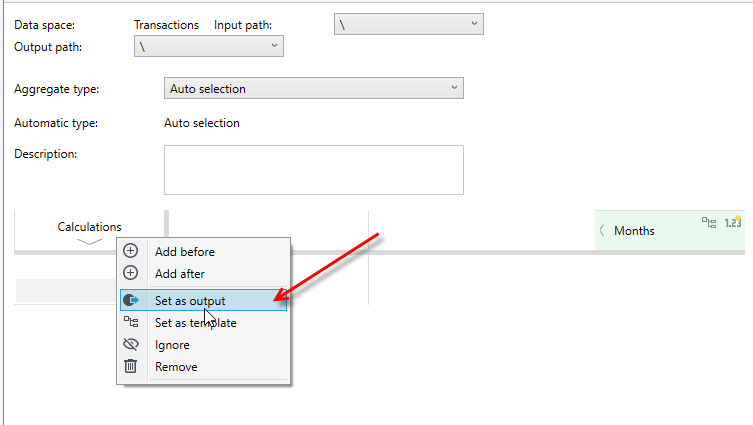
- Set the Calculation key as the output of the rule (context menu and Set as output option).
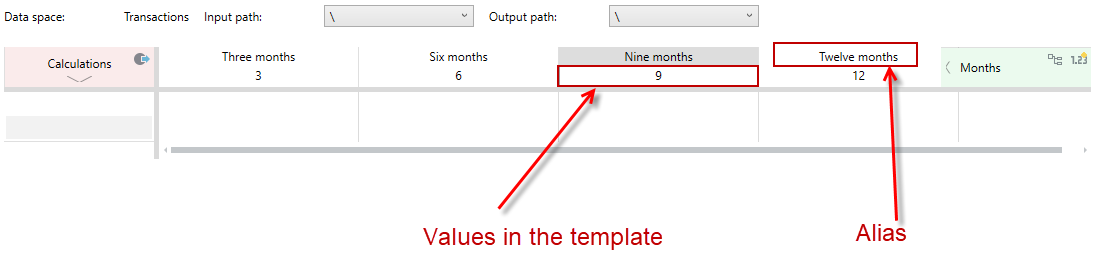
- Then configure the key values as you wish (below is the configuration for a rule that is to check the minimum incomes quarterly, i.e. after 3, 6, 9 and 12 months). In addition, it is possible to use aliases. These are descriptions used for better understanding of the template value or if the template value is too long to display correctly in the aggregate list.
- When all keys have been properly configured, proceed to rule configuration. Use the Details window for this after first clicking on the rule field. This window appears under the bottom of the table workspace by default.
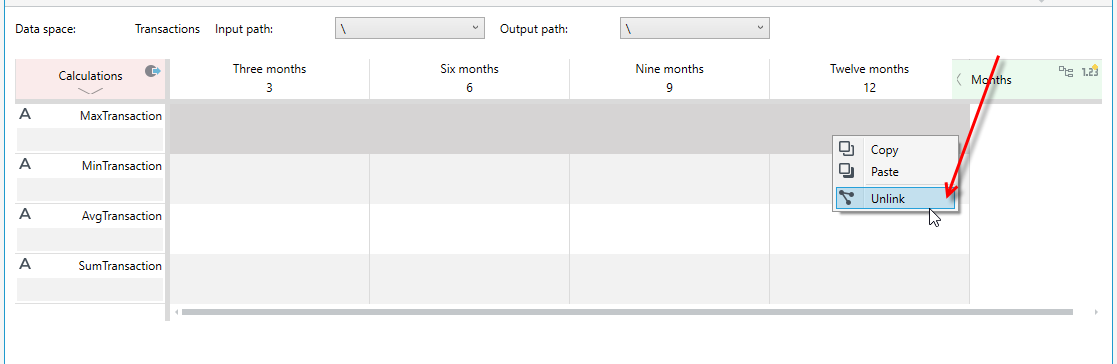
- Each vertical key can have its own rule, but in this case we want the rule to be the same for each key. Select the fields in the workspace, right-click on them, and select Unlink.
- In the Details field when we write queries, there is an option to use a syntax hint. To do this, use the keyboard shortcut CTRL + SPACE and a hint window appears.
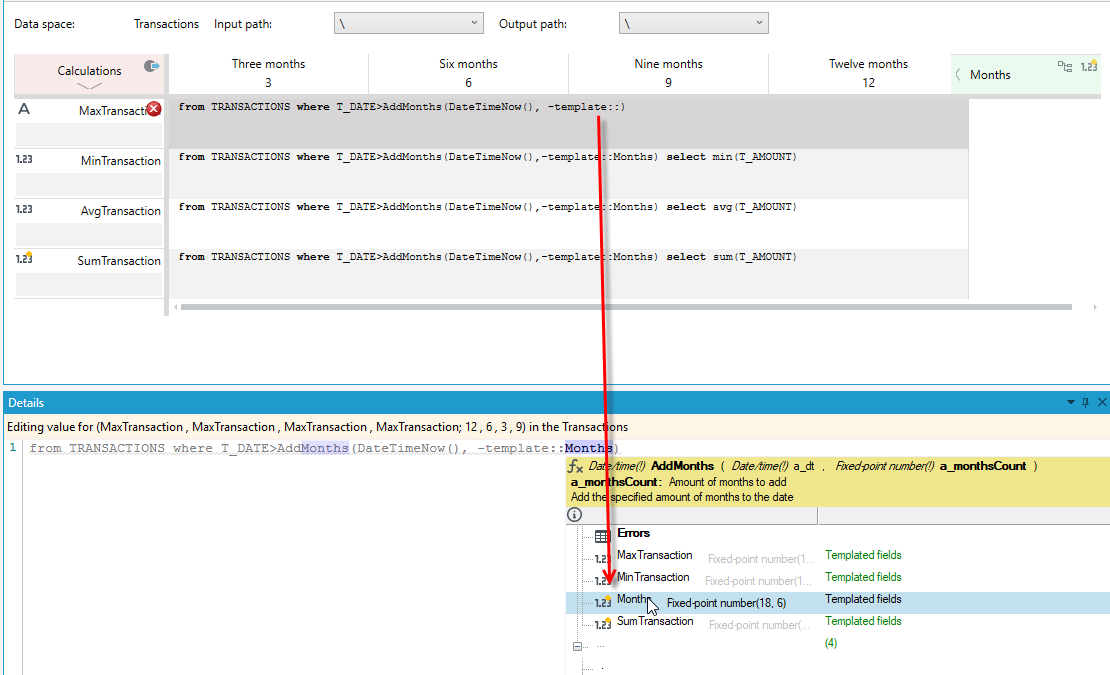
- Similarly, join the other keys and enter the rule on the Details panel or directly in the key cell.
- To refer to a key value, use the expression
-template::key_name. In this case, it will be-template::Months
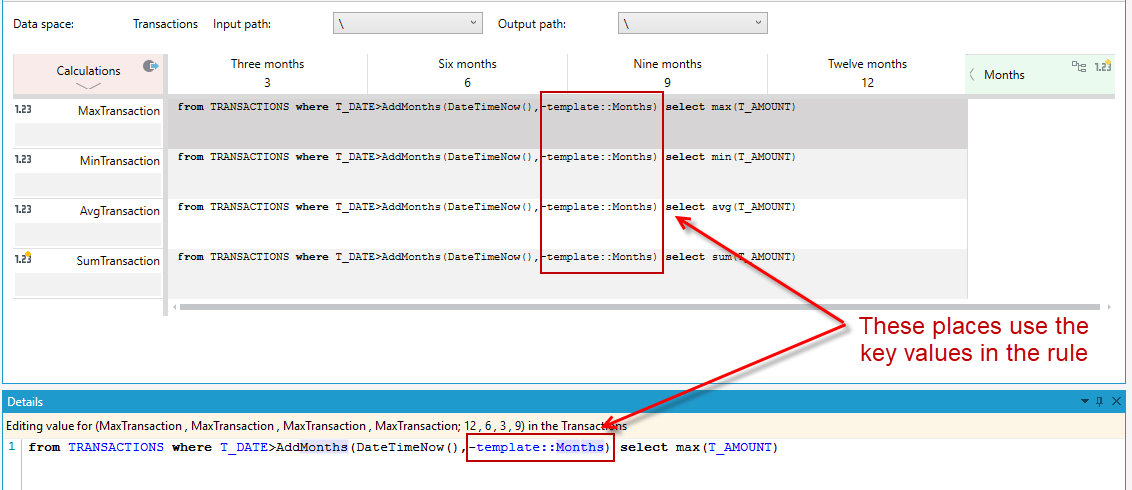
Rules - query language used in a multidimensional array
A formula language construction called “mini-linq” was used to write rules in multidimensional arrays, similar in structure to the way SQL queries are constructed, making it convenient to work on lists. For example, the notation:
from \Client\Accounts\Transactions where Amount > 0 select sum(Amount)
causes the formula calculation to retrieve all records from the Transactions list, and then filter and leave only those for which the condition “Amount > 0” is met, and the aggregate function “sum(Amount)” is executed on the resulting set, which returns the sum of the values of the Amount field for that set.
In the Details field, when writing queries, it is possible to use a syntax hint. To do this, use the keyboard shortcut CTRL + SPACE and the hint window appears.