User SQL scripts
An application built on the archITekt platform may include dedicated application SQL scripts executed as part of the implementation of a given application version. These scripts can add the required specific functionality to the application or ensure data migration from the previous version to the current one.
Application SQL scripts are saved directly on the version server.
When creating an SQL script, we can use variables that are used in the same way as variables in SQLCMD:
APP_CODENAME– technical name of the applicationDATA_DATABASE, CONFIG_DATABASE, SCHEDULER_DATABASE, VIP_DATABASE, VERSION_SERVER_DATABASE– names of application databases
Example of variable usage:
SELECT '$(APP_CODENAME)' AS APP_NAME, $(DATA_DATABASE) AS DB_NAME
Application SQL scripts are named according to a fixed convention:
U.0001.sql
where:
- 0001 – unique script number
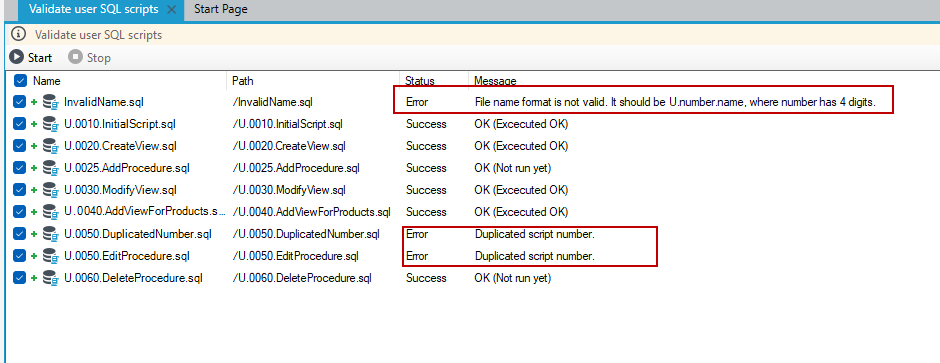
Each script (*.sql file) must be named according to the above convention. If a file that does not comply with the convention is found, an error is signaled, preventing the export and replacement of the environment. See: Script verification.
Each script must have a unique number, but the continuity of numbering is not checked. If two scripts with the same number are found, an error is signaled, preventing the export and replacement of the environment.
The script number uniqueness mechanism prevents situations where two team members simultaneously add application SQL scripts to a shared repository – when it is unclear in what order they should be executed. The situation will be detected because they will have the same script numbers, and once the situation is flagged, the team will be able to resolve it by changing the number of one of the scripts.
As part of the database application update procedure, only “new” scripts are executed. “New scripts” are scripts with numbers greater than the number of the last successfully executed script. This means that if the execution of a script ends with an error, the next run of the application update procedure will start by re-executing the script.
If a script is executed incorrectly, an application package containing the corrected content of that script must be provided.
Each script should be idempotent, i.e., it should be possible to run it multiple times, and it should work in such a way that if an error occurs, its operation can be corrected (e.g., it should be transaction-based).
Information about executed scripts is stored in the _DATABASE_JOURNAL table. When executing scripts, only the last entry in the table regarding the execution of application SQL scripts is examined (the entire history of script execution is not examined).
This approach allows us to “reset” the script execution counter. As part of the administrative command (RewindApplicationSqlScript.ps1 script), you can emergency move (roll back or move forward, skipping several scripts) the execution of the script before the specified SQL script (actually, before the specified script number). More information about running the command is described in the chapter: Description of the script for administrative relocation of the user script execution indicator.
Adding scripts in archITekt Studio
To add a script:
- In the main window, select the add icon in the upper left corner or from the main menu File>New or from the context menu of the version server New element.
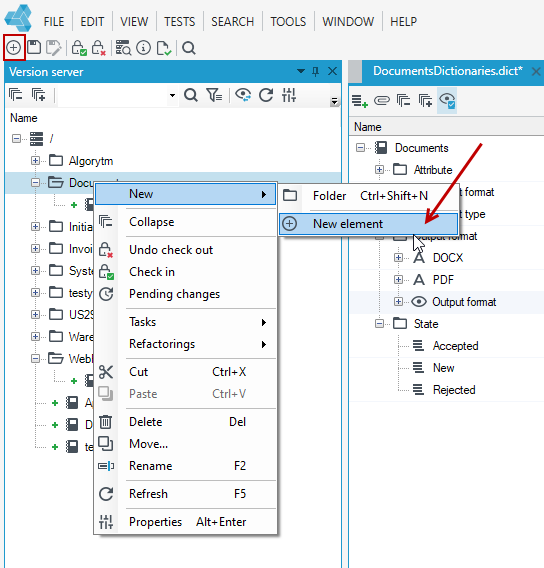
- Then, in the popup window, select User SQL script.
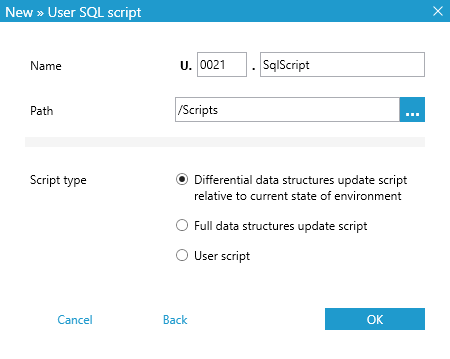
- In the next window, enter the script details and select the type of script you want to add:
- Differential data structures update script relative to current state of environment– insert script updating only structures that changed.
- Full data structures update script– insert script updating all data structures.
- User script– no additional data structure script.
If you select the Differential or Full option in the above field, a file updating the database (full or incremental, depending on your selection) will also be added before the script you define.
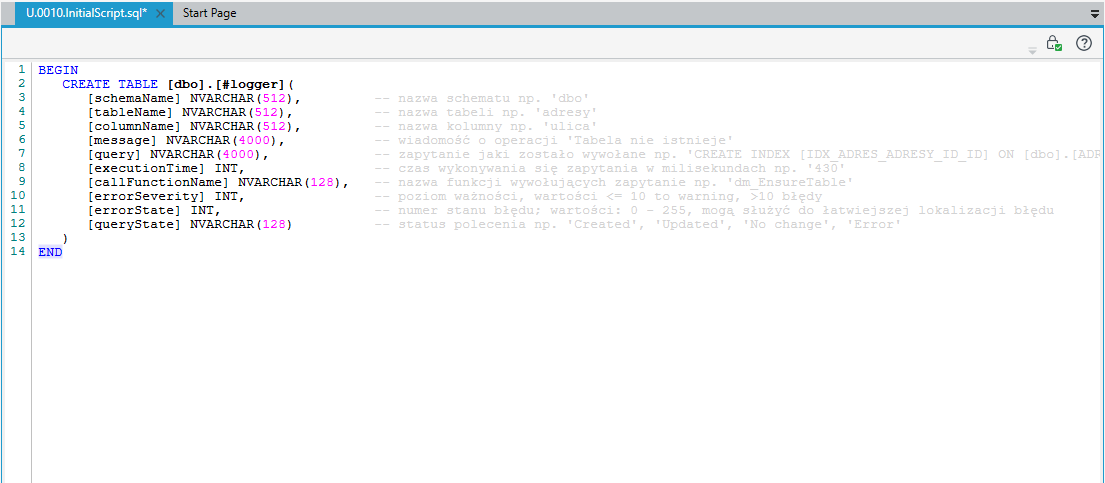
- Enter the script in the next window.
Manual database update
During the replacement procedure, VSoft archITekt automatically generates and runs scripts that update dictionaries and the database structure. When working with very large projects, the execution time of scripts updating the entire database structure may be noticeable. In this case, the low-code developer may decide to manage the database structure and/or dictionaries manually.
To enable manual database structure management, you must:
- Disable the mechanism for automatically generating SQL scripts that update dictionaries and/or the database. To do this, create the following files on the version server (in any directory):
A.5050.DICT.sql– if you want to disable automatic generation of the dictionary update fileZ.5050.EDMX.sql– if you want to disable automatic generation of the database structure update file
- After changes to the data structure and/or dictionaries, attach a user script containing the changes:
- When updating the data structure, you can create a new user script and choose to generate incremental scripts or generate a full script for the data structures. You can also prepare an SQL script using the data structure update functionality by selecting the data model objects you are interested in from the Tools>Update structures in dtabase menu - see: Update structure in database.
- When updating dictionaries, you can prepare an SQL script using the dictionary update functionality by selecting the dictionaries you are interested in from the Tools> Update dictionaries database menu - see: Updating dictionaries in the database
Incremental script generation mechanism
The incremental script generation mechanism works by analyzing the user's existing SQL scripts and their content (more specifically, the relevance of the part responsible for updating data structures).
When generating an SQL script for each data structure, an entry is also generated containing the identifier of that structure and the checksum (MD5) for the generated script:
-- TABLE ID: ac9cc77f-b7c2-4901-9c54-84f4dd285017, MD5: 39f8f2c375ee37ac4204f5d75e4a2617 –
(if entries for a given structure appear in multiple user SQL script files, the most recent entry is taken into account)
This value is compared with the checksum generated for the current state of the object. If they differ, an SQL script is generated for the given structure.
Script verification
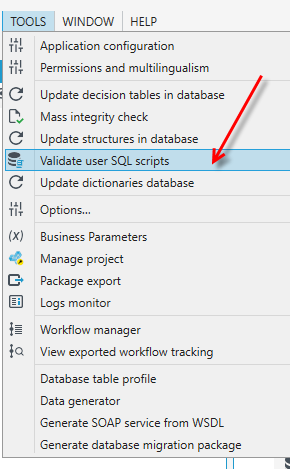
- To verify the added scripts, select Validate user SQL scripts from the Tools menu.
- In the next window, select Start. In addition to information about whether the script is correct or not, you will also receive information about whether the script has already been executed for the environment or not. Scripts are executed in VSoft archITekt Launcher, see: Script management in VSoft archITek Launcher.
Script management in VSoft archITek Launcher
User-added scripts are managed in VSoft archITekt Launcher.
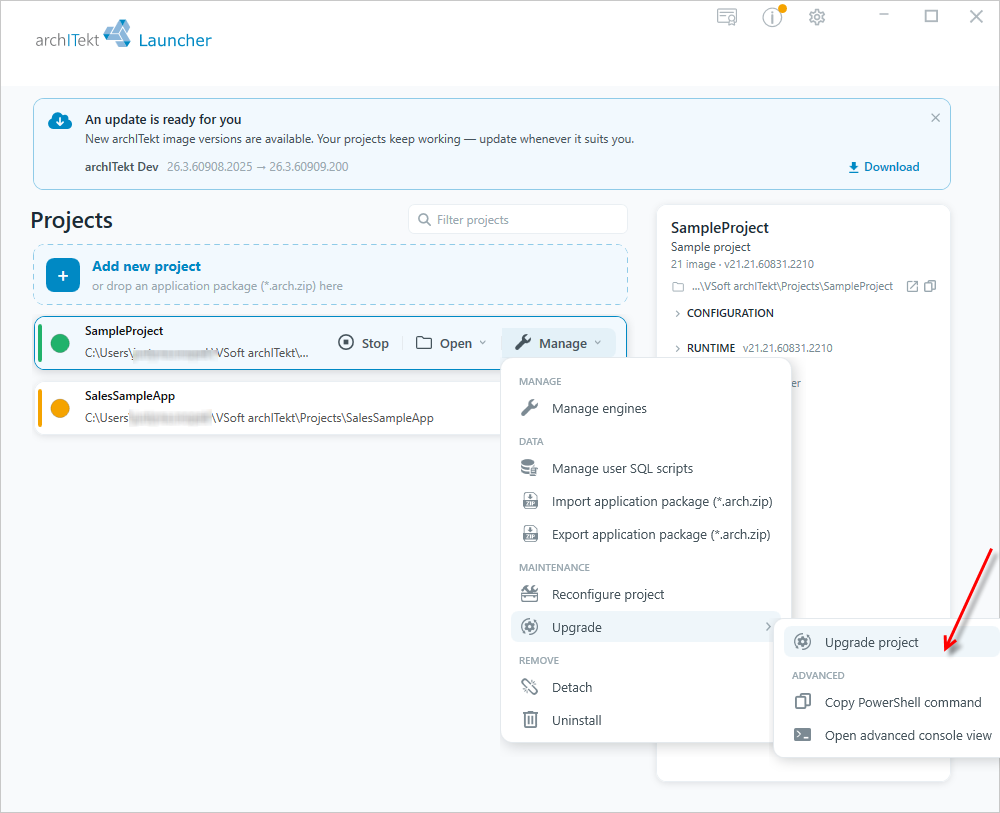
- If you have added a script in archITekt Studio and want to execute (run) it, in VSoft archITekt Launcher expand the Manage button next to the given project, in the MAINTENANCE section expand the Upgrade option and select Upgrade project. All newly added scripts will be executed along with the environment update.
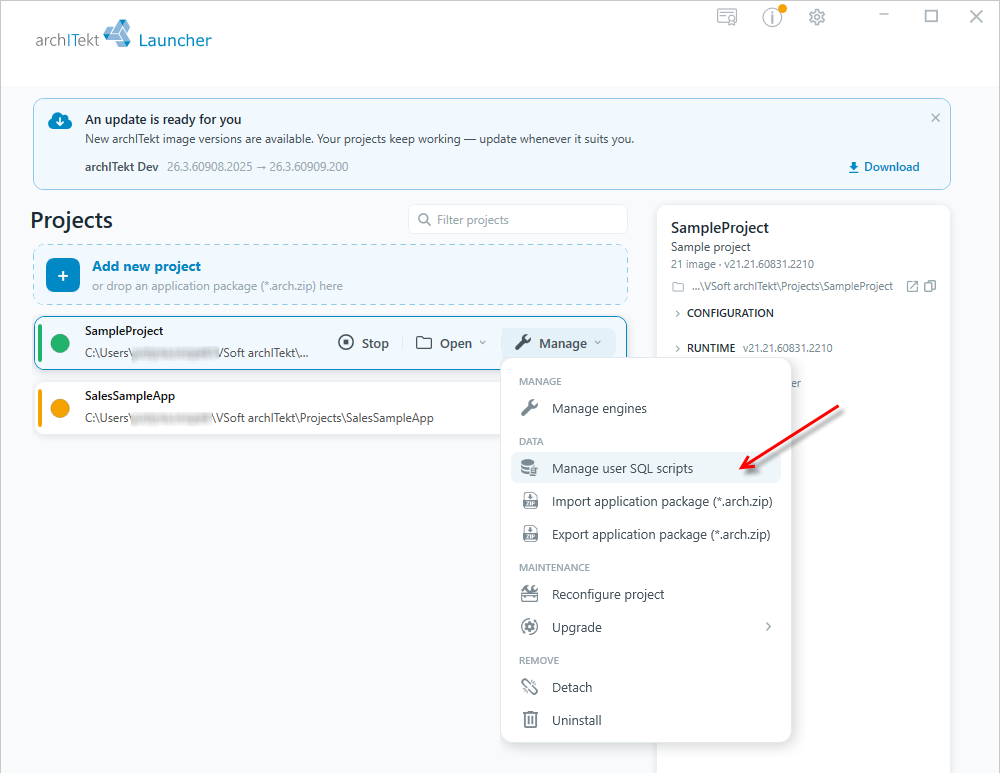
- To go to the script management window, expand the Manage button next to the given project and, in the DATA section, select Manage user SQL scripts.
The list shows all user-added scripts along with information on whether they have been executed or not.
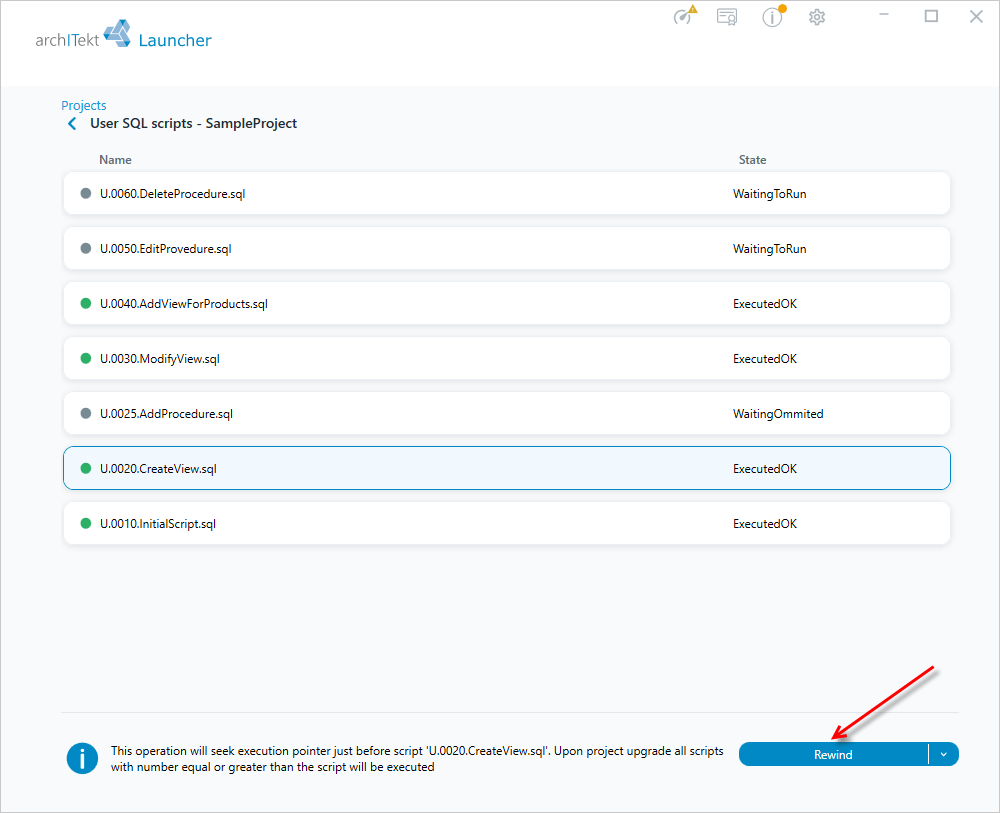
- The Rewind option moves the execution pointer to a position just before the selected script - after updating the project, that script and all scripts with higher numbers will be (re-)executed.
- You can't rewind to a script that was not run yet or whose number is higher than the last executed script.
- In this case, the last executed script is U.0040.
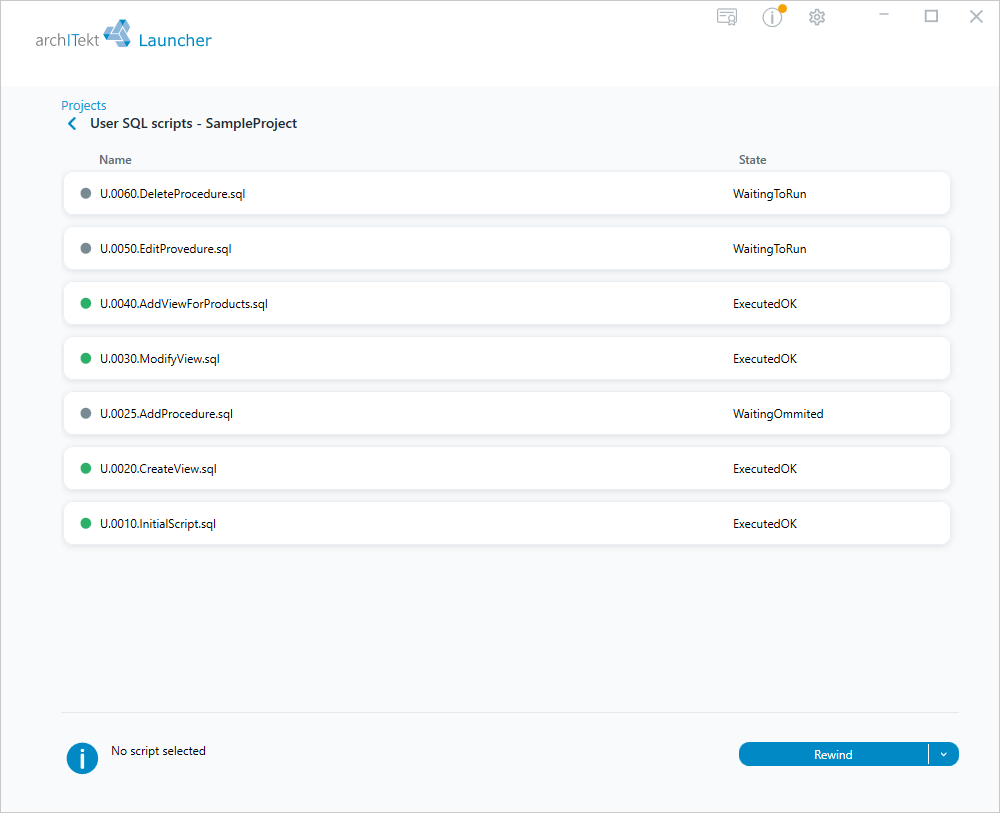
- Select the script U.0020.CreateView.sql and choose the Rewind button.
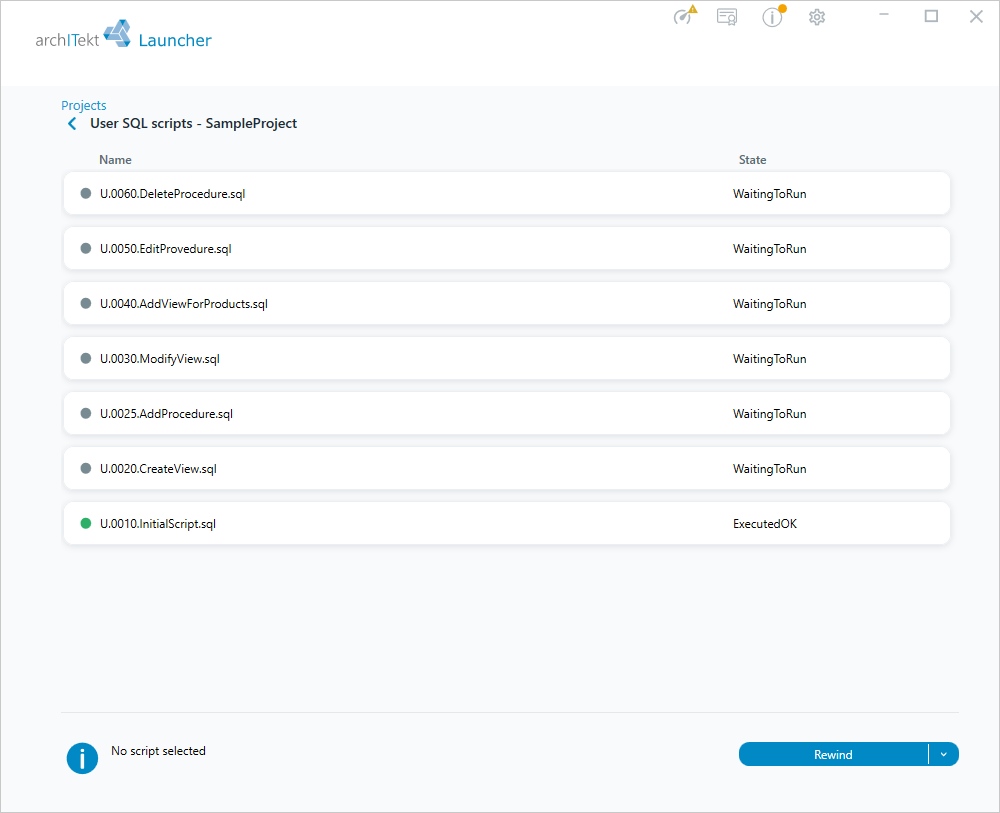
- The execution pointer will be set just before the script U.0020.CreateView.sql - now the script U.0010.InitialScript.sql is treated as the last executed one, and all scripts from U.0020 upward will get the WaitingToRun status and will be executed during the next project update.
As part of the database application update procedure, only “new” scripts are executed. “New scripts” are scripts with numbers greater than the number of the last successfully executed script.
Next section: User Interface