Panels
There are panels in the View menu and on the bottom bar, which you can turn on and place in the application window in the preferred place by adjusting the view. Depending on the components you are working with, you will need access to particular panels. For example, when working with processing packages, the following panels are useful: Tests of processing packages or Search processing packages.
In addition to panels that are dedicated to a specific element, there are also panels that are necessary to work with each type of file we create. These include the panels: Version server, Properties, Toolbox and Error list.
Enabling panels
If you want to enable a given panel:
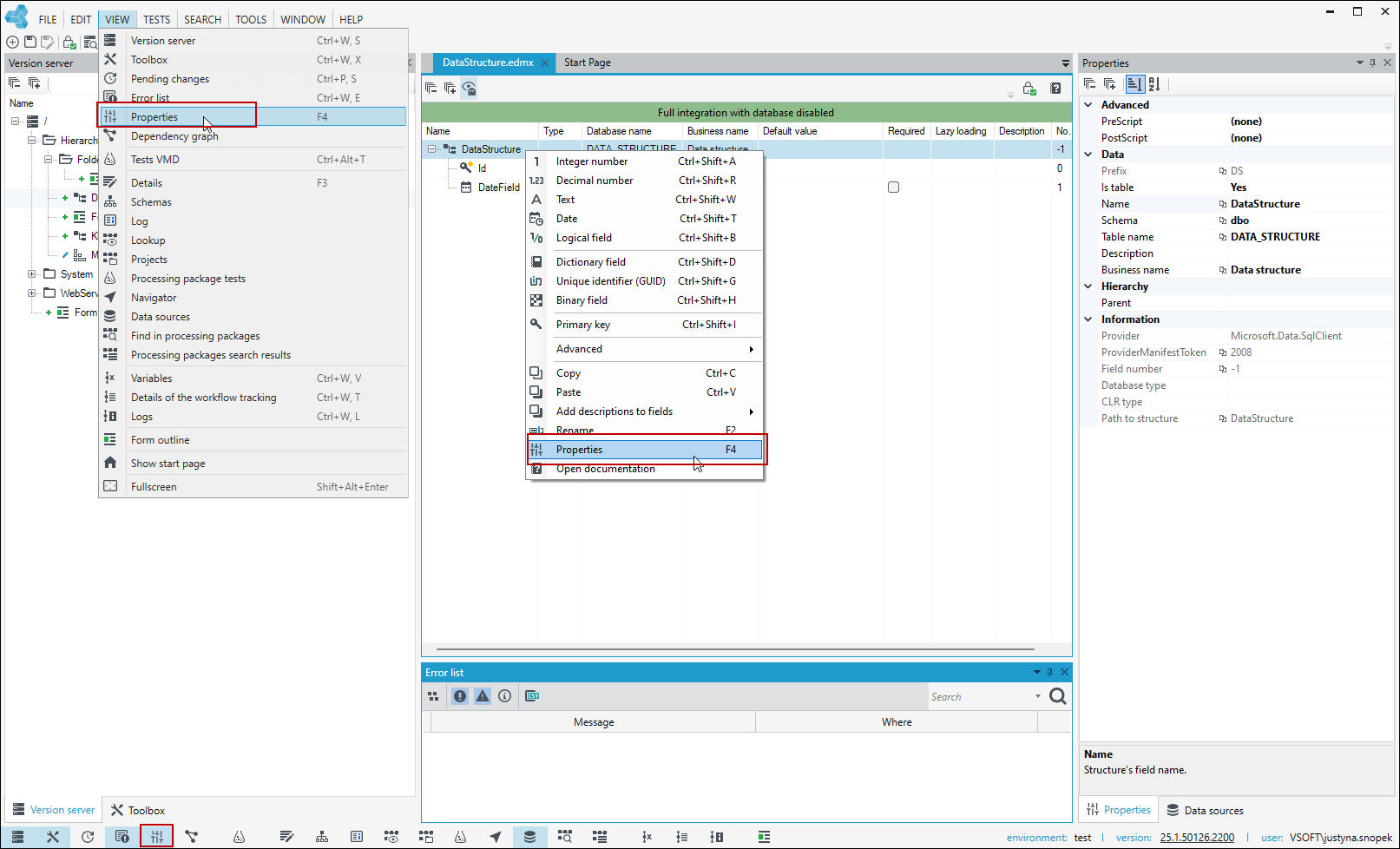
- From the bottom bar, select the options to display the Properties tab or another that you want to turn on and click the icon.
- You can also select the option to display a given tab from the View menu.
- In the case of the Properties panel, you can also enable it from the level of given file edition in the work window. Right-click a given element in the designer - for example, a given field in the data structure and select an option from the context menu.
Properties
Properties
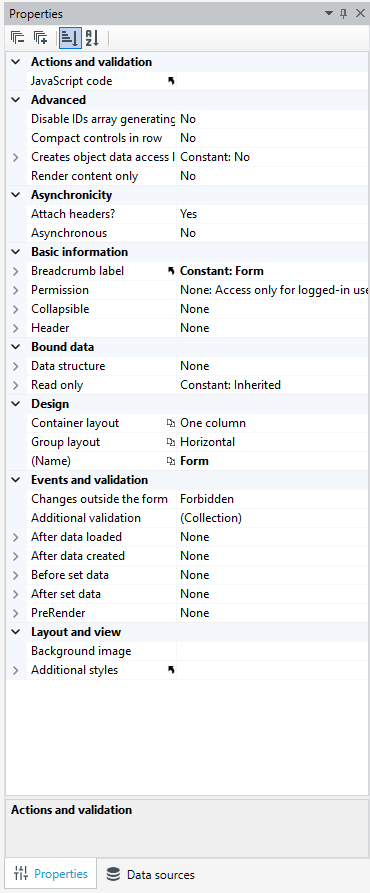
Access to the most important functionalities and configuration of a given file is available from the Properties panel.
Whether it's a form or a data structure, menu, list, process, etc., the Properties panel is accessible for all items. Here you can configure the most important properties, ranging from names to defining actions on the form, etc.
Depending on what element you are on, the scope of data varies, adapted to a given object.
The Properties panel can display the properties of the entire file or a specific object. For example, after creating a form or list in the Properties panel, you will find general characteristics of these elements, but if you select a given object on a form, such as a field or action in the list, the parameters and properties of the selected object are displayed.
Toolbox
Toolbox
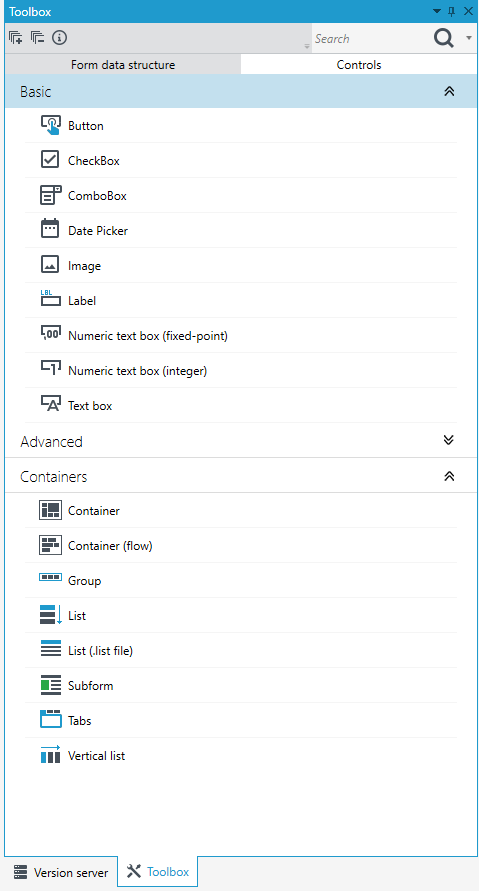
The toolbox is a collection of individual system blocks, controls, form data structure fields, which you can drag & drop onto the workspace. As in the case of the Properties panel, the Toolbox panel is also adapted to a given object and will be different for forms, lists or processing packages.