Working enviroment
archITekt is a solution that allows for comprehensive modelling, building, running, monitoring and optimization of the application as well as its integration with the surrounding systems.
The system is divided into functionalities that allow you to configure all elements of the Application being created:
- user interface (presentation layer),
- business process (business logic layer),
- data structures (data layer).
Start Page
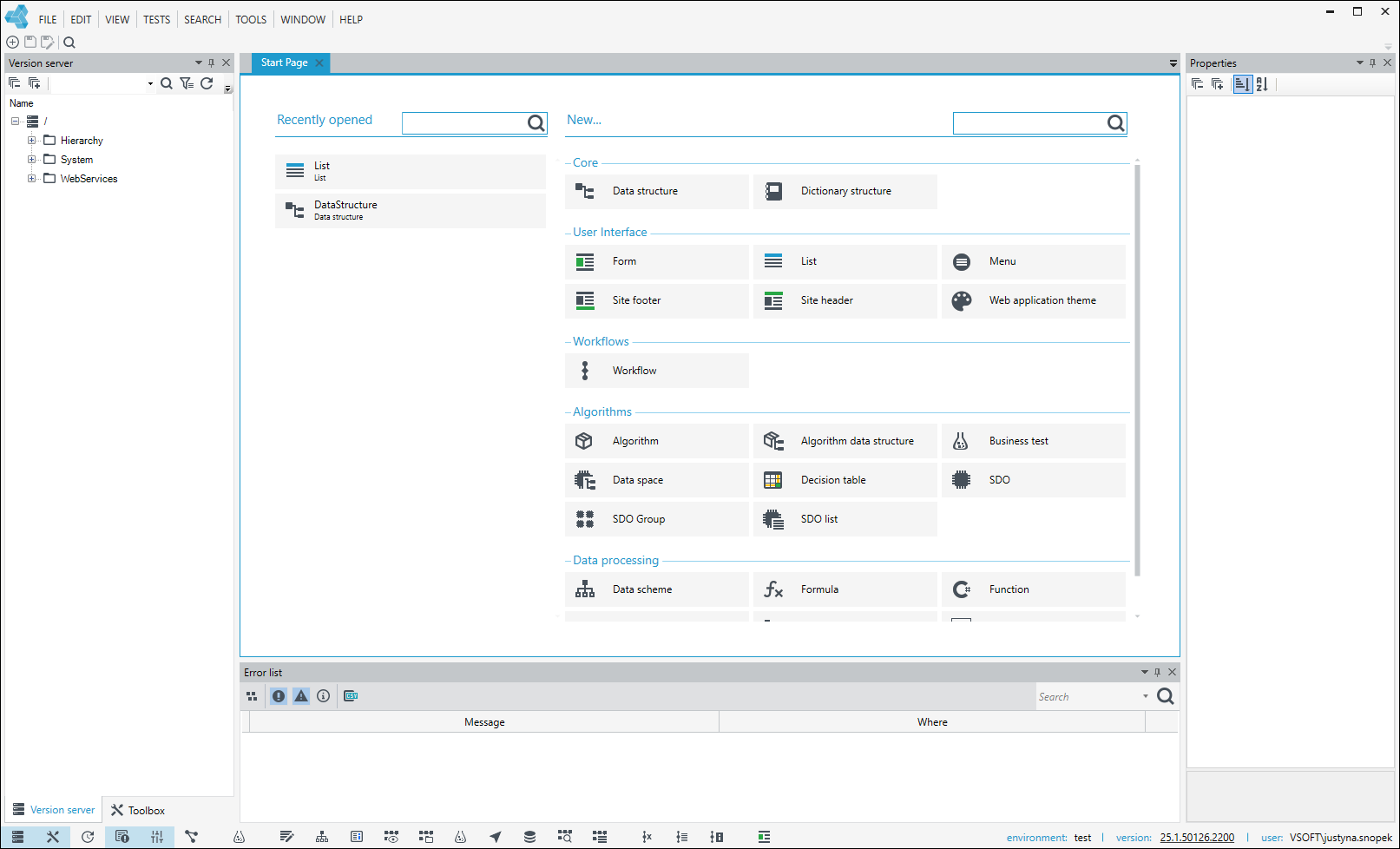
After creating a project (see: VSoft arrchITekt Launcher - Creating a project) and going to archITekt Studio, by default, the main window (Start Page) is located in the central part - where you can configure and add new elements of the application being created. On the left side you will find the Toolbox and Version server panel with predefined directories.
These directories contain files that are necessary for the proper functioning of individual components and should not be modified by the user. User-created application elements should be placed in directories with different names.
The Properties panel is on the right and the Error list is at the bottom of the window.
Main menu
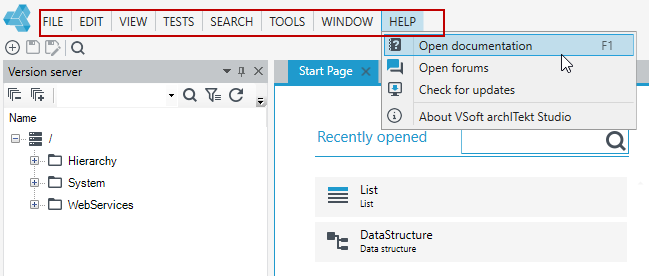
The main menu allows you to use the options organised in the following groups:
- File - allows you to create a new item, close a tab from the workspace, save the object being created or save everything that has been created, and exit Studio.
- Edit - allows you to copy, paste, select and delete objects.
- View - allows you to display selected panels, and also gives you access to the start page and allows you to work in full screen mode, search in the Data processing or go to tests in the Algorithm and Data processing. More information about individual panels can be found in the description see: Panels.
- Search - enables you to the search an XML file - see: Search an XML file and the Search processing packages option allows you to search an open document for all strings contained in it (block names, text data in blocks).
- Tools - allows you to generate scripts and update data structures, update the dictionary database, import data structures from the code, configure additional options, define business parameters, manager the project, export packages, define labels, change business parameter settings and settings for test data generation options.
- Window - allows you to switch between open windows (designers).
- Tests - allows you to start and end the algorithm testing process, start mass testing and testing with file data, and save the tests and run them from the test list. See: Algorithms.
- Help - allows you to view information about the application version, and also gives you access to the latest updates and the ability to go to the forum.
Function button bar
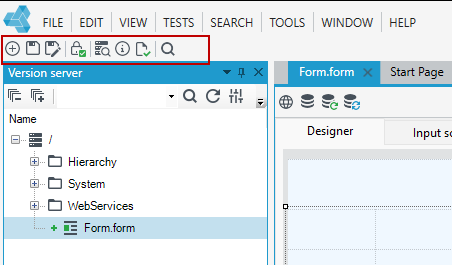
The most commonly used functions are available through the function button bar.
The context in which the User operates determines which buttons are displayed on the function button bar - different buttons are available for forms, lists or data structures.
Recently opened items
If you start adding new items to archITekt Studio or open existing files, then the recently opened items section will be added to the start page. Also, each time archITekt Studio is reopened, the Recently opened view will be available to facilitate access to recently opened models, tables, data structures or dictionaries, etc.
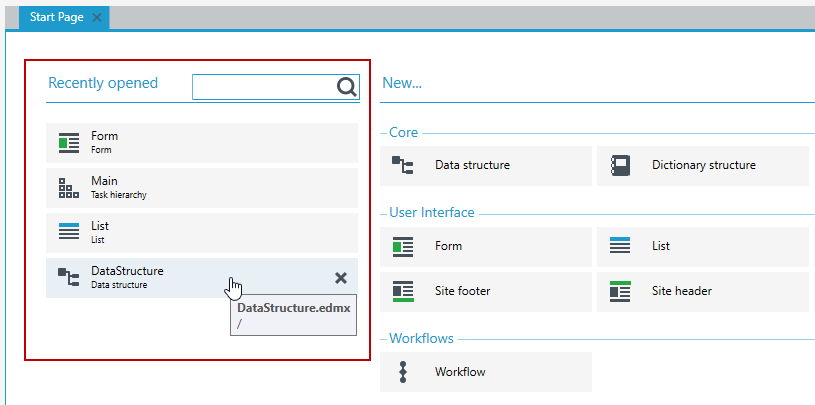
With this list, you will speed up your work without having to search for items in the version server tree. Click on an item to go to the file editor or use the cross icon to remove it from the Recently opened list.