Form and list parameters
If you used a Navigate to form or Navigate to list action on a form or a list, you can specify additional parameters to be passed.
- Use the Navigate to the form/list action and go to the Properties panel.
- Click on the Parameters section.
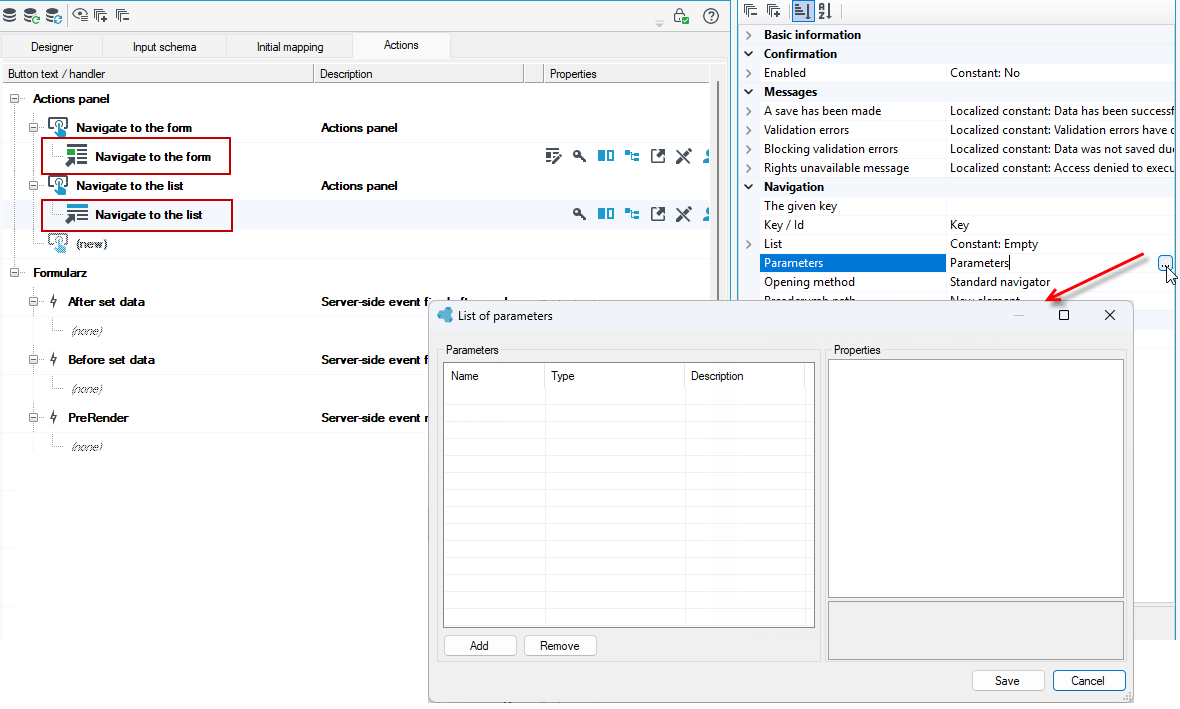
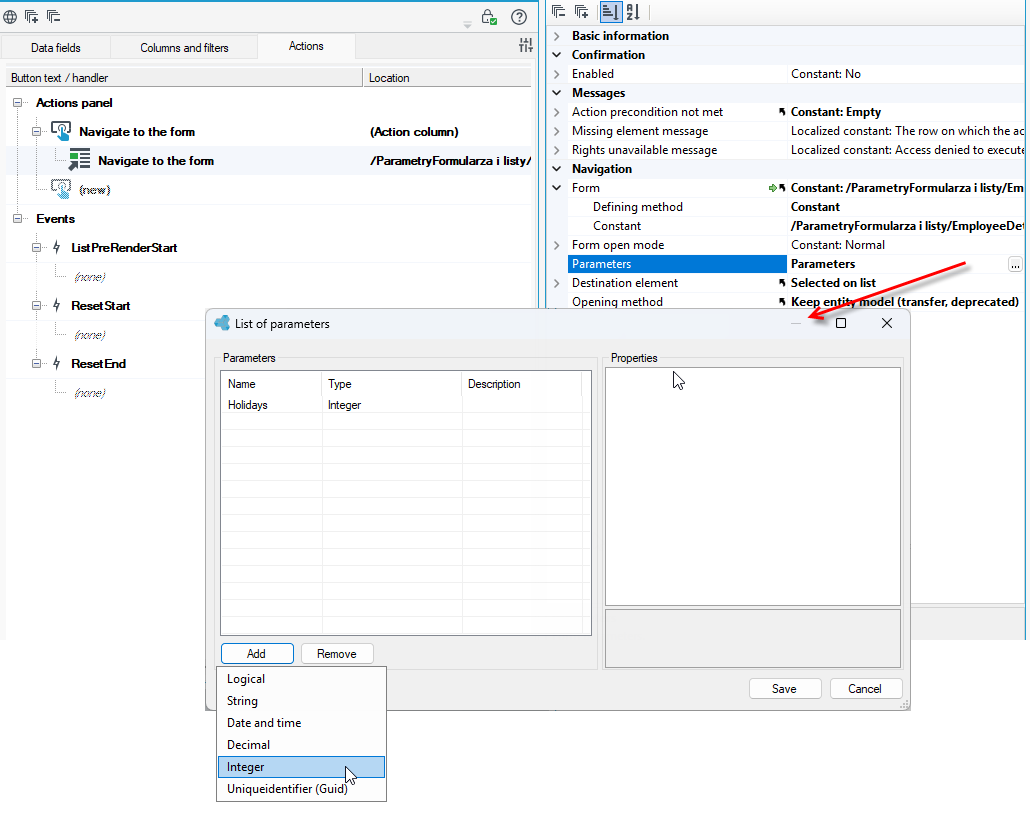
- Select the Add button and then the type of parameter you want to add.
- Next, specify the value and name of the parameter.
- The parameter name is used as a key in the formula editor functions, as well as in expressions and the SQL editor.
- The parameter value is calculated during the execution of the action and sent to the form/list, where it can be retrieved from the formula editor or via an expression using the predefined parameter name.
Defining a parameter is always done in the same way. The configuration of retrieving the parameter value, on the other hand, depends on where you want to use it. Below are described examples of how to configure an entry in an expression, formula, as a constant, in the SQL editor and in the Properties panel.
Defining and using parameters in a list
In the list you can define passed parameters for actions Navigate to form and Navigate to list.
- Create a simple list in archITekt Studio. Remember to create a data structure first.
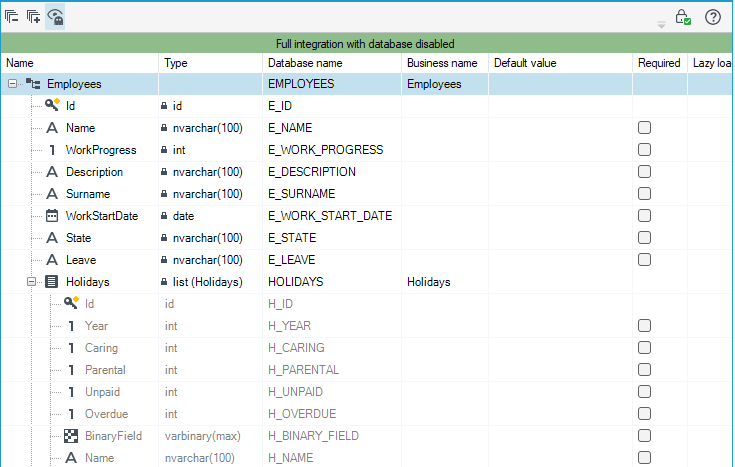
- In the example below, we have created a data structure that corresponds to the employee data and the list of leaves that can be reported.
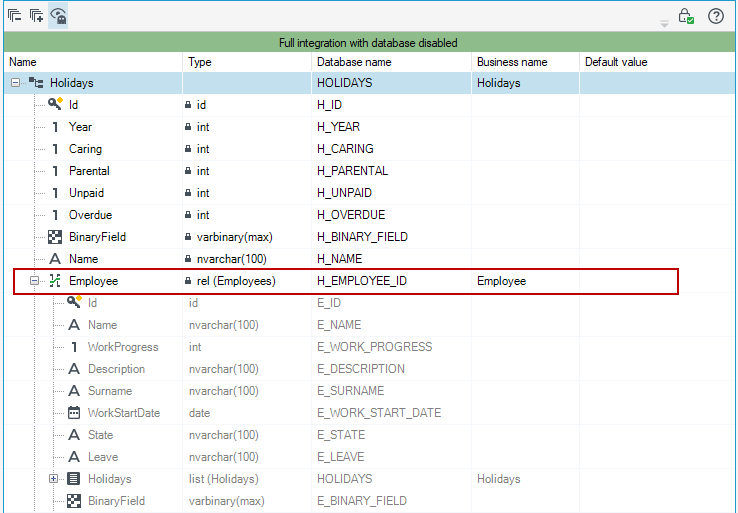
- From the Holidays data structure, a relationship has been created to the employee list.
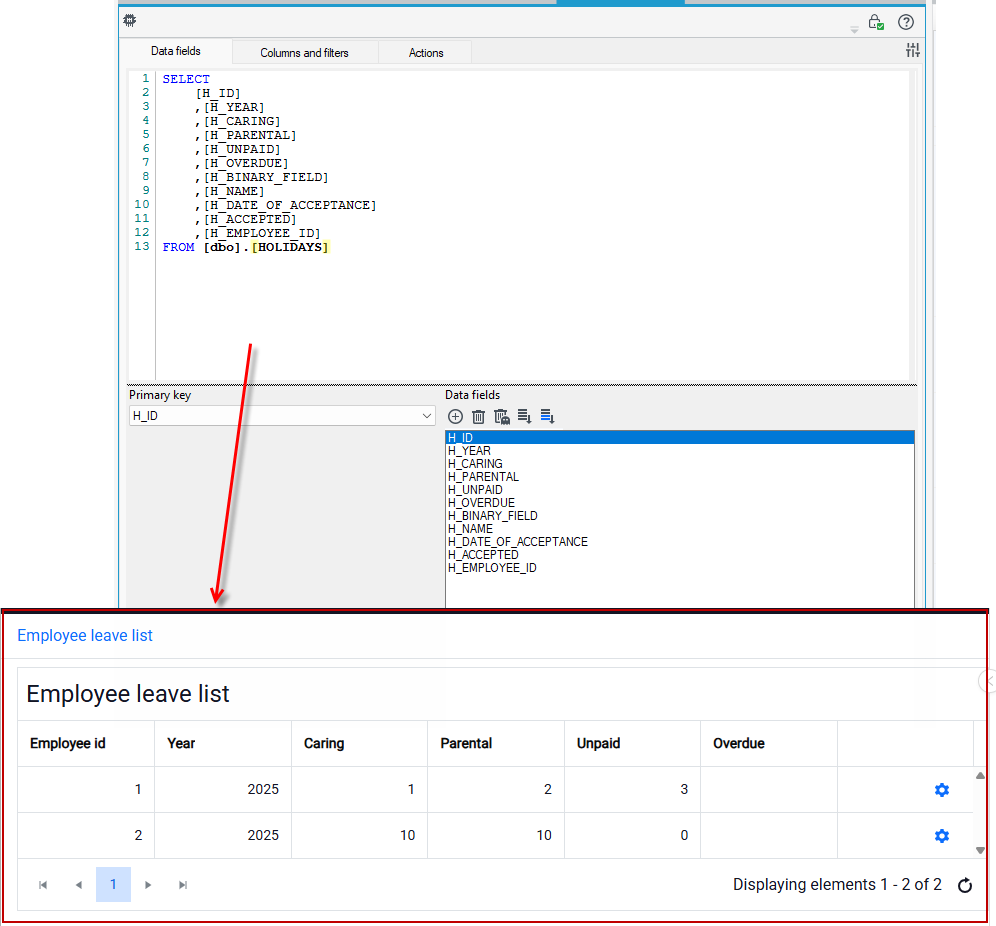
- A list of all leaves submitted by employees has been created in archITekt Studio.
- Go to Actions panel and add action Navigate to form. After selecting the button in the Action column, the leave data of the employee will be presented.
- In the Properties panel, click the Parameters section and add a parameter of type Int. This is the type of parameter that will be passed on to the form.
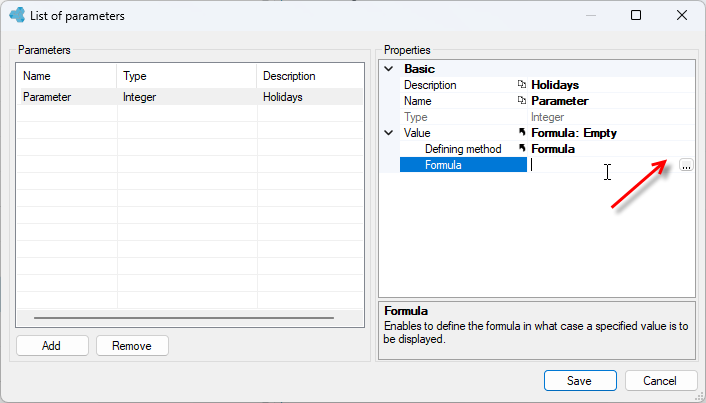
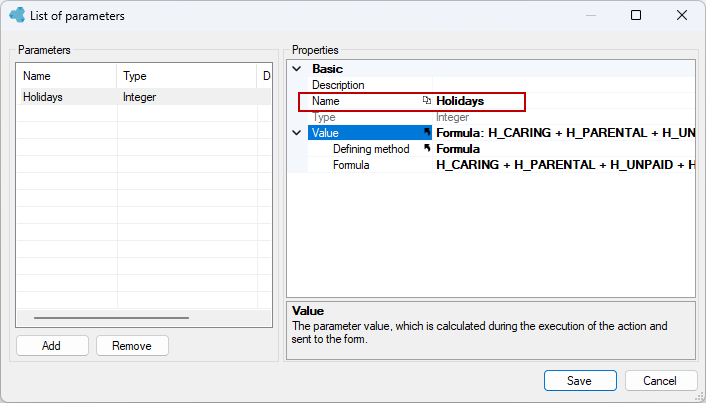
- Define the parameter. Add a name and a value. In this example, the value of the parameter will be Sum of all leave days reported by the employee.
- Select the formula as the defining method to determine the value of the parameter and go to the formula editor.
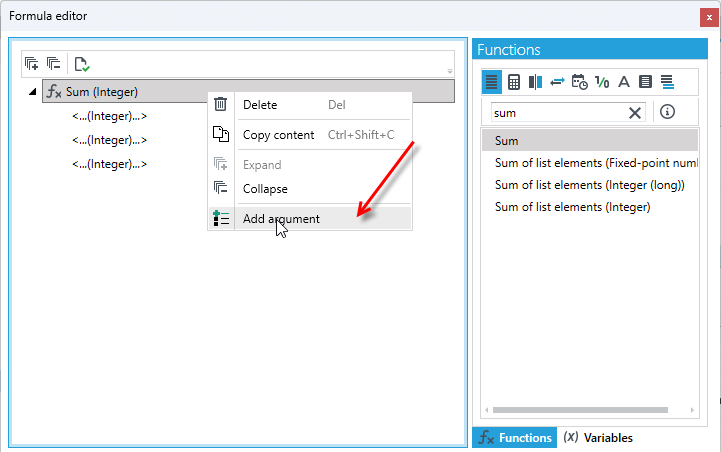
- Search for the Sum function, drag it into the editor window and add more arguments to it.
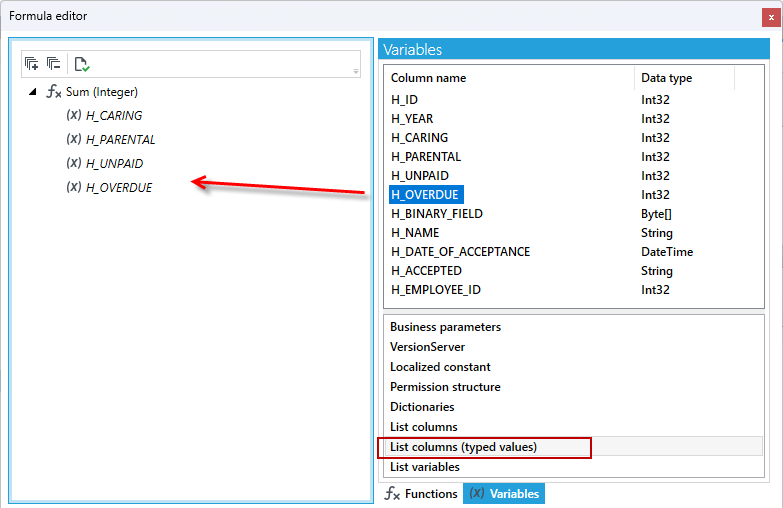
- Now go to the Variables tab and List columns (typed values). Drag into the editor those fields whose values are to be summed (in this case, all types of leave available).
- Save the data and remember the parameter name. It will be used on the form where you want to retrieve the value of the parameter.
- Create a simple form that will display the employee's basic data along with the sum of all leave days (this value will be passed on by the defined parameter).
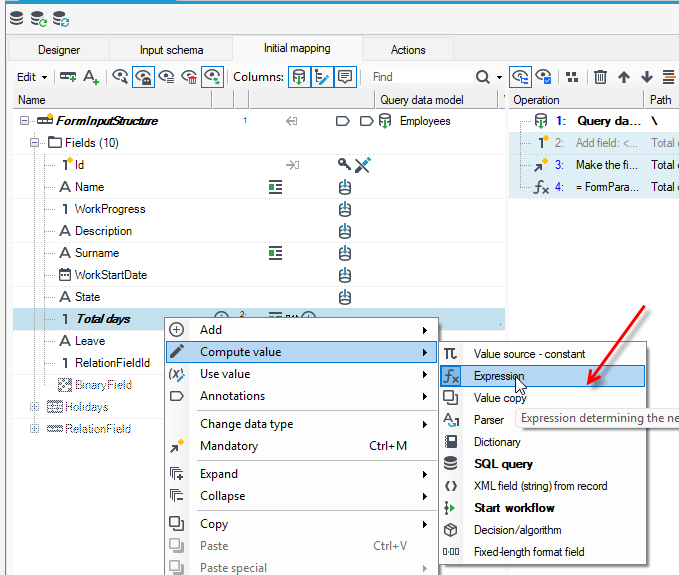
- Go to the Initial mapping tab and add a Integer number field (Total days) and next choose from context menu Compute value>Expression.
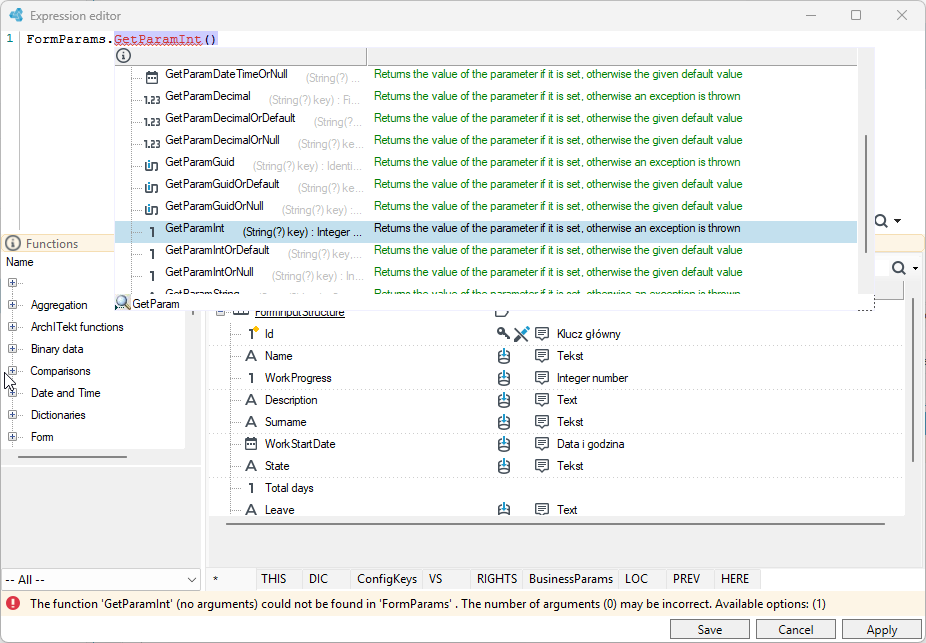
- Go to the expression editor or in the Details panel, start typing the expression. First, refer to the form parameters and type
FormParamsWhile typing, you can press Ctrl+Space and use Intelligent code completion. - Start writing the next component of the expression: get... and press Ctrl+Space. Select
GetParamInt
- Then, in parentheses, type the name of the parameter you are referring to. In this case, the parameter name is Holidays, which is defined in the list. The whole expression looks like this:
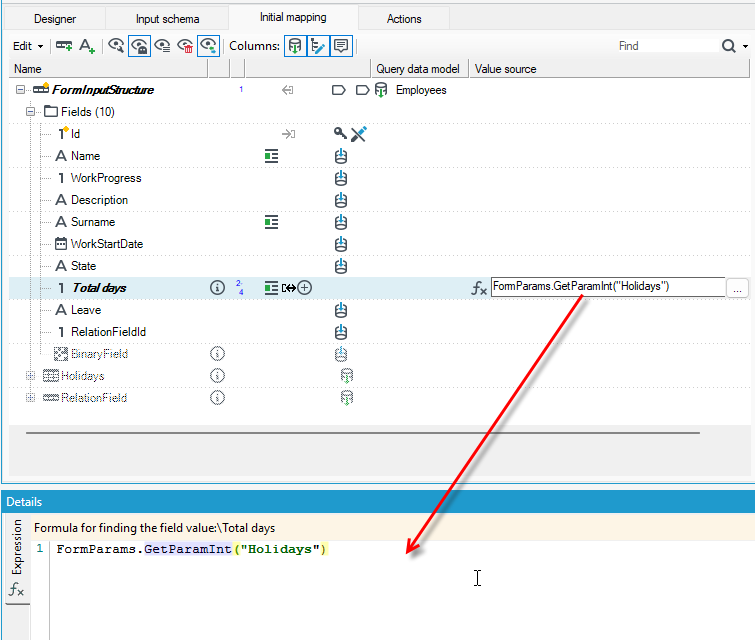
Remember to enter the exact parameter name, including upper and lower case letters, language characters, etc., if you used them to specify the parameter name in the list.
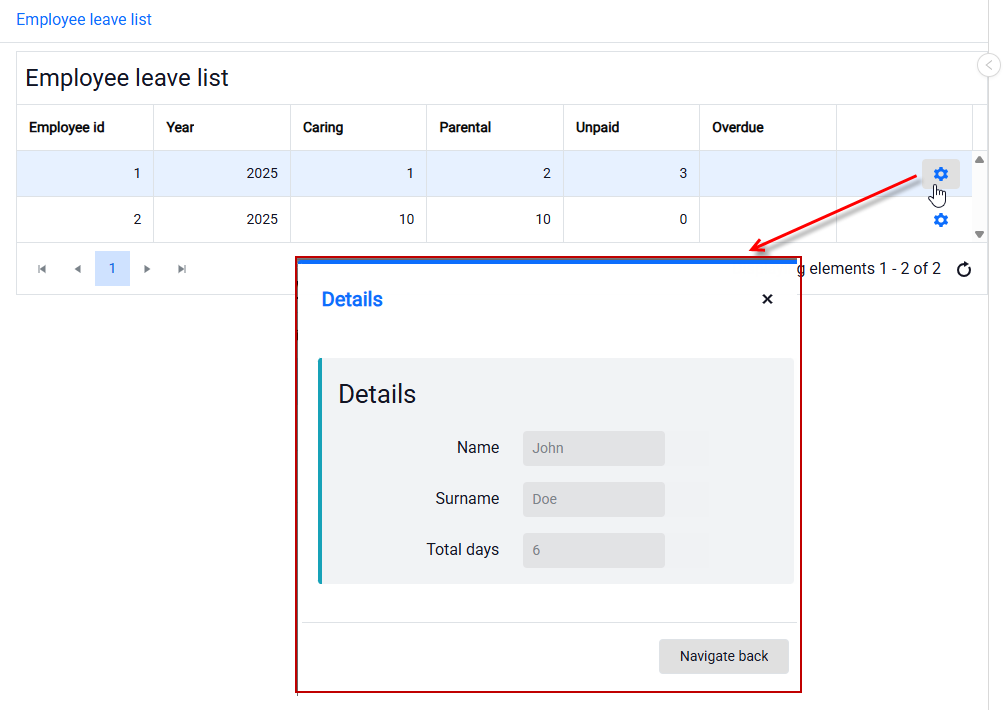
Now, when you select an action, the list will display the details of that customer along with the total vacation days, where the value was passed by the defined parameter in the list.
Defining and using parameters on a form
On the form you can also define the passed parameters for the Go to list and Go to form actions.
- Create a form that contains the employee's personal information along with the total of all vacation days. You can use the form created in the previous example.
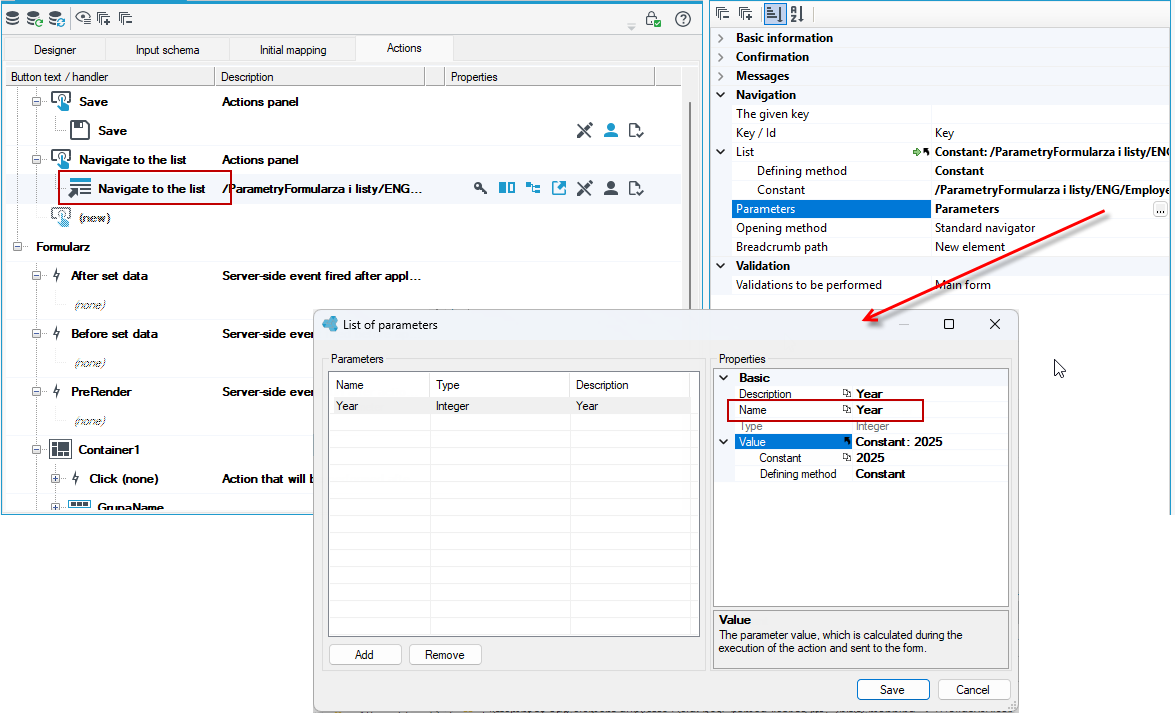
- Go to the Actions panel and add a Go to the list action.
- On the Properties panel, go to the Parameters section and add a parameter of type Int with a constant value 2022 and name Year. This parameter tells us that we want to display a list of leaves of a given employee from 2022 only. Moreover we know that there is a field in the database where the year is stored.
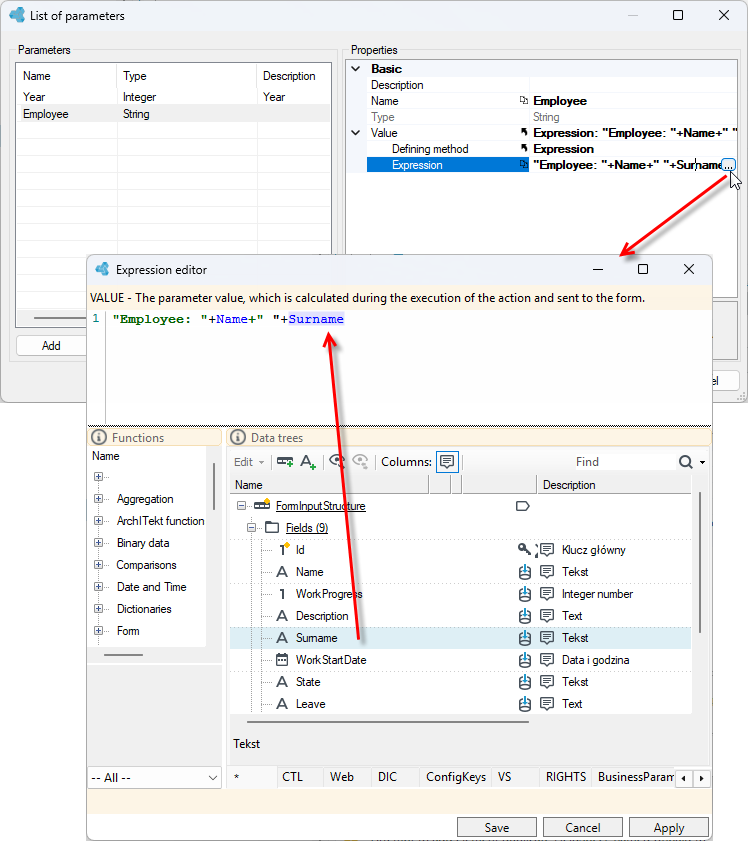
- Add the second parameter of type String with the defining method as Expression and go to the expression editor. This parameter will pass the name of the employee in whose context the leave list will be displayed. Type Employee: successively from data tree drag the fields: Name and Surname and insert a space in between.
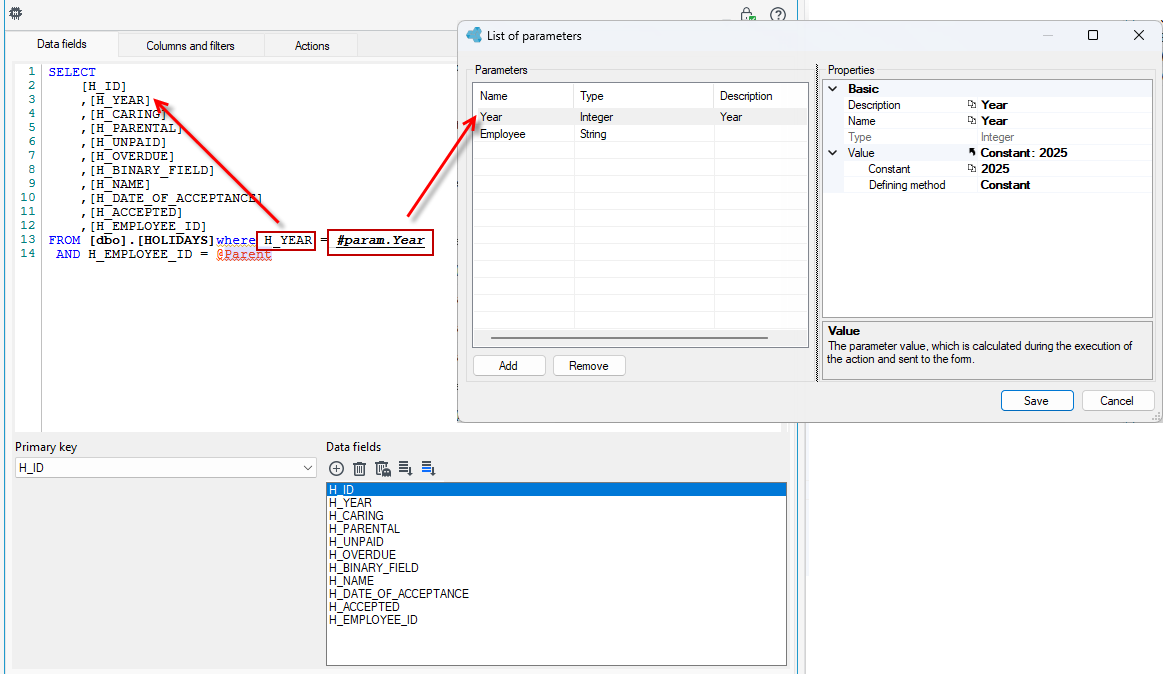
- Create a list of employee leaves. To use the defined parameter in a SQL query, use a field
H_YEARfrom the database and assign a parameter to it using the#param.Yearsyntax. The list will display leaves from 2025 only.
- Go to the Properties panel to the List title section and choose how to specify the formula.
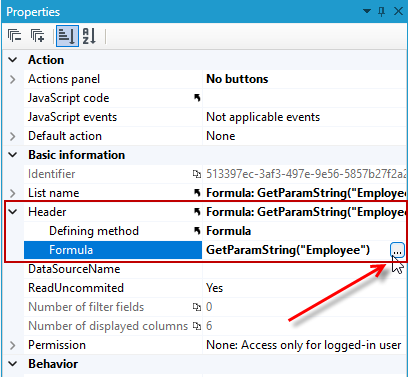
- Go to the formula editor.
- Search for the Get parameter formula and enter the name of the defined parameter.
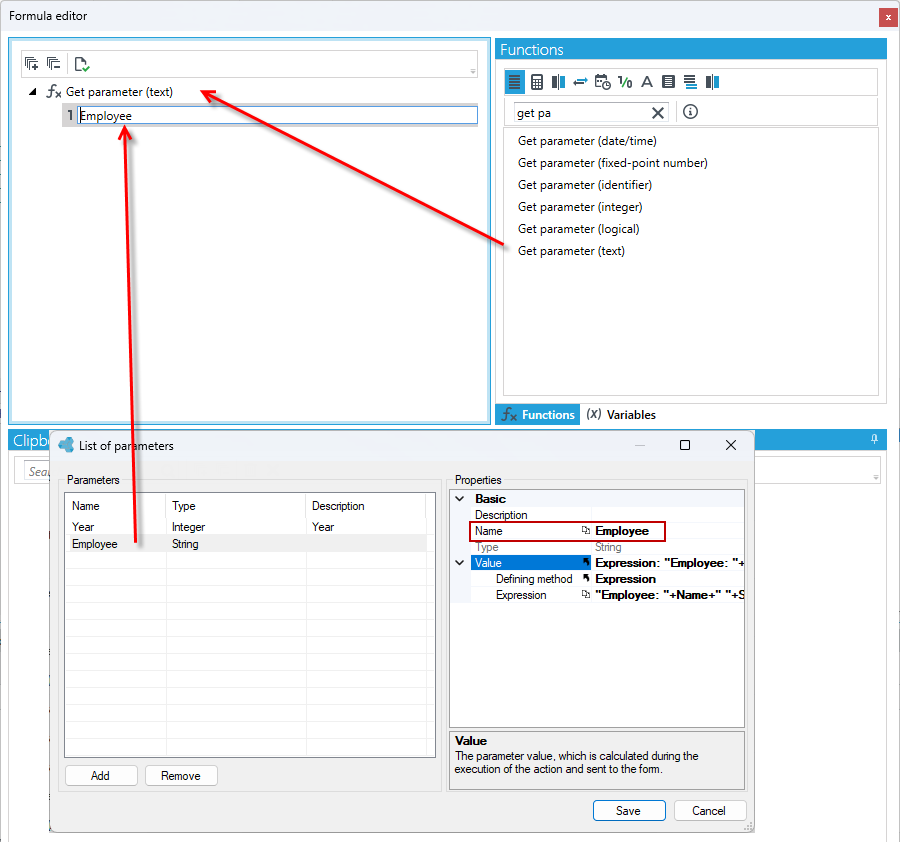
The applied filter on the @Parent list allows the list to display the results in the context of a particular employee rather than all reported leaves by all employees.
With the parameters defined in this way, when you select the Go to List action from the form, the parameters that were used to define the list title and narrow the display of data in the list from that year only will be transferred.
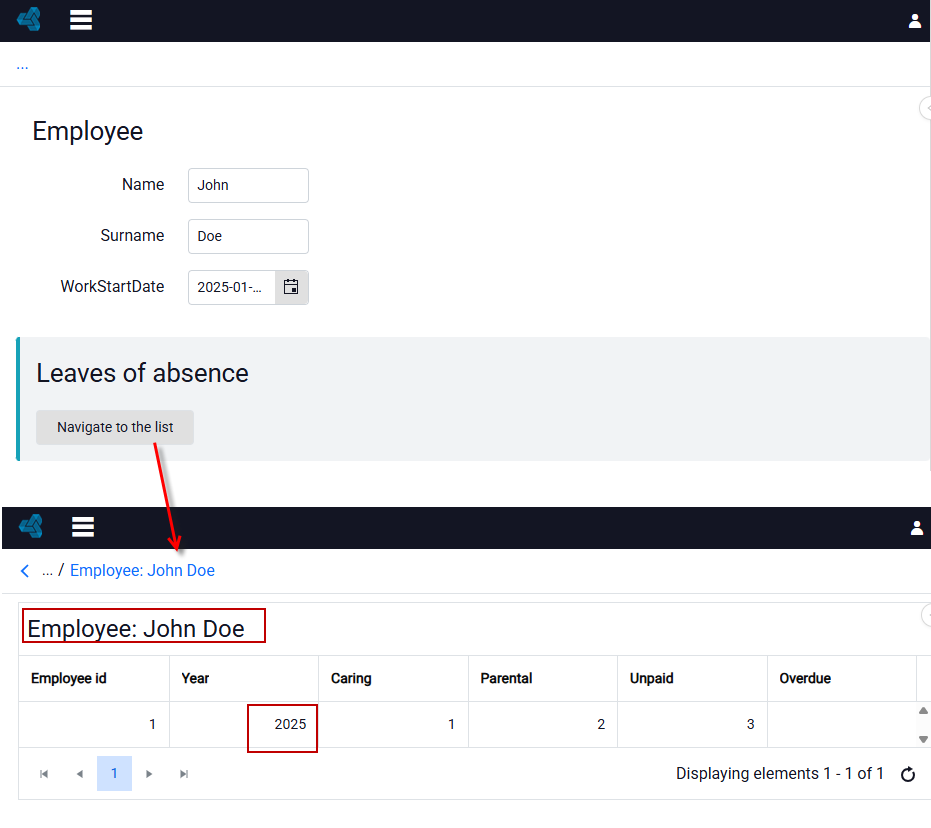
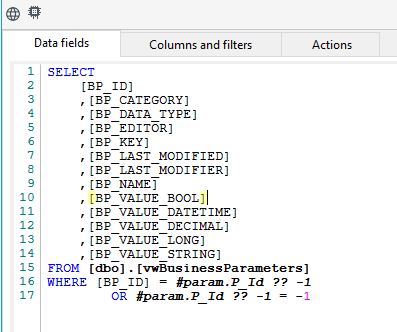
If the parameter to the list is not passed then the application will report an error. In this case, when creating an SQL query, you can use the ?? operator (concatenation of NULL values) if we assume that some parameter may not be there and allow the use of a list without passing the parameter.
The SQL query should look like the figure below.
Referencing parameters in SQL queries
If you want to reference the parameters passed in an SQL query—for example, in form mappings—use the following syntax: #(parameter_name)#