Actions related to the form
Form actions are a set of actions that the application takes after the user performs certain actions. Each action is represented by a single button. An action is launched by pressing a button.
You can add actions from the form properties level see Defining actions and events from the Form Properties panel and on the Actions tab.
- Go to the Actions tab and the Toolbox panel.
- To use an action, drag it from the Toolbox panel to the Buttons and row actions section.
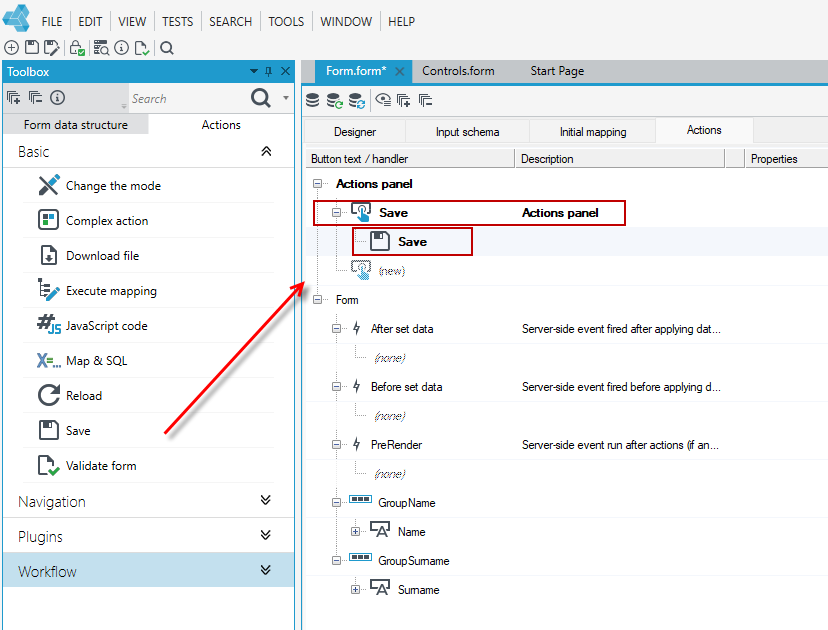
Actions are customizable so that you can define the properties of the button and the properties of the action that will be executed when the button is pressed.
Button properties
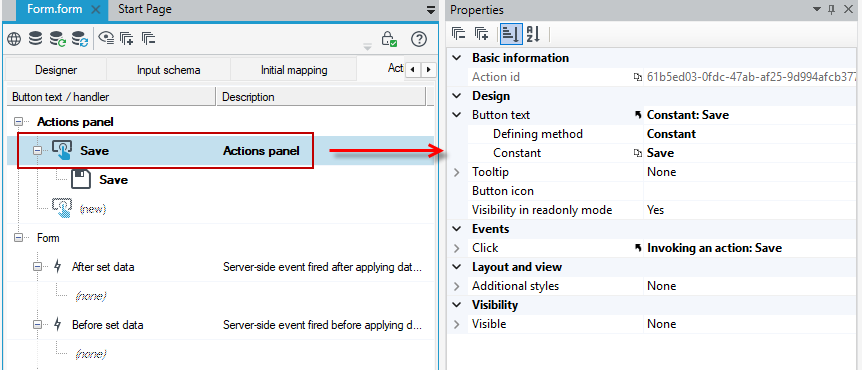
All buttons displayed on forms have the following common properties available in the Properties window:
- Button text - the label of the button.
- Tooltip- text that will be presented in a balloon as a button description.
- Visibility- specifies whether the button will be visible, if this value is unspecified then the button will be visible by default.
- Button icon - a small icon displayed on the button.
- Style - default appearance, there are styles available in the properties that allow you to modify the appearance of the buttons.
- Visibility in read-only mode - the property specifies whether the action should be visible to the user when the form is in read mode.
- Events - a link to an event handler.
Action properties
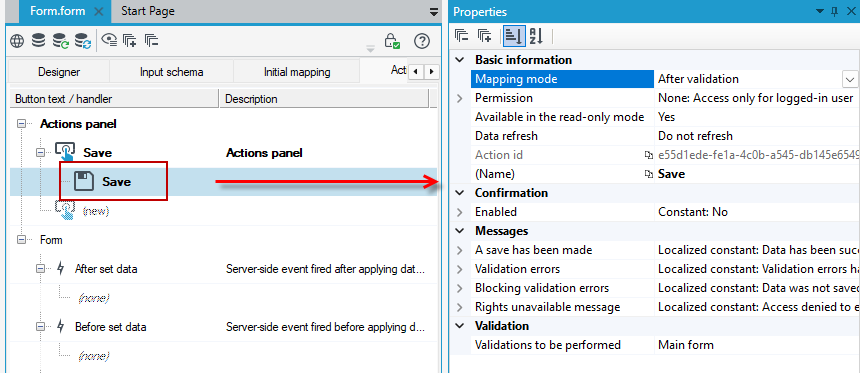
You can define action properties similarly to button properties on the Properties panel.
The scope of the displayed data is different and characteristic for a particular action. However, there are some properties that are common for all actions:
- Available in read-only mode - the property specifies whether the action should be available to the user when the form is in read mode.
- Permission - this property allows you to control the access to the form.
- Messages - the ability to configure the content of messages displayed on the Web form.
- Confirmation - define the confirmation of action execution display.
- Validation - define the validation to be performed when saving the form.
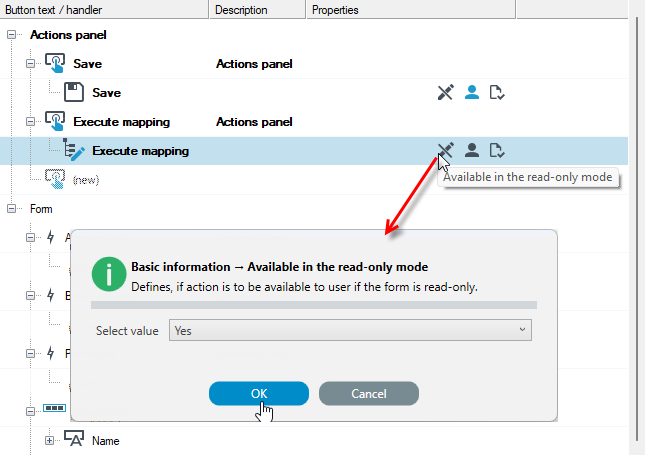
Moreover, the properties that are most characteristic and used for a given action are displayed on the workspace next to the action.
- Click on a property to change its parameters.