Defining actions and events from the Form Properties panel
In order to add actions and actions executed as a result of an event, you can use the Actions tab. This is the fastest and easiest way to manage actions. If necessary, you can also add the same actions to a form from the Properties panel.
Adding an action button anywhere on the form
- Select the Toolbox tab and then the Controls tab.
- From the available options, select Button and drag it to the place where the button should be placed on the form.
- In the Events and validation section, in the Defining method field, select I nvoking an action.
- Expand the Action field.

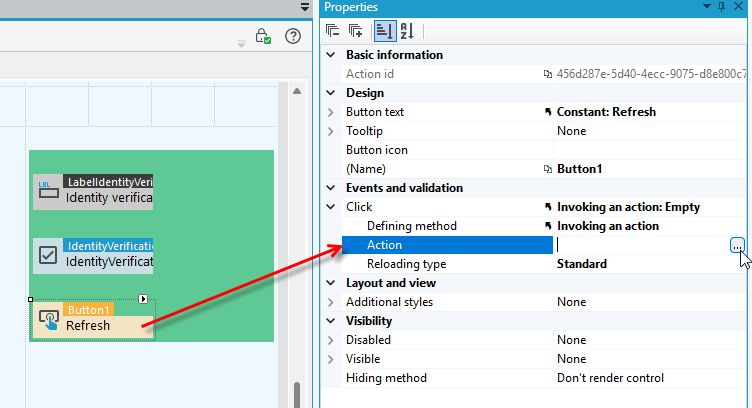
- The Action editor is displayed.
- Select the action in the editor by double-clicking it or pointing to it in the list and pressing Select.
- Then, in the right-hand side of the window, specify the properties of the action.
- Save the data.
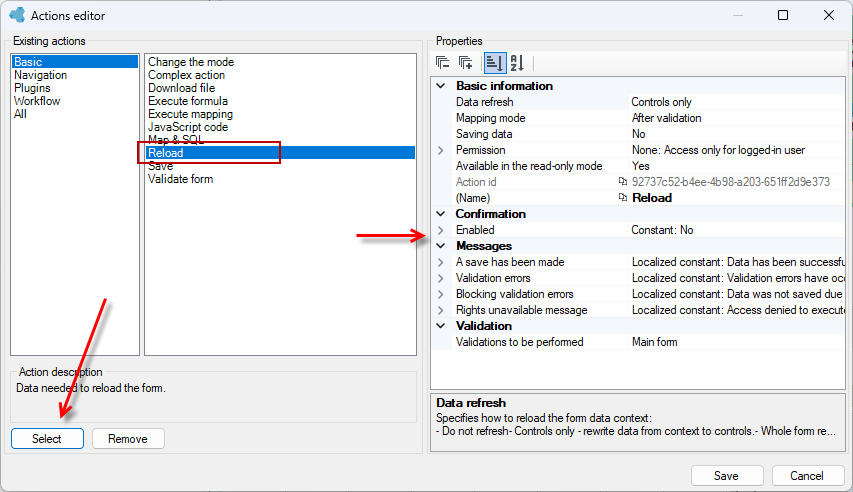
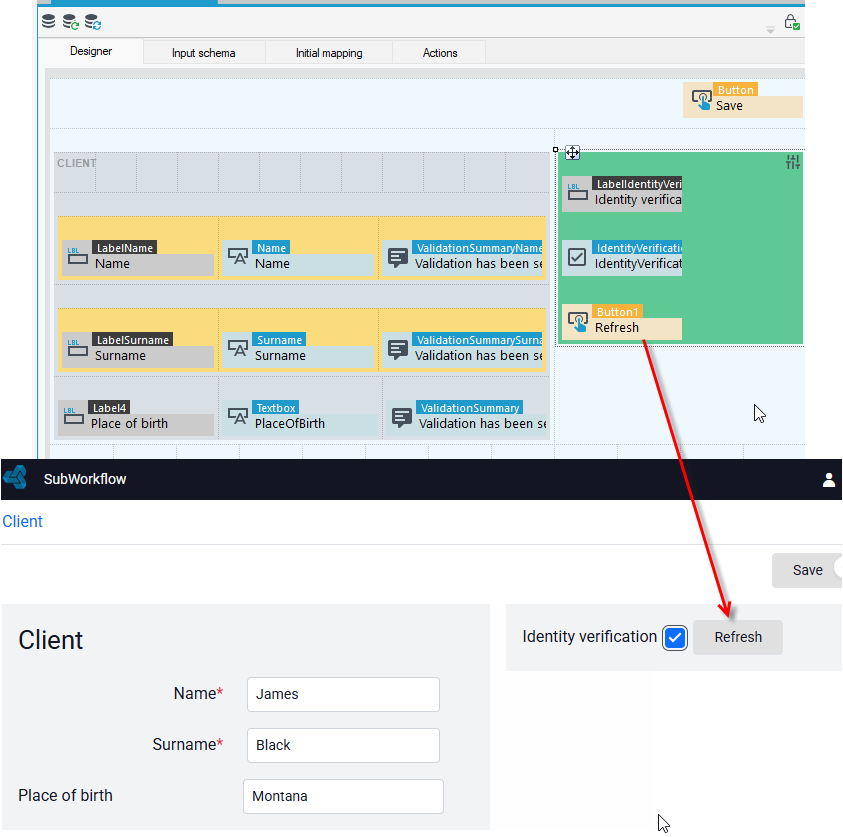
Similarly, for each form element of the Button action type, you need to specify and configure one action.
Adding an action to a panel with buttons
- Go to the action panel properties window. Click on the panel area.
- Specify the Location of the panel with buttons.
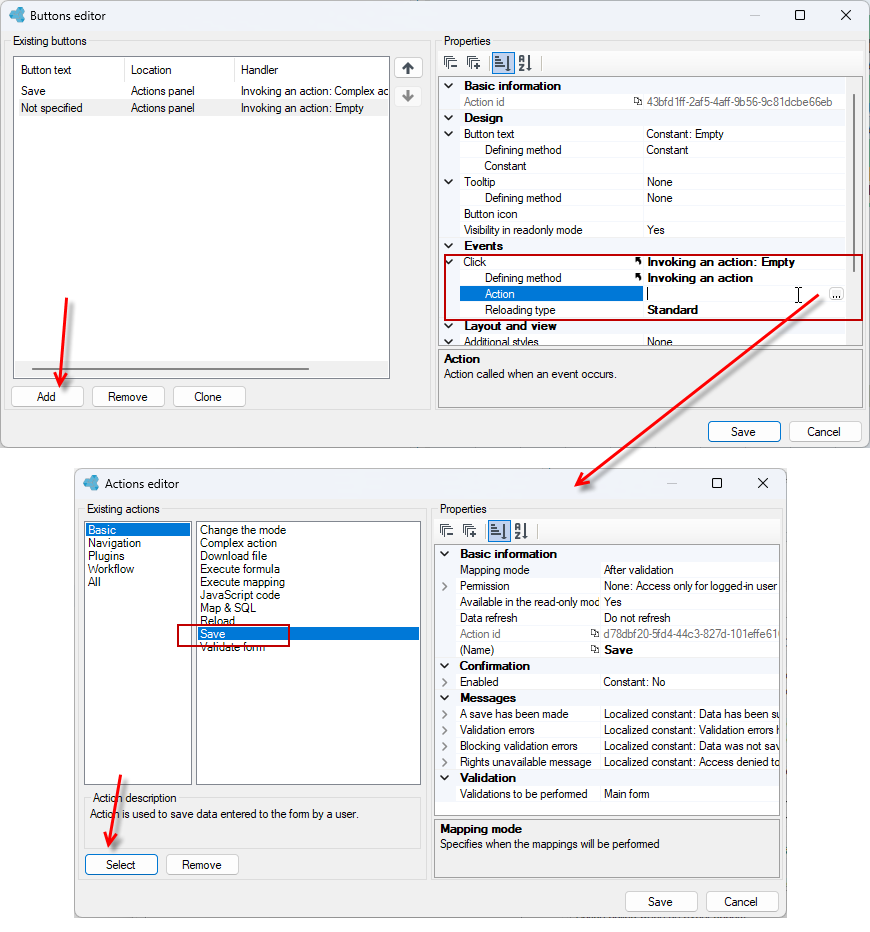
- Click in the Buttons field.

- In the window that appears, select Add to define the action.
- Next, in the right pane, define the data and click in the Action field. An action editor appears, similar to the one above, where you can define a specific action.
Adding an action to a control as an event
For most controls, you can add an action as it will be executed by the element change event.
- In the Events section, in the Defining method field, select Invoking an action.
- Expand the Action field. An action editor will appear, just like above, where you can define a specific action.
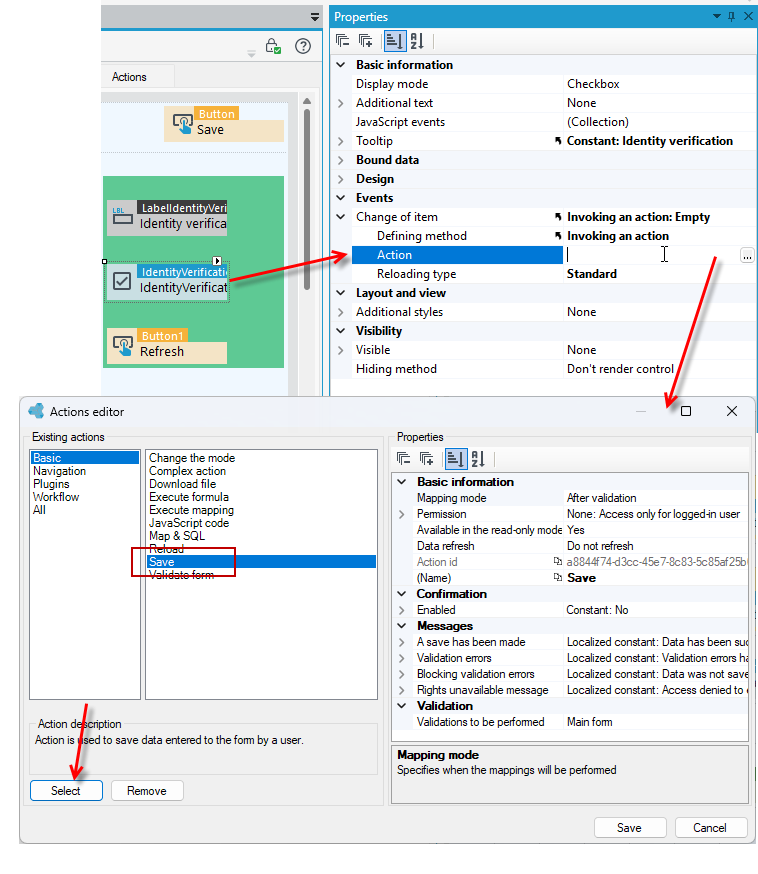
Actions added from the Properties panel will also be visible on the Actions tab. Similarly, if actions are added on the Actions tab, they will also be accessible from the Properties panel.
Double-clicking on a particular control on the form takes you to the Actions tab, where all the elements used on the form are collected, see Event handling.