Setting the background of containers
For the Container control as well as for the entire form, you can set the background using the built-in graphics and icons in archITekt Studio or add your own.
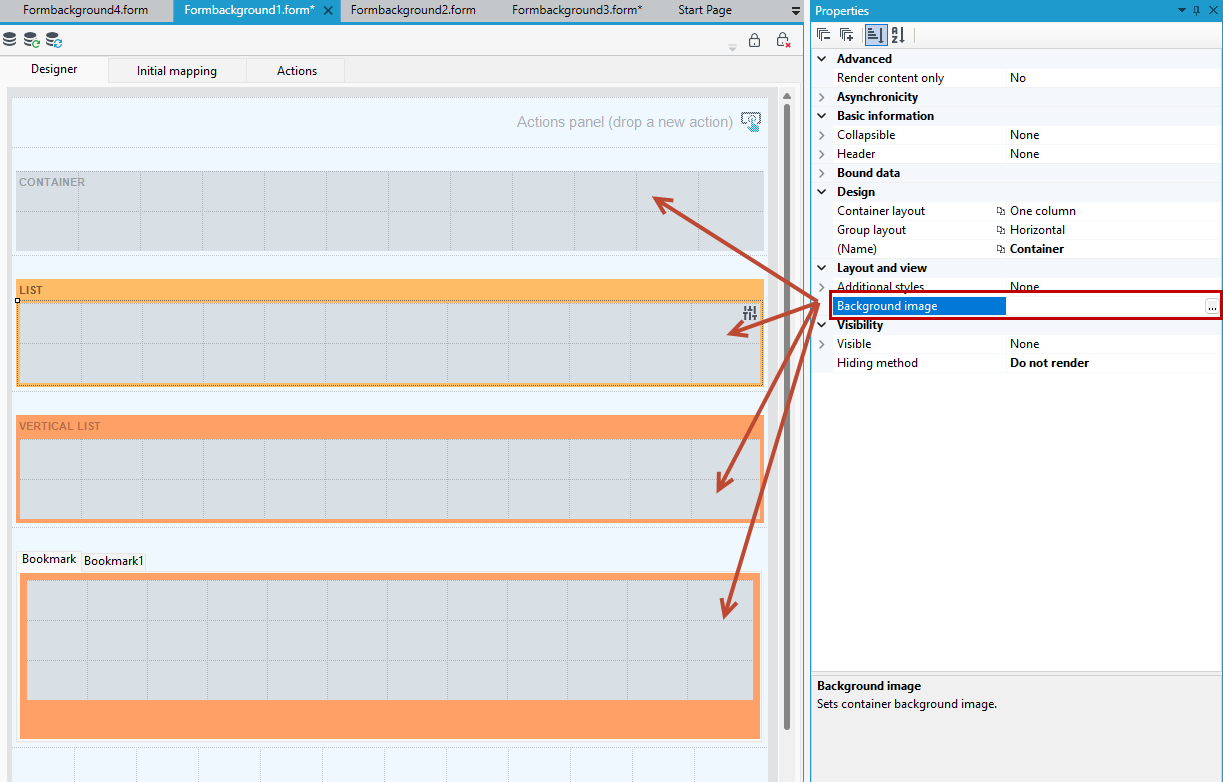
The ability to set the background is available on the Properties panel in the Background image option.
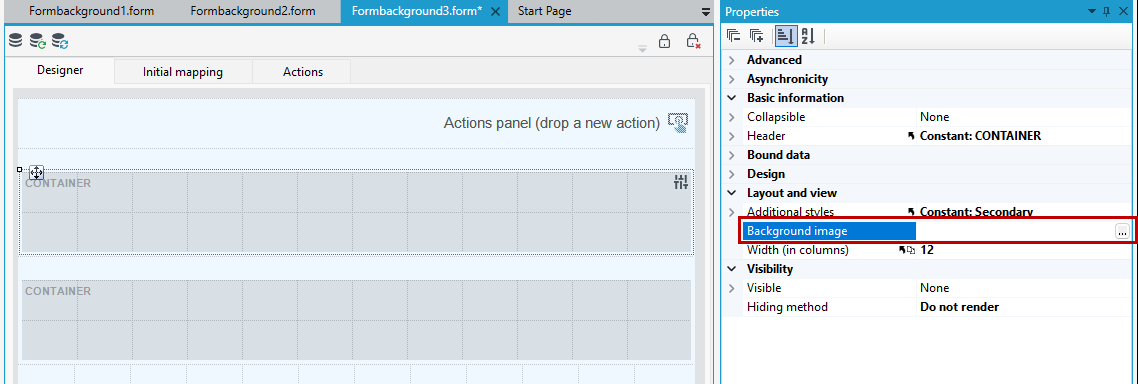
- Choose the button
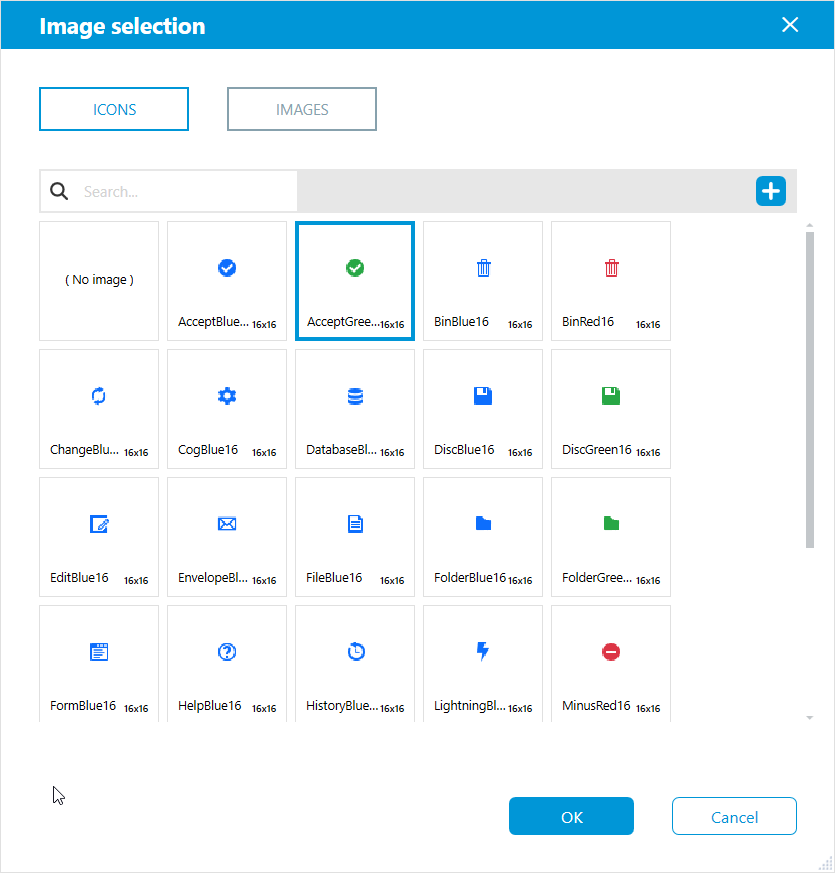
 and then select the icon or graphic you want to use.
 - To add a new image, select the + button and then choose the location from which you want to load the selected icons/images.
- Select the desired icon/image and choose OK.
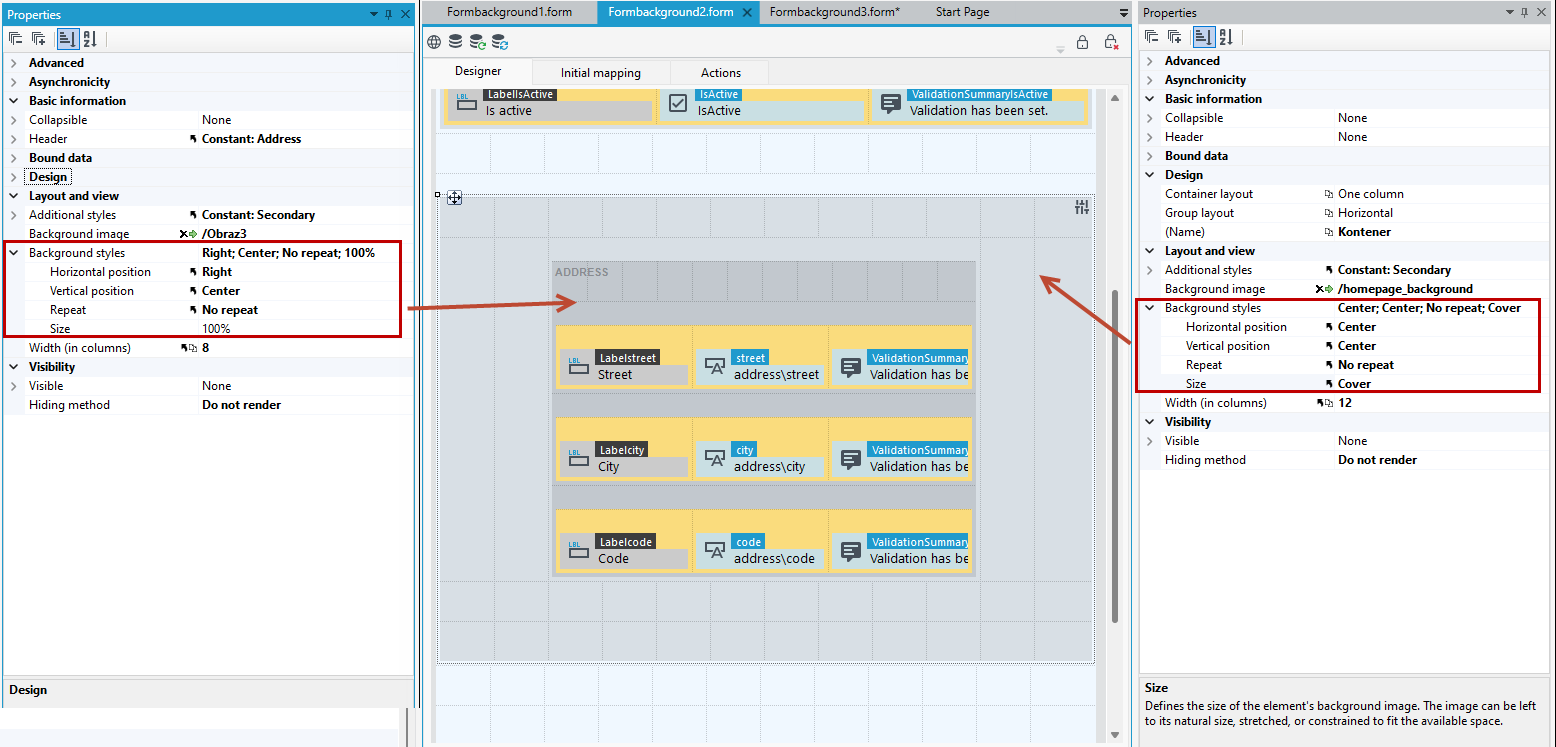
- After loading the icon/image on the Properties panel, you can specify parameters for setting the background:
- Horizontal position- sets the position of a background image on the x-axis: Left, Right, Center.
- Vertical position - sets the position of a background image on the y-axis: Left, Right, Center.
- Repeat- property sets how background images are repeated. A background image can be repeated along the horizontal and vertical axes, or not repeated at all: Repeat, Horizontal, Vertical, No repeat.
- Size- defines the size of the element's background image. The image can be left to its natural size, retched, or constrained to fit the available space. Options for selection: 100%, Cover, Contain.
In the example below, a graphic is applied to the outer container as the background and an icon to the inner container, for which the position is defined to the right and centered.
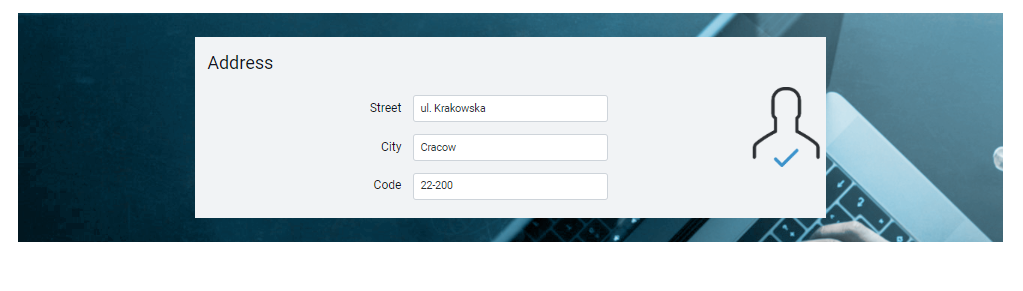
On the form designer it looks like this:
The ability to define backgrounds is also available for controls that are built with containers like List, Vertical List or Tabs.