Form Design
Start designing the form by adding controls, fields from the form data structure and actions.
Form data structure
All types of form elements are available in the Toolbox. Sections of the Toolbox can be collapsed or expanded, while the most frequently used elements can be added to the Favorites section by selecting an asterisk.
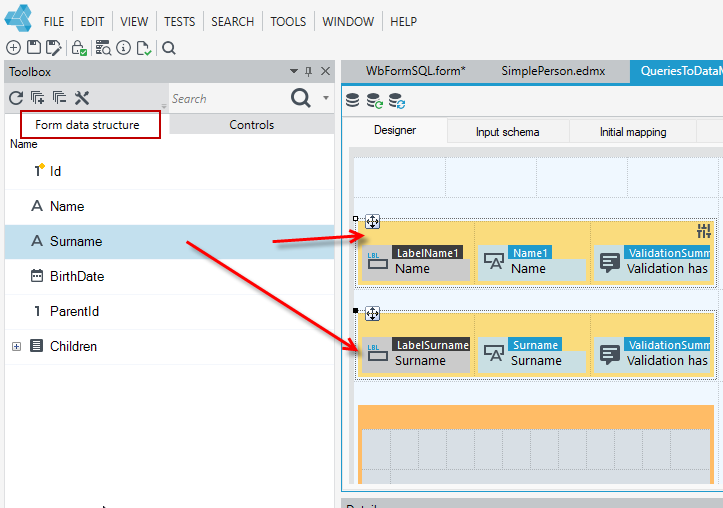
In addition to the standard controls available on the Toolbox panel, the Form data structure panel provides controls that are already binded to data from the data structure to which the form is linked.
- You can drag fields directly from the form data structure.
- Go to the Toolbox panel and the Form data structure tab.
- In the form designer window, go to the Designer tab and drag fields from the structure to the workspace.
- You can also add fields not only directly from the form data structure, but also add controls—see: Controls, as well as actions—see: Form-related actions.
- When dragging controls onto a form while holding down the Alt key, only the label will be dragged onto the workspace, and when holding down the Shift key, only the control will be dragged.
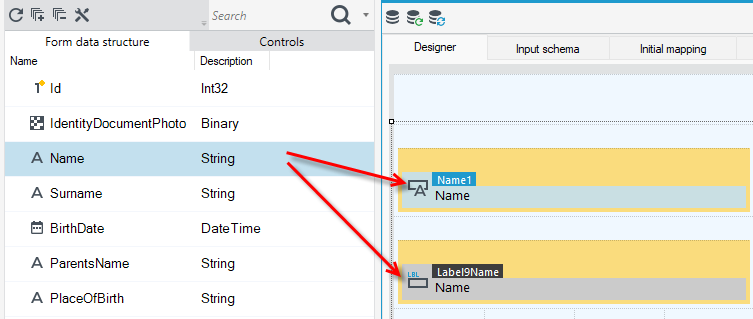
- You can bind the same field from a data structure to several editing controls. This is useful, for example, when you want, depending on the business conditions, to allow the user to edit the value in a different way (for example, with a different mask).
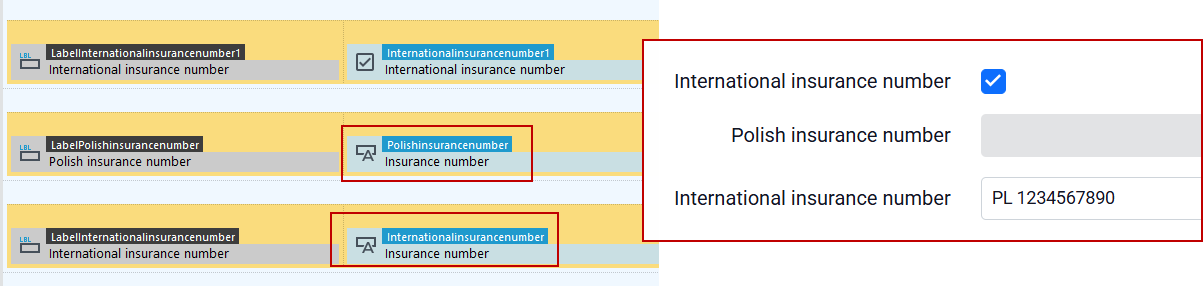
Note that saving the data will succeed if the system receives a modified value in at most one of the controls - so take care to prevent the user from editing the data simultaneously in more than one control (e.g., by setting a disabled value on them).
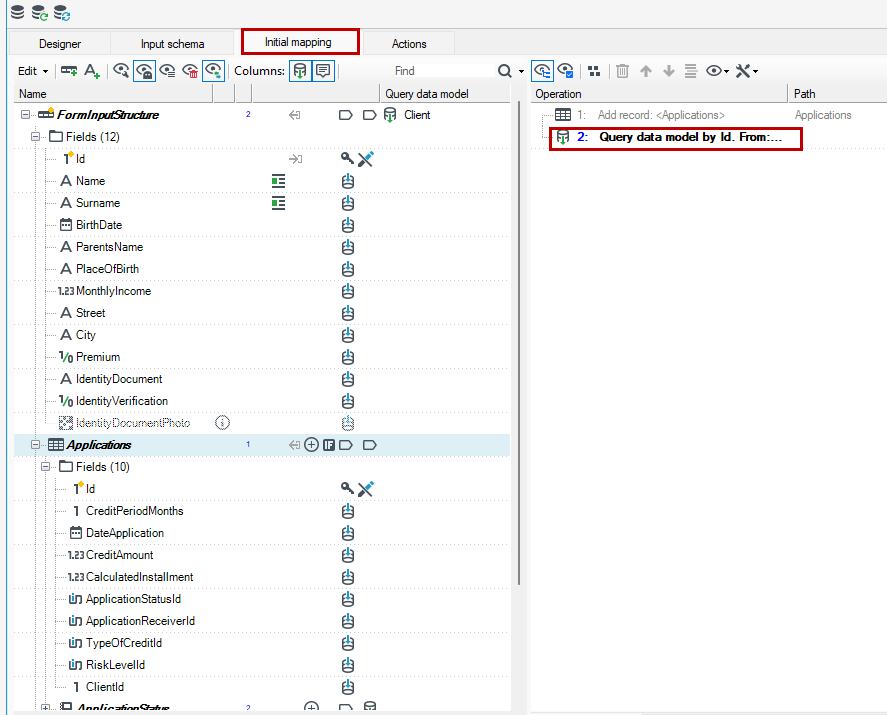
- The Initial mapping tab displays the Query data model operation, which loads data from the structure into FormInputStructure. For more information about queries to the data model, see: Entity Framework data model query operation.
- Here you can map fields, add new fields and records, load data from another data structure, etc. For more information about the form and how it works, see: Form - how it works, concept.
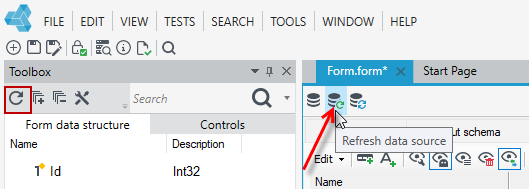
If you recently added fields to the data structure or changed them, then select the Refresh button or Refresh data source on the form so that the form data structure is updated.
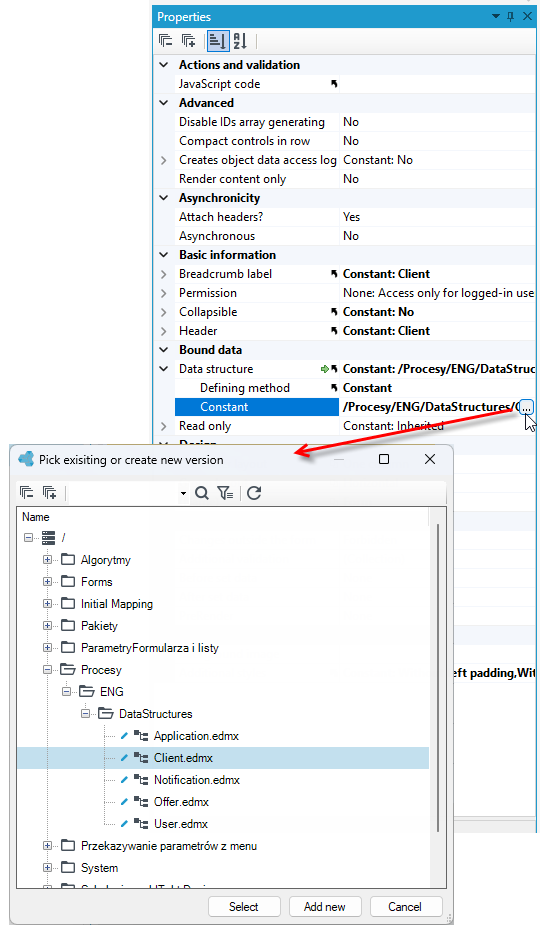
- If, when you created the form, you did not specify the data structure for the form that it is based on or you want to change it, then go to the Properties panel and in the Data Structure section, select the button that allows you to select a structure from the version server.
Form Preview
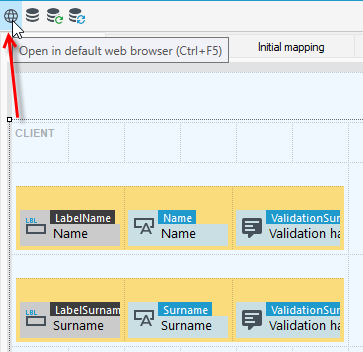
You can preview the form's appearance on the Web at any time during its design.
- Select the buttons on the top bar, in the form design window.
- If the form cannot be saved due to validation errors, the form preview button in the web application will also be unavailable.
- Log into the web application.
- Enter login: admin and password: admin or login and password: user on the development environment.
After installing the environment and creating a project on the development environment, by default you can use admin or user login and password to log in to the application. For more on logging in, see Logging into the application.
To be able to display the application on the web, make sure that the IIS Express service is powered on in VSoft archITekt Launcher.
See also
Container - a basic component of the form layout