Event handling
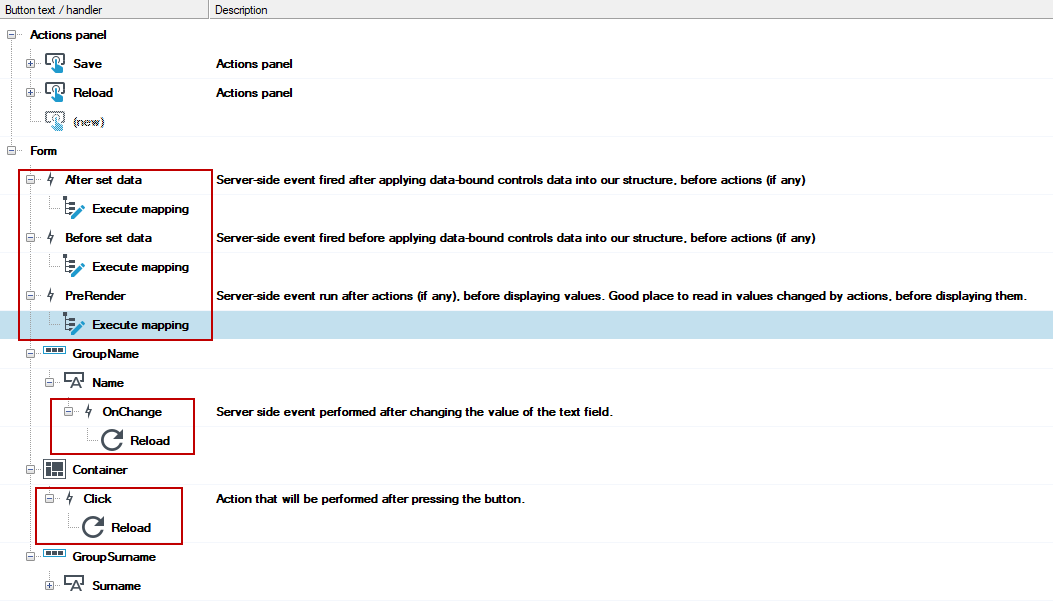
On the Actions tab, in addition to defining buttons and actions, you can also specify that a particular action will be executed as a result of an event. To do so, drag an action to a section:
- After set data - Server-side event fired after applying data-bound controls data into our structure, before actions (if any).
- Before set data - Server-side event fired before applying data-bound controls data into our structure, before actions (if any).
- PreRender - Server-side event run after actions (if any), before displaying values. Good place to read in values changed by actions, before displaying them.
If there are controls on the form where it is possible to configure an action as a result of an event, then you can also add an action to this control on the Actions tab: OnChange/Click - Changing the item value event handling.
- Double-click a control on the Designer tab and you will be taken to the Actions tab.
- For controls, the type of event is usually a change of an element. For example, for a checkbox, the action will be executed when the user changes a value in the checkbox on the form.
JavaScript events
Some controls, such as the Radio button, have a JavaScript Event property. Here, you can also use the JavaScript code described here: JavaScript scripts provided by archITekt.
- In the Properties panel, go to the JavaScript events section and open the Events editor, where you can enter the action that will be called in JavaScript.
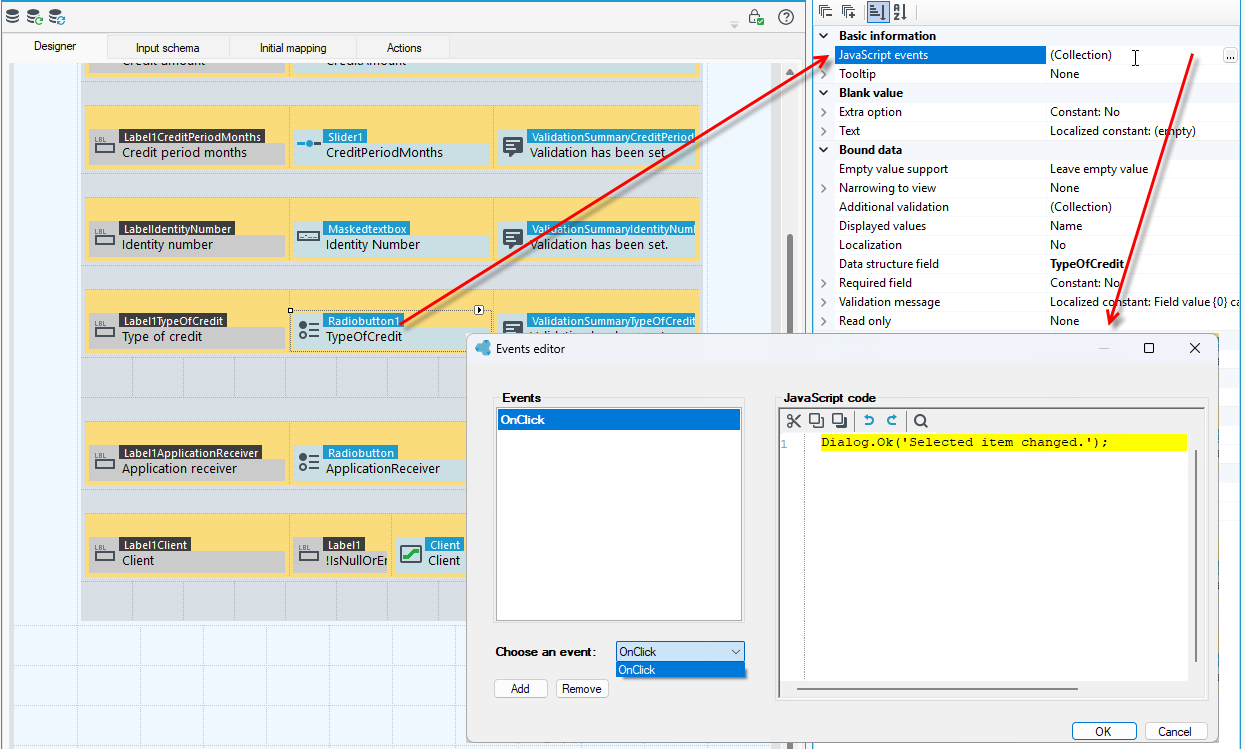
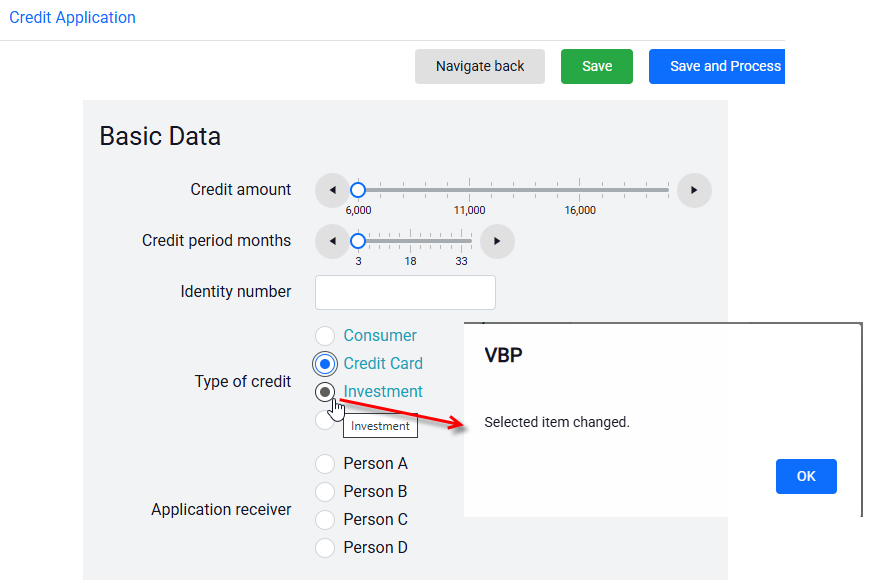
- Now, after changing the element, a dialogue box will be displayed.