How web forms work
See the video illustrating the below issues
How web forms work
This chapter presents a description of how forms work, along with control mechanism logic, input data and more advanced topics such as repeaters and sub-forms, as well as about various data access methods such as Entity Framework Model and SQL query operation.
Form in a few steps
- Each newly created form has an Id element in its initial data, which is the primary key. The Input schema tab.

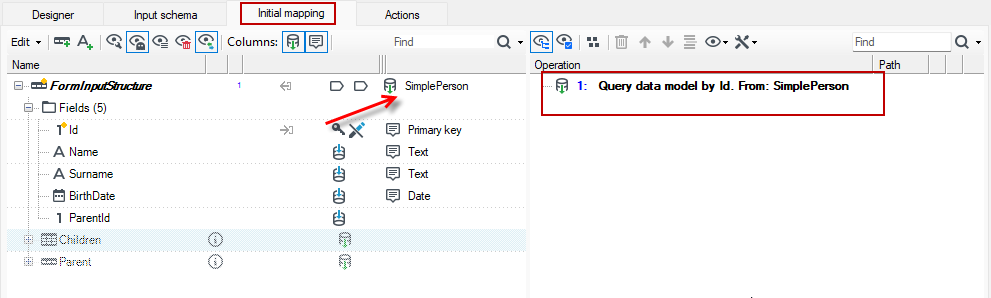
- If a data structure is indicated for the form, the Query data Model operation loads data from this structure into the FormInputStructure on the Initial mapping tab. For more information see: Entity Framework data model query operation.
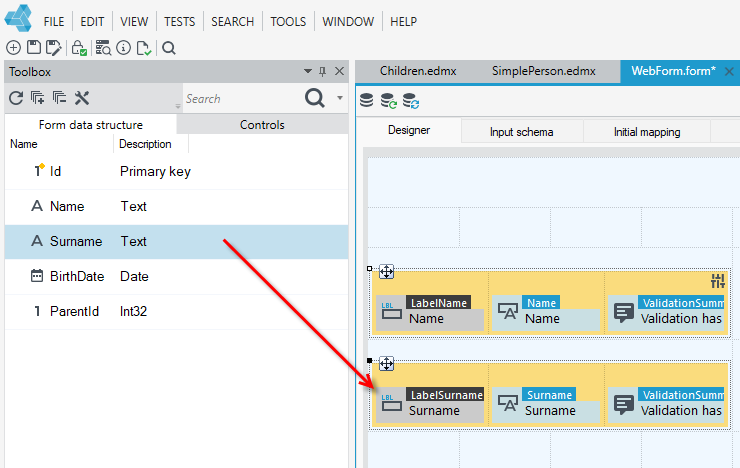
- Now you can go to the Toolbox panel and from the Form data structure section drag the fields to the workspace. The controls are already binded with the fields from the data structure. On the Controls tab, there are other controls that you can also use by dragging onto the form. For more about controls, see: Controls.
- Next, we define actions on the Actions tab, which can save the form, move to another form, run a process, package or perform a mapping on the data and many other available actions. During the creation of the form all the time we can preview the appearance of the form in the browser.
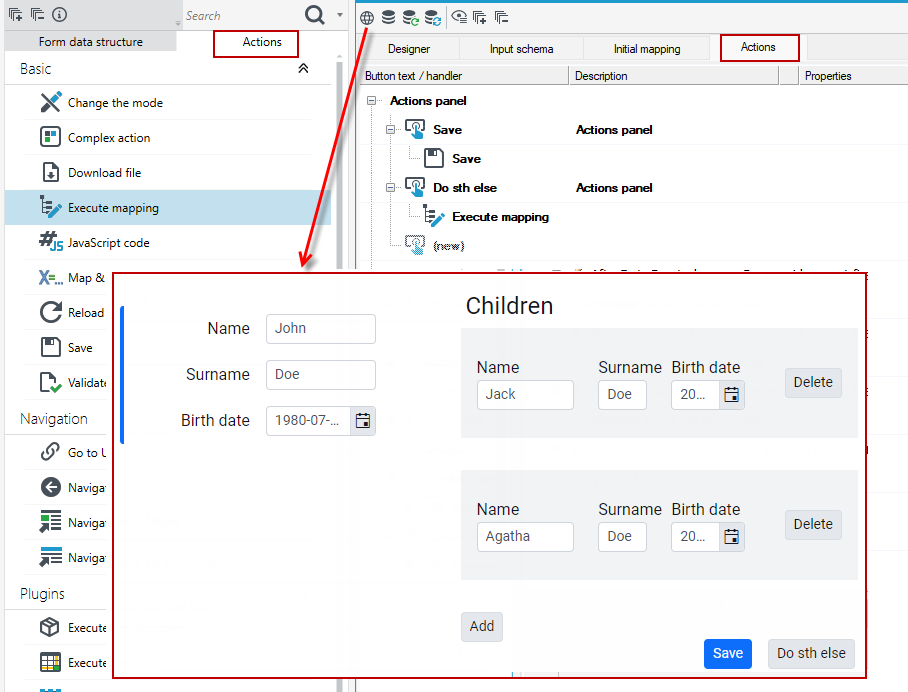
Go to the Actions tab on the form, and then select the option to switch the view to advanced, where you will see the order of the steps and compilation of the form.
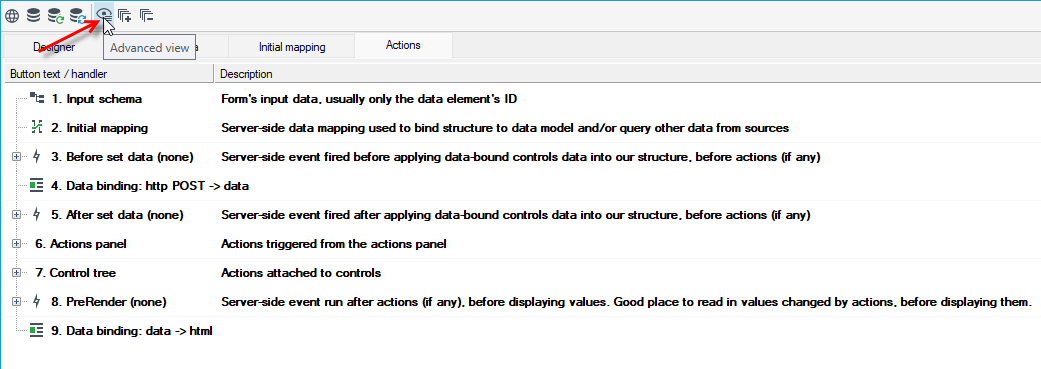
Form - detailed description
To begin with, let's look at a scheme of how the application works.
We have our browser connecting to some remote address, and once in a while our browser sends something to the server for processing, and our server takes actions and responds.
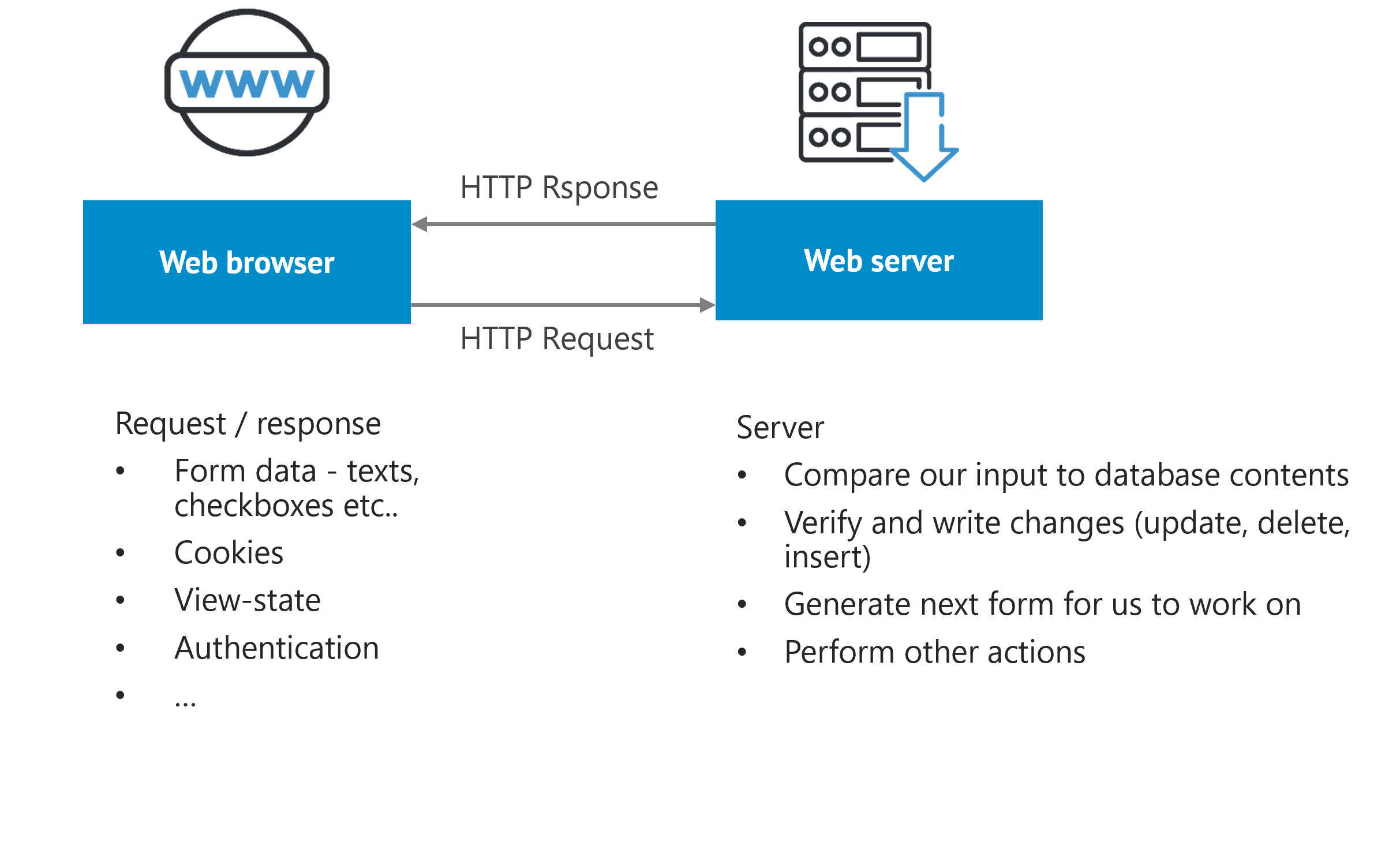
The server may trigger complex workflows data integration processes, generate documents, or in general interact with any external system.
Form
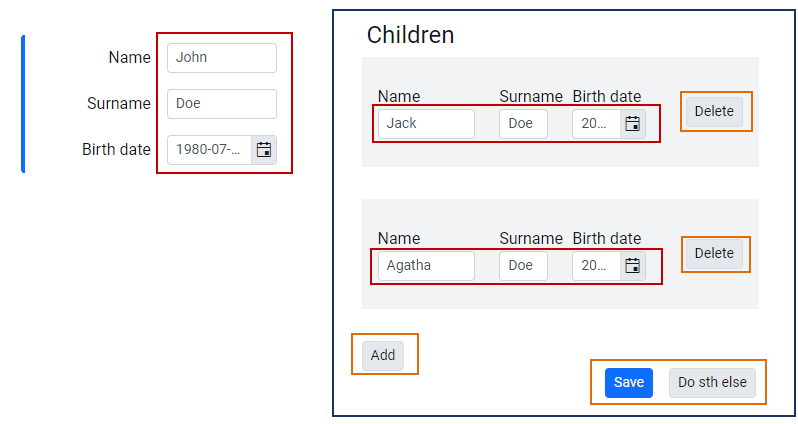
A form is a reflection of some part of the data from our data sources (database). It contains:
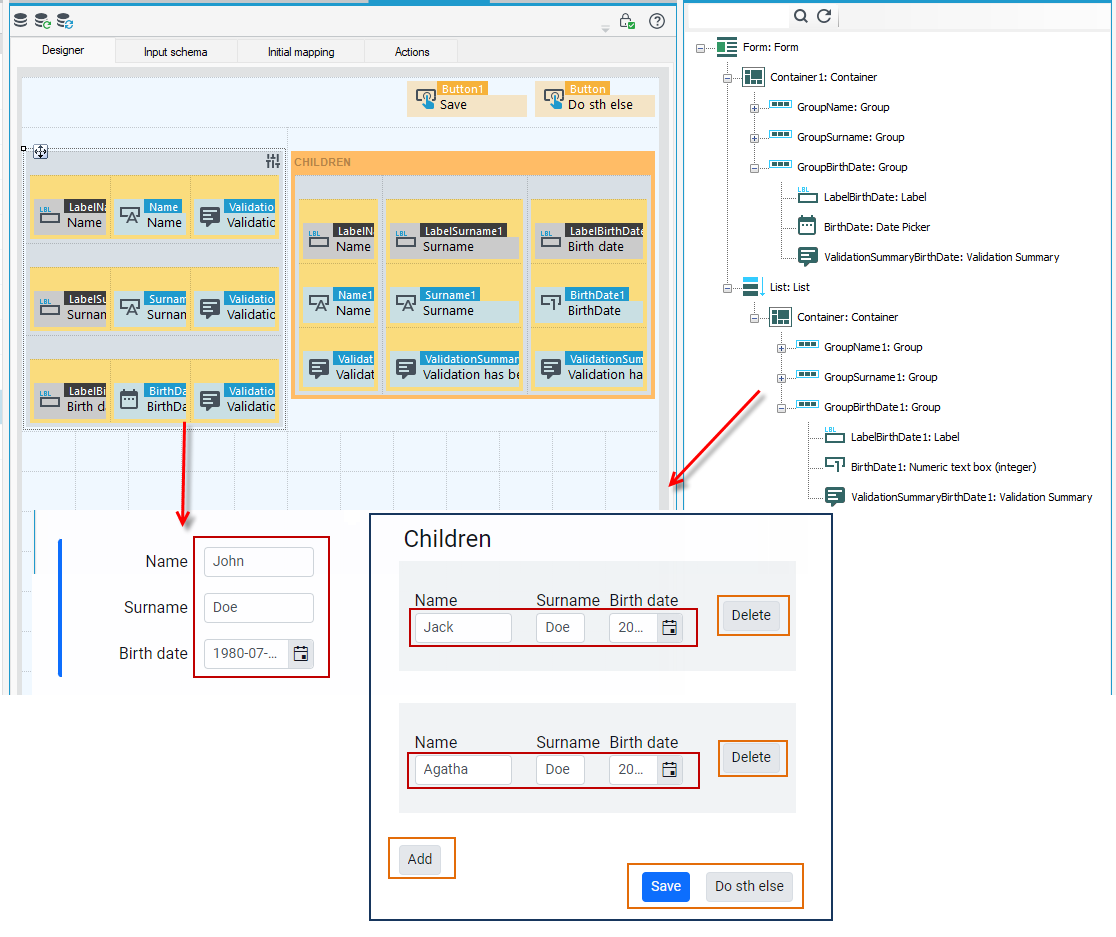
- input fields, i.e. controls binded with data from the database (Name, Surname...).
- some special containers, in this case a repeater bound to a list of connected children, (Children),
- and other controls that cause certain actions to be performed (Save, Do sth else...), usually causing our form data to be submitted for processing.
Processing steps
Let's associate processing steps with certain elements of the form designer.
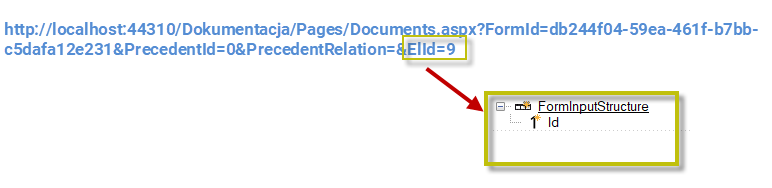
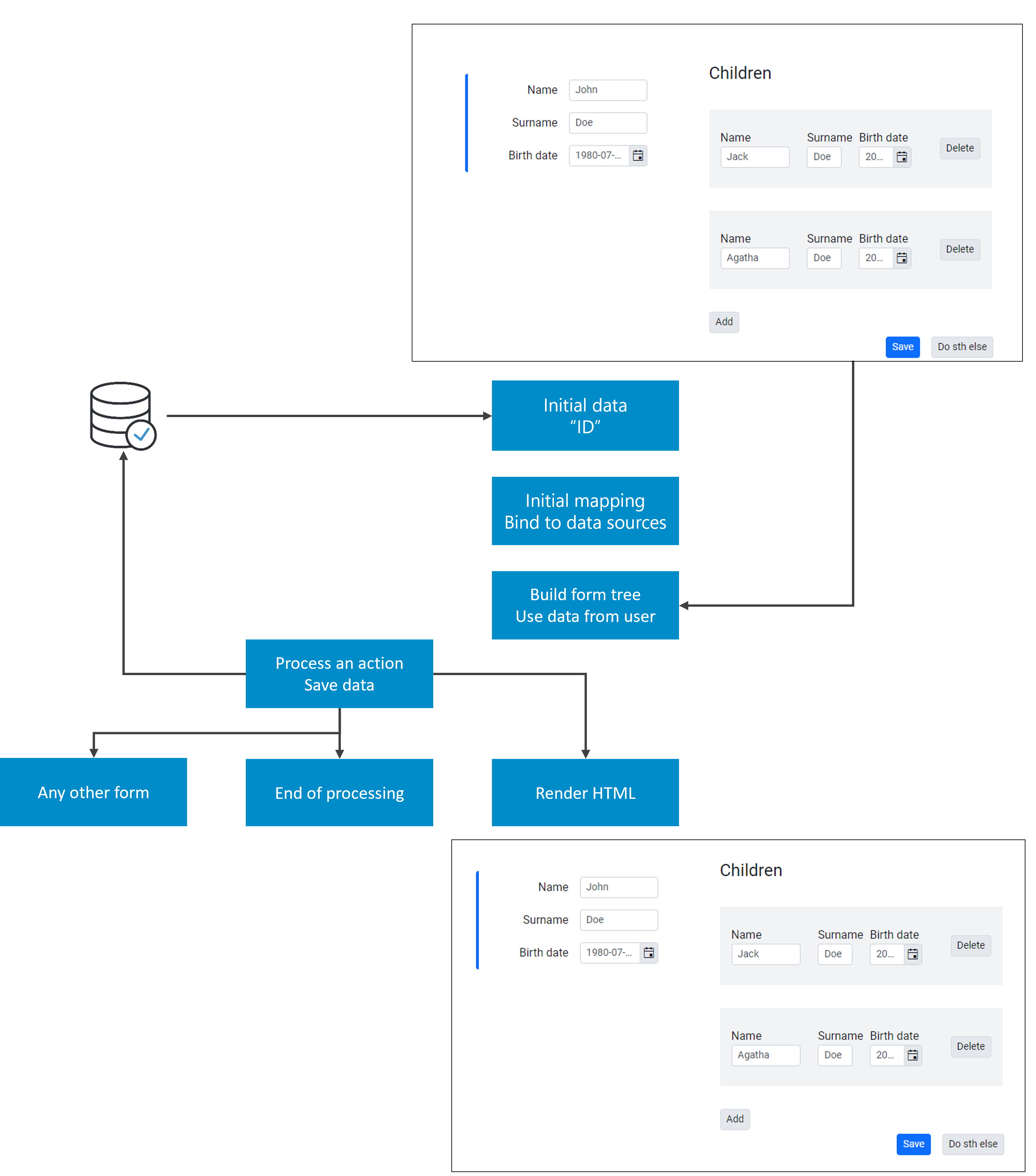
- We start with some initial data, usually containing only elements ID. In this case, it comes directly from the browser for our main form, but there may be other cases with more fills.
- The initial structure is then supplemented with some data. In this case, we are using a query data model operation to bind the root record named FormInputStructure to the Simple person model element. For more information see: Entity Framework data model query operation.
From now on, any changes to the structure below will be automatically reflected in the database upon saving, and all necessary fields and relations will be read when needed.
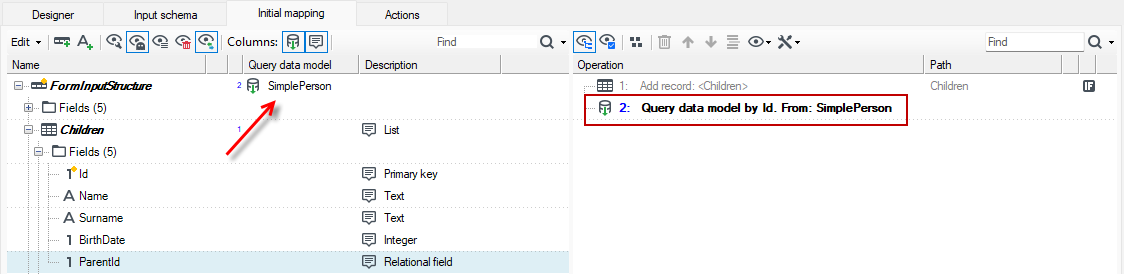
- After getting our data ready, we build our forms logical structure, that is, a consult tree (Form outline tab), and override our data from the user input. We design the appearance of the form where you can organize the controls, group them into containers, add actions and buttons, events, etc. For more on form components, see: Controls.
- The next step is to add the action that will be performed when the button is pressed. There are many available actions. Most of them involve some form of further data mapping. Our action may, but does not need to cause the data to be saved into the database.We may just validate and update some data and display the very same form. We may navigate to another form, or spin up some external process like workflow or data integration or any combination of the above. And next, if we have not navigated to any other form, we are displaying ourselves again, possibly with some confirmations or validation messages.
Actions are available in the toolbox on the Actions panel and the Actions tab. For more on defining actions, see: Types of action.
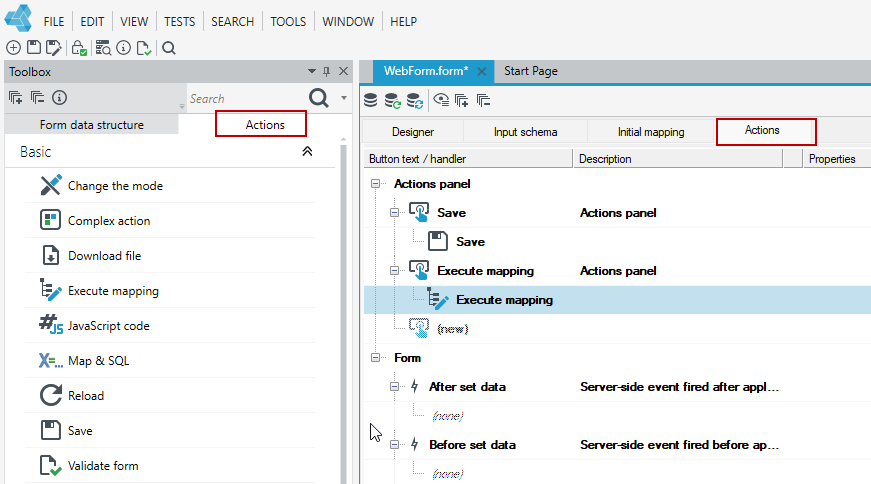
Diagram of how the forms work
We start with the initial data and the elements ID, then read all the needed data on the Initial mapping tab, then build our form using controls and actions to be able to ingest user data from the browser, validate them, and then react somehow to a button or any other event.
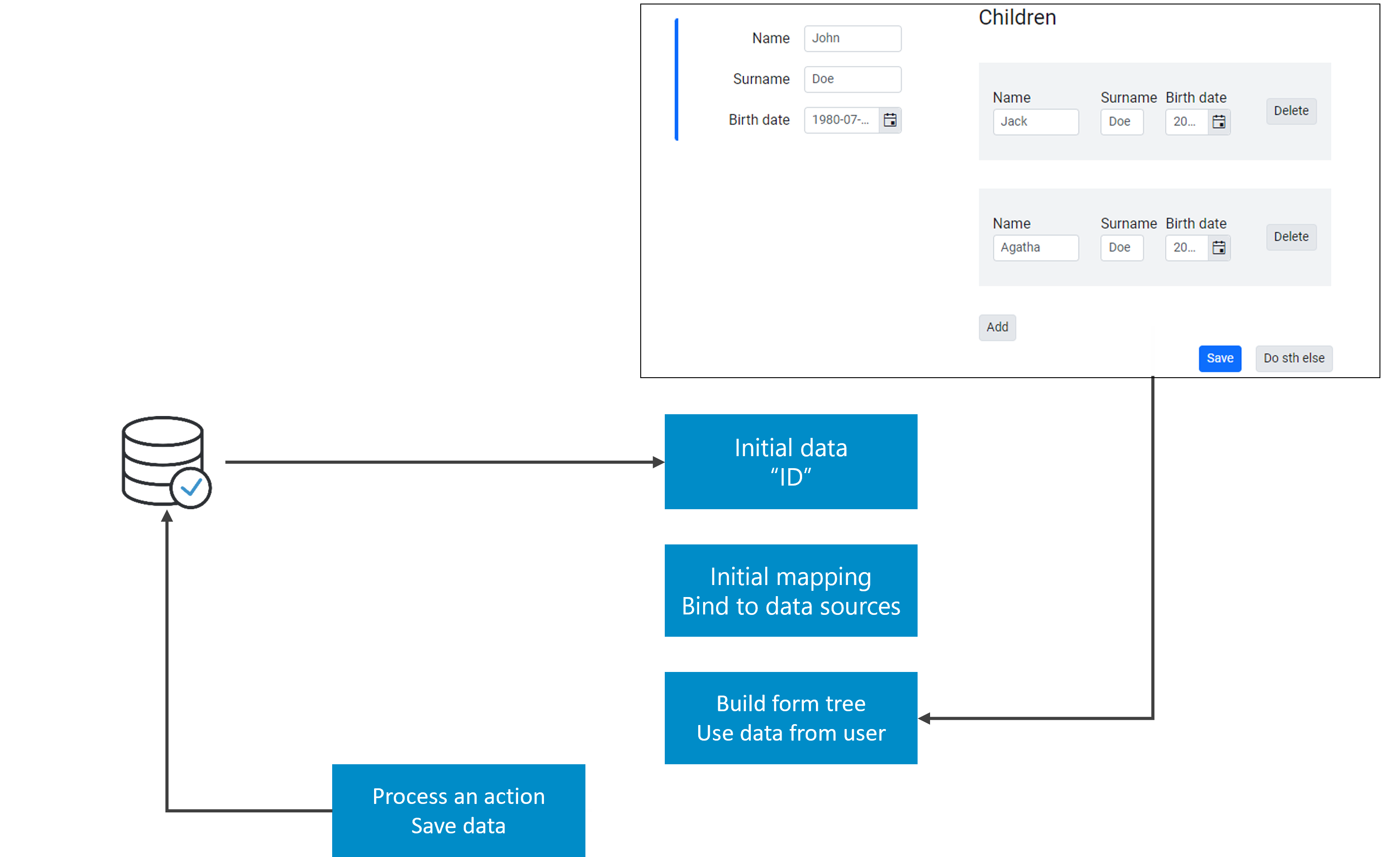
Action (in this case Save data) may move us to a different form, terminate further processing or just cause our web form to be rendered back to the browser.
Data structure vs. form building
The following is yet another representation of what's actually going on with a data structure.
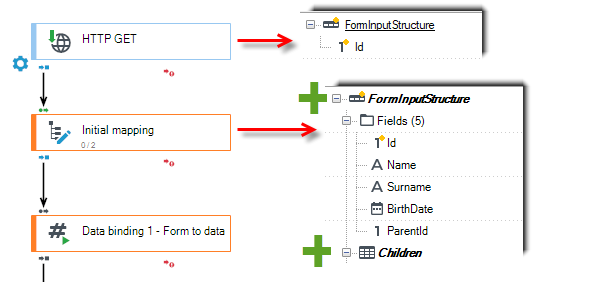
- At the request stage, we get our form ID element.
- One request comes in from the top data gets read in the initial mapping, effectively expanding our working structure any way we need.
- Then some actions can be taken, that is, actions defined on the form. In this case, the save data action with data mapping and any other action to be performed.
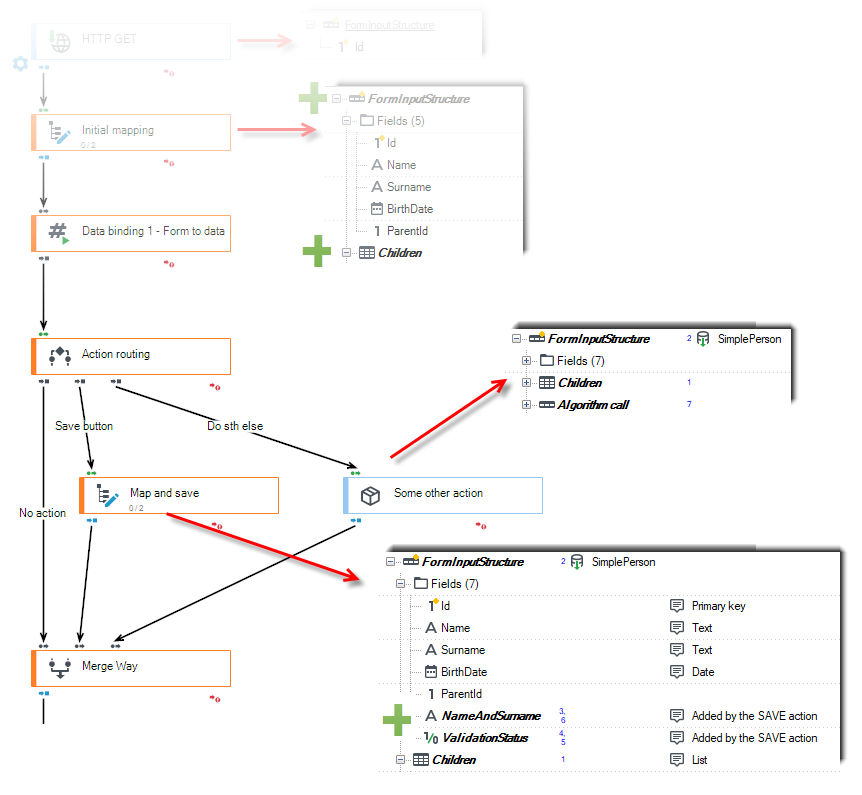
- Then, our post-action structures are being merged, and possibly supplemented with some more data, already overwritten by input fields.
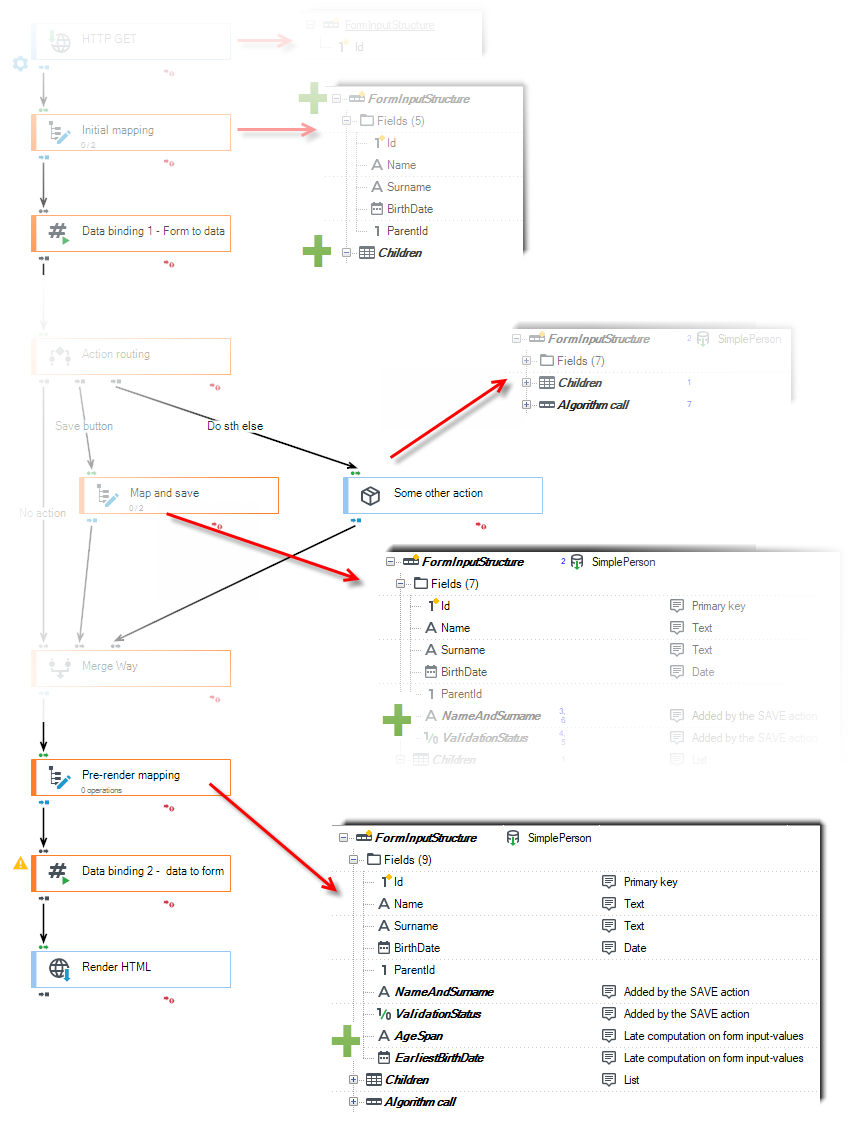
- At this stage, we can use the fields from the toolbox from the Form data structure panel, which contains all the fields added as part of the mappings and action mappings performed, which did not exist after the initial mapping phase.
- These controls are set in read-only mode.
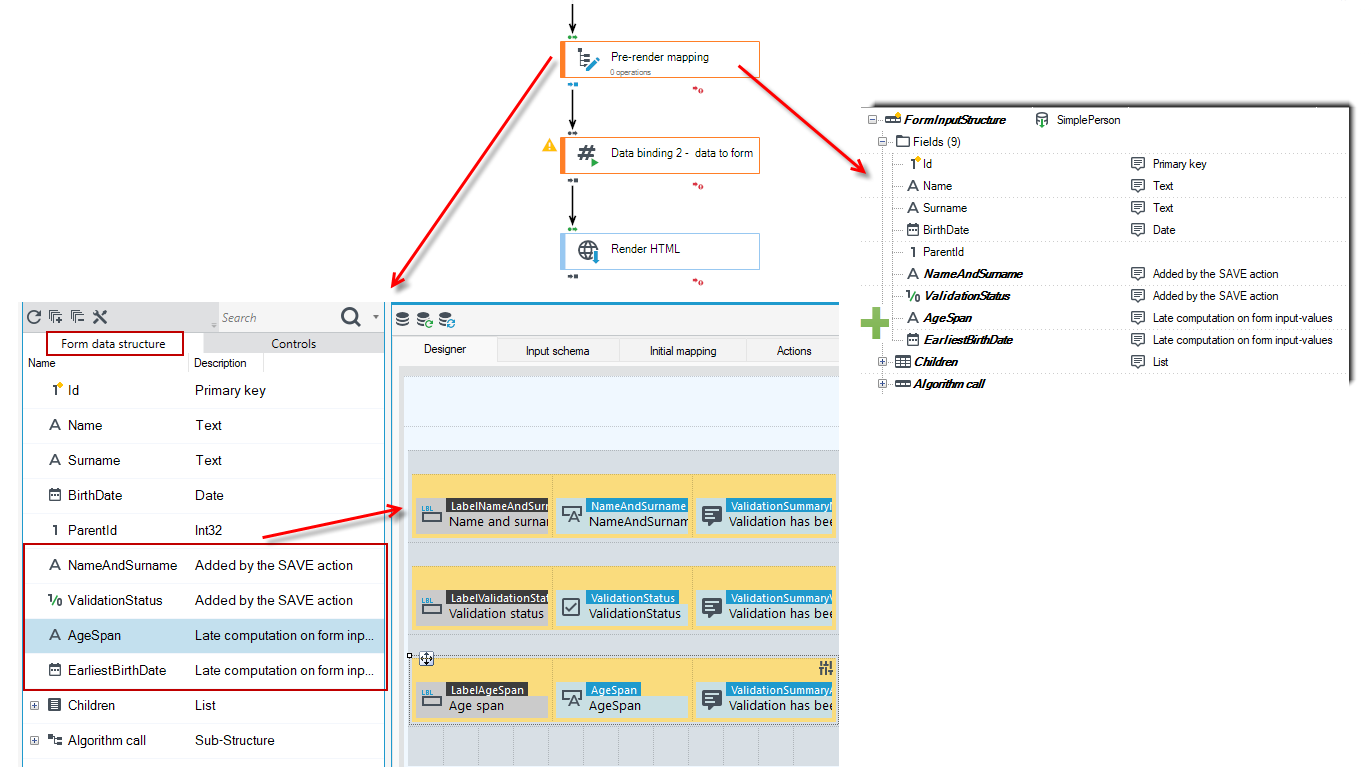
To summarize:
- We may add new fields and calculations anywhere on the way, but with different prerequisites and different effects.
- One of the more popular cases is when we need to, for example, calculate some aggregates of our form input values. These may differ from ones read directly from the database. Although it may be tempting to perform calculations at the end of the Initial mapping, but doing so will not give us the desired result – at this time data come only from external sources.
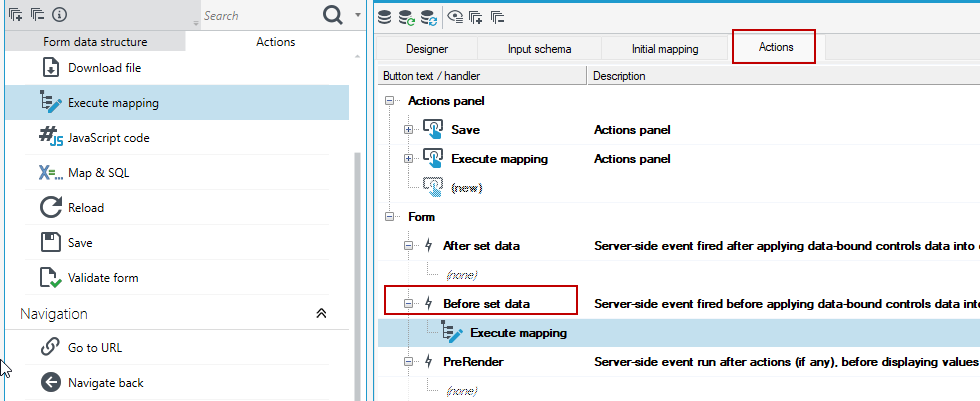
- Form input data will be available a bit later (step Data binding 1- form to data). There is a form-level event called Before set data just for that purpose. It allows us to map our input form data.
We have two related data stores here:
- Form itself and
- external data sources, mainly databases.
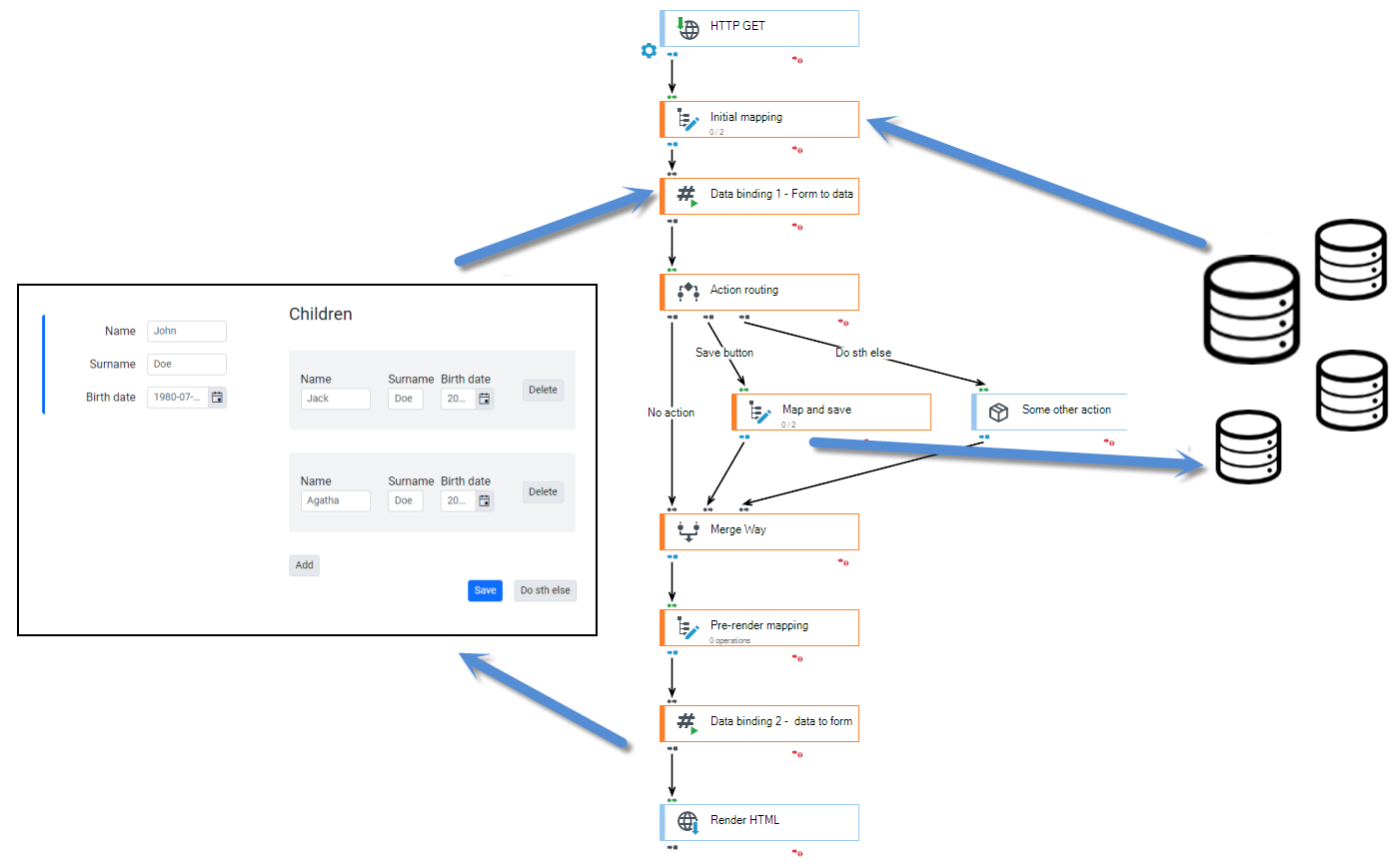
- Until we actually save our data, input controls will be showing us some temporary values, typed-in or changed by us and kept by the controls themselves in HTML inputs.
- Saving data may require something more – for example, data must be valid somehow, some other criteria must be met, and last but not least – we must run an action actually saving the data.
- It is completely up to us, how we are designing our form – whether we will save data frequently, possibly with some flag, that they may be still incomplete for further usage, or we`ll be keeping our data on the form and not, say, pollute our data stores until our input information has been completed.
Elements on the form
Some of our form`s data fields, that is Name, Surname and Date of birth are bound to controls. Thus, controls will automatically display data values and update them.
Another component is the list (Repeater), bound to the Children list. Inside it, we can see some more controls, each bound to fields for consecutive rows of our data list.
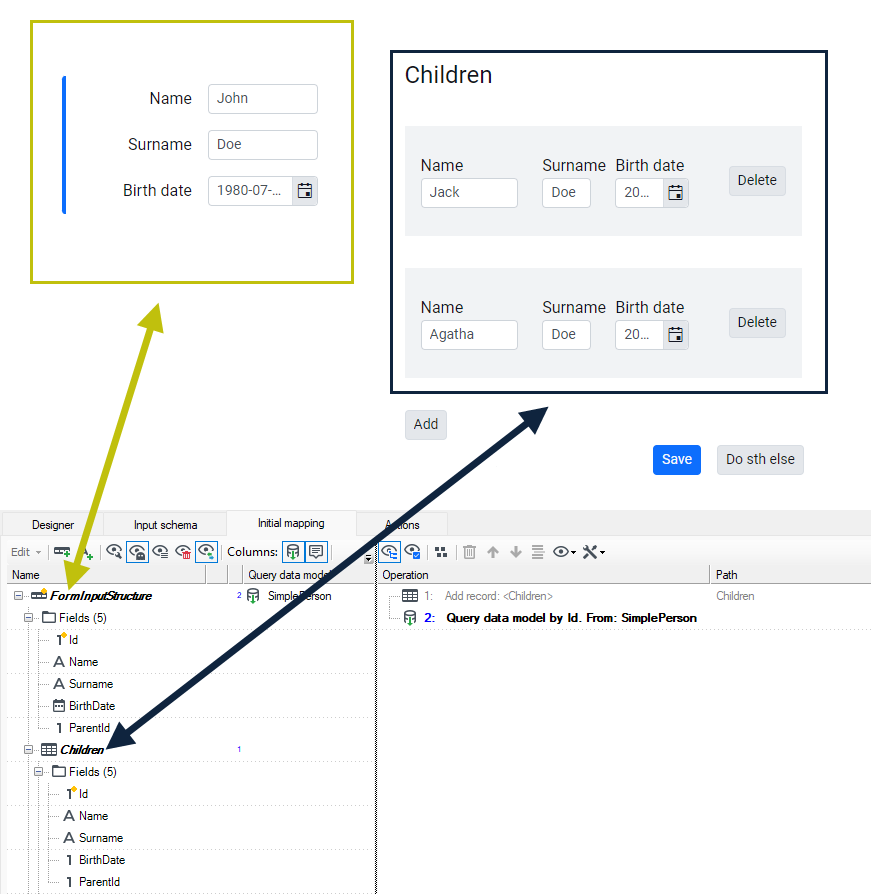
Repeater
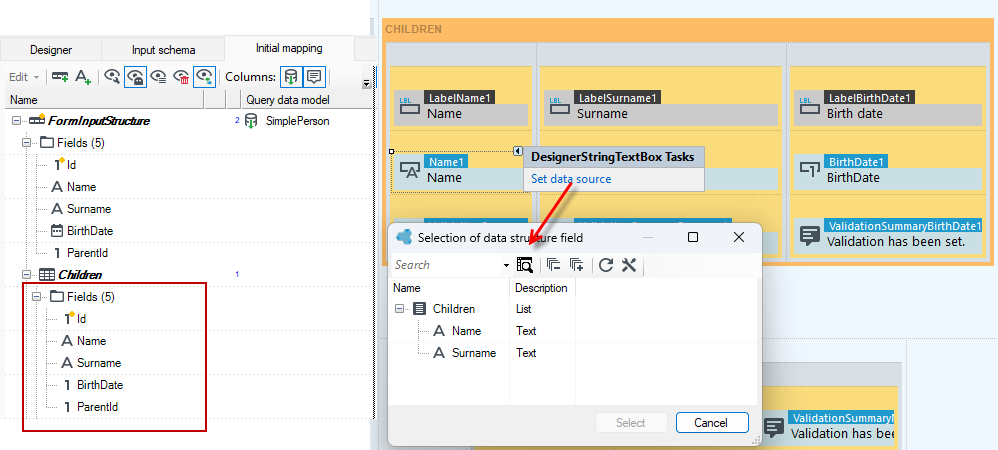
In our example, the repeater component it is bound to the list of Children. Controls inside it are bound to consecutive rows of this list. In addition, the option to select a field from the data structure has been narrowed.
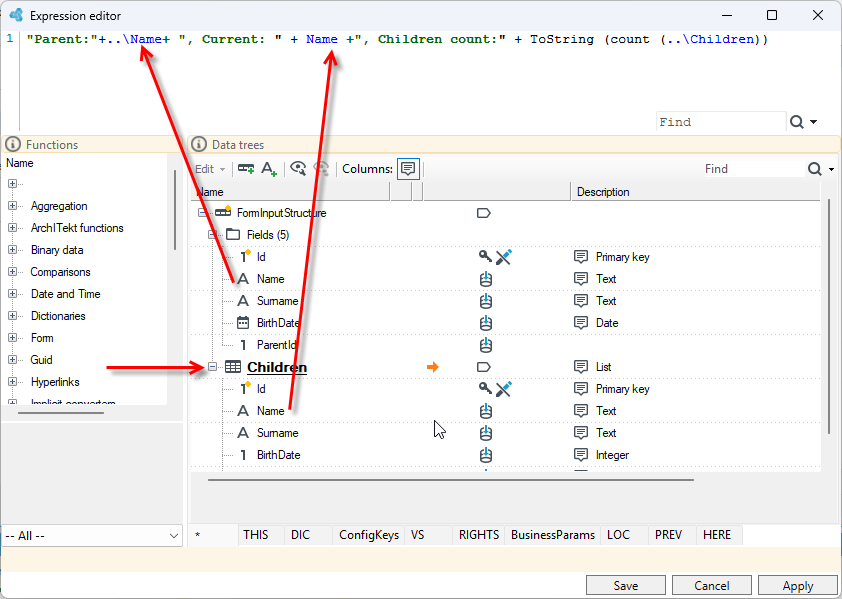
When writing an expression in such nested context, we can reach out to our parent, using a double dot. The pushpin icon shows our location if it is different than the root. Of course we can nest repeaters within repeaters in order to handle more complex scenarios. For more information on defining expressions, see: Expressions.
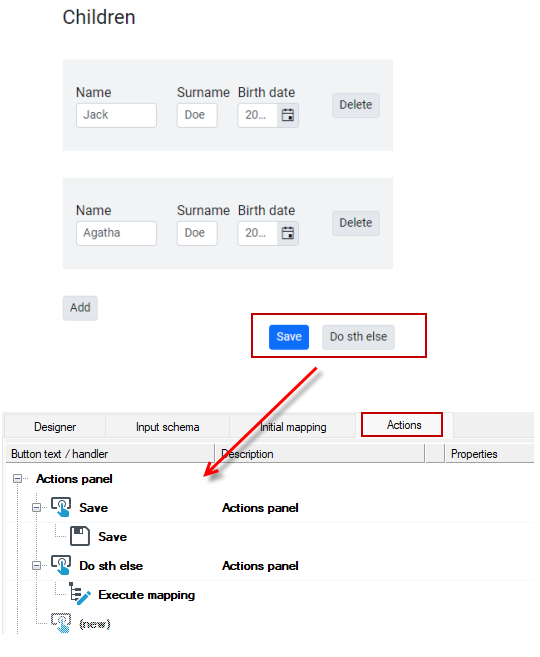
Buttons usually trigger events leading to some actions performed by the server. In these case we have two actions, one simply saving our current form data to database, and the other performing some data manipulation first. The list of available actions is on the Actions panel.
Some of those actions are actually gateways to other functionalities and may perform a plethora of complex data interactions. These are mainly the actions of: Execute mapping and Start a new workflow, which can be performed in-line, synchronously, effectively as a local function.
To summarize:
- The form has an input schema, or initial data structure plus mapping (Initial mapping tab), extending it with data from external sources.
- Then we have controls to actually see anything on a form and be able to type something in and we can trigger some actions.
- We also have two special controls, that effectively can move us into a different place in the data structure. Repeaters and subforms.
Subform
On a form, you can use a sub-form control, that is, to display another form in a certain place.
- Actually any form may act as a sub-form. We specify: which form, and where to bind it in terms of data structure location (root, any other record...).
- Subforms give us reusabiliy for all aspects of a form, that is data structure, interactions and control layout. We may actually use sub-forms without controls to re-use former two aspects, or the other way round – re-use only the looks without logic and interaction part.
- And back to our example. We could turn this part of a form into a subform and put all the necessary layouts and logic there and then embed this subform inside our repeater.
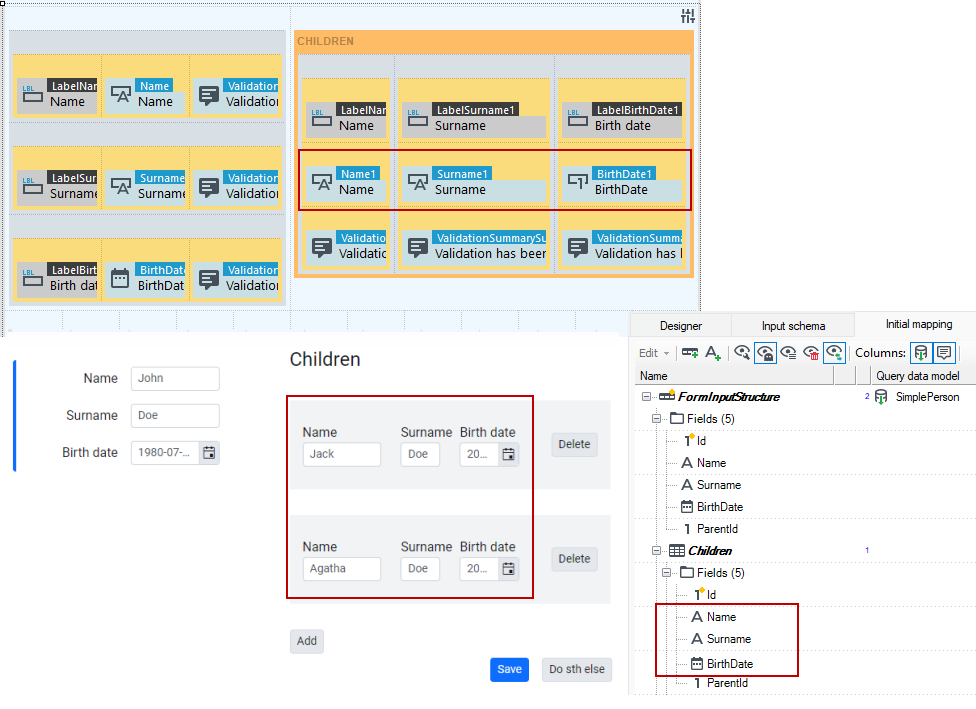
- Reading Simple person and Children data is done on the main form. The subform is only responsible for handling a single child`s controls and actions.
- If the query data model operation is placed in a subform, then in the main form, the Query data model operation detects some previous data binding on the same record to the same model element using the same criteria and then does nothing, except perhaps to add some data missing from the parent, such as some more related records or large binary data.
Data access methods
On the form on the Initial mapping tab, data is retrieved from the database thanks to the Query data model operation. For more information see: Entity Framework data model query operation.
You can select anything from any data sources, then join it with any other sources, any way we want, and then use it all as a basis for our forms.
We may also perform any manual actions for data modification, including SQL updates, web service calls etc. Of course - all these approaches can be used together.
So there are 2 main methods of accessing data:
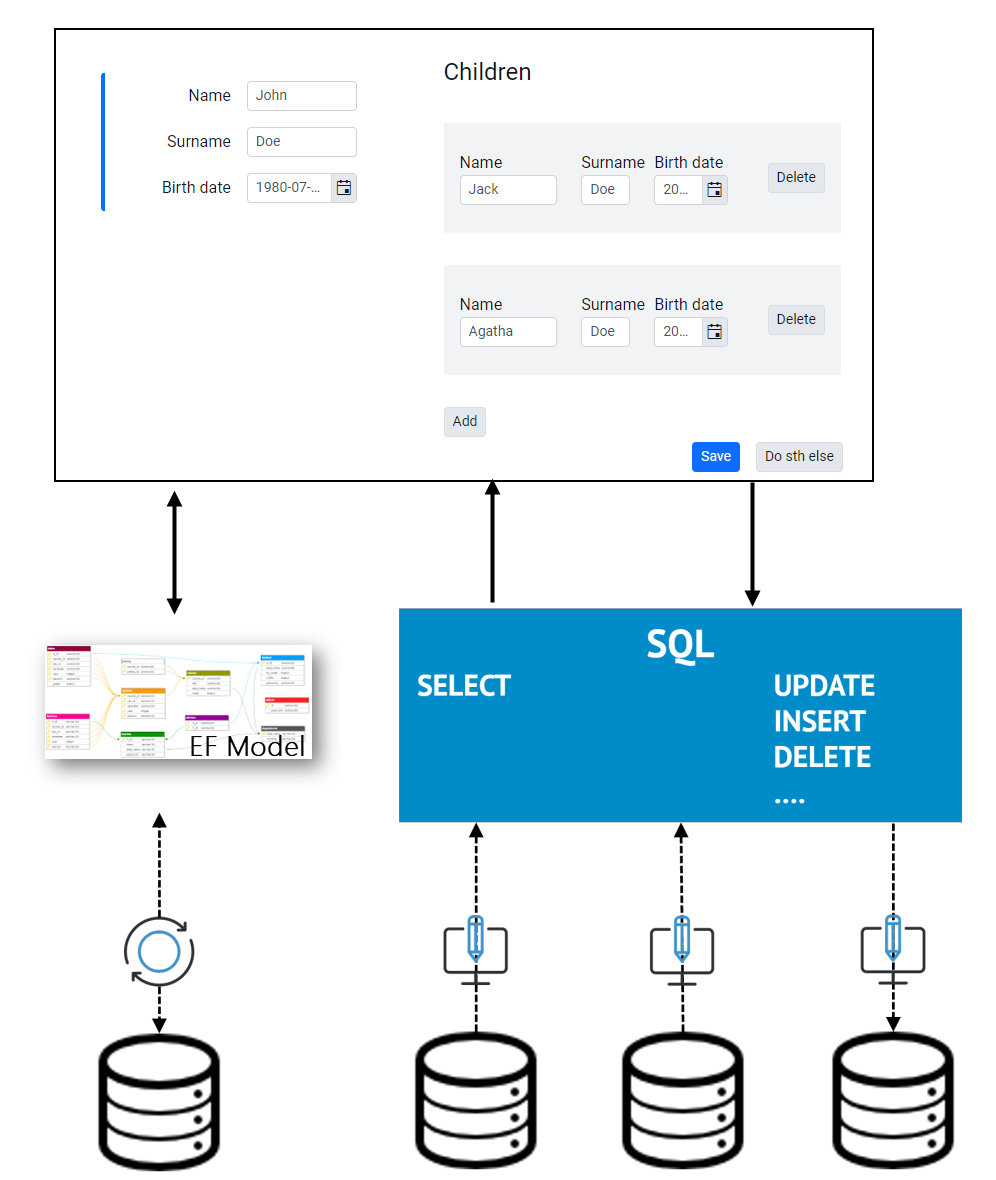
Model Entity Framework
- Biggest advantages of the entity framework model are easy navigation through relations and automatic updates. We do not need to write any SQL.
- Secondly, we get lazy loading, that is only required data is being read.
- Our model can span over a single database only and physical access is slower than with pure SQL.
- This approach is simple and may be completely sufficient for most of our needs.
This is what the form looks like, where the Initial mapping was based on a data model.
In the case of data-bound fields and records created by Query data model action wants to actually save our new values, data is being pushed down to entity framework model and then to database, including the insertion of any new records, and then reading in any values computed by the database itself, like new identity and relations keys.
SQL
- For the SQL part, things are a bit different - we may access virtually any databases here, even ones not conforming to simple snowflake structures, bases without relations, even huge data warehouses.
- On the other hand, we need to be familiar with relational database technology, and handle all data modifications manually. Well, maybe not necessarily writing SQL for every bit of data manipulation, but still it is more complex than with the data model approach.
- One common case for the use of SQL is counting data matching certain criteria, or using specific hints and options in order to get maximum performance, and for really large data – possibly to get ANY result at all.
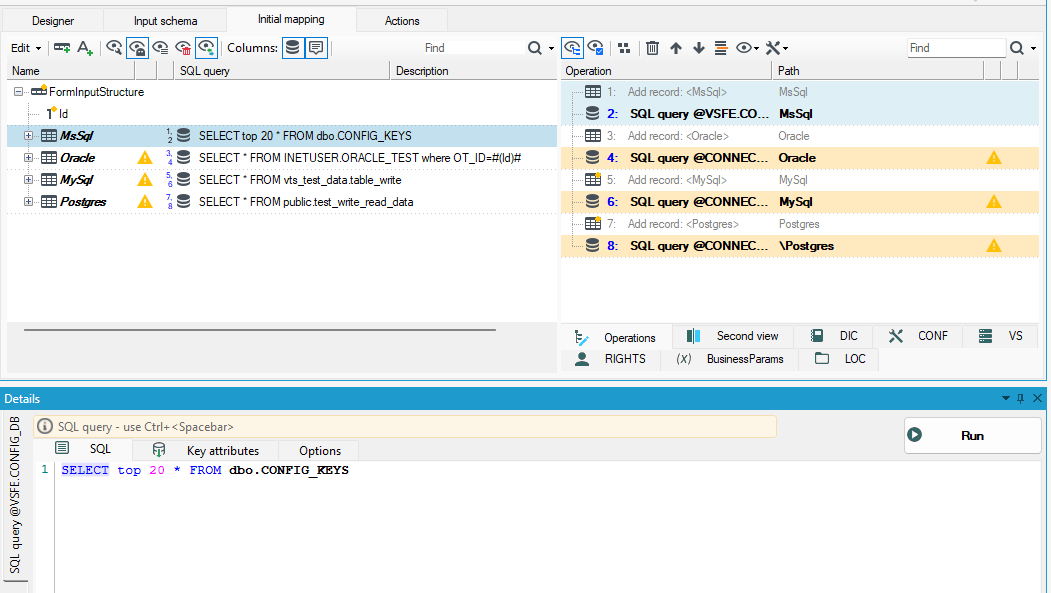
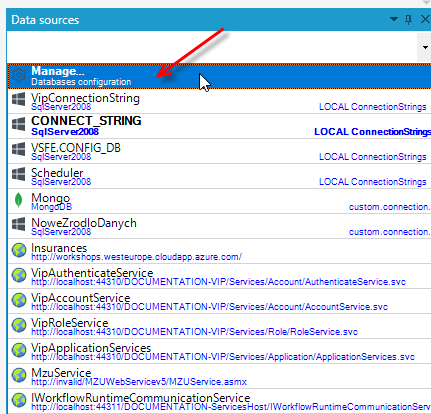
We can use data from other databases. On the Data sources panel, several additional connections to Oracle, MySQL and Postgres are configured by selecting Manage.
The form on the I nitial mapping tab does not have a Query data model operation, but instead uses a SQL query annotation for the added records. Each of them is fetching its data from a different database. The data can be correlated in any way. For more information on the SQL query operation, see: SQL Query Operation.