Formulas
Formulas are extremely helpful if the application behavior should depend on the specified set of conditions. Concerning the number of functions, variables and conditions enabled by the Formula Editor, the range of using formulas in the created application is very wide. The formulas can be used to dynamically indicate the forms or workflows run in response to User actions or at least to perform mathematical calculations.
The information you will find in the chapter is the following:
- where the formulas should be applied,
- how to construct the formulas,
- what variables, constants and functions can be used to create the formulas,
- what should be remembered when defining the formula.
The concept of constructing the Formula
Some basic rules related to the formulas are the following:
- the formula has the tree structure growing from the root (the root located on the top of the formula window),
- the tree consists of any number of nesting levels and each nesting level starts with a node,
- each node returns the value of the specified type,
- the formula processing starts from the most nested element,
- the value returned by the root is the entire formula value,
- the formula consists of the conditions, variables, constants and functions.
Applaying formulas
In the archITekt platform there are many areas enabling taking advantage of the formulas defining opportunity. Among others, they are:
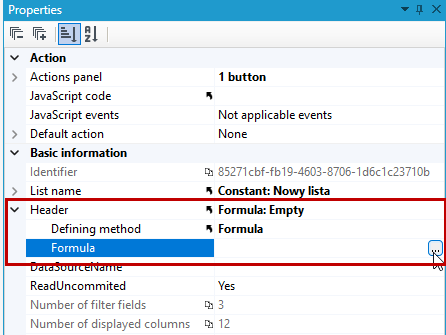
- Lists – in many list properties, setting the Defining method to Formula enables making the layout and behavior list dependent on fulfilling the specific conditions demanded by the Formula Editor.
-
Workflow – formulas are used for defining the action (actions) for activities Decision (formula) and for specifying workflow and forms when we selected Formula as the Defining method.
-
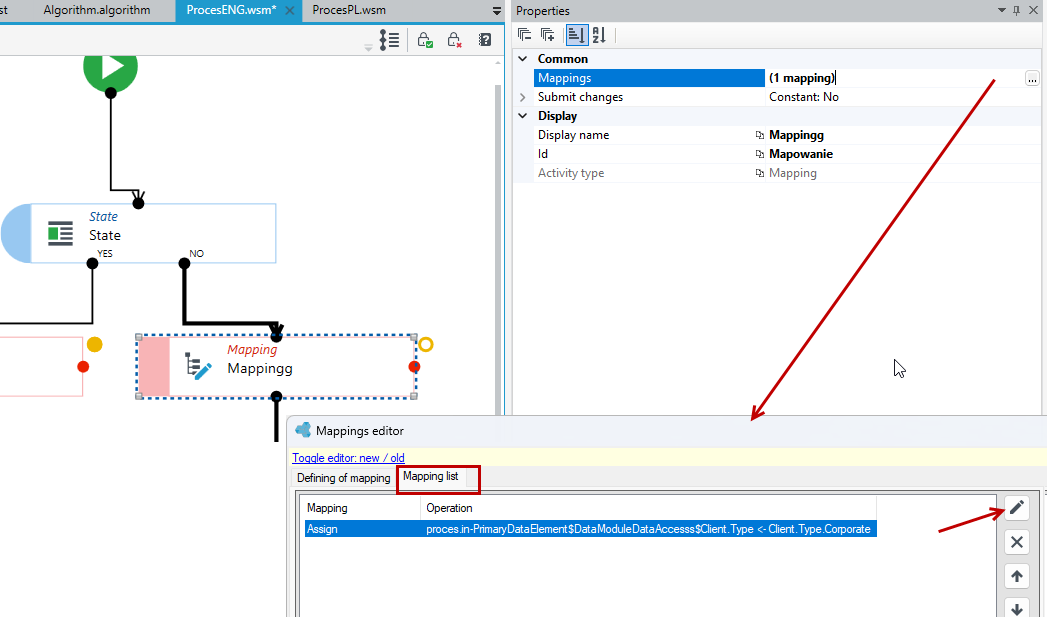
Mapping – wherever the mappings occur (e.g. the activity Mapping available for the workflow), the formulas should be used also to define the conditional mapping.
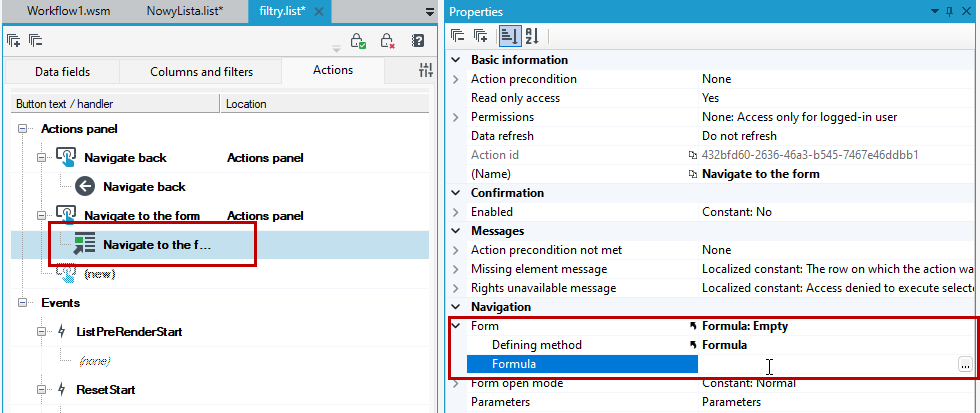
- Actions on lists – for actions such as Navigate to form/list or Start a new workflow, the formula may be defined to indicate the form/list or the workflow and another mappings on Properties panel.
- Algorithms - all calculations and mappings in the Decide, Calculate, Aggregation, Add to list, Get/Remove from list blocks.
The Formula editor
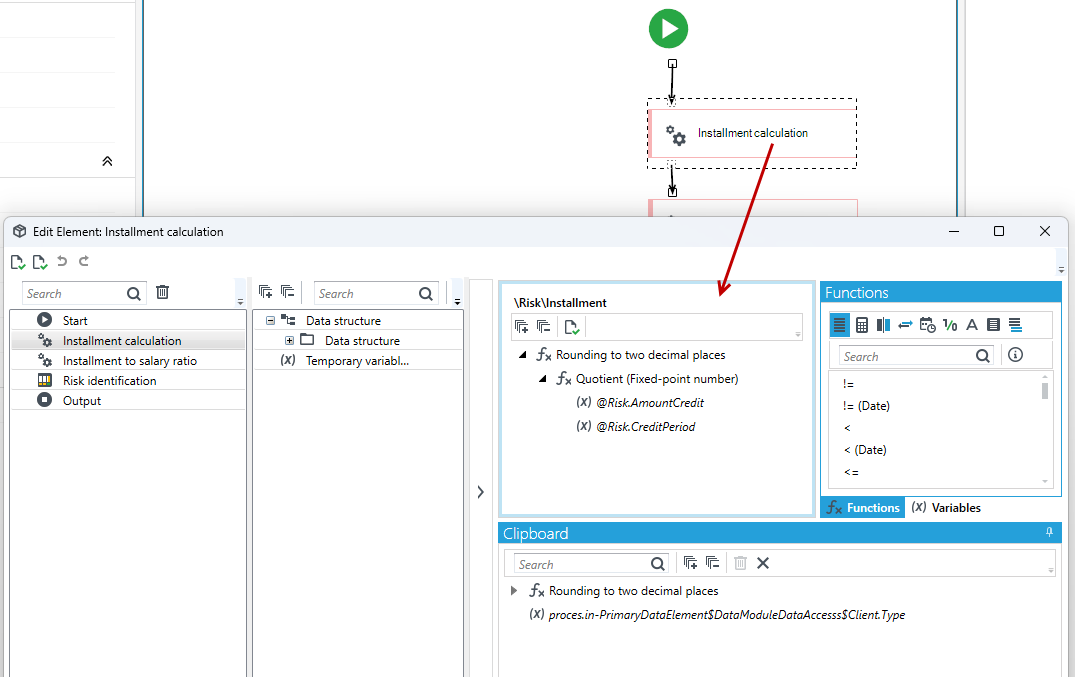
To define formulas, we use a functionality called Formula editor usually invoked by clicking on the Formula property.
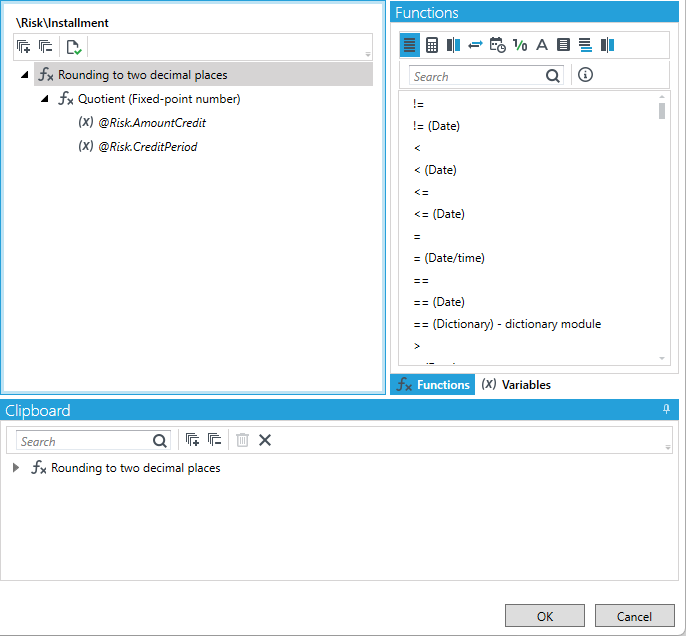
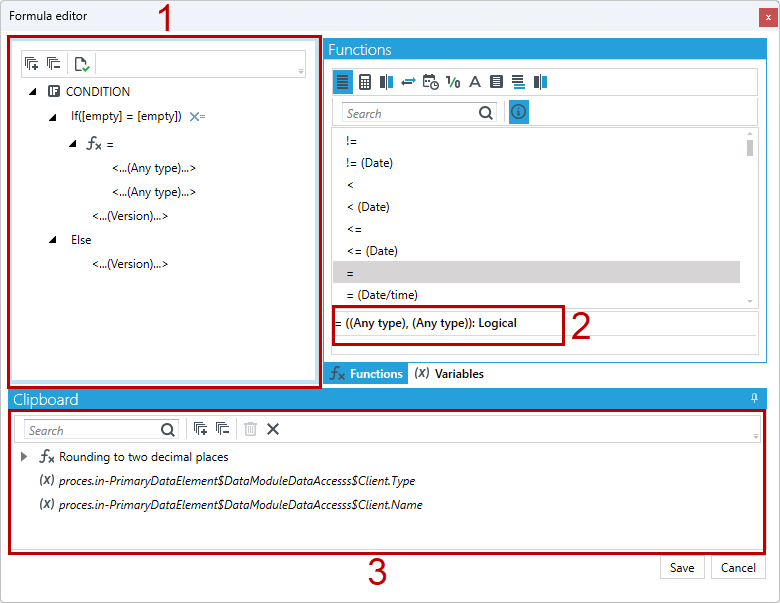
The Formula editor window consists of several parts:
- Formula window where the formula tree is constructed.
- Hint window presenting the data type returned by the condition and the formula part being defined at the given moment. Select the function and select the button
 to enable the function description.
 - Clipboard where the parts of the formula or the entire formulas can be stored.
Any unique formula tree fragment can be moved to the clipboard using the drag and drop technique. Everything located under the selected node will be copied. Fragments identical to the ones already located in the clipboard (accurate within all the formula elements located under the selected node) are not copied again. Moving the clipboard element to the formula tree area is done analogically.
The available functions are collected on the Functions panel and the variables on the Variables panel.
We can place variables and functions in the formula window by drag&drop.
Formula structure
The following objects may be used to create the formula tree:
-
Functions – relations between the constants and/or the variables (for example, the relation “less or equal”). We can search for functions on the Functions panel and then drag them into the function definition window.
-
Constants – the entered values of a particular type.
-
Conditions– enable defining the values returned by a formula if the defined condition (or conditions) is (are) fulfilled.
-
Variables – dynamic values related to data used by the application (the field value requirements in the parent data structure of the form)
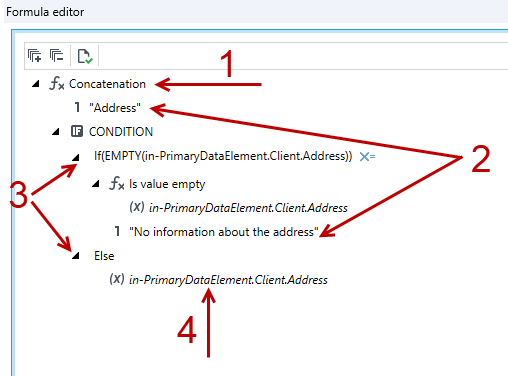
In the above example, we want to get the concatenation of inscriptions (Concatenation function), depending on the given condition, i.e.: if the Address field is empty (Is value empty) then return the text No information about the address, otherwise (Else) return the client address retrieved from the Address field from the data structure.
Data types
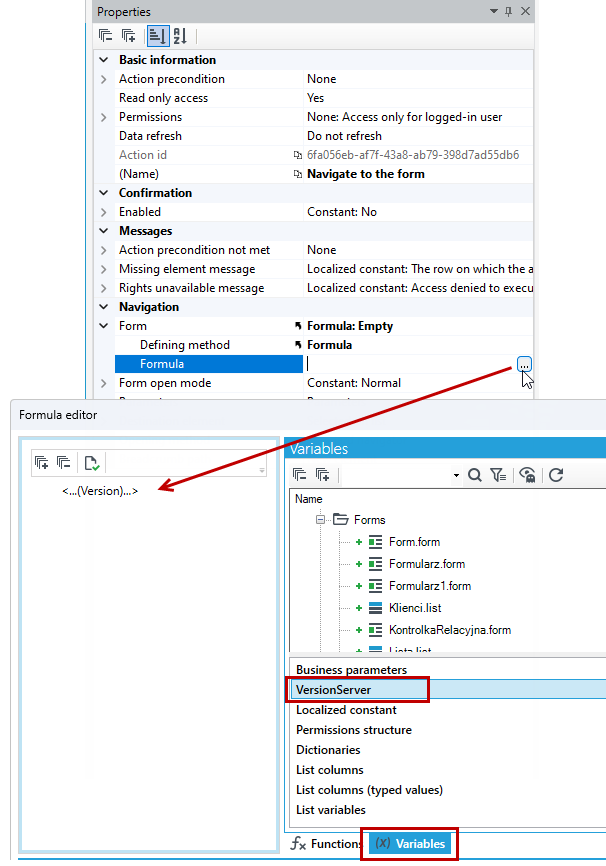
Each node (and the entire formula) returns the particular data type. Opening the Formula editor from the particular location, by default the formula is set to return the appropriate data type. In the following case, going to the formula editor from the Form property, the formula returns a version, that is, an object from the version server. In this case, point to the version from the Variables panel and drag it to the formula node.
Data types:
- Fixed-point number
- Integer number
- Integer number (long)
- String,
- Logical - Values true/false
- Date/Time
- Version indicating the particular Versions server object (e.g. a form, a list, etc.),
- Dictionary indicating the particular dictionary object of one of the selected dictionaries
- Object - type used when it is not known what format the data will be.
- Lists consisting of the elements of Numeric, Integer, Integer (long), Logic and Text type – if there is a constant of this type, particular values are entered in the next rows.
Type conversion
It is essential that the data types returned by the particular nodes are compatible in the formula. As particular variables, constants and functions return the values of different types, conversion is often needed to be done. If it is necessary to make the types compatible, the Formula editor informs about it and suggests (if possible) the proper converting function.
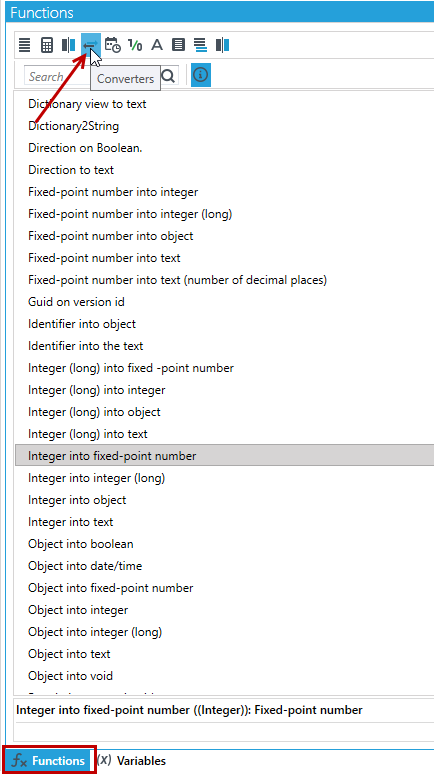
All converting functions can be found in the tab Formula Editor functions after selecting the button Converters.
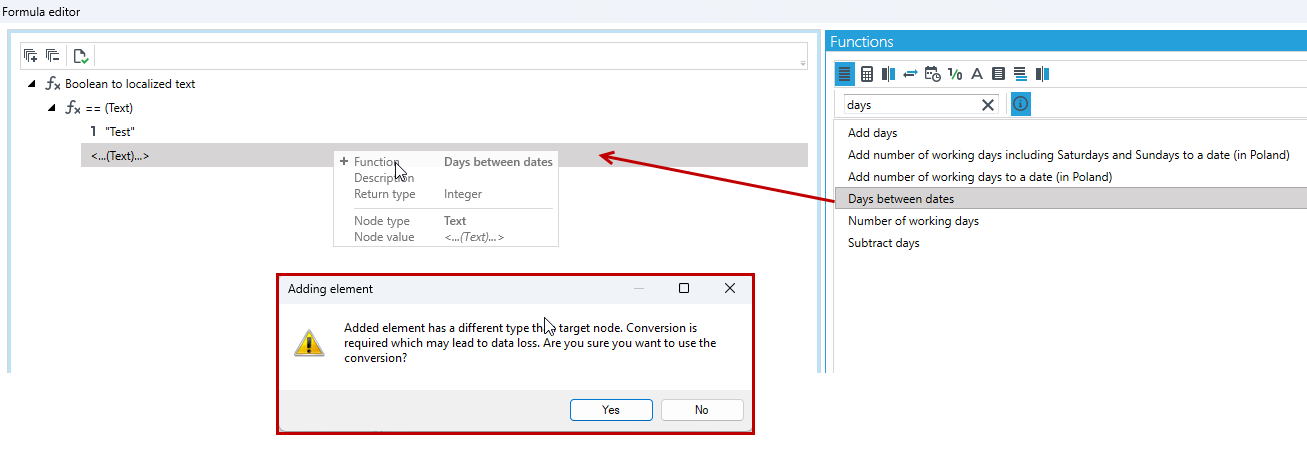
For example, automatic conversion will be possible if in the function comparing text (e.g. ==Text), one of the arguments is the function returning the number (e.g. Days between dates). After dragging the function onto the formula window, a message will be displayed about the incompatibility of the data and whether to perform the conversion.
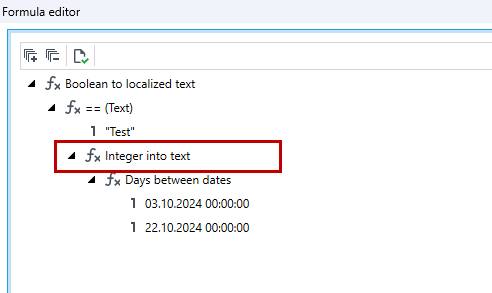
In such a case, the Formula editor will automatically add the function Integer into text changing the Integer type to the Text type.
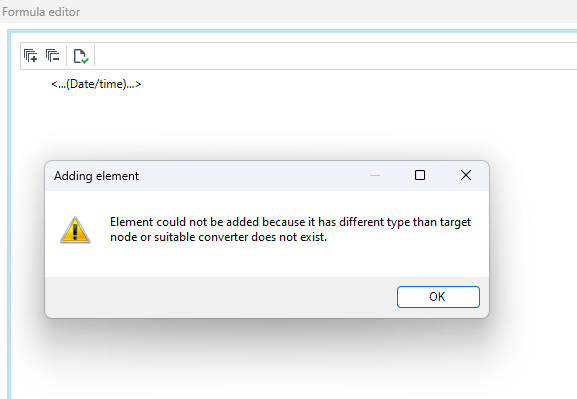
Conversion is not always possible (does not always make sense). In such a situation, the Formula editor will lock the usage of the given variable, constant or function. The example of an unsupported conversion would be changing the Date/Time type to the Integer type.
Conditions
The value to be calculated by the formula can be made depended on fulfilling the defined condition or on composing many conditions as shown below:
If (condition) is fulfilled return value A
Else return value B
- To add a condition, click on the formula node and select Condition.

- The node CONDITION and two subnodes (
IfandElse) appear in the tree. The first subnode defines the value to be returned if theIfcondition is fulfilled. The second one defines the value to be returned if the condition is not fulfilled.

- To expand the condition click on the icon on the
Ifnode.
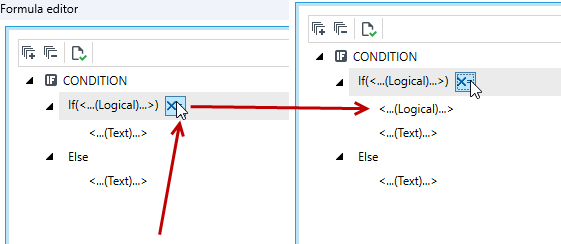
- Conditions can be nested freely, i.e. instead of defining the returned value directly, you can add another condition within the
IFandELSEnodes. - The condition can be also more complex:
If (condition1) is fulfilled return Value A
ElseIf (condition2) is fulfilled return Value B
Else return Value C

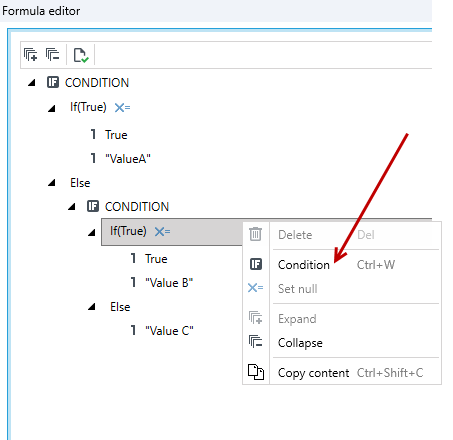
- Any number of the branches of the
ELSE IFtype can be added to the condition by opening the context menu on the CONDITION node and selecting the optionCondition. There is always only one branch of theELSEtype.
Constants
The Formula editor enables using the constants – unchangeable values determined at the formula defining level. The constant always has the appropriate format depending on the expected data type. For example, for the type Integer it is the possibility to enter only integer numbers, for the type Date/Time it is defining the specific date.
- For each data type the constant value can be defined as null. Click on the given formula argument and choose Set null from the context menu

- Constant can be added by using the context menu, by clicking in the formula window or by double clicking the empty node. Consequently, the Constant of the proper type will be added.

Variables
Variables are more essential formula components as they decide about dynamics. Variables enable building conditions based on the values specific for business data elements and also for the elements related to configuration – forms, lists, workflows etc.
Variables have been divided into several categories related to their usage, namely:
- Variable - enables fields of the parent data structure (i.e. indicated on an object for which the Formula editor has been called) – the field value for the particular business data element will be used in the formula.
- Workflows variable - enables the fields of the workflow data structure to be accessed.
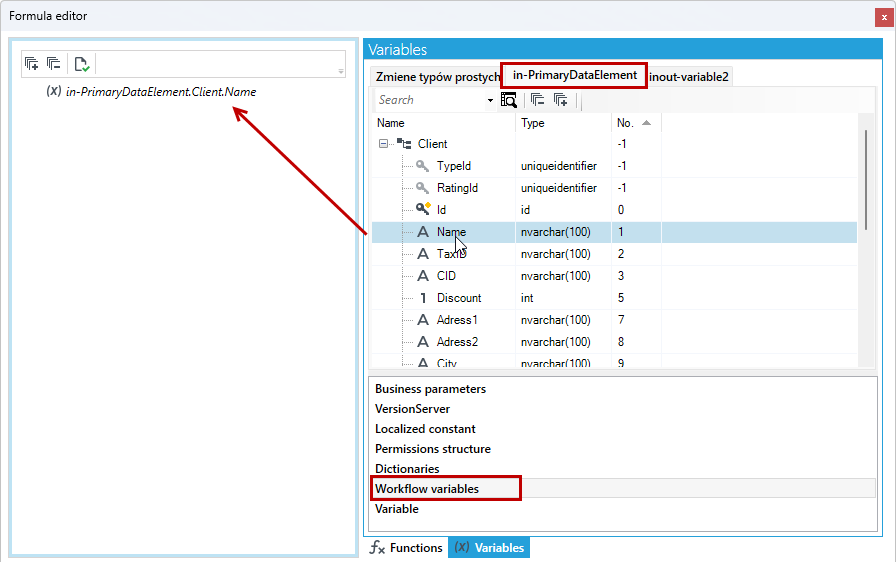
- If other variables or local variables have been added to the process, then they are available on the individual tabs.
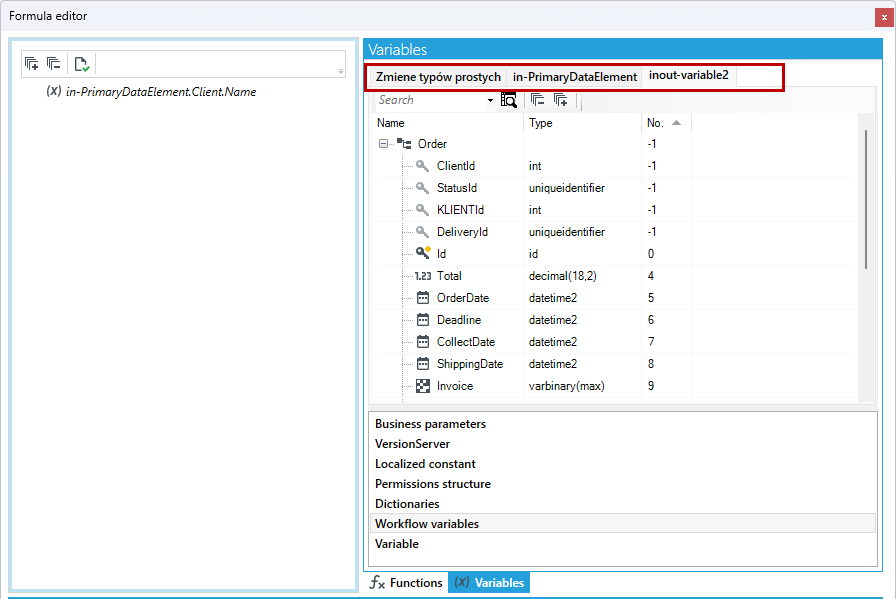
- Versions Server - enables the entire Versions Server tree containing the elements to be used in the nodes returning the type Version (e.g. when using the formula to select the form),
- List columns – the column value (for the current business data element) converted to the data type Text can be used when using the list as the variable,
- Permissions structure enabling selecting any permission defined in the archITekt Studio.
- Business parameters - allows you to select business parameters defined in archITekt Studio.
- Localized constant - allows you to select any constant defined in archITekt Studio.
- Dictionaries - provide the entire tree of dictionaries defined in archITekt Studio. Elements are available for use in nodes that return the Dictionary type.
- Right-sided variables of lists, Left-sided variables of lists – categories related to variables mapping for the lists.
The location of opening the editor influences what categories and variables will be available. Categories available while building the workflow are different from the categories available for a list.
Functions
Functions are the last key element of the created formulas. Each of the functions returns the value of a particular type and can also have an argument being the constant, the variable or another function. Arguments should return values of the same type as the function.
Very often, the function arguments are non-commutative so it is essential to pay attention to define them in the correct order.
For example, the function Today used for determining the current date returns the value of the type Date/Time and has no arguments.
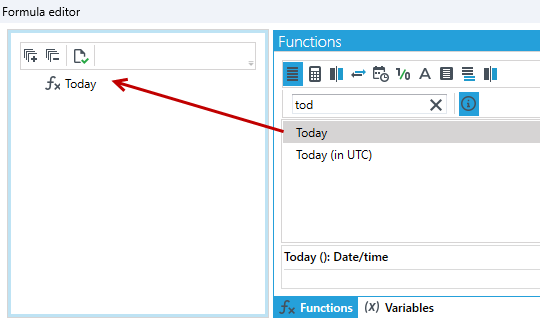
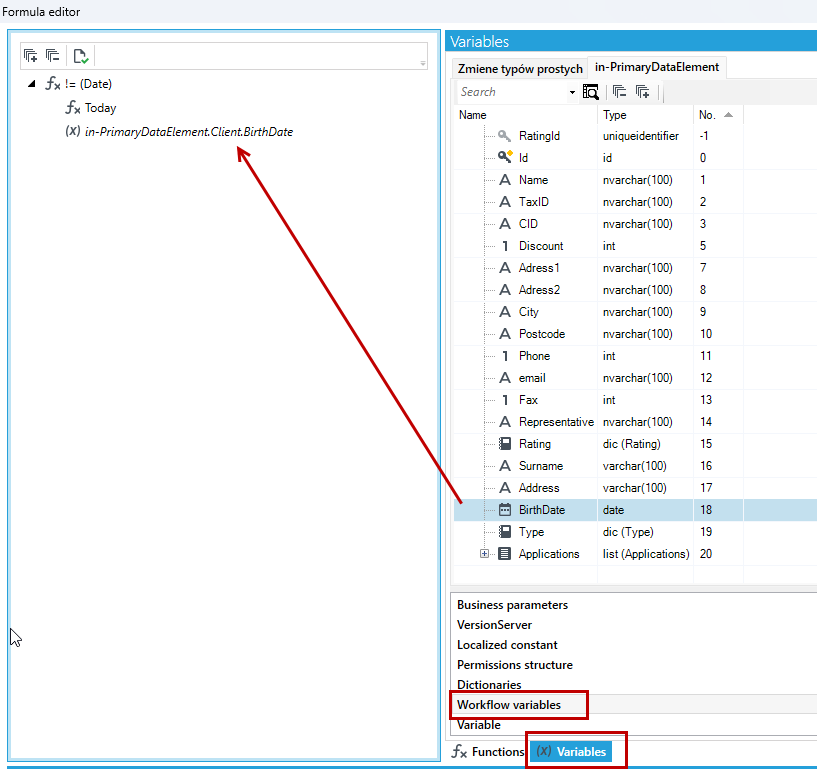
However, the function comparing if the two dates are different: !=(Date) has two arguments which are the dates to be compared (variables, constants or the functions of the type Date/Time) and of course it returns the value of the type Date/Time. In the following example, the Today function is used as the arguments, and as the second argument a variable - a field from the workflow data structure BirthDate.
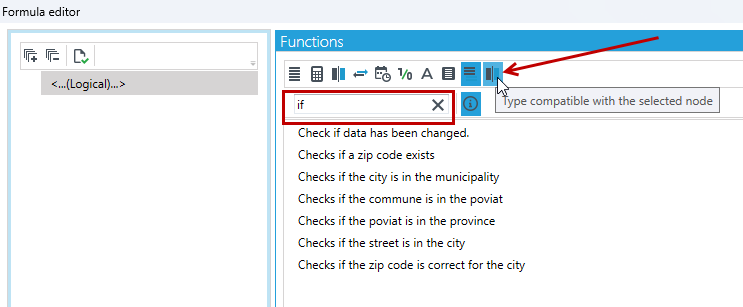
Similarly to variables, functions are grouped in subject categories, represented by the icons displayed on the tab Functions.
- All – all available functions,
- Arithmetical – includes functions related to operations such as a product, a quotient, a total, a result, a root, absolute value on the integers and fixed-point numbers,
- Comparison – comparison operators (greater, less, grater or equal, less or equal, equal, various) of different data types and a function checking if the given value is exist and is empty,
- Converters - all possible (and sensible) conversions between two types of data,
- Date and time – all functions operating on the data type Date/Time which compare values, add and subtract years, months, days, hours, minutes, seconds from the given quantity, return the current data, calculate the number of years, months and days between two dates and retrieving an appropriate time unit from the date or time: year, month, day and hour, minute or second,
- Logical - three logical operators: “Or”, “No”, “And”
- Text – functions operating on the text strings, comparing the strings, finding the specified substrings, returning the text length, etc.
- Lists - all operations on lists such as selecting the minimum or maximum value from list items or calculating the average value, summing, etc.
- Other - all remaining functions, among others the functions related to the logged in/any Application User.
- Type compatible with the selected node - enables narrowing the selected category functions list to the functions returning the data type suitable for the formula.
Multi-argument functions
Some of the functions in the Formula Editor allow you to add and specify any number of arguments and perform actions on them. These include:
- sum,
- difference,
- quotient,
- product,
- concatenation.
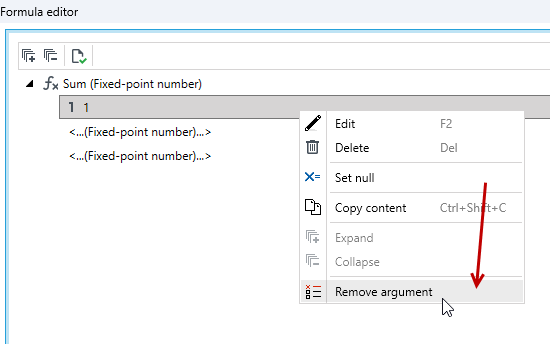
When selecting a multi-argument function, you can add arguments using the context menu by right-clicking on the function node.
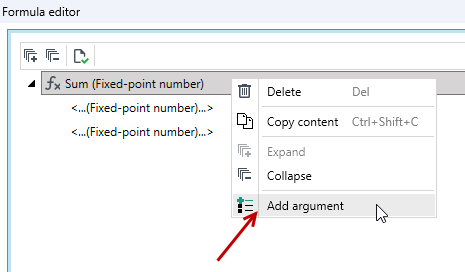
To delete an argument, select the argument and then choose Remove argument from the context menu.
Functions without strong typing
There are functions in the Formula Editor that do not have a defined argument type. These are the so-called weakly typed or untyped functions. They are: sum, difference, product, quotient, functions comparing values +, <, >, >=, <=, !=, etc.
The <= function, which is a weakly typed that compares whether the first argument is less than or equal to the second, is used below. After selecting a untyped function and adding it to the formula tree, we can enter arguments of any type, and if the function is multi-argument, the number of arguments can be any.
Until a function receives an argument that has a specified type, it will not have a specified type. This means that if we add a function without strong typing or a condition in the argument node, their argument types will still be undefined, so we can build a function from any number of nested functions and untyped conditions.

When you add an argument with a specified type, the editor converts the untyped function into a typed function. If the argument is a constant or variable, the untyped function will take the type of the variable, while if the argument is a function that returns a specific type, the type will be taken by the untyped function and change it to a strongly typed function. The name displayed in the function tree will then be changed to: function_name (arguments_type)

Some untyped functions are only able to handle a certain group of argument types. If we want to indicate an argument with a type that does not correspond to the function, the System will display a message will perform a conversion to one of the supported types.
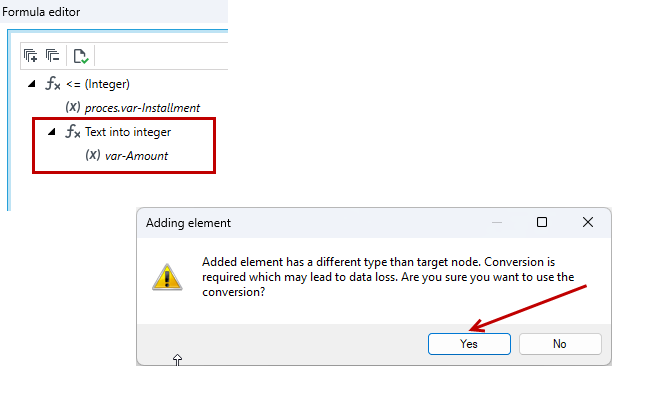
The <= (Date) function, on the other hand, is strongly typed, requires the arguments to be data of type “date” and checks if one is smaller than the other.
