Logging into the application
Development environment
In each new development environment, 2 user accounts are created:
- Administrator (login: admin ; password: admin)
- User (login: user ; password: user)
The administrator account is assigned the Administrators and Users roles. The user account has only the Users role assigned.
On the development environment, you can log in to:
- The main web application, using these two accounts with different permissions you can design access to different elements of the application for different groups of users.
You also log in to the main web application from the archITekt Studio level by running the function of previewing the designed form, list, menu. 2. User management application, for example, to define additional user accounts and / or manage their permissions.
Only the default administrator has login privileges to the application, for more see: Authorization Server.
- VSoft Scheduler - Users with the Administrators role have privileges to manage tasks. Users with the Users role have rights only to read data without the right to modify it or add new processing rules.
You can access the above applications in VSoft archITekt Launcher by going to the application address page.
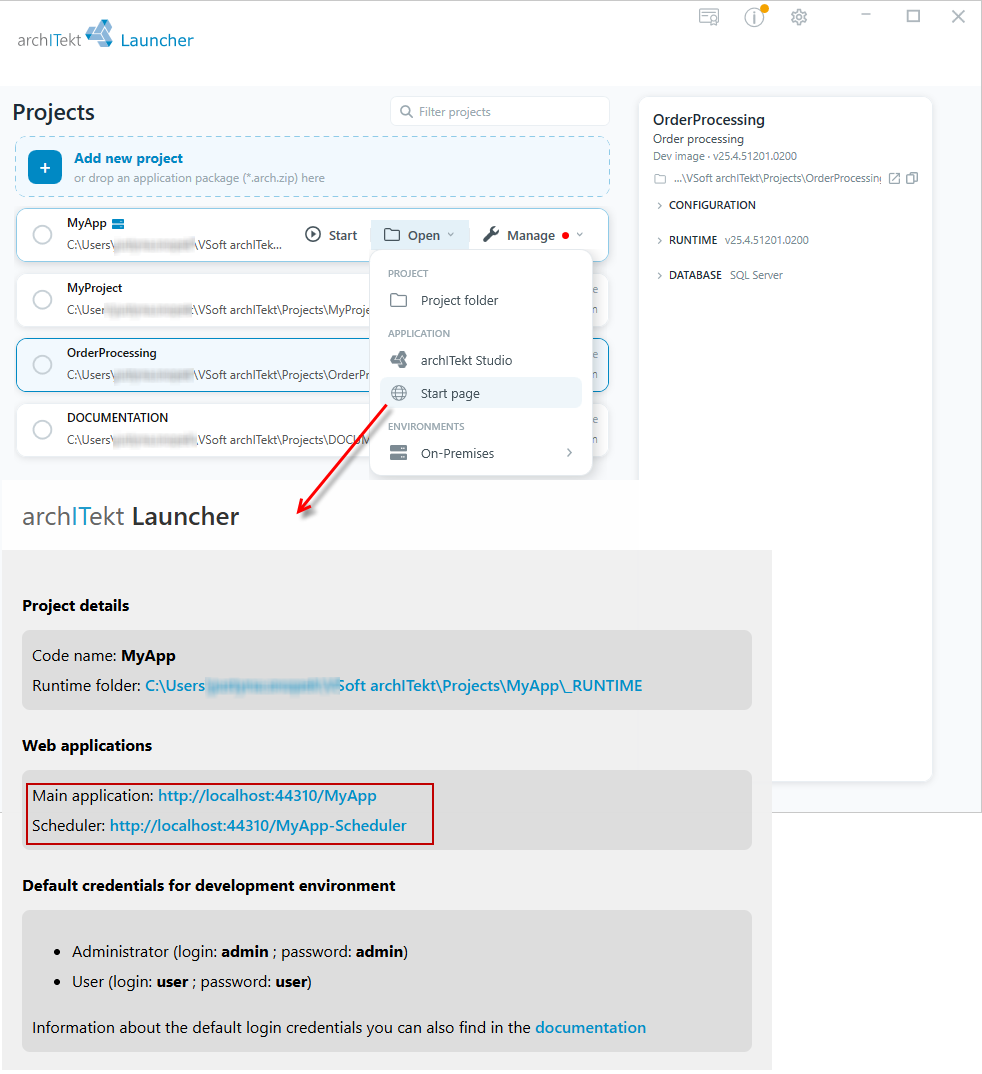
Note that if you choose a different login provider (e.g. Active Directory), the login credentials for the main Web Application/Scheduling will be different.
Production environments
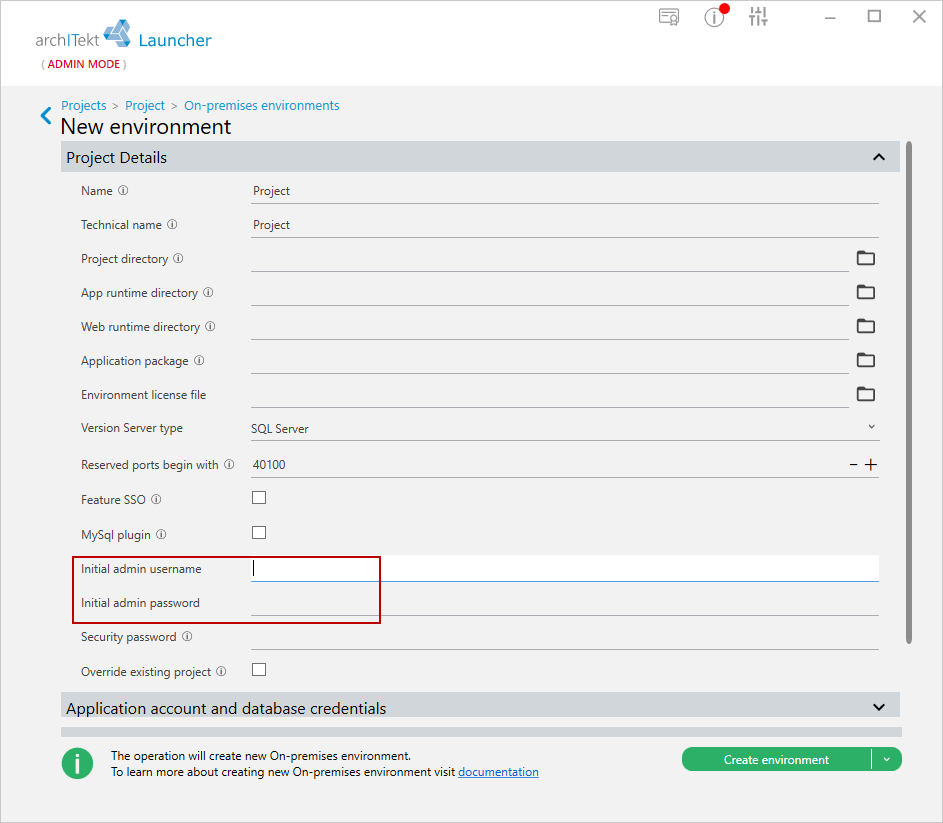
Production environments (OnPremises and containerized - VSoftCloud) ask for a login and password for the newly created administrator when creating a new environment. For security reasons, it is suggested to specify a different administrator name than admin (this will make potential attacks on the application by trying to guess the admin user's password more difficult).
- Go to Project Details. You can find more information about creating and configuring an on‑premises project here: On‑premises environment.
Changing the password
Changing the password in the Authorization server
The application administrator can change his password as well as the passwords of other users defined in the authorization server. See: Change password.
Emergency password change in VSoft archITekt Launcher
You can emergency reset the password of any user from VSoft archITekt Launcher on the project reconfiguration page.
Changing the password from within VSoft archITekt Launcher is useful when your administrator password expires and you can no longer log into the web application or the User management application.
- Go to VSoft archITekt Launcher, hover over the given project in the projects list, expand the Manage button and, in the MAINTENANCE section, select Reconfigure project.
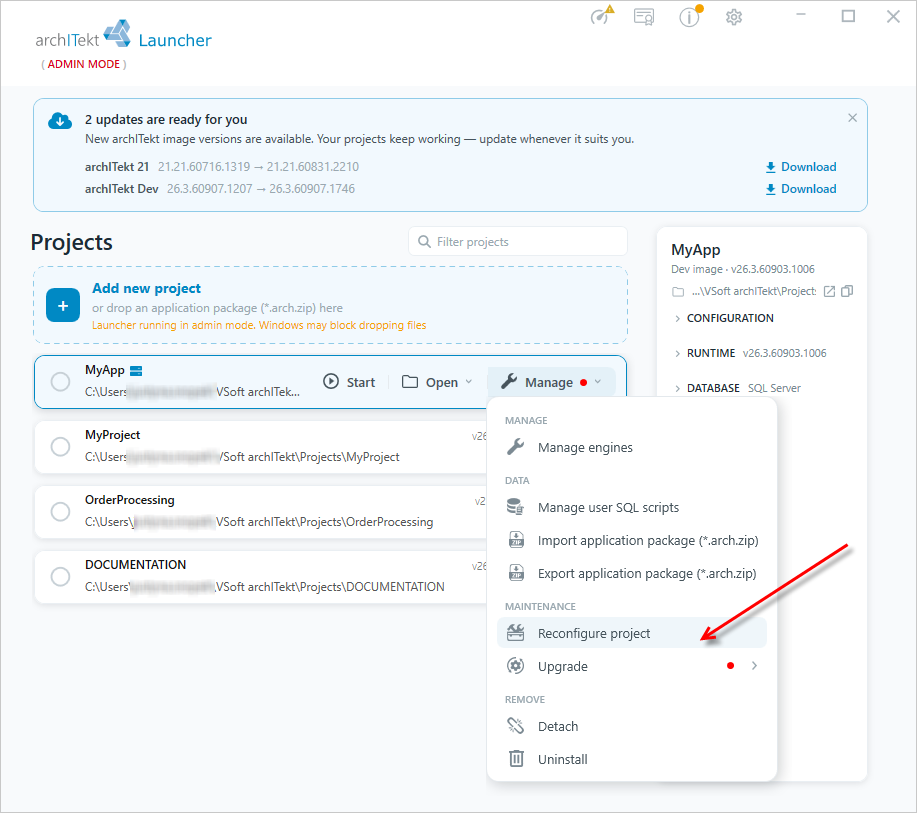
- You can also go to reconfiguring the project from the given project's management page - expand the Manage button and select Reconfigure project.
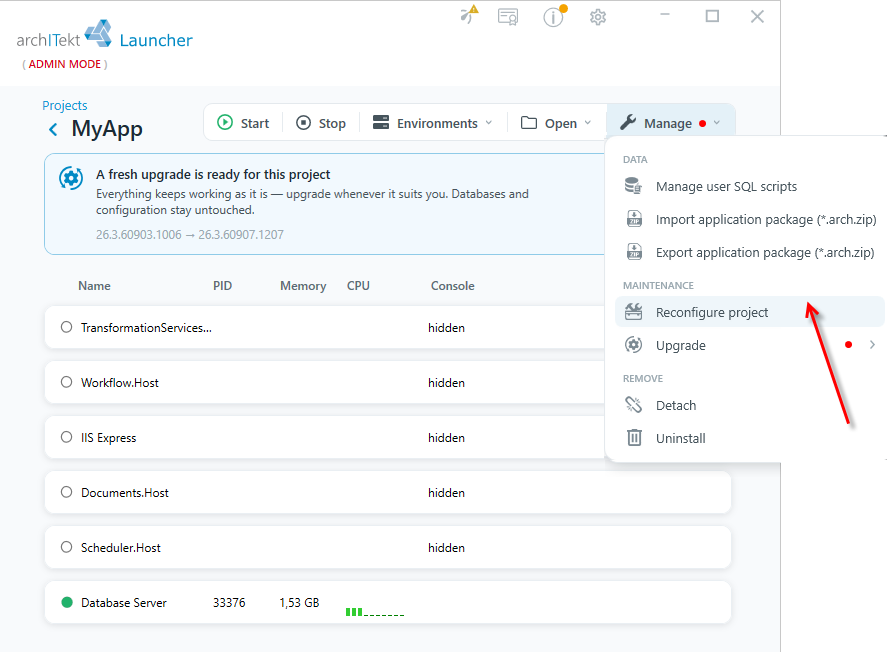
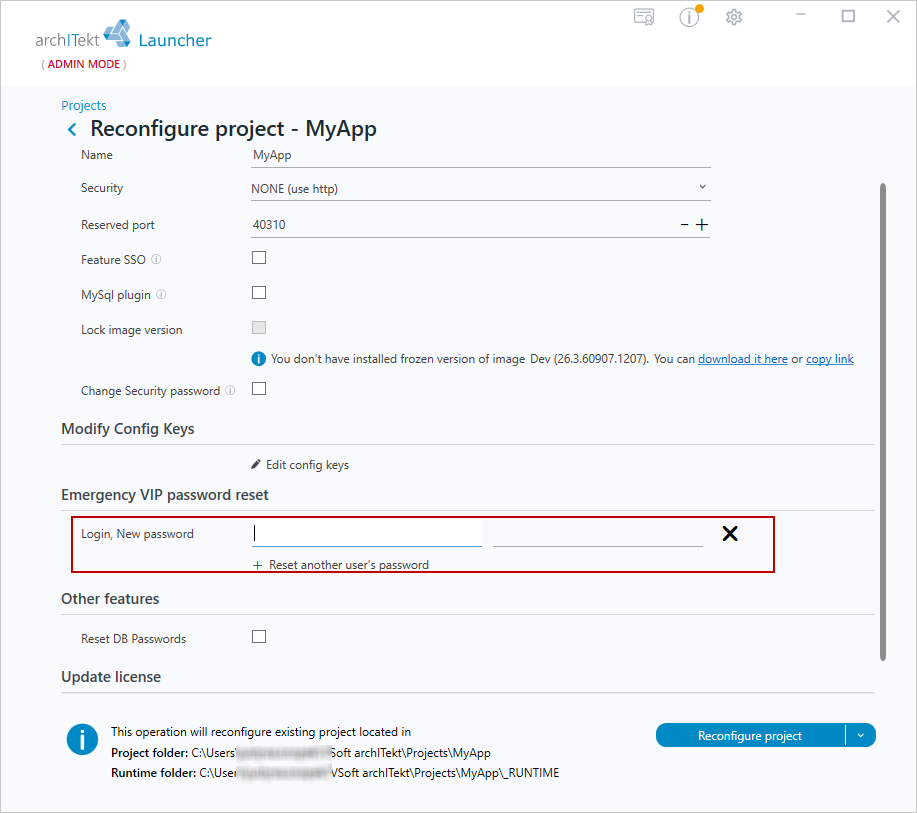
- In the Reconfigure project window, go to the Emergency VIP password reset section.
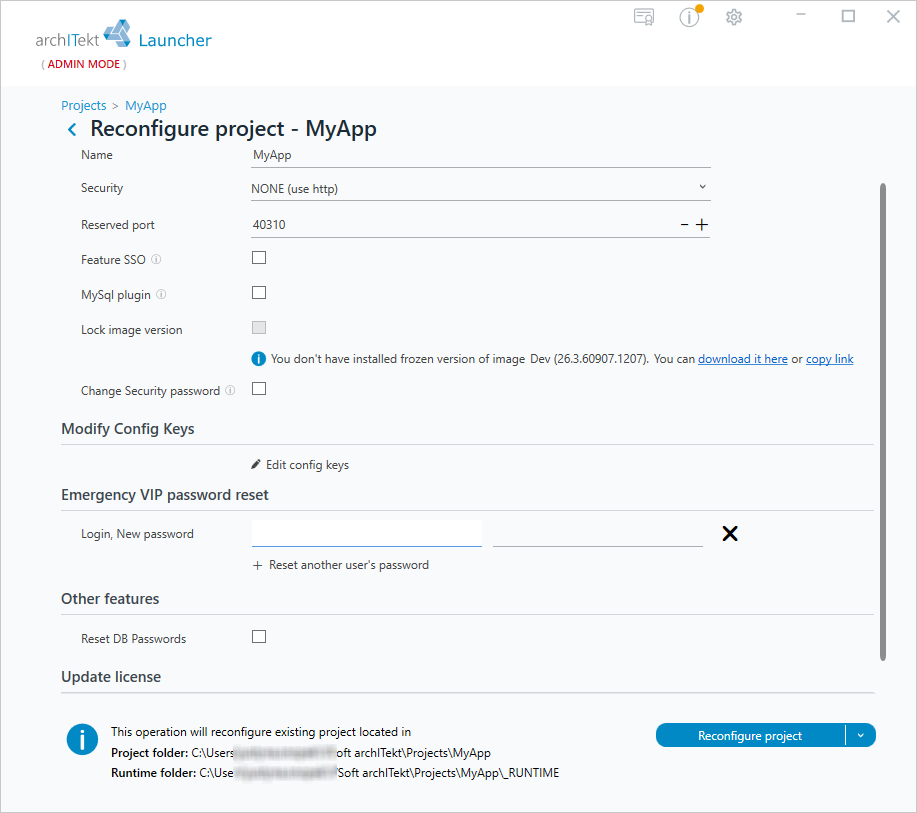
- In this section you have the option to set a new password.
- Enter the user login and the new password.
- Then select the Reconfigure project button.
- The password of the selected user will be reset. The new password will be valid for all applications that the user had access to (the main web application, the VSoft Scheduler and the Authorizatin server).