Menu
The Menu has the functionality to quickly create an extended menu of a WWW application.
- You can creating cascading menus.
- You can display different start pages for users, depending on their role in the system.
- You can restrict user access to specific parts of the application by using menus.
- You can define several menus in archITekt Studio, but only one menu is treated as the default for the application. You must specify which menu is the default using the option from the context menu.
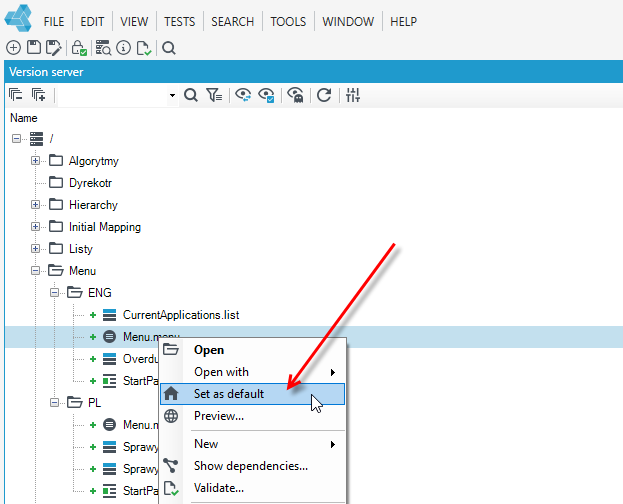
Creating a Menu
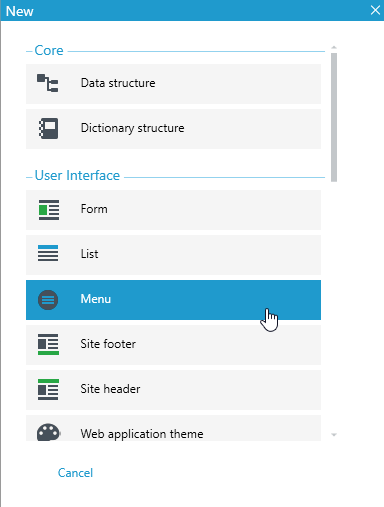
- In the main window, select New, or File> New or the New Item icon.
- select Menu.
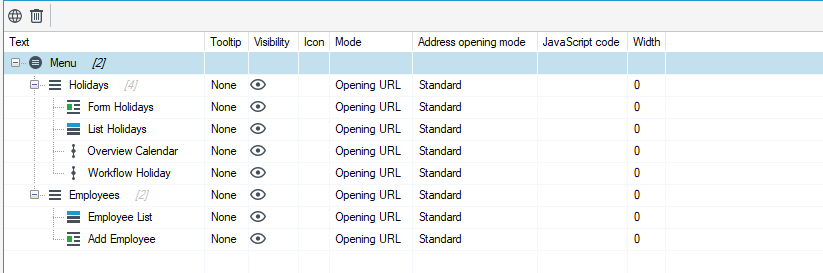
When you create a menu file, a workspace opens with an item with the default name Menu. The name cannot be changed. The item is not displayed on the Web page; it is only the source element for the other menu components.
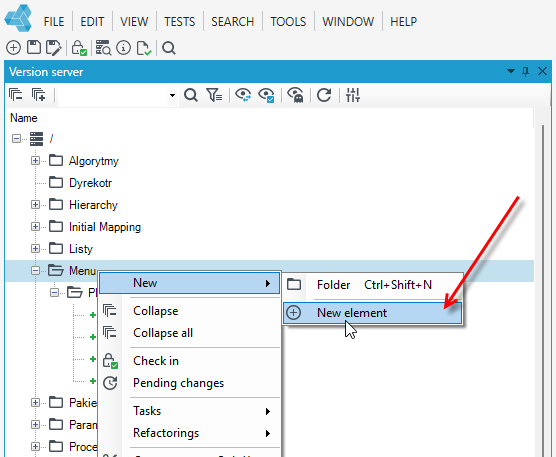
You can add a new menu from the Version Server panel. Right-click in the Version Server where you want to create a new dictionary structure and choose New>New element from the context menu.
Adding items to the menu
The following describes how to create the part of the menu that will be directly visible in the browser, allowing you to navigate through the application on a Web page.
A menu can contain any number of items, and each item can be a container for subsequent items. This creates a cascading menu. There is no limit to the number of items that can be nested within each other.
- To add a new element, point the mouse cursor at an existing element.
- Right-click and bring up the context menu.
- Select Add.

-
The new element is added.
-
You can delete items by invoking the context menu on an item and selecting Delete, or by using the trash icon in the taskbar.

Menu items can be moved and nested by dragging and dropping. The item will automatically be attached to the selected one. If the item being moved has sub-elements, these are also moved.
The order of items in the menu structure affects the order in which items appear on the Web page. Items that are higher in the menu tree structure will be displayed first, from left to right in the horizontal menu, and from top to bottom in the vertical menu.