Configure menu items
Each item added to the menu has its own properties that you can configure.
Operation
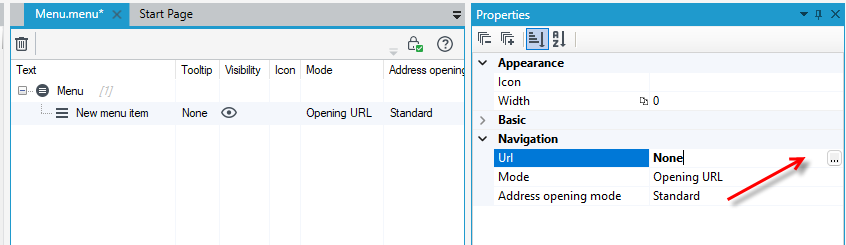
- Properties of individual items are available in the Properties panel.
- Select View>Properties from the application main menu. You can also choose to display the Properties tab from the bottom panel. Click the icon
 .
. - Go to specify the action of the particular menu item.
- In the Navigationsection, expand the Url field.
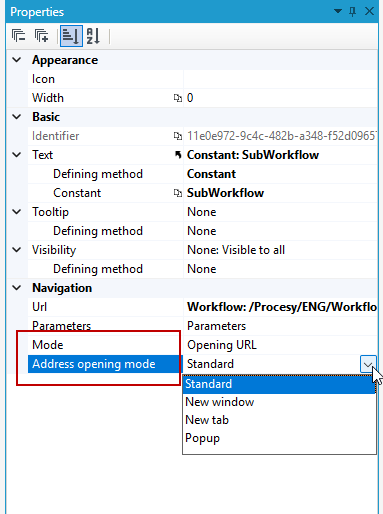
- Next, select the action Mode and the Address opening mode.
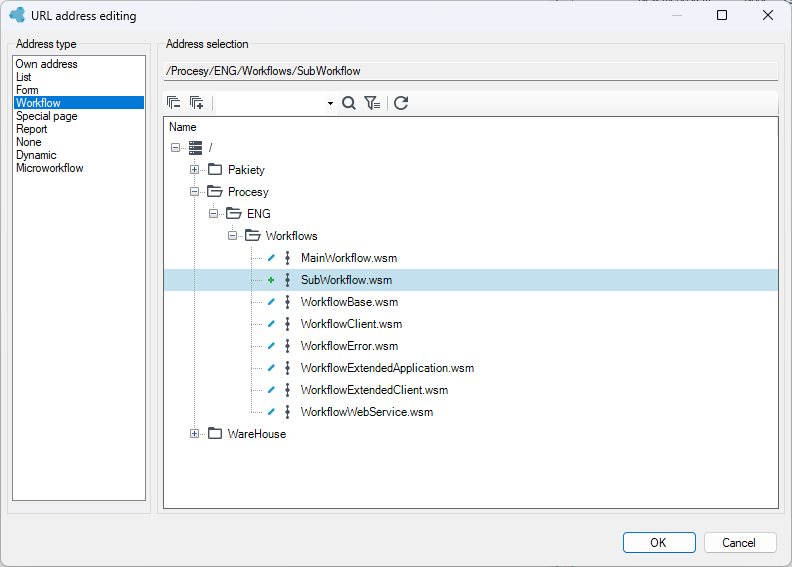
In the URL address editing window, in the URL property, you can select the URL type.
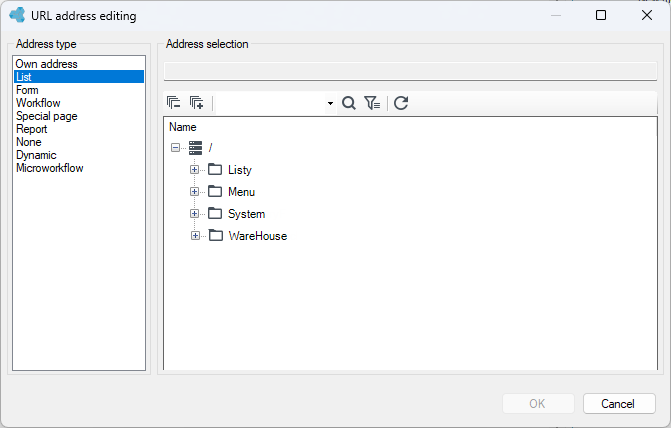
- None - the default value automatically assigned to each newly created item in the menu structure and the property that the grouping item has defined. If the user clicks on a menu item on a web page that corresponds to a menu item with the value None, no action will be performed; however, if the item is also a grouping element, hovering the mouse over the corresponding item will expand the list with menu subitems.
- Own address - any URL address that will be opened in a WWW browser. The option is available for each menu item displayed on the Web page, provided that the Address opening mode property is set to Reload page or Open new window. The property is not used in the mapping option due to application security reasons.
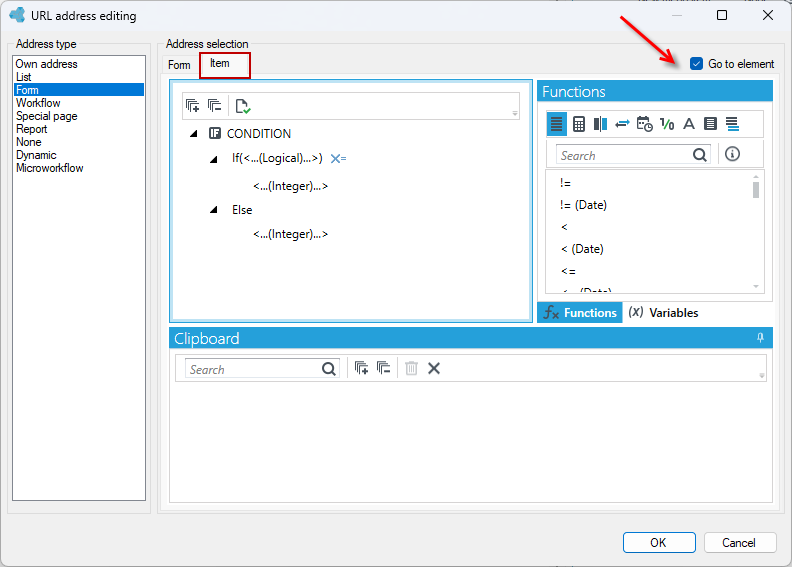
- Form - allows to select and display any form defined in the application. If the specified file has a description, it will be displayed under the version server tree. Analogous functions are provided by List and Workflow.
- You can also display a form in the application window with the data of a particular element. To define the element whose data is to be shown, after selecting the form, check the Go to element checkbox, and then on the Item tab, define a formula that will return the identifier of the element whose data is to appear in the form.
- List - allows you to select and display any list defined in the application. The list is selected from the version server directory tree, which will be restricted to only those directories that contain list files. The selected form and list must be based on the same data structure. Otherwise, the preview list configuration will not be saved.
- Workflow - allows you to select and start any process defined in the application. The process is selected from the directory tree of the version server, which will be limited only to directories containing files with processes.
- Microworkflow - allows selecting and starting any microprocess defined in the application.
- Special page - a set of page addresses that have been created by the application developers.
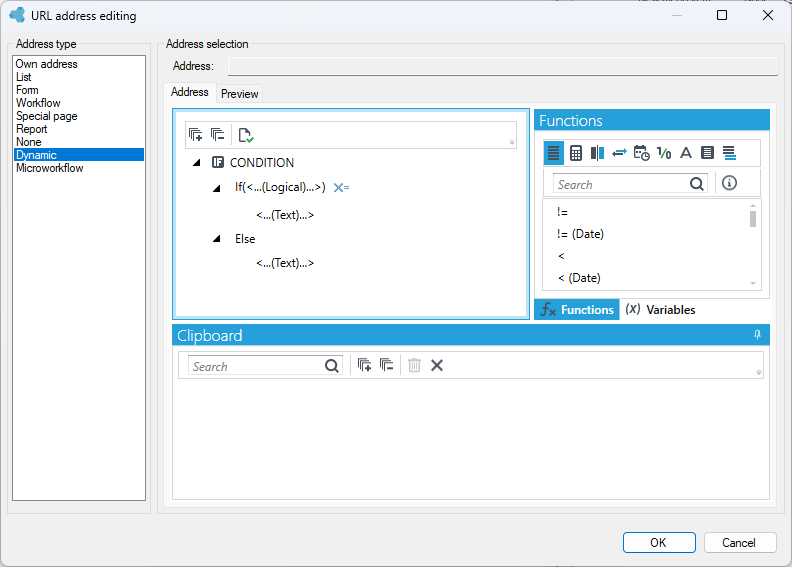
- Dynamic - allows configuring the URL of a menu item dynamically using the Formula editor.
If a given menu item is to refer to a list, form, workflow, microworkflow, then a version server tree will be displayed in the address edit window, allowing you to immediately select the given form, list, etc.
Action mode and address opening mode
Mode - this property defines how the menu item operates in the web application:
- Opening URL - when the menu item is selected, a URL will be opened. The address must be entered in the URL property, unless the menu item is to be used only as a grouping container from which subsequent items will expand (in that case leave the URL field blank). An element that contains sub-elements can be assigned a URL. In this situation, the element will perform two functions - a grouping element and a link.
- Run JavaScript script - selecting a menu item will run the JavaScript code entered in the JavaScript code property in the Web page.
Opening URL mode - this property defines how the page pointed to by given URL address should be opened.
- New window - selecting the menu item will cause the new page to open in a new browser window.
- New tab - selecting the item will cause a tab to be opened for the new page on the page on which the action was performed, and the contents of the new page will be displayed in a new tab. The action should not be equated with the "Open in a new tab" function available in Web browsers.
- Popup - selecting this menu item will open the page in a pop-up window.
Properties of menu items
For each item (except the main item) added to the menu structure, you can define properties that determine how the corresponding menu item behaves on the Web page.
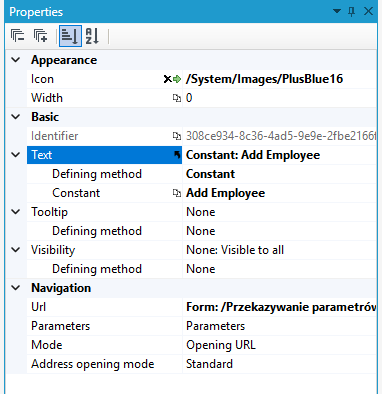
- Identifier - the unique GUID identifier of the item, used in uniquely identifying the application item. The property is generated by the system in read-only mode.
- Tooltip - the text that appears on the Web page next to the mouse cursor when you hover it over a menu item.
- Text - the name of the menu item displayed on the Web page. A long name will be split, wrapped, and displayed in multiple lines.
- Visibility - definition of access to the menu item for users.
- Icon- allows you to attach an icon to the menu item.
- Width - the width of the menu item on the Web page in pixels. If you leave the field blank, then the default width of the item is set.
- Parameters - the ability to define and transfer parameters from the menu. For more information, see: Menu parameters.