Sample Start page
Start page - allows you to specify the page that will be displayed to the user in a web browser after logging into the application.
The start page can be a list, a form, a dashboard implemented through a form, a process, etc.
In the example below, the starter page has been realized as a form, which contains a general description of the application and, from which it will be possible to go to the list of ongoing and outstanding issues.
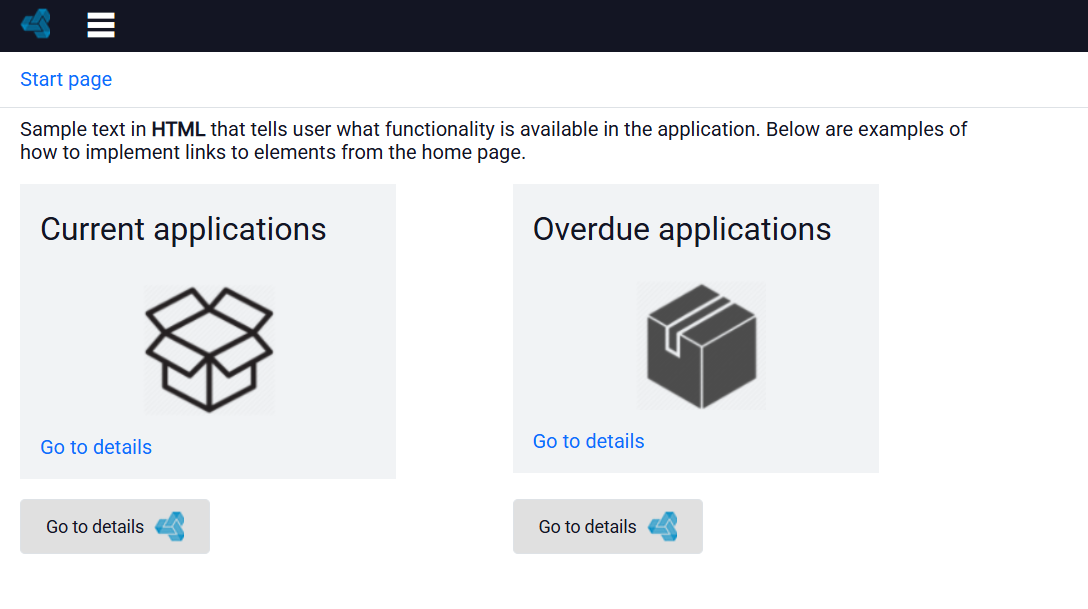
- Add 2 lists to archITekt Studio, which present a list of ongoing and overdue applications, which will be navigable from the start page.
- Prepare the appropriate data structures see: Creating a new structure and add a list of ongoing and outstanding issues. See: Creating a new list.
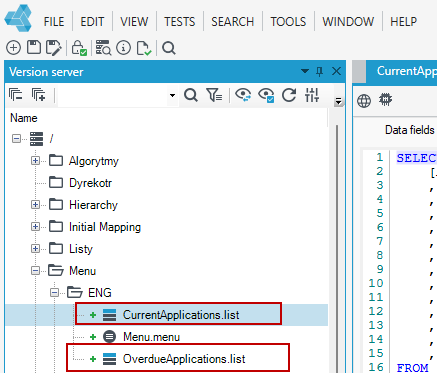
- Instead of lists, you can define another form, etc.
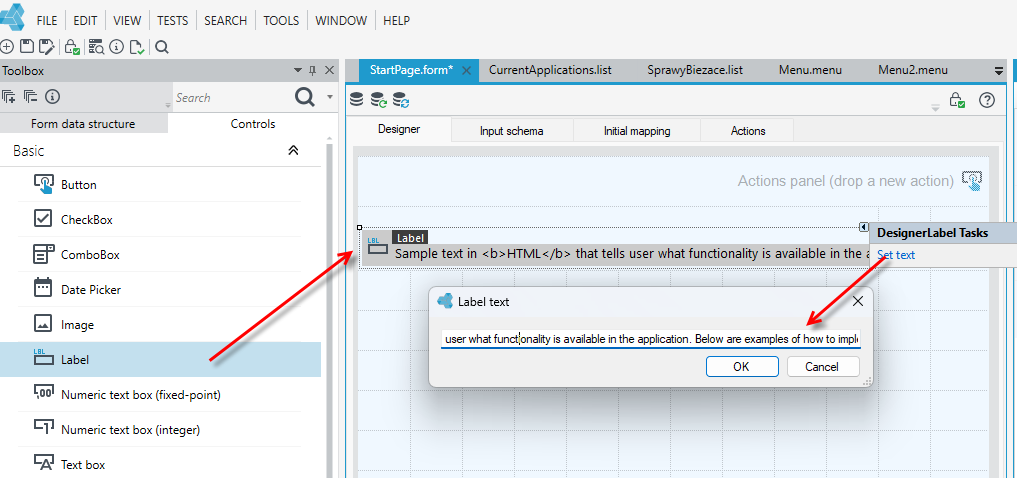
- Add a new StartPage form.
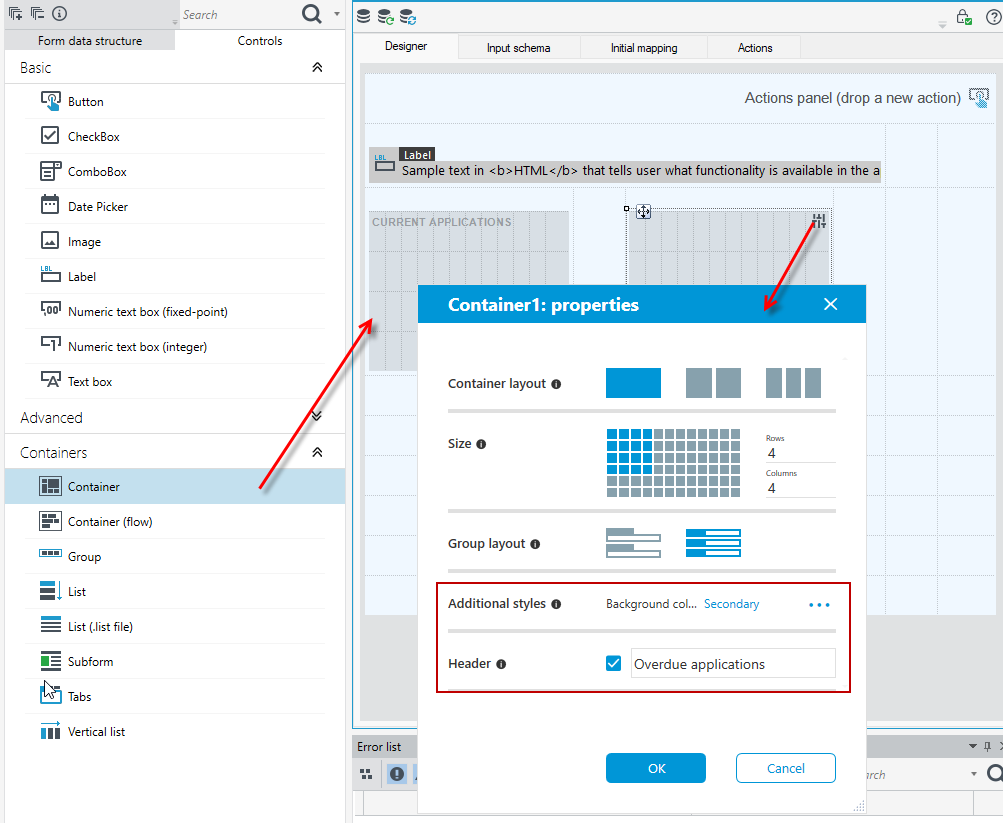
- Drag the Label control onto the form and enter the label text. Choose text entry options when you expand the options on the label or on the Properties panel under Text>Constant.
- Drag the container controls onto the workspace. Configure the containers. Enter a header, specify the size and layout of the container group, select additional styles.
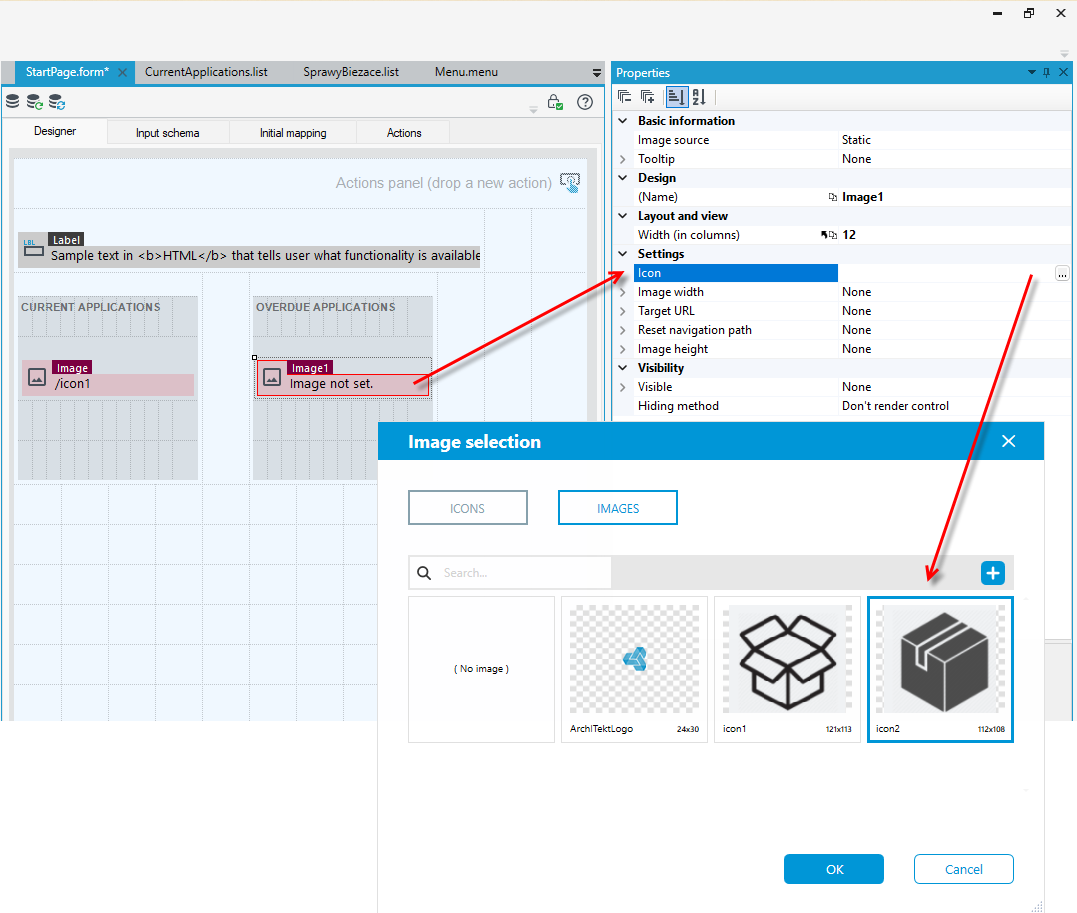
- Add Image controls and click in the Icon field on the Properties panel.
- Add an image or icon and select OK.
- On the Properties panel, specify the width and height of the image.
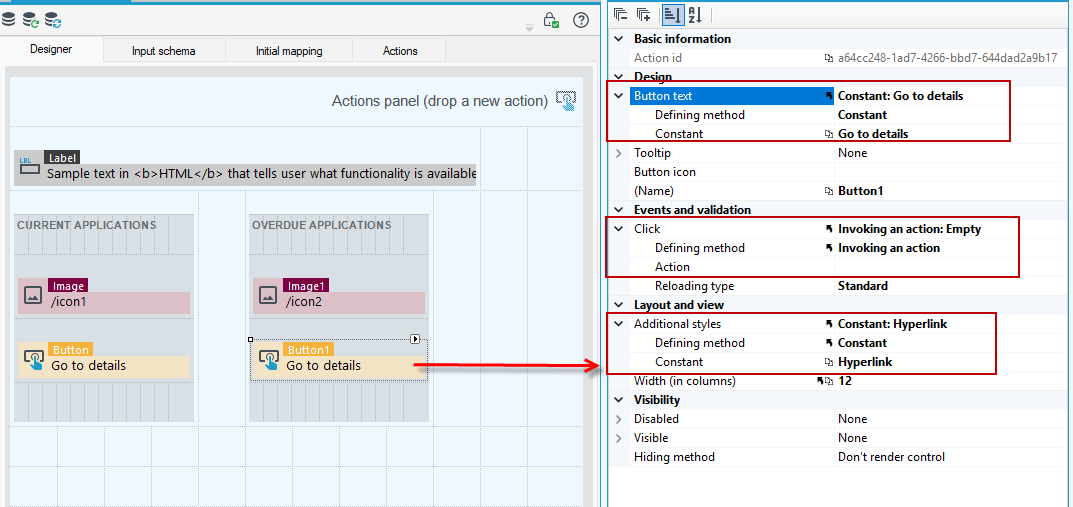
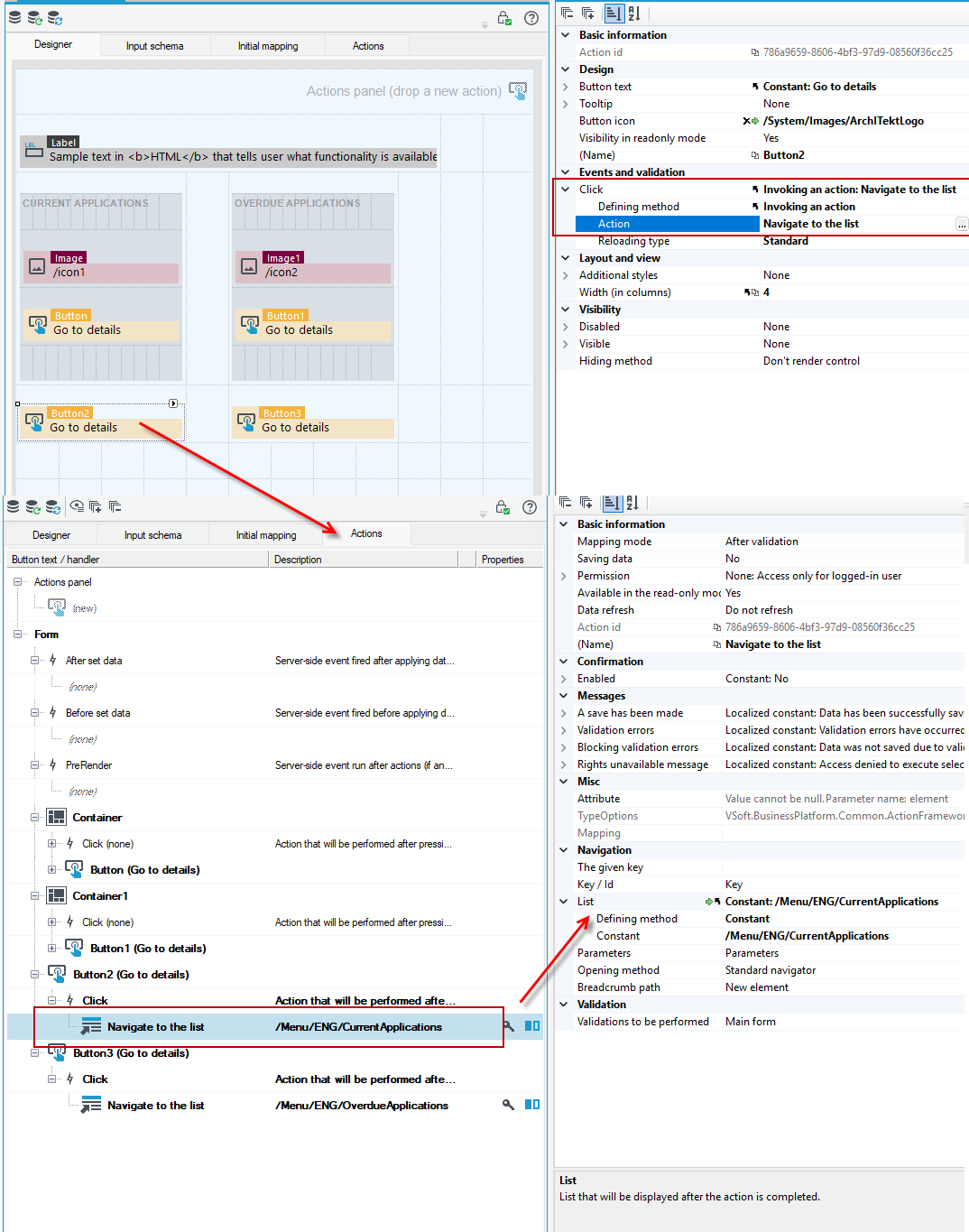
- Drag the Button controls. Configure the buttons on the Properties panel.
- Add the button text, style as Hyperlink and select the Invoking an action option in the Click section.
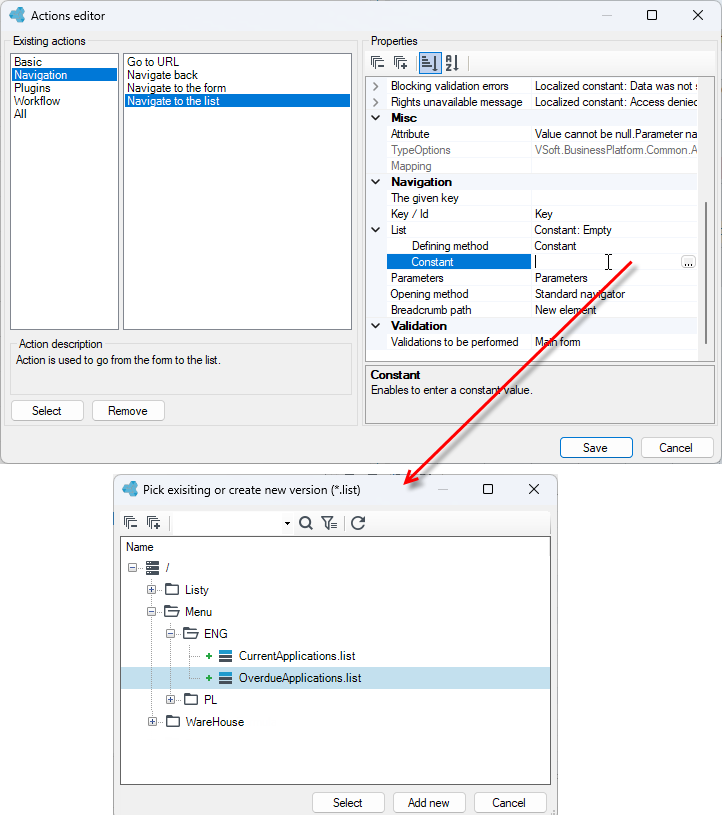
- Specify the action to be performed when the button is pressed.
- Click in the Action field and from the available options select Navigate to the list action and click Select.
- On the right side in the action Properties panel, specify the list to which the button will move.
- Optionally, you can add buttons that will have a different style.
- Drag the Button control onto the form.
- Add the button text and select a Button icon for the button.
- Specify the action to be performed when the button is pressed. (Click in the Action field and from the available options select the Navigate to the list and click Select).
- You can also double-click on the button, which will take you to the Actions panel where you can define the properties of all actions that are on the form.
- Proceed to create the menu. Choose File>New>Menu.
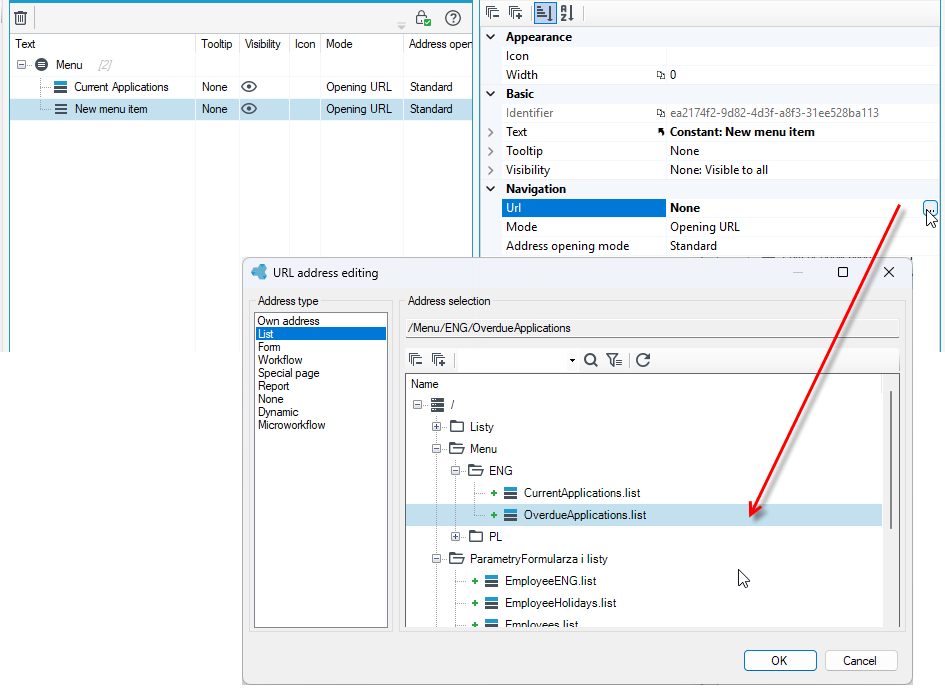
- Add items to the menu. On the Properties panel, go to the Url option and hook up the created lists to the menu items.
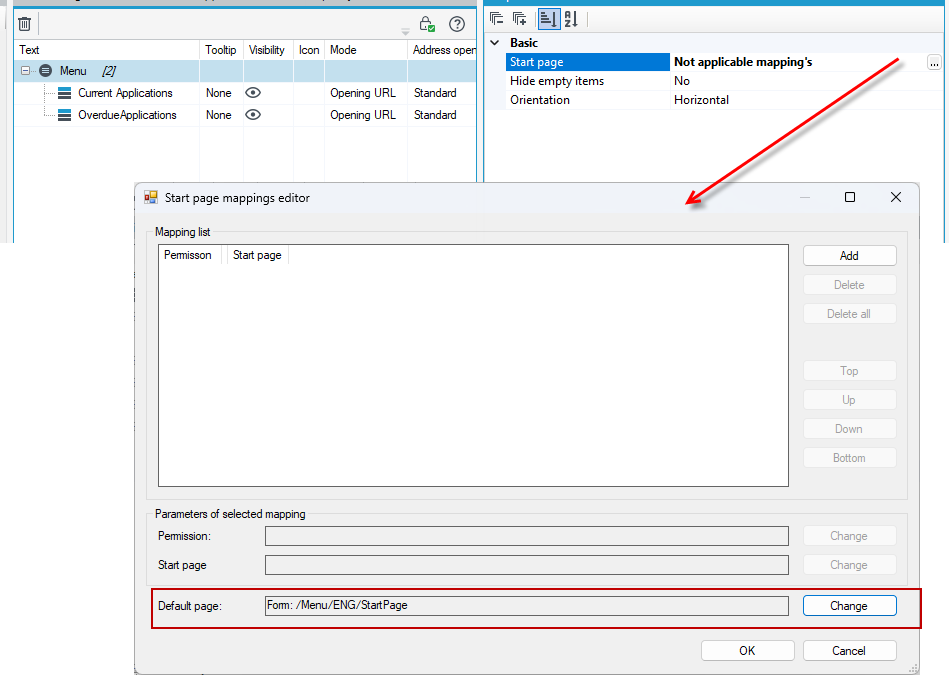
- Select the main menu item and go to the Start page option on the Properties panel. In the window that appears, select Change at the Default page option and indicate the form that will be displayed after logging into the application as the start page.
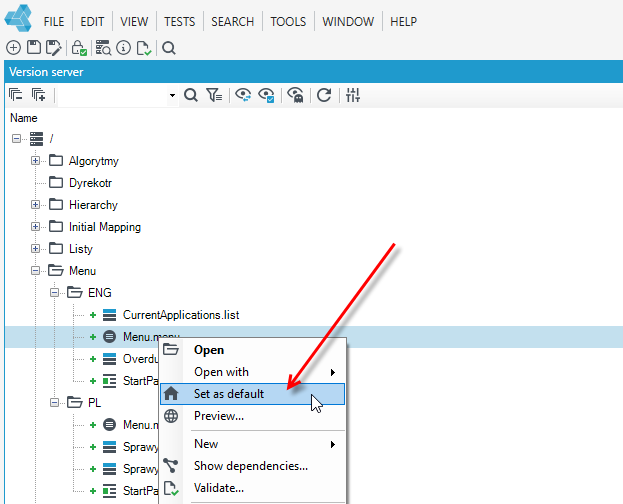
- Set the created menu as the default.