Defining the theme of a web application
The VSoft archITekt platform allows you to define your own theme for the final application. Defining takes place directly in the browser on any of the web application pages.
The functionality gives the possibility to modify such aspects of web application styling as colors, fonts, margins, borders for different classes of components - both the whole page, containers, headers, menu.
You can define several application themes and switch between them.
Default theme can not be modified.
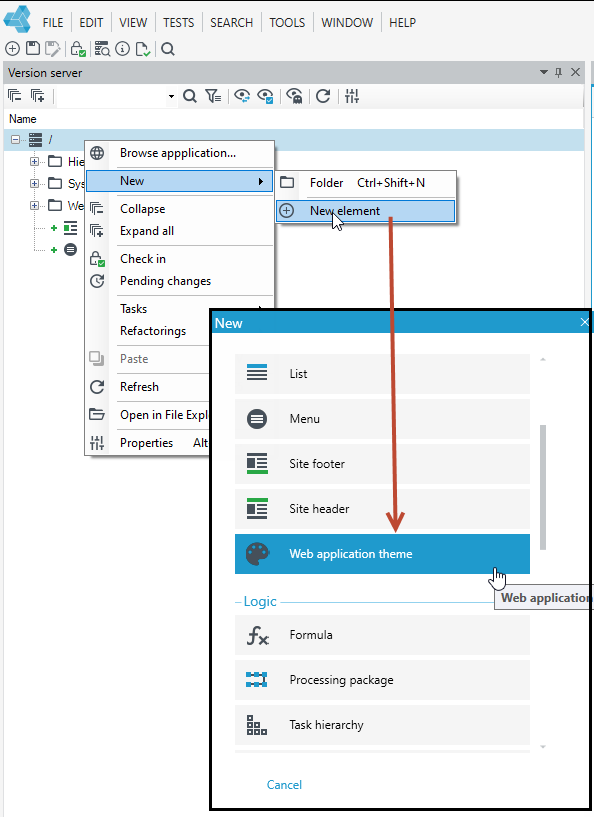
STEP 1 Add the application theme file to the version server
- Add the Web application theme file to the version server. This file will store the definition of the application theme you create.
STEP 2 define the chosen application theme in the configuration
- Select Application configuration from the Tools menu.
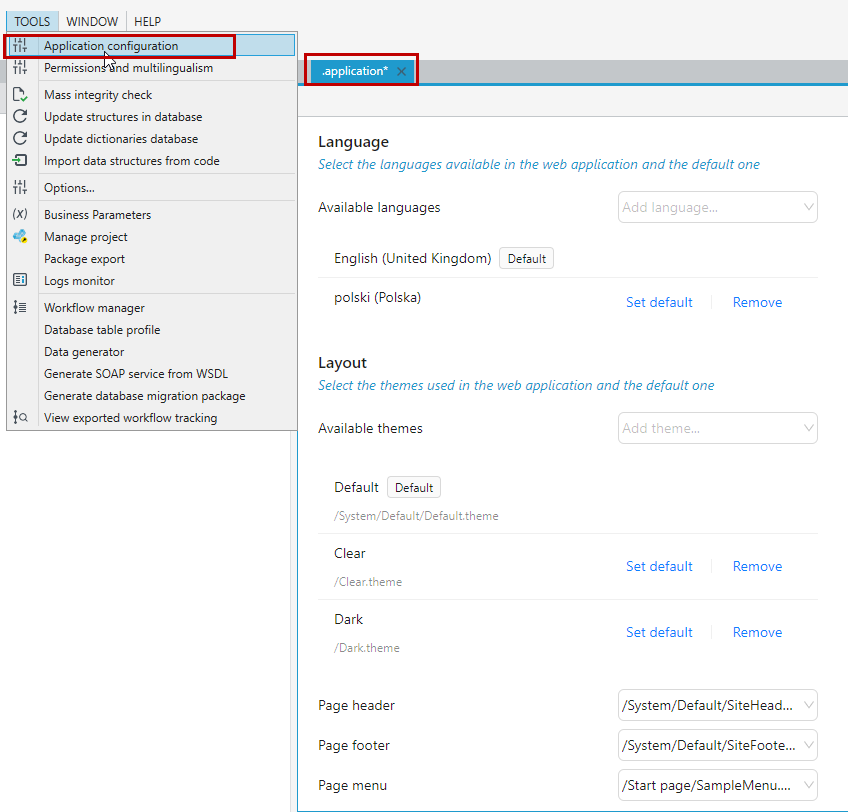
- Add a new theme for the resulting application from the Available themes list. Here, select the file you created in the previous step that contains the application theme/style definition.
- Choose which theme you want to make the default for the application and press Set default.
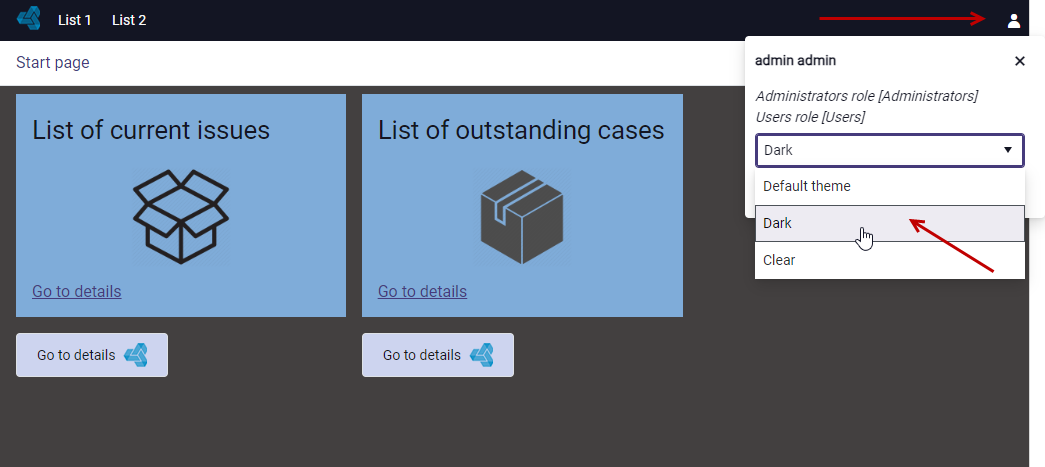
- If you select multiple themes from the list, then all of them will be available in the resulting application on the web page, where the user will be able to switch between themes.
- Save the data.
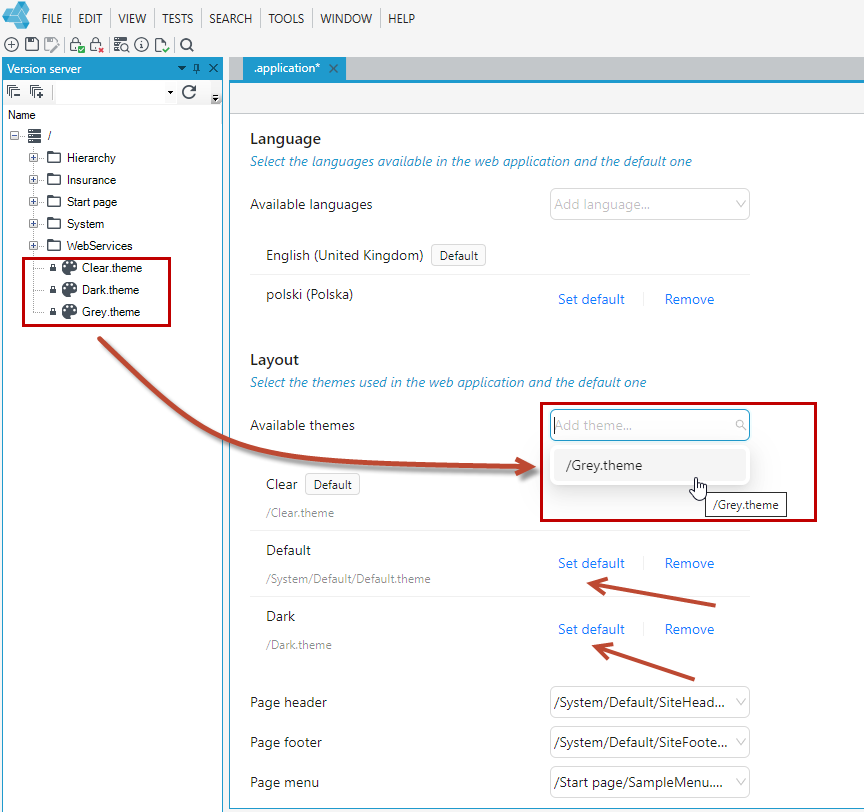
You can always return to the default theme that is built into the platform by selecting Default.theme.
STEP 3 Define the application theme
- Navigate to the web application displaying any form or system start page.
- Expand the panel on the right side of the screen.
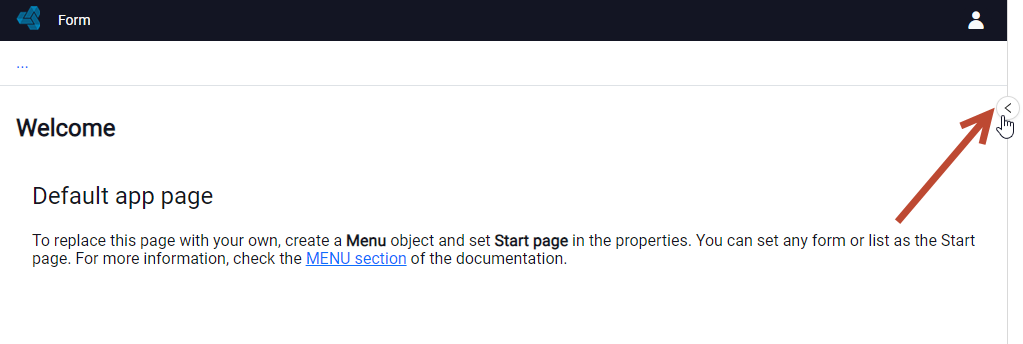
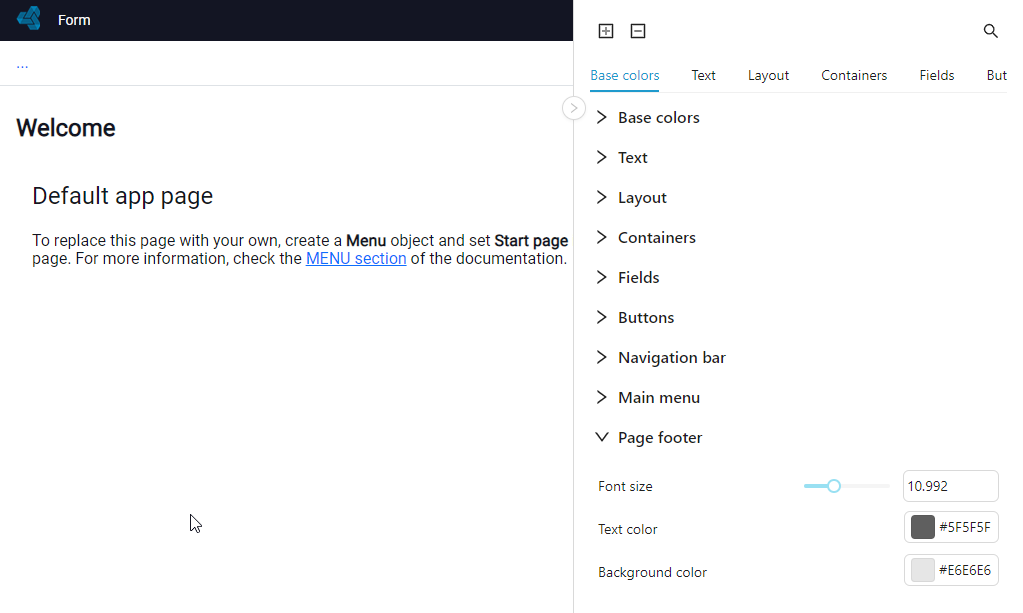
You can now define the application style in areas such as:
- Base colors- This section defines the basic colors used for various purposes, such as the color of messages displayed in the system or the colors used in the built-in options for setting the background for containers and the application background.
Note that if you change something in the base colors options, this change will be used in all elements of the application based on the base colors.
For example:
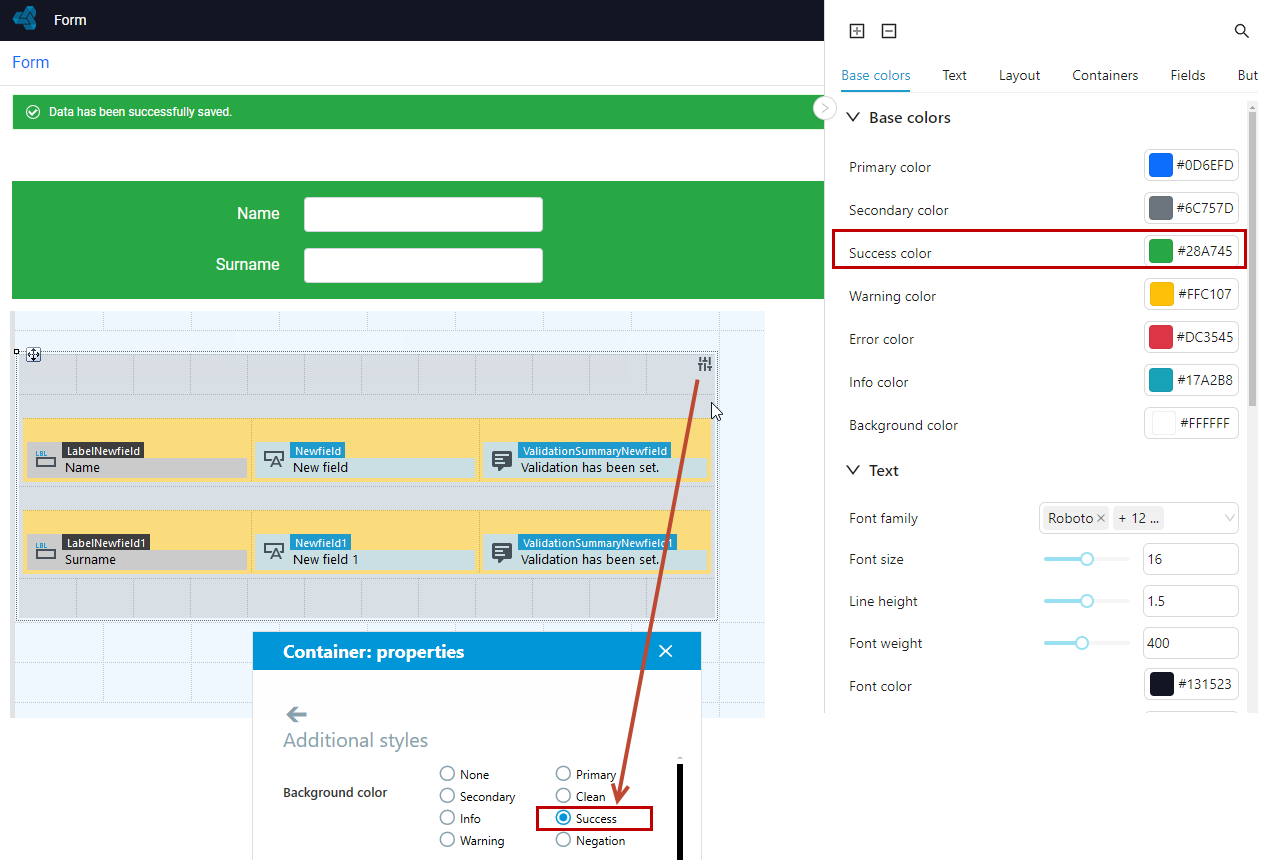
- For the definition of the container background, the built-in color Success (Success color) is used. This color is also used to display messages in the system.
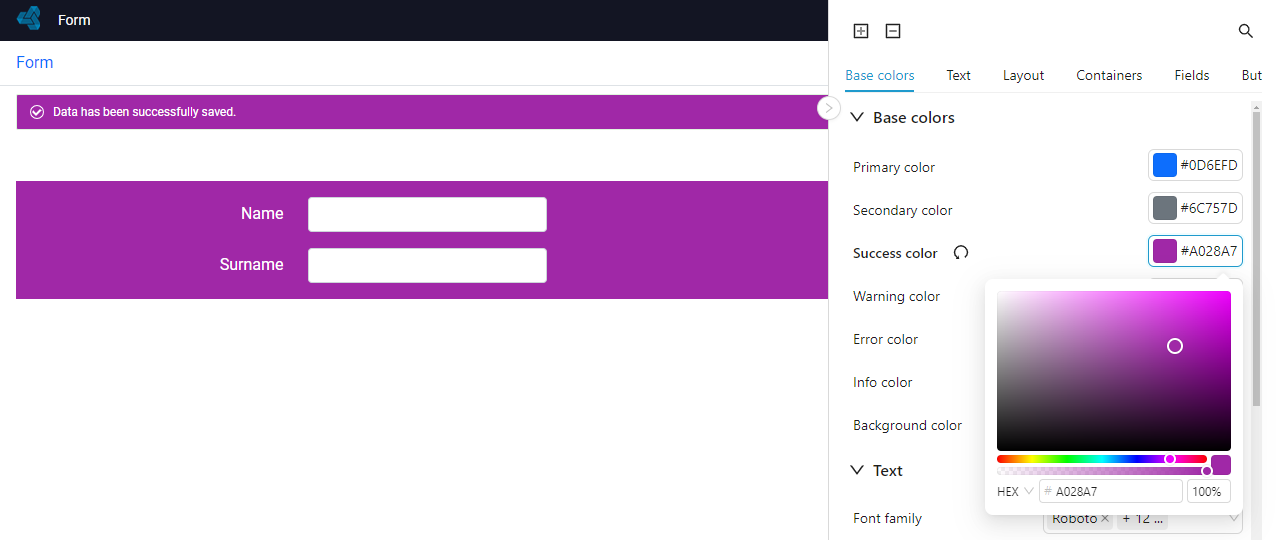
- If you change the color, then the change will be applied to both the container based on that color and the message.
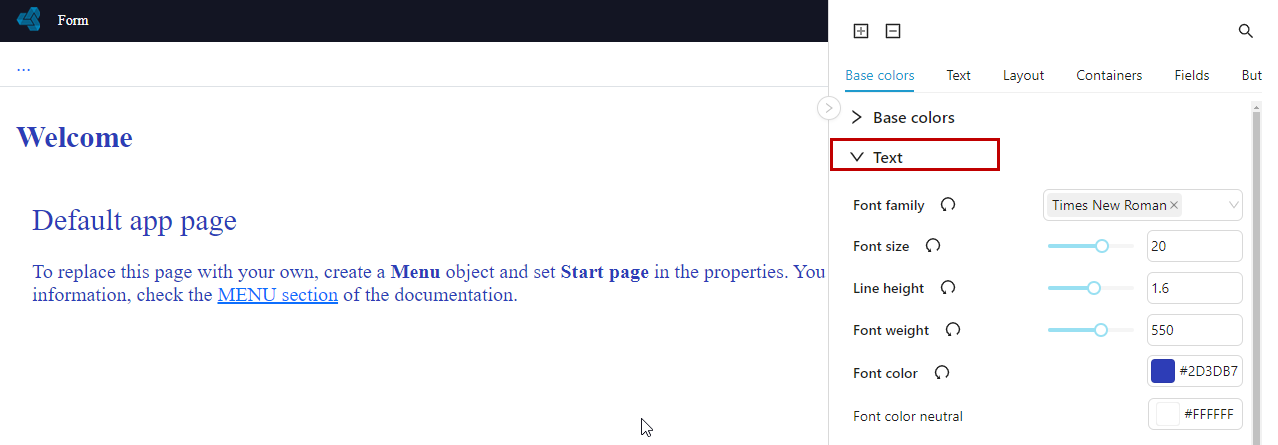
- Text - you can choose a different font and adjust its size, weight, color, etc.
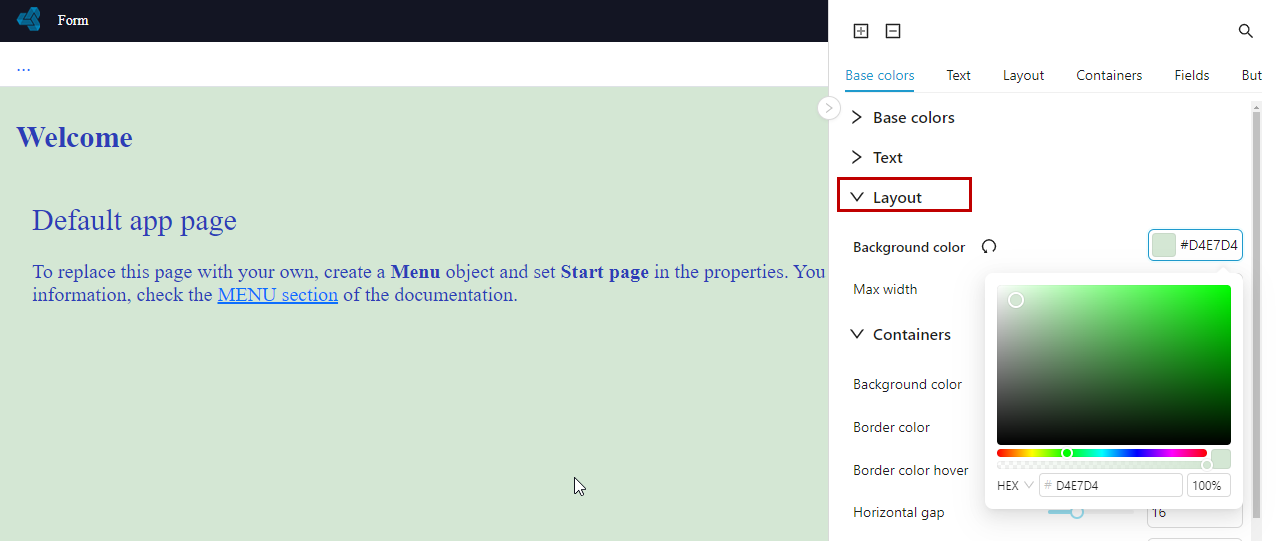
- Layout - you can change the background color of the pages and the maximum width.
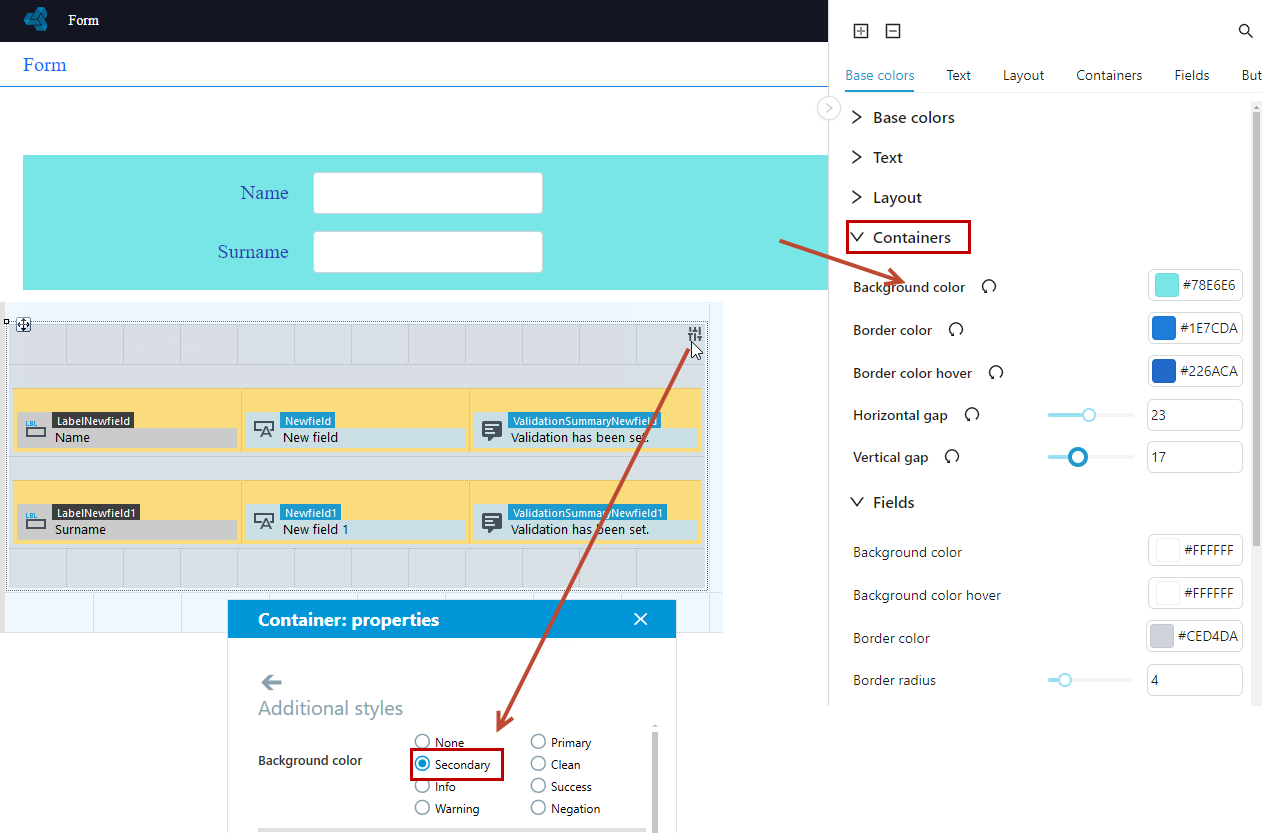
- Containers - in this section, the color change will be applied to those containers that have Secondary selected as the background color.
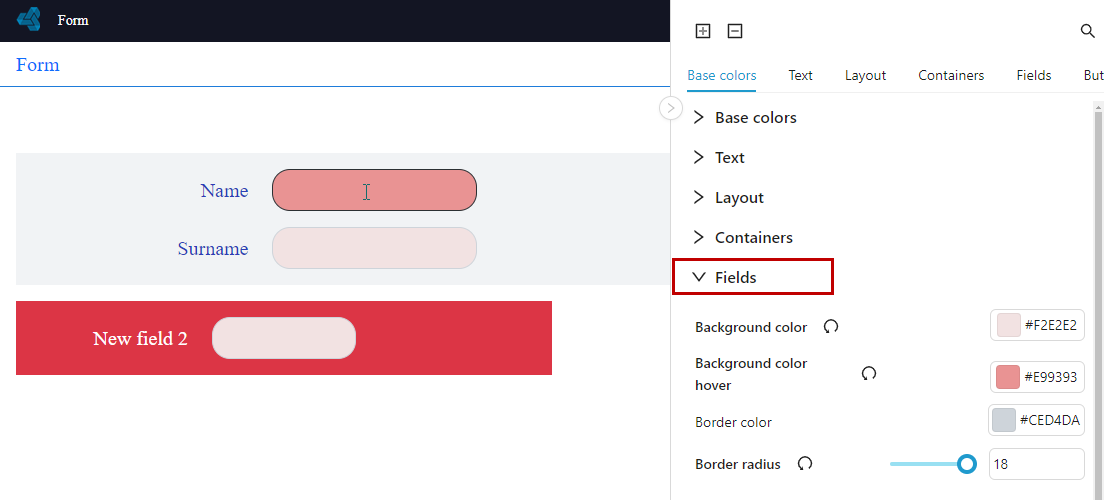
- Fields - the ability to configure how fields are displayed in terms of background color, background color hover, border and border radius.
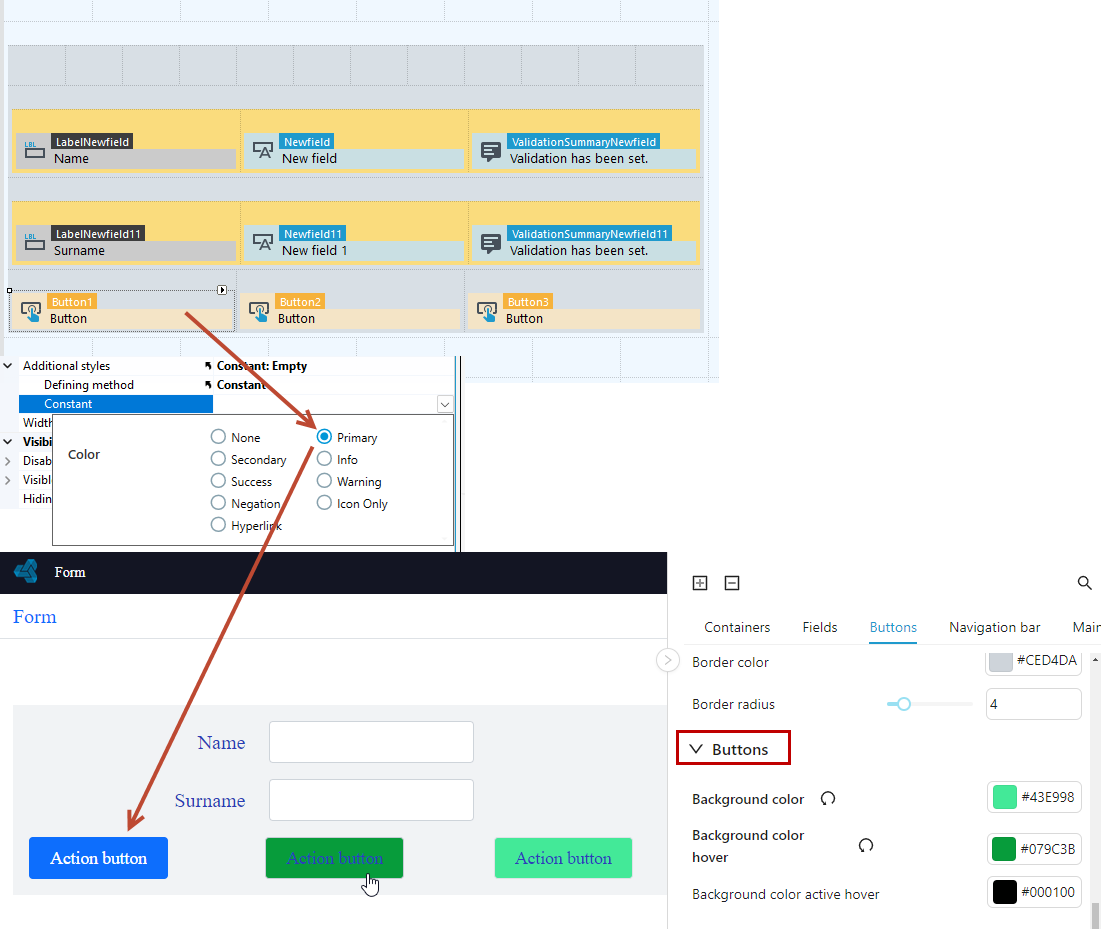
- Buttons - as with containers, here too the change will be applied to those buttons for which one of the built-in (basic) colours has not been selected.
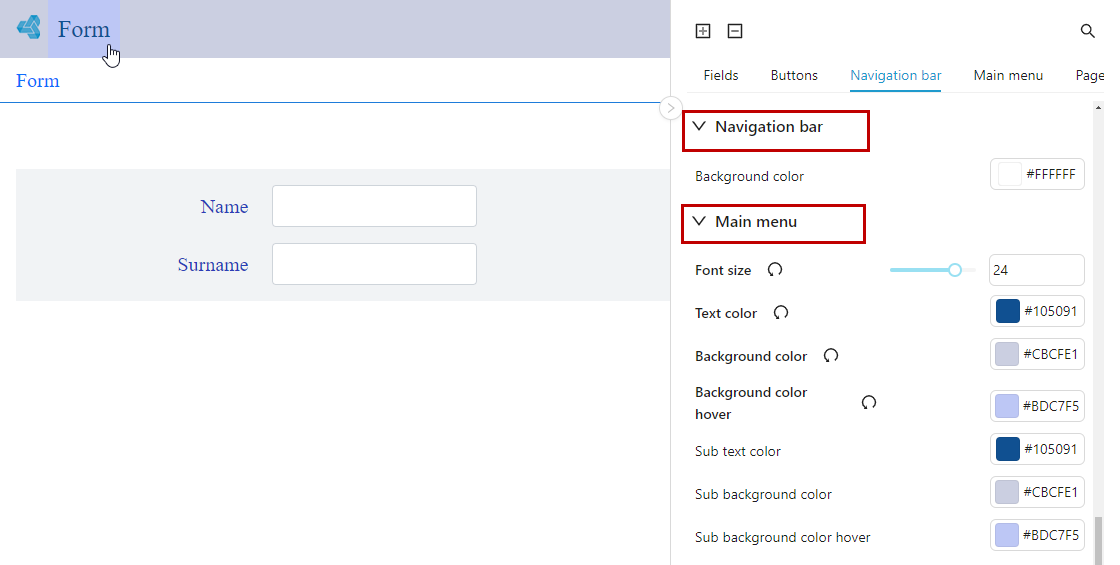
- Navigation bar and Main menu - possibility to define text and background colour for the first level menu and sublevels.
- Footer - possibility to define background, font size and color.

The style editing panel is always visible when working locally on an environment installed with VSoft archITekt Launcher.
For a production environment installed with scripts, the panel should not appear.
STEP 4 Define the application theme
- If you have added several application themes in the configuration file in archITekt Studio, no matter which theme is set as default, it is possible to switch between themes and define parameters for each of them.
- After expanding the theme definition panel, in the upper part of the window you can select from the drop-down list the theme in the context of which you want to make the configuration.
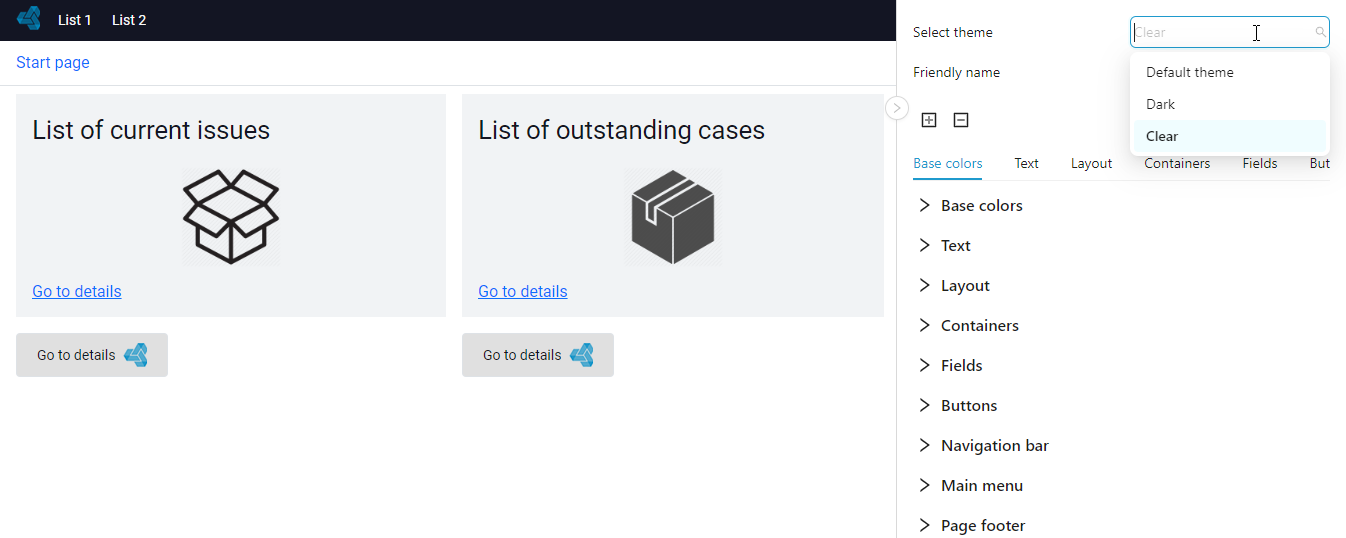
- Switching between themes is also possible from the user panel.