Best practices
Context
If you go to the context of a specific element in the document structure, then after clicking the Check button, errors with the following may and most likely occur: "The data element has a defined path outside the current structure context".
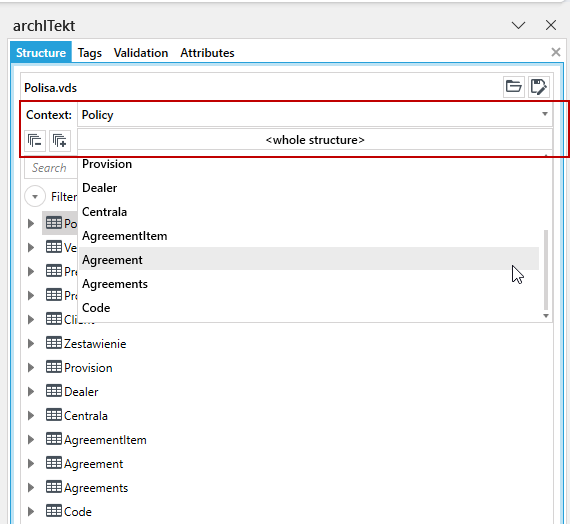
In the example above, the user is in the context of Policy. In order to properly test the entire document, you need to leave the context and test on the entire structure:
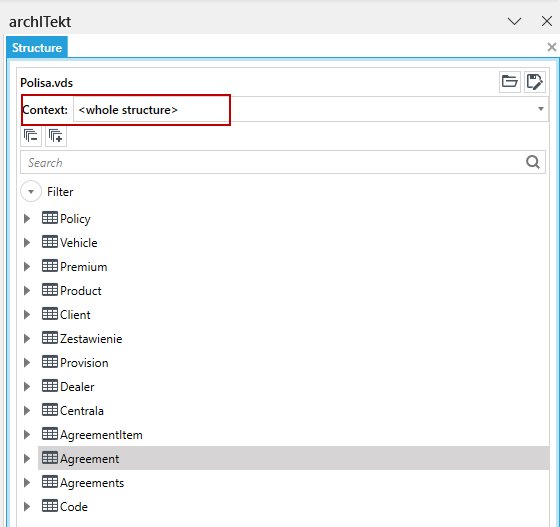
In the above structure, the user is in the context of Whole structure and the error described should not occur.
Using sub-templates
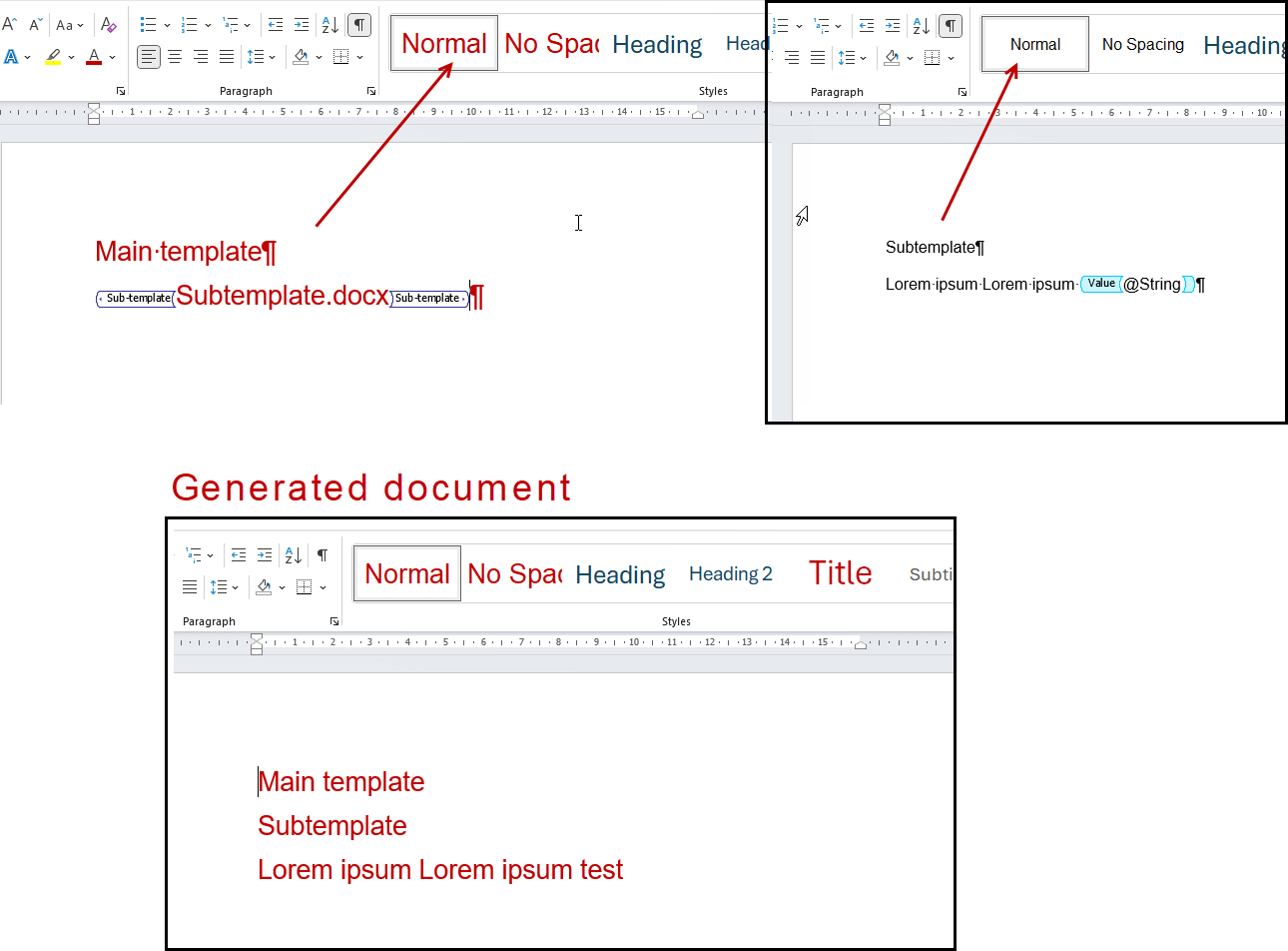
- If you are using the sub-template tag to insert into another document, make sure that the Word document you are using has the same defined styles as in the main document. Otherwise, the styles used in the sub-template will be replaced with the styles from the main document, which can cause significant differences in appearance between the base document and its version used as a sub-template in the main document.
- If you want to use different styles in the sub-template than in the main document, name them differently than the styles used in the main document and other sub-templates. The styles with the new names will be added to the main document during the insertion of a sub-template operation.
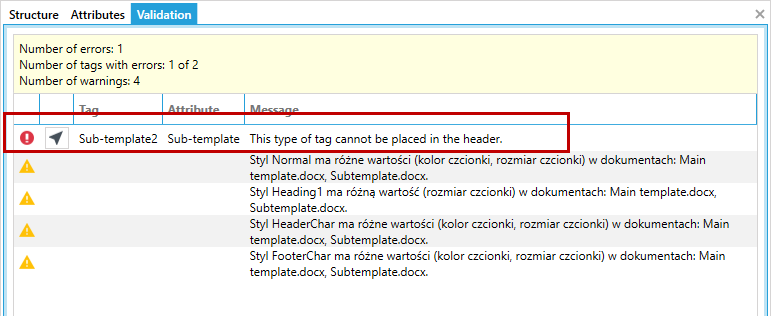
- Do not use sub-templates in MS Word document elements such as header and footer. When you try to use a tag in this way, the application will report an error and may not generate such a document or the document will be generated with errors.
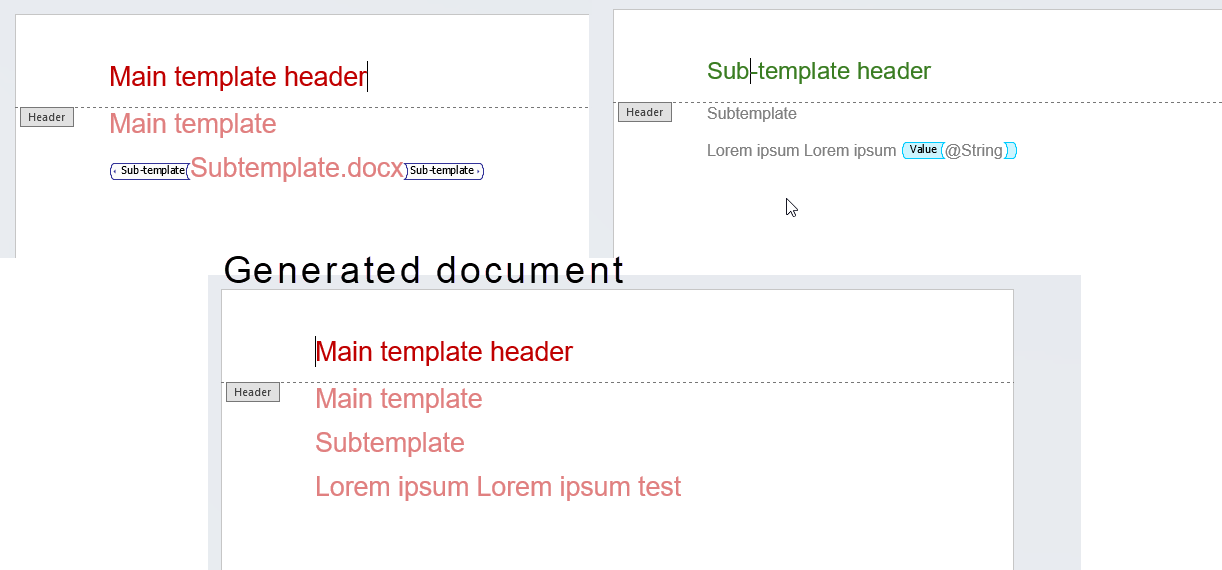
- Similar to fonts, the header and footer are also inherited from the main template.
Fonts
- If you want to use additional fonts in the document, add them to the Windows directory on the server where the Document generation is installed. (Most often, after downloading the font file, we right-click on it and install the font in the system).
- Pay special attention to the option to attach fonts to an MS Word document.
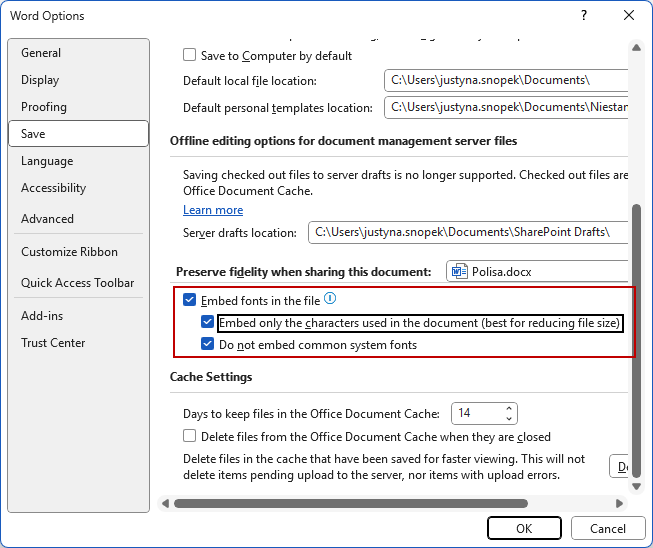
- In the case of embedding fonts in the document, performance problems may arise due to the large size of such a document, therefore it is recommended that the fonts are not attached to the document / template (setting as in the image above).
Problems with starting the archItekt add-in in MS Word
In case of problems with starting the archITekt add-in, for example, when the add-in does not start cyclically when starting MS Word, the archITekttab does not appear or after manually enabling the add-in in the options, when you try to edit the content in the Attributes tab, fix the plug-in incorrectly the easiest way is to uninstall and reinstall the add-on using the installer.
There is also a manual way to fix such problems, which does not require a complete reinstallation of the add-on:
- Turn on MS Word.
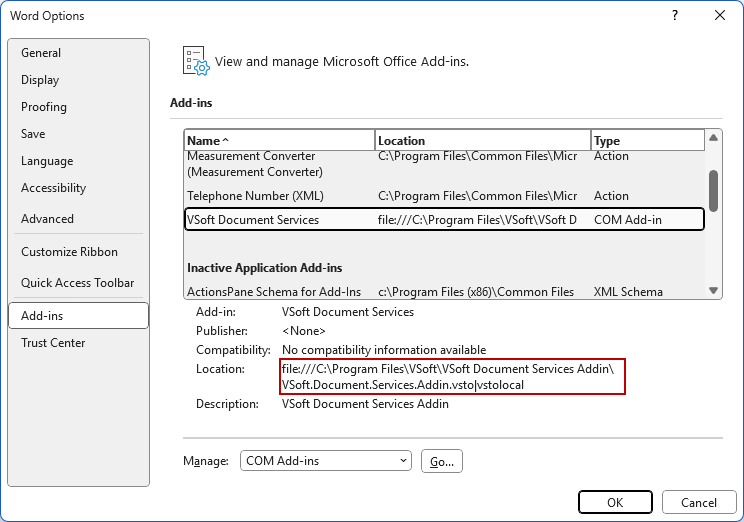
- Go to File->Options-> Add-ins, find in VDS list and remember / save folder path:
- Go to Manage-> COM Add-ins-> Go, select the VDS add-in in the list and click Remove (sometimes it is necessary to run MS Word in administrator mode to use this option).
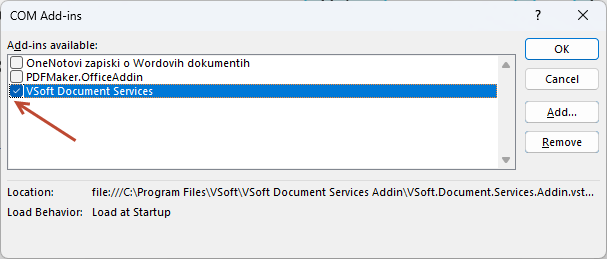
- Open the VDS folder in the file explorer (path from step 2). Run VSoft.Document.Services.Addin.vsto. By default, it should have the following icon:

- After installation is complete, start MS Word and check if the VDS tab appears after starting.
- In similar cases, check the
HKEY_CURRENT_USER \ Software \ Microsoft \ Office \ Word \ Addins \ VSoft.Document.Services.Addinregistry key. The LoadBehavior tag in the correct case should be 3 (3 - automatic launch. 0 - MS Word did not try to load the add-in). - To enter the registry editor, press the Windows + R button, type "regedit" in the window and press Enter.
Adding images to a document
- When inserting images, both into VDS tags and into regular document content, it is recommended to use the Copy - Past e option.
- Adding pictures using the MS Word Insert ->Pictures option may cause MS Word to crash when opening the document on a different computer than the one on which the document was created. This problem occurs because when you use Insert -> Pictures, not a picture but a link to the source file on your computer is inserted into the document, and when you open the document on another computer, the link will lead to a location that does not exist. However, when using the copy-paste option, the image is added as an integral part of the document and its source is stored in the docx file itself.
Bullets
- MS Word crash also occurs when defining your own bullets, if you choose an image as a bullet tag (function Bullets -> Define New Bulletpoint -> Picture ...). This feature always pastes an image as a link to an external source, which causes MS Word to crash on some computers. It is recommended to use the default bullets available, add images using the Paste option and, if possible, generally avoid using advanced MS Word features.
Numbering and bullet items in the Iteration tag
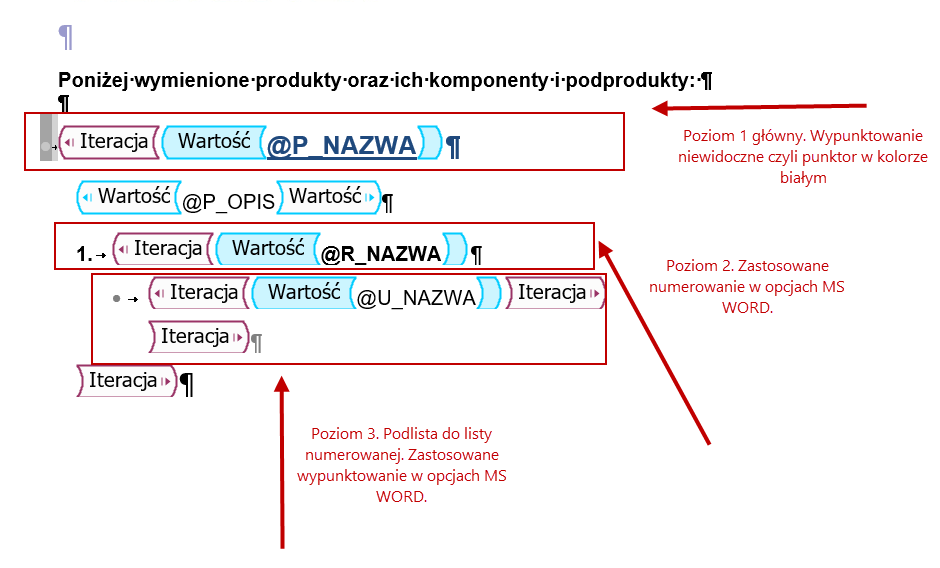
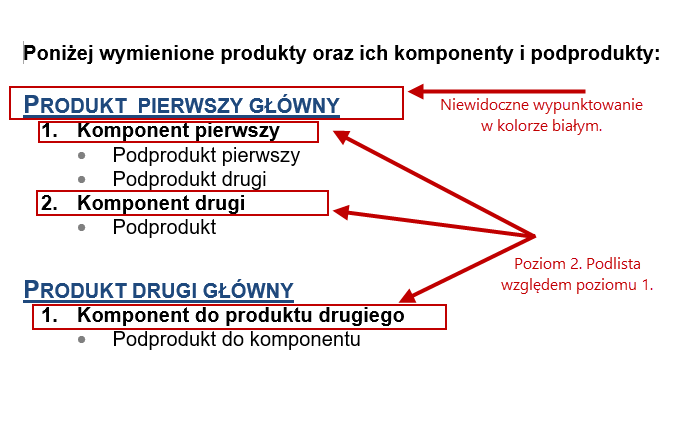
If we want to use the numbering using a numbered list from the options available in MS WORD, and additionally that the numbering of individual results always starts with the number 1 within a given group, follow these steps:
- Level 1 or main (in fact it should not be numbered) - insert a tag and set the colour of the bullet to white.
- Level 2, that is the sub-list to the first level - (in fact it has to be numbered) - insert the tags and set the numbering in WORD options.
- Level 3 or sub-list to level two, bullets to a numbered list - insert tags and set the bullets in the WORD options.
An example of a generated document:
Using tags in the header and footer
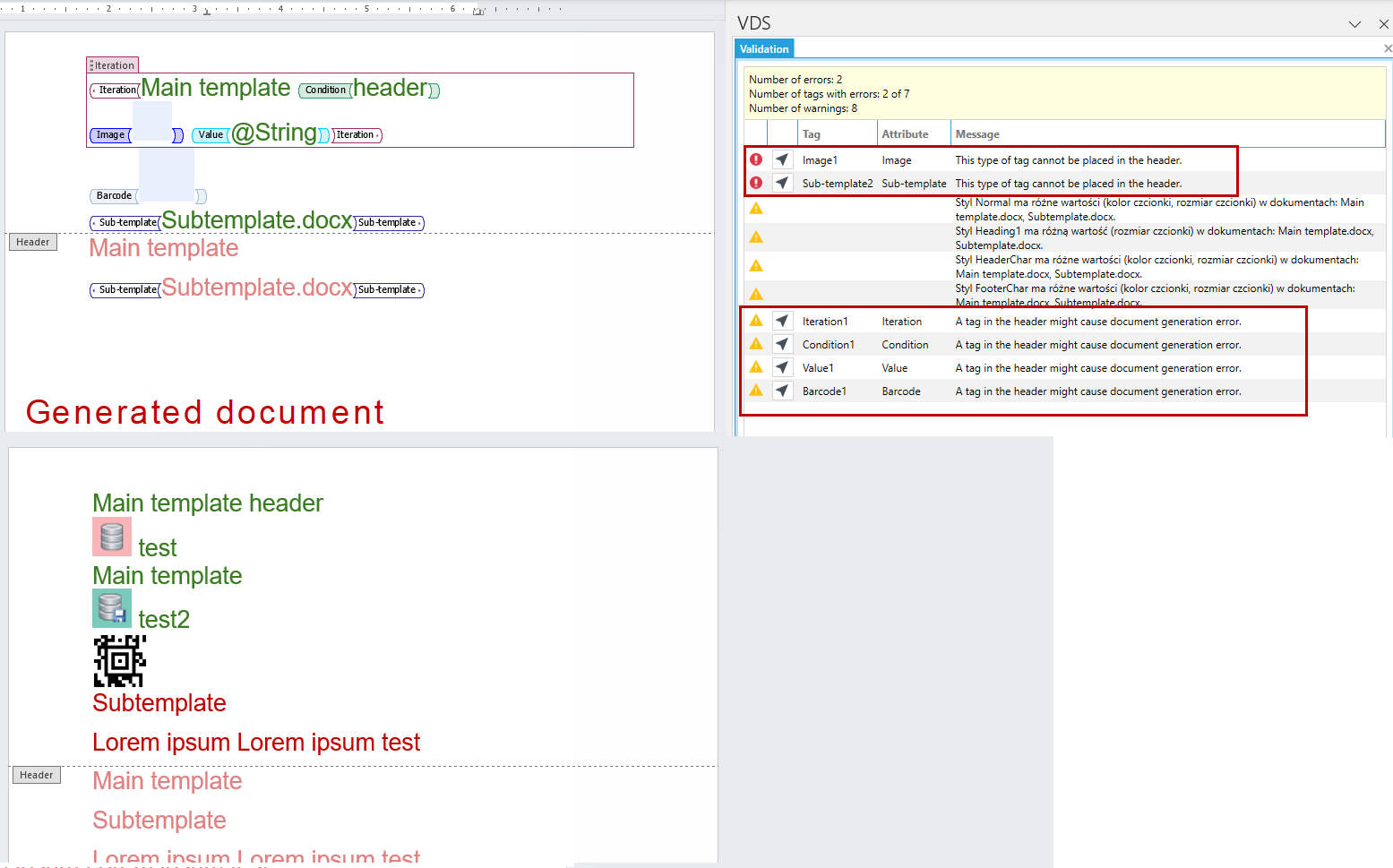
If you use other tags in the header or footer, you may get validation errors or errors in the generated document. When you try to save such a document, messages and warnings will be displayed, so keep this in mind and check that the tags and that the data generated by the tag presents correctly. Such a document with validation errors can be saved.
In the following example, the tags used in the header are: Iteration, Condition, Image, Value, Barcode and Sub-template. A document with errors and warnings was saved and test generated.
In this case, the document was generated correctly although we would like to note that it is important to keep in mind that in other cases documents may be generated incorrectly or not generated at all.